1
2.3.2
Installing the card printer
Installing a dedicated ID card printer is like installing any other type of printer to your PC.
Simply follow the instructions in the documentation supplied with the printer.
3
Getting Started with Securit 5400
The Securit software should now be installed and ready for use. Insert the USB dongle; once
recognised by the PC it should light up.
Before you can begin producing ID cards you must create a ‘Project’. The Securit software
allows you to create and maintain multiple projects.
Setting up a project from scratch is performed according to the following three-step process:
Step 1: Use DataBase Layout Creator (DBLC) to create the project and to define the
database field structure. The database holds the information to be printed on the cards.
Step 2: Use Badge Creator (BC) to create the badge template(s) with items such as text,
logos and images. BC is also used to define any card encoding requirements.
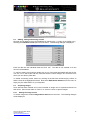
Step 3: Use Badge Maker (BM) to enter data, acquire images and print cards.
represents the main everyday user screen.
BM
The three components DBLC, BC & BM are integrated into one application.
A demo project – ‘Demo5400’ - is provided with a ready made ‘Demo5400.mdb’ Access
database and badge templates. Use this demo project to familiarise yourself with the
software’s capabilities; you can create and print cards, enter new records and experiment with
badge designs and database settings.
3.1
Starting Securit 5400
Start ‘Securit 5400-32’ from the ‘Programs’ folder on your ‘Windows Start’ button. You will be
presented with the software’s main screen, initially this will be blank.
3.2
Password protection
Access to Securit 5400 is password protected by default. Before the system will allow you to
do anything you will be prompted for a username and password. Select User>Login from the
file menu. The default details are:
Username:
Password:
SUPERVISOR
SUPERVISOR
(note CAPS)
We strongly recommend not changing these default details. You are free however to create
additional users with their own passwords or to disable the password feature at a later date.
Select File>Open Project to open the existing ‘Demo 5400’ project or you can begin creating
your own project instead.
3.3 Creating a new Securit project
Before starting you should have a good idea of the information to be included on your ID
cards and how it is to be displayed on the card.
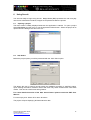
To start working on a new project select File>New Project from the menu. The DBLC screen
will launch with its own wizard.
Securit 5400 Quick Start Guide
Technical Support
http://www.securitworld.com/
5