1
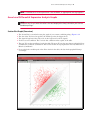
Alternative Splicing Analysis
21
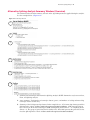
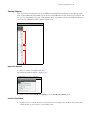
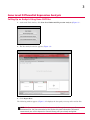
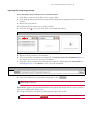
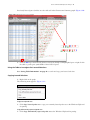
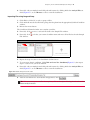
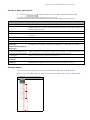
Importing Files using Drag and Drop
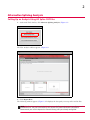
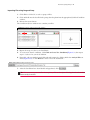
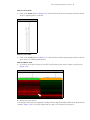
1. Click Shift or click Ctrl, to select a group of files.
2. Click and hold onto the last file in the group, then drag them into the appropriately labeled Condition
window.
3. Release the mouse button.
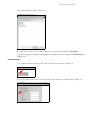
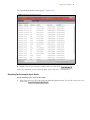
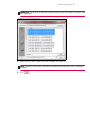
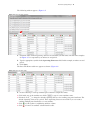
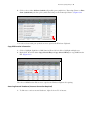
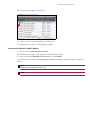
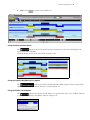
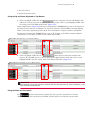
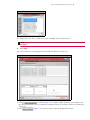
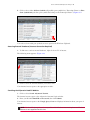
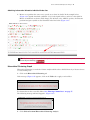
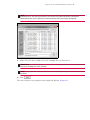
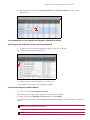
The Condition1 (Liver) window now contains your files.
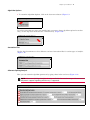
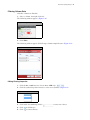
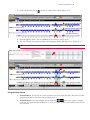
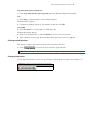
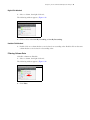
Figure 2.9 Edited Condition1 name with samples
4. Repeat the steps 1-3 (above) for Condition2.
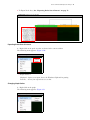
5. To create more than 2 conditions, click Click to Create New Condition (Figure 2.9), then repeat
steps 1-3 (above) for your 3rd Condition.
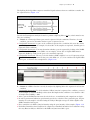
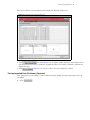
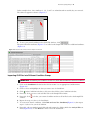
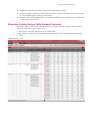
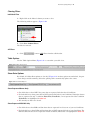
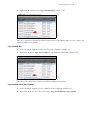
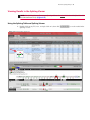
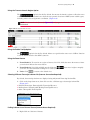
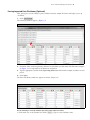
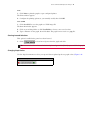
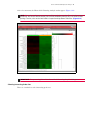
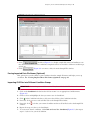
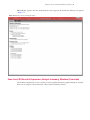
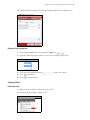
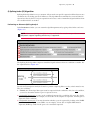
6. If needed, edit your Analysis result file path and/or name by clicking inside the Analysis File text
field (Figure 2.10), or click Browse to select a new file destination.
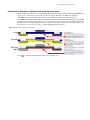
Figure 2.10 Editable Analysis Result File Paths
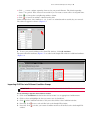
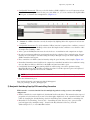
7. After the Conditions have been labeled and populated, click
.
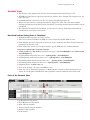
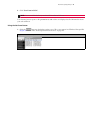
TIP: TAC auto-saves your studies. At any time, click on the Open Existing Result tab to view
recent analysis results.