1
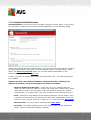
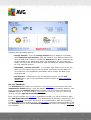
Following find the editing options:
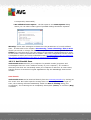
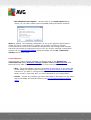
· Change location - click the Change location text to display a new dialog
called Search for your location. Fill in the name of your desired location into
the text field, and confirm by clicking the Search button. Next, within the list
of all locations of the same name select the destination you are looking for.
Finally, the info panel will be displayed again providing the weather information
for the selected location.
· Fahrenheit / Celsius converter - in the upper right-hand corner of the info
panel you can chose between the Fahrenheit and Celsius scales. Based on
your selection, the temperature information will be further provided in the
selected scale.
· Full Forecast - if interested in full and detailed forecast, use the Full
Forecast link to get to the specialized weather website at http://weather.
yahoo.com/
8.1.10. Facebook
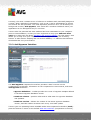
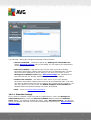
The Facebook button allows you connect to the Facebook social network from the
AVG Security Toolbar directly. Click the button, and the login invitation appears; click
again to open the Facebook login dialog. Provide your access data, and press the
Connect button. If you do not have a Facebook account yet, you can create one
directly using the Sign up for Facebook link.
Once you get through the Facebook registration process, you will be invited to allow
the AVG Social Extension application. This application functionality is essential for the
toolbar - Facebook connection, therefore it is recommended to allow its functioning,
therefore make sure you allow it.Then, the Facebook connection will be activated, and
the Facebook button within AVG Security Toolbar now offers the standard Facebook
menu options.
A V G A nti- V irus 2 0 1 1 © 2 0 1 0 C opyright A V G T ec hnologies C Z, s .r.o. A ll rights res erved.
62