1
Vocoding, as a process, is not strictly limited to vocal performances. You could use a drum
loop as the analysis signal to shape a string ensemble sound arriving at the synthesis
input.
How Does a Vocoder Work?
The speech analyzer and synthesizer features of a vocoder are actually two bandpass
filter banks. Bandpass filters allow a frequency band—a slice—in the overall frequency
spectrum to pass through unchanged, and cut the frequencies that fall outside the band’s
range.
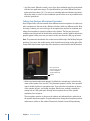
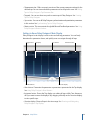
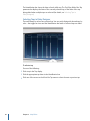
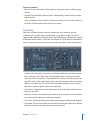
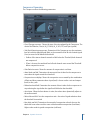
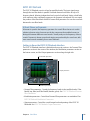
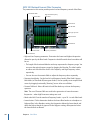
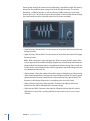
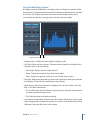
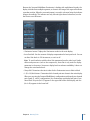
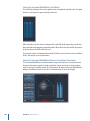
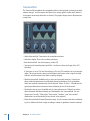
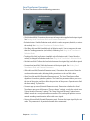
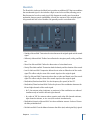
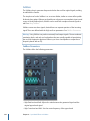
In the EVOC 20 plug-ins, these filter banks are named the Analysis and Synthesis sections.
Each filter bank has a matching number of corresponding bands—if the analysis filter
bank has five bands (1, 2, 3, 4, and 5), there will be a corresponding set of five bands in
the synthesis filter bank. Band 1 in the analysis bank is matched to Band 1 in the synthesis
bank, Band 2 to Band 2, and so on.
The audio signal arriving at the analysis input passes through the analysis filter bank,
where it is divided into bands.
An envelope follower is coupled to each filter band. The envelope follower of each band
tracks, or follows, any volume changes in the audio source—or, more specifically, the
portion of the audio that has been allowed to pass by the associated bandpass filter. In
this way, the envelope follower of each band generates dynamic control signals.
These control signals are then sent to the synthesis filter bank, where they control the
levels of the corresponding synthesis filter bands. This is done via voltage-controlled
amplifiers (VCAs) in analog vocoders. This allows any volume changes to the bands in
the analysis filter bank to be imposed on the matching bands in the synthesis filter bank.
These filter changes are heard as a synthetic reproduction of the original input signal—or
a mix of the two filter bank signals.
The more bands a vocoder offers, the more precisely the original sound’s character will
be remodeled. The EVOC plug-ins offer up to 20 bands per bank. To ensure their musical
usefulness, you have full control over the output level of each bandpass filter, facilitating
unique and dramatic changes to the frequency spectrum.
144
Chapter 6 Filter Effects