1
About file formats
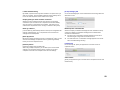
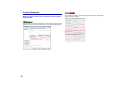
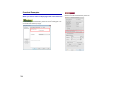
Save in Microsoft SharePoint
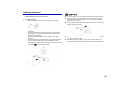
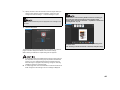
In an environment in which Microsoft SharePoint has been
introduced, you can save the scanned images to a Microsoft
SharePoint site. When using this output method, open the advanced
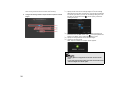
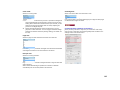
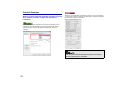
Select the file format. If you select a file format other than BMP, you can click
configure advanced settings.
to
PDF
settings screen by clicking
next to [Detail Settings], and configure
settings such as the URL of the Microsoft SharePoint site, the
account information, and the destination file settings. For details on
the settings, see the Help (click the [Help] button in the settings
screen).
To use the [Save in Google docs] and [Save in Evernote] output
methods, the respective cloud service accounts are required. ->
"Cloud Service Software" on p.15
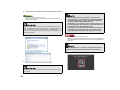
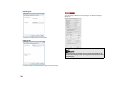
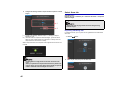
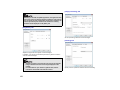
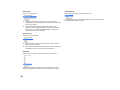
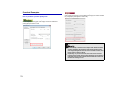
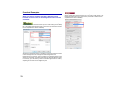
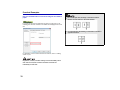
In [Multi-pdf settings], specify whether to save the scanned images as a multipage file ([Save all pages as one file]) or single page files ([Create a file for
each specified number of pages]).
For [Create file that complies with PDF/A], select [ON].
For Compression mode select either [PDF file compression
mode] or [high compression].
Click
, and in the dialog box that appears specify the compression rate that
you want.
When using CaptureOnTouch Lite, simplified Chinese and traditional
Chinese will not display in the [OCR target language].
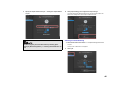
TIFF
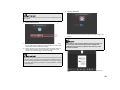
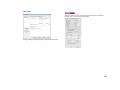
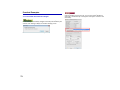
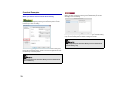
In [Multi-tiff settings], specify whether to save the scanned images as a multipage file ([Save all pages as one file]) or single page files ([Create a file for
each specified number of pages]).
After you select ON for [Compress image], click
, and in
the dialog box that appears specify the compression rate that you want.
54






















![Clique no botão Start [Iniciar]](http://vs1.manualzilla.com/store/data/006043720_1-9963bbea66c469e555d79ad614b31fbc-150x150.png)