1
Startup and Shutdown
Proper startup and shutdown procedures are crucial to extend the life of the NVR.
To start your NVR:
Steps:
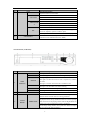
1. Check the power supply is plugged into an electrical outlet. It is HIGHLY recommended that an
Uninterruptible Power Supply (UPS) be used in conjunction with the device. The Power button on the front
panel should be red, indicating that the device has power.
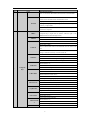
2. Press the POWER button on the front panel. The Power LED should turn blue or green. The unit will begin
to start.
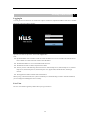
After the device startup, the wizard will guide you through the initial settings, including modifying password,
date and time settings, network settings, HDD initializing, and recording.
Note: For admin login, default password is ‘admin’. Please change it in wizard immediately.
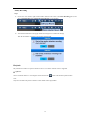
To shut down the NVR:
Steps:
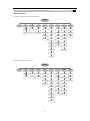
1. Enter the Shutdown menu.
Right Click – Menu -Shutdown
2. Select the Shutdown button.
Live View
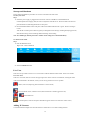
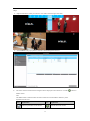
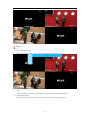
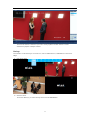
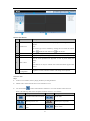
Some icons are provided on screen in Live View mode to indicate different camera status. These icons include:
Live View Icons
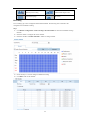
In the live view mode, there are icons at the upper-right corner of the screen for each channel, showing the status
of the record and alarm in the channel, so that you can see any problems as soon as possible.
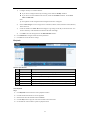
Alarm (video loss, tampering, motion detection or sensor alarm)
Record (manual record, continuous record, motion detection or alarm triggered record)
Alarm & Record
Event/Exception (event and exception information, appears at the lower-left corner of the screen.)
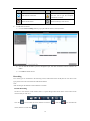
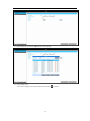
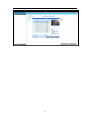
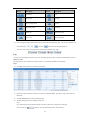
Adding IP Cameras
You should add and configure the online IP cameras to enable the live view and recording function.
12