1
Concepts and Tutorial
Step 9. Create a Runtime Configuration
Runtime configurations in ACTS are saved
collections of channels and operating parameters.
Commonly used to define the operating environment
for ACTS in the service of an application client, such
as in server mode, an ACTS runtime configuration
also may be loaded for editing with the EZ-Train
client.
In this tutorial, you’ve defined and edited one
channel (channel1.lut) and set its blob-tracking
number. Now, save that set up as a runtime
configuration file. Select Save Runtime Config
from the File menu in the EZ-Train console.
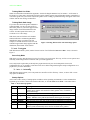
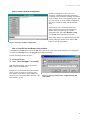
Figure 11. Saving a runtime configuration
In the dialog, choose your destination directory and
perhaps change the filename, then click the OK
button to save the configuration.
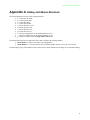
Step 10. Quit EZ-Train and Restart in Server Mode
Select Quit from the File menu or press the ESC key to quit ACTS. Now restart ACTS with that saved configuration
(we named it actsconfig and used the test.ppm static image for training).
From an X-terminal window in Linux,
% cd /usr/local/acts
% ./acts –f docs/test.ppm –c actsconfig
With Windows95/98/NT, start ACTS from the
Run… item in the Start menu.
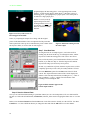
In both cases, ACTS should start up and continue
where you left off in Step 9. The image of the
book and the cup should be visible with the blue
Thresh overlay. The tracked blobs should have the
same statistics, as well.
Figure 12. Start up ACTS with a configuration file and
static image
11