1
ZTE Kis3 max
Mobile Phone
Quick Start Guide
LEGAL INFORMATION
Copyright © 2014 ZTE CORPORATION.
All rights reserved.
No part of this publication may be quoted,
reproduced, translated or used in any form or by
any means, electronic or mechanical, including
photocopying and microfilm, without the prior
written permission of ZTE Corporation.
ZTE Corporation reserves the right to make
modifications on print errors or update
specifications in this guide without prior notice.
Trademarks
ZTE and the ZTE logos are trademarks of the
ZTE Corporation. Google and Android are
trademarks of Google, Inc. The Bluetooth®
trademark and logos are owned by the Bluetooth
SIG, Inc. and any use of such trademarks by
ZTE Corporation is under license.
microSDHC Logo is a trademark of SD3C, LLC.
Other trademarks and trade names are the
property of their respective owners.
We offer self-service for our smart terminal
device users. Please visit the ZTE official website
(at www.ztedevice.com) for more information
on self-service and supported product models.
Information on the website takes precedence.
Visit http://www.ztedevice.com to download the
user manual. Just click Support > Manuals from
the home page and then select your location,
product type, and name to search for related
support information.
Disclaimer
ZTE Corporation expressly disclaims any liability
for faults and damages caused by unauthorized
modifications of the software.
Version No. : R1.0
Edition Time : 2014.08
Product Safety Information
Do not use hand-held while driving
Do not use while re-fuelling
For body-worn operation maintain
a separation of 15 mm
This device may produce a bright
or flashing light
Small parts may cause a choking
hazard
Do not dispose of it in a fire
This device may produce a loud
sound
To prevent possible hearing
damage, do not listen at high
volume levels for long periods.
Avoid contact with magnetic media
Avoid Extreme Temperatures
Keep away from pacemakers and
other personal medical devices
Avoid any contact with liquid, keep
it dry
Switch off when instructed in
hospitals and medical facilities
Do not attempt to disassemble
Switch off when instructed in
aircrafts and airports
Only use approved accessories
Switch off in explosive
environments
Do not rely on this device for
emergency communications
Getting to Know Your Phone
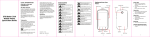
Earpiece
Indicator
Power Key
Touch Screen
Volume Key
Home Key
Back Key
Menu Key
Headset Jack
Camera
Charging/
USB Jack
Back Cover
Power Key
• Hold to turn on or off Silent or vibrate or
Airplane mode, or to power off or Reboot
Device.
• Press to switch your phone to Sleep mode.
Press to wake up your phone.
Home Key
• Press to return to the Home Screen from any
application or screen.
• Hold to see Google search.
Menu Key
• Press to get the options for the current
screen.
• Hold to see recently used applications.
Back Key
• Press to go to the previous screen.
Volume Up/Volume Down
• Press or hold to turn the volume up or down.
Starting Up
Removing the Back Cover
Installing the SIM Card
Notes:
● SIM card 1 (the figure to the left of the main
card) support WCDMA and GSM networks;
SIM card 2 only supports GSM networks
● If you're using a small card, please use the
SIM card Dedicated card sets, and then the
whole into the slot Normal use.
● please buy standardization SIM dedicated
card sets from the formal channels,
otherwise the slot shrapnel may be pulled off
when taking cards
Installing the microSD Card
Notes: Some applications may require a
microSD card to work normally or may store
certain data on it. Therefore, it is recommended
that you keep a microSD card installed and not
remove or replace it randomly.
Charging the Battery
When you first get your new phone you’ll need to
charge the battery like this:
1. Connect the adapter to the charging jack.
2. Connect the charger to a standard AC power
outlet.
3. Disconnect the charger when the battery is
fully charged.
Notes: If excessive discharge of the battery, the
charging icon will display delay
CAUTION: Do not change the built-in
rechargeable battery in your phone by yourself.
The battery can only be changed by ZTE or ZTE
authorised service provider.
Powering On/Off Your Phone
Make sure the battery is charged before
powering on.
• Press and hold the Power Key to turn on
your phone.
• To turn it off, press and hold the Power Key
to open the options menu. Touch Power off
> OK.
Waking Up Your Phone
1.
Press the Power Key to activate your screen
display.
2.
Touch and hold
at the center of the
screen.
NOTE:
If you have set an ‘unlock pattern’, or a PIN/
password for your phone, you’ll need to draw the
pattern or enter the PIN/password to unlock your
screen.
10
Using the Touch Screen
Your phone’s touch screen lets you control
actions through a variety of touch gestures.
• Touch
When you want to type using the onscreen
keyboard, select items onscreen such as
application and settings icons, or press
onscreen buttons, simply touch them with
your finger.
• Touch and Hold
To open the available options for an item (for
example, a message or link in a Web page),
touch and hold the item.
• Drag
To drag, press and hold your finger with
some pressure before you start to move
your finger. While dragging, do not release
your finger until you have reached the target
position.
• Pinch
In some apps (such as Maps, Browser,
and Gallery), you can zoom in and out by
placing two fingers on the screen at once
and pinching them together (to zoom out) or
spreading them apart (to zoom in).
• Rotate the screen
For most screens, you can automatically
change the screen orientation from portrait
to landscape by turning the phone sideways.
11