1
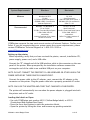
System Requirements
Windows
Macintosh
Minimum
Windows XP SP2
(32-bit)
1 GB Free Hard Drive Space, 1
GB RAM, USB 2.0 connection
Internet Explorer 8
OS 10.6
(Intel Processor) 1 GB Free Hard Drive Space, 1
GB RAM, USB 2.0 connection
Safari 5.1.10
Recommended
Windows 7 or Windows 8 (32 or 64 bit)
20 GB+ Free Hard Drive Space,
2 GB+ RAM, USB 2.0
connection
Internet Explorer 10 or Latest
version of FireFox
OS 10.7 or 10.8
(Intel Processor)
20 GB+ Free Hard Drive Space,
2 GB+ RAM, USB 2.0
connection
Safari 6 or Latest version of
FireFox
!
COMPanion supports the two most recent versions of Internet Explorer, FireFox, and
Safari. If you are uncertain that your system meets the current requirements, please
contact COMPanion Technical Support at 1-800-320-5830 or
[email protected]
!
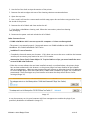
Setting up the printer
When unpacking, verify that you have received the printer, manual, installation CD,
power supply, power cord, and a USB cable.
!
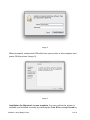
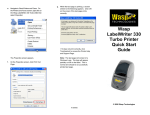
Connect the “D”-shaped end of the USB interface cable to the connector on the rear
panel of the printer. When prompted by the installation software connect the
rectangular end of the cable to an available USB port on your computer.
!
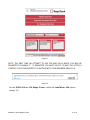
NOTE: DO NOT CONNECT THE PRINTER TO A USB KEYBOARD OR OTHER HUB AS THE
POWER SUPPLIED BY THESE DEVICES IS INSUFFICIENT.
!
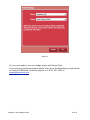
Connect the power cable to the AC adapter; next, connect the AC adapter to the
connector on the printer. Plug the power cable into a properly protected AC outlet.
!
NOTE: ONLY USE THE ADAPTER AND CORD THAT CAME WITH YOUR PRINTER.
!
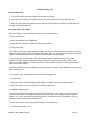
The printer will automatically turn on when the power adapter is plugged into both
the printer and an AC outlet.
!
Loading the Labels or Paper
• Use only COMPanion part number V6101 (Yellow Badge labels) or V6301
(Continuous Wide Student Pass Paper).
• Press the form-feed button to eject the protection labels.
• Open the printer by lifting the cover and remove any packing materials.
!
IG0080.8 - v6010 Badge Printer!
2 of 15