1
TelVue HyperCaster® User Manual / v5.0 / October 2014
20
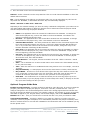
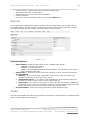
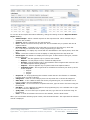
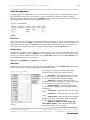
Categories
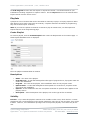
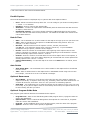
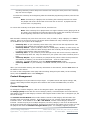
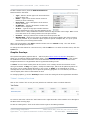
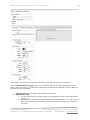
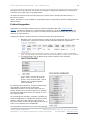
Select one or more event categories from the list.
Custom Attributes
If you created any custom attributes for your content metadata, fill them in.
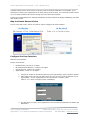
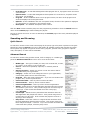
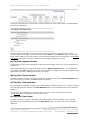
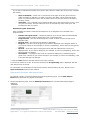
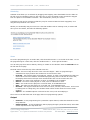
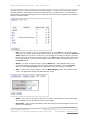
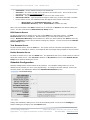
Click on Import Content at the bottom of the window. The application displays the Import Log and
tells whether the content imported successfully.
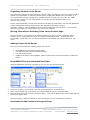
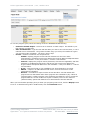
To import more content with metadata, click on Back. To return to the Content screen, click on
Content at the top of the Content Import With Metadata screen or click on the Content tab.
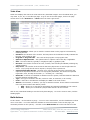
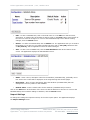
To edit file information or schedule the file, click the [Edit] or [Play] links.
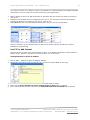
To locate recently imported content that might need updates to its metadata, use the Advanced
Search feature and filter for recently added content.
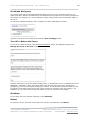
Previews
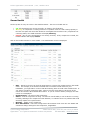
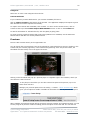
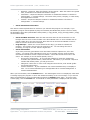
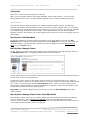
Preview video content directly in the HyperCaster UI.
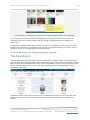
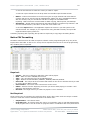
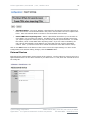
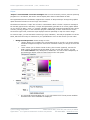
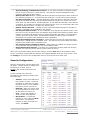
You can launch the preview player from any thumbnail for content that has a preview, whether in the
Content tab, the Content page itself, or the Calendar Programming View. If a preview exists, the
thumbnail will show a Play icon in the upper left corner.
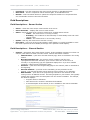
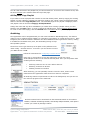
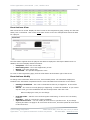
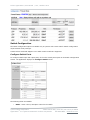
Clicking on the thumbnail will pop up a preview player in a lightbox right in the interface, which you
can choose to view full-screen.
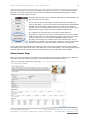
In the player’s control bar you can also control the speed of the preview, up to 10x
faster than real time.
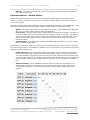
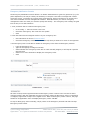
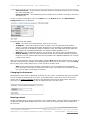
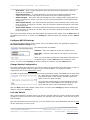
Manage your preview options from the Config → Content → Show Content Page, which
gives you the option to enable or disable the automatic creation of previews on import.
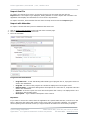
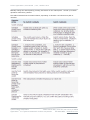
When enabled, all imported content will be queued for preview creation as a background task. You can
see the progress of preview creation including percent complete on the Task tab. You can also see
© 2014 TelVue Corporation
16000 Horizon Way, Suite 500, Mt. Laurel, NJ 08054
HyperCaster® is a registered trademark of TelVue Corporation
800-885-8886 / www.telvue.com