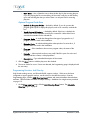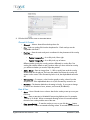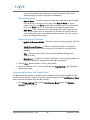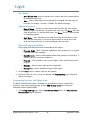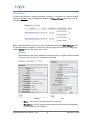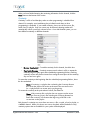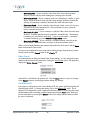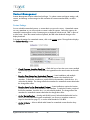
1
Digital Broadcaster User Manual Version 3.6.5 The Digital Broadcaster User Manual covers the following TelVue products. B-Series Server B100 B1000 B3000 Lite B3000 B3000-SDI B3000-PRO (HD-SDI) C-Series Encoder C100 C500 C1000 S-Series Archive Server S1000 S2000 S3000 Each model may include several products. For example, B3000 includes B3000, B3100, B3200, B3300, B3400, etc. C-series Encoders function like B-series Servers with the encoder option but without any playout channels. The Config, Content, and Record sections of this manual cover the C-series Encoder. S-series Archive Servers share the same Content Management application as B-series Servers. The Config and Content sections of this manual cover the S-series Archive Server. Digital Broadcaster User Manual v. 3.6.5 ii December 10, 2009 Trademarks TelVue® and TelVue Princeton™ are registered trademarks. All other products, services, or company names mentioned herein are claimed as trademarks and trade names by their respective companies. © 2009 TelVue Corporation. All rights reserved. No portion of this manual may be copied by any means without the prior consent of TelVue Corporation. TelVue Corporation 16000 Horizon Way, Suite 500 Mount Laurel, NJ 08054 USA http://www.telvue.com Telephone: 800.885.8886 All specifications, notices and warnings are subject to change without notice. Class A Statement This computer-based video server has been tested by the original manufacturer and found to comply with the limits for a Class A digital device, pursuant to Part 15 (EN61000-3-2) of the FCC Rules. These limits are designed to provide reasonable protection against harmful interference when the equipment is operated in a commercial environment. This equipment generates, uses, and can radiate radio frequency energy and, if not installed and used in accordance it this instruction manual, may cause harmful interference to radio communications. Operation of this equipment in a residential area may cause interference in which case the user will be required to correct the interference at the user’s expense. This device complies with Part 15 (EN61000-3-2) of the FCC rules. Operation is subject to the following two conditions: 1. This device may not cause harmful interference. 2. This device must accept any interference that may cause undesired operation. Changes or modifications to this unit not expressly approved by the party responsible for compliance could void the user's authority to operate the equipment. Digital Broadcaster User Manual v. 3.6.5 iii December 10, 2009 Table of Contents Safety Requirements .......................................................................... 1 Loading Content on the Server ............................................................ 2 Encoding Requirements and Recommendations.......................................................... 2 Encoding Requirements .................................................................................................... 2 Encoding Recommendations ............................................................................................. 3 Organizing Content on the Server ............................................................................ 4 Storing Files without Including Them on the Content Page ................................................... 4 Adding Content to the Server ................................................................................... 4 DVD Import Utility ................................................................................................... 4 Multi-Title DVDs ............................................................................................................... 6 Importing Multiple MPEG Files ..................................................................................... 6 Merging into a Single MPEG File .................................................................................. 6 Logging In ....................................................................................... 7 Starting the Digital Broadcaster User Interface .......................................................... 7 The Dashboard ................................................................................. 8 Top Bar – Server Health .......................................................................................... 8 Column Descriptions – Health Section ....................................................................... 9 Field Descriptions – Server Section ........................................................................... 9 Field Descriptions – Channel Section ...................................................................... 10 Field Descriptions – Encoder Section ............................................................................... 12 Field Descriptions – Switch Section.................................................................................. 12 Switch Operation ........................................................................................................... 13 Switch Continuity ........................................................................................................... 13 Content ......................................................................................... 14 Thumbnail View..................................................................................................... 14 Table View............................................................................................................ 15 Show Content Page ............................................................................................... 17 Show Content Page for Unattached Content............................................................ 19 Content File Actions ............................................................................................... 20 Edit ............................................................................................................................... 20 Play .............................................................................................................................. 23 Offset – Duration or Start Trim – End Trim................................................................... 24 Optional Program Guide Data........................................................................................ 25 Quick Search ........................................................................................................ 26 Advanced Search .................................................................................................. 26 Browse ................................................................................................................. 27 Bulk Actions .......................................................................................................... 27 Playlists................................................................................................................. 29 Create Playlist ............................................................................................................... 29 Descriptions............................................................................................................... 30 Visibility .................................................................................................................... 30 Session Duration Default ............................................................................................ 30 Categories ................................................................................................................ 30 Digital Broadcaster User Manual v. 3.6.5 iv December 10, 2009 Playlist Actions............................................................................................................... 31 My Playlists: Edit Metadata ........................................................................................ 31 My Playlists: Manage Items ........................................................................................ 31 My Playlists: Manage Items: Enter Item Edit Mode....................................................... 32 My Playlists: Append Content ..................................................................................... 32 My Playlists: Delete Playlist ........................................................................................ 32 All Playlists: View Metadata ....................................................................................... 33 All Playlists: View Items .............................................................................................. 33 All Playlists: Copy Playlist ........................................................................................... 33 Import Content............................................................................................................... 33 Import One File ......................................................................................................... 33 Import with Metadata ................................................................................................ 33 Add Program................................................................................................................. 35 Content RSS Feed .......................................................................................................... 37 Export ........................................................................................................................... 38 Record .......................................................................................... 39 Field Descriptions .................................................................................................. 39 Tasks ............................................................................................ 40 Field Descriptions .................................................................................................. 40 Program m ing .................................................................................. 41 Classic View.......................................................................................................... 41 Field Descriptions........................................................................................................... 41 Display Options ............................................................................................................. 43 Search Filters ................................................................................................................. 43 Event Functions .............................................................................................................. 44 Programming Functions: Add Switch Event....................................................................... 44 Port Settings .............................................................................................................. 45 Date & Time .............................................................................................................. 45 Optional Recurrence .................................................................................................. 45 Optional Program Guide Data ................................................................................... 45 Programming Functions: Add Playout Event ..................................................................... 46 Channel & Content..................................................................................................... 46 Date & Time .............................................................................................................. 47 Optional Recurrence .................................................................................................. 47 Optional Program Guide Data ................................................................................... 48 Programming Functions: Add Overlay ............................................................................. 48 Channel & Content..................................................................................................... 49 Date & Time .............................................................................................................. 49 Optional Recurrence .................................................................................................. 50 Optional Program Guide Data ................................................................................... 50 Programming Functions: Add Capture Event .................................................................... 50 Feed & Capture ......................................................................................................... 51 Date & Time .............................................................................................................. 51 Auto Delete ............................................................................................................... 52 Optional Recurrence .................................................................................................. 52 Optional Program Guide Data ................................................................................... 52 Programming Functions: Add Stream Event ...................................................................... 52 Digital Broadcaster User Manual v. 3.6.5 v December 10, 2009 Channel & Content..................................................................................................... 53 Date & Time .............................................................................................................. 53 Optional Recurrence .................................................................................................. 53 Optional Program Guide Data ................................................................................... 53 Programming Functions: Add Device Event ...................................................................... 54 Device & Event........................................................................................................... 54 Date & Time .............................................................................................................. 54 Optional Recurrence .................................................................................................. 55 Optional Program Guide Data ................................................................................... 55 Scheduling Conflicts and Ripple ...................................................................................... 55 Programming Functions: Unschedule an Event.................................................................. 56 Programming Functions: Import & Export Events............................................................... 57 Event Actions ........................................................................................................ 58 Event Event Event Event Actions: Actions: Actions: Actions: View........................................................................................................ 58 Modify .................................................................................................... 59 Adding Subsequent Events ........................................................................ 59 Overlay (o) ............................................................................................. 60 Calendar View ...................................................................................................... 61 Output ...................................................................................................................... 62 Calendar................................................................................................................... 62 Bulk Actions............................................................................................................... 62 Content Search .......................................................................................................... 62 Search Results............................................................................................................ 63 External Sources ........................................................................................................ 63 Scheduling Events Using the Actions on the Grid .......................................................... 64 Program G uide Page ....................................................................... 65 Customize Gaps in the X-List Schedule ............................................................................. 65 Reports Tab ................................................................................... 67 Report Field Headings ........................................................................................... 68 Config Tab ..................................................................................... 70 Channel Setup....................................................................................................... 70 Channel Setup ............................................................................................................... 71 Attributes .................................................................................................................. 71 Properties.................................................................................................................. 72 Monitoring ................................................................................................................ 73 Continuity.................................................................................................................. 74 Video Format............................................................................................................. 75 Set Multicast TTL ........................................................................................................ 75 Content Management ............................................................................................ 76 Content Settings ............................................................................................................. 76 Import Settings............................................................................................................... 77 Customize Metadata Fields............................................................................................. 77 Content Categories ........................................................................................................ 78 Device Controller Configuration ............................................................................. 80 Editing Device Controller Information .............................................................................. 80 Viewing Device Controller Events .................................................................................... 81 Importing Files with the Device Controller ........................................................................ 81 Digital Broadcaster User Manual v. 3.6.5 vi December 10, 2009 Feed Setup – Encoder Configuration ...................................................................... 81 Configuring Encoder Settings .......................................................................................... 81 Attributes Box ............................................................................................................ 81 Monitoring Box.......................................................................................................... 82 Closed Captions Box .................................................................................................. 82 Capture Configuration ............................................................................................... 82 Manage Live Stream Sources...................................................................................... 83 Remote Server Configuration ................................................................................. 84 Add Remote Server........................................................................................................ 85 Edit Remote Server......................................................................................................... 86 Test Remote Server ........................................................................................................ 86 Delete Remote Server..................................................................................................... 86 Schedule Configuration.......................................................................................... 86 Security Configuration ........................................................................................... 87 Firewall Status ............................................................................................................... 88 Guidelines for Firewall Rules........................................................................................... 88 Server Management .............................................................................................. 89 Manage Network Configurations .................................................................................... 89 Changing the Hostname ............................................................................................. 90 Running ifconfig ......................................................................................................... 91 Running netstat .......................................................................................................... 91 Turn Off or Reboot the Server......................................................................................... 91 Shutdown .................................................................................................................. 91 Reboot ...................................................................................................................... 91 Restart Application..................................................................................................... 92 Restarting the DVD Import Process .............................................................................. 92 Manage Time Settings .................................................................................................... 92 Set Samba Workgroup................................................................................................... 93 View RAID Status ........................................................................................................... 93 Switch Configuration.............................................................................................. 94 Configure Switch Ports ................................................................................................... 94 Configure RS232 Settings ............................................................................................... 95 Change Switch Configuration ......................................................................................... 95 Lock the Switch .............................................................................................................. 96 User Management................................................................................................. 97 Edit User ....................................................................................................................... 97 Delete User ................................................................................................................... 97 Add User ...................................................................................................................... 98 Version and Configuration ..................................................................................... 99 Version Information........................................................................................................ 99 Installing a Software Upgrade ........................................................................................ 99 Download Log Files...................................................................................................... 100 Video Portal Configuration................................................................................... 100 Vodcast/Podcast Configuration ............................................................................ 101 Configuring the Podcast Feed ....................................................................................... 101 Configuring the Vodcast Feed ....................................................................................... 103 Managing Transcode Settings ....................................................................................... 105 Digital Broadcaster User Manual v. 3.6.5 vii December 10, 2009 Backups ...................................................................................... 107 Typical Use Cases ......................................................................... 108 Encoding a Live Source while Broadcasting ........................................................... 108 Extending an Encoder without Re-Entering Metadata ............................................. 109 Using Third-Party Editing Software ........................................................................ 109 Enabling Switch Continuity to Default to an External Source or Message Board....... 110 Scheduling a Live Switch Event whose Actual Duration Varies ................................ 110 Enabling and Accessing Network Streaming.......................................................... 111 Network Streaming for a Channel................................................................................. 111 Network Streaming for an Encoder ............................................................................... 111 Viewing the Stream ...................................................................................................... 112 Windows Media Player ............................................................................................ 112 Video LAN Client (VLC) ............................................................................................ 112 Disabling Network Streaming ....................................................................................... 113 Setting Up Vodcasts, Podcasts, and a Video Portal ................................................ 113 For Vodcasts................................................................................................................ 113 For Podcasts ................................................................................................................ 113 Video Portal ................................................................................................................ 113 Serving Media Files Locally .......................................................................................... 114 Text Crawls and Overlays .................................................................................... 115 Scheduling a Text Crawl............................................................................................... 115 Scheduling the Station Logo Overlay............................................................................. 116 Scheduling the Clock Overlay....................................................................................... 116 Setting Up an RSS Weather Feed.................................................................................. 117 Publishing Your Schedule to Other Media ............................................................. 118 Making the Program Guide Available on your Website.................................................. 118 Copying the Program Guide to a Text File ..................................................................... 119 Controlling What Appears in the Program Guide................................................... 119 Replicating Sections of Your Schedule................................................................... 119 Technical Support ......................................................................... 121 G lossary ..................................................................................... 122 Digital Broadcaster User Manual v. 3.6.5 viii December 10, 2009 Safety Requirements The following safety instructions apply to TelVue’s server products. 1. Read and follow all warning notices and instructions marked on the product or included in this manual. Opening or removing covers and/or components may expose you to dangerous high voltage points or other risks. Qualified personnel should perform all servicing. 2. The maximum ambient temperature for the server is 90 degrees Fahrenheit. Care should be given to allow sufficient air circulation or space between units when the server is installed in a closed or multi-unit rack assembly. 3. Installation of the server in a rack without sufficient airflow can be unsafe. 4. If the server is installed in a rack, the rack should safely support the combined weight of all equipment it supports. 5. The server’s internal AC power supply input is intended for use with the three-wire grounding type plug (a plug that has a grounding pin). This is a safety feature. Do not defeat the purpose of grounding type plugs by modifying the plug or using an adapter. 6. Do not allow anything to rest on the power cord. Do not locate the product where persons can walk on or come in contact with the power cord. 7. Determine that the cumulative power requirements of the server plus other equipment in the rack do not overload the supply circuits and/or wiring. 8. If using a power strip or similar supply, make sure the power requirement of the chassis, plus the cumulative power draw of any other equipment in the rack, do not overload the supply circuit. 9. There is danger of explosion if the motherboard battery is incorrectly replaced. A lithium battery on the server motherboard provides backup power for its internal clock. The battery has an estimated life expectancy of ten years. Digital Broadcaster User Manual v. 3.6.5 1 December 10, 2009 Loading Content on the Server This manual assumes you have already set up your server using the QuickStart Guide. You should now be ready to load content on your server. Encoding Requirements and Recommendations Before using the Web Application to build a database of content that can be played, you have to upload the content to the Digital Broadcaster via your network or capture content to the Digital Broadcaster via the optional onboard MPEG Encoder. The encoding requirements, as well as encoding recommendations, listed below provide a minimum set of criteria to create compatible MPEG content. The applicability of the recommendations depends on the encoder and the editing software your installation uses. TelVue strongly recommends you review these encoding requirements and recommendations, as well as the requirements for your encoder and editing software, to determine what encoding criteria will work best for your installation. Sample settings for several popular encoding packages are provided on the USB key and the TelVue support portal. Encode and test a few files before committing resources to a large effort. Encoding Requirements The Digital Broadcaster supports standard MPEG program and transport streams. In order to ensure optimum video playout quality on the Digital Broadcaster, MPEG video and audio content must be encoded to certain specifications. Video Output Type 4:2:0 Audio 4:2:2 MPEG-1, Layer II Stereo AC-3 AC-3 5.1 B-series Analog B-Series SDI B-Series-PRO Linear PCM (LPCM) • B-series ASI and IPTV servers support MPEG-2 Transport streams with Constant Rate Transport only. • Video files for playout must be encoded into a multiplexed MPEG-2 program or transport stream or MPEG-1 system stream format. Video can be encoded at rates up to 10 Mbps. • The video and audio timestamps in a file must be continuous and increasing, with no haphazard edits that might affect the timestamps. The time between the first and last timestamps in a file should reflect the actual duration of the file. Digital Broadcaster User Manual v. 3.6.5 2 December 10, 2009 Encoding Recommendations TelVue recommends you follow these criteria when encoding. However, the criteria you need to encode MPEG files for use at your installation will vary, depending on the encoder in use, whether you edit files or just play them end-to-end, and the software used to edit files. Refer to the encoder and editing software documentation for their requirements. • MPEG profile and level: main profile, main level (requirement) • Resolution: 720 X 480 for NTSC, 720 x 576 for PAL • Frame rate: 29.97 frames/second for NTSC, 25 frames/second for PAL • Aspect ratio: 4:3 • Chroma format: 4:2:0 • Structure: Closed GOP (Group of Pictures) with one I-frame and four P-frames every 15 frames, using the pattern IBBPBBPBBPBBPBB • Pack size of 2048 bytes • Field Encoding Order: bottom field first (BFF) • Interlaced video (whereas deinterlaced video is typically used for web media) • Audio bit rate of 192 kbps, 224 kbps, 256 kbps, or 384 kbps • Audio sampling rate of 48 kHz or 44.1 kHz • Audio sampling rate of 1152 • Audio mode: stereo • Audio codec: MPEG-1 Layer II, Stereo AC-3, AC-3 5.1, or Linear PCM (LPCM) depending on your server output type. See the chart on page 2. • Program stream files should terminate with an end code (00 00 01 b9). • Maximum program mux rate of 10.08 Mbps for standard-definition interlaced video. The mux rate is the sum of the video bitrate, the audio bitrate, and the overhead required by your encoder. You can use the formula M = V + A + O(V + A). For example, if your encoder requires 10% overhead, you could encode at the maximum audio bitrate of 384 kbps and be able to encode at a video bitrate up to 8.779 Mbps. (10.08 Mbps = V + 384 kbps + .10[V + 384 kbps] Solve for V to get 8.7796363 Mbps.) If your encoder requires 25% overhead and you encode at the maximum audio bitrate of 384 kbps, you would be able to encode at a video bitrate up to 7.68 Mbps. (10.08 Mbps = V + 384 kbps + .25[V + 384 kbps] Solve for V to get 7.68 Mbps.) • Recommended bit rates for various types of video content are as follows: o 4 Mbps for good quality video with low motion o 6 Mbps for good quality with average motion o 8 Mbps for good quality with high motion and o 9 Mbps for high quality with high motion content. Digital Broadcaster User Manual v. 3.6.5 3 December 10, 2009 • Video sequence header before every GOP to facilitate random access (stop & start anywhere in file) needed for virtual trims and continuity resume. Files from a DVD will have the video sequence header. • Transport streams should include Random Access Indicators for random access support. • B-Series SDI, HD-SDI, and ASI supported multiplexed bit rates for various types of video content are as follows: o SDI: up to 50 Mbps 4:2:0 & 4:2:2 o HD-SDI: up to 45 Mbps 4:2:2 o MPEG2 Transport Stream (TS): up to 70 Mbps – Simultaneous Capture and Playout Organizing Content on the Server The Digital Broadcaster supports a folder (directory) structure with sub-folders for content management and playout. The Digital Broadcaster is configured with a primary media folder labeled vol1 (for Volume 1). If your Digital Broadcaster has been configured for multiple volumes, it might have vol2, vol3, etc. Many servers have a shortcut to vol1 called upload, so \\nnn.nnn.nnn.nnn\upload will take you to \\nnn.nnn.nnn.nnn\vol1. TelVue recommends that you keep all media files in the primary media folder. Use the Web Application content management tools to categorize the files and search them based on their metadata. However, some installations opt to organize media files into sub-folders. If you do this, adjust the instructions to import content into the correct subfolder. Storing Files without Including Them on the Content Page To store content on your TelVue server without tracking it via the UI, create a subfolder named hidden in your media folder and move the content to that hidden folder. Anything stored in /vol1/hidden, /vol2/hidden, etc. will not be displayed on the Content page but will still be on your server. Adding Content to the Server These methods for adding content to the server are described in the Quickstart Guide. The DVD import utility is described at length below. • Drop MPEG2 Files into the Media Hot Folder • Use Samba to Add Content via Drag and Drop • Use FTP to Add Content • A PBCore hot folder is also available. Please contact TelVue Technical Support to enable this feature. DVD Import Utility The TelVue DVD Import utility is an integrated hot folder that allows DVD VIDEO_TS folders to be drag-and-dropped across the network to the Digital Broadcaster. The utility automatically ingests Digital Broadcaster User Manual v. 3.6.5 4 December 10, 2009 all titles on the DVD as MPEG-2 Program Streams and adds them to the application’s content library. The resulting files will be stored in the primary media folder. Note: This utility supports only the VIDEO_TS format. These instructions are for Windows- and Mac-based systems, but are readily adapted for use with Linux and other operating systems with drag-and-drop capability. Note: This utility only requires the VIDEO_TS folder. If you have access to the VIDEO_TS folder, you do not need to burn a DVD. 1. If you did not map a drive for your uploads, see the Quickstart Guide or the Support portal for instructions. 2. Insert the DVD into your computer’s DVD drive. 3. Click on the drive you mapped for your uploads (typically vol1 or upload). A window pops up showing the folder containing the DVD_Import folder. In this example, the mapped drive is named W: (Windows) or VOL1 (Mac). Windows Mac 4. To name your MPEG file, open the DVD_Import folder and create a subfolder with the name you want your MPEG file to have, such as “Voices_of_the_Land.” The “.mpg” extension will automatically be added to the resulting filename, for example “Voices_of_the_Land.mpg.” Acceptable characters in the MPEG filename are: o Upper- and lower-case letters o Numbers o Underscore (_), space ( ), parentheses [( )], pound sign (#), and period (.) 5. Open a new window and show the contents of the DVD drive. Find the VIDEO_TS folder. (If you have access to the VIDEO_TS folder without a DVD, open a new window and find the VIDEO_TS folder.) 6. Drag the VIDEO_TS folder to your DVD_Import folder or the subfolder you created. To copy into the DVD_Import folder: Drag the VIDEO_TS folder onto the DVD_Import folder. The MPEG file will be automatically named with a timestamp. OR To copy into the subfolder you created: Drag the VIDEO_TS folder onto the subfolder you created. The MPEG file will have the name of the subfolder, such as Voices_of_the_Land.mpg. Digital Broadcaster User Manual v. 3.6.5 5 December 10, 2009 Windows Mac The download could take 3 – 10 minutes depending on the size of the DVD file and the network speed. 7. Refresh the Content screen on the Digital Broadcaster UI and watch for the file. When the MPEG file has been successfully created and imported, the DVD_Import folder will be empty and an icon with the subfolder name or the timestamp will appear in the Content tab. Otherwise, a Status.txt file in the subfolder or the DVD_Import folder will tell you what went wrong with the conversion and import. Multi-Title DVDs A multi-title DVD has more than one title on it, not multiple chapters. Rather than import them one at a time, DVD Import can import them as a group of multiple titles or as a single, merged title. The files’ titles will all be based on the subfolder name, so they will be easier to find on the Content list. Importing Multiple MPEG Files To import each title as a separate MPEG file, follow the DVD Import procedure above. The name you give the subfolder will begin all the titles on the MPEG files. For example, if the DVD contains 30 public service announcements (PSAs), you could name the subfolder PSA. When you drag and drop the VIDEO_TS folder into the named subfolder, the DVD Import utility uses the subfolder name at the beginning of each MPEG title. Continuing the example, the MPEG files would be named PSA_title1.mpg, PSA_title2.mpg . . . PSA_title30.mpg. Merging into a Single MPEG File You can merge several titles from one DVD into a single MPEG file. For example, you might have recorded the first part of a meeting, stopped recording during the break, and resumed recording when the meeting reconvened. The DVD will have a title for each segment of the meeting. The DVD import process gives you the option of merging them into one MPEG file. Follow the DVD Import procedure above, but, when you create the subfolder, end the name with a + (plus). Continuing the example, you might name the subfolder Town_Council_Meeting+. When you drag and drop the VIDEO_TS folder into the named subfolder, DVD Import sequentially appends each DVD title into one MPEG file. In the example, the imported MPEG file would be named Town_Council_Meeting.mpg. Digital Broadcaster User Manual v. 3.6.5 6 December 10, 2009 Logging In Once you have configured the networking and system settings, you can login to the Digital Broadcaster Web Application itself. Starting the Digital Broadcaster User Interface 1. Go to http://nnn.nnn.nnn.nnn:3000 in your web browser, where nnn.nnn.nnn.nnn is the IP address of your server. This will take you to the sign-in page. 2. Enter your administrator or username and password. The Dashboard is displayed. Digital Broadcaster User Manual v. 3.6.5 7 December 10, 2009 The Dashboard The Dashboard shows what is happening on the Digital Broadcaster, including what is currently playing. It provides information about the Digital Broadcaster’s status, file system, channel, and feed and switch status. Many elements on the Dashboard have links to other pages that let you see more information or take actions regarding that element. The current state is refreshed each time the Dashboard page is refreshed in the browser. Top Bar – Server Health On the top bar of every UI screen is the Health Indicator. The server’s health can be: • OK – All components are running normally, as shown in the illustration. • W arning – A component is running but there is a problem such as a disk nearing capacity or the lack of a spare disk drive that should be investigated and resolved. If any component has a warning status, the Health Indicator will display W arning. • Critical – One or more components is not running correctly. If any component is critical, the Health Indicator will display Critical. Click on the health indicator for more details. The Health Status screen is displayed. Digital Broadcaster User Manual v. 3.6.5 8 December 10, 2009 Column Descriptions – Health Section • Hide – Admin-level users can click the Hide button to remove this component from the health check. For example, if an almost-full media disk is normal at certain times for your installation, you might hide it so the media-disk warning does not mask other health issues. If you want to include a component again, select it from the drop-down list at the top of the column and click the Show Health Item button. If you do not have admin privileges, the Hide column is not displayed. • Health Criteria – the name of the component. • Status – how the component is doing. As with the overall health, it can be OK if it is running normally, W arning if the component needs attention, or Critical if there is a problem that could adversely impact server performance. • M essage – details on the component. • M ore Information – link to the Config section where Admin-level users can view details and sometimes change settings for this component, if applicable. • Last Check – time the component was most recently checked, in HH:MM:SS format. • Next Check – time the component will be checked again, in HH:MM:SS format. • Refresh – Click the Refresh button to update the component health now. Components that use considerable resources cannot be refreshed. Field Descriptions – Server Section • Server – shows the name and/or model number of the server. • Server Serial No. – displays this server’s serial number. • Status – shows the state of the real-time media server. Possible states include: o Online – the media server is running normally. Digital Broadcaster User Manual v. 3.6.5 9 December 10, 2009 o Resetting – the media server was manually or automatically reset and is still coming online. o Offline – the media server is not currently running. • Uptime – how long the media server has been running. • Free Space – how much of the media partition’s total capacity is currently available for more files. Also expressed as the available percentage of the partition’s total capacity. Field Descriptions – Channel Section • Channel – information about each playout channel. If this installation supports more than one channel, each channel is listed in its own section. Channel information includes: o Channel Name – quick link to the Edit Channel page, which is described in the Config section on page 71. o Next Programming Gap – the amount of time remaining until the next unprogrammed slot in the schedule, up to 24 hours from now. If the server is currently in a programming gap, the application displays this. If you have enabled continuity, it plays during programming gaps. o Schedule – quick link to the Programming page for the channel, which is described beginning on page 41. o External Schedule – quick link to the searchable, per-day schedule for this channel. The external schedule can be linked or frame-viewed on your webpage. See Making the Program Guide Available on Your Website on page 118. o RSS Schedule – quick link to the programming schedule for this channel for the coming week in an RSS-like format. The listing depends on your browser, but typically includes the program name and description from the content metadata. For example, this browser displays: o Program names or filenames. o Date and time the content is scheduled for broadcast. o A brief description of the content, if one is available in the content metadata. Digital Broadcaster User Manual v. 3.6.5 10 December 10, 2009 In some browsers you can sort and filter the programming by: o Date – the date the content is scheduled for broadcast. If you click on Date again, the order is reversed. o Title – sorts the list alphabetically. If you click on Title again, the order is reversed. This is one way to see if a certain title has been scheduled. o Filter by Category – displays only the titles in a particular category. For example, if you are supposed to air five community events today, click on the Community category to see if at least five are displayed. o All – To see everything on the schedule again, click on All at the top of the box. Click your browser’s Back button to return to the Dashboard. Your organization can optionally use the RSS feed as an API to customize the integration programming information on your website or in other applications. • Now Playing – the name and thumbnail of the program currently being played on the server. The time the program was scheduled to start and end are displayed below the thumbnail. Both the start time and runtime are shown in hours, minutes, and seconds (HH:MM:SS). o Stop – to stop playing the current program immediately, click the Stop button. A confirmation dialog will pop up. If the current program is a zero-duration switch event, there will be no Stop button. o RSS Now – quick link to a basic RSS 2.0-like feed that describes what is currently playing on the channel. The listing depends on your browser, but typically includes the program name, date and time of broadcast, and a description from the content metadata as in this example. Click your browser’s Back button to return to the Dashboard. • Next Up – the name, thumbnail, start time, and end time of the next program scheduled to run in the next 24 hours. o RSS Next – quick link to a basic RSS 2.0-like feed that describes what is next playing on the channel. The listing depends on your browser, but typically includes the program name, date and time of scheduled broadcast, and a description from the content metadata as in this example. Click your browser’s Back button to return to the Dashboard. Digital Broadcaster User Manual v. 3.6.5 11 December 10, 2009 Field Descriptions – Encoder Section • Feed – information about encoder feed. If this installation supports more than one feed, each feed is listed in its own section. Feed information includes the name of the encoder as used on your system. • Now Capturing – the name and thumbnail of the content currently being encoded. The time the capture was scheduled to start and its runtime are displayed below the thumbnail. Both the start time and runtime are shown in hours, minutes, and seconds (HH:MM:SS). • o Stop – to stop the current capture immediately, click the Stop button. A confirmation dialog will pop up. o RSS Now – quick link to the page with information on the current capture. The listing includes the program name and description from the placeholder metadata. Click your browser’s Back button to return to the Dashboard. Next Up – the name, thumbnail, start time, and runtime of the next program scheduled to run in the next 24 hours. o RSS Next – quick link to the scheduling information for the next program. The listing includes the program name and description from the placeholder metadata for the next capture. Click your browser’s Back button to return to the Dashboard. Field Descriptions – Switch Section Switch information is displayed only in systems configured with the TelVue video switch control module. A switch connected to a TelVue server controls the path of data from a feed, through the server, to an output. The table of switch audio/video inputs and outputs is displayed at the bottom of the Dashboard. If the switch has more than 8 inputs and outputs, a table shows the input route for each output. • Switch –The switch output ports are listed down the left side. Their default names are OUT1, OUT2, etc. You can rename them via Switch Configuration on page 94. • Port Locked – The Port Locked column shows whether a switch port is locked or unlocked. If you lock a switch port it will hold that switch route until you unlock it manually. Although the switch ignores switch events while it is locked, it keeps track of any scheduled switch events. When you unlock the switch, it restores the switch route it would be using if you had not locked the switch. Note: When manual switch detection has been set to Off in Switch Configuration on page 95, the server ignores faceplate (front panel) switch changes. • Input Columns – The switch input columns are headed with IN1, IN2, etc. You can rename them via Switch Configuration on page 94. If breakaway is enabled, the letter A is shown in the audio input columns and the letter V is shown in the (video) input columns. If breakaway is disabled, there is one column per input with the letters AV showing the input-output route. Digital Broadcaster User Manual v. 3.6.5 12 December 10, 2009 Switch Operation The switch input/output configuration you set in Switch Configuration is known as the home path. The input for each switch output is called the home port. During everyday operation, programming comes from an input feed, passes through the switch, and goes to an output channel. If you have switched off the home port and want to keep that path, go to the Switch section of the Dashboard and click on Lock for the output port you want to lock. Switch Continuity Some installations use the switch for continuity programming. For example when nothing is scheduled for a channel they might switch to their bulletin board feed. This changes the pattern on the display of switch inputs and outputs. All outputs using bulletin board. When the switch is used for continuity it returns to the home port after each scheduled event, sees that nothing is scheduled, and goes to the continuity input. This happens too quickly to affect what the viewer sees, but you should be aware of this normal behavior for the switch. Note: In earlier versions of the TelVue software a 0-duration switch to the continuity port would be overridden if something was playing on the home port. Beginning with version 3.4 a 0-duration switch to the continuity port stays on the continuity port until the operator schedules a switch event away from it. Digital Broadcaster User Manual v. 3.6.5 13 December 10, 2009 Content The Content page shows available content and manages content on the Digital Broadcaster. Use this page to see what content is currently available, to search for specific content, to import new content files, to create continuity playlists of JPG and video files, to create placeholders for content you don’t have yet, and to perform bulk actions on selected content such as normalizing, deleting or categorizing. Two views are available; the default thumbnail view and the table view. The top of the page shows how many titles appear on this page. To see more titles, use the dropdown list to select a larger display size. You may display up to 100 titles per page. The other drop-down box lets you switch between Thumbnail View and Table View. The Select All checkbox on the right (Select All on Page n if the content does not fit on one page) lets you check all titles displayed on the page for bulk action. The Deselect All option (Deselect All on All Pages if the content does not fit on one page) lets you uncheck all titles on all pages. You can use the Select All checkbox and check or uncheck individual boxes across multiple pages. Note: To select all content on the system, first choose Show 100 per page from the drop-down box. Clear all advanced searches so all titles are displayed. Click the Select All checkbox. Advance to the next page and click the Select All checkbox again. Repeat for each page. The Digital Broadcaster comes preloaded with sample MPEG-2 clips. A WEBUS promotion has been preset to be the continuity clip that automatically plays when nothing else is scheduled. To make other files available for playout scheduling, use the Import Content function to import them. Thumbnail View Each thumbnail displays a scene from the content with the following information. • Checkbox – allows you to select the content for a bulk action, such as a purge, or deletion. Digital Broadcaster User Manual v. 3.6.5 14 December 10, 2009 • Filename – the name of the content as it is stored in the application, typically the filename without the extension. If the name is long, mouse over it to display the full name. Clicking on the name takes you to the Show Content page. • File Type and Running Time – whether this file is a video, overlay, etc., followed by the playing time of this file, after any virtual trimming, in hours, minutes, and seconds (HH:MM:SS). • Program or Program Code – the program name or program code of this file, depending on how the schedule settings on page 87 were configured. If the name is too long, mouse over the ellipsis (. . .) to see the full name. • Episode or Episode Code – the episode name or episode code of this file, if applicable, depending on how the schedule settings on page 87 were configured. If the name is too long, mouse over the ellipsis (. . .) to see the full name. • Edit – Link to the edit page so you can edit the file information and optional metadata for this content. • Play – Link to the Schedule Playout page so you can schedule a playout date and time for this content. Table View Table View displays the content as a list without any thumbnail images. As in Thumbnail View, you may show 10, 20, 50, or 100 titles per page. To go to one of the other pages, click on the page number links or the <Previous or > Next links in the lower-right corner. • Select Checkbox – allows you to mark the content shown on the page for bulk actions by checking the box. • Filename – the filename of the content. The last portion of the filename usually indicates the file type, such as MPG or JPG. • Program or Program Code – The name of the program or its program code, depending on how the schedule settings on page 87 were configured. Digital Broadcaster User Manual v. 3.6.5 15 December 10, 2009 • Episode or Episode Code – The episode name or episode code of this file, if applicable, depending on how the schedule settings on page 87 were configured. • Size – the size of the file, typically in megabytes (MB) or gigabytes (GB). • Duration – the runtime of this file in hours, minutes, and seconds (HH:MM:SS) including any virtual trimming. • Play Count – the number of times this file has been played since it was brought onto the server. If you purge the file and re-import it, the play count is preserved. • Create/Ingest Date & Time – the date, time, and day of the week the content file was captured or imported onto the server. For a program placeholder, this shows the expected ingest date, time, and day of the week. (T = Tuesday, Th = Thursday) • Delete At – if this file is scheduled for deletion from the system, this field shows the date and time the deletion will take place. • Type – the type of content in this file, such as a video, an audio file, or an overlay. • Actions – the functions, or actions, you may do with this content. These actions are described more fully under Content File Actions, below. o Edit – allows you to edit the file information and optional metadata for this content. o Play – allows you to schedule a playout date and time for this content. Click on any underlined heading to sort the list by that category. To see the reverse order, click the heading again. Digital Broadcaster User Manual v. 3.6.5 16 December 10, 2009 Show Content Page When you click on a filename or thumbnail on the Content page, the Show Content page is displayed. This page shows the content’s properties, and upcoming and recent playout history. The fields displayed for the file are described briefly below. • General – information about the file similar to what is displayed on the Content page, such as filename, type, runtime, status, owner, size, creation date, play count, and delete date. To change this information, click the Edit button at the right. • Categories – any programming categories in which this file appears, as selected by the operator. To put this file in a category, click the Edit button at the right. To set up categories, use the Content Management section of the Config page. • File Properties – the encoded video and audio properties of the file, including format, bitrate, and type. The file properties cannot be edited. • Recurring Events – recurring times at which the file is scheduled for playout, such as every Thursday at 9:00 AM. To schedule recurring events, click the Schedule button at the right. • Upcoming Events – the next few times the file is scheduled for playout, including both recurring and single playouts. To schedule more events, click the Schedule button at the right. Digital Broadcaster User Manual v. 3.6.5 17 December 10, 2009 • Recent Events – the last five times the file was scheduled for content. To see more history, click on View More Past Events at the bottom of the page. The Recent Events section includes status information for the content, such as whether it was completed, started late, or ended early. File actions for this content file are shown in the upper right of the page, below the thumbnail frame. Not all actions are available for all content. • Play Now – to begin playing the file immediately, select a channel from the drop-down list and click on Play Now. If nothing is playing on the Digital Broadcaster, this is one way to play a file immediately. To play this content on another channel on your system, choose it from the drop-down list. • Schedule – takes you to the Schedule Playout page to schedule one or more times to play the file. The Schedule Playout page is described in Content File Actions. • Edit – to change the file information for the content, click the Edit button. This takes you to the Edit Content page as described in Content File Actions. • Delete – to delete the content from the Digital Broadcaster’s file system, click the Delete button. This action is described more fully in Content File Actions. Note: Use caution when deleting content, since this permanently removes the file from the file system. • Purge – to remove the content from the Web Application’s list, but preserve it on the Digital Broadcaster’s file system, click the Purge button. This action is described more fully in Content File Actions. • Vodcast – to create a vodcast mp4 version of this file and add it to the automatically generated vodcast RSS feed, click the Vodcast button. Once you click the Vodcast button you are returned to the Show Content page and no further action is necessary. The mp4 file will be created in the background and stored in the download directory, typically http://nnn.nnn.nnn.nnn/media/psg/vol1/download where nnn.nnn.nnn.nnn is the IP address of your server. Optionally the mp4 file may be automatically transferred via FTP to a remote server. You may configure the mp4 encoding settings and vodcast RSS feed parameters in the Config section. This feature is only available as an option on S-series Archive Servers and C-series Encoders. • Podcast – to create a podcast mp3 version of this file and add it to the automatically generated podcast RSS feed, click the Podcast button. Once you click the Podcast button you are returned to the Show Content page and no further action is necessary. The mp3 file will be created in the background and stored in the download directory, typically http://nnn.nnn.nnn.nnn/media/psg/vol1/download where nnn.nnn.nnn.nnn is the IP address of your server. Optionally the mp3 file may be automatically transferred via FTP to a remote server. You may configure the mp3 encoding settings and podcast RSS feed parameters in the Config section. This feature is only available as an option on S-series Archive Servers and C-series Encoders. To return to the Content page from the Show Content page, click on the Content tab at the top of the screen. Digital Broadcaster User Manual v. 3.6.5 18 December 10, 2009 Show Content Page for Unattached Content When you click on the filename or thumbnail for unattached content, which is programming that has been scheduled but is not yet on the server, the information on the Show Content page is different because the content is not yet on the server. The page shows the placeholder’s expected properties and scheduled playouts, if allowed on this server. The fields displayed for the placeholder are described briefly below. • General – information about the placeholder similar to what is displayed on the Content page, such as expected filename, expected runtime, ingest date, and day of week. If your installation has custom metadata fields, they are displayed here as well. To change this information, click the Edit button at the right. • Program Series – If this placeholder is part of a series, this section will display its sequence (order) in the series and whether the placeholder is out of order. • Categories – any programming categories in which this file appears, as selected when the program was added. To put this placeholder in a category, click the Edit button at the right. To set up categories, use the Content Management section of the Config page. • Recurring Events – If this placeholder has been scheduled for recurring playout, this section displays them, such as every Thursday at 9:00 AM. To schedule recurring events, click the Schedule button at the right. • Upcoming Events – If this placeholder has been scheduled for playout, this section displays the next few times, including both recurring and single playouts. To schedule more events, click the Schedule button at the right. Digital Broadcaster User Manual v. 3.6.5 19 December 10, 2009 • Recent Events – Generally there will be no recent events for placeholders unless the time for a scheduled event has passed and the actual file was never imported. File actions for this content file are shown in the upper right of the page, below the thumbnail frame. Not all actions are available for all content. • Schedule – takes you to the Schedule Playout page to schedule one or more times to play the placeholder. The Schedule Playout page is described in Content File Actions on page 24. To schedule placeholders, this installation must allow scheduling of unattached content. To change the configuration, go to Configuration Schedule Settings on page 86. • Edit – To change the file information for the placeholder, click the Edit button. This takes you to the Edit Content page as described in Content File Actions on page 20. • Purge and Bump – If this placeholder is part of a series you can remove it from the Web Application but preserve the series information. For example, a series on quilting might have 8 episodes. The producer decides to cancel the 3rd episode. You could purge and bump Quilting_3. There will now be only 7 episodes in the series. The new Quilting_3 will inherit the filename, ingest date, and other metadata from the old Quilting_4. Quilting_4 will inherit the metadata from the old Quilting_5, etc. • Purge – If you want to remove this placeholder from the Web Application and not preserve any of its metadata, click the Purge button. This is a good choice if the event associated with this placeholder is cancelled. To continue the example, if the entire quilting series were cancelled, you would purge each placeholder. Content File Actions The following actions may be performed on content. Edit To change the file information for a content file or placeholder, click on its Edit action. The Edit Content page is displayed. Digital Broadcaster User Manual v. 3.6.5 20 December 10, 2009 The Edit Content page displays information about the content including its media type and format, and encoding information. The following information can be edited. • Program Code – If program codes are used in your workflow, enter a code that distinguishes what program this is. You can search on program codes in combination with a keyword search. • Program – If this installation does not use program codes, enter the name of the program as it should appear in the Program Guide. • Episode Code – If episode codes are used at your installation, enter a code that distinguishes what episode of a program series this is. You can search on episode codes in combination with a keyword search. • Episode – If this installation does not use episode codes, enter the name of the episode as it should appear in the Program Guide, if applicable. • Description – (optional) Enter a detailed description of the content as well as any keywords to be used to search for this content. • Categories – Select one or more categories used on your Digital Broadcaster, such as PSA (public service announcements). • Filename – the name of the content file, such as council_meeting_0425.mpg. If the content is currently scheduled, you cannot change the filename. Offset – Runtime or Start Trim – End Trim Depending on the schedule settings you chose in Config Schedule Configuration as described on page 86, your TelVue server displays either Offset and Runtime (Duration) or Start Trim and End Trim to determine where file playout should start and stop and how long the playout should be. If this content was imported with trims or an offset and runtime Digital Broadcaster User Manual v. 3.6.5 21 December 10, 2009 already in the metadata, it is advisable to use them. If needed, you can set a different trim or offset and runtime manually when you schedule the content. Information on calculating the offset and runtime or start trim and end trim is provided below. • Offset – how far from the beginning of the file you want to start playing, in hours, minutes, and seconds. For example, if the file begins with 3 minutes of announcements prior to a soccer game, enter 00:03:00 to skip the announcements and begin the file when the game begins. To play the file from its beginning, leave this field blank. • Runtime – the length of time you want the playout to run, in hours, minutes, and seconds. For example, suppose you captured a soccer game for 2 hours (2:00:00). The game ends 1 hour and 55 minutes into the file and you want to skip the 3 minutes of announcements at the beginning. To end each playout when the game ends, enter 1:52:00 for the runtime. To end the playout when the file ends, enter 1:57:00 or click on Calculate Max Duration as described below. • Calculate M ax Duration – This utility subtracts the offset from the untrimmed length of the file to get the runtime without any end trim. Click on the words Calculate Max Duration to use it. If you want the runtime to be less than the max duration, change the entry in the Runtime field after calculating the Max Duration. • Start Trim – how far from the beginning of the file you want to start playing, in hours, minutes, and seconds. For example, if the file begins with 3 minutes of announcements prior to a soccer game, enter 00:03:00 to skip the announcements and begin the file when the game begins. To play the file from its beginning, leave this field blank. • End Trim – how far from the beginning of the file you want to stop playing, in hours, minutes, and seconds. For example, suppose you captured a soccer game for 2 hours (2:00:00). The game ends 1 hour and 55 minutes into the file. To end each playout when the game ends, enter 1:55:00 for the end trim. To end the playout when the file ends, enter 2:00:00. Virtual Trim – When you use the Start Trim and End Trim fields together the application calculates the trimmed length of the file as: Runtime = <original file length> - <start trim> - [<original file length > - <end trim >]. For example, if you want to trim the soccer game file from both ends, enter 00:03:00 for the start trim and 1:55:00 for the end trim. Runtime = 2:00:00 – 00:03:00 – [2:00:00 – 1:55:00] = 2:00:00 – 00:03:00 – 00:05:00 = 1:52:00 Digital Broadcaster User Manual v. 3.6.5 22 December 10, 2009 • Position (overlays only) – the x-axis and y-axis coordinates for the placement of the overlay on the screen. • Alpha Blend (overlays only) – An integer from 1 – 255 specifying how much the overlay should blend into the playout. The lower the number, the fainter the overlay appears on the screen. If the Chroma Key below is set, the Alpha Blend cannot be set. • Chroma Key (overlays only) – If set, the HTML color selected is removed from the HTML graphic overlay (made transparent). If the Alpha Blend above is set, the Chroma Key cannot be set. • Custom Attributes – If your installation uses custom attributes they are displayed here. To set custom attributes go to Configuration Content Management custom content metadata fields as described on page 77. • Delete At – To set a date and time for the content file to be automatically deleted from the server, type a date in the form MM-DD-YYYY or use a Calendar icon to choose a date. If no time is specified, then the content is deleted at midnight the next day. To keep the content on the server indefinitely, leave the date and time blank. • Private – To keep this content on your private list so it is visible only to users with Admin privileges and yourself, check this box. • Ingest Date – For a content placeholder pending the content’s arrival, enter the date and time the content file is expected to be brought onto the serve in the form MM-DD-YYYY or use a Calendar icon to choose a date up to one year from now. Enter the time in the form HH:MM:SS using 24-hour time. • Location – (optional) The location where the content was created. This can be used to specify a particular networked encoder for program placeholders to be populated by an encoding event on a remote C-series encoder. • Contributor – (optional) the name of the person, company, or other entity that supplied this content. When you have finished editing the content file information, click the Save button. The application saves the changes and returns you to the Content page. To return to the Content page without changing anything about the content, click the Cancel button. Note: This information becomes part of the content’s metadata and will always be associated with this content unless and until you change it. Play If you clicked on the content filename to see the information about the content before playing it, click the Schedule button to go to the Schedule Playout page. On the Content page in thumbnail view or in the Action column of Table View, click on the Play action. 1. To schedule a playout for a content file, click on that file’s Play action. The Schedule Playout page is displayed. Digital Broadcaster User Manual v. 3.6.5 23 December 10, 2009 2. Fill in the fields on the screen as described below. o Channel – Select a channel from the drop-down list if this is a multi-channel installation or leave the default channel selected. o File – the file defaults to the playout you selected to play, but you can also select any file from the drop-down list. Metadata, or information about the file, is automatically displayed. Offset – Duration or Start Trim – End Trim Depending on the schedule settings you chose in Config Schedule Configuration on page 86, your TelVue server uses either Offset and Duration or Start Trim and End Trim to determine where file playout should start and stop and how long the playout should be. o Offset – The application fills in the content file’s offset from the metadata. To change the offset for this playout only, enter a new offset in the form HH:MM:SS. The offset in the playout’s metadata remains the same. o Duration – The application fills in the content file’s duration from the metadata. To change the duration for this playout only, enter a new duration in the form HH:MM:SS. o Calculate M ax Duration – This utility subtracts the offset from the untrimmed length of the file to get the duration without any end trim. Click on the words Calculate Max Duration to use it. If you want the runtime to be less than the max duration, change the entry in the Duration field after calculating the Max Duration. Note: If you need to calculate a different offset and duration, there is an example on page 22. To store an offset and duration to be used every time this file is scheduled, edit and save the file’s properties. o Start Trim – The application fills in the content file’s start trim from the metadata. To change the start trim for this playout only, enter a new trim in the form HH:MM:SS. To play the file from its beginning, leave this field blank. Digital Broadcaster User Manual v. 3.6.5 24 December 10, 2009 o End Trim – The application fills in the content file’s end trim from the metadata. To change the end trim for this playout only, enter a new trim in the form HH:MM:SS. To end the playout when the file ends, leave this field blank. o Actual Duration – The original, untrimmed duration of the file. Offset + Runtime = Actual Duration. Note: If you need to calculate a different start trim and end trim, there is an example on page 22. To store a start trim and end trim to be used every time this file is scheduled, edit and save the file’s properties. o Start – Use a Calendar icon to select a start date or enter a date in the form MMDD-YYYY up to one year from today. o Time – Enter the start time in HH:MM:SS format using 24-hour time. For example, 1:00 PM is 13:00:00. o Play Immediately – To start playout as soon as the Save button is clicked, check this box. o Day of Week – Check one or more boxes to the right of the day of the week to have the file recur on that day. To play the file every day, click Daily, which will check all the boxes. To uncheck all the boxes, click None. There is a one-year limit on recurring playouts. o Until Date – Use a Calendar icon to select the last day for the recurring playout up to one year from today. If you are playing the file on several days of the week, it will play on the last day up to and including the date you select. Optional Program Guide Data o Include in Program Guide – normally checked by default for video file types. If you do not want the program guide report to display this playout, such as for a test file, uncheck this box. How you configure categories in the Content Management section of the Config page determines whether this box will be checked by default every time you schedule a playout. For example, if you do not normally want PSAs to appear in your Program Guide, edit the PSA category and set the Include in Guide Default field to “No.” Then you will not have to uncheck this box every time you schedule a PSA. o Track Content Metadata – checked by default. If you want any changes you make to the file’s metadata, such as a program description, to be automatically tracked in the playout metadata, check this box. Uncheck the box to override the metadata for the selected file and use the metadata you tag for this specific event. o Program Code – A code that distinguishes what program this is, if program codes are used in your workflow. o Episode Code – A code that distinguishes what episode of a series this is, if episode codes are used in your workflow. o Program – If this installation does not use program codes, the name of the program as it would be displayed in the Program Guide. Digital Broadcaster User Manual v. 3.6.5 25 December 10, 2009 o Episode – If this installation does not use episode codes, the title of the episode is displayed or entered here as it would be in the Program Guide. o Description – The detailed description of the content. 3. Click the Save button to add the playout to the programming schedule or click the Cancel button to return to the Content page without adding the playout. The server checks for errors. If none are detected, the Content page of the newly scheduled playout is displayed. Quick Search To search for content on the main Content page by keyword, type a keyword or phrase in the Quick Search box and press Search. The server will display all available content that matches the search. The keyword may appear as typed in the file name, program, episode name, program or episode code, description, or other content metadata. Advanced Search To search for content using specific criteria, such as category or a media type, press the Advanced Search tab. Fill in one or more of the boxes. • M edia Type – The type of media you want, such an audio file, a video, an overlay, or an image, or any media type. • Source – Select from uploaded, captured, or manually entered content. • Category – Select one of the categories used on your Digital Broadcaster, such as PSA (public service announcements). • Program – Enter the exact program title. If you are not certain of the program title, use the Keywords field. • Added – Select the time period that bests describes when this content was added to your server. Time periods range from 5 minutes ago to 7 days ago. If the content was added more than 7 days ago, select Anytime. • Last Played – Select the time period that best describes when the Web Application last played this content. Time periods range from 5 minutes ago to 7 days ago. If the content was played more than 7 days ago, select Anytime. • Play Count -- Select the number or range that best describes when the Web Application last played this content. Play counts range from Never Played to Played > 10 times. If you are uncertain how often the content has been played, select Any Play Count. • M in Duration – Enter the minimum duration of the content in hours, minutes, and seconds as it would appear in the content metadata. Digital Broadcaster User Manual v. 3.6.5 26 December 10, 2009 • M ax Duration – Enter the maximum duration of the content in hours, minutes, and seconds as it would appear in the content metadata. • Keywords – Type any keywords that might help identify this content. Keywords can match most metadata including the filename and file path. Press Search. The Web Application displays the content that matches your search terms. If all results of the search are not displayed, select a larger display number (up to 100) from the dropdown list at the top of the page. If you don’t see the content you wanted, adjust the selections in one or more categories or press Clear to start again. To see all titles again, press Clear, then press Search. Browse To see all content of a specific category, press the Browse tab and click on one of the categories from the list. Categories may be customized under the Config tab in the Content section. To stop browsing and display all content again, click on Quick Search, clear the search field, and press the Search button. To add a single content file to a category, display the content in Thumbnail view, press the Browse tab, and drag the content thumbnail over the category. The category bar blinks several times. Bulk Actions To take action – such as delete or purge – on one or more content files, use the checkboxes to select one or more files – or use the Select All checkbox to select all content on the current page (not necessarily all titles on the system) – and click on the Bulk Actions tab on the left side bar of the page. Choose one of the following actions from the drop-down list. Not all actions are available on all systems. Note: If you used the Search features and want to take bulk action on all search results, use the drop-down list at the top of the page to display all the results (up to 100 titles). This will help prevent you from performing a bulk action on only some of the titles you want. • Normalize – (analog and HD-SDI servers) Normalization makes the audio levels in the content consistent throughout the file. The default normalization level is -15 dBFS, the ACM standard for PEG television. You can choose other levels. To check the status of the normalization process, click on Normalization status. Normalized files are renamed with -15dBFS (or the level you chose) in the filename. To set normalization levels by default, see page 77 in the Config section. Note: The normalization feature is not available for MPEG1 files. • Purge from Library – Purging files removes them from the content list, but keeps them on the server. Content that is scheduled, is used as continuity, or is part of any playlist cannot Digital Broadcaster User Manual v. 3.6.5 27 December 10, 2009 be purged. Purging unattached content (TBD files) has the same effect as deleting it, so you can reuse a TBD filename after purging it. To purge files, select them and click the Purge button. The application asks for confirmation. If you are sure you want to purge these titles, click Yes (OK). The application removes the selected files from the list and unlocks the file on the server file system so it can be edited, written, and deleted. Otherwise click No (Cancel), and the application leaves the content list unchanged. • Delete from Library and Filesystem – Deleting files removes them from the content database and the server. Use this option to remove outdated content from the server. Once a file has been deleted you can reuse the filename. Content that is scheduled, is used as continuity, or is part of a playlist cannot be deleted. To delete files, select them and click the Delete button. The application asks for confirmation. If you are sure you want to delete these titles from the content list and server, click Yes (OK). The application removes the selected files. Otherwise click No (Cancel), and the application leaves the content list unchanged. • Add to Category – Select a category from the drop-down list and click the Add button. The application confirms that the selected titles have been added to the category. • Remove from Category – Select a category from the drop-down list and click the Remove button. The application confirms that the selected titles have been removed from the category. • W eb M edia Actions: Web Media actions such as podcasting and vodcasting are available on S-series Archive Servers and C-series encoders. When you select the vodcast or podcast actions, the actual transcode of the source file to mp3 or mp4 happens in the background. The content is not added to the podcast or vodcast RSS feed until the transcode is complete. The Vodcast/Podcast feature allows automatic creation of web-friendly mp4 video and mp3 audio clips and the associated RSS feeds so users may subscribe to your programming as syndicated content on the web using standard RSS readers such as iTunes. Once you have configured the Vodcast/Podcast options, transcoding content and adding it to your feed is as simple as 1-click. To configure the encoding settings and feed parameters, go to the Vodcast/Podcast and Transcode Configuration sections of the Config tab. The video portal feature allows automatic creation of a searchable web video-on-demand front end. You choose files to post on the portal for your community to browse and view on-demand across the web. The automatically generated video portal may be framed within the context of your own website. For example, you could use a standard HTML Iframe tag. The actual web media files may be served directly off a TelVue S-Series archive server, or the video portal can be configured to serve the files off of a remote host such as provided by a web video hosting/bandwidth provider. Combined with the Vodcast feature, the Web Application can be configured to automatically include all vodcasted content in the video portal. This lets you generate both a Vodcast RSS feed and a searchable web Video Portal for your content without having to re-enter any metadata or know anything about streaming media, RSS feeds, or web page creation. Digital Broadcaster User Manual v. 3.6.5 28 December 10, 2009 o Vodcast – To create an mp4 version of the selected files and add them to the automatically generated vodcast RSS feed, choose the Vodcast option and click the Submit button. A message saying whether the content was successfully queued for conversion to mp4 is displayed at the top of the screen and you are returned to the Content page. The mp4 files are stored in the vol1/download directory. Optionally the mp4 files may be automatically transferred via FTP to a remote server based on the transcode configuration. o Podcast – To create an mp3 version of the selected files and add them to the automatically generated podcast RSS feed, choose the Podcast option and click the Submit button. A message saying whether the content was successfully queued for mp3 conversion is displayed at the top of the screen and you are returned to the Content page. The mp3 files are stored in the vol1/download directory. Optionally the mp3 files may be automatically transferred via FTP to a remote server based on the transcode configuration. o Remove from Vodcast – To remove the content from the automatically generated vodcast RSS feed, choose Remove from Vodcast and click the Submit button. This action does not delete the source file or the mp4 file; it only removes the metadata from the RSS feed. o Remove from Podcast – To remove the content from the automatically generated podcast RSS feed, choose Remove from Podcast and click the Submit button. This action does not delete the source file or the mp3 file; it only removes the metadata from the RSS feed. o Include in Portal – To include the selected content in the searchable video portal, choose the Include in Portal option and click the Submit button. This action does not create a media file. It uses the content’s metadata to add a thumbnail for display. The web media file must already exist on the configured streaming host. Once way to automatically create the video file is via the Vodcast feature with the option to Include All Vodcasts in Portal. o Exclude from Portal – To remove the selected content from the video portal, choose the Exclude from Portal option and click the Submit button. This does not delete any files, but the content and its metadata will no longer appear in the video portal. Playlists A playlist is a list of content that can be scheduled as continuity to play in a looping sequence rather than playing just a single content file as continuity. Playlists cannot be scheduled as programming; they can be used only for continuity. Note: If you want to replicate a schedule of content to play at certain times, use the Export and Import features on the Programming page. Create Playlist To create a playlist, click the Create Playlist button under the Playlists tab on the Content page. A blank Playlist Metadata screen is displayed. Digital Broadcaster User Manual v. 3.6.5 29 December 10, 2009 Fill in the playlist metadata fields as needed. Descriptions o Name – the name of the playlist. o Program Code – A code that distinguishes what type of program this is, if program codes are used in this installation. o Program – The name of the playlist, if this installation does not use program codes. o Episode Code – A code that distinguishes what episode of a series this is, if episode codes are used in this installation. o Episode – If this installation does not use episode codes but an episode name applies to this playlist, enter it. o Description – A brief description of the playlist, such as the type of files it contains. Visibility o Private? – If you want this playlist’s contents to be invisible to other users, check this box. Private playlists will not even be displayed in the content window for users who do not own them; they will be invisible. However, users with Admin privileges can see all private playlists, even those they do not own. Session Duration Default o JPG Duration – (Analog) To change the default jpg duration from the Schedule Config page, enter the desired length of time you want jpg files to play by default in this playlist in HH:MM:SS format. Categories o Select one or more content categories from the list. Digital Broadcaster User Manual v. 3.6.5 30 December 10, 2009 When you have finished entering the playlist metadata, click the Save button. You now see the Manage Playlist Items screen. See My Playlists: Manage Items to continue building the playlist. Playlist Actions The next two sections under Playlists let you manage playlists and their content. The difference between “My Playlists” and “All Playlists” is that you can edit, manage, append content to, and delete your playlists in the “My Playlists” list that are owned by you, but you can only view and copy playlists in the “All Playlists” list that are owned by other users. Administrators can view and manage all playlists, but other users cannot view private playlists other than their own and can manage only their own playlists. My Playlists: Edit Metadata To edit the metadata in a playlist, select the playlist from the drop-down list and click the Edit M etadata button. Change the playlist metadata and click the Save button. Once you have saved the metadata changes, you can also add or delete items from the playlist by clicking Manage Playlist Items next to the Save button. Note: If this playlist has been set as the continuity file, you cannot edit it. To edit a playlist that is currently set as continuity, copy it, then edit the copy. My Playlists: Manage Items To add, delete, or re-order items from a playlist, select the playlist from the drop-down list and click the M anage Items button. The Manage Playlist Items screen is displayed. Use the Search features to find images. Drag and drop image icons from the Search Results column on the left of the screen to the playlist area. To change the order of items in the playlist, drag the item’s icon to the place where you want it or change its number in the box to the right of the icon. To delete an item from the playlist, click its trash icon . When you have finished, click the Save Changes button. Click on Content to return to the Content page, Playlist Metadata to edit the metadata for the playlist, or Enter Item Edit Mode to edit individual item details such as the image duration. Digital Broadcaster User Manual v. 3.6.5 31 December 10, 2009 Important: Your playlist changes will only be saved if you click the Save Changes button after making changes. My Playlists: Manage Items: Enter Item Edit Mode Item Edit Mode allows you to see the duration, offset, and content detail for all items in the playlist. To see and edit items, click on Enter Item Edit Mode at the top of the Manage Playlist Items window. The list of items in the playlist is displayed. The top of the table shows how many items are in the playlist and the duration of the entire playlist. To edit the information for a playlist item, click on its Edit icon The Edit Playlist Item screen is displayed. in the Action column. You can change the duration of this image in this playlist by entering a new duration in hours, minutes, and seconds. When you have finished, click on Save, or click Cancel to return to Item Edit Mode without making any changes. When you have finished editing items in the playlist, click Exit Edit Item Mode in the upper right corner to return to the Manage Playlist Items screen. My Playlists: Append Content To add content to the end of a playlist from the main Content page, check one or more thumbnails to select them. Select the playlist from the drop-down list and click the Append Content button. The system asks you confirm; click OK to append the content. The new items are added to the end of the playlist and a confirmation message is displayed at the top of the page. My Playlists: Delete Playlist To delete a playlist, select it from the My Playlists drop-down list and click the Delete Playlist button. The system asks you confirm; click OK to delete the playlist. Digital Broadcaster User Manual v. 3.6.5 32 December 10, 2009 All Playlists: View Metadata To see a playlist’s metadata, including non-private playlists owned by another user, select the playlist from the drop-down list and click the View M etadata button. The metadata screen for the playlist is displayed. You can view the metadata but you cannot edit it. To return to the Content screen, click the word Content or the Content tab at the top of the page. All Playlists: View Items To see the content in a playlist, including non-private playlists owned by another user, select the playlist from the drop-down list and click the View Items button. The list of items in the playlist is displayed. You can view the items in the playlist but you cannot edit them. To return to the Content screen, click the word Content or the Content tab at the top of the page. All Playlists: Copy Playlist If you want to create a playlist that is similar to one that already exists, start by copying the existing playlist. To copy a playlist, including one owned by another user, select it from the All Playlists drop-down list and click the Copy Playlist button. The metadata page for the playlist is displayed, with a new playlist name in the format Copy(n) of PlaylistName. Change the name and any other metadata as you would when creating a playlist. When you have finished, click the Save button. To view or change the playlist items, click on Manage Playlist Items. To return to the Content page, click the Content tab or on Content at the top of the page. Import Content Content that is on the server but has not yet been added to the database is considered readable, writable, and deletable, i.e. the content file can be edited and resaved (written) using other software on your network and can be deleted via standard file management tools. Once the content file has been added to the Digital Broadcaster database, it is labeled as read-only. It cannot be edited or resaved (written), and can be deleted only via the Web Application content management tools. This fail-safe prevents accidental deletion of a file that is scheduled for playout. Note: Any files in the hidden folder cannot be imported. Import One File To import one content file at a time, choose the file from the drop-down list and click the Import button. The Import Log is displayed, stating whether or not the import was successful. The application also displays the thumbnail or full row for the imported file. To import more files, select another filename from the drop-down list and click Import again. Import with Metadata To import a content file and input its metadata at the same time: Digital Broadcaster User Manual v. 3.6.5 33 December 10, 2009 1. Click on Import with Metadata on the left side of the Content page. 2. Select a filename from the drop-down list. 3. Fill in the metadata. • • Program Guide Information o Program Code – a code that distinguishes what type of program this is, if program codes are used in this installation. o Program – the name of the program as it would be displayed in the Program Guide. o Episode Code – a code that distinguishes what episode of a series this is, if episode codes are used in this installation. o Episode – If the file is part of a series and each episode has a name, it is displayed here as it would be in the Program Guide. o Description – Type a detailed description of the content. Expiration o • Categories o • If you want to remove the content from the application at a specific date and time, enter them in the boxes. Otherwise the content will remain on the server until you schedule a deletion. For example, when importing winter-themed content you might schedule its deletion for the first day of spring. Select one or more event categories from the list. Custom Attributes o If you created any custom attributes for your content metadata, fill them in. Digital Broadcaster User Manual v. 3.6.5 34 December 10, 2009 Click on Import Content at the bottom of the window. The application displays the Import Log and tells whether the content imported successfully. To import more content with metadata, click on Back. To return to the Content screen, click on Content at the top of the Content Import W ith M etadata screen or click on the Content tab. To edit file information or schedule the file, click the [Edit] or [Play] links. To locate recently imported content that might need updates to its metadata, use the Advanced Search feature and filter for recently added content. Add Program Use the Add Program feature to make placeholders for programs that you want to schedule but do not actually have yet. For example, you might want to schedule the zoning board meeting to play several times over the next month, but the meeting won’t be recorded until tonight. Programming that has been scheduled but is not yet on the server is called “unattached content” and its thumbnail is a TBD. To make this placeholder for unattached content, click on Add Program on the left side of the Content page. The Add Program screen is displayed. Digital Broadcaster User Manual v. 3.6.5 35 December 10, 2009 Fill in the fields with information about the program. • Program Guide Information o Program Code – A code that distinguishes what type of program this is, if program codes are used in this installation. o Program – Required unless program codes are in use. The placeholder for the program. This is the name that will display in the Program Guide. o Episode Code – A code that distinguishes what episode of a series this is, if episode codes are used in this installation. o Episode – If the file is part of a series and each episode has a name, enter it here. o Description – Type a detailed description of the content. • Expiration – To remove the content from the application at a specific date and time, enter them in the boxes. Otherwise the content will remain on the server until you schedule a deletion. • Source Information • o Ingest Date and Time – Required. For content that has been scheduled pending its arrival, enter the date and time the content file is to be brought onto the server. To set an auto ingest date, type a date in the form MM-DD-YYYY or use a Calendar icon to choose a date up to one year from now. o Duration – Required. Enter the expected duration of the content in HH:MM:SS format. o Filename – Required. Enter the filename of the content. When the content is ingested later, its filename must match this filename exactly. o Contributor – Required if Require Contributor for Unattached Content is checked in Configuration Content Settings. The name of the person, company, or other entity that supplied this content. o Location – Required if Require Location for Unattached Content is checked in Configuration Content Settings. Name of the location where the content was created, such as C100. This is not a shortcut to the location. The field can be used to specify a particular networked encoder for program placeholders to be populated by an encoding event on a remote C-series encoder. Series Generation Information This section creates a placeholder for each time you schedule this program. For example, if you scheduled a program named parade to playout on Monday and Wednesday for the next four weeks, the application will make 8 placeholders called parade_1.mpg, parade_2.mpg, through parade _8.mpg on the Content page. o Series End Date and Time – Enter the date and time when the last content file is to be brought onto the server. Enter the date in the form MM-DD-YYYY or use a Calendar icon to choose a date up to one year from now. Enter the time in the form HH:MM:SS or leave it blank to have the series end at midnight. Digital Broadcaster User Manual v. 3.6.5 36 December 10, 2009 o • Program Days – Check one or more boxes for the day(s) you want to schedule the program. The UI fills in the time for the program to air. You can change the time if necessary, as long as it is later than the ingest time. Series Information If you have previously generated a series and want to add one episode to it, fill in this section. You cannot enter information here if you are creating a series using the Series Generation Information section. o Sequence Number – Enter this content file’s order in the series. For example, if it is the fourth episode, enter 4. o Resequence if Necessary – If you want the software to insert this episode and renumber the episodes after it, check this box. Otherwise, if you entered a sequence number that already exists, you will get an error. • Categories – Select one or more event categories from the list, such as PSA (public service announcements). • Custom Attributes – If your installation uses custom attributes they are displayed here. To set custom attributes go to Configuration Content Management custom content metadata fields as described on page 77. When you have finished, click the Submit button. The Add Program screen is redisplayed, either with a message saying the program or series was added successfully or an error message. If you need to add more placeholders, enter the information and click the Submit button again. To return to the Content page, click the Content tab. A thumbnail for each placeholder is displayed with the others. The Add Program function does not capture or import the content. Use the Record tab or your installation’s encoding equipment to capture content. Use the Import feature on the Content tab to import content onto the TelVue server. Content RSS Feed The RSS feed button on the left side of the Content page is a quick link to information on the imported content on your server in an RSS-like format. The actual display depends on the browser you are using, and may include: • Content filename, typically with a link to the Show Content page as described on page 17. Digital Broadcaster User Manual v. 3.6.5 37 December 10, 2009 • When the content most recently played. • Date and time the content record was last updated. • Content categories. To return to the User Interface, click on your browser’s Back button. Export To export the content list as a file named content.csv, click the Export icon on the left side of the Content page. If your filesystem permits, you may rename the file. This file includes the filename and duration of all the content on your server. Some installations find it helpful to have a list of what is on their server. Others sort the content.csv file by duration so they can quickly find content that can fill programming gaps. Digital Broadcaster User Manual v. 3.6.5 38 December 10, 2009 Record If your Digital Broadcaster includes the encoder module or a digital encoder device, the Record page allows you to encode files for future playout or capture them to your media library. It also shows you the real-time status of the active encode or capture. This page essentially acts like a simple VCR control for the capture device. Field Descriptions • Encoder Status – shows the state of the encoder. Possible states include: o STOPPED – the encoder is not currently recording. o STARTED – the encoder is currently recording. o ERROR – the Web Application has detected a problem with the encode. Look at the top of the screen for a description of the error. • Elapsed Time – if the encoder is recording, the amount of time it has been encoding, in hours, minutes, and seconds. • File Information o Unattached Program – If you have created a placeholder on the Content page for the program you want to record, select it from the drop-down list. o Filename – If you are not using a placeholder name, enter a name for the file to be encoded. Filenames must be unique on the server. o File Duration – the duration of the capture in hours, minutes, and seconds (HH:MM:SS). If left blank or set to 00:00:00, the encode will default to 20:00:00. You may stop the encode and save the file at that point at any time by clicking on the Stop Encode button. Digital Broadcaster User Manual v. 3.6.5 39 December 10, 2009 Tasks The Tasks page displays the tasks the Digital Broadcaster is performing in the background. Most background tasks are normalization of content files. Field Descriptions • Filename – the name of the content file. Click on the filename to go to its Show Content page. • Task – what is being done to the file. The most common task is normalization. • Status – whether the task is queued, multiplexing, or finished. For more information click on the underlined status. • Size – the size of the content file. Larger files typically require more time to normalize. • Queued at – the date and time the Digital Broadcaster scheduled the background task. • Started at – the date and time the Digital Broadcaster began the task. Most tasks are begun almost immediately. • Completed at – the date and time the Digital Broadcaster finished the background task. Most tasks are finished in a few seconds. If a background task does not complete in a reasonable length of time, you can cancel it. Digital Broadcaster User Manual v. 3.6.5 40 December 10, 2009 Programming The Programming page shows both historical and pending events and allows you to manage the schedule. Use this page to schedule playout, switch, capture, stream, device, and graphic overlay events up to one year from today’s date. There are two programming views: Calendar and Classic. Classic View The default programming view is Classic View, which displays all events in table format. By default, 100 events are displayed per page in chronological order. Use the drop-down list at the top of the page to display 10 – 1,000 programming events on the page. Colors– the events list is color-coded for readability. • Gray – historical data. Events that have already been played are part of the history, and appear with gray backgrounds. They can be viewed but not changed. • Scheduled (no color) – the event has been scheduled. • Green – the active event, such as a playout that is currently playing. • Yellow – the event you just scheduled. Field Descriptions To sort on any of the hyperlinked fields, click on the underlined hyperlink at the top of the column. (Checkbox) – allows you to choose one or more events for an action by checking the box. To deselect an event, click in the checked box to “uncheck” it. To select all events on the page (not necessarily all titles on the system), click the checkbox in the top header; all events on the page will be automatically selected. Note: To select all content in your system (up to 1,000 titles), first choose Show 1000 per page from the drop-down box next to the words Classic View. Then click in the checkbox in the top header. Digital Broadcaster User Manual v. 3.6.5 41 December 10, 2009 • Type – shows whether this is a switch, capture, overlay, playout, stream, or device event. • Out – the switch output port for a switch event. • In – the A/V input port for a switch event. If breakaway is enabled, the “Audio In” and “Video In” columns are displayed. • Chan – the server output channel on which this event will occur. • Feed – the server input feed for this event, such as a capture. • Day – the day of the week for which this event is scheduled. • Start Date – the date on which this event is scheduled to begin in the form MM/DD/YYYY. • Start – the time of day this event is scheduled to begin, in 24-hour format. • End – the time of day this event is scheduled to end, in 24-hour format. If an event runs past midnight on its start date, its end time will appear to be earlier than its start time. • Source – the name of the file for playouts and overlays. For captures and stream events the source is the feed. For device events the source is the event name. For switch events the source is the video input. • Duration – the duration of this event in hours, minutes, and seconds. • Program or Program Code – the program name or code from the event’s metadata. • Episode or Episode Code – the episode name or code from the event’s metadata. • Recur – if the event is a recurring event this field will display “Yes”, otherwise it will display “No”. • Action – lists the actions available for the event: o View – allows you to see an event that has past. o Modify – allows you to change the parameters of an event that has not played. o + (“Plus”) – allows you to schedule an event of the same type immediately after this one. The + link exists for an event as long as there is a time gap between that event and the next playout or stream event. o p (“Playout”) – allows you to schedule a playout event after this event. The p link is displayed as long as there is room in the schedule for a playout between this event and the next event that will play through the server. o s (“Stream”) – allows you to schedule a stream event after this event. The s link is displayed as long as there is room in the schedule for a stream event between this event and the next event that will play through the server. o o (“Overlay”) – allows you to select an overlay graphic to play on the screen with a playout or stream event. Sample overlays are included with the Digital Broadcaster. Only videos played through the Digital Broadcaster can be overlaid. Only B-series analog servers, not SDI and HD-SDI, support overlays. o x (“Cross”) – allows you to add another type of event immediately after this one by crossing from playout to switch, or switch to playout. Digital Broadcaster User Manual v. 3.6.5 42 December 10, 2009 Display Options The Classic View of the Programming page offers display options to control how many events appear on the page at once. • Calendar View – To see the Programming page in Calendar View, click on the words Calendar View at the top left of the page. Calendar View lets you schedule playout events by dragging and dropping icons onto a calendar. • Show – To select how many events to display on the page, choose 10, 20, 50, 100, 500, or 1000 from the drop-down list. Search Filters The programming list may be filtered in several ways, using the drop-down lists and checkboxes in the Search Filters section. To display a set of events, use the filters to set your search criteria, then press the Search button at the end of the second row of search filters. To suppress the search filters so you cannot see them on the page, click on Hide Search Filters in the upper right corner of the page. • Output – allows you to select the switch A/V output on which to filter. Select one output or all output ports. • Channel – allows you to select the server channel on which to filter. Select one channel or all channels. • Feed – allows you to select the encoder feed on which to filter. This filter is available only in systems with an onboard MPEG Encoder or capture capability such as DVB-ASI. Select one feed or all feeds. • Start Date – to see a different start date up to one year from now for the programming list, click on a Calendar icon or type in a date in the form MM/DD/YYYY. • End Date – to see a different end date up to one year from now for the programming list, click on a Calendar icon or type in a date in the form MM/DD/YYYY. • From – the earliest time of the day you want to see. To see events starting after midnight (00:00:00) type the time in the boxes using 24-hour format. • To – the latest time of the day you want to see. To see events ending before 11:59 PM (23:59:59), type the time in the boxes using 24-hour format. • Day of the W eek – to display events beginning on some days of the week but not others, check or uncheck the boxes as needed. For example, to display weekend events, check the Su and Sa boxes and uncheck the others. • Hide History – to suppress the display of events that have already occurred, beginning with the start date and time, check this box. To see events that have already occurred, uncheck the box. • Switch – To hide switch events, uncheck the Switch box. This box appears only in systems with a video switch. • Playout – To hide playout events, uncheck the Playout box. Digital Broadcaster User Manual v. 3.6.5 43 December 10, 2009 • Overlay – To hide overlay events, uncheck the Overlay box. This box only appears in systems with overlay capability. Only B-series analog servers, not SDI and HD-SDI, support overlays. • Capture – To hide capture events, uncheck the Capture box. This box appears only in systems with an onboard MPEG Encoder or capture capability such as DVB-ASI. • Keywords – to filter for programming that contains certain words in the filename or metadata, type the word or words in the box. • Reset – to return to the defaults for all search filters, click the Reset button. Event Functions Below the Search Filters is a row of buttons that let you add events. You can add switch, stream, or device events, playouts, overlays, or captures, depending on your server model. Programming Functions: Add Switch Event If this Digital Broadcaster has been configured to control a video switch, you can schedule switch events. You might schedule a switch event to broadcast from a live feed or to play a bulletin board. Note: Manually switching by pressing the buttons on the switch panel or clicking on lock for that switch output on the Dashboard overrides programmed switch events. The TelVue software polls the switch 1 second before a scheduled switch event. If the switch has been manually switched away, the scheduled switch event will be postponed until you unlock the switch by pressing the buttons on the switch panel or going to the Dashboard and clicking on unlock for that switch output. To schedule a switch event from the Programming page, use the Add Switch Event button and enter information about the date and time. 1. On the Dashboard, make sure the output port you plan to use is unlocked. 2. On the Programming page, click the Add Switch Event button. The Schedule Switch Event page is displayed. Digital Broadcaster User Manual v. 3.6.5 44 December 10, 2009 3. Fill in the fields on the screen as described below. Port Settings o A/V Output Port – Select a switch output port from the drop-down list. o A/V Input Port – Select a switch input port from the drop-down list. If your switch supports disabling an output select none to turn off the output. If breakaway is enabled, separate drop-down lists for video input port and audio input port are displayed as shown in the illustration. o Duration – optional, however, a duration is recommended so the switch will return home when the event ends. Enter the time you want the switch event to last in HH:MM:SS format. Entering a duration also enables conflict checking on the specified output port for the duration of the event. If you enter 00:00:00 the output will remain switched away until you change it. If you previously ran a switch event with 0 duration that switched away from the home port, you can schedule a 0 duration switch event to the home port to resume normal operation. Date & Time o Start – Use a Calendar icon to select a date up to one year from now for the switch event. o Time – Enter a start time in HH:MM format using 24-hour time. For example, 1:00 PM is 13:00:00. o Switch Immediately – To start the switch event as soon as the Save button is clicked, check this box. Optional Recurrence If you want to schedule this switch event for the same time on certain days of the week, complete this section. o Days of the W eek – Check one or more boxes to the right of the day of the week to make the switch on that day. To switch every day, click Daily, which will check all the boxes. To uncheck all the boxes, click on None. There is a one-year limit on scheduling recurring events. o Until Date – Use a Calendar icon to select the last day for the switch event to recur, up to one year from today. The last switch will occur on the last day of the week up to and including the date you select. Optional Program Guide Data Enter metadata for switch events that correspond to on-air programs to be included in the Program Guide. o Include in Program Guide – checked by default. If you do not want the automatically generated program guide to display this event, uncheck this box. o Program Code – the code for this program, if used. A switch event need not have a Program Code. o Episode Code – the code for this episode, if applicable. Digital Broadcaster User Manual v. 3.6.5 45 December 10, 2009 o Program – The name of the program as it would be displayed in the Program Guide. If you need to change it (for example, to correct a misspelling), click in the box and type the changes. o Episode – If the file is part of a program series and each episode has a name, it is displayed here. If you need to change it (for example, to correct a misspelling), click in the box and type the changes. o Description – A synopsis of the event as it would be displayed in a detailed program guide or for a search. If you need to change it (for example, to correct a misspelling), click in the box and type the changes. 4. Click the Save button to add the switch event to the schedule. 5. The server checks for errors. If none are detected, the Programming page is displayed with the new switch event on the list. For information on scheduling live switch events whose actual duration can vary, please see the Typical Use Cases section of this manual. Programming Functions: Add Playout Event To schedule a single or recurring playout from the Programming page, use the Add Playout Event button and enter the playout’s information. 1. On the Programming page, click the Add Playout Event button. The Schedule Playout page is displayed. 2. Fill in the fields on the screen as described below. Channel & Content o Channel – If this is a multi-channel installation select a channel from the dropdown list. If this is a single-channel installation the channel will already be selected. o File – Select any file from the drop-down list. Metadata, or information about the file, is automatically displayed. Digital Broadcaster User Manual v. 3.6.5 46 December 10, 2009 Offset – Duration or Start Trim – End Trim Depending on the schedule settings you chose in Config Schedule Configuration, your TelVue server uses either Offset and Duration or Start Trim and End Trim to determine where file playout should start and stop and how long the playout should be. o Offset – The application fills in the content file’s duration from the metadata. To change the offset for this playout only, enter a new offset in the form HH:MM:SS. The offset in the playout’s metadata remains the same. o Duration – The application fills in the content file’s duration from the metadata. To change the duration for this playout only, enter a new duration in the form HH:MM:SS. o Calculate M ax Duration – This utility subtracts the offset from the untrimmed length of the file to get the duration without any end trim. Click on the words Calculate Max Duration to use it. If you want the runtime to be less than the max duration, change the entry in the Duration field after calculating the Max Duration. Note: To store an offset and duration to be used every time this file is scheduled, edit and save the file’s properties. o Start Trim – The application fills in the content file’s start trim from the metadata. To change the start trim for this playout only, enter a new trim in the form HH:MM:SS. To play the file from its beginning, leave this field blank. o End Trim – The application fills in the content file’s end trim from the metadata. To change the end trim for this playout only, enter a new trim in the form HH:MM:SS. To end the playout when the file ends, leave this field blank. o Actual Duration – The original, untrimmed duration of the file. Offset + Duration = Actual Duration. Note: To store a start trim and end trim to be used every time this file is scheduled, edit and save the file’s properties. Date & Time o Start – Use a Calendar icon to select a start date or enter a date in the form MMDD-YYYY up to one year from today. o Time – Enter the start time in HH:MM:SS format using 24-hour time. For example, 1:00 PM is 13:00:00. o Play Immediately – To start playout as soon as the Save button is clicked, check this box. Optional Recurrence o Day of W eek – Check one or more boxes to the right of the day of the week to have the file play on that day at the specified time. To play the file every day, click Daily, which will check all the boxes. To uncheck all the boxes, click None. There is a one-year limit on recurring playouts. Digital Broadcaster User Manual v. 3.6.5 47 December 10, 2009 o Until Date – Use a Calendar icon to select the last day for the recurring playout. If you are playing the file on several days of the week, it will play on the last day up to and including the date you select. There is a one-year limit on recurring playouts. Optional Program Guide Data o Include in Program Guide – checked by default. If you do not want the program guide report to display this playout, such as for a test file, uncheck this box. o Track Content M etadata – checked by default. If the box is checked, the schedule will use the metadata stored for this content file. Uncheck the box to override the metadata for the selected file. o Program Code –A code that distinguishes what type of program this is, if program codes are used in this installation. o Episode Code –A code that distinguishes what episode of a series this is, if episode names are used in this installation. o Program – If this installation does not use program codes, the name of the program. o Episode – (when episode codes are not used) If the file is part of a series and each episode has a name, it is displayed here. o Description – Type a detailed description of the content. 3. Click the Save button to add the playout to the schedule. 4. The server checks for errors. If none are detected, the Programming page is displayed with the new entry. Programming Functions: Add Overlay Only B-series analog servers, not SDI and HD-SDI, support overlays. If this server has been configured to support graphic overlays, use this action to schedule the overlays. From the Programming page, click the Add Overlay Event button and enter information about the date and time. TelVue includes a number of sample overlays. Guidelines for using them are provided on page 115. 1. On the Programming page, click the Add Overlay Event button. The Schedule Overlay page is displayed. Digital Broadcaster User Manual v. 3.6.5 48 December 10, 2009 2. Fill in the fields on the screen as described below. Channel & Content o Channel – Select a channel from the drop-down list. o File – Select an overlay file from the drop-down list. Flash overlays must be compatible with Flash 7. o Position – Enter the x-axis and y-axis coordinates for the placement of the overlay on the screen. o Typical range of x – 0 to 630 pixels, left to right o Typical range of y – 0 to 430 pixels, top to bottom Different authors specify the x- and y-positions differently in overlay files. Test overlay files with the default x- and y-positions. After you have viewed an overlay you will know whether you need to adjust the position. o Alpha Blend – Enter an integer from 1 – 255 to specify how much the overlay should blend into the playout. The lower the number, the fainter the overlay will appear on the screen. If the Chroma Key below is set, the Alpha Blend cannot be set. o Chroma Key – To remove a color from the graphic overlay, select it from the drop-down list. If the Alpha Blend above is set, the Chroma Key cannot be set. o Duration – The duration defaults to the setting in Config. If you want to change it, enter a new duration in hours, minutes, and seconds (HH:MM:SS). Date & Time o Start – Use a Calendar icon to select a date for the overlay event up to one year from now. o Time – Enter a start time in HH:MM:SS format using 24-hour time. For example, 1:00 PM is 13:00:00. TelVue recommends allowing at least 10 seconds between the end of one overlay and the start of the next. o Play Immediately – To start the overlay as soon as you click the Save button, check this box. TelVue recommends allowing at least 10 seconds between the end Digital Broadcaster User Manual v. 3.6.5 49 December 10, 2009 of one overlay and the start of the next, so make sure another overlay is not already playing if you want to play this one immediately. Optional Recurrence o Day of W eek – To run the overlay on certain days of the week at the scheduled time, check one or more boxes to the right of the Day of W eek. To run the overlay every day, click Daily, which will check all the boxes. To uncheck all the boxes, click None. There is a one-year limit on scheduling recurring events. o Until Date – Use a Calendar icon to select the last day for the overlay event to recur. If you run the overlay on several days of the week, the overlay event will occur on the last day up to and including the date you select. There is a one-year limit on scheduling recurring events. Optional Program Guide Data o Include in Program Guide – To list the overlay in the program guide, check this box. o Track Content M etadata – This box is checked by default. To override the metadata for this playout of the overlay only, uncheck the box and type in the metadata. o Title – The name of the overlay. If you track the metadata, the application displays the title. o Description – A synopsis of what the overlay file is. If you track the metadata, the application displays the synopsis that comes with the overlay file. 3. Click the Save button to add the overlay to the schedule. 4. The server checks for errors. If none are detected, the Programming page is displayed with the new overlay. Programming Functions: Add Capture Event The Add Capture Event feature is available only at installations with an onboard MPEG Encoder. Use this action to set up the captures. From the Programming page, click the Add Capture Event button and enter information about the date and time. 1. On the Programming page, click the Add Capture Event button. The Schedule Capture page is displayed. Digital Broadcaster User Manual v. 3.6.5 50 December 10, 2009 2. Fill in the fields on the screen as described below. Feed & Capture The Feed & Capture section is displayed only in systems with an onboard MPEG Encoder. o Feed – Select a feed from the drop-down list. o Filename – Enter a name for the captured file. o Autoname – To name the captured file automatically with the feed name and date and time of capture, check this box. o Unattached Content – If you have already scheduled a TBD placeholder for this content, select the date and title from the drop-down list. The default is the TBD event closest to the current date and time. Date & Time o Start – Use a Calendar icon to select a date for the capture to begin up to one year from now. o Time – Enter a start time for the capture in HH:MM:SS format using 24-hour time. For example, 1:00 PM is 13:00:00. o Duration – Set the total time for the capture in hours, minutes, and seconds (HH:MM:SS). The maximum capture time is 6 hours (06:00:00). If your installation anticipates a longer capture, contact TelVue Support. o Preroll – Enter the number of seconds before the beginning of the capture time to start capture, if desired. For example, a one-hour capture beginning at 3:00 AM with a 5-second preroll will actually capture from 2:59:55 – 4:00:00. o Postroll – Enter the number of seconds after the end of the capture time to end capture, if desired. For example, a one-hour capture beginning at 3:00 AM with a 5-second postroll will actually capture from 3:00:00 – 4:00:05. o Capture Immediately – To start the capture as soon as the Save button is clicked, check this box. Digital Broadcaster User Manual v. 3.6.5 51 December 10, 2009 Auto Delete o Auto Delete Date – Use a Calendar icon to select a date for the captured file to be deleted from the server. o Time – Enter a deletion time for the captured file in HH:MM:SS format using 24hour time. For example, 1:00 PM is 13:00:00. The default is midnight. Optional Recurrence o Day of W eek – Check one or more boxes to the left of the day of the week to repeat the capture on that day. To capture video every day, click Daily, which will check all the boxes. To uncheck all the boxes, click None. There is a one-year limit on scheduling captures. o Until Date – Use a Calendar icon to select the last day for the capture to recur up to one year from today. If you plan to capture video on several days of the week, the capture will occur up to and including the date you select. Optional Program Guide Data This program guide data will become the metadata for the capture. o Program Code – Enter a code that distinguishes what program this is, if program codes are used in this installation. o Episode Code – Enter a code that distinguishes what episode of a series this is, if episode codes are used in this installation. o Program – If this installation does not use program codes, enter the name of the program. o Episode – Enter the name of the episode, if applicable. o Description – Enter a detailed description of the capture. 3. Click the Save button to add the capture to the schedule. 4. The server checks for errors. If none are detected, the Programming page is displayed with the new capture. Programming Functions: Add Stream Event The Add Live Stream Event feature is available only at installations that are configured for streaming. From the Programming page, click the Add Stream Event button and enter information about the date and time. 1. On the Programming page, click the Add Stream Event button. The Schedule Live Stream Event page is displayed. Digital Broadcaster User Manual v. 3.6.5 52 December 10, 2009 2. Fill in the fields on the screen as described below. Channel & Content o Channel – Select a channel from the drop-down list. o Feed – Select a feed from the drop-down list. o Duration – Fill in the time you want to stream from the channel in hours, minutes, and seconds (HH:MM:SS). Date & Time o Start – Use a Calendar icon to select a date for the stream event to begin up to one year from now. o Time – Enter a start time for the stream event in HH:MM:SS format using 24-hour time. For example, 1:00 PM is 13:00:00. o Stream Immediately – To start streaming as soon as the Save button is clicked, check this box. Optional Recurrence o Day of W eek – Check one or more boxes to the left of the day of the week to repeat the stream on that day. To repeat this stream every day, click Daily, which will check all the boxes. To uncheck all the boxes, click None. There is a one-year limit on scheduling stream events. o Until Date – Use a Calendar icon to select the last day for the stream to recur up to one year from today. If you plan to stream from this channel several days per week, it will occur up to and including the date you select. Optional Program Guide Data This program guide data will become the metadata for the stream. o Program Code – Enter a code that distinguishes what program this is, if program codes are used in this installation. o Episode Code – Enter a code that distinguishes what episode of a series this is, if episode codes are used in this installation. Digital Broadcaster User Manual v. 3.6.5 53 December 10, 2009 o Program – If this installation does not use program codes, enter the name of the program. o Episode – Enter the name of the episode, if applicable and if this installation does not use episode codes. o Description – Enter a detailed description of the stream event. 3. Click the Save button to add the stream event to the schedule. 4. The server checks for errors. If none are detected, the Programming page is displayed with the new stream. Programming Functions: Add Device Event To schedule a device event from the Programming page, use the Add Device Event button and enter the event’s information. 1. On the Programming page, click the Add Device Event button. The Schedule Device Event page is displayed. 2. Fill in the fields on the screen as described below. Device & Event o Device – Select a device from the drop-down list. o Event – Select any event from the drop-down list. o Duration – Enter the duration of the event in hours, minutes, and seconds (HH:MM:SS). Date & Time o Start – Use a Calendar icon to select a start date or enter a date in the form MMDD-YYYY up to one year from now. o Time – Enter the start time in HH:MM:SS format using 24-hour time. For example, 1:00 PM is 13:00:00. o Execute Immediately – To start the device event as soon as the Save button is clicked, check this box. Digital Broadcaster User Manual v. 3.6.5 54 December 10, 2009 Optional Recurrence o Day of W eek – Check one or more boxes to the right of the day of the week to have the event play on that day at the specified time. To play the event every day, click Daily, which will check all the boxes. To uncheck all the boxes, click None. o Until Date – Use a Calendar icon to select the last day for the recurring device event. If you are playing the event on several days of the week, it will play on the last day up to and including the date you select. There is a one-year limit on recurring device events. Optional Program Guide Data o Include in Program Guide – checked by default. If you do not want the program guide report to display this event, such as for a test file, uncheck this box. o Program Code –A code that distinguishes what type of program this is, if program codes are used in this installation. o Episode Code –A code that distinguishes what episode of a series this is, if episode codes are used in this installation. o Program – If this installation does not use program codes, the name of the program. o Episode – The name of the episode, if applicable and if this installation does not use episode codes. o Description – Type a detailed description of the event. 3. Click the Save button to add the device event to the schedule. 4. The server checks for errors. If none are detected, the Programming page is displayed with the new device event. Scheduling Conflicts and Ripple You can schedule several types of events at once, as long as they do not conflict with one another. For example, you can schedule a playout and an overlay to run at the same time. Likewise you can run a playout on one channel and a live stream on another channel. Scheduling a playout and a live stream for the same channel at the same time, however, can cause a conflict. If you schedule a conflict, the application will offer you options. Not all options are possible for all conflicts. • Ripple – fit the event into the schedule and push everything else forward. This is a useful option if the playout overlaps the next event by just a few seconds. Digital Broadcaster User Manual v. 3.6.5 55 December 10, 2009 o Ripple stops at midnight. If an earlier event is rippled, then any event scheduled over the midnight hour will end at midnight, even if there is a schedule gap at 00:00:00. o If you ripple an event at 19:00:00 so the next event starts at 20:00:05, then all subsequent playouts will start 5 seconds late until midnight or until the web application finds a gap of 5 or more seconds, whichever comes first. o Ripple pushes playout events forward, but not overlay events. • Start this Event Late – Let the event begin later than you tried to schedule it. If this is a playout, viewers will not see the beginning of the file. Similarly, they will not see the intended beginning of stream or switch events. • End this Event Early – Let the event end earlier than you tried to schedule it so the next event can begin on time. If this is a playout, viewers will not see the end of the file. Similarly, they will not see the intended ending of stream or switch events. • Cancel this Event – Remove the event you just tried to schedule. It might be best to begin again, especially if you did not expect a conflict. For example, you might have scheduled a playout for the wrong channel. If you want to ripple any switch events or device events forward as well, check the boxes. However, rippling switch and device events forward means they will start later than originally scheduled. For example, suppose you scheduled a switch event to a live feed from town hall so you could broadcast the mayor’s speech at 10:00 AM. Then suppose you schedule a playout at 8:00 AM that creates a 5-minute conflict. If you ripple the schedule forward and include the switch event, you will switch to town hall at 10:05 AM. If you do not include the switch event in the ripple, the event just before the 10:00 AM switch event will end 5 minutes early. Programming Functions: Unschedule an Event Single or multiple events can be removed from the programming schedule. To unschedule an event: 1. Use the checkbox to select one or more events on the Programming page. 2. Click the Unschedule button. The application asks you to confirm the cancellation. If this is a recurring event and you click Yes/OK, the application presents three choices. o Unschedule just the selected event – Cancels just this instance of the playout or other event. If the event is a playout in progress, this will cancel the playout immediately. o Unschedule all recurrences linked to the scheduled event – Cancels all instances of the playout or other event. All listings of the event are removed from the Programming page. If the event is in progress, it is canceled immediately. o Do not unschedule any events – Allows you to halt the cancellation. 3. Click on the appropriate cancellation choice. The Programming page is displayed without the event. Digital Broadcaster User Manual v. 3.6.5 56 December 10, 2009 Programming Functions: Import & Export Events The Digital Broadcaster can import event lists exported from other programs including other traffic and scheduling systems such as Protrack and Facil for batch scheduling. Event list files are typically in CSV or XML format. To import an event list: 1. On the Programming tab in Classic View, click the Choose File button and select the event list file from your local computer file system. 2. Select the import format from the drop-down list. Possible formats include: o Native – TelVue’s format that covers all event types on single-channel and multichannel systems and can be used for internal manipulations. Native can carry metadata associated with the content, and you can edit the CSV file to change the metadata before importing. Native format is recommended for batch copying, batch imports, and backups. o Facil – a third-party format used by many access centers to manage assets, schedules, and facilities. Facil supports only playout and switch events. It uses a Facil-specific CSV format. o Annenberg – specific format requested by Annenberg Media. It supports only Channel 1 and uses the format filename, start time. Annenberg files cannot have a header row. o Protrack – a third-party format used for integrating with third-party broadcast traffic systems. This format supports the Protrack raw log document format for scheduling playouts and switch events. For imports, the log header must contain the TelVue channel name. For switch events, the Protrack Source must match the TelVue Input Name, and the Switch Input/Output settings for this channel must be correct. (See the Config tab on page 94.) This format cannot be used for exports. 3. Select a start date and time, if desired. If a start date and time is not provided, the dates and times specified in the import list are used to schedule the events. If a start date and time is provided, the schedule times in the event list file are moved relatively in a group to start at the new time. For example, a four-hour schedule block from 8:00 AM-12:00 PM could be imported to start at 6:00 PM and that same block would now be scheduled from 6:00 PM-10:00 PM. Note: Either both the Start Date and Time fields must be filled in, or both fields must be left blank. 4. Click the Import button. When the import action is complete, the application generates a report showing whether each entry scheduled successfully, and – if not – the reason. To export an event list: 1. On the Programming tab in Classic View, filter the display for the events you want to export, as needed. 2. Use the checkboxes to select the events you want to export. 3. Select an export format from the drop-down list. Possible export formats include: Digital Broadcaster User Manual v. 3.6.5 57 December 10, 2009 o Native – TelVue’s format that covers all event types on single-channel and multichannel systems and can be used for internal manipulations. Native can carry metadata associated with the content, and you can edit the CSV file to change the metadata before importing. Native format is recommended for batch copying, batch exports, and backups. o Facil – a third-party format used by many access centers to manage assets, schedules, and facilities. Facil supports only playout and switch events. It uses a Facil-specific CSV format. o Annenberg – specific format requested by Annenberg Media. It supports only Channel 1 and uses the format filename, start time. It does not use a header row. 4. Click the Export button. The application exports the events to your filesystem in the selected format. For example, if you exported files using the Native format, the export file might be named export_native.csv. Combining exporting with importing also provides a simple way to copy large scheduling blocks. For an example, see Replicating Sections of Your Schedule on page 119 or the TelVue support portal. Event Actions The available actions for any event are listed in the Actions column on the right side of the Programming screen in Classic View. You may view any event, and edit or add events associated with an event that has not yet happened. For example, you can modify playout until it begins playing. Shortly after the event has started the Modify option changes to View. When an action for a specific event is selected, the Web Application opens the appropriate screen and automatically fills in the available data, reducing typing and errors. Event Actions: View Past events can be viewed. Display the list of events on the Programming page, making sure the Hide History box is unchecked. Click on the View action for the event. The example below shows the data for a playout. Digital Broadcaster User Manual v. 3.6.5 58 December 10, 2009 The information supplied when the playout was added is displayed in the Playout Detail screen. In addition, the screen displays status information. • Completed – The event ran normally. • Ended Early/Late – The event stopped early or late. • M issed – The event did not play. • Terminated – The operator stopped the event. To return to the Programming page, click the Close button at the bottom right of the screen. Event Actions: Modify To change some information about an event, click its Modify action. The information displayed is identical to the information completed when the event was added but includes the event’s status. • Pending or Scheduled – The event is scheduled but has not yet happened. It can still be modified. • Started – The event is currently playing or happening. It cannot be modified. If you need to stop the event, go to the Dashboard and click the Stop button under the event. When modifying an event you can change: • Program Guide — Add the event to the Program Guide listing, or remove it if it is already included. • M etadata — Track or override the content metadata. • Optional Recurrence — You can modify all recurrences or just this event. If you change anything and want it to apply to all recurrences of the event, check the Update all recurrences in this series? box. When you have finished modifying the event, click the Save button to return to the Programming page, or click the Cancel button to return to the programming page without changing anything. Event Actions: Adding Subsequent Events Use the action symbols to schedule others events immediately after this one. Digital Broadcaster User Manual v. 3.6.5 59 December 10, 2009 • + “Plus” – Follow this event with another of the same type. • p “Playout” – Schedule a playout event after this event. • s “Stream” – Schedule a stream event after this event. • x “Cross” – Schedule a switch event after this playout, or a playout after this switch event. You can use these actions to construct a continuous schedule of events without re-entering dates and calculating start times. The links are displayed for an event as long as there is a time gap between that event and the next event. The Web Application fills in the correct data and start time information so the new event will occur immediately after the preceding event finishes. In the example below, the operator clicked on the Plus action of a playout event that was scheduled to end at 3:10 PM. The date and time of the next playout are already filled in. Fill in the displayed information as needed, just as though you were adding an event. Click on the Save button when complete. Event Actions: Overlay (o) Only B-series analog servers, not SDI and HD-SDI, support overlays. Use the o (“Overlay”) action to select a text crawl, station logo, or other overlay graphic to play on the screen with a playout event. Overlays are available only for playout events. In this example, the event begins at 3:00 PM so the overlay start time is already set to 15:00. Digital Broadcaster User Manual v. 3.6.5 60 December 10, 2009 Add the rest of the overlay information. You may change the start time if you do not want the overlay to run for the duration of the playout. If an overlay was running with the previous playout, add 10 seconds to this overlay’s start time. Click on the Save button when complete. Calendar View The other viewing mode available under the Programming tab is Calendar View, with today’s date at the top of the page and a grid displaying the day’s programming. Each empty row in the grid represents the time until the next 30-minute slot. To switch to Calendar View from Classic View, click on Calendar View in the upper-left section of the page. To see the programming for an earlier date, click the double arrows << to the left of the date. To see the programming for a later date, click the double arrows >> to the right of the date. You can also jump from date to date by clicking on a date on the calendar under the Calendar tab on the left side of the page. The field names across the top of the Calendar View are: • Time – the time of day when the event in this slot begins. When no programming is scheduled the empty sections are divided into 30-minute time slots. • Program – the program name of the playout, capture, or other event scheduled for that time slot as taken from its metadata. If scheduled programming does not fill the 30-minute slot, the display shows how much open time remains before the next 30-minute time slot. • Episode – the name of an episode in a series, if available in the metadata. • Source – the source of the playout or event, such as a filename or feed. • Start – the exact time the playout or event will start, in HH:MM:SS format. Digital Broadcaster User Manual v. 3.6.5 61 December 10, 2009 • Stop – the exact time the playout or event will end, in HH:MM:SS format. • Duration – the length of time this event will run in hours, minutes, and seconds. If the event is starting late or ending early, the duration shown will be shorter than the event’s actual duration. • Options – the available options or actions for this event, such as modifying it. • – checkbox for the bulk actions available in the left column of the Calendar View page. To perform a bulk action on one or more events, check the box. The available bulk actions are described below. The menus on the left-hand side of the page offer more programming options. Output o Channels – to see programming for a particular output channel, select that channel from the drop-down list. o Switch Outputs – to see programming that is playing through a particular switch, select that switch output from the drop-down list. Calendar Click on the Calendar bar to display the Calendar selection tool. To display the schedule for a different month, click on the left-arrows (<<) or right-arrows (>>). To select a date, click on that date. Bulk Actions Bulk actions affect the playouts, but not the actual content. o Unschedule – to remove an event from the schedule, select it and click the Unschedule button. The application asks you to confirm the removal. Click on Yes (OK) to unschedule the program. Otherwise click on No (Cancel), and the application leaves the programming schedule unchanged. Content Search This window lets you narrow the list of content thumbnails displayed. Fill in one or more search criteria from the drop-down lists and press Search. Any content that matches the criteria is displayed under Search Results. o M edia Type – Choose from videos, still images (analog servers), or both. o Source – Choose from uploaded content, captured content, manually entered content, or any source. o Category – Choose one content category or use all of them. The more disciplined your installation is about categorizing content when adding it to the database, the more useful the Category search criterion will be. o Program or Program Code – If program codes are in use, type the program code to search for titles with that code. Otherwise type all or part of the program title to see thumbnails with that word in the title. o Added – Select a time period when the content was added, 7 days ago to 5 minutes ago. Digital Broadcaster User Manual v. 3.6.5 62 December 10, 2009 o Last Played – Select a time period when the content was last played on the server, from 7 days ago to 5 minutes ago, or anytime. This can help you avoid content that has been played recently, or find content you want to run frequently. o Play Count – Select a range corresponding to how many times the content has been played on the server. This can help you schedule content that a sponsor expects your installation to play a certain number of times, or avoid content that you have played often. o M in Duration – Enter the minimum duration of the content you want to schedule using the format HH:MM:SS. This can help you tailor your choices to the size of the scheduling gap you want to fill. o M ax Duration – Enter the maximum duration of the content you want to schedule using the format HH:MM:SS. This helps limit the content displayed to files that are small enough to fit your scheduling gap. o Keywords – Enter one or more words associated with the content you want to find. For example, suppose you have a schedule with a 15-minute gap to fill. 1. Click Content Search to see the selection criteria. 2. Suppose you have a category called Fillers to fill these small gaps in the schedule. Select Fillers from the Category drop-down list. Set the M in Duration to 5 minutes and the M ax Duration to 15 minutes. 3. Click Search. The results are displayed in the Search Results section. Search Results Search Results displays thumbnails of content that was found during the search. To schedule the content, drag the thumbnail to an open slot in the schedule. Continuing the example above, you could drag School Board Video onto the schedule and reduce the 15-minute gap to 10 minutes. External Sources To schedule an event through an external source, such as a switch event, drag the source from the External Sources list to an open slot in the schedule. If the event does not have a prescheduled duration, click on Modify to set the duration. Digital Broadcaster User Manual v. 3.6.5 63 December 10, 2009 Clicking on Modify opens the applicable scheduling screen. In this example, the Schedule Switch screen opens. Change the Duration and click the Save button. Scheduling Events Using the Actions on the Grid Several event actions are available on the schedule grid in Calendar View. These actions let you schedule events in a way similar to the method used in Classic View. Only the options available on your TelVue server are displayed on the schedule grid. o To schedule a playout, click on Content. This opens the Schedule Playout screen and fills in the start time. o To schedule a stream event, click on Live Stream Source. This opens the Schedule Live Stream Event screen and fills in the start time. o To schedule a switch event, click on External Source. This opens the Schedule Switch screen and fills in the start time. Overlays – including text crawls – must be scheduled from Classic View, described in the Classic View section. To switch to Classic View, click the Classic View button over the Output section on the top left of the page. Only B-series analog servers, not SDI and HD-SDI, support overlays. Import/Export functions such as copying blocks of a schedule also must be done in Classic View. You are free to use Classic View or Calendar View – or both – to schedule programming for your server. Use whichever method is convenient. Digital Broadcaster User Manual v. 3.6.5 64 December 10, 2009 Program Guide Page The Program Guide page allows you to create a program guide for an output channel. You can view it in the browser and export it to your website or a program guide service in a number of formats. To view the program guide, select the settings under the PROGRAM GUIDE heading. • Channel or Switch Output – Select a server channel or switch output. The default is your first channel or output port. • Start and End Dates – Type the first and last dates you want to see in these boxes, or use a Calendar icon to select dates. The greater the date range you select, the smaller the type in your program guide will appear. The limit is eleven days. • Format – Select a format from the drop-down list. o Publish – displays program names and their durations for the hours when programming is scheduled. Each event displays the Program Name and Episode Name from the metadata – if they were filled in – and the event duration. o Internal – displays the program names, filenames, feed names if applicable, and their durations in HH:MM:SS format for the full 24-hour day. Each event displays the Program Name and Episode Name from the metadata – if they were filled in – and the event duration. o X-List – uses CSV format so your installation can send schedules to TV Guide. o XM LTV – outputs in an XML-based format used in several countries to create customized TV schedules. When you have finished specifying how you want your program guide to look, click the Display button to see it. To download the guide in HTML format, click the Download button. Customize Gaps in the X-List Schedule If you are using the X-List program guide format, you can provide a title and category for programming gaps that you are filling with continuity. For example, you could title a gap Bulletin Board so that part of the program guide is not blank. Digital Broadcaster User Manual v. 3.6.5 65 December 10, 2009 1. On the Program Guide page, click on Customize the gaps in your X-List schedule. 2. Next to Fill schedule gaps?, select the Yes button. 3. Type a program name that accurately applies to all continuity, such as Community News or Bulletin Board. 4. Type a brief description if desired. 5. Select one of the X-List categories from the drop-down list. 6. Click the Save button. Now, all gaps in your X-List schedule will use this program name, optional description, and category. Digital Broadcaster User Manual v. 3.6.5 66 December 10, 2009 Reports Tab The Reports page allows you to see scheduled events for the server system. The default view is the As Run Report, which shows all events that have run on the application, beginning with the oldest. To view the reports differently, change the settings under the Reports>As Run Report heading. • Switch Output – Select a switch output from the drop-down list. This is available only in systems with a switch. • Channel – Select a channel from the drop-down list. • Feed – Select a feed from the drop-down list. This is available only in systems with an onboard MPEG Encoder. • First Run Only – To display only events that are running for the first time, check this box. This lets you show how much unique programming you have run. • Repeats Only – To display only events that are rebroadcasts in this report period, check this box. • Show – Select the number of events to display on each page from the drop-down list. • Event Types: The default is to display all event types. o Switch – To hide switch events, uncheck the Switch box. This box appears only in systems with a switch. o Playout – To hide playout events, uncheck the Playout box. o Overlay – To hide overlay events, uncheck the Overlay box. Only B-series analog servers, not SDI and HD-SDI, support overlays. o Capture – To hide capture events, uncheck the Capture box. This box appears only in systems with an onboard MPEG Encoder. • Keywords – to see programming that contains certain words in the filename or metadata, type the word or words in this box. • Categories – select an event category from the drop-down list or choose All Categories. Digital Broadcaster User Manual v. 3.6.5 67 December 10, 2009 • Start Date – to see a different start date for the programming list, use a Calendar icon or type in a date in the form MM/DD/YYYY. • (Start) Time – to see events since a specific start time, type the time in the boxes using 24-hour format. • End Date – to see a different end date for the programming list, use a Calendar icon or type in a date in the form MM/DD/YYYY. • (End) Time – to see events up to a specific end time, type the time in the boxes using 24hour format. • Clear – to clear all selections and return to the defaults, click the Clear button. When you have finished selecting report criteria, click the Search button. The report with the selected criteria is displayed. Report Field Headings To sort the report entries, click on any underlined heading. To reverse the sort order, click on the underlined heading again. For example, clicking on Type displays capture events first. Clicking on Type again displays switch events first. • Day – sorts the report alphabetically by day of the week. • Date – sorts the report by date, from oldest to most recent. • Type – the type of content in this file, such as a playout, capture, switch event, or overlay. • Program or Program Code – the name of the program or its program code, depending on how the schedule settings on page 87 were configured. • Episode or Episode Code – the episode name or episode code of this file, if applicable, depending on how the schedule settings on page 87 were configured. Some content might have a Program name or code, but no Episode. • Source – typically the title of the content file or the name of the live feed. Click on the link to the program source to go to the Show Content page described on page 17. • Sched. Start – the scheduled start time for the event. • Actual Start – the actual time the event started. • Sched. End – the scheduled end time for the event. • Actual End – the actual time the event ended. • Scheduled Duration – the total time this event should require, in hours, minutes, and seconds (HH:MM:SS). • Actual Duration – the total time this event actually lasted, in hours, minutes, and seconds (HH:MM:SS). • Summary – the status of this event: o Completed – the event finished as scheduled. o M issed – the event was skipped. Digital Broadcaster User Manual v. 3.6.5 68 December 10, 2009 o Partial – part of the event was completed as scheduled. o Started – the event has started but is not scheduled to end yet. o Stopped – the event stopped before it was completed. For more details, click on the underlined status to go to the Event As Run Detail for this event. • Notes – brief comments on what happened, if the event did not run normally. Digital Broadcaster User Manual v. 3.6.5 69 December 10, 2009 Config Tab The Config tab allows administrators (“admins,” users with Admin-level privileges) to set parameters that act as defaults for the server, such as channel names, user permissions, and network configuration. To change any of these settings for the server, click on the applicable link. To return to the Config page from any of the screens, click on the Config tab. Users with User-level privileges are limited to some User Management functions and viewing the UI version information. Note: The configuration options will vary, depending on your system and your level of permissions. Administrators will see more options than users. Here is a typical Config screen for someone with user privileges. Channel Setup Channel Setup requires admin-level privileges. Use the options in this section to name and edit output channels, configure streaming, transitions, or continuity over a network channel, set the video format, or set the multicast TTL format. Digital Broadcaster User Manual v. 3.6.5 70 December 10, 2009 Channel Setup To name output channels or configure streaming, transitions, or continuity over a network channel, click on the channels option. The application displays the Channel Setup page with a list of all channels on this system. Click on the channel name or edit icon to edit. The application displays the Edit Channel screen. The following fields are editable. To cancel any unsaved changes and return to the Config page, click the Cancel button at the bottom of the screen. Attributes The Attributes box will display whether this channel is analog or digital, but the information will vary by type of server. Two examples are illustrated. Analog IPTV o Name – Enter a short, descriptive name for the channel. o Description – Enter a longer description about the channel that will distinguish it from the others at your installation. Digital Broadcaster User Manual v. 3.6.5 71 December 10, 2009 o TV Guide Station ID – If your installation submits schedules to TV Guide in X-List format, enter your station ID. o Video Output Format – (Analog channels with CVII cards) Select Composite or Component (YPbPr). o Video Output Standard – (Analog channels with CVII cards) Select NTSC or PAL. o Switch Output – (For systems with a switch) Select a switch output for this channel from the drop-down list. o Switch Input – (For systems with a switch) Select a switch input for this channel from the drop-down list, if applicable. o JPG Duration – (Analog) This is set to 10 seconds (00:00:10) at installation. To change it enter the default length of time you want jpg files to play on this channel in HH:MM:SS format. You can override this default by setting a runtime for a jpg file or setting a duration when you schedule the jpg file. o Output Format – (HD-SDI) Select an output format from the drop-down list. o Destination IP Address – (IPTV) This is initially blank or set to a local IP address. Enter the IP address of the device where you want the stream to play. o Destination IP Port – (IPTV) Enter a port number not used by any other streaming applications that may send networked data to the video server. o Bit Rate – (ASI and IPTV) Select a bitrate standard. The bitrate is displayed in the box. o CableLabs SD: 3.75 Mbps o CableLabs HD: 19 Mbps o ATSC: 19.396285 Mbps When you have finished entering attributes for this channel, click the Save button at the bottom of the section. Properties The Properties box displays for analog and HD-SDI servers. o Enable Auto Fade? – To enable auto fade for this channel, check this box and click the Save button. This directs the application to fade gracefully from one playout to the next, rather than jumping abruptly to the next playout. Digital Broadcaster User Manual v. 3.6.5 72 December 10, 2009 o Audio Volume – The strength of the audio volume. On HD-SDI servers choose a setting between -48 dB and 12 dB. The default is 0. On other servers, 0 is mute and 100 is the loudest. The default is 50. o AC-3 Bypass? – (HD-SDI) To place audio decoded from AC-3 into Group 2 on the SDI embedded audio channels, check this box. To place audio in Group 1, leave AC-3 bypass unchecked. When you have finished entering the properties information for this channel, click the Save button at the bottom of the section. Monitoring The monitoring box is displayed on analog servers to configure network streaming and webstreaming. o Enable Network Streaming? – To enable network streaming for this channel, check this box and enter the IP address and port number of the application where the stream will be displayed. This allows high-quality MPEG-2 packets to be transmitted over UDP to the IP address and port specified. It also enables remote monitoring. W arning: Network streaming can send large amounts of data across your network. This can cause network congestion if not coordinated with your IT department. Please confirm with your IT department before enabling. o Generate W ebstream – (analog servers) To configure a webstream from this channel, check this box. The system prepopulates the IP address and port fields. If you uncheck this box, you can change the IP address and port for network streaming, but you will not be able to generate a webstream. o W ebstream – (analog servers) link to your webstream, such as a feed on Windows Media Player. o Network Streaming IP – the IP address to which the network stream will be transmitted using UDP. If you are generating a webstream you must use the default setting. o Network Streaming Port – the port number to which the network stream will be transmitted using UDP. If you are generating a webstream you must use the default setting. Digital Broadcaster User Manual v. 3.6.5 73 December 10, 2009 When you have finished entering the monitoring information for this channel, click the Save button at the bottom of the section. Continuity Continuity is a file or feed that plays when no other programming is scheduled for a channel. For example, some installations play a bulletin board when no other programming is scheduled. If you enable continuity, choose one of the sources: file, switch, feed, or playlist. Only one source may be selected; selecting another will automatically cancel a previously selected source. On a multi-channel system, you can have different continuity on different channels. o Enable Continuity? – To enable continuity for this channel, check this box. o Continuity Resume – Continuity resume controls where in a file or stream the continuity begins to play again after scheduled programming finishes. Checking continuity resume will prevent viewers from seeing the same piece of the continuity clip over and over again. To restart the continuity at the beginning after the scheduled programming finishes, leave the box unchecked. Note: If continuity is a playlist, then unchecking the Continuity Resume box means the playlist will resume at the start of the next item on the list. A playlist does not resume at the very beginning. To resume the continuity at the point where it left off, check the box. Note: If the continuity file or playlist does not support random access (playing a file at any point), then checking the Continuity Resume box means the continuity will resume at the beginning of the file or the current item on the playlist. Each channel’s continuity may come from one source: a file, a switch, a feed, a playlist, or a WEBUS channel. When you choose one source, the others will be blanked out. Only continuity options that are available for your system will be displayed. Digital Broadcaster User Manual v. 3.6.5 74 December 10, 2009 o Continuity File – If your continuity comes from a file, select it from the dropdown list. This file will play when nothing else is playing on this channel. o Continuity Switch – If your continuity resides on a DVD player, satellite, or other device, use this drop-down list to select the switch through which the continuity file will play. If breakaway is enabled, select both the video and audio inputs. o Continuity Feed – If your continuity comes through a feed, such as a live source, select the feed from the drop-down list. Only one channel on your system can receive continuity from a feed. o Continuity Playlist – If your continuity is a playlist of files, select it from the dropdown list. Continuity playlists must use image files, not MPEG clips. If breakaway is enabled, you can select the audio feed – such as a radio station – separately. To enable breakaway, go to the Switch Configuration section. o Continuity W EBUS – If your continuity is a WEBUS channel, select it from the drop-down list. WEBUS® Inside is an option on B-series broadcast servers. When you have finished entering the continuity information for this channel, click the Save button at the bottom of the section. To return to the Configuration menu page without making changes beyond what you have already saved, click the Cancel button or the Config tab. Video Format On systems that do not have per-channel video format settings, you can change the output and input video format for all channels by clicking the video format option. The application displays the Video Format screen. Select NTSC or PAL from the drop-down lists. Click the Save button to save your changes or the Cancel button to exit the page without making any changes. Set Multicast TTL If the system is configured to use the Linux Multicast TTL, this option will be displayed in the Channel Setup section. To change the setting, click on the Multicast TTL option. The IP Multicast TTL Configuration screen is displayed. Enter the number of router hops the system should attempt when forwarding a multicast packet and click the Save button. Entering 0 has the same effect has pressing the Cancel button. The change will take effect next time the server is rebooted. Digital Broadcaster User Manual v. 3.6.5 75 December 10, 2009 Content Management Content Management requires admin-level privileges. To update content and import settings, add, remove, and manage content categories and customize the content metadata fields, use these options. Content Settings You can schedule unattached content, or content that is not yet on the server. Unattached content can carry metadata so you will not need to re-enter it after the capture. Before the capture, the unattached content appears on the Content page as a thumbnail with the words “TBD” in place of a video frame. Once the content has been captured, the TBD in the thumbnail changes to the display thumbnail. To change the settings for unattached content, click on the content option. The application displays the Content Settings screen. • Check Program Location Conflicts – Check this box to have the server ensure multiple unattached programs are not scheduled to be ingested from the same location at the same time. • Require Contributor for Unattached Content – Some installations with multiple contributors require the contributor of each piece of content to be identified in the metadata. To make the contributor a required field in the metadata, check this box. It is unchecked by default. The change affects the metadata for unattached content edited after the change takes effect. • Require Location for Unattached Content – Some installations require the location of each piece of content to be identified in the metadata. To make the location a required field in the metadata, check this box. It is unchecked by default. The change affects the metadata for unattached content edited after the change takes effect. • Audio Normalization – (analog and HD-SDI servers) Select the default audio level to which you want unattached content normalized if you choose to normalize content on import as described on page 77, or use the ACM standard of -12 dBFS. • Audio Bit Rate – Select a default audio bitrate for unattached content from the dropdown list. Digital Broadcaster User Manual v. 3.6.5 76 December 10, 2009 Click the Save button at the bottom of the screen to save the content settings. To return to the Configuration menu without making changes, click the Cancel button. Import Settings To change the settings for imported content, click on the import option. The application displays the Import Settings screen. • Thumbnail Offset – The server displays a thumbnail for all imported content by capturing a frame from the file. The thumbnail offset is the point in the file where the server captures the frame. Enter a thumbnail offset in seconds or use the default of 20 seconds. • Normalize audio on import – (analog and HD-SDI servers) To run all files through audio normalization during import, check this box. This setting does not affect content that has already been imported. Use the Normalize bulk action on the Content tab described on page 27 to normalize previously imported content or to see the current level in use. Note: The normalization feature is not available for MPEG1 files. Click on the Save button at the bottom of the screen to save the import settings. To return to the Configuration menu without making changes, click the Cancel button. Customize Metadata Fields The media server lets you add your own metadata fields so you can tailor your content metadata to your installation’s needs. For example your installation might track sponsors or certain producers. To customize the metadata fields, click on the custom content metadata fields option. The application displays the M etadata Setup screen. If there are no custom metadata fields, the box will be empty. • Edit – To edit a metadata field, click on the field name or on its Edit icon . Edit the name, description, or default value of the field as desired. Click on the Save button at the bottom of the screen to save the changes. To return to the Metadata Setup screen without making changes, click the Cancel button. Digital Broadcaster User Manual v. 3.6.5 77 December 10, 2009 • Delete – To delete a metadata field, click its Delete icon . The application asks you to confirm the deletion. If you are sure you want to delete this field, click on Yes (OK). Otherwise click on No (Cancel), and the application leaves the field unchanged. • Add – To add a new metadata field, click the New Attribute button at the bottom of the screen. The application displays the Add Attribute screen. • Name – Enter a short, descriptive name for the attribute (metadata field), preferably one or two words. This is what will be displayed on the Programming and Content pages. • Description – Enter a longer description about the attribute (metadata field) that will distinguish it from any others on the database. • Default Value – Enter a default value for the attribute (metadata field) if desired. Click on the Add button at the bottom of the screen to add the attribute to the list. To return to the Metadata Setup screen without adding an attribute, click the Cancel button. Content Categories To manage the content categories, click on the categories option. The application displays the Category Setup screen with the current category names, a brief description if one was entered, and whether content in that category is listed in the Program Guide. If there are no categories yet, the box will be empty. The Include in Guide Default column tells whether content in that category will be listed in the Program Guide and external schedule. If the default is set to Yes, content in that category will be included in them. If the default is set to No or No Default, content in that category will not be included. Content may be put in multiple categories, but if any category is set not to be included in the Program Guide and external schedule, that piece of content will not appear in them unless you edit the playout and check the Include in Program Guide option. For example, suppose you put a recycling reminder in both the Community and PSA categories. Content in the Community category normally appears in the Program Guide and external schedule, but PSAs do not. The PSA category supersedes the Community category and the recycling announcement will not appear in the Program Guide or external schedule. Digital Broadcaster User Manual v. 3.6.5 78 December 10, 2009 • Edit – To edit a category, click on the category name or on its Edit icon . Change the name, description, or program guide default of the category as desired. If you change the Include in Guide default from Yes to No, or No to Yes, you can apply that change to all future events in the category that are already scheduled. Click on the Save button at the bottom of the screen to save the changes. To return to the Category Setup screen without making changes, click the Cancel button. • Delete – To delete a content category, click its Delete icon . The application asks you to confirm the deletion. If you are sure you want to delete this category, click on Yes (OK). Otherwise click on No (Cancel), and the application leaves the category unchanged. • Add – To add a new content category, click the New Category button at the bottom of the screen. The application displays the Add Category screen. • Name – Enter a short, descriptive name for the category, preferably one word. This is what will be displayed on the Programming and Content pages. • Description – Enter a longer description about the category that will distinguish it from any others on the database. • Include in Guide – To include this category’s content in the Program Guide and external schedule, choose Yes from the drop-down list. To omit this category’s content from the Program Guide and external schedule, such as PSAs, choose No. If you change the default from Yes to No, or No to Yes, you can apply that change to all future events in the category that are already scheduled. Digital Broadcaster User Manual v. 3.6.5 79 December 10, 2009 Click on the Add button at the bottom of the screen to add the category to the list. To return to the Category Setup screen without adding a category, click the Cancel button. You can add content to a category when adding the content file to the database, editing the content metadata, or while displaying one or more content files on the Content page. Device Controller Configuration Device Controller Configuration requires admin-level privileges. Use this option to store information about a device you are using with your Digital Broadcaster, such as a Calypso or BT IPME. To view and manage device controllers on your system, click on device controllers to display the Device Controllers configuration screen. The application displays a table of device controllers and information about them. • Name – The name of the device. • Description – A few words describing the device, such as “Digital Recorder.” • IP Address – The IP address of the device. • IP Port – The IP port where the device is connected to the server system. • Action – Available actions for this device, such as the Edit icon to edit the device’s parameters or View Events to see a list of events involving this device. • Import – Allows you to choose a file and import it to the Web Application via this device. Editing Device Controller Information To edit information about the device, click on the underlined device name, such as CALYPSO_1, or the Edit icon in the Action column. The Edit Device Controller screen is displayed. Change the name, description, or IP address of the device as needed. Click the Save button to save changes and return to the Configuration Device Controllers screen, or click the Cancel button to return without making any changes. Digital Broadcaster User Manual v. 3.6.5 80 December 10, 2009 Viewing Device Controller Events To see a list of events involving this device controller, click on View Events in the Action column. The application displays a list of events involving the device. Click on Device Controllers at the top of the window to return. Importing Files with the Device Controller To use this device to import files, click the Choose File button in the Import column. Navigate through your filesystem and select the file you want to import. The application returns you to the Device Controllers window and displays the selected file in the Import column. Click the Import icon to the right of the filename to import the file to your system. Feed Setup – Encoder Configuration The Feed Setup section is available only in installations with an onboard MPEG Encoder. Feed Setup requires admin-level privileges. Use it to identify the directory (folder) for your captures, set bit rates and monitoring defaults, and set up the input, output port, and other settings for any live stream sources your installation uses. Configuring Encoder Settings To configure the encoder settings, click on the encoder option. The application displays the Configure Encoder screen. Enter the settings for your encoder. To cancel any unsaved changes and return to the Config page, click the Cancel button at the bottom right of the screen. Attributes Box o Name – Enter a short, descriptive name for the encoder. o Description – Enter a longer description about the encoder that will distinguish it from any others on the application. Digital Broadcaster User Manual v. 3.6.5 81 December 10, 2009 o Video Input – Click on a radio button, depending on what input the encoder will use. For example, an Argus 200 encoder might use composite video input, but a USB encoder or C500 could use composite or component. o Bit Rate M ode – Click on CBR or VBR as needed. o Bit Rate – Enter the encoder’s bit rate in bits per second. The default is 6 Mbps. o Peak Bit Rate – Enter the encoder’s peak bit rate in bits per second. The default is 8 Mbps. o Audio Bit Rate – Click on the radio button corresponding to the encoder’s audio bit rate. The default is 192 KHz, MPEG-2 PS, Layer II. When you have finished entering attributes for the encoder, click the Save button at the bottom of the section. Monitoring Box o Enable Network Streaming – To monitor what you are capturing through the encoder, check this box and enter the IP address and port number of the system where the stream will be displayed. This allows high-quality MPEG-2 packets to be transmitted over UDP to the IP address and port specified. This enables remote monitoring. W arning: Network streaming can send large amounts of data across your network. This can cause network congestion if not coordinated with your IT department. Please confirm with your IT department before enabling. o Generate W ebstream – (analog servers) To generate a webstream of what the channel is playing, click this box. The webstream name will be displayed on the Webstream line below. You can use this webstream to monitor playouts on your website or a PC. Closed Captions Box o Encode Closed Captions (if available) – To include closed captions in the encode, check this box. When you have finished entering the monitoring information for the encoder, click the Save button at the bottom of the section. Capture Configuration To set the default configuration for captures, click on the capture configuration option. The application displays the Capture Configuration screen. Digital Broadcaster User Manual v. 3.6.5 82 December 10, 2009 To set defaults for captures, fill in the fields. o Capture Destination Directory – Type the path to the folder where you normally want your encodes to be saved. Leave it blank to default to the directory where content is saved, typically /media/psg/vol1. o Capture Default Auto Delete Days – Type the number of days after a capture you normally want it deleted from the server. To leave captures on the server until you delete them manually, leave the box blank. o Use Program Values as Defaults – To use the program values, check this box. o FTP Master File On Capture – After the capture is done you can automatically ftp it to another location. Check this box and select an FTP server from the drop-down list. The servers on this list are added as described in Remote Server Configuration on page 84. o Delete Master File After Transfer – If you create a master file for captures and want it deleted after successfully transferring the file to the server, check this box. o Program Feed Server Host – Type the name or IP address of the server for the program feed. If you want to get unattached programs from another server, such as a C500 encoder, enter that server’s name as identified on your network. When you have finished, click Save to save the configuration information or Cancel to stop. Manage Live Stream Sources To manage live stream sources, click on the stream sources option. The application displays the Stream Source Setup screen. If there are no stream sources, the box will be empty. Digital Broadcaster User Manual v. 3.6.5 83 December 10, 2009 To add a stream source, click the Add Stream Source button and fill in the fields. o Server Input – Select an input from the drop-down list. o Name – Type a name for the stream source to identify it when scheduling. o Description – Type a description of the stream source, if desired. o IP Address – Type the IP address where the stream source originates. o IP Port – Type the 4-digit port number to receive the UDP packets for this stream source. Many installations select a 4-digit number at random. Make sure it is not the same as an existing stream source IP port number. o Protocol – Select a protocol such as UDP from the drop-down list. o Type – Select a stream type such as Unicast from the drop-down list. o Max Bit Rate – Enter the maximum allowed bit rate for this stream source, up to 10 Mbps. If you are not sure, enter 0. When you have finished, click Add to add the stream source or Cancel to stop. The new stream source will be displayed on the list. To change the information for a stream source, click the Edit icon source, click the Trash icon . . To delete a stream Remote Server Configuration Remote Server Configuration requires admin-level privileges. To view or edit information on remote servers, such as an archive server, click on Configure remote servers. The application displays the Remote Server Setup screen. Digital Broadcaster User Manual v. 3.6.5 84 December 10, 2009 The application displays the remote server name, description, and icons for available actions. To return to the Config tab without taking any actions, click on Configuration at the top of the screen. To add, edit, delete, or accept a remote server, click on the corresponding icon. Add Remote Server To add a remote FTP server for auto-transfer options, click the New Remote Server button. The Add Remote Server screen is displayed. • Name – Type a short, descriptive name for the remote server. • Description – Enter a longer description about the remote server that will distinguish it from the others at your installation. • Type – Select the type of server this is, typically FTP or SFTP. • Host – Enter the host for the remote server, typically localhost. • Port – The port connecting the remote server to your system, typically a nonstandard port number. If you do not enter a port number the remote server will use the default port. • Username – The name you will use to connect to the remote server. This must be a valid username from your User Management list. • Password – The password you will use to connect to the remote server. • Password Confirm – Type the password again to make sure you have not made a mistake. • Destination Directory – The folder or directory where content will be stored on this remote server. At this time it goes into root but not a subdirectory. • Active M ode – Make sure active mode is enabled on this remote server by checking this box. Digital Broadcaster User Manual v. 3.6.5 85 December 10, 2009 When you have finished, click Add to add the server to the list or Cancel to exit without adding the server. You are returned to the Remote Server Setup screen. Edit Remote Server To edit the settings for a remote server, click on the Edit icon in the Action column. The Edit Remote Server screen is displayed. Edit the fields as you would when adding a remote server. When you have finished, click Save to save any changes or Cancel to exit the screen without making any changes. You are returned to the Remote Server Setup screen. Test Remote Server To test a remote server, click the Test icon . The system uses the username and password for this remote server to attempt to access it, and responds with a message saying whether it was successful. Delete Remote Server To delete a remote server, click the Delete icon . The application asks you to confirm that you want to delete the remote server. Click Yes/OK to delete it or No/Cancel to return to the Remote Server Setup screen without deleting the server. Schedule Configuration Schedule Configuration requires admin-level privileges. The schedule settings allow you to set defaults for the content you use in your programming. To configure schedule settings, click on the schedule option. The application displays the Edit Schedule Settings screen. Change the defaults by editing one or more of the following fields. To return to the Config page without making any changes, click the Cancel button. • Allow Scheduling of Unattached Content? – If you want to be able to schedule content that is not yet on the server, check this box. This option is useful at installations where content is aired shortly after capture. • Use Start Trim/End Trim? – The Web Application offers two ways to determine where file playout should start and stop and how long the playout should be. You will see one or the other when you edit content or schedule playouts. To use Offset and Duration, leave this box unchecked. To use Start Trim and End Trim check this box. If you use a nonlinear editor such as Ulead to find trim points, use Start Trim and End Trim. For an example of calculating Offset and Duration vs. Start Trim and End Trim, see page 22. Digital Broadcaster User Manual v. 3.6.5 86 December 10, 2009 • Default JPG Duration – (On servers that support images) Enter the default length of time you want each jpg image file in a playlist to play. You can override this default for any image when you create a playlist. Also, if the runtime has been set in an image file, the runtime will override this default for that image file. Changing the default here will not affect any playlists you have already created. • Default Overlay Duration – (Analog servers) Controls the default duration of overlays in playlists. This feature is not available in this release. • Use Program Episode Codes – If your installation uses program and episode codes, check this box to use the “Program Code” and “Episode Code” fields when searching content and to display the program and episode codes on content thumbnails and tables, on programming screens, and in the As Run report. All unattached content you add to your server will be identified by its Program Code and Episode Code combination. • Cancel Overlapping Events on Import – Check this box to prevent an event from being imported if it overlaps another scheduled event. This will also prevent hot folder and native imports if they conflict with a scheduled event. When you have finished editing the schedule settings, click the Save button at the bottom of the screen. A message verifying that the changes were updated appears at the top of the screen. Click the Config tab to return to the Configuration menu or click any tab to do other work. Security Configuration Security configuration requires admin-level privileges. Use this option to manage your firewall rules. To start, click on firewall. The current firewall rules are displayed. Digital Broadcaster User Manual v. 3.6.5 87 December 10, 2009 To add a firewall rule, enter the information in the Add Rule section at the top of the page. • Address – Enter the IP address of the machine or range. Leave this field blank to make the rule apply anywhere, that is, to any machine that tries to access your server. • Netmask – Enter the source mask for your IP address or range, such as 255.255.0.0 or 255.0.0.0. • Port – Choose FTP, Samba, or 3000 from the drop-down list. • Block/Allow – To block this machine or range, click the Block radio button. To allow this machine or range to access your server, click Allow. Click the Submit button on the right to add the rule. To delete a firewall rule, click the Delete button to the right of that rule. Firewall Status When the firewall is running, its status is STARTED. In rare cases you might want to stop the firewall briefly. For example, too many trusted machines are suddenly blocked and you need to give someone access to diagnose the problem. To stop the firewall, click the Stop button. Be sure to start the firewall again when the work is complete. Guidelines for Firewall Rules • Adding a stream automatically adds a rule to the list. Digital Broadcaster User Manual v. 3.6.5 88 December 10, 2009 • If you have remote users, add a firewall rule so they can continue using remote access. You must be on-site to add a rule; you cannot add one remotely. • It is good practice to record your rules, such by printing the firewall screen to paper or a file and keeping it in a secure location off your network. • Do not delete the netbios rules. They are for Samba access. • In some cases you might want to return the firewall rules to the original configuration that came with your server. For example, too many individual rules seem to conflict with one another. Keep in mind that this will delete the firewall rules for active streams, remote users, etc. Record your firewall rules, then click the Restore Initial Configuration button. To return to the configuration page, click the Config tab. Server Management Server Management requires admin-level privileges. The Server Management section lets you look at server information, change the hostname, configure your network settings, and reboot or turn off the server. Manage Network Configurations To manage your network configurations, click on the network option. The application displays the Network Configuration M anagement screen. • Name – the name of the host interface, such as eth0 or eth1. • Type – the type of network connection, such as Ethernet. • IP Address – The IP address of the network. If the IP address is dynamic, this entry will display DHCP. If DHCP is used, the assignment should match the MAC address of the Digital Broadcaster. • Netmask – The Netmask value of the network. The default value is 255.255.255.0. • Activate at boot? – If this network connection should be activated when the server is booted this entry will display yes. Digital Broadcaster User Manual v. 3.6.5 89 December 10, 2009 • Enable multicast? – If multicasting has been enabled for this network connection, this entry will display yes. To edit a network configuration, click on the Edit icon Network Configuration screen is displayed. in the Action column. The Edit The following fields are editable. • Name – the name of the host interface, such as eth0 or eth1. • Enable multicasting? – To enable multicasting for this network connection, check this box. Multicast IP addresses must use the range 224.0.0.0 – 239.235.235.235. W arning: Before enabling multicasting talk to your system administrator. • IP Address – Select either DHCP or Static. If Static, enter the assigned the IP address. TelVue generally recommends a Static IP address so any possible port forwarding does not become stale due to IP address changes. If DHCP is used, the assignment should match the MAC address of the Digital Broadcaster. The default is Static IP address 1.1.1.1. • Netmask – Enter the Netmask value for your network. The default value is 255.255.255.0. • Default Gateway – Enter the Default Gateway IP address. The Default Gateway is generally the device on your network that routes Internet traffic to the Digital Broadcaster, for example a cable or DSL router. When you have edited the network configuration, click the Save button at the bottom of the screen. A message verifying that the changes were updated appears at the top of the screen. Click the Config tab to return to the Configuration menu or click any tab to do other work. Note: Some changes to the network configuration, such as IP addresses and destination ports, will make it necessary to reboot the media server. The media server will warn you and give you the option of canceling the changes. Changing the Hostname The hostname of the server is displayed at the top of every screen. The default is the product model. You can change the hostname of your server to help distinguish it from other servers of the same model. Click on Change Hostname. Enter the new hostname and click the Save button. When you reboot the server, the new hostname will be displayed at the top of the screen. Digital Broadcaster User Manual v. 3.6.5 90 December 10, 2009 Running ifconfig During troubleshooting you might be asked to run the ifconfig utility. Click the button at the bottom of the Network Configuration Management screen. The results of the check will be displayed on the UI screen. Running netstat During troubleshooting you might be asked to run the netstat utility. Click the button at the bottom of the Network Configuration Management screen. The results of the status check will be displayed on the UI screen. Turn Off or Reboot the Server To turn off or reboot the server, click the Turn off or reboot option. The application displays the M anage the Server or Services screen. Read the warnings on the screen before shutting down or rebooting the server or restarting the server application. Shutdown, reboot, and restart actions will interrupt work in progress, including any programming you may currently be streaming to viewers. The interruption could be as brief as a few seconds but could take several hours if the system performs a filesystem check upon startup. For assistance or if you often need to reboot or restart your server, contact TelVue Support. Shutdown To shut down the server without restarting it, click Shutdown. Reboot To reboot the server, which will restart the server and the User Interface, click Reboot. Digital Broadcaster User Manual v. 3.6.5 91 December 10, 2009 Note: The B3000-PRO (HD-SDI), B3000 ASI, B3000 IPTV, and B100 servers, and the C100 encoders have a watchdog timer that automatically reboots the server after 2 minutes if it should lock up or suffer a software crash. Restart Application To restart the server application, which will restart the User Interface and media server but not restart the server hardware, click Restart Application. Restarting the DVD Import Process If a DVD import fails, click on the Restart DVD Import Process button to restart the DVD import capability. Check the DVD formatting tips on the support portal before trying to re-import that DVD. Available on servers with DVD Import. To exit this page without doing anything, click Cancel. Manage Time Settings Set the time zone and select at least one NTP time server source so your Digital Broadcaster can maintain accurate time sync. The Digital Broadcaster must be able to send and receive traffic on UDP Port 123 on your network for NTP support. To set the time zone or time servers, click on “Manage time settings” in the Server Management section. • System Time Zone – Select your time zone from the pull-down menu and click the Save button. This will cause services including web servers and database servers to reset, so you many lose connection to the application momentarily. • Trusted Time Servers – Enter the IP address of the time server you want your Digital Broadcaster to use to set its clock. You might want to use a local timeserver on your network as the primary source and a public server on the Internet as a backup. If using a public NTP server, pick one that is close to your location and in your time zone. Click Save and Apply to apply the time server settings. Your Digital Broadcaster’s clock will reset if necessary, then run within a few milliseconds of accuracy. Note: At this time, one place to find IP addresses of timeservers around the world is http://ntp.isc.org/bin/view/Servers/StratumTwoTimeServers. Look for a timeserver with an open access policy. If you are in an area that uses Daylight Saving Time, make sure the timeserver is in an area with DST also. Digital Broadcaster User Manual v. 3.6.5 92 December 10, 2009 Note: Some installations block access to DNS or NTP for security purposes. Your server, not just your workstation, must have access to a timeserver. You might need to enter the IP address of your internal time server, rather than its hostname. If you have difficulty accessing a time server, contact your IT staff. Set Samba Workgroup Your server ships with an integrated Samba file sharing server for easy networked access to your digital video files. Samba is a standard way to transfer files among the server and other computers on the network. For example, you can use Samba to export a project from a Non-Linear Editor (NLE) to the server. To change the Samba workgroup, click on samba in the Server Management section. Type the name of the new workgroup and click the Save and Apply button. View RAID Status To view information on RAID disks and filesystems on servers with RAID disk arrays, click on RAID in the Server Management section. To see the event log of hardware RAID processes, click the Show Event Log button below the Disk Info section. If this installation has software RAID, click the Show Details button to see more information. To exit the page, click on the Configuration tab. Digital Broadcaster User Manual v. 3.6.5 93 December 10, 2009 Switch Configuration The switch configuration option is available only in systems with a video switch. Switch configuration requires admin-level privileges. When this version of the Digital Broadcaster media server was released, TelVue supported the following switch models. Extron (Matrix 50 Series) Knox RS2 Sierra Video Lassen 3232 Knox 4x4 Knox SDI (8x8) Sigma (16x1) Knox 8x8 Laird LTM4x4HDSDI Sigma (2100 Series) Knox 16x16 Network VikinX Sigma (MRX Series) Knox Alpha Pesa Bobcat Sigma (SLX Series) Knox Chameleon Pesa Ocelot TvOne C2-7310 Knox MediaFlex (8x8) Ross Kondor Contact TelVue Technical Support to see if other models are supported. Configure Switch Ports To configure switch input and output ports, click on the switch ports option in the Switch Configuration section. The application displays the Configure Switch screen. The following fields are editable. • Name – Enter a short, descriptive name for the switch. • Description – Enter a longer description about the switch that will distinguish it from the others at your installation. Digital Broadcaster User Manual v. 3.6.5 94 December 10, 2009 • Enable Breakaway? – To enable breakaway, check this box. Enabling breakaway allows separate audio and video input ports to be routed to the same switch output port. • Switch Outputs – The names and brief descriptions of the available switch output ports are listed. To change any of them, type the new name and brief description in the fields for that output port. • Video Switch Inputs – The names and brief descriptions of the available video switch input ports are listed. To change any of them, type the new name and brief description in the fields for that input port. • Audio Switch Inputs – The names and brief descriptions of the available audio switch input ports are listed. To change any of them, type the new name and brief description in the fields for that input port. When you have finished entering the configuration information for this switch, click the Save button at the bottom of the screen. To return to the Config page without making any changes, click the Cancel button. Configure RS232 Settings To change the RS232 settings for the switch, click on the RS232 option. The application displays the Edit Switch RS232 Settings screen. The following fields are editable. • COM Port – Enter the COM port number this switch will use. • Baud Rate – Select the baud rate for this switch from the drop-down list. When you have finished entering the configuration information for the RS232 switch, click the Save button at the bottom of the screen. To return to the Config page without making any changes, click the Cancel button. Change Switch Configuration The switch configuration option lets you control whether the Digital Broadcaster will acknowledge or ignore a manual switch (a switch using the buttons on the switch faceplate). To change the switch configuration click on the configuration option. Digital Broadcaster User Manual v. 3.6.5 95 December 10, 2009 • To enable the Digital Broadcaster to acknowledge a manual (faceplate) switch, select On from the drop-down list. When the server detects a manual switch, it will ignore programmed switch events until the operator returns the switch to its home path manually. • To prevent the Digital Broadcaster from acknowledging a manual (faceplate) switch, select Off from the drop-down list. The server will then ignore manual (faceplate) switches. Click the Save button at the bottom of the screen. To return to the Config page without making any changes, click on the Config tab. Lock the Switch When manual detection of switch action is on and the operator wants the switch to hold the same path regardless of what events have been scheduled, the operator locks the switch. There are two ways to lock the switch. • With the switch away from the home port, go to the Switch section of the Dashboard and click on Lock for the output port you want to lock. • Manually change the switch path by pressing the buttons on the switch panel. Consult your switch operations manual for guidance. This table illustrates how the switch behaves, depending on whether it is locked into a path or unlocked. Operator Action No Switch Continuity Switch Continuity Schedule switch event. Duration = 0. Switch stays on that port until you schedule something else. If the switch event was to the home port, then switch goes to continuity. For all other ports, switch stays on that port until you schedule something else. Schedule switch event. Duration > 0. The switch event occurs. When the event is finished the switch returns to the home port. Switch returns home, then the software determines whether it needs to go to continuity (<1 second). Schedule switch event. Duration > 0. Schedule a playout from the home port for the same time. 1. Switch event completes. (Any scheduled switch event will occur unless switch is locked.) 1. Switch event completes. Switch Unlocked 2. Switch returns home. 3. Server plays playout already in progress. For example, if switch event was 30 seconds, viewers miss first 30 seconds of the playout. 2. Playout completes. Server plays the “end” of it, however long that is. 3. Switch returns home, then the software determines whether it needs to go to continuity (<1 second). Switch Locked Digital Broadcaster User Manual v. 3.6.5 96 December 10, 2009 Operator Action No Switch Continuity Switch Continuity Use the Web Application’s Dashboard to lock the switch. Switch stays locked even if other switch events or playouts are scheduled. Switch stays locked if other switch events or playouts are scheduled. It will not even switch for continuity. Use the front panel to move the switch. Switch stays locked in that path even if other switch events or playouts are scheduled. Must unlock it by clicking Unlock on the Dashboard. Use the front panel to move the switch away from the home port, then schedule a playout. The manual lock overrides the playout, so it does not go to air. Use the Dashboard to unlock the switch. Goes to the switch output scheduled in the TelVue program software. You can confirm the path by looking at the switch’s front panel. For more information about manual switching, see Switch Operation on page 13. User Management User Management is available to both users and admins. To add, remove, or manage system users or their permissions click on the users option. The application displays the User M anagement screen. Edit User Those with user-level privileges may edit only their own information. To edit a user’s information, click on the user name or on the Edit icon . Edit the full username, password, name, contact information, or privileges as desired. Click on the Save button at the bottom of the screen to save the changes. To return to the User Management screen without making changes, click the Cancel button. Delete User Only admins may delete a user. To delete a user from the list, such as when an employee leaves the company or installation, click the Delete icon . The application asks you to confirm the deletion. If you are sure you want to delete this username, click on Yes (OK). Otherwise click on No (Cancel), and the application leaves the user on the list. Digital Broadcaster User Manual v. 3.6.5 97 December 10, 2009 Note: Neither psgadmin nor psguser can be deleted. Add User Only admins may add a user. To add a new user to the application, click the New User button at the bottom of the screen. The application displays the Add User screen. At a minimum, enter the new user’s username, password (twice), first name, and last name. • Username – (Required) Enter the user’s ID. This is the name the user will enter to log in. It may be up to 30 alphanumeric characters in length. • Password – (Required) Enter the user’s password. It must be a minimum of 3 and a maximum of 100 alphanumeric characters in length. • Password Again – (Required) Retype the user’s password. Retyping protects against accidental misspellings. • First Name – (Required) Enter the user’s first name. • Last Name – (Required) Enter the user’s last name. • Organization – Enter the name of the station, institution, or other organization. Some installations use this field for downloaded reports. • Address 1, Address 2, City, State, Zip Code, Email, Phone – Enter this optional contact information for the user if you wish. • Admin? – If this user will have administrative privileges, check this box. Admin privileges include: o System configuration – Admins can configure the server, any switches, feeds, channels, remote servers, vodcasts and podcasts, and schedules. Users cannot view most of these options on the Configuration page. Digital Broadcaster User Manual v. 3.6.5 98 December 10, 2009 o Content Editing – Admins can edit any content on the server. Users can edit only the content they created or imported. Click on the Add button at the bottom of the screen to add the user to the application. To return to the User Management screen without adding a new user, click the Cancel button. Version and Configuration Version and Configuration is available to users and admins. It allows you to see what software and tool versions your server is running, provides a tool to install TelVue upgrade packages, and lets you see log files. Version Information To view information on the current Digital Broadcaster user interface, click on version and configuration. The application displays the Version and Configuration Information screen. The top box shows the user interface’s date stamp in the form YYYYMMDDHHMM, release number, UI revision number, schema version, MPEG tools version, DVD Import version, and SS version. The bottom box shows: • External IP Address – the server address as it appears to the outside world. • Internal IP address – the server address as it appears on your network. To return to the Config tab, click the Close button in the lower left corner. Installing a Software Upgrade W arning: Follow all instructions for a TelVue software update carefully. Do not attempt to install third-party software on your server. Use only software packages provided by TelVue. Digital Broadcaster User Manual v. 3.6.5 99 December 10, 2009 Install software upgrades at a time when you can reboot the server with minimal disruption to your viewers. To begin the upgrade, click on “Install software upgrade” in the Version and Configuration section. Choose the package name from the drop-down list or browse for it. When you have selected the software package click on the Install or Upload & Install button. To exit without installing any software, click on the Cancel button. Once you have installed the software package, reboot the server as described in Turn Off or Reboot the Server on page 91. Download Log Files To create a log file in downloadable format for troubleshooting, click on Download log files in the Version and Configuration section. Click on Create Log File at the bottom of the screen. The log file will be saved in your /vol1 directory (folder). Video Portal Configuration Note: The Video Portal Configuration section is available only if the Video Portal feature has been enabled on your server. Video Portal Configuration requires admin-level privileges. The video portal feature allows automatic creation of a searchable web video-on-demand front end. You choose files to post on the portal for your community to browse and view on-demand across the web. The automatically generated video portal may be framed within the context of your own website. Digital Broadcaster User Manual v. 3.6.5 100 December 10, 2009 The following fields are editable. • Video Host Root URL – If you are serving the web video files directly from the download directory of your TelVue server, leave this field blank. In this case the download root URL will be http://<ip_of_archive_server>:80/media/psg/vol1/download. If you are using a remote server or streaming media service provider, enter the host root URL in this field. The media links in the video portal will be constructed as the Root URL plus the filename. • Default Video File Extension – Enter the default file extension for your web video files. If you leave this field blank, the file extension will default to _vodcast.mp4 which is the extension used when your TelVue server automatically creates mp4 files with the Vodcast feature. When generating the video portal, the media links will include the root URL plus the filename, and the filename is constructed as the source media filename plus the default file extension. Your web video files must follow this naming convention for the video portal media links to be correct. • Include Vodcasts – With this option selected, all Vodcast files will be automatically added to the video portal. Vodcast/Podcast Configuration Note: The Vodcast/Podcast Configuration section is available on S-series archive servers and C-series encoders. Vodcast/Podcast Configuration requires admin-level privileges. A podcast is one or more digital audio files that are distributed over the Internet using syndication feeds for playback on portable media players and personal computers. Similarly, a vodcast is one or more digital video files that can be distributed the same way. Vodcasting and podcasting are available on S-series archive servers and C-series encoders. Configuring the Podcast Feed Note: Podcast feeds are available only on S-series archive servers and C-series encoders. To configure a podcast feed, click on the podcast option. The application displays the Add Podcast Configuration screen. Digital Broadcaster User Manual v. 3.6.5 101 December 10, 2009 The following fields are editable. • Channel Title – Enter the title for the RSS channel. The Channel Title is how people refer to your service. If you have an HTML website that contains the same information as your RSS file, the title of your channel should be the same as the title of your website. • Channel Link – Enter the web address to the HTML website corresponding to the channel, such as your station’s website. • Content Port – Enter the port number through which the podcast download server will be available. To use the default web server port, leave the field blank. The default port is typically port 80 unless your server or host was configured otherwise. • Channel Description – Enter a brief description of the channel or its content to guide your customers. • Channel Author – Enter the station call letters or other identifier. • Channel Keywords – Enter one or more keywords to help listeners find this podcast. • Channel Category – If the channel is included in one or more of your content categories, enter the category here, • Owner Name – Enter the name of a technical manager or other contact at the station. • Owner Email – If applicable, enter the owner’s email address. • Audio M ode – Select Mono or Stereo from the drop-down list to specify whether locally transcoded mp3s should be mono or stereo. • Include All M P3’s – To make all mp3 files available for podcasting including mp3s that were imported to content as well as those generated by the TelVue server, check this box. If this feature is disabled then mp3 files not created via 1-click Podcast on the server will not be included in the RSS feed even if they are imported to the Content Library. Digital Broadcaster User Manual v. 3.6.5 102 December 10, 2009 • Channel Image – If this channel has a .gif or .jpg image file, browse for it here and select it from your locally accessible file system. • Remote M edia Root URL – If you are serving the mp3 files directly from the download directory of your TelVue server, leave this field blank. In this case the download root URL will be http://nnn.nnn.nnn.nnn:80/media/psg/vol1/download where nnn.nnn.nnn.nnn is the IP address of your archive server. If you are using a remote server or a streaming media service, enter the host root URL in this field. The media links in the RSS feed will be constructed as the root URL plus the filename. • Remote Default File Extension – Enter the default file extension for your podcast files. If you leave this field blank, the file extension will default to podcast.mp3, which is the extension used when your TelVue server automatically creates mp3 files. For example, if you 1-click podcast a file called test.mpg, the TelVue server creates test_podcast.mp3. If you are creating your mp3s externally using another transcoding system, you may choose to use your own file extension such as .mp3. When creating the RSS feed, the media links will include the root URL plus the filename. The filename will be constructed as the source media filename plus the default file extension. Your transcoded files must follow this naming convention for the RSS feed media links to be correct. When you have finished editing the podcast configuration, click the Save button. The application saves the changes and returns you to the Config page. To return to the Config page without changing the podcast configuration, click the Cancel button. Configuring the Vodcast Feed Note: Vodcast feeds are available only on S-series archive servers and C-series encoders. To configure a vodcast, click on the vodcast option. The application displays the Add Vodcast Configuration screen. Digital Broadcaster User Manual v. 3.6.5 103 December 10, 2009 The following fields are editable. • Channel Title – Enter the title for the RSS channel. The Channel Title is how people refer to your service. If you have an HTML website that contains the same information as your RSS file, the title of your channel should be the same as the title of your website. • Channel Link – Enter the web address to the HTML website corresponding to the channel, such as your station’s website. • Content Port – Enter the port number through which the vodcast download server will be available. To use the default web server port, leave the field blank. The default port is typically port 80 unless your server or host was configured otherwise. • Channel Description – Enter a brief description of the channel or its content to guide your customers. • Channel Author – Enter the station call letters or other identifier. • Channel Keywords – Enter one or more keywords to help listeners find this vodcast. • Channel Category – If the channel is included in one or more of your content categories, enter the category here, • Owner Name – Enter the name of a technical manager or other contact at the station. • Owner Email – If applicable, enter the owner’s email address. • Audio M ode – Select Mono or Stereo from the drop-down list to specify whether locally transcoded mp4s should be mono or stereo. • Include All M P4’s – To make all mp4 files available for vodcasting, including mp4s that were imported to content as well as those generated by the TelVue server, check this box. If this feature is disabled then mp4 files not created via 1-click Vodcast on the server will not be included in the RSS feed even if they are imported to the Content Library. If you decide later to make a file available for vodcasting, select it on the Content tab and choose the Include in Portal option. • Channel Image – If this channel has a .gif or .jpg image file, browse for it here and select it from your locally accessible file system. • Remote M edia Root URL – If you are serving the mp4 files directly from the download directory of your TelVue server, leave this field blank. In this case the download root URL will be http://nnn.nnn.nnn.nnn:80/media/psg/vol1/download where nnn.nnn.nnn.nnn is the IP address of your archive server. If you are using a remote server or a streaming media service, enter the host root URL in this field. The media links in the RSS feed will be constructed as the root URL plus the filename. • Remote Default File Extension – Enter the default file extension for your vodcast files. If you leave this field blank, the file extension will default to vodcast.mp4, which is the extension used when your TelVue server automatically creates mp4 files. For example, if you 1-click Vodcast a file called test.mpg, the TelVue server creates test_vodcast.mp4. If you are creating your mp4s externally using another transcoding system, you may choose to use your own file extension such as .mp4. When creating the RSS feed, the media links will include the root URL plus the filename. The filename will be constructed as the source Digital Broadcaster User Manual v. 3.6.5 104 December 10, 2009 media filename plus the default file extension. Your transcoded files must follow this naming convention for the RSS feed media links to be correct. Once you have set the remote default file extension during vodcast configuration, it should not be changed. Managing Transcode Settings Transcoding reformats video or audio from one format and codec to another. To edit transcode settings for creating vodcast mp4s and podcast mp3s at your installation, click on the transcode option. The application displays the Edit Transcode Settings screen. The following fields are editable. • Video Codec – Select the encoder codec such as XVID or MPEG4 from the drop-down list. • Video Bitrate (kbps) – Enter the streaming bitrate of the video. The default is 300 kbps. • Audio Bitrate (kbps) – Enter the streaming bitrate of the audio. The default is 96 kbps. • Resolution – Select the resolution from the drop-down list, either 320x240 or 640x480. • Deinterlace – To deinterlace video, check this box. TelVue recommends enabling deinterlacing for web media. • Transcode to M P4 on Import – If you want all source video files that are imported to the Content Library to be automatically vodcasted, select this option. Digital Broadcaster User Manual v. 3.6.5 105 December 10, 2009 • Transcode to M P4 on Capture – If you want all files captured by the integrated encoder to be automatically vodcasted, select this option. This is relevant only for C-series encoders. • FTP Vodcasted Content – If you want the mp4 files created via vodcasting to be automatically transferred to a remote server using FTP, select this option and choose a remote FTP server from the Vodcast FTP Server drop-down list. You can manage remote servers via the Remote Server configuration on page 84. For example, you may choose to automatically FTP the vodcast mp4s to a remote video hosting site and configure that remote server to be the Root URL for your vodcast or video portal. If a remote URL is configured for the vodcast and this option is selected, vodcasted content will not display in the Vodcast RSS feed until the FTP transfer is complete. Likewise if the Video Portal feature is enabled, is configured to use a remote URL, and is set to include all vodcasted content, the portal will not show a new vodcasted content file until the FTP transfer is complete. • Transcode to M P3 on Import – If you want all source video files that are imported to the Content Library to be automatically podcasted, select this option. • Transcode to M P3 on Capture – If you want all files captured by the integrated encoder to be automatically podcasted, select this option. This is relevant only for C-series encoders. • FTP Podcasted Content – If you want the mp3 files created via podcasting to be automatically transferred to a remote server using FTP, select this option and choose a remote FTP server from the Podcast FTP Server drop-down list. You can manage remote servers via the Remote Server configuration on page 84. For example, you may choose to automatically FTP the podcast mp3s to a remote hosting site and configure that remote server to be the Root URL for your podcast. If a remote URL is configured for the podcast and this option is selected, podcasted content will not display in the Podcast RSS feed until the FTP has been completed. • Delete Transcoded Files After Transfe r – To delete the transcoded mp4 or mp3 files from the download directory after transfer if the FTP options are enabled, select this option. When you have finished editing the transcode settings, click the Save button. The application saves the changes and returns you to the Config page. To return to the Config page without changing the transcode settings, click the Cancel button. Digital Broadcaster User Manual v. 3.6.5 106 December 10, 2009 Backups The server automatically makes a full, binary backup every day in a folder under vol1. The backup also stores one week’s worth of select columns from the As_Run report and the Program Guide in CSV format. You do not need to configure the backup. Additionally, the RAID disks in the server rack are redundant and hot-swappable. The system partition uses RAID1, while the media partition uses RAID6. Should you lose data, please contact TelVue Technical Support for assistance. Digital Broadcaster User Manual v. 3.6.5 107 December 10, 2009 Typical Use Cases These examples describe some of the most popular uses of the Digital Broadcaster. Additional information and use cases may be found on TelVue’s self-service web portal at http://www.telvue.com/support. Encoding a Live Source while Broadcasting To broadcast a live event and capture that event for future playout on the Digital Broadcaster, split the live feed from the source to the live broadcast and to the onboard MPEG Encoder connected to the Digital Broadcaster. The TelVue Switch Module can split the inputs as well as the outputs. Required Equipment • Digital Broadcaster • Onboard MPEG Encoder • Video feed from live source • TelVue Switch Module With the on-board encoder (or an external encoder) you may encode a live source while broadcasting in one of the following ways. • If you have a video switch, set up cross-points for the live source as an input to the route to the live channel output (live programming) and to the output that feeds the encoder. Then schedule an encode for the duration of the event. The events populated would look like: o Add Switch: Live Source Channel Output for duration of the event o Add Switch: Live Source Encoder Input for duration of event o Add Capture: For duration of event with the file name. Subsequent playbacks can play directly off of the digital file. • If you do not have a video switch, you can use the encoder input as an “IP Video” switcher to broadcast live while encoding as follows. 1. Plug the live source into the encoder. 2. From Config Feed Setup, enable Network Streaming on the encoder. Set the IP address to 127.0.0.1 and use a UDP port not in use by any other streaming applications that may send networked data to the video server. 3. From Config Feed Setup, add a new stream named “Live Encoder” and assign it the UDP port set in the above step. 4. From Programming Classic View, choose Add Stream Event, select the “Live Encoder” as the feed, and set the appropriate time and duration. 5. From Programming Classic View, choose Add Capture Event and fill in the appropriate time and duration. Digital Broadcaster User Manual v. 3.6.5 108 December 10, 2009 The same technique above can be used with an external encoder appliance such as TelVue’s C500 streaming encoder. In this case connect the live source to the external encoder unit and stream that encoder to the IP address of the Digital Broadcaster on an available UDP port into which the server can tune. Extending an Encoder without Re-Entering Metadata If your installation has external encoders, rather than encoders that are internal to a TelVue server or integrated with it, you can automate some of the process of getting files onto your S-series archive or B-series broadcast server. To extend an encoder on a broadcast or archive server without re-entering the metadata for the file you plan to encode, set the feed name and FTP server to match, then set the Master FTP File Server to FTP back to the feed. 1. Go to the Content page on the archive or broadcast server where you want to import the content. Use the Add Program function to enter the placeholder. In the Source Information section, make sure the Location field matches the Feed Name of the encoder. 2. On the other server’s Config page in the Feed Setup section, select capture configuration. Set the Program Feed Server Host to the name or IP address of the TelVue server where the metadata was entered for the placeholder in Step 1. 3. On the same capture configuration page, check the FTP M aster File on Capture box so the pulldown of M aster File FTP Servers displays. Select the archive or broadcast server’s upload folder (directory). 4. Go to the Record page of the server with the external encoder. Add the capture or manual encode for the external encoder. The Unattached Program pulldown will include the archive or B-series server so you can select the placeholder. When the encoded file is completed, the encoder will FTP to the media import folder. Because the filename will match the placeholder, the encoded file will auto-import to the root media folder, such as vol1. You cannot specify a subfolder when auto-importing. Using Third-Party Editing Software Look on the TelVue support portal for guidelines on using several of the popular video editing software packages with your TelVue server. The USB key that came with your server has an addendum to this manual with guidelines for: • Trimming DVD-compliant, MPEG-2 files. • Re-encoding files so they are DVD-compliant. Note: TelVue’s recommendations regarding the use of third-party software packages are subject to change without notice. Digital Broadcaster User Manual v. 3.6.5 109 December 10, 2009 Enabling Switch Continuity to Default to an External Source or Message Board With the optional Video Switch control module, the Digital Broadcaster can be configured to automatically switch away to another switch input source when no programming is airing, rather than simply playing a continuity file or playlist. For example, the Digital Broadcaster can automatically fill program gaps with a message board. To enable continuity switching: 1. Go to Config Channel Setup Channels and click the Edit icon for the specific channel. 2. In the Continuity section, check Enable Continuity. 3. Select the desired input switch port from the Continuity Switch pull-down menu. Note: For continuity switching to work properly, the channel’s Switch Input and Switch Output settings must match the switch input to which the channel is connected and the switch output that the video server channel typically plays out. If you are already using a continuity file or playlist, continuity switching will not take effect until the current file or playlist completes or a scheduled program runs. Scheduling a Live Switch Event whose Actual Duration Varies Live events can be shorter or longer than the time you originally scheduled. For example your station might schedule a weekly, two-hour switch to the camera at the high school basketball game. If the game runs long you will want to continue to broadcast it. If the game ends early you will want to show your viewers a related program. One way to control what you broadcast when you have switched to a live event is to schedule the event for less time than you expect it to run, then lock the switch manually until the event finishes. The server will still play the event after the switch event, but viewers will continue to see the live event. 1. On the Config page, go to Switch Configuration configuration and make sure manual detection of switch actions is on. 2. On the Programming page, schedule the switch event. 3. Schedule an event to follow the switch event. 4. After the switch event begins, go to the Dashboard and click the Lock option next to the switch output you want to lock. 5. When the live event ends, release the switch lock by clicking the Unlock option on the Dashboard. The event you scheduled to play at that moment is immediately visible to viewers from its current point according to the schedule. Continuing the basketball game example, suppose you expect the game to last two hours. You could schedule the switch event to the game camera for only 90 minutes and follow it with a switch event to your news studio feed for 90 minutes. After the basketball game begins, lock the switch. Digital Broadcaster User Manual v. 3.6.5 110 December 10, 2009 As long as the game ends after 90 minutes but before three hours you can notify your news studio to begin post-game coverage, then release the switch lock. Another possibility would be to schedule the switch to the basketball game camera for 90 minutes, followed by a 60-minute continuity playlist. After the basketball game begins, lock the switch. Unlock the switch when the game ends. If the game ends after 90 minutes, viewers will see the entire 60-minute playlist. If the game ends after two hours, they will see the playlist from the middle to the end. If the game ends after two hours and 25 minutes, they will see just the last five minutes of the playlist. Enabling and Accessing Network Streaming B-series Digital Broadcaster analog models are capable of generating a network stream (a.k.a. web preview) for remote channel monitoring of a channel or encoder. You can enable web preview streaming for any channel or encoder. Note: Pro and HD models that play 1920x1080i HD content do not support this feature. Transcoding a live stream is very CPU-intensive at this bitrate. To monitor remotely across the web, enable port 8686 on your router or firewall, or forward another external port to port 8686 on the server. Contact your IT department as needed. W arning: Network streaming can send large amounts of data across your network. This can cause network congestion if not coordinated with your IT department. Please confirm with your IT department before enabling. Network Streaming for a Channel The network stream for a channel will show video playouts only. External sources from a video switch or device will not be streamed. JPEG images and overlays will not be streamed. To configure a channel for network streaming: 1. Click the Config tab. 2. In the Channel Setup section, click the link for channels. 3. Under Actions, click the Edit icon . 4. In the Monitoring box, set the following: o Check the “Enable Network Streaming?” box. o Network Streaming IP: 127.0.0.1 o Network Streaming Port: 1234 5. Click Save in the Monitoring box. Network Streaming for an Encoder The network stream for an encoder will display the entire source feeding the encoder. If you would like to monitor a station output or channel and see everything including overlays, JPEGs, and external sources, you can route the source to the encoder input (for example via the video switch) and stream the encoder. To configure an encoder for network streaming: Digital Broadcaster User Manual v. 3.6.5 111 December 10, 2009 1. Click the Config tab. 2. In the Feed Setup section, click the link for encoder settings. 3. In the Monitoring box, set the following: • Check the “Enable Network Streaming?” box. • Network Streaming IP: 127.0.0.1 • Network Streaming Port: 1234 4. Click Save in the Monitoring box. Only one resource including channels and encoder feeds may be streamed at a time. If you try to enable network streaming for a resource and another resource is already streaming, you will see a note such as “To enable network streaming for this channel, disable network streaming for Encoder Feed 1” in place of the Monitor box. Viewing the Stream Once you have configured network streaming to generate a web preview you can view the stream with a media player. Two examples are: Windows Media Player 1. Click on the Windows Media Player icon to open it. 2. Click on Now Playing .. (More) Options… 3. Click on the Network tab. 4. In the Streaming proxy settings section, highlight the HTTP protocol and click the Configure button. 5. Click on the Use the following proxy server radio button. In the Address window, enter: mms://<server_ip_address>:8686/b1000.mp4 6. In the Port window enter 1234 7. Click the OK button to return the Options page. Click the OK button. The video stream should appear in Windows Media Player. Video LAN Client (VLC) 1. Click on the VLC icon to open it. 2. Click on File .. Open Network Stream. . . 3. Click on the HTTP/HTTPS/FTP/MMS radio button. In the URL window, enter: mmsh://<server_ip_address>:8686/b1000.mp4 4. Click the OK button. The video stream should appear in the VLC window. After you have monitored the channel for a few minutes and are satisfied the playout or encode is going well, return to the Channel Setup or Feed Setup section of the Config tab and disable network streaming. Digital Broadcaster User Manual v. 3.6.5 112 December 10, 2009 Disabling Network Streaming 1. Click the Config tab. 2. In the Channel Setup section, click the link for channels, then under Actions, click the Edit icon OR In the Feed Setup section, click the link for encoder settings. 3. In the Monitoring box, uncheck the “Enable Network Streaming?” box. 4. Click Save in the Monitoring box. Setting Up Vodcasts, Podcasts, and a Video Portal Many web browsers can act as RSS readers. As more and more installations make podcasts and vodcasts of their content available, managers should be mindful of resources. Portals may be subject to hacking, the load time for large files might frustrate users, and popular feeds could overwhelm bandwidth and crash your website. If your S-series archive server or C-series encoder has been configured for vodcasting and podcasting, make sure the firewall has been configured to allow access. To prevent hacking and other attacks, TelVue advises using port 3000 only for internal, trusted users such as employees. Enable port 50000 for external users who would access the feeds via your website. In these settings, nnn.nnn.nnn.nnn stands for the IP address of your server. For Vodcasts URL for the internal feed used by trusted users: http://nnn.nnn.nnn.nnn:3000/netcast/vodcast URL for the feed available on your website: http://nnn.nnn.nnn.nnn:50000/netcast/vodcast For Podcasts URL for the internal feed used by trusted users: http://nnn.nnn.nnn.nnn:3000/netcast/podcast URL for the feed available on your website: http://nnn.nnn.nnn.nnn:50000/netcast/podcast Video Portal URL for the internal feed used by trusted users: http://nnn.nnn.nnn.nnn:3000/ video_portal URL for the feed available on your website: http://nnn.nnn.nnn.nnn:50000/video_portal Digital Broadcaster User Manual v. 3.6.5 113 December 10, 2009 The Video Portal includes two options for searching and browsing content. • Search – To search for content by keyword, type a keyword or phrase in the Search box and press the Search button. All available content that matches the search is displayed. The keyword may appear as typed in the file name, program, episode name, program or episode code, description, or other content metadata. • Browse by Category – To see all content of a specific category, press the Browse by Category tab and click on one of the categories from the list. To stop browsing and display all content again, click on the Search tab, clear the search field, and press the Search button. When a video thumbnail or link is clicked, the video will play using the Quicktime embedded player. Serving Media Files Locally If the media files on your video portal are served locally by a TelVue Archive server, the media root URL will be served on standard web port 80 using http://nnn.nnn.nnn.nnn/media/psg/vol1. If you are serving your media files locally, be aware of the bandwidth constraints at your installation. For example, if your facility Internet bandwidth is 1Mbps for upload, then at 256kbps per media file, you could serve at most 4 simultaneous videos in real-time, which would slow down any other upstream web traffic from your facility. Vodcasts and podcasts are rarely watched live so if they download a little slower that may be fine, whereas users on the Video Portal will generally expect real-time access. If your installation experiences a problem providing sufficient bandwidth, contact TelVue to discuss hosting options. Digital Broadcaster User Manual v. 3.6.5 114 December 10, 2009 One method for your community to access your podcast and vodcast files is using the iTunes application. Within iTunes, you can enter the podcast or vodcast URL in the URL section of the Subscribe to Podcast option. Text Crawls and Overlays Text crawl, overlay, and “lower third text ticker” are some of the terms used for the messages that move across the bottom of the television screen during a broadcast. The Web Application uses the term “overlay.” TelVue includes some sample overlays with your system, including a text crawl, a clock display, and a station logo. Only B-series analog servers, not SDI and HD-SDI, support overlays. Overlays will look different on a television screen depending on the size and color of the overlay, the size of the screen, and what else is playing at the time. Some overlays will not play when continuity is running. It is advisable to experiment with overlays in-house before using them in a live broadcast. Scheduling a Text Crawl The text crawl overlay can be used to run a message across the television screen during a broadcast. 1. In the Web Application, go to the Programming tab in Classic View and click on Add Overlay. 2. From the File pull-down menu select overlay/Text_Crawl_Overlay.html. 3. Position X and Y control where the text will crawl across the screen. Leave X at 0. The recommended range for Y is 360 (about one third up from the bottom of most screens) to 430 (the very bottom of most screens). If you have not run this overlay before set Y to 400. 4. Leave the Alpha Blend blank. 5. Set the Chroma Key to Black. 6. Enter a duration in HH:MM:SS format. The overlay will crawl repeatedly across the screen for as long as you specify. 7. Enter date and time information as with any other event. TelVue recommends allowing at least 10 seconds between the end of one overlay and the start of the next. 8. Uncheck the Track Content Metadata box. 9. Enter text in the Title field. The overlay will start with the title. Use only standard ASCII characters. 10. Enter any additional overlay text in the Description field. Use only standard ASCII characters. 11. Click on Save. To see the text crawl overlay event, click on the Programming tab. To see the actual overlay, connect a monitor to your network. Once the overlay has begun, you cannot edit it, but you can unschedule it if it is not playing properly. Digital Broadcaster User Manual v. 3.6.5 115 December 10, 2009 Scheduling the Station Logo Overlay If overlays are available on your server, you can put your station logo in an overlay in the corner of the screen during broadcasts. Only B-series analog servers, not SDI and HD-SDI, support overlays. 1. If your station logo is not already in PNG format, convert it. 2. Look on your server for the file /overlay/StationLogo.png. 3. Replace the old StationLogo.png with your logo file by copying your station logo file to the same folder and renaming it StationLogo.png. 4. Check the Content tab for the file StationLogo.html. It should display your station logo. If StationLogo.html is not on the Content tab, import it. 5. Go to the Programming tab and schedule StationLogo.html as an overlay. a. From the File pull-down menu select overlay/Station_Logo.html. b. To display the station logo in the lower right corner of the screen, set X and Y to 0. c. Leave the alpha blend blank. d. Choose Black from the chroma key pulldown menu. e. Enter a duration in HH:MM:SS format. The logo will display for as long as you specify. f. Enter date and time information as with any other event. TelVue recommends allowing at least 10 seconds between the end of one overlay and the start of the next. g. Make sure the Include in Program Guide box is unchecked and the Track Content M etadata box is checked. h. Click on Save. 6. Check the playout on a monitor. Once the overlay has begun, you cannot modify it, but you can unschedule it if it is not playing properly. If you want to move the logo higher on the screen, modify future playouts and set Y to a negative number. To move the logo to the left, set X to a negative number. Scheduling the Clock Overlay If overlays are available on your server, you can place a clock in an overlay in the corner of the screen. Only B-series analog servers, not SDI and HD-SDI, support overlays. For example, some installations display a clock when continuity is running. This overlay includes the date and time, but not the temperature. See Setting Up an RSS Weather Feed on page 117 for information on how to include the temperature in this overlay. 1. From the File pull-down menu select overlay/Clock_Overlay.html. 2. To display the clock in the lower right corner of the screen, set X and Y to 0. 3. Leave the alpha blend blank. Digital Broadcaster User Manual v. 3.6.5 116 December 10, 2009 4. Choose Black from the chroma key pulldown menu. 5. Enter a duration in HH:MM:SS format. The clock will display for as long as you specify. 6. Enter date and time information as with any other event. TelVue recommends allowing at least 10 seconds between the end of one overlay and the start of the next. 7. Make sure the Include in Program Guide box is unchecked and the Track Content M etadata box is checked. 8. Click on Save. Check the clock display on a monitor. Once the overlay has begun, you cannot modify it, but you can unschedule it if it is not playing properly. If you want to move the clock higher on the screen, modify future playouts and set Y to a negative number. To move the clock to the left, set X to a negative number. Setting Up an RSS Weather Feed If overlays are available on your server, your installation can use a live RSS feed from the National Weather Service to display local temperature in an overlay. Only B-series analog servers, not SDI and HD-SDI, support overlays. 1. In the Web Application, click on the Content tab and look for the file overlay/Clock_Overlay.html. If it is not there, import it. (Look in the overlay folder.) 2. In a new browser window or tab, go to http://www.weather.gov/xml/current_obs. 3. Select your state from the drop-down list and click Find. 4. Find the XM L icon in the RSS column for the observation location nearest your station. Then right-click on the XML button and choose "Copy Link Location" in FireFox, or "Copy Shortcut" in Internet Explorer, to copy the URL for the RSS feed. (Or click on the XML button in the RSS column to go to the RSS feed page. Copy the URL from the address line in your browser.) 5. Return to the Web Application and click on the Programming tab in Classic View. 6. Click on Add Overlay Event. 7. Select Clock_Overlay.html from the drop-down list. 8. Uncheck the Track Content Metadata box. 9. In the Description field, type RSS= and paste the URL you copied. The end result should look similar to: RSS=http://www.weather.gov/xml/current_obs/KTTN.rss 10. To display the overlay in the lower right corner of the screen, set X and Y to 0. 11. Leave the Alpha Blend blank. 12. Choose Black from the chroma key pulldown menu. 13. Set a duration for the weather overlay, such as 00:01:00 to display it for 1 minute. 14. Set the date and time, such as today at 11:45:00. 15. If you wish, set the recurrence days, such as daily until the end of the year. Digital Broadcaster User Manual v. 3.6.5 117 December 10, 2009 16. Click the Save button in the lower right corner. To move the clock higher on the screen, modify future playouts and set Y to a negative number. To move the clock to the left, set X to a negative number. Note: Once you are satisfied with the feed, position, and color of your weather overlay, you can edit Clock_Overlay.html with the position, alpha blend, chroma key, and description fields. Then you will not need to update this information every time you schedule the overlay. Publishing Your Schedule to Other Media The Digital Broadcaster includes an integrated, searchable, web-based Program Guide to which you can link from your site without having to re-enter program information. You can link the Program Guide to your website or export it to a spreadsheet or text file. Making the Program Guide Available on your Website 1. Open the Digital Broadcaster Web Application port (typically port 50000) on your router or firewall. Consult your IT department for how to do this properly at your installation. 2. Link to the web site program guide module. The format for the link is http://nnn.nnn.nnn.nnn:50000/external_schedule/simple_day_schedule?id=# where nnn.nnn.nnn.nnn is the public IP address that routes port 50000 to the Digital Broadcaster and # is the channel id, such as “1” for output channel 1, “2” for output channel 2, etc… on a multi-channel server. 3. Regularly set the metadata for your content and events so the Program Guide will show useful information. Users can select the day they want to view your schedule using the Calendar Picker. The results show the program start times, the program names, and the next air date for each program. Users can also search the Program Guide by keyword to find specific air times of their favorite shows. 4. To link to the external Program Guide from your own website HTML code, insert code using the following format: <a href= “http://nnn.nnn.nnn.nnn:50000/external_schedule?id=#”>Schedule For Channel 10</a> Digital Broadcaster User Manual v. 3.6.5 118 December 10, 2009 where nnn.nnn.nnn.nnn is the server IP address and # is the channel number. Copying the Program Guide to a Text File 1. Go to the program guide page at http://nnn.nnn.nnn.nnn:50000/external_schedule/simple_day_schedule for a single-channel system or http://nnn.nnn.nnn.nnn:50000/external_schedule/simple_day_schedule?id=# for a multi-channel system where nnn.nnn.nnn.nnn is the public IP address that routes port 50000 to the Digital Broadcaster and # is the channel id, such as “1” for output channel 1, “2” for output channel 2, etc… on a multi-channel server. 2. Highlight and copy the text you want. 3. Open a simple text editor such as NotePad, WordPad, or TextEdit and paste the text into a blank file. 4. If you need the schedule for more dates, use the calendar picker at the left to display another date and repeat Steps 2 – 3. 5. Rename and save the file to a local drive or device. Controlling What Appears in the Program Guide To prevent fillers such as PSAs, switch events, etc. from displaying in the Program Guide and external schedule, you can individually de-select the “Include In Program Guide” metadata for each event. With some planning, however, you can avoid this. In the Category Setup section of the Config page, add a category such as “Fillers” and set “Include In Guide Default” to No. Put your PSAs, fillers, and other non-Program Guide events in these categories. Now when you schedule them, they will automatically be excluded from the Program Guide and external schedule. For example: 1. Go to Config Manage Content Categories. 2. Add a new category called Filler and set “Include In Guide Default” to No. 3. On the Content page in Calendar View, use Advanced Search in the sidebar to locate your fillers. 4. Use Bulk Actions to add multiple filler files to the Filler category. 5. Now when you drag and drop these filler programs in Calendar View or schedule them from Classic View, they will not be displayed in the Program Guide or external schedule. Replicating Sections of Your Schedule Programming managers often want to replicate sections of the schedule so they play at the same time each day of the week, such as six hours of cartoons on Saturday mornings. Digital Broadcaster User Manual v. 3.6.5 119 December 10, 2009 Combining exporting with importing also provides a simple way to copy large scheduling blocks. For example, to copy one week’s schedule into another week: 1. On the Programming tab in Classic View, filter the schedule for the week you want to copy. 2. Use the checkboxes to select the events you want to copy. 3. From the Export Selected As pulldown select an export format, such as Native. 4. Click the Export button. This saves the event in a file called export_native.csv on your desktop or in your download folder. Note: Some filesystems permit you to rename the CSV file. 5. If you need to edit the CSV file, use a simple text editor such as WordPad to open it. Make your changes and save the file as a CSV file. Return to the Programming page in Classic View. Note: Some operating systems mark CSV files to open in a spreadsheet program such as Excel by default. These programs often reformat dates so the file will no longer be CSV-compatible. Use your system’s Open W ith . . command, or open the text editor first and use its Open . . command to open the CSV file. Whatever editing software you use, be sure to save the file as a (Windows) CSV file, not a spreadsheet. 6. On the Import File line, browse for the CSV file you saved. 7. From the Format pulldown select the import format you used when you exported the file. 8. In the Start Date field, enter the date of the first day in the new week. 9. In the Time field, enter the time you want the first event to begin. The default is midnight. 10. Click the Import button. When the application has finished importing, it displays a report on the status of the import. 11. To see the scheduled events, return to the Programming tab or go to the Program Guide tab and display the week you want. Digital Broadcaster User Manual v. 3.6.5 120 December 10, 2009 Technical Support TelVue offers technical support by telephone, email, and Internet portal. • Toll-free: 1-800-885-8886 • Email: [email protected] • Support portal: Go to http://www.telvue.com and choose Tech Support Portal from the Support menu. You will need your User ID and password to login to the support portal. The support portal offers a self-service database of solutions, documents, and frequently asked questions. There are also instructions for using REST web services and application programming interfaces (APIs) such as SOAP, with your server. Digital Broadcaster User Manual v. 3.6.5 121 December 10, 2009 Glossary This glossary includes terms that are particular to the TelVue products. Definitions of common server and broadcast terms are available in many online glossaries. Calendar icon – an icon that, when clicked, opens a calendar so you can select a date to view or insert in a form field. If needed, scroll through the months by clicking on the left-arrows (<<) and right-arrows (>>). x Cross – an action that allows an operator to follow a particular event with an event of another type. A typical cross is from a switch event to a playout event. Delete – to remove content from the library list and the server database. Use this option to remove outdated content from the server. Once content has been deleted, it can only be retrieved by finding a copy elsewhere and reloading it onto the server database. Delete Icon – a trash-can icon that, when clicked, triggers the deletion procedure for the device, configuration, etc. Digital Broadcaster – a digital video server designed by TelVue. Edit Icon – a pencil-and-paper icon that, when clicked, opens an editing window for the device, configuration, etc. Export Icon – an icon that, when clicked, initiates a copying or an export function. Event – a function performed by the Digital Broadcaster. Typical events are overlays, playouts, switch device events, and live MPEG stream events. Home Path – The switch input/output configuration as set in Config Switch Configuration. Home Port – the input for each switch output as set in Config Switch Configuration. Import Icon – an icon that, when clicked, initiates an import function. M anual Switch – the use of the switch faceplate, rather than an event or the dashboard, to change the switch path. Native – TelVue’s import/export format that covers all event types on single-channel and multichannel systems and can be used for internal manipulations. Native can carry metadata associated with the content, and you can edit the CSV file to change the metadata before importing. Native format is recommended for batch copying, batch exports, and backups. Onboard M PEG Encoder – an optional video encoder device that converts data into MPEG format and can be controlled by the Web Application. Overlay – a text crawl, station logo, or other graphics that are displayed on the screen along with the active playout. Only B-series analog servers, not SDI and HD-SDI, support overlays. Playlist – a list of content that can be scheduled as continuity to play in a looping sequence rather than playing just a single content file as continuity. Playlists are scheduled only as continuity, not as ordinary playout events. Playout – a file that can play on the server. Digital Broadcaster User Manual v. 3.6.5 122 December 10, 2009 Podcast – a digital audio file, or a series of such files, that is distributed over the Internet using syndication feeds for playback on portable media players and personal computers. + Plus – an action that allows the operator to schedule an event to follow an event as soon as it ends. Purge – to remove content from the library list, but preserve it on the Digital Broadcaster’s database. This is less permanent than deleting content. To put purged content back on the list, import it again. Switch Path – The route of programming as it comes from an input feed, passes through the switch, and goes to an output channel. Test Icon (Accept Icon) to a device. Today Icon Tomorrow Icon field. – a green-checkmark icon that, when clicked, tests the connection – a calendar icon that, when clicked, inserts today’s date into a form field. – a calendar icon that, when clicked, inserts tomorrow’s date into a form User Interface (UI) – the Web Application used for configuration and content management. The terms User Interface and Web Application are used interchangeably. Vodcast – a digital video file, or a series of such files, that is distributed over the Internet using syndication feeds for playback on portable media players and personal computers. W eb Application – TelVue’s web-based software for digital broadcast automation, content, and video server management. It is embedded on the Digital Broadcaster. Also called the User Interface, or UI. Digital Broadcaster User Manual v. 3.6.5 123 December 10, 2009