1
86 Editing in Timeline mode
Snapping
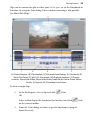
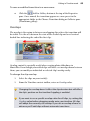
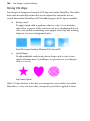
If Snapping is enabled (Arrange menu), the transition will conveniently fit into
the overlap region. If snapping is disabled, or you drag the transition to an
overlapping area between tracks, it will adopt a default overlap time as set in
Tools>Options>Editing. Any applied transition should always match the
overlap region, i.e. where two clips are co-existing on the timeline.
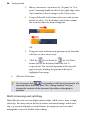
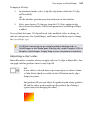
When snapping is enabled, your clips will be "sticky" when you drag clips near
the default overlap period (MoviePlus offers a 1-second sticky overlap point by
default). This makes it easy to keep a standard transition duration throughout
your project without manually editing each transition duration in the Properties
pane (or very carefully dragging your clips) for each overlap; MoviePlus uses
standard values which you can alter in the Tools>Options>Editing dialog.
The overlap value is also used as a default transition duration when you add
multiple image clips to the timeline simultaneously—great for making quick
slide shows!
Changing in/out transitions over time
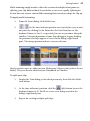
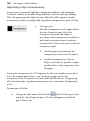
You can make an In or Out transition change with time over the duration of the
transition region only. This is done by using keyframes, each possessing their
own properties, which affect the clip from that keyframe position onwards.
Changing properties over time
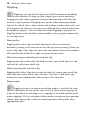
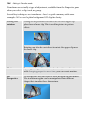
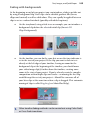
Changing properties over time allows the video editor to make the most of the
professional and creative capabilities of MoviePlus. There are many reasons why you
would want to do this, but some typical examples are outlined in the following table.
Uses
Adjustment
Property Type
Video panning across a scene.
Crop
Adjustments (video)
Blending video between tracks
Opacity
Adjustments (video)
Perspective, Picture-in-picture
effects, Zoom ins, Spinning, and
Scaling.
Adjusting white balance.
Transform
Adjustments (video)
Color
Adjustments (video)