1
ReadyNAS OS 6.2
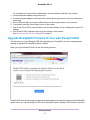
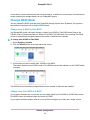
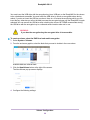
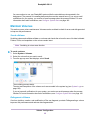
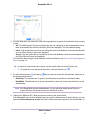
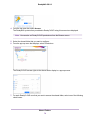
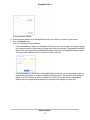
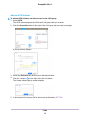
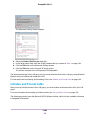
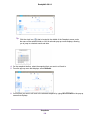
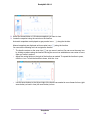
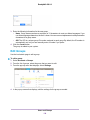
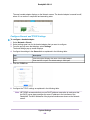
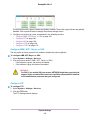
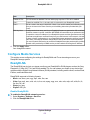
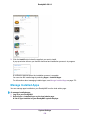
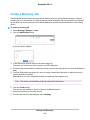
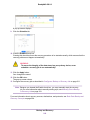
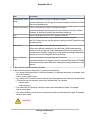
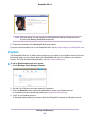
The indicator on the Antivirus button turns green and the antivirus software is enabled.
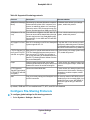
Configure the Network Settings
This section covers basic networking concepts and the configurable network settings on your ReadyNAS
storage system.
Network Basic Concepts
The acronym NAS in ReadyNAS is short for network-attached storage. Your local area network (LAN) is
an integral part of managing and using your ReadyNAS storage system. Connecting your ReadyNAS
storage system to the Internet expands your ability to access data stored on your ReadyNAS system
when you are away from it. It also allows you to share data with people located around the world.
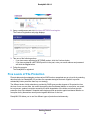
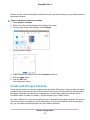
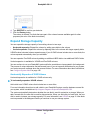
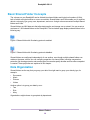
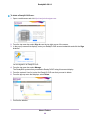
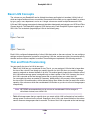
A typical network setup that includes a ReadyNAS system resembles this illustration.
Figure 10. Example home network with ReadyNAS
In most environments, your ReadyNAS storage system’s default network settings allow you to connect
and communicate with your ReadyNAS storage system over your local area network and the Internet.
However, you can adjust these settings to accommodate your needs.
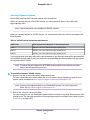
MAC Addresses
Every device that uses Ethernet technology has a unique MAC (media access control) address that is
used to identify the source device and the destination device. MAC addresses are assigned when a device
is manufactured. Your ReadyNAS storage system’s MAC address is listed on the system’s label. You can
also view it by selecting Network on the local admin page.
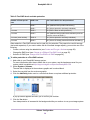
IP Addresses
IP (Internet Protocol) addresses are another key component for sharing data over a network. A unique
IP address is assigned to every network-connected device. IP addresses come in two varieties: static and
dynamic. Static IP addresses do not change, but dynamic IP addresses do change.
Unlike MAC addresses, IP addresses are not assigned by the device’s manufacturer. Static IP addresses
are assigned by your ISP (Internet service provider) or network administrator. Dynamic IP addresses are
assigned by a DHCP (Dynamic Host Control Protocol) server. In most cases, the DHCP server belongs
to an ISP, but a router or other device can also act as a DHCP server.
System Settings
152