1
NETAVIS Observer 4.6 Server Installation and Administration (October 2015)
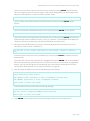
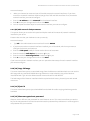
If you choose yes then please ensure that your server always gets a fixed IP address. If you choose
no then you will be asked for manual configuration as follows:
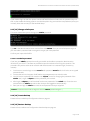
5. Now please type in IP address, network mask, default gateway, name server, time server, mail
server and your mail domain name:
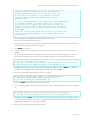
Network IP address [192.168.100.100]:
Press ENTER if you are accepting this default IP address or type in your desired IP address and
press ENTER to acknowledge your input. Next you are asked for your netmask:
Netmask [255.255.255.0]:
Press ENTER if you are accepting this default netmask 255.255.255.0 or type in your desired
netmask and press ENTER to acknowledge your input. Screen display:
Default gateway [127.0.0.1]:
Press ENTER if you are accepting this default gateway or type in your desired default gateway
and press ENTER to acknowledge your input.
Caution: You must enter an IP address that is reachable from your server. If you enter an address
that is not reachable, the performance of the Observer server may drop dramatically because of
network timeouts. If you do not want to use a Default gateway, then enter 127.0.0.1 which is the
localhost representation of the server itself.
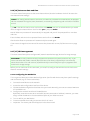
Next you are asked for the IP address of the nameserver. If you do not need name resolution
because you use only IP addresses and no names, you can accept the default suggestion:
Nameserver (DNS) IP address [127.0.0.1]:
Press ENTER if you are accepting this name server IP address (which is the local host) or type in
your desired name server IP address and press ENTER to acknowledge your input. Screen
display:
Mailserver (SMTP) IP address [127.0.0.1]:
Press ENTER if you are accepting this mail server IP address (which is the local host) or type in
your desired mail server IP address and press ENTER to acknowledge your input. Screen display:
Maildomain (usually the same as your domain name) [yourcompany.com]:
Press ENTER if you are accepting this mail domain yourcompany.com or type in your desired
mail domain and press ENTER to acknowledge your input.
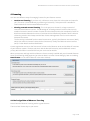
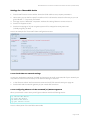
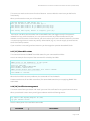
6. Now you will be asked to accept your network configuration:
Save values, Edit again, Revert to original, Quit [E]:
Type in S to store your input, type E to change the name again, or type in R to use the old name.
Acknowledge your input by pressing ENTER.
Page 15 of 66