1
NETAVIS Observer 4.6 Server Installation and Administration (October 2015)
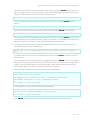
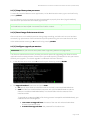
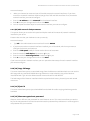
Please make your selection:
[f] Distribute files
[s] Start upgrade
[l] Show status
[q] Quit (without action)
netUpgrade>
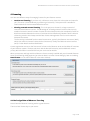
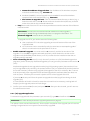
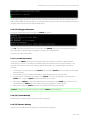
9. Enter f to distribute the upgrade kits from your local master server to the upgrading slaves. You
will see some control messages like:
The following lines are from the upgrade log file.
Viewing will end automatically when the upgrade is done
or you can end viewing by pressing CTRL-C
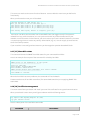
------------------------------------------------------------------------------2007-04-26 15:49:32,928 - (I) Status of 3 slaves (incl. this server):
2007-04-26 15:49:32,928 - (I) On 3 server(s) upgrade has been initiated
2007-04-26 15:49:42,934 - (I) Status of 3 slaves (incl. this server):
2007-04-26 15:49:42,934 - (I) On 3 server(s) version information is being
received
…
2007-04-26 15:50:03,018 - (I) On 2 server(s) file download is in progress,
please wait!
10. After the upgrade kits have been successfully distributed to the slave servers, you will again
receive the distributed upgrade menu.
11. Now you can start the actual upgrading process using the distributed kits by entering s. You will
be asked:
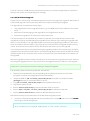
Do you want to rollback the whole system on error?
If you answer yes then the upgrade will roll-back all severs on an error on any server. It means
that all servers will come back to the last working version where the update started from.
If you answer no then the upgrade will continue even if one or more servers cannot be
successfully upgraded. After such an upgrade some servers may run on the previous version level
of the Observer, and the rest will work with the new version. In this case the servers with older
versions will not be mounted into the distributed system, but they will work standalone without
any problem. The operator may directly login to these servers with a normal Observer client and
use the system.
12. Once you answered the rollback question you will see progress messages. Similar to the above
ones. You can stop the automatic display of the upgrade log by pressing CTRL-C any time. This
will not stop the upgrade process, just the viewing of the log messages.
13. Once the upgrade is finished successfully, you will again receive the distributed upgrade menu.
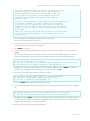
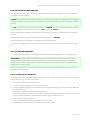
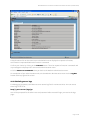
To view the upgrade status enter l. This will print a status report of the upgrade, as snapshot of
the current situation. The report can be seen on the screen and can also be stored in the file
upgradeLog.txt on the server. This file can be downloaded from the main start page of
Observer Start Customizer and here the section Download configuration files.
14. Press q to get back to the admin main menu.
9.6 [6] Shut down system
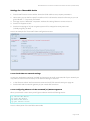
To shut down the Observer server, enter 6 in the Administration menu and then press ENTER.
Page 40 of 66