1
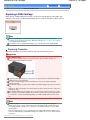
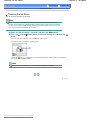
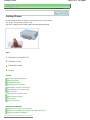
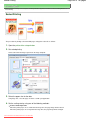
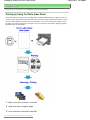
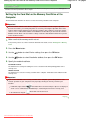
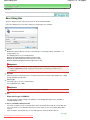
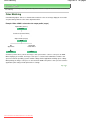
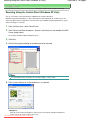
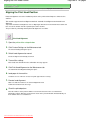
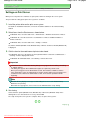
Saving Scanned Data on the Computer
Page 34 of 726 pages
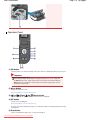
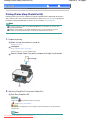
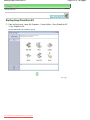
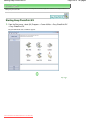
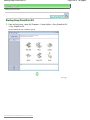
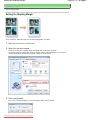
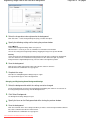
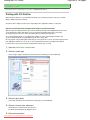
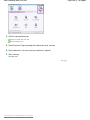
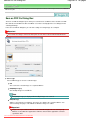
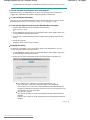
See Operation Panel .
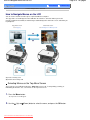
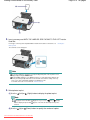
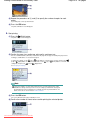
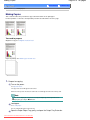
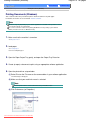
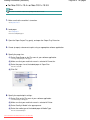
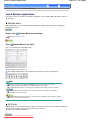
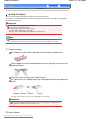
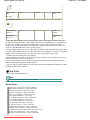
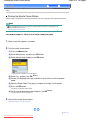
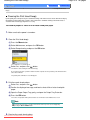
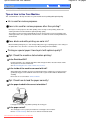
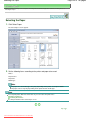
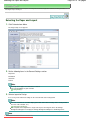
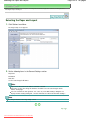
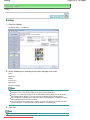
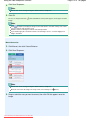
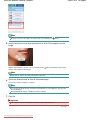
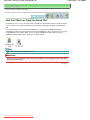
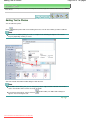
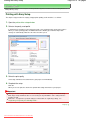
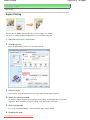
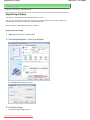
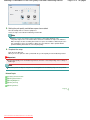
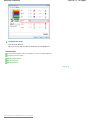
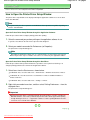
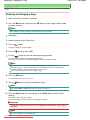
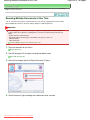
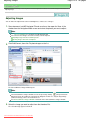
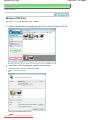
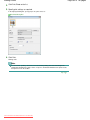
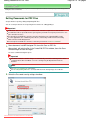
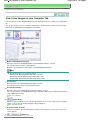
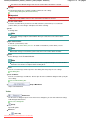
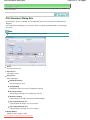
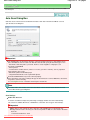
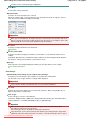
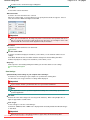
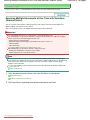
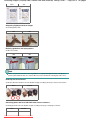
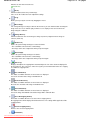
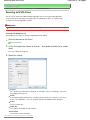
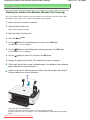
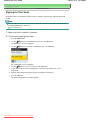
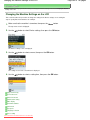
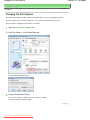
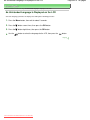
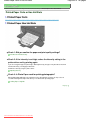
(2) Press the Menu button.
(3) Use the
(Up) or
(Down) button to select Scan, and press the OK button.
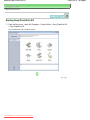
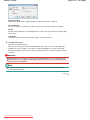
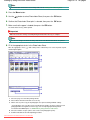
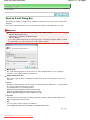
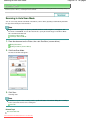
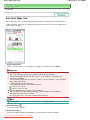
The device selection screen will appear.
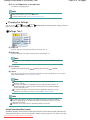
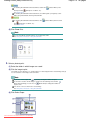
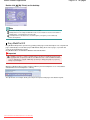
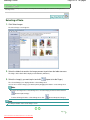
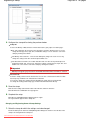
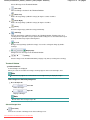
(4) Use the
button.
2.
(Up) or
(Down) button to select Save to PC, and press the OK
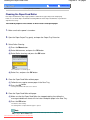
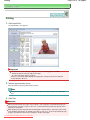
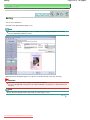
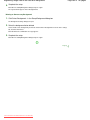
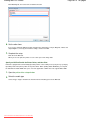
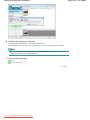
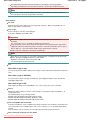
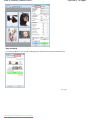
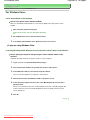
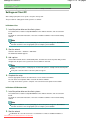
Start scanning.
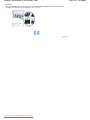
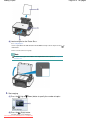
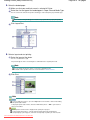
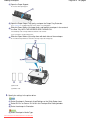
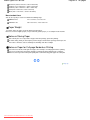
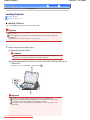
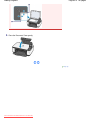
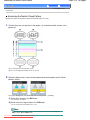
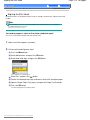
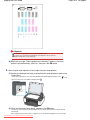
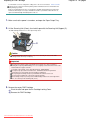
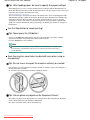
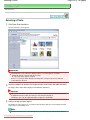
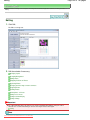
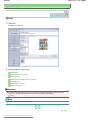
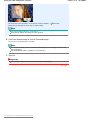
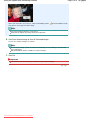
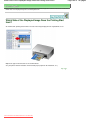
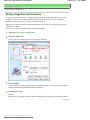
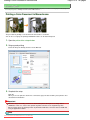
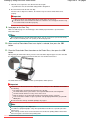
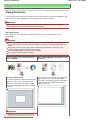
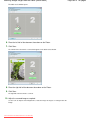
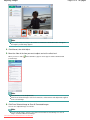
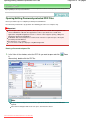
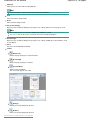
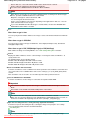
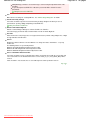
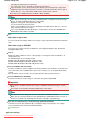
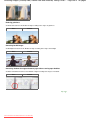
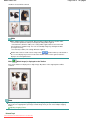
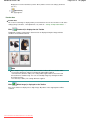
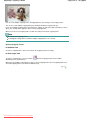
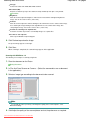
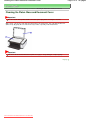
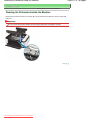
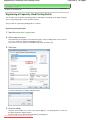
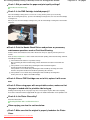
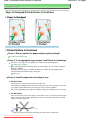
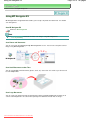
(1) Confirm the message, and load an original on the Platen Glass.
See Loading Originals.
(2) Press the OK button.
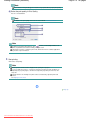
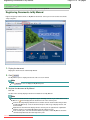
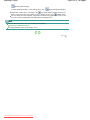
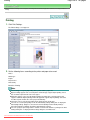
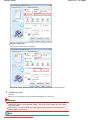
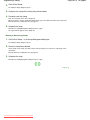
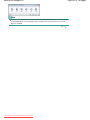
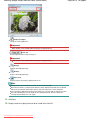
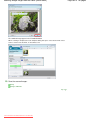
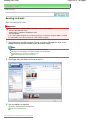
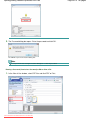
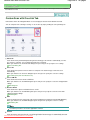
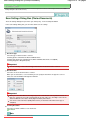
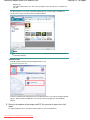
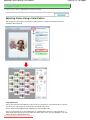
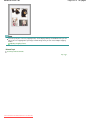
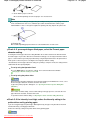
MP Navigator EX will be started, the original will be scanned according to the settings specified with MP
Navigator EX, and then the scanned data will be saved on the computer.
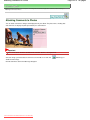
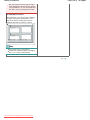
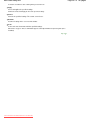
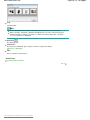
Scanning... will appear while scanning the original.
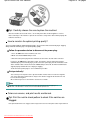
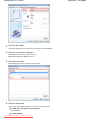
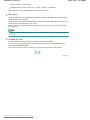
If you want to scan another original, load it on the Platen Glass, and press the
OK button again.
Remove the original on the Platen Glass after scanning is completed.
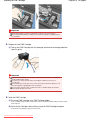
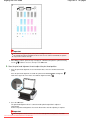
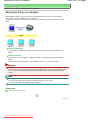
Important
Do not turn off the power while the machine is operating.
Do not open the Document Cover or move the loaded original until scanning is completed.
Note
To perform other functions, select the desired menu on the top menu screen displayed by
pressing the Menu button.
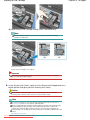
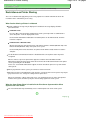
Note
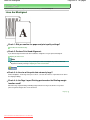
The position or size of the original may not be scanned correctly depending on the type of original.
In this case, refer to the on-screen manual: Advanced Guide to change the settings in Document
Type and Document Size of MP Navigator EX to match the original and scan it again.
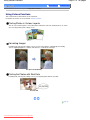
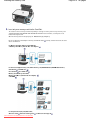
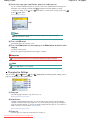
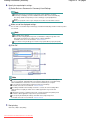
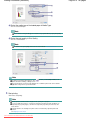
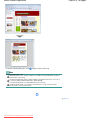
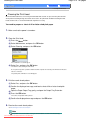
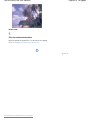
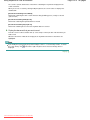
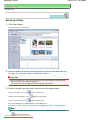
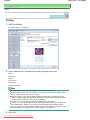
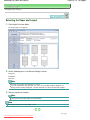
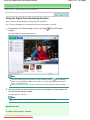
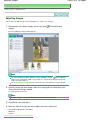
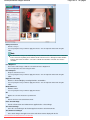
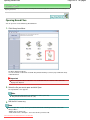
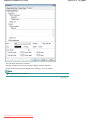
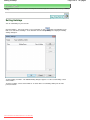
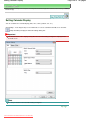
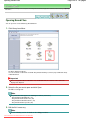
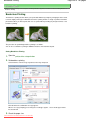
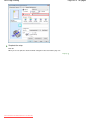
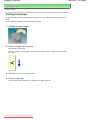
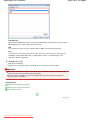
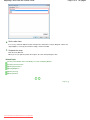
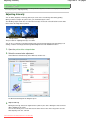
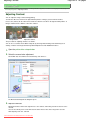
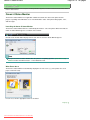
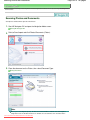
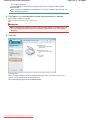
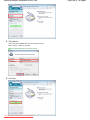
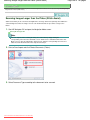
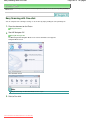
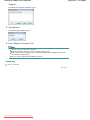
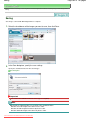
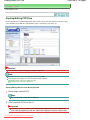
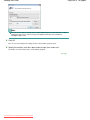
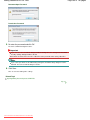
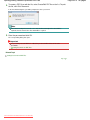
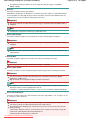
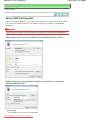
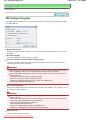
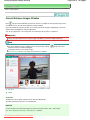
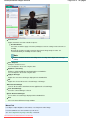
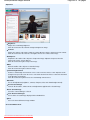
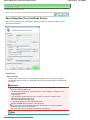
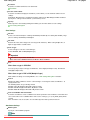
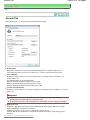
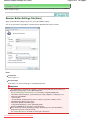
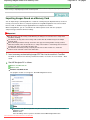
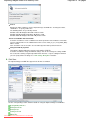
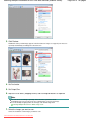
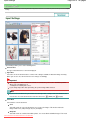
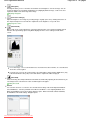
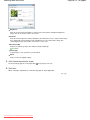
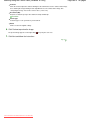
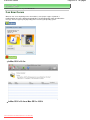
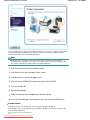
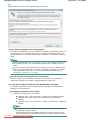
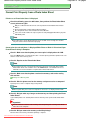
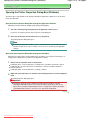
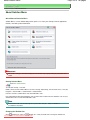
When the program selection screen appears:
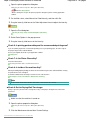
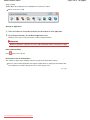
The program selection screen may appear after performing step 2.
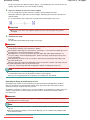
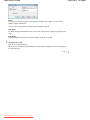
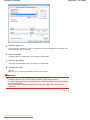
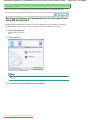
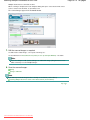
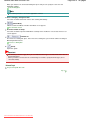
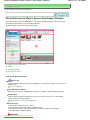
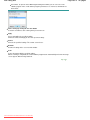
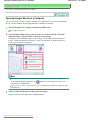
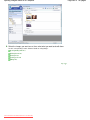
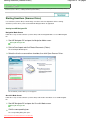
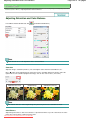
If the program selection screen appears, select MP Navigator EX Ver3.0 and click OK.
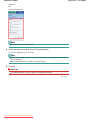
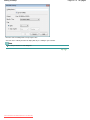
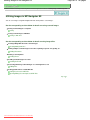
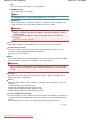
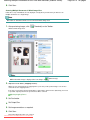
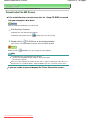
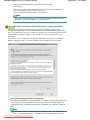
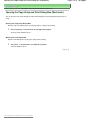
To start MP Navigator EX automatically without displaying the program selection screen, follow the
procedure below.
For Windows Vista users, refer to "For Windows Users" in " Troubleshooting " of the on-screen
manual: Advanced Guide .
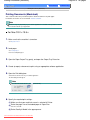
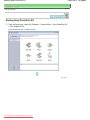
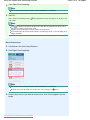
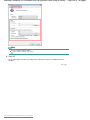
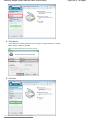
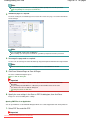
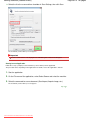
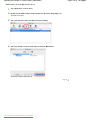
For Windows XP users, select MP Navigator EX Ver3.0 as the software application to be used in
the program selection screen, select Always use this program for this action, then click OK.
Page top
Downloaded from ManualsPrinter.com Manuals