1
PCM16 & PCM32 Fast Ethernet CIA Cards
Installation
Installation -- continued
Checklist
Installing the fiber cables
Before installing the PCMCIA card, verify that the box contains the following
items:
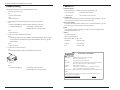
1. Connect the PCMCIA card to the network by using a fiber cable. Ensure that the
TX/RX of the cable are paired at both ends as shown below.
• Fast Ethernet card (PCM16 or PCM32)
• LAN Driver Diskette (if no floppy drive, go to “www.transition.com/technical
support/download/NIC drivers” to get the required driver).
PCMCIA Card
• This User's Manual
RX
Please notify your sales representative if any item is missing or damaged.
TX
Installing the PCM card
CAUTION: Circuit boards are sensitive to static electricity, which can damage their
delicate electronics. You can easily pick up static electricity in dry weather or by
walking on a carpeted floor. Flow the rules below to protect your card.
• Ground yourself by touching the metal chassis of your computer before picking up
the card.
RX
Connect fiber cable
to PCM card as shown
Description
The PCM16- and PCM32-bit fast Ethernet cards can be used in Type II PC card slots.
The LED indicators (LINK, ACT, or FDX/Col) oversee the network/board link and
activities.
TX
Connect fiber cable
to other Network
device as shown
2. Power on the computer.
3. Insert the provided LAN drive diskette into the laptop floppy drive, or go to
“www.transition.com/technical support/download/NIC drivers” to get the
required driver. Refer to the read me file for operating system specific details.
Diagnostic LEDs
Tables 1 and 2 show LED functionality for the 16- and 32-bit PCMxx-FX-xx-01 cards.
• Handle the card by the edges only.
To install the PCMCIA cards, do the following:
1. Power OFF the Laptop computer.
TX
2. Gently slide the PCMCIA card all the way into the slot as shown below.
RX
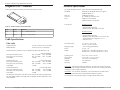
FDX/Col
Link/Act
Table 1: 16-Bit PCMCIA LED Functionality
LED
Color
Function
2
Tech Support: 1-800-260-1312 International: 00-1-952-941-7600, 24 hours
Link/Act
Green
• ON when cable connection to a remote device is good
• Blinks when any traffic is present
• OFF when cable connection to a remote device is not good
FDX/Col
Green
• Lit when full-duplex mode is active
• Blinks when any collision is present
• OFF when half-duplex mode is active
[email protected] -- Click the “Transition Now” link for a live Web Chat.
3