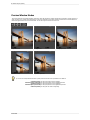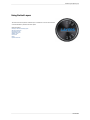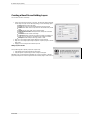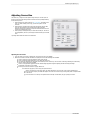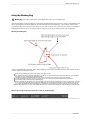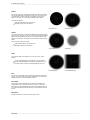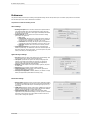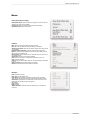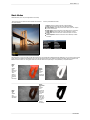
1
Perfect BW User Manual Copyright © onOne Software, Inc. All Rights Reserved. Table of Contents Chapter 1: Welcome to Perfect B&W Chapter 2: Introduction Using the Help System Contacting onOne Software Additional Help System Requirements Installation Licensing and Registration Opening and Saving Files Using Modules Using as Standalone Using with Adobe Photoshop Using with Adobe Lightroom Using with Apple Aperture Using with Other Applications Chapter 3: Perfect Layers (Home) Getting Started Perfect Layers Workspace Perfect Layers Tool Well Using the File Browser Navigating the Preview Navigator, Loupe, Histogram and Info Preview Window Modes Using Perfect Layers Creating a New File and Adding Layers Adjusting Canvas Size Cropping the Image Working with Layers The Layers Pane Transforming Layers Trimming Layers Using Color Fill Layers Retouching Layers Red Eye Tool Masking Layers Mask Modes Using the Masking Brush Using the Masking Bug Preferences Menus Keyboard Shortcuts 1 2 3 4 5 6 7 8 9 10 11 12 14 16 17 18 19 20 21 22 25 26 28 29 30 31 32 33 34 35 36 37 38 39 40 41 42 45 48 49 52 Chapter 4: Perfect B&W Getting Started Perfect B&W Work Space Perfect B&W Tool Well Navigating the Preview Navigator, Loupe, Histogram and Info Preview Window Modes Using Perfect B&W Browsing Effects Control Panes Adjustment Brushes Targeted Brightness Tool Mask Modes Zones View Presets Menus Keyboard Shortcuts 54 55 56 57 58 59 61 62 63 66 69 72 73 74 75 76 79 Chapter 5: Index 81 Welcome to Perfect B&W 1 Welcome to Perfect B&W The pinnacle for many photographers is the perfectly mastered black and white print. With Perfect B&W , you can easily develop your own stunning black and white images easily. Its powerful and intuitive tools give you both instant results and complete creative control. Use Perfect B&W to add dramatic and elegant looks to your photos and create the many moods black and white photography can evoke—resulting in beautiful and provocative imagery. Whether you are a hobbyist photographer or a working professional, you can achieve classic black & white looks instantly with a library of expertly crafted effects or customize your own unique look using powerful, darkroom-inspired controls that replicate time-honored processing techniques. Enhance tone and contrast by boosting shadow and highlight details or bring back a touch of selective color. Control the exact appearance of your image using a set of essential adjustment brushes and achieve precise edge detected masking with the all-new Perfect Brush. With Perfect B&W , you'll infuse the artistry of black and white photography and create your own masterpiece. Perfect BW 2 Introduction Introduction This introductory chapter includes general helpful information about how to use this help system, how to contact onOne Software, how to install and access the software, etc. It covers many of the foundation topics that you will need to understand to get started. Pages in this Section Using the Help System Contacting onOne Software Additional Help System Requirements Installation Licensing and Registration Opening and Saving Files Using Modules Using as Standalone Using with Adobe Photoshop Using with Adobe Lightroom Using with Apple Aperture Using with Other Applications Perfect BW Introduction 3 Using the Help System This user guide is html based and readable in most web browsers. On the left side, you will see a table of contents that make it easy to find the section you are looking for. The table of contents is hyperlinked and will take you to the specified section by clicking on them. The main body of the page will show you the content you have requested. Use the scroll-bar at the right to scroll down for additional content. You may see hyperlinks in the body text. They will be blue and underlined. Clicking on one of these hyperlinks will take you to more relevant information. You use the same forward and back buttons in your browser to navigate this user guide as you would a regular web page. You can even bookmark pages so you can find them quickly later. If you don't see what you are looking for in the table of contents, try the search field at the upper right. You can type in what you are looking for and an index of pages will be created automatically that contain your search term. Printing the Manual You can print individual pages by pressing the Print button at the top of the page. A complete printable PDF version of this user guide is available in the user guide section of the onOne website. This version may be downloaded and viewed when you do not have an internet connection. The PDF version may also be installed on your tablet or eReader device for viewing off our computer. Perfect BW 4 Introduction Contacting onOne Software At onOne Software, we value our customers and offer a variety of ways to be contacted. • Visit our company website at: www.onOnesoftware.com • For technical support please visit: www.onOnesoftware.com/support onOne Software, Inc. 15333 SW Sequoia Parkway Suite 150 Portland, OR 97224 Telephone: 503-968-1468 Fax: 503-968-1469 © 20072013 onOne Software, Inc. All rights reserved. onOne Software is a registered trademark of onOne Software, Inc. The onOne Software logo are trademarks of onOne Software, Inc. Adobe, Photoshop, Photoshop Elements, Lightroom, Flash and Adobe Acrobat are either registered trademarks or trademarks of Adobe Systems, Incorporated in the United States and/or other countries. Mac OSX, the Mac logo, iPhoto and Aperture are trademarks of Apple, Inc., registered in the U.S. and other countries. Microsoft, Windows, Windows Vista, Windows 8 and .NET are registered trademarks of Microsoft Corporation. All other trademarks are the property of their respective owners. The activation system used by onOne Software, Inc. is licensed under Patent No. 5,490,216. For a full list of license disclosures view the LICENSE.TXT file installed with the software. Perfect BW Introduction 5 Additional Help Technical Support Contact technical support at www.ononesoftware.com/support or by filing out a request form. Knowledge Base Search the Knowledge Base for common issues, tips & tricks, and compatibility questions. Frequently Asked Questions Check the list of Hot Topics on the onOne web site. This covers the most frequently asked questions. Video Tutorials Visit the onOne University for free online video tutorials and archived webinars. Many users find these to be the best and fastest way to get started and learn new techniques. Perfect BW 6 Introduction System Requirements Recommended Minimum Operating System Mac OSX Mac OSX 10.6, 10.7, 10.8 (current maintenance releases, 64 bit) Mac OSX Mac OSX 10.7, 10.8 (current maintenance releases, 64 bit only) Windows Windows Vista, Windows 7 or Windows 8 (current maintenance releases, 32 and 64 bit) Windows Windows, Windows 7 or Windows 8 (current maintenance releases, 64 bit) Processor Intel Core 2 Duo, Xeon or better processor(s) Quad-core Intel Core i5, Xeon or better processors(s) RAM 4 GB RAM 8+ GB RAM Hard Drive 1.5 GB for installation 1.5 GB for installation Fast 7200 RPM or SSD drives Display OpenGL 2.0 compatible video card with 256 MB dedicated video RAM 1280x720 resolution OpenGL 4.0 compatible video card with 1GB dedicated video RAM 1920x1080 resolution Optional Application Integration Adobe® Photoshop® CS4, CS5, CS6, CC Adobe® Photoshop® Elements 9, 10, 11 Adobe® Lightroom® 2, 3, 4, 5 Apple Aperture 2.1, 3 Adobe® Photoshop® CS5, CS6, CC Adobe® Photoshop® Elements 10, 11 Photoshop® Lightroom® 4, 5 Apple Aperture 3 Other Internet connection for activation, auto update checking, online help, content downloads and tutorials. High-speed internet connection for activation, auto update checking, online help, content downloads and tutorials. Wacom tablet for pressure sensitive input. Hardware display calibration tool. About Windows Video Cards If you are using Perfect Photo Suite from a Windows based computer, it is important that you have the latest drivers for your video card installed to get the best performance. Check with your video card manufactures website for the latest drivers. Be sure your video card is OpenGL 2 compliant and has 256MB or more of dedicated VRAM. Many integrated video cards on low-end laptops may not meet these requirements. Perfect BW Introduction 7 Installation To install Perfect Photo Suite, double click the installer icon and allow the installer to guide you. You may have downloaded the installer from the onOne Software website or it may be on a DVD if you elected for a physical shipment. You should close any supported host applications such as Photoshop, Lightroom or Aperture as well as any standalone versions of onOne products before installing or updating. Mac OSX The application is installed in the Perfect Photo Suite folder in the Applications folder. All plug-in files for supported host applications (such as Photoshop, Lightroom, Aperture, and Photoshop Elements) found during the installation process will be installed automatically. You will see a summary of installed plug-ins at the end of installation. If a previous versions of Perfect Photo Suite is found, it will be maintained or replaced based on your preference during installation. Support files are installed into /Library/Application Support/ and ~/Library/Application Support/ folder. Windows The application is installed in the Perfect Photo Suite directory in the onOne Software directory in the Program Files directory. All plug-in files for supported host applications (such as Photoshop, Lightroom, Aperture, and Photoshop Elements) found during the installation process will be installed automatically. You will see a summary of installed plug-ins at the end of installation. If a previous versions of Perfect Photo Suite is found, it will be maintained or replaced based on your preference during installation. Support files are installed into \ProgramData\onOne Software\. Uninstalling To uninstall Perfect Photo Suite, follow these instructions. You should deactivate your product before uninstalling. This will allow you to transfer your license to another computer. Mac OSX 1. Go to the Applications/Perfect Photo Suite/Documentation folder. 2. Double click on the Remove Perfect Photo Suite application. Windows 1. Go to Control Panels. 2. Under Programs select Uninstall a program. 3. In the list that comes up select Perfect Photo Suite and then click on the Uninstall button. Perfect BW 8 Introduction Licensing and Registration Perfect Photo Suite will operate as a trial version for 30 days from when it is installed. If you have purchased Perfect Photo Suite, you will want to license it so you can continue to use it past the trial period. When you install Perfect Photo Suite it will prompt you to license it. Simply click on the license button and enter your license code. Your license code can be found in your order confirmation email if you purchased the download version directly from onOne Software. If you purchased a physical copy of Perfect Photo Suite, a sticker on the information card will have the license code on it. Your license code allows you to install Perfect Photo Suite on two computers. When you enter your license code, Perfect Photo Suite communicates with the onOne activation server and will activate your software. Your software must be licensed and activated to function past the trial period. If the computer you are activating does not have access to the internet, you can manually activate your software by following the manual activation instructions in the license dialog. If you wish to move your copy of Perfect Photo Suite from one activated computer to new computer you will need to deactivate it first. Deactivation is a simple process. Simply open Perfect Photo Suite and select Deactivate from the Help menu. This will deactivate Perfect Photo Suite on the current machine, allowing you to install and activate it on another machine. If you lose your activation code, have your computer stolen and can not deactivate it, need to install on more than two computers or have other activation issues please contact onOne customer service at 1-888-968-1468 or visit the support section of the onOne software website. It is important to register your copy of Perfect Photo Suite if you did not purchase it directly from onOne Software, so we can provide you with the best possible service. Registered users of Perfect Photo Suite are eligible for free technical support, information regarding new versions and products, free updates, upgrade pricing and special offers on new products. Product Improvement Program We believe that the best products are made by listening to our customers. We use many methods to gather your ideas and feedback including: emails, surveys, direct conversations, market analysis and the Product Improvement Program. The Product Improvement Program is built into our software and gathers information about how our software is used. It is the most accurate way for us learn what features are important to you and how our products fit into your workflow. Enrollment in the program is voluntary. When you participate, we collect basic information about how you use our programs and basic information about your computer. This information helps us learn what features are important to you and how we can make our software easier to use. No personal information is collected and you will not be contacted. You can choose to participate in the Product Improvement Program the first time you launch an onOne product. You can change your participation later, just click the Help menu, then Help Improve onOne Products. You can learn more about the Product Improvement Program here. Perfect BW Introduction 9 Opening and Saving Files Supported File Types Perfect Photo Suite uses the Photoshop (PSD) file format as its default file type. The Photoshop file format is a commonly supported, publicly documented file format that is also the standard file for Adobe Photoshop. It is also supported by Photoshop Elements, Lightroom, Aperture and many other image editing applications. It supports multilayered images and layer masks making it the perfect format for durable, adjusting imaging. Perfect Photo Suite also supports the opening and saving of the following file types. Photoshop (PSD) Photoshop Large Document (PSB) Tagged Image File Format TIFF (TIF) Joint Photographic Experts Group JPEG (JPG) Portable Network Graphic (PNG) Camera Raw files from over 200 digital cameras Photoshop PSD files will maintain all the layers and layer masks you create in Perfect Photo Suite and are recommended as your main file format. If your saved file will be larger than 2 GB or 30,000 pixels on a side, your image will automatically be saved in the .PSB or Large Document format. This is a newer version of the PSD file format and still maintains all your layers and masks. You can use the Save As command to save flattened TIF and JPG files or PNG files with transparency. Camera raw files can only be opened, not saved directly. They must be saved as another file type. Opening Files You may open an existing file in several ways. 1. 2. 3. 4. Open the file from the File > Open menu if you are using Perfect Photo Suite as a standalone application. Dragging a file onto the Perfect Photo Suite icon. Double-clicking on an image in the Perfect Photo Suite Browser. Sending a file to Perfect Photo Suite from a host application like Photoshop or Lightroom using the Perfect Photo Suite plug-in. When opening an existing PSD file that has been editing in Photoshop it may contain unsupported layer types such as text layers, adjustment layers, etc. you will see a warning. You can still open a flattened version of the image if this happens. You can learn more here. Saving Files 1. 2. 3. 4. You may save the open file using the save option. If you have created a new PSD, you will be prompted to select the name and location of the file. You may save a copy of the image using the Save As command. This allows you to select the name and location. You may save flattened images in the TIF, JPG, PNG format from the Save As command in the file menu. If you have accessed Perfect Photo Suite using a plug-in from another application, follow the instructions from that application for saving. If you are opening a JPG, TIF, PNG, or RAW file, Perfect Photo Suite will default to saving a new PSD file. To save over the original file, use the Save As command and select the original file. Perfect BW 10 Introduction Using Modules Perfect Photo Suite is a collection of modules, or tools, that work together to accomplish your digital workflow tasks. At the heart of Perfect Photo Suite is the Perfect Layers module which acts as the host for the other modules. It is responsible for: The opening and saving of files Merging multiple files into a single, layered file Selecting the layer you would like to work on in other modules Depending on how you access Perfect Photo Suite you may never notice Perfect Layers, but it is there working in the background each time. The Module Selector If you access Perfect Photo Suite as a standalone application you will start in the Perfect Layers module. This is where you will open your file and prepare it for editing. When you are ready, you will select the module you wish to use from the Module Selector in the upper right corner of the main window. You can easily switch between modules by clicking on another in the Module Selector. This allows you to perform multiple tasks during the same editing session. This is the module selector from the Perfect Photo Suite. It contains all of the available modules that onOne Software makes. If you have purchased a single product, you will only see that product module When you have completed your work, you return the and Perfect Layers in your module selector. Perfect Layers module to save your work. If you access Perfect Photo Suite as a Photoshop Plug-in you will not see the Module selector. You will also not see the module selector if you use the following modules as plug-ins through Lightroom or Aperture: Perfect Portrait Perfect Effects Perfect B&W FocalPoint Perfect Resize When you access these modules as plug-ins you use them on their own and then return back to Lightroom or Aperture directly. Your file will be saved and closed automatically. If you access Perfect Layers or Perfect Mask through Lightroom or Aperture you will start in the Perfect Layers module. If you want to have access to all your modules during an editing session from Lightroom or Aperture, select the Perfect Layers plug-in. This will start you in Perfect Layers and the Module Selector will be visible, allowing you to access all of the installed modules. Perfect BW Introduction 11 Using as Standalone Perfect Photo Suite can be used as a standalone application without the need of Photoshop, Lightroom or other host application. To launch it follow these steps: Mac OSX 1. 2. 3. 4. Open your Hard Drive. Navigate to the Applications folder. Navigate to the Perfect Photo Suite folder. Double click on the Perfect Photo Suite application icon. You can add Perfect Photo Suite to your dock for easy access by clicking and holding the icon in the dock, then select the Keep In Dock option. If you use Launchpad it can be found there as well. Windows Vista and 7 1. Go to your Start Menu. 2. Select the onOne Software group. 3. Select Perfect Photo Suite. If you selected the "Add Icon to Desktop" option during installation you can also access Perfect Photo Suite from there. Windows 8 1. Open the Start screen by pressing the Window key. 2. Select Perfect Photo Suite. If you selected the "Add Icon to Desktop" option during installation you can also access Perfect Photo Suite from there. Perfect BW 12 Introduction [Using with Adobe® Photoshop®] If you have the Premium Edition of Perfect Photo Suite, you can access it as a plug-in through Adobe® Photoshop® or Photoshop® Elements®. This includes the onOne panel for Photoshop for fast access to plug-ins and their presets. As a Photoshop plug-in you can use modules in the Photoshop workflow. This includes using selections and masks as well as Smart Objects and Smart Filters. You can also record actions for automating and batch processing. If you do not have the Premium Edition of Perfect Photo Suite and would like to use it inside of Photoshop, contact onOne Customer Service about upgrading to the Premium Edition. To use Perfect Photo Suite inside of Adobe Photoshop follow these steps: 1. Open the image you want to work on. 2. Select the layer you want to work on. Generally Perfect Photo Suite works on a copy of your selected layer, not the entire image. 3. From the File menu, select Automate, and then the module you would like to use. To use Perfect Photo Suite inside of Adobe Photoshop Elements, follow these steps: 1. Open the image you want to work on. 2. Select the layer you want to work on. Generally Perfect Photo Suite works on a copy of your selected layer, not the entire image. 3. From the File menu, select Automation Tools, and then the module you would like to use. Perfect Layers is not accessible from Adobe Photoshop or Photoshop Elements. onOne Panel Perfect BW Introduction 13 Users of Adobe Photoshop CS4 and higher can also access Perfect Photo Suite as plug-ins using the onOne Extension Panel. This provides fast access to the Perfect Photo Suite and its presets. To access the onOne panel, go the Window > Extensions menu in Photoshop and select onOne. The onOne panel behaves just like any other panel in Photoshop. It can be minimized or nested with other panels. To access a module, simple double-click on it. To use a preset, single click on the module name. A menu of available presets will be displayed. Simply doubleclick on one to apply it to your selected layer. If you wish to record actions using Perfect Photo Suite be sure to access it from the File > Automate menu when recording. Perfect BW 14 Introduction [Using with Adobe® Lightroom®] If you have the Premium or for Adobe® Lightroom® & Apple® Aperture® version of Perfect Photo Suite you can access Perfect Photo Suite as a plug-in inside of Lightroom. This provides an integrated, round-trip workflow. Perfect Photo Suite is the perfect companion for Adobe Photoshop Lightroom. It integrates tightly with it and provides a seamless experience for enhancing your images. There are several ways to use Perfect Photo Suite with Lightroom. Plug-In Extras Perfect Photo Suite can be accessed from the File > Plug-in Extras menu. This is the preferred way to access it. It gives you access to all installed modules and has the most flexibility in how the files are handled. To edit an image in Perfect Photo Suite follow these steps. 1. Select the image in Lightroom. 2. Go the File menu and select the Plug-In Extras flyout. 3. Select the module you would like to use. When you access Perfect Photo Suite as a plug-in from Lightroom the module selector is only available for Perfect Layers or Perfect Mask. When you select one of these modules you can use as many modules as you desire during the same editing session. At the end of the editing session you must save and close the image from the Perfect Layers module. When you select a module other than Perfect Layers or Perfect Mask your image will be sent to it directly and when you press Apply, the image is saved and closed automatically and you are returned back to Lightroom. Selecting Multiple Images If you have multiple images selected, the behavior varies depending on which modules you select. Perfect Layers or Perfect Mask: Multiple images will be merged into a new, multilayered file. Then you may access any modules available in the Module Selector. All other plug-ins: The first image will be opened in the selected module. You make your adjustments and then when you hit apply the image is automatically saved and closed. Then the subsequent images are processed with the same settings automatically. Lightroom Plug-in Preferences When you use Perfect Photo Suite through the Plug-In Extras menu there are important file handling options that are controlled in the Preferences dialog of the Perfect Layers module. These need to be configured in advance based on your desired workflow. File Type: The file type drop-down menu determines what type of file will be created. The default is PSD, which maintains layers. You can also select JPG or TIF if you prefer those formats and are not concerned about maintaining layers. The last option is same as source, which maintains the file type of the original file, except for Camera raw files which are saved as PSD. Color Space: The color space drop-down menu determines what RGB working color space is used; Adobe RGB 1998, sRGB or ProPhotoRGB. Bit Depth: The bit-depth drop-down menu determines the bit depth, either 8-bit or 16-bit per pixel. Resolution: The resolution drop-down menu determines the resolution of the file. Stack with Original: When enabled, the new image is stacked with the original image, making it easier to organize. Use Original for Single PSDs: When enabled, if you select a single PSD file, it will be edited directly, rather than having a copy made. External Editor Perfect BW Introduction 15 You can also access modules as external editors for all modules except Perfect Layers or Perfect Mask. You can access them from the Edit In contextual menu. These behave similarly to the plug-ins in the Plug-In Extras menu but ignore the preferences set in Perfect Layers. Instead you have the option to control a subset of these options each time you access a module, in the same way you do when you access Photoshop or any other external editor. Batch Processing There are two ways to batch process multiple images in Lightroom with Perfect Photo Suite. It depends on the number of images that you want to process and where you want them saved as to which method is best. Small Batches If you have a small number of images you can batch process them using the same method you would process a single image using the plug-in from the Plug-in Extras menu. A good example would be two similar images that you would like to process the same way. Follow these steps. 1. 2. 3. 4. Select both images. Go to the Plug-in Extras menu and select the module you would like to use. The first image will open in the module, do your work. Press Apply. The first image will be saved and closed automatically. The second image will be opened in the module and the settings used on the first image will be applied automatically, then it will be saved and closed and you will be returned to Lightroom. Remember, you can't batch process with Perfect Layers or Perfect Mask, your images will be stacked to create a new multilayered file instead. If you need to use brushes to apply effects, you should not batch process as brushing is not repeated on multiple images. Large Batches If you need to batch process a large number of images, or control the file size, naming or save to location you should batch process through Lightroom's Export dialog, located in the File menu. Batch processing through Export is driven by presets, so you need to create a preset that accomplishes the work you desire first. 1. Select the images you wish to batch process. 2. Go the Export under the File menu. 3. At the top under the Export to drop-down, select the module to use. 4. Complete the module specific options below. These will start with the preset, followed by options for selecting the export location, file naming, file size, etc. 5. Press the export button. You cannot save Lightroom export presets or use the Export with Previous option. Perfect BW 16 Introduction [Using with Apple® Aperture®] If you have the Premium or for Adobe® Lightroom® & Apple® Aperture® Edition of Perfect Photo Suite you can access Perfect Photo Suite as a plug-in inside of Aperture. This provides an integrated, round-trip workflow. Perfect Photo Suite integrates tightly with Apple Aperture and provides a seamless experience for enhancing your images. Perfect Photo Suite can be accessed from the Photo > Edit with Plug-In menu. To edit an image in Perfect Photo Suite follow these steps. 1. Select the image in Aperture. 2. Go the Photo menu and select the Edit with Plug-In flyout. 3. Select the module you would like to use. When you access Perfect Photo Suite as a plug-in from Aperture the module selector is only available for Perfect Layers or Perfect Mask. When you select one of these modules you can use as many modules as you desire during the same editing session. At the end of the editing session you must save and close the image from the Perfect Layers module. When you select a module other than Perfect Layers or Perfect Mask your image will be sent to it directly and when you press Apply, the image is saved and closed automatically and you are returned back to Aperture. Selecting Multiple Images If you have multiple images selected, the behavior varies depending on which modules you select. Perfect Layers or Perfect Mask: Multiple images will be merged into a new, multilayered file. Then you may access any modules available in the Module Selector. All other plug-ins: The first image will be opened in the selected module. You make your adjustments and then when you hit apply the image is automatically saved and closed. Then the subsequent images are processed with the same settings automatically. The file type, bit-depth and color space of the image is determined by the preferences in Aperture for external editors. Perfect Photo Suite will maintain the file type, either PSD or TIF automatically to support compatibility with plug-ins from other manufactures. Keep in mind only PSD files store re-editable layers and mask. Perfect BW Introduction 17 Using with Other Applications You can use Perfect Photo Suite as an external editor with many other workflow applications such as Adobe Bridge or Apple iPhoto. First check the application user guide to see if it supports external editors. It should detail how to configure the host application to use an external editor. Generally this will include selecting Perfect Photo Suite setting the file type to send to it. It is best to use PSD files if supported. Below are the instructions for configuring iPhoto. 1. Open the Preferences dialog, from the iPhoto menu. 2. Click on the Advanced tab. 3. From the Edit Photos: pop-up select the In Application... option (note if you have ever selected another external editor, it may be listed here instead.) 4. From the Choose dialog that appears, navigate the the Perfect Layers folder, inside the Applications folder and select Perfect Layers. 5. In the RAW Photos: option, uncheck the Use RAW when using external editor option, and check the Save edits as 16-bit TIFF files option . Perfect BW 18 Perfect Layers (Home) Perfect Layers (Home) Perfect Layers is the home base module for Perfect Layers. It is responsible for: The opening and saving of files Merging multiple files into a single, layered file Selecting the layer you would like to work on in other modules Depending on how you access Introduction you may never notice Perfect Layers, but it is there working in the background each time. On its own, Perfect Layers is incredibly useful, especially if you don't own Adobe Photoshop. It is the fast and easy way to a layered workflow. Use it to change skies, composite multiple images together or retouch portraits. Some of the features: Combine multiple images into a layered Photoshop-compatible file. Adjust layer size, position, blending mode and opacity. Use the built-in layer masks and masking tools to blend multiple layers together. Use the Retouch Brush to remove blemishes and dust spots. With Perfect Layers, multiple images can be merged as separate layers of a single new file. Then photographers can easily reorder and position each layer; As well as change blending modes and opacity. In addition, photographers can selectively blend, or mask layers together using the Masking Brush and Masking Bug developed originally for PhotoTools and FocalPoint. Perfect Layers saves its work as native layered Photoshop files so users can open them directly with Photoshop for additional editing. Perfect BW Perfect Layers (Home) 19 Getting Started This getting started section will give you the basics of using Perfect Layers. If you have never used Perfect Layers before, this is a good place to start. You might also try watching the getting started video tutorial. For detailed information on steps and controls mentioned in the getting started section, see the "Using Perfect Layers" section instead. Pages in this Section Perfect Layers Workspace Perfect Layers Tool Well Using the File Browser Navigating the Preview Navigator, Loupe, Histogram and Info Preview Window Modes Perfect BW 20 Perfect Layers (Home) Perfect Layers Workspace Perfect Layers provides you with an easy-to-use work space for editing your photos. Below is an overview of the main sections. The Main Window: The main window sections of Perfect Layers: A. Browser Section: This is located on the left side of the window. It is where you browse and select your images. B. Tool Well: This is where the tools are located. C. Preview Window: This is the main section where you preview and work on images. D. Tool Options Bar: This strip above the preview window contains the options for the selected tool. E. Navigator, Loupe Histogram and Info Pane: This pane will access navigational, loupe,histogram features as well as file information. F. Layers Pane: This is where you control the image order and apply blending modes. G. Module Selector: This is where you select other modules to work in. H. Close & Save Buttons: This is one way to save or close the current image. Perfect BW Perfect Layers (Home) 21 Perfect Layers Tool Well There are nine different tools in the tool well. More details about each tool are covered in the following chapters, click on a tool title to learn how to use it. Transform Tool This moves and changes the size and rotation of your layer. Crop Tool This crops your image. Trim Tool This trims a single layer. Masking Brush This masks areas using brush strokes to expose underlying layers. Masking Bug This masks areas using gradients to expose underlying layers. Retouch Brush This retouches small imperfections. Red Eye Tool This tool reduces red eye. Pan Tool This tool repositions your image within the preview window. Zoom Tool This tool changes the magnification in the preview window. Perfect BW 22 Perfect Layers (Home) Using the File Browser Built into Perfect Layers is a file browser, located in the left panel. You can use it to browse your images as well as content you download from the onOne website. The browser starts by displaying a series of sample images used in many of the onOne Software video tutorials. Below is a description of the controls in the file browser. A. Browser Tabs: This switches between the Browser tab and the Extras tab. The Extras tab displays the included backgrounds, borders and textures. B. Folder Tree: This drop-down menu displays the folder paths above the folder you are browsing. You can use this to quickly navigate up the folder tree. The currently selected root folder is displayed here as well. C. Search Field: Use the search field to locate files in the current sub-folder. Simply start to type and your results will appear in a new sub-folder called search results while you type. D. Image File: A file is displayed as a thumbnail of the image and will have the filename and extension listed below it. E. Resize Handle: On the right edge is a resize handle that you can drag to change the size of the browser or close it. F. File Info: This window will show captured and modified dates, color space, exposure settings and size on disk if applicable. G. Browser Modes: These icons control the browser views. One column, two column, three column or list view. H. Quick View Browser Button: Press this button to open the current folder in the Quick View Browser. Browsing a Folder You can select which folder to browse by selecting Browser... in the File menu. The last folder you browsed will be remembered and displayed automatically. Navigating the Browser To open a sub-folder, click on it. To close it, click on it again. Only one top-level folder can be open at a time. Double-clicking on a folder sets it to the root folder and its name will appear in the folder tree drop-down. The selected item, either a folder or file, will have a light silver box around it. You can use the up and down arrow keys to change your selection in the browser. You can open or close folders using the command (control on Windows) up and down arrows. You can select multiple files by holding down the shift key. You cannot move or delete files from the File Browser. Opening Files from the Browser You can open an image in the browser by double-clicking it. If you already have an image open you will be prompted to either merge the selected file as anew layer or to open it as a new file. If you have multiple images selected, you can open them as layers using the Open Selected from Browser command in the File menu. Perfect BW Perfect Layers (Home) 23 Searching for Files To search for files in the currently selected folder, type in the name of the file in the search field. The search results appear in a new sub-folder called search results, which will be selected automatically. You can clear the search field by pressing the x at the right end of the search field. Browser Pop-Up To view a larger preview on an image, enable the Show Browser Pop-up in the View menu. When you mouse over a thumbnail, a larger preview will be displayed in a pop-up window. Resizing and Closing the Browser The browser can be resized by dragging the resize handle on the right margin of the browser. The browser can be closed or reopened by clicking on the resize handle or using the cmd (control on Windows) left and right arrow keys. Browser Modes The browser offers four viewing modes. Three that display thumbnails in columns and one list view. The browser modes are selected using the browser mode icons at the bottom of the browser. single column view two column view list view Extras Tab The Extras tab displays add-on content including backgrounds, borders and textures. When you download content packs from the onOne website they are automatically installed in the Extras tab. Quick View Browser Perfect BW 24 Perfect Layers (Home) The Quick View Browser adds an elegant full-screen view of your images, effects and presets. Whether you are looking for the right image or the right look, the Quick View Browser will make fast work of the problem. Just press the Quick View Browser button (or the command up or control up keyboard shortcut) and you will see the full array of options to choose from. You can visually navigate categories, then dive into them to find just the right look. Browse folders and images quickly to find the right one to work on. View all your effect or preset categories at one time, then dive into them to find the perfect look with an effortless, tablet feel. Variable thumbnail sizes gives you a few large previews or many small ones depending on your screen size and content. Back button and breadcrumbs make it easy to navigate a complex folder structure. Use your keyboard arrow keys to navigate. Press the return key to select an item or open a folder. Use the command or control left arrow to go up a folder level. Perfect BW Perfect Layers (Home) 25 Navigating the Preview Perfect Layers provides several ways to navigate and view your image in the Preview window. The Preview Window above is the main section where you preview and work on images. Hand Tool The Hand tool is used to position the image within the Preview window, whenever the preview zoom is larger than the viewable area. To pan (scroll) in the Preview window: Select the Hand Tool and drag the image until you locate the area you wish to view. With any other tool selected, hold down the spacebar while you drag the image in the window. Double-click the Hand tool in the Toolbar to set the image to a magnification that fits completely in the current window size. Zoom Tool The Zoom tool changes the magnification of the image in the Preview window. With the Zoom tool selected: Click in the Preview window to zoom in and center the image at the location clicked. Click and drag in the Preview window to draw a rectangular, the screen fills with the area within the rectangle when you release the mouse. Hold the Option key (Mac) or Alt key (Win) and click to zoom out. Double-click the Zoom tool in the Toolbar to set the image to 1:1 or 100% magnification, showing every pixel. This is best when examining small details. Perfect BW 26 Perfect Layers (Home) Navigator, Loupe, Histogram and Info At the top of the control panel on the right of the main window is the Navigator | Loupe | Histogram | Info panes. It contains four useful tools for inspecting and viewing details of your image. The Navigator Pane This gives you a birds-eye view of your image. The blue square region marks the image area that is visible in the preview pane. You can pan your image by clicking and dragging inside the blue region. At the bottom of the Navigator pane are several Zoom presets. Click on a Zoom preset to activate. FIT: Zooms to fit the current canvas size. This allows you to see your entire image. FILL: Zooms to fit the current layer. This is great if you are working on a layout and want to zoom in on a smaller layer you are adjusting. 100: Zooms to 100% or actual pixels. This is best for judging small details. 50: Zooms to 50% 25: Zooms to 25% The Loupe Pane This gives you a magnified view of the section of the preview under the cursor. This allows you to view the quality of your results while maintaining a complete view of your image. At the bottom of the Loupe Pane is a sliding for adjusting the zoom level. The Histogram Pane This gives you a color chart of the shadow, mid-tone and highlight areas based on the image RGB values. This is useful to show areas within the image that may be clipping. Clipping is when your image contains pure blacks or white and can signify loss of highlight or shadow detail. The left side of the histogram represents the shadows, while the right represents the highlights. At the top of each end is a triangle. If the triangle is lit, there is clipping on that side of the histogram. If you click on the arrows, you will activate the clipping overlay on your image. The areas of your image with a blue overlay are pure black, while the areas with the red overlay are pure white. You can turn the clipping view off again by clicking on one of the triangles. You can also temporarily enable clipping view by holding down the J key at any time. The clipping view is useful when you are making adjusts to the brightness and contrast of your image. The Histogram pane also displays the RGB values under the cursor at the bottom of the pane. Perfect BW Perfect Layers (Home) 27 The Info Pane The info pane will display important metadata about your file including: Camera type File type Focal length and lens information Date and time captured Exposure information ISO Shutter Speed Aperture Exposure Value Filename Color Space Dimensions File Size and Bit Depth If your camera allows for GPS the GPS button will be viewable and you can click on it to get the GPS cordinates for where the image was taken. This feature only works if you have GPS enabled on your camera or mobile device. Otherwise you will not see the GPS button. The Info panel is not visible when you access Perfect Layers as a Photoshop plug-in. Perfect BW 28 Perfect Layers (Home) Preview Window Modes The preview window has several modes including; single image, side-by-side (horizontal or vertical) and split-screen (horizontal or vertical) versions of an image. This allows you to compare layers side-by-side or to view a layer mask and the layer side-by-side. At the bottom left of the Preview Window is a button that toggles and shows the current Preview Mode. You can also change the mode from the View menu. Single Mode Screen. Left-Right Screen. Left-Right Split Screen. Top-Bottom Screen. Top-Bottom Split Screen. Tip: You can use the keyboard shortcuts below to quickly switch view modes. Items in parenthesis are for Windows. Command (Control) L: Command-Option (Control-Alt) L: Command (Control) T: Command-Option (Control-Alt) T: Command (Control) Y: Perfect BW Change the preview mode to Left/Right. Change the preview mode to Left/Right Split screen. Change the preview mode to Top/Bottom. Change the preview mode to Top/Bottom Split screen. Change the view mode to single image. Perfect Layers (Home) 29 Using Perfect Layers This section covers the complete use of Perfect Layers. It includes how to use each tool and control as well as information on preferences and menu options. Pages in this Section Creating a New File and Adding Layers Adjusting Canvas Size Cropping the Image Working with Layers Masking Layers Preferences Menus Keyboard Shortcuts Perfect BW 30 Perfect Layers (Home) Creating a New File and Adding Layers You can create a new file in several ways. 1. Create a new, empty file from the File > New menu. The New Image dialog is presented, see the image to the right. From the New Image dialog, you have the following options. Name: Presets the name of the image. Preset: Lists a range of preset image dimensions for common print sizes. Width: Sets the width. There is a drop-down menu that includes inches, cm and pixels. Height: The same as the width, just for setting the height. Swap Dimensions button: Pressing this button will swap the current width and height. Resolution: Sets the resolution of the image. Color Space: Sets the color space (icc profile) of the image. The default is set based on the user preferences. Only RGB color space profiles are available. Bit Depth: Sets the bit depth of the image, either 8 or 16 bit. 1. Merge one or more images together using the Add Layer from File command. 2. Merge one or more images together using the Lightroom or Aperture plug-ins or external editor option. 3. Dragging one or more images onto the Perfect Layers icon. Adding Layers from Files You may add images (flat or layered) as layers into an open file by: 1. Using the Add Layer from File command from the File menu. 2. Using the Lightroom or Aperture plug-ins when an image is already open. Attempting to open or merge files from the application icon or from the Lightroom or Aperture plug-ins will prompt the user to either merge the files into the existing image or create a new one. Perfect BW Perfect Layers (Home) 31 Adjusting Canvas Size The canvas size, or image size is the aperture through which you view the layers. An image may have layers that are larger than the canvas size and are partially hidden by the canvas size aperture. 1. When creating a new empty file from the File > New dialog, an arbitrary size is set by you. When creating a new image, you have the option to set the resolution. 2. When creating a new PSD file by merging other files together using the Add Layer from File command, the source image that has the largest pixel dimensions will become the bottom most layer and will set the canvas size. The canvas size is adjustable by the user. 3. When opening an existing PSD file, the canvas size is already set. The canvas size is adjustable by the user by accessing the Canvas Size dialog from the Edit menu. Layer image data outside the canvas area is maintained. Adjusting the Canvas Size 1. In the top section, Current Size, it displays the current canvas size and is non-editable. 2. Below the Current Size is the New Size section. It displays the current width and height and is editable. There is a drop-down menu with options for pixels, inches, and cm. There are width and height fields where you can adjust the canvas size. The canvas size dialog does not interpolate (resize all the layers at the same time). This is the same as the image size dialog box in Photoshop when the resize image option is disabled. There is a lock proportions toggle that locks the width and height proportions together. Adjusting the width will change the height proportionally. This option is on by default. At the top of the new size section is a pop-up called Set To. The values in the pop-up are; Current Layer, All Layers and Custom. When a user selects the current layer option, the width, and height are set to the size of the currently selected layer(s). If the user selects all layers, the width and height are set to the union of all the layers, making all the pixels on all layers visible in the canvas. If the user selects one of the layer size options and then manually overrides them, the pop-up changes to custom. Perfect BW 32 Perfect Layers (Home) Cropping the Image Crop Tool: This is used to crop the entire image. The crop tool removes any pixels outside a crop box and changes the canvas size at the same time. To crop the image, select the Crop Tool from the tool well. Then drag a box over the area you wish to keep. The area outside the crop box appears darkened for guidance. You can resize and move the crop box. When you are satisfied with your settings, press the Apply button in the Tool Options Bar or press enter. Moving the Crop Box To move the Crop Box, simply click and drag inside the box. You can also nudge the box using the arrow keys on your keyboard. Resizing a Crop Box To resize the Crop Box, click and drag on any of the resize handles. Clicking on a corner handle allows you to adjust two sides at the same time. Clicking on a side handle allows you to adjust that side. If you hold the shift key down while adjusting the size, the proportions of the box are maintained. You cannot rotate a Crop Box. You can enter the size in pixels of the crop box by typing in the width and height fields of the Tool Options Bar. There are also buttons to automatically set the crop to the current layer or canvas size. Perfect BW Perfect Layers (Home) 33 Working with Layers The concept of a layers and a layered workflow is the key benefit of Perfect Layers. Having the ability to create composites of multiple layers is the most powerful tool in a photographer's arsenal and is the hear of many photographers workflows. This feature is lacking in Lightroom and Aperture and requires photographers to purchase Photoshop which is expensive and cumbersome to learn. Articles in this Section The Layers Pane Transforming Layers Trimming Layers Using Color Fill Layers Retouching Layers Red Eye Tool Perfect BW 34 Perfect Layers (Home) The Layers Pane Layers are listed in the Layers Pane, located in the right column. It lists the layers and contains the controls to adjust them. Layer Visibility You may change the visibility of a layer (hide it) by pressing the eye icon to the left of the layer thumbnail. This will hide a layer without deleting it. You can hide all layers except the current layer by holding the option (Mac OS X) or alt (Windows) key when clicking on the eye icon. This is especially useful for viewing the bottom most layer, which in some cases is the original image. This acts like a before and after preview. Changing Layer Order You may change the order of layers by dragging and dropping layers into the order you prefer. You may select multiple layers at the same time by holding down the command (Mac OS X) or control (Windows) key while clicking. Renaming Layers You can rename a layer by double-clicking on it. The name turns into an editable field. Type in your preferred name and press enter. When merging files together the layer name is the name of the source image. This is a useful verification of the source image. Deleting a Layer You may delete a layer by selecting the layer, then pressing the Delete button. You may also use the Delete key on your keyboard. Duplicating a Layer You may duplicate or copy the current layer by pressing the Copy button. You may also use the command (Mac OS X) or control (Windows) + J keyboard shortcut. Merging Layers You may merge layers by selecting them and then pressing the Merge button. You may also use the command (Mac OS X) or control (Windows) + E keyboard shortcut. Creating Color Fill Layers Color Fill Layers are new layers filled with a solid color. They are useful for altering the color and tone of the image. To create a Color Fill Layer, press the Fill button. You can learn more about using Color Fill Layers here. Changing Blending Modes Blending modes determine how the selected layer blend with the layer(s) below it. The default blending mode is normal. This maintains the full opacity of the upper layer. Perfect Layers also supports many other blending modes which can be used to alter the brightness, contrast and color of the image by combining either a copy of the underlying layer or a Color Fill Layer. Changing Opacity The opacity slider controls how opaque, or how strong the selected layer is. The default is 100%. At lower settings, the layer will blend with the layer(s) under it. Altering the blending mode and opacity of a layer can create a wide range of color and tone effects. Layer Masks If you use any of the masking tools, a layer mask will be created automatically. A layer mask appears as grayscale thumbnail next to the layer icon. There is no need to select the layer mask to work on it, invert it, or reset it. Think of it as always selected with the layer. Perfect BW Perfect Layers (Home) 35 Transforming Layers Transform Tool: The Transform Tool is located at the top of the tool well. It is used to manipulate the image and layers. A layer may be repositioned, sized or rotated using the Transform Tool. When the Transform Tool is selected, transform handles will appear on the edges of the selected layer. You use these transform handles to manipulate the image. You can only transform one layer at a time. Repositioning a Layer To reposition a layer, simply click and drag inside the transform box. You can also use the keyboard arrow keys to nudge a layer one pixel in any direction. Resizing a Layer To resize a layer, click and drag on any of the transform handles. Clicking on a corner handle allows you to adjust two sides simultaneously. Clicking on a side handle allows you to adjust that side. If you hold the shift key down while adjusting the size, the proportions of the layer are maintained. If you hold down the option (Mac OS X) or alt (Windows) key while resizing your image will resize from the center instead of from the edge. You can hold down both the shift and option or alt simultaneously to resize, proportionally from the center. You can also type in the size you desire in the Tool Options Bar (see below) in the width and height fields. You can also size a layer to fill the canvas automatically by pressing the Fill but in the Inspector. The Tool Options Bar Rotating a Layer To rotate a layer, move the Transform Tool near but just outside a corner transform handle. Notice that the tool cursor changes to a rotate cursor. Now click and drag to rotate the layer. You can also use the opt (alt) left and right arrow keys to rotate a layer when the transform tool is selected. To rotate the layer quickly in 90 degree increments, you can use the rotate left and rotate right buttons in the Tool Options Bar. Flipping a Layer You can flip a layer either horizontally or vertically by pressing the flip buttons in the Tool Options Bar. When you have completed your transforms you need to commit the changes. You can do this by pressing the Apply button that appears in the Tool Options Bar or by pressing the enter key. You can cancel a transform by pressing the Cancel button in the Tool Options Bar or by pressing the escape key. Perfect BW 36 Perfect Layers (Home) Trimming Layers Trim Tool: The trim tool is used to trim or crop a layer. It removes any pixels outside of a crop-style box for the current layer. Using the Trim Tool To trim a layer, select the Trim Tool from the tool well. It looks like a pair of scissors. Then drag a box over the area you wish to keep on the selected layer. The area outside the trim box appears darkened for guidance. You can resize and move the trim box. When you are satisfied with your settings, press the Apply button in the Tool Options Bar. Moving the Trim Box To move the Trim Box simply click and drag inside the box. You can also nudge the box using the arrow keys on your keyboard. Resizing a Trim Box To resize the Trim Box, click and drag on any of the resize handles. Clicking on a corner handle allows you to adjust two sides simultaneously. Clicking on a side handle allows you to adjust that side. If you hold the shift key down while adjusting the size, the proportions of the box are maintained. You cannot rotate a Trim Box. You can manually enter the size of the trim box in pixels using the width and height fields in the Tool Options Bar (see below). When you have completed your adjustments, you need to commit the changes. You can do this by pressing the Apply button that appears in the Tool Options Bar or by pressing the enter key. You can cancel a transform by pressing the Cancel button in the Tool Options Bar or by pressing the escape key. The Trim Tool Options Bar Perfect BW Perfect Layers (Home) 37 Using Color Fill Layers Color Fill Layers provide fast, re-editable ways to alter the brightness, contrast and color of your image. Color Fill Layers leverage the power of layers, blending modes, and opacity. Color Fill Layers are simply layers filled with a solid color. However by changing the color, blending mode, and opacity along with Perfect Layer's masking tools you can do the following: Before After Create a burn or dodge layer to selectively lighten or darken the image. Convert the image to black and white. Tint the image any color. Add a vignette. Simulate photographic filters like warming and cooling. Create darkroom looks like sepia toner. Creating Color Fill Layer To create a Color Fill Layer, press the Fill button in the Layers Pane or use the New Color Fill Layer command from the Layers menu. The Color Fill Layer dialog will appear. With this dialog you can select a preset or manually adjust the color, blending mode, and opacity of the Color Fill Layer. 1. Preset: This pop-up list contains presets for many common filter effects. Select a preset from the menu to preview it on your image. 2. Fill Color: This is a color well that displays the current color. You may press the color well to open a color picker dialog. Selecting new colors in the color well will be previewed in realtime on the image. 3. Blending Mode: This option sets the blending mode for the layer. You can always change this later from the Layers pane. 4. Opacity: This slider sets the opacity for the layer. You can think of this as a strength slider for the effect. You can always change this later from the Layers pane. Editing a Color Fill Layer You can edit an existing Color Fill Layer by using the Edit Color Fill Layer option from the Layers menu. It will reopen the Color Fill Layer dialog where you can adjust the settings. Color Fill Layers work similar to a regular layer. You can move, resize, rotate, trim, delete and duplicate them. Masking a Color Fill Layer You can mask, or selectively apply a Color Fill Layer using any of the masking tools in Perfect Layers, similar to any other layer. To learn how to mask a layer, see the Masking Layers section. Perfect BW 38 Perfect Layers (Home) Retouching Layers Retouch Brush: Use the Retouch Brush to remove small imperfections like dust. You can retouch small imperfections on a layer using the Retouch Brush. Just dab the retouch brush on spots like acne, dust spots, power lines, etc. It looks at the neighboring areas and fills in the brush with similar color and texture. It is best to use the smallest brush size possible and to work by dabbing rather than making large brush strokes. If you dab with the Retouch Brush and don't like the results, use the undo command and try using a smaller brush or vary your brush stroke and try again. You can control the Retouch Brush using the Tool Options Bar (see below). Brush Size: This adjusts the overall size of the brush. Brush Feather: This adjusts the hardness of the brush. It works best to use a feather larger than 50 to blend and look natural. Brush Opacity: This adjusts how strong the retouching is. Use 100% to completely remove an imperfection. Use a lower opacity to soften them. W: If you have a Wacom pressure sensitive tablet, you can adjust the size of the brush according to the pressure. Click on the "W" in the box to activate the Wacom sensitivity controls. Use Clone Brush: You can choose the "Use Clone Brush" option by clicking the the box to activate it. This will allow you to select an area to clone. Hold down the option (Mac) or alt key (Win) and click the area you want to clone from. Then click and drag on the area you want to clone over and it will clone from the point you selected. You can adjust the size of brush, feather and opacity just as you would with the regular brush. This just gives you more control over the area you want to retouch. Perfect BW Perfect Layers (Home) 39 Home > Perfect Layers (Home) > Using Perfect Layers > Working with Layers > Red Eye Tool Red Eye Tool Red Eye Tool: To instantly reducered eye. The Red Eye Tool is the perfect tool for eliminating or reducing red eye in your images. It's a simple one-click stamp that will immediately take care of red eye. You start by selecting the red eye brush in your Tool-Well. Next adjust your brush size to be as close to the same size as the red eye you are wanting to remove. Then dab the tool over the eyes. The Protect Skin toggle reduces the tools affect on skin colored areas. It is on by default. If the red-eye reduction is not strong enough, try toggling this off. Perfect BW 40 Perfect Layers (Home) Masking Layers Masking allows you to selectively blend layers together. It is the heart of using Perfect Layers. Creative examples of what you can do with masks: Change heads from one image to another. Replace the sky by merging exposures or image together. Add a vignette. Burn or Dodge to lighten or darken selective areas. Combine a motor drive sequence. Create a montage. You can think of masking as painting with black paint on white paper. A white mask reveals all the layer that the mask is attached to. An all white mask is considered blank or empty and shows all the selected layer. As you use the masking tools, you are adding black paint (Paint-Out mode). Where you paint with black you are hiding the current layer, allowing the layer(s) under it to show through. Think of it like cutting a hole in the mask. If you make a mistake, you can switch your paint color to white (Paint-In mode) and paint the layer back in like an eraser. When you paint you have more than just white or black, but any shade of gray in between depending on the opacity of the brush. Shades of gray partially hide the layer, blending the layers together. Each layer in Perfect Layers has a mask automatically added to it. This allows you to blend each layer differently. Masking in Perfect Layers is done in a nondestructive, re-editable way that is compatible with Photoshop. The masking done in Perfect Layers is stored as layer masks which can be viewed and edited later in Perfect Layers and Photoshop. There are several global masking options that can be accessed from either the Tool Options Bar or the Masking Menu. They affect the entire mask on the selected layer. Reset Mask Reseting a mask returns it to all white. The entire layer is visible. Invert Mask Invert swaps the white for black and black for white. What was hidden is now revealed and vice-versa. Inverting a mask can be very useful. It allows you to paint a layer in, rather than out, which is handy if you only want to work with a small area. Copy and Paste Mask Perfect Layers allows you to copy the mask from one layer to another. This is handy if you have painted a complex mask on one layer for an adjustment and you wish to use the same mask on another layer for a different adjustment. To copy or paste a mask, use the Copy Mask and Paste Mask commands from the Masking menu. It is important that the source and target layers are the same size, or you may get odd results. Perfect BW Perfect Layers (Home) 41 Mask Modes Mask Mode allows you to view your image mask in several ways. The pulldown Mask Mode is located at the bottom of the Preview Window A close-up of the Mask Mode and options All Layers (default option, this shows the mask for the current layer). Mask-Red (this shows the mask for the current layer). Mask-White (this shows the mask for the current layer). Mask-Dark (this shows the mask for the current layer). Mask-Grayscale (this shows the mask for the current layer). Current Layer (Displays only the currently selected layer, this is the same as option-clicking on a layer). Mask Mode allows you to view the mask for each layer that you have created with the Masking Brush and Masking Bug. You can view the mask in several modes, which are accessible from the Show Mask pop-up in the Masking Pane, from the Masking menu, the masking tool inspectors or from the preview window mode pop-up in the bottom left of each preview pane. Below are examples of the different mask view modes. You can toggle the mask view on and off with the command (Mac OSX) or control (Windows) plus m keyboard shortcut. Mask-Red Mask-White The masked area appears as 50% red. This is similar to the Quick Mask view in Photoshop. The masked area appears as solid white. Mask-Dark Mask-Grayscale The masked area appears as 90% black. The masked area appears as black. The unmasked areas appear as white. This is the same as viewing a layer mask in Photoshop. Perfect BW 42 Perfect Layers (Home) Using the Masking Brush The Masking Brush: The Masking Brush functions like a brush tool for masking layers. The Masking Brush is one of two tools in Perfect Layers for masking layers. When you select the Masking Brush, your tool icon changes to a circle that represents the size of the brush. It may also appear as two concentric circles (see below), indicating the inner hard edge and outer soft edge of the brush if the feather control is set above zero. There is also either a plus or minus in the center of the brush. Minus means the brush mode is set to paint-out, plus means it is set to paint-in. How to use the Masking Brush To use the Masking Brush, select it in the tool well. Make sure you are on the layer you wish to hide. Then check your brush mode and confirm it is set to PaintOut. You are ready to mask now, simply paint on the image in the areas you wish to hide. As you brush, you will see the underlying layer(s) appear. If you make a mistake while brushing you have several options to correct them: First you can use the Undo command from the edit menu. This will undo the last brush stroke you created. You can toggle the paint mode to Paint-In and brush over your mistake. The Masking Brush Tool Options Bar Paint Mode The paint mode controls is you are Painting-Out (hiding the layer) or Painting-In (restoring the layer). You can tell your current mode by looking at the plus or minus icon in the center of the brush. If the icon is minus, you are painting out. If the icon is a plus, you are painting-in. You can change the mode in the Tool Options Bar, or by pressing the X key, or by holding down the option (alt) key temporarily. Invert Mask Invert swaps the hidden areas for the visible areas. What was hidden is no revealed and vice-versa. Inverting a mask can be very useful. It allows you to paint a layer in, rather than out, which is handy if you only want to work with a small area. You can invert the mask with the command (Mac OS X) or control (Windows) I keyboard shortcut, or by pressing the Invert button in the Tool Options Bar. Reset Mask Reseting a mask reveals the entire layer it is associated with. You can reset the mask by pressing the Reset button in the Tool Options Bar. Brush Size You can control the size of the brush using the Size pop-up in the Tool Options Bar. You use a small brush at high magnification for precise work, and a large brush at fit to screen for general work. To the right, you can see examples of brush strokes at varying sizes. You can control the size of the brush several ways: Use the Size pop-up in the Tool Options Bar. Use the left and right bracket keys ( [ ] ). Use the mouse scroll wheel (preferences must be set to this). Use your Wacom pressure sensitive tablet. Perfect BW Perfect Layers (Home) 43 Feather You control the amount of feathering or hardness of the brush by using the Feather pop-up in the Tool Options Bar. The feather has a range from 1 to 100 percent. You use a small feather at high magnification for precise, hard-edged work and a large, soft-edged brush at fit to screen for general work. You can visually see your feather by watching the outer concentric circle of the brush tool. To the right you can see examples of different feather options. You can control the size of the brush several ways: Use the Feather pop-up in the Tool Options Bar. Use the shift + left and right bracket keys ( [ ] ). Opacity You can control the opacity, or strength of the brush with the Opacity pop-up in the Tool Options Bar. Think of the opacity as the shade of gray you are painting with. The opacity has a range from 1 to 100 percent. You use a high opacity to paint quickly and hide large areas. You use a lower opacity for blending areas together or for subtle work. To the right you can see examples of different opacity options. You can control the size of the brush several ways: Use the Opacity pop-up in the Tool Options Bar. Use the option (Mac OSX) or alt (Windows) + 0-9 keys. Use your Wacom pressure sensitive tablet. Wacom® Controls Perfect Layers supports pressure sensitive Wacom tablets. When you use the Masking Brush you can enable pressure sensitive controls for the brush size, brush opacity, or both simultaneously. Click on the W button next to each control in the Tool Options Bar to activate the pressure sensitive controls. The harder you press; the greater the size or opacity will get. You can set the maximum value you want to use the Brush Size and Opacity sliders. To the right you can see examples of how pressure sensitivity can be used to control the Masking Brush. Perfect BW 44 Perfect Layers (Home) Perfect Brush The Perfect Brush option enableds a unique, color-based, self masking technology. When enabled, as you paint with the Masking Brush it collects the colors under the center of the brush and only masks those colors. This protects the mask from being applied across edges. A great of example of using the Perfect Brush option would be to mask a sky along a horizon of mountains. Tip: You can turn the Perfect Brush on and off using the command or control -r keyboard shortcut. You can also temporarily lock the color to remove by holding down the control key(win) or the command key(mac). This is useful when brushing through areas with a lot of openings like tree branches. Perfect BW Perfect Layers (Home) 45 Using the Masking Bug Masking Bug: This is used for masking layers by creating gradient masks in either a round or rectangular shape. The Masking Bug is perfect for tasks like swapping skies, creating vignettes and graduated filters using Color Fill Layers. Learning to use the Masking Bug is fast and easy. All the adjustments made with the Masking Bug are live and readjustable while using the Masking Bug... so don't be afraid to experiment with it. To use the Masking Bug, select it in the tool well. Select the layer you wish to mask. Now click the center of the area you wish to mask out. A new rectangular Masking Bug appears where you click. You can change the shape from rectangle to round by using the Shape pop-up menu in the Tool Options Bar. Adjusting the Masking Bug Learning to use the Masking Bug is easy and fun. Start by adding a Masking Bug to a layer and then set the Mask View mode to Mask - Grayscale. This will let you see the Masking Bug in simple black and white. Start by moving the Masking Bug. Click and drag inside the center square or circle. Now change the size and angle by clicking and dragging on the the legs. The legs are the shorter limbs with closed terminals. As you pull the legs the bug gets larger. As you twist the legs the Masking Bug rotates. Now adjust the feather by changing the angle of the right antenna. The antennas are the longer limbs with the open terminals. The right antenna length changes the opacity of the current layer. You won't see any change when the grayscale mask preview in on. The left antenna length controls the opacity of the Masking Bug. Finally tilt the Masking Bug by holding down the option (Mac OSX) or alt (Windows) key and click and drag in the body. This will tilt the plan of the bug in 3D. You can use this to change the feather or shape of the Masking Bug. To reset the angle, hold the option or alt key and double-click in the body. You can adjust the Masking Bug while the Masking Bug tool is selected. When you change layers or switch to another tool the mask created by the Masking Bug is rendered. If you want to use the Masking Bug again on the same layer the old Masking Bug will be replaced and you simply start again. Below is the Tool Options Bar that contains the controls for the Masking Bug. Perfect BW 46 Perfect Layers (Home) Feather You can control the amount of feathering or hardness of the edge of the Masking Bug using the Feather Slider. The feather has a range from 1 to 100 percent. You use a small feather to create a hard edge, a soft feather for a larger, softer transition. To the right you can see examples of different feather options. You control the feather by: Using the Feather Slider in the tool options bar. Changing the angle of the right antenna. Hard Feather 0% Soft Feather 50% 100% Opacity 50% Opacity Round Masking Bug Rectangular Masking Bug Opacity You can control the opacity, or strength of the Masking Bug with the Opacity Slider. The opacity has a range from 1 to 100 percent. You use a high opacity to completely hide the area under the Masking Bug. You use a lower opacity for blending areas together or for subtle work. To the right you can see examples of different opacity options. You can control the opacity several ways: Using the Opacity Slider in the tool options bar. Changing the length of the left antenna. Shape This controls the shape of the masking area. You can choose none, round or rectangle. Use the round Masking Bug to create vignettes or soft, round masks. Use the rectangular Masking Bug to swap skies, add gradient filters, etc. Use the none option to remove an existing Masking Bug from a layer. Grid This turns on or off the ability to view a grid that represents the area effected by the mask. You can also set this to Auto and the grid will appear only when making adjustments then turn off after the adjustment is made. Invert Mask Invert swaps the white for black and black for white. What was hidden is now revealed and vice-versa. Inverting a mask can be very useful. It allows you to remove what is outside the Masking Bug rather than what is contained within. You can invert the mask with the command (Mac OS X) or control (Windows) i keyboard shortcut. Reset Mask Reseting a mask returns it to all white. The entire layer is visible. Perfect BW Perfect Layers (Home) 47 Retouching the Masking Bug You can retouch the Masking Bug with the Masking Brush. The mask created by the Masking Brush sits on top of and overrides the Masking Bug. You can add to a Masking Bug with the Masking Brush when the paint mode is set to Paint-Out. You can subtract from a Masking Bug with the Masking Brush when the paint mode is set to Paint-In. Masking Bug View Options There are several options for viewing the Masking Bug, located in the Mask Menu: Masking Bug Tool Opacity: Not to be confused with the opacity of the mask. This option controls how visible the Masking Bug tool outline appears on screen. If the Masking Bug is interfering with the view of the image, you can turn it down to make it more subtle. This control has no effect on how the image itself appears. Masking Bug Grid: This allows you to turn the grid that appears under the Masking Bug on or off. Normally, it is set to Auto, where the grid will appear while you are adjusting the Masking Bug only. Perfect BW 48 Perfect Layers (Home) Preferences The preferences dialog for Perfect Layers contains general application settings that are used by Perfect Layers. The Perfect Layers preferences are accessed from the Perfect Layers menu on Mac or the Edit menu on Windows. The preferences contain the following controls: General Settings 1. Working Color Space: When a new file is created or file is opened and has no color profile associated with it, this is the assumed color profile for the image. Images that come from other hosts or have tagged or embedded profiles will use the associated profile instead. 2. Scrolling Controls: Lets you select how the mouse scroll wheel or scrolling gesture works. The options are: 1. None: Default 2. Preview Zoom: Adjusts the zoom of the preview window. Scrolling up increases the zoom, scrolling down decreases the zoom. It is important that the zooming is comfortable, not too fast or slow or jerky. 3. Preview Pan: Pans the image, like using the pan tool or navigator. It is important that the panning is comfortable, not too fast or slow or jerky. 4. Brush Size: Adjusts the size of the current tool if relevant, such as a brush tool. 3. Preview Background Color: You may select the color of the background behind the preview image. The default color is black. There should be options for black, white, light gray, dark gray and custom... The custom option a color picker where you can select your own background color. Lightroom Plug-In Settings 1. File Type: Specifies four options. PSD (Supports Layers, Defaults Setting. Same as Source (PSD for Raw). TIFF (No Layers). JPEG (No Layers). 2. Color Space: Specifies the color space to use when processing copies from Lightroom. This is similar to the working color space pop-up in the general preferences tab, however there are only the three options supported by Lightroom: sRGB, Adobe RGB 1998 and ProPhotoRGB. 3. Bit Depth: Sets the bit depth for the copies created by Lightroom, the options are 8 and 16 bit. 4. Resolution: Sets the resolution of copies created by Lightroom. 5. Stack with Original: Enabled by default, copies created by Lightroom are stacked with their original or source image. 6. Use Original for Single PSDs: Enabled by default. If your selection is a single PSD file, the original PSD is opened rather than creating a copy. Performance Settings 1. Memory Usage: Specifies the amount of system memory (RAM) that is used by the application. The default 50% will work well on systems with 4-8 GB of RAM. If you have more than 8 GB of RAM and you work with large images you can try a larger setting. 2. VRAM Usage: Specifies the amount of video memory (VRAM) that is used by the application. The default 50% will work well on systems with more than 256MB of VRAM. If you only have 256MB, try a higher setting of 70%. 3. Segmented Brush Undo: When enabled, the last brush stroke made is segmented into many smaller strokes allowing you to undo a portion of a segment rather than an entire segment. This is off by default to reduce the amount of memory used for storing undo operations. Perfect BW Perfect Layers (Home) 49 Menus Perfect Layers (Mac OS X Only) About Perfect Layers: Opens the about box, displays your version number and activation code. (Help menu on Windows) Preferences: Opens the preferences dialog. (Edit menu on Windows) Quit Perfect Layers: Quits Perfect Layers. File Menu New: Opens the create new file dialog for creating a new file. Open: Opens the open dialog for locating and opening an existing file. Add Layer(s) from File: Opens the open dialog for location files to merge into the current open file. Open Selected from Browser: Opens the images selected in the browser. Browse...: Opens the browse dialog where you can select which folder you would like to browse in a new browser tab. Browse Extras: Switches the browser to the Extras tab where you can view and open website content. Open Recent: Displays a list of recently opened files. Close: Closes the current file. You will have the opportunity to save or not. Save: Saves the current file. Save As: Opens the Save As dialog where you can select the filename and location to save to. Revert to Saved: Reopens the file without your changes. Batch: Opens the Batch mode window (Perfect Resize Only) Edit Menu Undo: Undoes the last action. Redo: Redoes the last undone action Undo Stroke: If segmented undo is enabled and the last action was a brush stroke, this will undo the entire brush stroke rather than the last brush segment. Redo Stroke: If segmented undo is enabled and your last action was to undo a brush stroke, this will redo the entire brush segment. Cut: Disabled. Copy: Disabled. Paste: Disabled. Adjust Canvas Size: Opens the canvas size dialog where you can adjust the canvas size. Perfect BW 50 Perfect Layers (Home) Layer Menu Duplicate: Duplicates or copies the current layer. Delete: Deletes the current layer. Merge Layers: Merges the selected layers into a single layer. Merge All: Merges all layers into a single layer. New Stamped Layer: Creates a new layer above the current layer that contains a merged version of all the layers under it. Hide Other Layers: Toggles the visibility off of all layers except the current one. Makes it easy to see just the current layer. New Color Fill Layer: Adds a new color fill layer. Edit Color Fill Layer: Opens the color fill layer dialog where you can set the properties of the selected color fill layer. Masking Menu Invert Mask: Inverts the mask. Visible areas become hidden and hidden areas become visible. Reset Mask: Resets the mask to plain white. Copy Mask: Copies the mask from the current layer. Paste Mask: Pastes the mask in the clipboard to the mask on the current layer. Masking Bug Tool Opacity: Sets the opacity of the Masking Bug tool cursor. Masking Bug Grid: Toggles the view mode of the Masking Bug grid. View Menu Zoom In: Adjusts the preview zoom in one increment, makes the preview image larger. Zoom Out: Adjusts the preview zoom out one increment, makes the preview image smaller. Fit to Screen: Sets the zoom to fit the entire image on screen. Fill with Layer: Sets the zoom to fit the current layer. Actual Pixels: Sets the zoom to 100% or actual pixels. Show Browser Pop-up: Enables the browser pop-up window. Browser Mode: Allows the user to select how the Browser Library displays the categories. Show Clipping: Shows the clipping overlay view, which over-rides the current mask view. Preview Mode: Allows the user to switch preview modes. Preview Background Color: Toggles the background color options. Show Mask: Allows the viewer to see the mask. Mask View Mode: Allows the user to select the various mask modes. Window Menu Navigator/Loupe/Histogram: Opens and closes the Navigator pane. Layers: Opens and closes the Layers pane. Show Browser Panel: Hides or shows the Control Panel. Show Control Panel: Hides or shows the Control Panel. Hide Panels: Hides or shows all Panels. Full Screen: Toggles to and from full screen mode. Document Name: Shows the name, zoom level and bit depth of the open image. Perfect BW Perfect Layers (Home) 51 Help Menu Search: Searches the menus (Mac OSX only). Perfect Layers Online Help: Opens this html Help in your default web browser. Video Tutorials: Opens the online Video Tutorial in your default web browser. Getting Started: Opens the online Getting Started overlay. Show Keyboard Shortcuts: Opens the keyboard shortcut inspector. Perfect Inspiration: Takes you to the Perfect Inspiration web site. Check for Updates: Checks with the onOne update server to see if you are running the current version. If there is a newer version you will be notified and be walked through the update process. Deactivate: Opens the activation dialog. These are used to deactivate your software for moving it to another computer or for a return. Registration: Opens the default web browser and navigates to the registration page of the onOne website. Provide Feedback: Opens the default web browser and navigates to the feedback page of the onOne website. Help Improve onOne Products: Opens the Improve onOne Products dialog. Perfect BW 52 Perfect Layers (Home) Keyboard Shortcuts Action Mac Win New File cmd n ctl n Open cmd o ctl o Open as Layer cmd shift o ctl shift o Save cmd s ctl s Save As cmd shift s ctl shift s Preferences cmd , ctl k Undo cmd z ctl z Undo Stroke cmd opt z ctl alt z Redo cmd shift z ctl shift z Redo Stroke cmd shift opt z ctl shift alt z Open/Close Navigator Pane cmd 1 ctl 1 ctl 2 Open/Close Layers Pane cmd 2 Open/Close Browser Panel cmd left arrow ctl left arrow Open/Close Control Panel cmd right arrow ctl right arrow Hide Panels tab tab Full Screen Mode cmd ctl f F11 Delete Layer del del Select Pan Tool h h Select Zoom Tool z z Select Trim Tool t t Select Move Tool v v Select Masking Brush b b m Select Masking Bug m Zoom-In cmd + or cmd = ctl + or ctl = Zoom-Out cmd - ctl - 1:1 cmd opt 0 ctl alt 0 Fit to Screen cmd 0 ctl 0 Fit to Layer cmd shift 0 Brush Size larger ] smaller [ larger ] smaller [ Brush Feather softer shift ] harder shift [ softer shift ] harder shift [ Brush Opacity opt 1 (10%) opt 2 (20%) opt 0 (100%) etc opt 1 (10%) opt 2 (20%) opt 0 (100%) etc Layer Opacity 1 (10%) 2 (20%) 0 (100%) etc 1 (10%) 2 (20%) 0 (100%) etc ctl shift 0 Enable or Disable Perfect Brush cmd r ctl r Show Mask ctl m ctl m Toggle Mask View cmd opt m ctl alt m Invert Mask cmd i ctl i Duplicate Layer cmd j ctl j Merge Layer cmd e ctl e Merge Visible cmd shift e ctl shift e Constrain Prop shift drag on corner shift drag on corner Grow from center opt drag on corner x Toggle Paint-In/Paint-Out/Erase opt alt drag on corner x alt Toggle Single View Preview cmd Y ctl Y Toggle Left/Right Preview cmd L ctl L Toggle Left/Right Split Preview cmd opt L ctl alt L Perfect BW Perfect Layers (Home) 53 Toggle Top/Bottom Preview cmd T Toggle Top/Bottom Split Preview cmd opt T ctl T ctl alt T Show Clipping opt J alt J Show Quick View Browser cmd up ctl up Perfect BW 54 Perfect B&W Perfect B&W The easiest way to develop stunning black & white images The pinnacle for many photographers is the perfectly mastered black and white print. With Perfect B&W, you can easily develop your own stunning black and white images. Its powerful and intuitive tools give you instant results with complete creative control. Use Perfect B&W to add dramatic and elegant looks to your photos and create the many moods black and white photography can evoke— resulting in beautiful and provocative imagery. Some of the features: Reproduce vintage styles using film grain and darkroom techniques quickly with a library of well crafted presets. Save time and stay focused on your image editing when your library of favorite effects are always nearby. Precisely dodge and burn, add detail, and apply selective color with a set of powerful brushes designed for black & white processing. Paint inside the lines with precision using the new edge-detecting Perfect Brush. Use Blending Modes to blend your black & white image with your original to achieve a unique hand-painted or grungy effect. Imply mood and depth with striking detail using the Toner Presets in Perfect B&W. Use built-in color filter presets to enhance contrast in your image. Adjust the relative brightness of the details you care about, whether it's the sky, foliage, or people. Optimize the balance of tone and contrast in your image with the Tone Curve. Adjust shadows, mid-tones, and highlights to create the exact look you want. Accentuate your images with vignettes, authentic film & darkroom edge effects, and borders. What This Means For You Whether you are a hobbyist photographer or a working professional, you can achieve classic black and white looks instantly with a library of expertly crafted effects or customize your own unique look using powerful, darkroom-inspired controls that replicate time-honored processing techniques. Enhance tone and contrast by boosting shadow and highlight details or bring back a touch of selective color. Control the exact appearance of your image using a set of essential adjustment brushes and achieve precise edge detected masking with the all-new Perfect Brush. With Perfect B&W, you'll infuse the artistry of black and white photography and create your own masterpiece. Perfect BW Perfect B&W 55 Getting Started This getting started section will give you the basics of using Perfect B&W. If you have never used Perfect B&W before, this is a good place to start. You might also try watching the getting started video tutorial. For detailed information on steps and controls mentioned in the getting started section, see the "Using Perfect B&W" section instead. Perfect BW 56 Perfect B&W Perfect B&W Work Space The Perfect B&W Main Screen Overview Perfect B&W provides you with an easy-to-use work space for editing your photos. Below is an overview of the main sections. The main window sections of Perfect B&W: A. Browser Section: This is located on the left side of the window. It is where you browse different effects. B. Tool Well: This is where the tools are located. C. Preview Window: This is the main section where you preview and work on images. D. Tools Option Bar: This is where information and options about each tool is set. E. Module Selector: This is where you choose which software module to open. F. The Navigator, Loupe and Histogram Pane: This pane will access navigational, loupe and histogram features. G. The Control Panes: These are located on the right side. It's where you access the ten different control panes. H. The Cancel/Apply Buttons: This is where you cancel or apply an action. Perfect BW Perfect B&W 57 Perfect B&W Tool Well There are seven different tools in the Perfect B&W tool well. More details about each tool are covered in the following chapters. Brightness Brush This is used to locally lighten or darken areas of the image (burn or dodge). Contrast Brush This is used to locally increase or decrease the amount of contrast in the image. Detail Brush This is used to locally increase or decrease the amount of detail in the image. Targeted Brightness This varies the brightness of a color range by adjusting the Color Response panel settings. Selective Color Brush This is used to locally paint back the color from the original image. Hand Tool This tool drags your image within the preview window when it's larger than the viewable area. Zoom Tool This tool changes the magnification in the preview window. Perfect BW 58 Perfect B&W Navigating the Preview Perfect B&W provides several ways to navigate and view your image in the Preview window. The Preview Window above is the main section where you preview and work on images. Hand Tool The Hand tool is used to position the image within the Preview window, whenever the preview zoom is larger than the viewable area. To pan (scroll) in the Preview window: Select the Hand Tool and drag the image until you locate the area you wish to view. With any other tool selected, hold down the spacebar while you drag the image in the window. Double-click the Hand tool in the Toolbar to set the image to a magnification that fits completely in the current window size. Zoom Tool The Zoom tool changes the magnification of the image in the Preview window. With the Zoom tool selected: Click in the Preview window to zoom in and center the image at the location clicked. Click and drag in the Preview window to draw a rectangular, the screen fills with the area within the rectangle when you release the mouse. Hold the Option key (Mac) or Alt key (Win) and click to zoom out. Double-click the Zoom tool in the Toolbar to set the image to 1:1 or 100% magnification, showing every pixel. This is best when examining small details. Perfect BW Perfect B&W 59 Navigator, Loupe, Histogram and Info At the top of the control panel on the right of the main window is the Navigator | Loupe | Histogram | Info panes. It contains four useful tools for inspecting and viewing details of your image. The Navigator Pane This gives you a birds-eye view of your image. The blue square region marks the image area that is visible in the preview pane. You can pan your image by clicking and dragging inside the blue region. At the bottom of the Navigator pane are several Zoom presets. Click on a Zoom preset to activate. FIT: Zooms to fit the current canvas size. This allows you to see your entire image. FILL: Zooms to fit the current layer. This is great if you are working on a layout and want to zoom in on a smaller layer you are adjusting. 100: Zooms to 100% or actual pixels. This is best for judging small details. 50: Zooms to 50% 25: Zooms to 25% The Loupe Pane This gives you a magnified view of the section of the preview under the cursor. This allows you to view the quality of your results while maintaining a complete view of your image. At the bottom of the Loupe Pane there is a slider for adjusting the zoom level. The Histogram Pane This gives you a color chart of the shadow, mid-tone and highlight areas based on the image RGB values. This is useful to show areas within the image that may be clipping. Clipping is when your image contains pure blacks or white and can signify loss of highlight or shadow detail. The left side of the histogram represents the shadows, while the right represents the highlights. At the top of each end is a triangle. If the triangle is lit, there is clipping on that side of the histogram. If you click on the arrows, you will activate the clipping overlay on your image. The areas of your image with a blue overlay are pure black, while the areas with the red overlay are pure white. You can turn the clipping view off again by clicking on one of the triangles. You can also temporarily enable clipping view by holding down the J key at any time. The clipping view is useful when you are making adjusts to the brightness and contrast of your image. The Histogram pane also displays the RGB values under the cursor at the bottom of the pane. Perfect BW 60 Perfect B&W The Info Pane The info pane will display important metadata about your file including: Camera type File type Focal length and lens information Date and time captured Exposure information ISO Shutter Speed Aperture Exposure Value Filename Color Space Dimensions File Size and Bit Depth If your camera allows for GPS the GPS button will be viewable and you can click on it to get the GPS cordinates for where the image was taken. This feature only works if you have GPS enabled on your camera or mobile device. Otherwise you will not see the GPS button. The Info panel is not visible when you access Perfect B&W as a Photoshop plug-in. Perfect BW Perfect B&W 61 Preview Window Modes The preview window has several modes including; single image, side-by-side (horizontal or vertical) and split-screen (horizontal or vertical) versions of an image. This allows you to compare layers side-by-side or to view a layer mask and the layer side-by-side. At the bottom left of the Preview Window is a button that toggles and shows the current Preview Mode. You can also change the mode from the View menu. Single Mode Screen. Left-Right Screen. Left-Right Split Screen. Top-Bottom Screen. Top-Bottom Split Screen. Tip: You can use the keyboard shortcuts below to quickly switch view modes. Items in parenthesis are for Windows. Command (Control) L: Command-Option (Control-Alt) L: Command (Control) T: Command-Option (Control-Alt) T: Command (Control) Y: Change the preview mode to Left/Right. Change the preview mode to Left/Right Split screen. Change the preview mode to Top/Bottom. Change the preview mode to Top/Bottom Split screen. Change the view mode to single image. Perfect BW 62 Perfect B&W Using Perfect B&W Pages in this Section Browsing Effects Control Panes Adjustment Brushes Targeted Brightness Tool Mask Modes Zones View Presets Menus Keyboard Shortcuts Perfect BW Perfect B&W 63 Browsing Effects Built into Perfect B&W is a browser, located in the left panel. You can use it to browse the factory supplied effects, presets you have created or downloaded from the onOne Marketplace or for marking and finding your favorites. Below is a description of the controls in the browser. A. Browser Tabs: This switches between the Effects tab, Favorites tab and My Presets tab. B. Search Field: Use the search field to locate effects and presets. Simply start to type and your results will appear in a new sub-folder called search results while you type. C. Categories: Categories work just like folders. Select one to open it and view its contents D. Effect: An effect is displayed as a thumbnail of the image with the effect applied and will have the effect name listed below it. E. Resize Handle: On the right edge is a resize handle that you can drag to change the size of the browser or close it. F. Favorite Flag: Click on the flag to mark an effect or preset as a favorite. It will appear in the Favorites tab automatically. G. Browser Modes: These icons control the browser mode. Either thumbnail columns or list view. H. Quick View Browser: Pressing this button opens the Quick View Browser where you can see larger versions of each preset. Browser Tabs The Browser is divided into three tabs; Effects, Favorites and My Presets. Effects: The Effects tab contains the factory effects provided by onOne Software. Favorites: When you click on the favorite flag on an Effect or preset, in any tab, it is added to the Favorites tab automatically. This makes it fast to find the effects and presets you use most frequently. My Presets: When save your own presets, or install presets from the onOne Marketplace, they will be located here. Navigating the Browser To open a category, click on it. To close it, click on it again. Only one top-level folder can be open at a time. The selected item, either a category, effect or preset, will have a light silver box around it. You can use the up and down arrow keys to change your selection in the browser. You can open or close categories using the command (control on Windows) up and down arrows. You cannot move or delete presets from the browser. Selecting an Effect or Preset to Use Perfect BW 64 Perfect B&W To activate an effect or preset on your image, simply click on it. Searching To search for effects or presets in the current browser tab, type in the name of the file in the search field. The search results appear in a new sub-folder called search results, which will be selected automatically. You can clear the search field by pressing the x at the right end of the search field. Browser Pop-Up To view a larger preview on an effect or preset, enable the Show Browser Pop-up in the View menu. When you mouse over a thumbnail, a larger preview will be displayed in a pop-up window. Resizing and Closing the Browser The browser can be resized by dragging the resize handle on the right margin of the browser. The browser can be closed or reopened by clicking on the resize handle or using the command (control on Windows) left and right arrow keys. Browser Modes The browser offers four viewing modes. Three that display thumbnails in columns and one list view. The browser modes are selected using the browser mode icons at the bottom of the browser. single column view Quick View Browser Perfect BW two column view list view Perfect B&W 65 The Quick View Browser adds an elegant full-screen view of your images, effects and presets. Whether you are looking for the right image or the right look, the Quick View Browser will make fast work of the problem. Just press the Quick View Browser button (or the command up or control up keyboard shortcut) and you will see the full array of options to choose from. You can visually navigate categories, then dive into them to find just the right look. Browse folders and images quickly to find the right one to work on. View all your effect or preset categories at one time, then dive into them to find the perfect look with an effortless, tablet feel. Variable thumbnail sizes gives you a few large previews or many small ones depending on your screen size and content. Back button and breadcrumbs make it easy to navigate a complex folder structure. Use your keyboard arrow keys to navigate. Press the return key to select an item or open a folder. Use the command or control left arrow to go up a folder level. Perfect BW 66 Perfect B&W Control Panes Perfect B&W has a series of ten control panes to convert and enhance your B&W images. The Control Panes are: Tone Color Response Tone Curve Glow Film Grain Toner Vignette Border Sharpening Blending Tone The Tone pane controls the global tonality, or brightness and contrast of the image. You can adjust each of the following: Brightness: Adjusting the slider to the right will lighten your image. Adjusting to the left will darken your image. Contrast: This will increase or decrease the contrast in your image. Blacks: This slider will clip the blacks adding more contrast to the blacks. Whites: This slider will clip the whites adding more contrast to the whites. Auto Levels: This will set the black and white points automatically. Shadows: This slider lightens the shadows, revealing details. Highlights: This slider darkens the highlights, recovering detail. Detail: Increases the detail or structure in your image. Color Response The Color Response pane controls the black and white conversion. Get the effect of photographic filters after the shot. Use built-in color filter presets to enhance contrast in your image and adjust the relative brightness of the details, whether it's the sky, foliage, or people. The top section contains presets based on different color filter options. These simulate using different colored filters over the lens when photographing with film. Color Sliders: The color sliders increase or decrease the brightness of each color range. Auto Mix: When enabled, the color sliders are set automatically. Tone Curve The Tone Curve pane controls the global tonality of the image. You can adjust your shadows, mid-tones and highlights to create the exact look you want. Perfect BW Perfect B&W 67 Glow The Glow pane controls diffusion over the camera or enlarging lens. Style: Sets the blending mode of the glow layer. Amount: Adjusts the blur strength or opacity. Halo: Adjust the halo, or blur radius. Film Grain The Film Grain pane loads an overlay of scanned film grain to add the appearance of film grain. Choose from a selection of carefully crafted film types that integrate realistic grain onto your images. Film Type: A drop-down list of Film Grains from popular black and white films. Amount: Adjusts the strength, or amount of film grain. Size: Adjusts the size of the grain, simulating different sizes of film. Toner The Toner pane simulates different chemical toners or paper types used in the darkroom. It is divided into two sections. One for toning the paper (the highlights) and one for toning the silver (the shadows). Select from a collection of toners such as copper, cyanotype, selenium, sepia or build your own. Preset: A drop-down menu with a selection of toner presets. Paper (Highlights): Sets the highlight color. Amount: Sets the strength, or opacity of the effect Silver (Shadows): Sets the shadow color. Balance Sets the transition between the highlight and shadow color. Vignette The Vignette pane creates flexible vignettes and authentic film & darkroom edge effects. Brightness: Adjusts the brightness of the vignette, either dark or light. Size: Adjusts the size of the vignette. Feather: Sets the feather or hardness. Roundness: Changes the shape from round to square. Style: Sets the blending mode. Border The Border pane creates flexible print edges. There are several categories and options to adjust your border. Category: Sets the category of border. Border: Select which border to add. Blending: Sets the blending mode for the border. Opacity: Sets the strength or opacity. Size: Changes the size of the border. Rotate & Flip: Rotates or flips the border. Perfect BW 68 Perfect B&W Sharpening The sharpening pane controls the overall sharpness of an image.There are three types of sharpening; Progressive, High Pass and Unsharp Mask. Each of the types have sliders to adjust the following: Type: Sets the type of sharpening; Progressive, High Pass or Unsharp Mask Halo: Sets the halo or radius. Amount: Sets the amount of sharpening. Protect: There are three sliders for adjusting the amount of protection for the Darks, Lights and Skin colors. Ethnicity: A drop-down menu to select the ethnicity of the skin to protect. Blending The Blending Pane allows you to blend the black and white version back to the original color image. With this you can create subtle antique, hand-colored or grunge looks. Blending: Sets the blending mode. Opacity: Sets the amount of the added effect to your image. Perfect BW Perfect B&W 69 Adjustment Brushes Perfect B&W features several adjustment brushes for local control. These brush tools (Brightness, Contrast, Detail and Selective Color) mimic many darkroom techniques like burning, dodging, bleaching, and reducing. There are also options that were almost impossible in the darkroom such as local contrast and sharpening. Brightness Brush The Brightness Brush is the most commonly used tool. It allows you to lighten or darken areas of the image where you paint. Think of this as burning or dodging in the darkroom. When you use the Brightness Brush with the Perfect Brush option enabled you have a smart, auto-masking burn and dodge tool that makes it fast and easy to adjust the brightness locally in a realistic way Contrast Brush The Contrast Brush works the same as the Brightness Brush but allows you to increase or decrease contrast locally. You can use this tool to enhance your center of interest or to reduce distractions. Detail Brush The Detail Brush gives you the power to control the detail or structure of the image locally. You can use it add crispy details to your center of interest or to reduce noise in the sky. Selective Color Brush The Selective Color Brush allows you to hand-paint color back into your image, just like painting with oils on a print. The best part is you don't have to pick the color to paint with. Reveal subtle bits of color or paint black and white just where you want it. Adjusting the Brushes When you select the adjustment brushes, your tool changes to a circle representing the size of the brush. It will appear as two concentric circles indicating the inner hard edge and outer soft edge of the brush if the feather control is set above zero. There is also either a plus or minus in the center of the brush. Minus means the brush mode is set to paint-out, plus means it is set to paint-in. To use the one of the adjustment brushes, select it in the tool well. Then check the brush mode and confirm it is set to the desired mode. Then adjust the size and feather. Next, brush over the image in the areas you wish to adjust. If you make a mistake it is easy to fix using one of these methods. First you can use the Undo command from the edit menu. This will undo the last brush stroke you created. You can toggle the paint mode to Paint-In and brush over your mistake. You can always reset all the brush strokes for the tool by pressing the Reset button in the Tool Options Bar. Brightness Brush Tool Options Bar The brush mode, size and feather and amount are controlled in the Tool Options Bar, which changes for each tool. Mode The mode toggles the control to Lighten or Darken an image when you brush over the image. You can tell your current mode by looking at the plus or minus icon in the center of the brush. If the icon is minus, you are painting out. If the icon is a plus, you are painting-in. You can change the mode in the Tool Options Bar, or by pressing the X key, or by holding down the option (alt) key temporarily. Size You can control the size of the brush using the Brush Size Slider. The brush has a range from 1 to 500 pixels. You use a small brush at high magnification for precise work, and a large brush at "fit to screen" for general work. To the right, you can see examples of brush strokes at varying sizes. You can control the size of the brush several ways: Use the Brush Size Slider. Use the left and right bracket keys ( [ ] ). Use the mouse scroll wheel (preferences must be set to this). Use your Wacom pressure sensitive tablet. Perfect BW 70 Perfect B&W Feather You control the amount of feathering or hardness of the brush by using the Feather Slider. The feather has a range from 1 to 100 percent. You use a small feather at high magnification for precise, hard-edged work and a large, soft-edged brush at "fit to screen" for general work. You can visually see your feather by watching the outer concentric circle of the brush tool. To the right you can see examples of different feather options. You can control the size of the brush several ways: Use the Feather Slider. Use the shift + left and right bracket keys ( [ ] ). Amount You can control the opacity, or strength of the brush with the Amount Slider. Think of the amount as the shade of gray you are painting with. The opacity has a range from 1 to 100 percent. You use a high opacity to paint quickly and hide large areas. You use a lower opacity for blending areas together or for subtle work. To the right you can see examples of different opacity options. You can control the size of the brush several ways: Use the Opacity Slider. Use the option (Mac OSX) or alt (Windows) + 0-9 keys. Use your Wacom pressure sensitive tablet. Wacom® Controls Perfect Layers supports pressure sensitive Wacom tablets. When you use the Masking Brush you, can enable special pressure sensitive controls for the brush size, brush opacity, or both simultaneously. Click on the "W" to activate the pressure sensitive controls. The harder you press; the greater the size or opacity will get. You can set the maximum value you want to use the Brush Size and Opacity sliders. To the right you can see examples of how pressure sensitivity can be used to control the Masking Brush. Perfect BW Perfect B&W 71 Perfect Brush The Perfect Brush option enables a unique, color-based, self masking technology. When enabled, as you paint with the Masking Brush it collects the colors under the center of the brush and only masks those colors. This protects the mask from being applied across edges. A great of example of using the Perfect Brush option would be to mask a sky along a horizon of mountains. Tip: You can turn the Perfect Brush on and off using the command or control -r keyboard shortcut. You can also temporarily lock the color to remove by holding down the control key(win) or command key(mac). This is useful when brushing through areas with lots of openings like tree branches. Perfect BW 72 Perfect B&W Targeted Brightness Tool Targeted Brightness Tool The Targeted Brightness tool allows you to quickly control the brightness of local areas in the image based on their color. An example of this tool in use would be to darken the sky. By clicking on the sky, the blue or aqua color range would be selected. Then you can decrease the brightness to darken the sky. Using the Targeted Brightness Tool is simply, follow these steps: 1. Select the Targeted Brightness Tool from the tool-well. 2. Click and hold on the area you would like to make lighter or darker. 3. Drag your mouse to the left to make the area darker, or to the right to make it lighter. Keep in mind the Targeted Brightness Tool works by adjusting the brightness of an entire color range in the Color Response pane. Darkening the sky will also darken anything else in the scene that is a similar color such as water. Perfect BW Perfect B&W 73 Mask Modes Mask Mode allows you to view your image mask in several ways. The drop-down menu for Mask View Mode is located at the bottom of the Preview Window. A close-up of the Mask View Modes Before: Shows the original image with no effects applied. After: Shows the image with the current effect stack applied. Previous Effect: Shows the previous effect results so you can compare just your current effect. Mask-Red: Shows the mask of the current effect layer in a red overlay. Mask-White: Shows the mask of the current effect layer in white. Mask-Dark: Shows the mask of the current effect layer in as a dark overlay. Mask-Grayscale: Shows the mask of the current effect layer in black and white. Mask View allows you to view the mask for each effect layer that you have created with the Masking Brush and Masking Bug. You can view the mask in several modes, which are accessible from the Masking menu or from the Mask View drop-down in the bottom left of each preview pane. Below are examples of the different mask view modes. You can toggle the mask view on and off with the control (Mac OSX) or control (Windows) + M keyboard shortcut. MaskRed The masked area appears as 50% red. This is similar to the Quick Mask view in Photoshop. MaskDark The masked area appears as 90% black. MaskWhite The masked area appears as solid white. MaskGrayscale The masked area appears as black. The unmasked areas appear as white. This is the same as viewing a layer mask in Photoshop. Perfect BW 74 Perfect B&W Zones View This view simulates the 11 zones of the Zone System. It updates in realtime as the user makes changes. The Zones view is accessed from the the Mask View mode drop-down menu. A close-up of the Mask View Mode drop-down menu and options. After: this shows the image results for the current layer (default option). Before: this shows the image in its original state. Zones: this shows the image broken down into a simulated zone system. Perfect BW Perfect B&W 75 Presets Presets store all of the settings you can adjust in the the control panels on the right. Presets are a fast and easy way to get consistent results. You can save your own presets for batch processing or for simply reproducing your look when retouching. Using a Preset Using a preset is simple, just click on it in the Preset Browser . Saving a Preset Saving a preset is simple. Once you have your settings that you wish to save, go to the Preset menu and select Save Preset. The New Preset dialog will appear (shown to the right). There are several fields to complete including the preset name, the category, creator and description. In the category pull-down you can select which existing category the preset should saved into. You can also create a new category this way by selecting new category from the bottom of the list. You can edit a preset's name, creator or description by selecting it and then selecting Edit Preset Info from the Preset menu. If you want to edit the settings in a preset, load it into, make your adjustments and then re-save the preset with the same name and location. Deleting a Preset You can remove a preset from Perfect B&W if you no longer want to have access to it. To remove a preset, follow these steps: 1. Open Perfect B&W 2. Select the preset you wish to remove in the preset browser. 3. Select Delete Preset from the Preset menu. Importing & Sharing Presets You can import presets you have downloaded from the onOne website using these steps. 1. Download the preset pack from the onOne website. It should have a .ONPreset extension. 2. Double-click on the preset pack, it will install the presets into a category named the same as the preset pack. That's it, next time you use Perfect B&W the new presets will be located in the My Presets tab, in a category named after the preset pack. You can delete the files you downloaded as they have been copied into Perfect B&W. You can share presets like you would share any other file, such as email or posting them to a website. First you need to find the preset files. The easiest way it to open Perfect B&W, then from the Preset menu select Show Presets Folder. A Finder (Mac) or Explorer (Win) window will open and will display the presets folder. In the presets folder are sub-folders for your preset categories. Inside each sub-folder are the individual preset files, with a .ONB&W extension. You can copy these presets to another computer, attach them to an email or post them on a website. Perfect BW 76 Perfect B&W Menus Perfect B&W About: Opens the about box. This dialog contains your serial number, version number and information on contacting onOne Software for support. Preferences: Opens the preferences dialog. Quit: Quits the application. File Apply: Applies the current settings to your image and returns to the host application. Cancel: Cancels Perfect B&W and returns back to the host application with no changes. Edit Undo: Reverses the last user action. Redo: Reapplies the last user action if it has been undone. Undo Stroke: If you have segmented undo enabled, if the last action was a brush stroke this reverses the entire brush stroke. Redo Stroke: If you have segmented undo enabled, if your last action was an undo of a Brush Stroke this reapplies the entire stroke. Cut: Unused. Copy: Unused. Paste: Unused. Reset All: Resets all controls back to their default settings. Preferences (Windows Only): Opens the Perfect B&W preferences dialog. Preset Save Preset: Saves the current settings as a new preset. Import Preset: Opens the import preset dialog to help you import presets you have downloaded. Show Presets Folder: Opens a Finder or Explorer window showing the presets folder. Delete Preset: Deletes the current preset. Edit Preset Info: Opens the preset dialog so you can edit the name, author or description information. Perfect BW Perfect B&W 77 View Zoom In: Zooms the preview window in one increment. This will make the preview image larger. Zoom Out: Zooms the preview window out one increment. This will make the preview images smaller. Fit to Screen: This sets the preview image so that the entire image is on screen at once. Think of this as an overview of the entire image. This is the setting you will use most of the time. Fill: If the target layer is smaller than the canvas size, it sets the zoom to fill the preview with the target layer. Actual Pixels: This sets the preview image so that it zooms to actual pixels or 1:1 also called 100%. This setting allows you to see every pixel in the image. This is useful when making precision adjustments. Show Browser Pop-up: Enables the browser pop-up window. Browser Mode: Allows the user to select how the Browser Library displays the categories. Show Clipping: Shows the clipping overlay view, which over-rides the current mask view. Show Preview: Toggle to enable or disable the preview. Preview Mode: Allows the user to switch preview modes. Preview Background Color: Toggles the background color options. Show Mask: Allows the viewer to see the mask. Mask View Mode: Allows the user to select the various mask modes. Window Navigator/Loupe/Histogram: Hides or shows the Navigator, Loupe/ Histogram pane. Tone: Hides or shows the Tone pane. Color Response: Hides or shows the Color Response pane. Tone Curve: Hides or shows the Tone Curve pane. Glow: Hides or shows the Glow pane. Grain: Hides or shows the Grain pane. Toner: Hides or shows the Toner pane. Vignette: Hides or shows the Vignette pane. Border: Hides or shows the Border pane. Sharpening: Hides or shows the Sharpening pane. Blending: Hides or shows the Blending pane. Solo Mode: Enables solo mode. When Solo Mode is enabled, only one control pane may be open at a time. Show Browser Panel: Hides or shows the Browser Panel. Show Control Panel: Hides or shows the Control Panel. Hide Panels: Hides or shows all Panels. Full Screen: Toggles to and from full screen mode. Document Name: Shows the name, zoom level and bit depth of the open image. Perfect BW 78 Perfect B&W Help Search: Searches the menu options (Mac OSX only). Perfect B&W Online Help: Opens this html Help in your default web browser. Video Tutorials: Opens the online Video Tutorial in your default web browser. Getting Started: Opens the online Getting Started overlay. Show Keyboard Shortcuts: Opens the keyboard shortcut inspector. Perfect Inspiration: Takes you to the Perfect Inspiration web site. Check for Updates: Checks with the onOne update server to see if you are running the current version. If there is a newer version you will be notified and be walked through the update process. Deactivate: Opens the activation dialog. These are used to deactivate your software for moving to another computer or for a return. Registration: Opens the default web browser and navigates to the registration page of the onOne website. Provide Feedback: Opens the default web browser and navigates to the feedback page of the onOne website. About Perfect B&W (Windows Only): Opens the about box with the version number and license code displayed. Help Improve onOne Products: Opens the Improve onOne Products dialog. Perfect BW Perfect B&W 79 Keyboard Shortcuts Action Mac Win New File cmd n ctl n Open cmd o ctl o Open as Layer cmd shift o ctl shift o Save cmd s ctl s ctl shift s Save As cmd shift s Export cmd shift e ctl shift e Preferences cmd , ? Undo cmd z ctl z Undo Stroke cmd opt z ctl alt z Redo cmd shift z ctl shift z Redo Stroke cmd shift opt z ctl shift alt z Cut cmd x ctl x ctl c Copy cmd c Paste cmd v ctl v Open/Close Navigator Panel cmd 1 ctl 1 Open/Close Layers Panel cmd 2 ctl 2 Open/Close Masking Panel cmd 3 ctl 3 Minimize/Restore Browser cmd down arrow ctl down arrow Delete Layer del del Select Pan Tool h h Select Zoom Tool z z Select Trim Tool t t Select Move Tool v v Select Masking Brush b b m Select Masking Bug m Zoom-In cmd + or cmd = ctl + or ctl = Zoom-Out cmd - ctl - 1:1 cmd opt 0 ctl alt 0 Fit to Screen cmd 0 ctl 0 Fit to Layer cmd shift 0 Brush Size larger ] smaller [ larger ] smaller [ ctl shift 0 Brush Feather softer shift ] harder shift [ softer shift ] harder shift [ Brush Opacity opt 1 (10%) opt 2 (20%) opt 0 (100%) etc opt 1 (10%) opt 2 (20%) opt 0 (100%) etc Enable or disable Perfect Brush cmd r ctl r Layer Opacity 1 (10%) 2 (20%) 0 (100%) etc 1 (10%) 2 (20%) 0 (100%) etc ctl m Show Mask cmd m Toggle Mask View cmd opt m ctl alt m Invert Mask cmd i ctl i Duplicate Layer cmd j ctl j Merge Layer cmd e ctl e Merge Visible cmd shift e ctl shift e Constrain Prop shift drag on corner shift drag on corner Grow from center opt drag on corner alt drag on corner Toggle Paint-In/Paint-Out/Erase x x Toggle Single View Preview ctl Y cmd Y Perfect BW 80 Perfect B&W Toggle Left/Right Preview cmd L Toggle Left/Right Split Preview cmd opt L ctl L ctl alt L Toggle Top/Bottom Preview cmd T ctl T Toggle Top/Bottom Split Preview cmd opt T ctl alt T Show Quick View Browser ctl up Perfect BW cmd up Index Display 6 E A About Perfect Layers 18 Activation 8 Adding Layers from Files 30 Additional Help 5 Address 4 Adjusting Canvas Size 31 Adjusting the Masking Bug 45 Aperture 16 B Batch 16 ,14 Blending 66 Blending Mode 34 Border 66 Bridge 17 Brightness Brush 57 Brightness tool 72 Browser 56 ,63 ,20 ,22 Brush Feather 42 Brush Opacity 42 Brush Size 42 Brushes 69 C Canvas Size 31 Changing Blending Modes 34 Changing Layer Order 34 Clipping 26 Color Fill Layer 37 Color Response 66 Contacting 4 Contacting onOne Software 4 contrast 69 Contrast Brush 57 Control Panes 66 Copy and Paste Mask 40 Creating a New File 30 Crop Box 32 Crop Tool 56 ,20 ,21 Cropping the Image 32 D Deactive 8 Deleting a Layer 34 ,34 deleting a preset 75 Detail Brush 57 Directory 63 ,22 Edit 76 Edit Menu 49 Edit with Plug-in 16 Editing a Color Fill Layer 37 eReader 3 Export 16 ,14 External Editor 16 ,14 ,17 F FAQ 5 feathering 69 File 76 File Browser 63 ,22 File Formats 9 File Menu 63 ,49 ,22 Film Grain 66 Flipping a Layer 35 Folder 63 ,22 Frequently Asked Questions 5 G Geting Started 55 ,19 Glow 66 H Hand Tool 56 ,58 ,57 ,20 ,25 Help 76 ,5 ,3 Help Menu 49 Histogram 56 ,59 ,20 ,26 I importing a preset 75 Installation 7 Introduction 2 Invert Mask 40 ,42 iPhoto 17 K O Keyboard Shortcuts 79 ,52 Knowledge Base 5 onOne Panel 12 onOne Software 4 onOne University 5 OpenGL 6 Opening 9 L Layer Masks 34 Layer Menu 49 Layer Visibility 34 Layers 33 Layers Pane 56 ,20 Left-Right Screen 61 ,28 Left-Right Split Screen 61 ,28 Legal 4 Licensing 8 Lightroom 14 Loupe 56 ,59 ,20 ,26 M Mac OSX 6 Mask Modes 73 Masking a Color Fill Layer 37 Masking Brush 56 ,20 ,21 ,42 Masking Bug 56 ,45 ,20 ,21 ,42 Masking Bug Tool 45 Masking Bug Tool Options Bar 45 Masking Layers 40 Masking Menu 49 Masks 56 ,20 Menus 76 ,49 Merging Layers 34 Module Selector 10 Moving a Layer 35 Moving the Crop Box 32 Moving the Trim Box 36 N Navigating the Preview Window 56 ,20 Navigator 56 ,59 ,20 ,26 P Paint Mode 42 Pan Tool 57 ,21 PDF 3 Perfect Layers 10 Perfect Photo Suite 76 Phone 4 Photoshop 12 Photoshop Elements 12 Plug-In Extras 14 PNG 9 Preferences 48 Preset 76 presets 75 preview 58 ,25 Preview Window 56 ,20 Preview Window Modes 74 ,73 ,61 ,41 ,28 Printing 3 PSB 9 PSD 9 R RAW 9 Registration 8 Renaming Layers 34 Reset Mask 40 ,42 Resizing a Crop Box 32 Resizing a Layer 35 Resizing a Trim Box 36 Retouch Brush 56 ,20 ,21 Retouch Tool 38 Retouching Layers 38 Rotating a Layer 35 S Save As 9 Saving 9 saving a preset 75 Searching 63 selective color 69 Selective Color Brush 57 sharing presets 75 Sharpening 66 Show Mask 42 Single Mode Screen 61 ,28 Standalone 11 Support 4 Support File Types 9 System Requirements 6 T Tablet 3 Targeted Brightness 57 The Layers Pane 34 The Mask Modes 41 The Trim Inspector 36 TIF 9 Tone 66 Tone Curve 66 Toner 66 Tool Well 56 ,57 ,20 ,21 Top-Bottom Screen 61 ,28 Top-Bottom Split Screen 61 ,28 Transform Tool 56 ,20 ,21 Transforming Layers 35 Trim Tool 56 ,20 ,21 ,36 Trimming Layers 36 U Uninstalling 7 User Guide 54 ,18 ,1 User Interface 56 ,20 using brushes 69 Using Color Fill Layers 37 Using Modules 10 Using Perfect Black and White 62 Using Perfect Layers 29 Using the Help System 3 Using the Trim Tool 36 Using with Photoshop 12 V Video Tutorials 5 View 76 View Menu 49 Vignette 66 W Wacom 42 Webinar 5 Welcome to Perfect B&W 54 Window 76 Window Menu 49 Windows 6 Working with Layers 34 Z Zone Modes 74 Zones 74 Zoom Tool 56 ,58 ,57 ,20 ,25 ,21