1
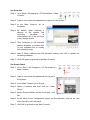
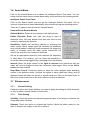
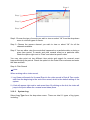
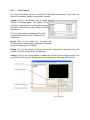
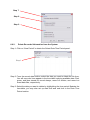
Step 4: Go to Camera tab. If your
IP cameras support UPnP.
Follow step 5. Otherwise,
follow step 8.
Step 4
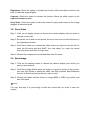
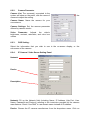
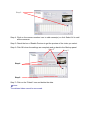
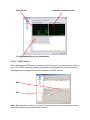
Step 5: Click “Search” to search for
the IP cameras that are
available at this point.
Note:
Search function just support the IP
cameras with UPnP supported.
Step 5
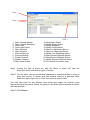
Step 8
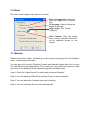
Step 6: Select one of the IP cameras that
are available; check the option
and enter the username and
password.
Step 7: Click OK to add the camera.
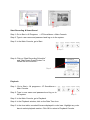
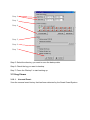
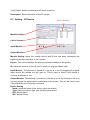
Step 8: Click “Insert” to insert the IP
cameras.
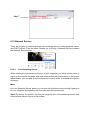
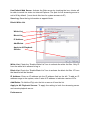
Step 9: Enter the IP address or domain name (check the “Use DNS” option), Http
Port, Username, and Password.
Step 10: Click “Auto Detect”
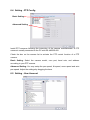
Step 11:
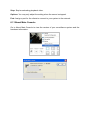
Click OK to add the camera.
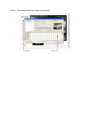
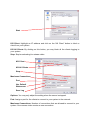
Click OK to exit the Setting panel.
Step 9
Step 10
Step 11