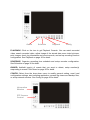
1
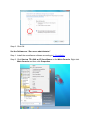
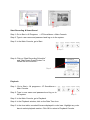
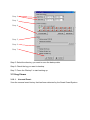
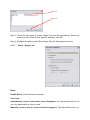
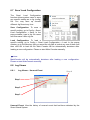
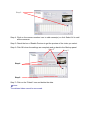
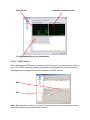
Step 4
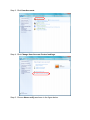
Step 1
Step 2
Step 3
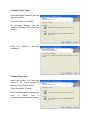
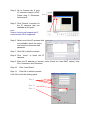
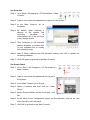
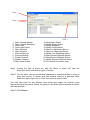
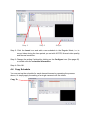
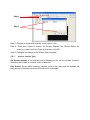
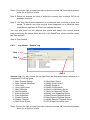
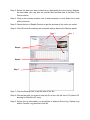
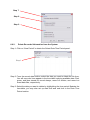
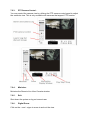
Step1: Choose the type of events you wish to view or select “All” from the drop-down
menu to view all types of events.
Step 2: Choose the camera channel you wish to view or select “All” for all the
channels available.
Step 3: You can either view the events that happened on a particular date or during a
given time period. To search and view unusual event on a particular date,
check the option right next to “Date” and select a specific date.
You may also point out two different time points and search for unusual event
happened during the period. Check the options in the Date &Time columns and enter
the date and time.
Step 4: Click Search
) Note:
When working with a video record,
1. Log Viewer will search for Unusual Event in the video record in Date & Time mode,
start from the beginning to the end of the record, which is the default setting of the
system.
2. A link will appear right next to each event time. By clicking on the link, the video will
jump to the point where the unusual event takes place.
3.12.2.
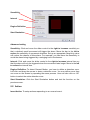
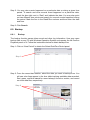
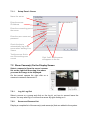
System Log:
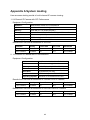
Select Log Type form the drop-down menu. There are total 11 types of log types,
including: