1
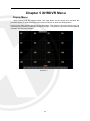
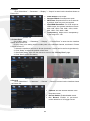
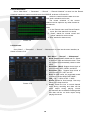
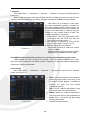
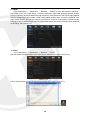
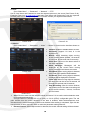
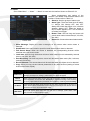
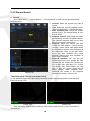
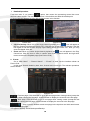
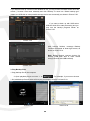
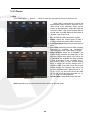
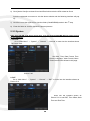
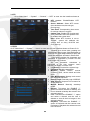
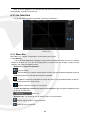
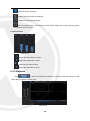
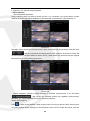
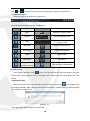
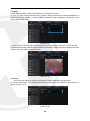
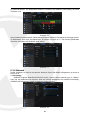
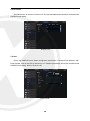
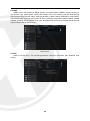
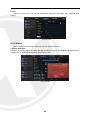
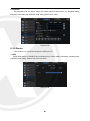
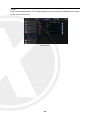
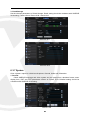
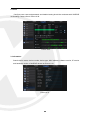
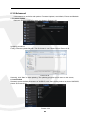
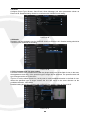
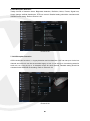
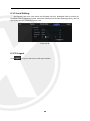
5.2 Main Menu On LIVE mode, click the mouse button, or [Menu] button on the remote controller, or click [ ] icon on the toolbar to enter the main menu screen, as shown in Picture 5-2. If the system interface is locked, refer to section 4.3 to unlock by inputting password. In Main Menu mode, you can change the following settings for Parameter, Record Search, Device, System, Advanced and Shutdown. Picture 5-2 5.2.1 Parameter 1. Live Go to “Main Menu” → “Parameter” → “Display” → “Live” to enter into the interface shown as Picture 5-3. Picture 5-3 Channel: Select the channel in the drop-down list. Channel Name: Channel name, support up to 8 characters or 4 Chinese characters. Position: Set the position for the channel display Color: Click “Setup” to enter into the color setting page (Picture 5-4) Image hiding: Enable or disable the channel real-time monitoring Show Time: Enable or disable the system time display in the live interface. Copy: Copy the parameters in the channel to any other channel or all channels. Record Time: Enable or disable displaying system time in recording. Copy: Copy the setting parameter of a channel to another channel. Adjust the brightness, hue, contrast and saturation of the image in selected channel in “Live” interface. Note:To modify the parameter value in sub-menu and make it effective, click “Save” after modification and a dialog box with message “parameters have been successfully saved” will pop up. Click “OK” in the interface and click “Exit” to exit the menu. If you want to cancel the modification, click “Cancel” to exit. Picture 5-4 10