1
 5. Time series data processing and data transformation from ILWIS to
HANTS
5.1 Introduction
This exercise will focus on the use of an NDVI time series data set, derived from the SPOT Vegetation Instrument, for the Burkina Faso region from 01‐01‐2010 up to 11‐10‐2012. The temporal resolution is 10 days (resulting in 101 temporal events). The data has already been imported in ILWIS. If this is not the case start importing the data as described in chapter 3.2. Once more note that the data is having a byte format. Install HANTS and double click with the mouse within the HANTS directory the file “Hants.chm”, showing the help. Have a look at the various chapters within the help menu 5.2 ExportoftimeseriesdatafromILWIStoHANTS
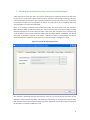
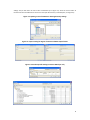
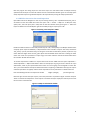
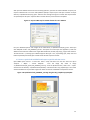
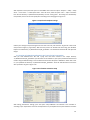
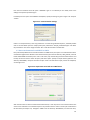
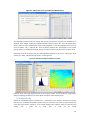
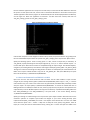
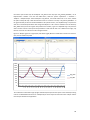
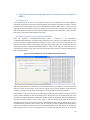
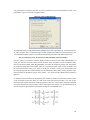
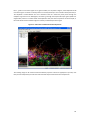
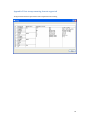
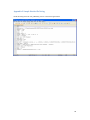
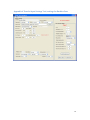
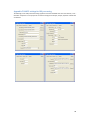
Open the application “TimeSeriesConversion.exe” which is contained in the sub‐directory “C:\DataConversion\TSConvert”, by double clicking it with the mouse. Open the Tab “Configuration” and first check if your GDAL and ILWIS configuration settings are correct, if this is not the case consult chapter 3.4. Open the Tab “Ilwis 2 HANTS” and specify the appropriate input maplist (here “ndv” is used) and select the output directory (here “C:\DataConversion\NDV_HANTS” is used), see also figure 5.1. Note that here the “Force data type” option is used. This is done as the data format ‘byte’ is known. To export the data press the button “Export to Hants”. Figure 5.1: Export of NDVI time series to HANTS and ascii file list created After the export processes has completed, use the Windows Explorer and navigate to the output directory. Check the content of this directory. A total of 101 *.img files and a text file “NDV.txt” should have been created. For a listing of the ndv.txt file see also figure 5.1. Use “Notepad” to open the file “NDV.txt”. Open HANTS if not done already and specify the settings according to those provided in Appendix 5 for the Project, Analysis, Synthesis and IHS Tabs. Note that for the IHS Tab these are the expected input files, which still need to be created! The Bat‐File settings are provided in figure 5.2. Activate the options as provided here and press the option “Create”. Use the “Edit” option to view the content of the batch file created and subsequently press “Run” to execute the process. A new MS‐DOS window is opened showing the progress of the transformation procedure. At the end the user has to accept the ‘pause’ command by pressing <enter> twice from the keyboard. Check the content of your working directory. A file “ndv_process_ihs” should have been created. If this is not the case during the first run, double click with the mouse on the batch file 21