1
T: 44(0)1246 417113 - e: [email protected] - www.quantek.co.uk
PROX Ltd
- Quantek
Low voltage device
Gates - Cameras etc
GSM G +
Multi Function GSM Controller
Introduction
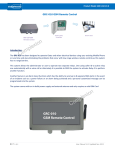
The GSM G+ has been designed to operate Gates and other electrical devices using your existing
Mobile Phone or Land Line and also eliminating the problems that occur with low range wireless
remote controls as this system has no range barriers.
This system allows the administrator or user to operate two separate relays. One using caller ID to
active Relay 1 automatically with a voice call or alternately it is possible to SMS the system to activate
Relay 2 to perform another function. Another feature is an Alarm Input function which has the ability
to send up to 8 separate SMS alerts in the event of an incident such as a power failure or an alarm
being activated and a personal customized message can be programmed into the system.
The system comes with a built-in power supply and external antenna and only requires a valid SIM
Card.
Please read through the instruction manual before you start to install and program the GSM
G+
Power Supply
The Integral Power supply of 12 Volt DC supply capable of providing 1 Amp current, never use the
power supply from Gate control panels as they may show a 12 Volt reading and initially Log on to the
system, but can draw higher current when Network signal strengths drop and not only log off, but may
also blow the fuses on the Gate control board as GSM Modems will draw excessive currents whilst
searching for the network connections.
SIM Card
The system will accept any Universal Network GSM SIM Card (UPDATE: Vodafone PAYG SIM cards
no longer work). It is essential that you remove any Pin Code requests from the SIM Card which can
be done by placing the SIM Card in an unlocked Mobile Phone and using the features on most Mobile
Phones to disable the Pin Code request as if the Pin Request is enabled the system will not log on to
the network and the unit will refuse to be programmed.
In addition it is essential you also disable the Voice Mail function which can be in some case done
again by placing the SIM Card in an unlocked Mobile Phone and contacting your service provider to
remove this function and insure the SIM Card does not accept or store any incoming voice messages.
Page 1
www.quantek.co.uk
User Manual V1.6
Mobile Phone Credit
It is also essential that the SIM Card is retained with enough credit at all times so as to be able to
receive the SMS text alerts when making any changes to the system remotely even though the
system will continue to perform and make the changes required although you just will not receive the
confirmation text messages back from the unit.
In addition the system will still operate by calling the unit and opening the Gate as there is no
connection charge for using this function.
Installing the SIM Card and booting up the system:
To Install the SIM Card you will need use a small pointed screw driver and depress the small yellow
button beside the SIM Card tray as labeled SIM Card and the SIM Card tray will pop out. You can
remove the tray and locate the SIM Card in the holder and gently slide the SIM Card tray back into its
receiver slot.
Don’t ever force the SIM Card tray or attempt to remove it out with a screw driver by levering it as you
will only damage the unit and render it useless.
The Red power light will come on and the Green network light will oscillate infrequently until it locates
the network, once it has secured itself on the network the green Network light will flash every 4
seconds constantly.
If this does not happen after say one minute, the system has not logged on and you will need to check
the SIM Card is positioned correctly and that the antennae is connected or it may be the signal area is
too low.
Once the system is connected to the network it is now possible to actually Change the Password if
required and then check the Signal Strength at the location using SMS Messaging.
Password
All SMS Commands are sent to the unit with a Password prefix which is factory set as default of the
password digits of 123456
#PWD123456 and this format is the prefix to any commands sent to the unit and all of the commands
are always sent in CAPITAL letters with no spaces or symbols!
It is possible to change this password if required, and to change this to 654321 you would send the
unit the following SMS Message.
#PWD123456#CAP654321#CAP654321 and this is sent in this format as confirmation and you
should receive the following SMS message from the unit if sent correctly.
CAP: 654321 and the new password is now 654321, this will be used for the following examples.
Checking the Signal Strength
The next thing you may wish to do is check the actually signal Strength at the location and to do this
you would send the unit the following SMS Message.
#PWD654321#CSQ? you should receive the following similar SMS message from the unit if sent
correctly. CSQ <12 >
This indicates the signal strength of <12 > from a range of between < 1 > and < 31 >. It is advised that
if you are registering a signal strength any lower then < 5 > or < 6 > you should add an additional
external antennae to improve the signal strength or change the Network.
Page 2
www.quantek.co.uk
User Manual V1.6
Security Mode
The system can store up to 99 numbers that are the numbers that would be authorized to access the
system by calling the unit and this mode of security can be tuned on or off to suit the customer
requirements.
These 2 modes are either “Open Mode” in which any person calling the unit can access the system
(not recommended as number may receive marketing calls)
or “Security Mode” which restricts access to the numbers programmed into the system. (White List)
The Factory default is set to “Security Mode”
To switch the mode of operation back to “Open Mode” you would send the unit the following SMS
Message #PWD654321#ACM0 and you should receive the following SMS message back from the
unit if sent correctly ACM-OFF
To switch the mode of operation to “Security Mode” you would send the unit the following SMS
Message #PWD654321#ACM2 and you should receive the following SMS message back from the
unit if sent correctly ACM-ON
Adding and Deleting Numbers in the White List
The system will accept up to 99 Mobile or Landline numbers that are authorized to access the system
and to store these numbers in the authorized list you can use the following format as from 01 up to 99
and to store number one number in the list you would send the unit the following SMS Message
assuming the number as 07123456789 and it is not required to enter the (0)
#PWD654321#WHL01=7123456789 and you should receive the following SMS message from the
unit if sent correctly. WHL01: 7123456789
This format applies up to the last number as #PWD654321#WHL99=
To delete any numbers in the list you would send the following SMS Message to the unit and
assuming you were deleting telephone number one of the authorized list as WHLO1=7123456789
#PWD654321#WHL01D and you should receive the following SMS message from the unit if sent
correctly. WHL01D <OK> and number 1in the authorized list has been deleted.
Checking a telephone Number in the Security List
If you want to check any number in the authorized list you can do so by sending the following SMS
Message to the unit as assuming you are checking number one in the authorized list.
#PWD654321#WHL01? and you should receive the following SMS message from the unit if sent
correctly. WHL01: 7123456789
Setting up the Output relay one Latching time when called
This function sets the actual latching time when you call the unit and is factory pre-set at 1 second but
it is possible to extend this latching time up to 60 seconds
To reset the latching time to 5 seconds for say a Magnetic Lock, you would send the following SMS
Message to the unit.
#PWD654321#GOT05 and you should receive the following SMS message from the unit if sent
correctly. GOT: 05 and the Output Relay one will now latch for 5 seconds whenever the unit is called.
Temporary latching any or both relays
It is possible to temporary latch both relays independently and in the case of relay one this does not
affect the default setting of the GOT command.
Both relays can be temporary latched from 1 second up to 65,000 i.e. 18 hours and to latch Relay one
for a period of 3600 seconds you would send the following SMS message to the unit.
#PWD654321#RLY1=03600 and you should receive the following SMS message from the unit if sent
correctly. RLY1: 03600 and Relay one has latched for a period of 3600 seconds.
To Latch Relay two for a period of 3600 seconds you would send the following SMS Message to the
unit.
#PWD654321#RLY2=03600 and you should receive the following SMS message from the unit if sent
correctly. RLY2:03600 and Relay one has latched for a period of 3600 seconds.
Page 3
www.quantek.co.uk
User Manual V1.6
Latching the relays permanently On and Off
It is possible to latch both relays either On or Off permanently and this will not affect the default setting
of Relay one but the command to latch for the 1 second will obviously be ignored if the Relay has
been programmed to be permanently switched On.
To Latch Relay 1 On permanently you would send the following the SMS Message to the unit.
#PWD654321#RLOP1=1 and you should receive the following SMS message from the unit if sent
correctly. RLOP1: ON and Relay one has been latched permanently On.
To Latch Relay 1 Off permanently you would send the following the SMS Message to the unit.
#PWD654321#RLOP1=0 and you should receive the following SMS message from the unit if sent
correctly. RLOP1: OFF and Relay one has been latched permanently Off.
The same format would be used for permanently latching Relay 2 On and off using the commands as
#RLOP2=1 and #RLOP2=0
Receiving SMS Text alerts and messages from the unit
It is possible to receive SMS alert messages to confirm both relay latching has been implemented and
also when the Relays Latch off.
In addition it is possible to receive SMS text alerts when the Input is activated as described in the
Alarm Functions section.
The system can send these SMS text alerts to 8 separate Mobile phones in the sequence they were
programmed into the system and referred to as administrator numbers 1-8 and can also be toggled on
or off remotely via a Matrix as explained in the Administrators Matrix section.
Programming in the Administrator Numbers
The Administrator numbers are programmed into the system using the command #TEL1 through to
#TEL8 and to program in #TEL1 you would send the following SMS Message to the unit.
#PWD654321#TEL1=07847070001 and you should receive the following SMS message from the unit
if sent correctly. TEL1: 07847070001
When programming the administrator numbers always enter the full telephone number and if you
wish to receive SMS alerts whilst abroad always put the complete number in including the
International code as this is the number the system is programmed to transmit the SMS text alerts to.
The remaining administrator numbers are programmed in the same format up to #TEL08
Administrators Matrix
Once you have programmed in the administrators numbers it is possible to also now program a matrix
of who should receive the SMS text alerts and confirmation messages.
The system is pre-set as factory default to send #TEL1 SMS text alerts and messages once that
number has been entered and confirmed in the #TEL1 and the #CTR=1 alarm function turned On.
The Matrix is programmed using the #RERN command which can toggle the list of numbers On or Off
based on using the digit 1 as On and 0 as Off as follows.
The factory default has set up the #RERN as #RERN=10000000 which indicates the first
administrator number in the list will receive the SMS text alerts and messages and the remaining
seven administrators will not receive any SMS text alerts or messages.
To change the Matrix of persons who will receive the SMS alerts or messages you would simply use
this format and to assume we want only administrator 1 4 and 6 to receive the SMS alerts and
messages we would send the following SMS message to the unit.
#PWD654321#RERN=10010100 and you should receive the following SMS message from the unit if
sent correctly. RERN=10010100 and only the administrators 1 4 and 6 will receive the SMS text alerts
and messages.
To change the matrix you would just over write the existing matrix by sending anther SMS message to
the unit and if you want to send more than one message to one off the Administrators you would
simply enter that administrator in the #TEL list the number of times you want them to receive the SMS
text alerts and messages.
Page 4
www.quantek.co.uk
User Manual V1.6
Setting up the Alarm Input Message when activated
The system has an alarm Input that will trigger a customized SMS text alert to the administrators as
recorded in the #TEL list and activated in the Matrix to receive the SMS text alerts.(and you also
need to have the #CTR=1 alarm function turned On)
This alarm is activated by applying a 12 Volt DC supply to the alarm Input connection for a period of 5
seconds and to customize the SMS Message you would send the following SMS Message to the unit
assuming the required message is to be “Gate Forced”
#PWD654321#STR=”Gate Forced” and you should receive the following SMS message from the
unit if sent correctly. STR: “Gate Forced” and this SMS Message will now be sent to the
administrators from the #TEL list that are programmed in the Matrix to receive the SMS text alerts.
Setting up the Alarm Input Message when De-activated
It is also possible to Program an alarm message that is sent when the alarm Input returns to normal
status or Alarm Power is removed and to set the following message as “Gate locked again” you
would send the following message to the unit.
#PWD654321#STO=”Gate locked again” and you should receive the following SMS message from
the unit if sent correctly. STR: “Gate locked again” and this SMS Message will now be sent to the
administrators from the #TEL list that are programmed in the Matrix to receive the SMS text alerts.
Setting up the alarm status Modes “Power applied” and “Normal status”
The system allows you to send just an alarm message when the power is applied and no alert
messages when the power returned to normal and this is done by sending the following message to
the unit #PWD65432#CTC=5 and you should receive the following SMS message from the unit if sent
correctly. #CTC <5> and you will only receive the message as programmed in as with the #STR
“Gate Unlocked” when the Voltage is applied to the Input alarm connection.
To receive the #STR alert message when the Voltage is applied and also to receive the #STO
message when the input Voltage is removed you would send the following SMS message to the unit.
#PWD654321#CTC=6 and you should receive the following SMS message from the unit if sent
correctly. CTC <6> and the administrators programmed to receive text alerts will receive both
messages.
To receive either alert messages one or the other of the #CTC=5 or #CTC=6 have to be programmed
into the system otherwise the alert messages will not be sent and also the following alarm function
must be turned on.
Turning the Alarm function On and Off
The alarm function can also be turned on or off if required and to turn this function on you would send
the following SMS Message to the unit.
#PWD654321#CTR=1 and you should receive the following SMS message from the unit if sent
correctly. CTR: ON and the Alarm Function has been turned on.
To turn this function back off you would use the command #CTR=0 and you should receive the
following SMS message from the unit if sent correctly. CTR: OFF and the alarm function has been
turned off.
Resetting the System
The system can be reset to factory default by sending the following SMS Message to the unit.
*REST#654321 and you should receive the following SMS message from the unit if sent correctly.
REST-OK and the system has now been restored to factory default.
The password is now restored to 123456 the default latching time for Relay one is 1 Second and the
system memory is now blank! And will require reprogramming from the beginning. So please note this
when sending the *REST# command
Page 5
www.quantek.co.uk
User Manual V1.6
LIST OF SMS COMMANDS
#PWD123456
FACTORY DEFAULT PASSWORD
#CAP
CHANGE PASSWORD
#CSQ?
CHECK SIGNAL STRENGTH
#WHL
ADD USER NUMBERS
#WHL D
DELETE USER NUMBERS 1-99
#WHL99D
DELETE ALL USER NUMBERS
#WHL ?
CHECK USER NUMBER POSITION 1-99
#GOT 01-60
CHANGE RELAY 1 DEFAULT LATCHING TIME
#RLY1 #RLY2
TEMPORY LATCHING
#RLOP1 #RLOP2
PERMINANT LATCHING
#TEL 01-08
ADD ADMINISTRATORS
#RERN
SET ADMINISTRATORS MATRIX
#STR
SET ALARM MESSAGE Voltage High
#STO
SET ALARM MESSAGE Voltage Low
#CTC=5
TURN ON ALARM MESSAGE #STR
#CTC=6
TURN ON ALARM MESSAGES #STR AND #STO
#CTR1 #CTR0
TURN ALARM FUNCTION ON-OFF
#ACM0
TURN SECURE ACCESS MODE OFF
#ACM2
TURN SECURE ACCESS MODE ON
*REST#
RESET UNIT
Page 6
www.quantek.co.uk
User Manual V1.6
Schematic and Wiring Diagram
Output Relay 1- Clean Contacts
R2 Clean Contacts
Power Contact R2 “Com” - v
N
L
+v alarm input (Text alert when +v removed or added)
Relay 1: Phone call operation
Relay 2: Text operation
Trouble Shooting
1. Red power LED not alight
2. Green network LED is NOT flashing
every 4 seconds
3. I am not receiving text messages
when initially programming the unit
4. The unit occasionally activates itself
5. The unit has been working for
several months and has now stopped
responding to calls and text
commands
6. When I call the unit I do not receive
a confirmation text message
7. After initial setup the relays can
only be activated by text and not by
my calls
Page 7
Check that the power supply is connected into the right
terminals and that there are no loose connections.
Ensure that your SIM card has been activated and that the
PIN request has been disabled. Make sure the SIM card has
been inserted correctly. If the unit is in a low signal strength
area consider using an external antenna or changing to
another network provider.
Ensure the unit is connected to the GSM network by
observing the green network LED, it should be flashing
every 4 seconds. Ensure the SIM has credit.
Network operators often make marketing calls to their
subscribers; switch on secure access mode so only
numbers in the white list can activate the unit.
Most but not all PAYG SIM cards will be de-activated by the
network if not used to make an outgoing voice call or send
an SMS text message within a specific period of time. To
prevent this simply send the GSM G+ a text command, it will
reply by text message, do this once a month to keep the
SIM card active.
The unit only sends relay status messages in response to
the #RLOP and #RLY commands
Ensure the voicemail feature has been disabled on the SIM
card. Ensure the number is in the White List.
www.quantek.co.uk
User Manual V1.6