1
ITL 2000 Printer User Manual (UMITL201.PDF)
10 EEPROM PARAMETER STORAGE MEMORY
Note that on Windows 2K/XP systems, the printer driver has a configuration utility that can manage almost all of the settings
discussed in this section. We recommend that you use the driver to make these changes. Refer to the User Print Properties
Panel (UPPP) guide.
10.1 EEPROM Parameter Memory Overview
The EEPROM parameter memory is used to store a variety of printer configuration parameters. These stored parameters
provide the data which customizes the operation of the printer to the particular application. Examples of this are: print
intensity parameters are used to set the printer to match the response characteristic of the media being used; selections for the
printer's reaction algorithm to a low paper signal, etc. The details of each parameter are listed below.
10.2 EEPROM Change Menu Entry
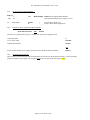
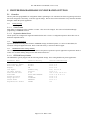
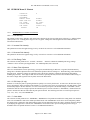
The EEPROM Change is menu is entered, at power on, using the switch sequence noted below.
**************************************
*
EEPROM ENTRY HELP
*
**************************************
Turn off power to printer.
Hold F3 while turning on power.
Hold F3 until 1st beep/flash.
Release F3, wait for 2nd beep/flash.
Press F3 twice quickly, hold second
Press until printing starts.
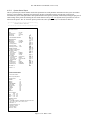
10.2.1 EEPROM Change Menu Operation
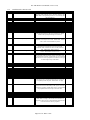
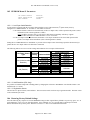
The EEPROM change menu is a collection of printed menus, which permit the selection, and change of stored parameters. The
EEPROM menu is entered via a power-on switch operation (refer to section 4.5.2). Upon entry into the menu, a help report is
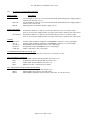
printed, which details the menu operations, followed by the first EEPROM parameter menu. Refer to the help menu below for
parameter change and secondary menu access procedures.
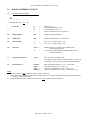
*************************************
*
EEPROM HELP
*
*************************************
F0
= MOVE cursor (>) UP
F1
= MOVE cursor (>) DOWN
F2
= CHANGE Option @cursor
F3
= ENTER Next MENU level
POWER OFF = EXIT EEPROM MENU
PRINT of parameter menu occurs 1 second after pressing
any switch. By pressing F0 or F1 several times quickly and
counting the beeps, the cursor can be moved several positions
before the next printout. Pressing F2 at the counted target will
change the selection. This technique permits changes to be
entered quickly without printing after each switch press.
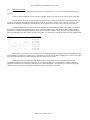
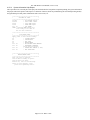
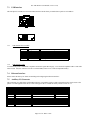
10.2.2 Active and Inactive Menu Line
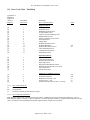
Some parameters on the menu are not changeable. They are only for display or reference while others may become active on
future firmware versions. The cursor will skip menu lines that are not active. Active parameters, or the associated menu lines,
are shown with brackets around them. For example: INCREMENT and DECREMENT are active parameter menus lines.
These lines affect the PRINT INTENSITY line, which displays the result.
Page 42 of 72 Date: 3/9/06