1
Kapelle Dictation Tutorials
Page 21 of 57
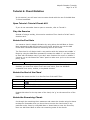
Keyboard
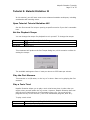
Press Ctrl+Left Arrow
To move the cursor forwards by one- measure increments:
Keyboard
Press Ctrl+Right Arrow
After your notation has been entered, it is fully editable. Here are some of the
actions you can carry out.
NOTE: don’t be afraid to carry out editing actions as experiments. Don’t forget
that you can Undo everything you do!
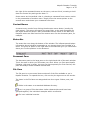
Selecting Notes for Editing
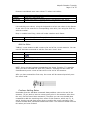
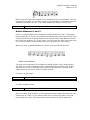
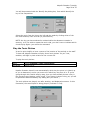
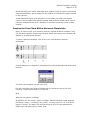
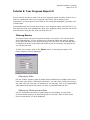
To select notes, you can either position the cursor directly over the note’s head
(by clicking or using the arrow keys), or you can drag a selection rectangle
around noteheads. This second method is used primarily to select multiple notes.
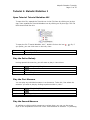
Deleting Notes
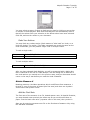
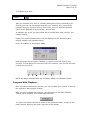
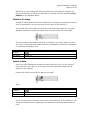
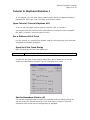
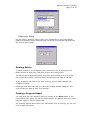
To delete a note, select the note or notes you wish to delete, then:
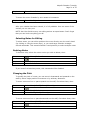
Menu
Toolbar
Select Note | Delete Note
Keyboard
Context
Press Backspace
Select Delete Note
If you haven’t selected any notes, this command will be disabled.
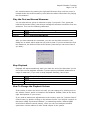
Changing the Pitch
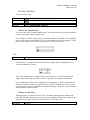
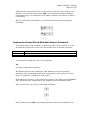
To modify the pitch of a note, you can move it downwards and upwards on the
staff by either single position increments or by arbitrary distances.
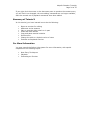
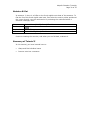
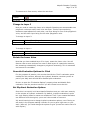
To move notes one line or space upwards on the staff, first select them, then:
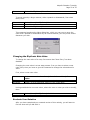
Menu
Toolbar
Select Note | Modify Note | Move Up
Keyboard
Context
Press Ctrl+Shift+Up Arrow
Select Modify Note | Move Up
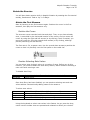
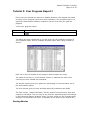
To move notes one line or space downwards on the staff, first select them, then:
Menu
Toolbar
Select Note | Modify Note | Move Down
Keyboard
Press Ctrl+Shift+Down Arrow