1
A Three Dimensional Example Model
23
of
28
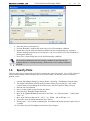
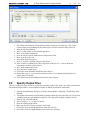
2. The toolbar at the bottom left of the dialog contains a button for each plot type. Click on the
Contour button to begin adding the first contour plot. The Plot Properties dialog will open.
3. Enter the title Concentration.
4. Select c as the variable to plot from the drop-down.
5. Move to the Update Method tab.
6. Press the Arrow to put the model times in the plot time fields.
7. Move to the Projection tab.
8. Select Plane Projection option.
9. Select Y from the Coordinate Direction drop-down.
10. Enter 14 in the Coordinate field. This will generate a 2D slice at Y = 14m on which the
concentration contours will be plotted.
11. Move to the Output Options tab.
12. Select the PLOT output option.
13. Click OK to close the dialog and add the plot to the list.
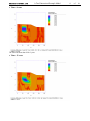
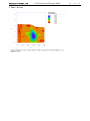
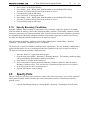
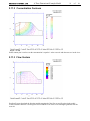
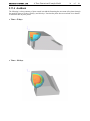
14. Repeat these steps 2 – 12 to create the plots shown above. Note that the Mesh plot does not
require entry of a variable.
15. Click OK to close the Plot Manager and return to the workspace.
2.9
Specify Output Files
There are 4 output file types that can be specified to export the results of the model. One will be generated for
this tutorial example model: a file to output the results to AcuMesh for advanced visualization.
1. Open the Output Manager dialog by selecting selecting Model > Reporting > Plot Manager from
the menu.
2. The toolbar at the bottom left of the dialog contains a button for each output file type. Click on the
AcuMesh button to begin adding the output file. The Output File Properties dialog will open.
3. Enter the title TutorialAcuMesh.
4. Select variables c, vx, vy, and vz in the list.
5. Press the Add Selection button.
6. Make sure the Write File box contains a check mark.
7. Click OK to close the dialog and add the output file to the list.
8. Click OK to close the Output Manager and return to the workspace.