1
3.3
MuonScript
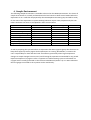
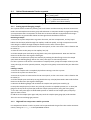
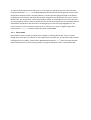
In order to produce consistent data with MuSR it can be helpful to run through a regular series of
measurements with the same counting statistics and following a planned pattern of temperature
and magnetic fields. This can be done by writing a script in the MuonScript
M
Script window of SECI and
executing it in the OpenGENIE window. We use a program “MuonScript”
Script” to generate a script from a
table of fields, temperatures and run lengths. A new script can be edited while a previous run, or
script, is still in progress.
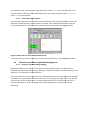
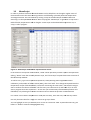
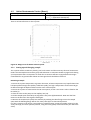
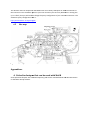
Figure 11:: MuonScript window with representative entries.
entr
In the menu on the top left of the window, “Read” allows previously written scripts to be opened for
editing, “Write” saves the currently written script, and “Clear Script”” empties the current contents of
the MuonScript window.
To add an entry, type in
n the required temperature, field (selecting main longitudinal field or
calibration), and number of million events (MEv), then click “Add”. If no change is required leave the
temperature and/or field values blank, instead of re-entering
re
the same value – this
th avoids having to
wait to confirm the value is still stable. The first entry can take control of, and finish off, a run that
was in progress when the script starts – in this case you would usually leave both temperature and
field blank, only selecting thee number of million events at which the present run should finish.
finish
For a linear scan of either temperature or field (but not both), enter the start, end and step values.
Use only the Start value for a single run. Scans can go up or down.
You can highlight an entry in the table, then “Insert At” instead of “Add” to place
lace the new entry just
before it. “Delete” removes thee highlighted entry.
entry