1
User manual
04 Mouse, keyboard or
joystick
Each enCore input can be configured to
perform a mouse, keyboard or joystick action.
04.1 Mouse
As mouse, the available actions are:
• Move the pointer left, right, up or
down.
• Left, right or double click, and drag/
drop.
When an input is configured with mouse
movement, the pointer will keep moving as
long as the switch is pressed down. You can
choose from a number of movement modes, see section ‘Mouse speed’.
User manual
05 Configuration application
04.2 Keyboard
As keyboard, you can configure an input to
simulate a key press. Besides, you can modify that key with any combination of Control, Shift and Alt.
The enCore application allows you to configure the actions associated to each switch
input.
04.1 Joystick
05.1 The window
As joystick, the available actions are:
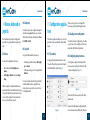
In the application windows there is a box
for each of the enCore inputs. Each input is
identified with its symbol (Figure 1).
• Simulate joystick movement left, right,
up or down.
• Simulate pressing one of its eight virtual
buttons.
You can configure how far the joystick will
virtually displace when a joystick movement action is executed. See section ‘Joystick displacement’.
There is also a section to configure the
mouse speed and joystick displacement.
05.2 Reading current configuration
To read the current configuration of a enCore, just connect it to a USB port of the computer and click ‘Read configuration’.
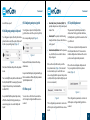
05.3 Configuring an input as mouse
To configure an input so that it performs
mouse actions select option ‘Mouse’ in the
corresponding input (Figure 2).
Figure 2
Next, select the desires action in the dropdown menu.
Figure 1
6
Keep in mind that inputs configured with
mouse movement are affected by the para7