1
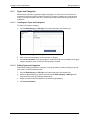
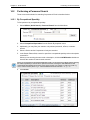
Performing a Unit Search
Chapter 14: Quick Search
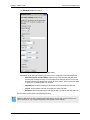
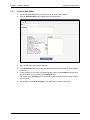
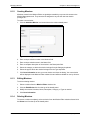
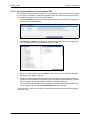
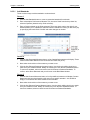
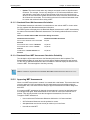
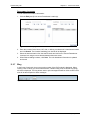
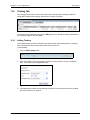
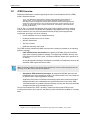
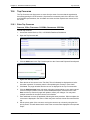
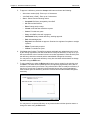
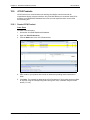
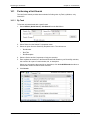
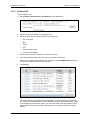
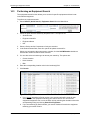
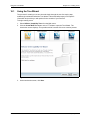
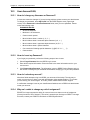
2. Select Missions from the Search For dropdown menu.
3. Select an option from the Search By dropdown menu: The choices are:
•
Mission Name
•
Mission Number
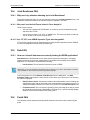
4. Select a Service and/or Component to limit your search to.
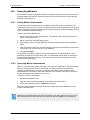
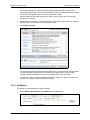
5. Enter a phrase to search for in the Search Phrase field. Based on your Search By selection,
this could be all or part of a mission name or number.
Unless you are entering the exact mission name or number, click the Add Wildcards
checkbox to increase the number of search results returned.
6. Click Search.
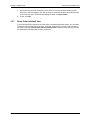
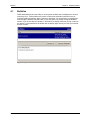
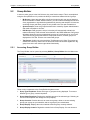
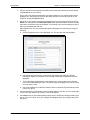
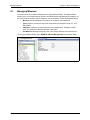
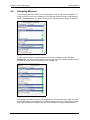
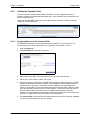
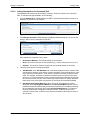
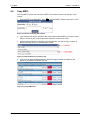
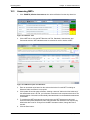
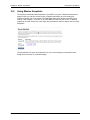
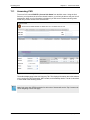
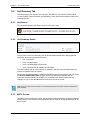
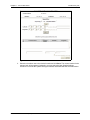
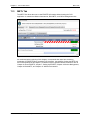
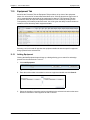
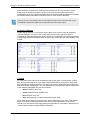
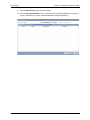
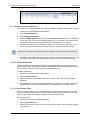
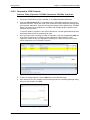
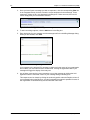
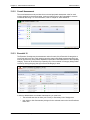
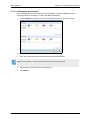
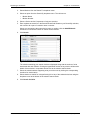
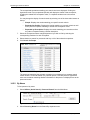
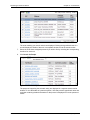
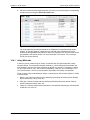
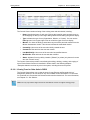
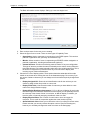
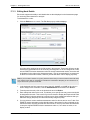
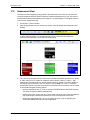
Figure 14-5: Mission Search Results
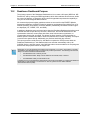
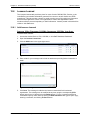
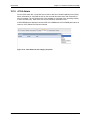
The missions matching your search criteria are displayed along with the number of units
associated with each mission. Clicking the hyperlinked number of any mission will show the
details of that mission in a separate window next to the mission search results.
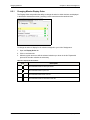
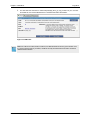
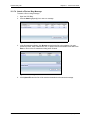
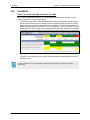
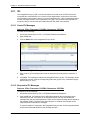
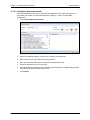
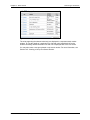
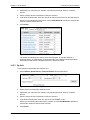
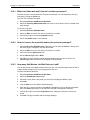
7. Select the missions whose supporting units you wish to see by clicking the corresponding
checkbox for each mission.
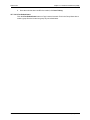
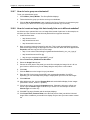
8. Select whether to search for units performing All or Any of the selected missions using the
dropdown menu at the bottom of the mission search results.
9. Click Search for Units.
14-4
DRRS Software User Manual (SUM) 4.5.12