1
Chapter 5: Working with Groups and Units
5.2.3
Group Builder
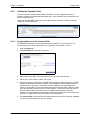
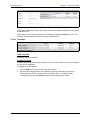
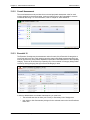
Selecting a Group
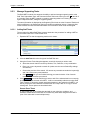
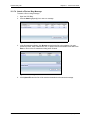
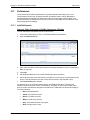
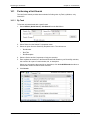
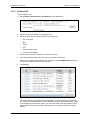
To select and view an existing group:
1. Open the Group Builder.
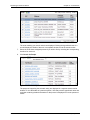
2. Use the Group Type dropdown to select the type of group you wish to open.
3. Use the Group Name dropdown to select the specific group you wish to view. The selected
group will be displayed in the Group Display section, listing all units associated with it.
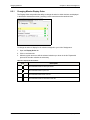
4. You may utilize the Group Display Controls to navigate through the various pages of the unit
list as needed.
5.2.4
Editing Groups
5.2.4.1
Removing Units
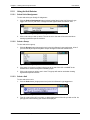
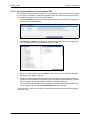
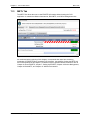
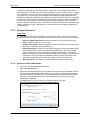
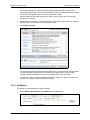
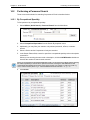
To remove units from a group:
1. Open Group Builder.
2. Find and select the group you wish to remove units from.
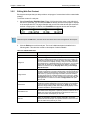
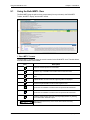
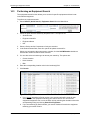
3. Select the checkbox(es) next to the unit(s) you wish to remove from this group and click the
Remove Unit(s) button located in the Unit Controls.
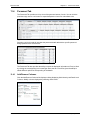
4. Click Save when you are finished removing units in order to finalize any changes made to
your group. If you do not save, all of your changes will disappear when you navigate away
from this group.
5.2.4.2
Renaming a Group
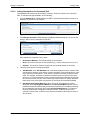
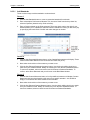
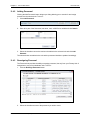
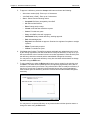
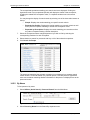
To rename a group:
1. Open Group Builder.
2. Find and select the group you wish to rename.
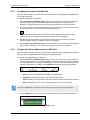
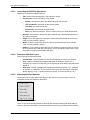
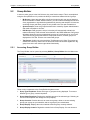
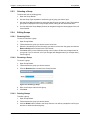
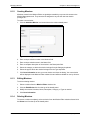
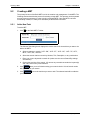
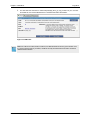
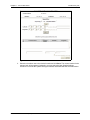
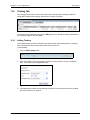
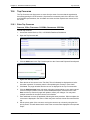
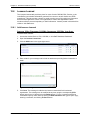
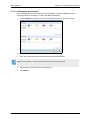
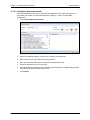
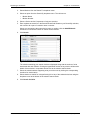
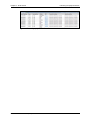
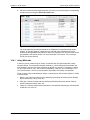
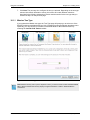
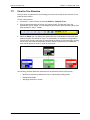
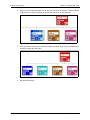
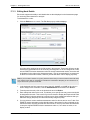
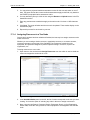
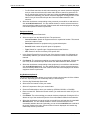
3. Click the Rename button located in the Group Controls.
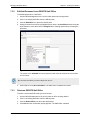
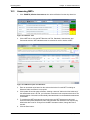
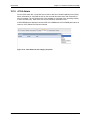
Figure 5-12: Renaming a Group
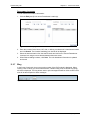
4. Enter a new unique name for this group.
5. Click Save.
5.2.4.3
Deleting Groups
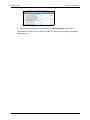
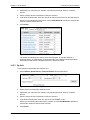
To delete a group:
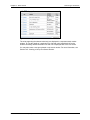
1. Open Group Builder.
2. Find and select the group you wish to delete.
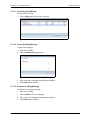
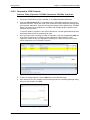
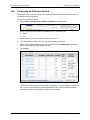
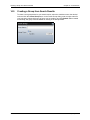
3. Click the Delete button located in the Group Controls. You will be prompted to confirm your
decision to delete the selected group.
DRRS Software User Manual (SUM) 4.5.12
5-9