1
VUE
Page 2
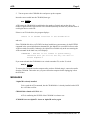
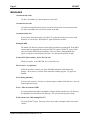
OPTIONS
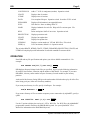
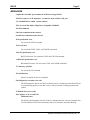
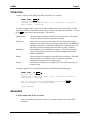
All the switches may be abbreviated to any unique characters.
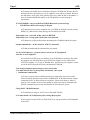
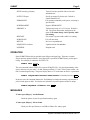
/BATCH
Suppresses most screen display output. Especially for use with Task
Manager to reduce unnecessary screen output to the .LOG files.
/NOYANK
Opens a file without putting any text into memory. Useful if you have
a file larger than your memory, and you want to YANK data into the
front of it.
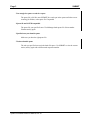
/R
Opens a file in another account for Read-only access. Allows you to
see a file in a "protected" account. You can only exit by using Q—any
changes you make to the file will not be retained.
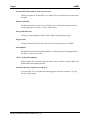
/SUBROUTINE
Executes VUE as if it were being called as a subroutine from another
program. Suppresses most interactive input and output.
/TRACE
Displays each line of the INI.VUE file as it processes.
OPERATION
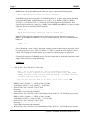
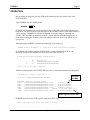
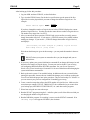
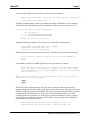
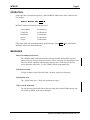
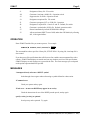
Enter VUE followed by the specification of the file you want to edit. For example:
VUE LETTER.TXT
RETURN
If the file you specify does not yet exist, you are asked if you want to create it. Enter a Y for Yes
or an N for No. If you enter N, AlphaVUE returns you to AMOS command level.
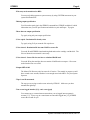
When you enter a file, you will see either text, or a screen full of lines of asterisks (if the file is
empty or new). Now you can enter or edit your text. If the WRAP feature is set to OFF in your
INI.VUE file, you will have to press RETURN at the end of each line to begin a new line. If the
WRAP feature is ON, AlphaVUE will begin a new line for you when you reach the end of a line.
If you are editing an existing file, AlphaVUE loads a copy of that file into memory and takes you
directly to the mode (Screen mode or Command mode) indicated by the START command in the
INI.VUE file.
If you are in Screen mode, you can use the various cursor movement and screen-to-screen
movement commands to move the cursor to the point in your text where you want to make changes.
Then use the appropriate screen editing commands to effect those changes.
To transfer from Screen mode to Command mode, or from Command mode to Screen mode, press
ESC or press CTRL /[.
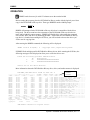
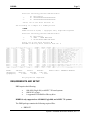
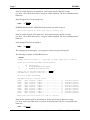
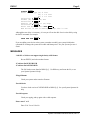
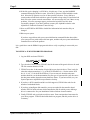
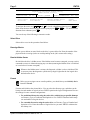
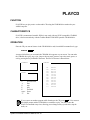
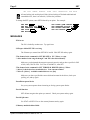
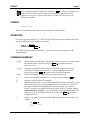
In Command mode, you see several lines of information on the screen. The cursor is waiting after
the AlphaVUE prompt symbol, ">".
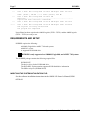
If HELP is ON in the INI.VUE file, and if the file MENU.HLV exists either in account
DSK0:[7,1] or in the account you are currently logged into, following the display shown above you
System Commands Reference Manual, Rev. 03 (AMOS 2.2 - 4/91)