1
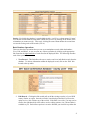
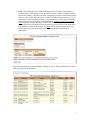
Sorting - By default, the database is sorted alphabetically (A to Z) by a column named “County”.
You can also sort the database using other column and you do it by clicking on the header of the
column that you want to sort by. Conversely, clicking the same column header the second time
reverses the sorting order of the records (Z to A).
Basic Database Operations
There are three basic operations that you can use to manipulate records within the database:
View, Edit, and Delete. A user accesses any of these operations by clicking on the appropriate
link located at the right-hand side of each record in the displayed table. The following describes
each of the operation:
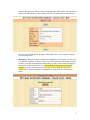
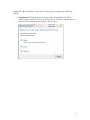
1. View Record – This link allows the user to retrieve and view individual records from the
database. To edit any information within the displayed record, click on the “Edit” link
located at the top menu.
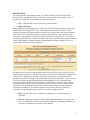
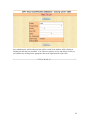
2. Edit Record – Clicking this link would pull out all the existing record(s) of your OWN
county, district, or region. Once the record(s) is/are displayed and listed, you have the
option to view, edit or delete any of the records. If the table is too wide, you may need to
scroll to the right-hand side of the table to see the editing options (view, edit and delete)
available to you. Each of these options is an active link that you can click to perform the
4