1
Color options
Whether you are using color management information in the PostScript file, using Distiller
CSFs, or defining custom settings, you set all color management information for Distiller
on the Color panel of the Adobe PDF Settings dialog box. For more information on color
management, see Managing color in Acrobat.
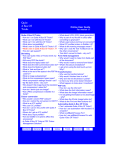
Adobe PDF Settings dialog box with the Color panel displayed
Settings File
Choose the color setting you want to use. This menu contains a list of color settings that are
also used in major graphics applications, such as Adobe Photoshop and Adobe Illustrator.
The color setting you choose determines the other options available in this dialog box. For
example, if you choose anything other than None, all options other than those for DeviceDependent Data are predefined and dimmed. You can edit the Color Management Policies
and Working Spaces settings only if you select None for Settings File. For a description of
the color settings, see Using predefined color management settings.
Color Management Policies
If you selected None from the Settings File menu, choose a color management policy to
specify how Distiller converts unmanaged color in a PostScript file when you are not using
a Distiller CSF.
●
●
●
●
●
Leave Color Unchanged. Leaves device-dependent colors unchanged and preserves deviceindependent colors as the nearest possible equivalent in PDF. This is a useful option for
print shops that have calibrated all their devices, have used that information to specify color
in the file, and are only outputting to those devices.
Tag (or Convert) Everything For Color Management. If you selected Acrobat 4.0 (PDF 1.3)
or later compatibility on the General panel, this option tags (embeds) color objects with an
ICC profile when distilling files and calibrates color in the images, making colors in the
resulting PDF files device-independent. If you selected Acrobat 3.0 (PDF 1.2)
compatibility, this option does not embed ICC profiles in the files. However, devicedependent color spaces in files (RGB, Grayscale, and CMYK) are converted to deviceindependent color spaces (CalRGB, CalGray, and LAB).
Tag (or Convert) Only Images For Color Management. If you selected Acrobat 4.0 (PDF
1.3) compatibility on the General panel, this option tags (embeds) ICC profiles only in
images, not in text or vector objects, when distilling files. This prevents black text from
undergoing any color shift. If you selected Acrobat 3.0 (PDF 1.2) compatibility, this option
does not embed ICC profiles in the files. However, device-dependent color spaces in
images (RGB, Grayscale, and CMYK) are converted to device-independent color spaces
(CalRGB, CalGray, and LAB). Text and vector objects are not converted.
Convert All Colors To sRGB (or Convert Everything To CalRGB). Calibrates color in the
file, making the color device-independent, similar to Tag (or Convert) Everything for Color
Management. If you selected Acrobat 4.0 (PDF 1.3) or later compatibility on the General
panel, CMYK and RGB images are converted to sRGB. If you selected Acrobat 3.0 (PDF
1.2) compatibility, CMYK and RGB images are converted to calibrated RGB (CalRGB).
Regardless of the compatibility option you select, grayscale images are left unchanged.
This option usually reduces the size and increases the display speed of PDF files, because
less information is needed to describe RGB images than CMYK images. Because RGB is
the native color space used on monitors, no color conversion is necessary during display,
which contributes to fast online viewing. This option is recommended if the PDF file will
be used online or with low-resolution printers.
Convert All Colors To CMYK. Converts color spaces to DeviceGray or DeviceCMYK
according to the options specified in the Working Spaces menu. All Working Spaces must
be specified.
Rendering Intent
Choose a method to map colors between color spaces. The result of any particular method
depends on the profiles of the color spaces. For example, some profiles produce identical
results with different methods.
●
●
●
●
●
Default means that the intent is specified in the output device rather than in the PDF file. In
many output devices, Relative Colorimetric is the default intent.
Perceptual aims to preserve the visual relationship between colors so it's perceived as
natural to the human eye, even though the color values themselves may change. This intent
is suitable for photographic images with lots of out-of-gamut colors.
Saturation tries to produce vivid colors in an image at the expense of color accuracy. This
rendering intent is suitable for business graphics like graphs or charts, where bright
saturated colors are more important than the exact relationship between colors (such as in a
photographic image).
Absolute Colorimetric leaves colors that fall inside the destination gamut unchanged. Outof-gamut colors are clipped. No scaling of colors to destination white point is performed.
This intent aims to maintain color accuracy at the expense of preserving relationships
between colors and is suitable for proofing to simulate the output of a particular device.
Relative Colorimetric compares the extreme highlight of the source color space to that of
the destination color space and shifts all colors accordingly. Out-of-gamut colors are
shifted to the closest reproducible color in the destination color space. Relative colorimetric
preserves more of the original colors in an image than Perceptual.
Note: In all cases, intents may be ignored or overridden by color management operations
that occur subsequently to the creation of the PDF file.
Working Spaces
For all Color Management Policies values other than Leave Color Unchanged, choose a
working space to specify which ICC profiles are used for defining and calibrating the
grayscale, RGB, and CMYK color spaces in distilled PDF files.
●
●
●
For Gray, choose a profile to define the color space of all grayscale images in files. This
option is available only if you chose Tag Everything For Color Management or Tag Only
Images For Color Management. The default ICC profile for gray images is Adobe Gray 20% Dot Gain. You can also choose None to prevent grayscale images from being
converted.
For RGB, choose a profile to define the color space of all RGB images in files. The default,
sRGB IEC61966-2.1, is generally a good choice because it is becoming an industry
standard and is recognized by many output devices. You can also choose None to prevent
RGB images from being converted.
For CMYK, choose a profile to define the color space of all CMYK images in files. The
default is U.S. Web Coated (SWOP) v2. You can also choose None to prevent CMYK
images from being converted.
Note: Choosing None for all three working spaces has the same effect as selecting the
option Leave Color Unchanged.
You can add ICC profiles (such as ones provided by your print service bureau) by
placing them in the ICCProfiles folder in the Common folder, the Windows\System\Color
folder (Windows), or the System Folder/ColorSync folder (Mac OS).
Preserve CMYK Values For Calibrated CMYK Color Spaces
Describes what to do with color values for device-independent CMYK color spaces
(CIEBasedDEFG). If this option is selected, then device-independent color values will be
treated as device-dependent (DeviceCMYK) values, and device-independent color spaces
will be ignored and discarded. If this option is not selected, then device-independent color
spaces will convert to the CMYK working space. This option is available only if Convert
All Colors To CMYK is selected in the Color Management Policies menu. The PDF/X-1a
settings files have the Color Management Policy set to Convert All Colors To CMYK with
this option selected.
Preserve Under Color Removal And Black Generation
Retains these settings if they exist in the PostScript file. Black generation calculates the
amount of black to be used when trying to reproduce a particular color. Undercolor
removal (UCR) reduces the amount of cyan, magenta, and yellow components to
compensate for the amount of black that was added by the black generation. Because it
uses less ink, UCR is generally used for newsprint and uncoated stock.
Preserve Halftone Information
Retains any halftone information in files. Halftone information consists of dots that control
how much ink is deposited by halftone devices at a specific location on the paper. Varying
the dot size and density creates the illusion of variations of gray or continuous color. For a
CMYK image, four halftone screens are used: one for each ink used in the printing process.
In traditional print production, a halftone is produced by placing a halftone screen between
a piece of film and the image and then exposing the film. Electronic equivalents, such as in
Adobe Photoshop, let users specify the halftone screen attributes before producing the film
or paper output. Halftone information is intended for use with a particular output device.
When Transfer Functions Are Found
Specifies how to handle transfer functions in PDF files. Transfer functions are used for
artistic effect and to correct for the characteristics of a specific output device. For example,
a file that is intended for output on a particular imagesetter may contain transfer functions
that compensate for the dot gain inherent with that printer.
●
●
●
Remove deletes any applied transfer functions. Applied transfer functions should be
removed, unless the PDF file is to be output to the same device that the source PostScript
file was created for.
Preserve retains the transfer functions traditionally used to compensate for dot gain or dot
loss that may occur when an image is transferred to film. Dot gain occurs when the ink dots
that make up a printed image are larger (for example, due to spreading on paper) than in the
halftone screen; dot loss occurs when the dots print smaller. With this option, the transfer
functions are kept as part of the file, and are applied to the file when the file is output.
Apply does not keep the transfer function, but applies it to the file, changing the colors in
the file. This is useful for creating color effects in a file.