1
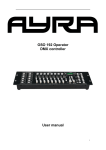
Scandlight 192 DMX Controller
User’s Manual
Item no: 935799
Ⅰ、Preface
T ha nk yo u fo r u si ng ou r co ntr ol le r . Fo r yo ur s afe ty , ple as e re ad t he Us er ’ s
M an ua l c ar ef ull y bef or e you r op era ti on.
Note: This Manua l inc ludes th e importan t informati on of in stallatio n 、 operation、
safety instruction . Please install and operate as request ed in the Manual,
meanwhile, please k eep the manual fo r any unexpected re qu irement.
This Manual in clud es the impo rtant in formation o f installation and operation. P lea se
install and ope ra te the controller acco rd ing to the instruction s strictl y. And it must be powe r
off when open the con trolle r or befo re repair.
A: P lease read the co mple te con ten ts o f th is manual( p lease keep th is manual attach with the
controller fo r an y pre view)
B:In order to make su re the co rrec t and saf et y installation 、opera tion and maintenan ce ,
well know and fol lo w to the instruct io ns of Manual is n ec essary.
C: We will n ot ta ke a n y re sponsib ility to the contro ller damage 、 p roperty loss or b od y
injure which ca used by the incorrec t ins tallation 、 operat io n and maintenan ce.
NOTICE : The data whic h inside the Manual mayb e changed due to th e continuou s
imp ro ve ment, and we ’ll not make ano ther n otice. We will keep the righ t to an y
specifica tion upda te du ring impro vemen t
1.Packing Content
(accessories)
1:AC adapter (1PCS)
2:Signal Cable(1PCS)
3: User’s manual (1PCS)
4:Maintenance Card (1PCS)
2.Unpacking Instruction:
P lease ch eck if a ll th e con ten ts are co mp leted after unp acking ? then, check if the
controller is unda mage d ? P lease you can k eep th e o riginal package and retu rn to the fac tor y
if it’s damaged
3.AC Power: Check whether the voltage is accordance wi th the rated power.
4 . Safety Specifications : all
installation)and before operating.
the
safety
items
of
operation(includes
(1)Unpacking the ca rton and tak e out all the accesso ries ,and open the pol y pack age,
tak e out the light fro m the ca rton , and pu t it in a certain platform for opera tion.
(2)The controller m ust k eep dry and a void to use under the Mo ist 、 Overheat or Dus t y
surroundings. And k eep it far a wa y from the wa ter or o ther liquid.
( 3 ) The installa tio n 、 opera tion and main tenance mu st be man aged b y the qu alified
professiona l, and mak e sure to op erate it under the instruction of the Manual.
(5)P lease check if th e voltage is acco rdance with the rated po wer b efore in stalling.
Notice: Please make sure it ’ s power off before any installation 、
repair and clean!
Ⅱ 、 Introduction
1. Controller Chann els: 19 2 chann els
2. Disp lay:
( 1) 4 digits LED display.
( 2 ).Fird digit of LED shows CHASES ,the second digit of LED shows scenes.
( 3 )Third and fourth digit of LED shows BANKS.
( 4 ).The second、third、fourth digit of LED show steps or 0-255 or TIME.
3.Additional Function
( 1 ). 30 Banks each composed of 8 programmable scencs.
( 2 ).8 fades adjusting output level.
( 3 ).Built –in Microphone.
( 4).AUTO mode is controllcd by TAP SYNC and SPEED controlled.
( 5)MIDI control through MIDI interface.
( 6).Blackout master controlled by M annual or R emote.
( 7).CHASE programming and CHASE runnyng, manual control and renote control.
( 8).Fade Time control.
(9).DMX polarity selects
4.Appearance: use the streamline design
Ⅲ 、 Technology Parameter
( 1) AC adapter
Input Vo ltag e: AC 100 -240V, 60Hz/50Hz
Output Voltage and current : 9V ,1.0A
( 2) Outline Siz e: 482×132×70mm
Packing S ize: 570×175×90mm
( 3) N/W: 2.4Kg
G/W: 3 Kg
Ⅳ 、 Installation
1 .Installation
First, put the controller on t he special desk , and then connect the controller
and the light through the signal line.
2.Connection of AC adapter
The exclusive AC ada pter should be used between the connecti on of contro ller
and power, and p leas e confirm if the rat ed voltage and f requ ency is acc ordance
with the power su pp ly. Parameter of In put Voltage and F re quency:
Voltage
AC100~240V
Frequency
60Hz/50Hz
Ⅴ、Operation
Production Introduction
1. There is 192 DMX channel adjusting output level in every SCENE.
2. 8 SCENES are available to be programmed for each BANK. When SCENE running, all
programmed SCENE of one BANK will be executed continuously in a cycle.
3. Select bank using ↑ and ↓ button, Also you can select desired bank using MIDI signals
through MIDI interface ,there are totally 30 banks, once only one can be chose.
4. SCENES can be executed automatically, and the duration is dependent on TAP SYNC/DISPLAY,
scenes are executed under music or NOTE triggering, also press a scene buttons by hand to run
scenes.
5. There are total 6 chases, each contains240 scenes. You can choose CHASES.
Running one or more, and MIDI signal remote controlling.
Pane button function introduction
1、SCANNERS
DMX channel buttons as the following list:
Computer light
channel
Adjustable
LED
1
1-16
potentiometer
control
OFF
OFF
2
17-32
OFF
OFF
3
33-48
OFF
OFF
4
49-64
OFF
OFF
5
65-80
OFF
OFF
6
81-96
OFF
OFF
7
97-112
OFF
OFF
8
113-128
OFF
OFF
9
129-144
OFF
OFF
10
145-160
OFF
OFF
11
161-176
OFF
OFF
12
177-192
OFF
OFF
Computer light
channel
Adjustable
LED
1
1-16
potentiometer
control
ON
ON
2
17-32
ON
ON
3
33-48
ON
ON
4
49-64
ON
ON
5
65-80
ON
ON
6
81-96
ON
ON
7
97-112
ON
ON
8
113-128
ON
ON
9
129-144
ON
ON
10
145-160
ON
ON
11
161-176
ON
ON
12
177-192
ON
ON
Press SCANNER button, corresponding LED is lit ,and the output of continuous 8 channels is
enabled to be adjusted, when SCENES are running ,if adjustable potentiometer control is OFF ,
channel output level is not affected by the potentiometer, if adjustable potentiometer control is ON,
channel output is changed correspondingly with the adjustable potentiometer.
2、SCENES button
Press one SCENE button to run scene or to store, and the second digital tube head display SCENES
1-8.
3. Adjustable potentiometer
Regulator adjustable potentiometer to change the output range of the DMX channel, the
minimum is 0 the maximum is 255 or from 0 to 100, adjustable potentiometer 1-8 control
continuous 8 channels.
4、Page/Selector button
Select Page A or Page B, Page A is the former 8-channel of each SCANNER; Page B is afterwards 8-channel
of each SCANNER.
5、SPEED SLIDER
Move the slider to adjust light speed.
6、FADE TIME SIDER
Move the slider to adjust FADE TIME
7、LED DISPLAY
8、BANK batton(↑/↓)
The third and fourth digital tube display BANKS (01-30), press the ↑ / ↓ keys, BANK increase or decrease, the
display SCENE is the SCENE of BANK.
9、Chase1 — Chase6 button
Used to Chases program or the choice of Chases operation
10、Program button
Turn the power on ,it is in manual mode, press PROGRAM for 2 seconds, corresponding
programming light flashes, SCENE and CHASE are ready to be programmed, press PROGRAM
for 2 seconds once more, programming light goes out, return to run mode.
11、Midi/add button
A、Press Midi button for 2s when running ,the third and fourth digital tube flash, select channel by
↑or ↑, press Midi button for 2s again, end the settings options of the Midi channel, the Midi
channel is stored. or any button can end the setting of Midi channel except ↑or ↑,and do not store
the selected Midi channel.
B、Used to program when under programming mode.
12、Auto/Del button
A、In running mode, press Auto/Del button, automatically trigger indicator light, which indicates
under automatic trigger mode, press Auto/Del button again, to withdraw automatic trigger mode,
automatically trigger indicator light goes out.
B、Used to SCENE and Chase program when in programming mode.
13、Music /Bank –copy button
A、In running mode, press Music button, the sound triggers indicator light, the SCENES can be
triggered by sound. press Music button again, the sound triggers the indicator light off, exit the
sound trigger state.
B、Used to SCENE and Chase program under programming mode.
14、Tapsync /Display button
A、In AUTO running mode, the running speed of scene is decided by the last
Tapsync /Display button ,Max.10 minutes.
B、Not in AUTO mode, conversion 0-255 or 0-100
pressing of
15、Blackout button
Ban on all of the channel output. But does not affect a variety of operations, and then click the Blackout key to
exit the Blackout mode
16、MIDI input
Midi signal input
17、DMX polarity select
Select DMX polarity of the output
18、DMX output
DMX-512 signal output
19、 DC Power input
DC9-12V,300mA min
20、Flash control output interface
Hole down the flash control button, next to the red LED will blink 2/second
21、Flash signal button
Through the audio signal lines and the audio jack of the flash connection
Ⅵ、Appendix
SCENES Program
Press PROGRAM for 2 seconds, entre programming state, programming light flashes.
●SECNE PTOGRAMMING (the maximum is 8 SCENES of a BANK)
1. Press SCANNER key to select DMX channel. Choose 8 or more channels every time..
2. Select different channel to control several devices at the same time.
3. Regulator adjustable potentiometer to set the output state, when the output is set to a satisfactory state, turn
off the adjustable potentiometer
4. Select and adjust output level continuously until all devices are set.
5. Press MIDI /ADD button.
6. Through ↑/↓ button to select the BANK you need
7. Press SCENE button to strobe the SCENE
2. SCENES Edit
1. Select need to edit the scene of a BANK.
2. Use SCENE programming method to adjust to the requirement of device.
3. Press MIDI/ADD button’
,4. Press SCENE button to strobe the SCENE, all indicated lights flash three time show that it had programmed,
the same below.
● SCANNER COPY
Supposed a SCANNER had set, copy it to another SCANNER, and then hold down the SCANNER which
need to copy and press another SCANNER.
● Copy a SCENE
(1)select the SCENE which need to copy。
(2)press Midi/add button。
(3)select a BANK,and then press the one need to copy to SCENE button。
● Delete a SCENE( set the value of the ALL DMX CHANNEL of the SCENE to 0)
(1)select the SCENE which need to delete。
(2)Hold down Auto/Del button,and then press the SCENE which need to delete。
● Delete all of SCENE(ALL DMX CHANNEL value is set to 0)
(1)turn off the power,press Program button and↓button at the same time。
(2)closed the power。
● Copy a BANK
(1)select the BANK which need to copy。
(2)Press Music /Bank –copy button。
● Delete a BANK
select the BANK which need to delete,press Auto/Del button and Music /Bank –copy button at the same time.
CHASES PROGRAMM
●If the programming state, can be directly CHASE programming, if not programmed state, hold down the Program
button 2 seconds to enter programming state, programmed indicator light flashs.
1. Program a SCENE to CHASE
(1)the maximum of a Chase is 240 SCENES(that is 240STEPS)
。
(2)during running,first programmed SCENES run first。
(3)select a Chase。
(4)select the SCENES of a BANK(must have been programmed SCENE)
。
(5)press Midi/add button。
2. Copy a BANK to Chase(the maximum of a Chase is 30 BANK)
(1)select a Chase to store BANK。
(2)select a BANK press Music /Bank –copy button。
(3)press Midi/add button again,Chase adds the programmed SCENES of the BANK.
3. Program a Chase
A.Add a step in Chase
(1)convert the STEP display of the chase and BANK ,and SCENE display, press Tapsync /Display button, show
Chase and the programmed steps of the Chase, press Tapsync /Display button again, show SCENE and
BANK of Chase.
(2 Add a step in Chase,press Tapsync /Display,show the programmed steps of the Chas,if you have
programmed 15 steps,add a step between step 9 and step 10,use↑or↓to select step 9,press Midi/add
button,the second digital tube display SCENE,the third,the fourth digital tube display BANK,select the
desired SCENE,press Midi/add button,the selected SCENE has been added to step10,while the original
step10 change to step11,step 12 change to step 1 步,analogy.
B.Delete a step in Chase
Delete a step in Chase, select the delete step, if we delete the first step 10, use ↑ or ↓ key to select to
the step 10, press Auto / Del button, the first step 10 has been deleted, the f step 11 change into step 10 ,
step 12 become to 11, analogy
4.Delete a Chase
(1)select the Chase need to delete
(2)hold down Auto/Del button,press the Chase which has been deleted again, SCENES itself in the chase still
exists.
5.Delete all Chase (all the SCENE itself still exists.)
(1)Turn off the power,press Auto/Del button and ↓button at the same time。
(2)Close power,all the lights flashing three times indicated they had been deleted at this time.
SCENES Running
● Turn the power on it is in manual running mode. Digital tube display 101, this time not in the
programming state. To control the lamp, shall press Program button 2 seconds after the flashing light blink
can be programmed. At this point adjust each channel potentiometer, lamp will be run accordingly.
● If in the programming state, press the Program button 2 seconds, programming lights off, Blackout indicator
light, this time enter into the Blackout state. Press the Blackout button to exit Blackout state, and then press the
Auto / Del button again, the console automatically run the program. If a BANK where without any programming
SCENES, then SCENES will not run. the console only run the programmed SCENES of a BANK . If a channel
controlled by the adjustable potentiometer, SCENES channel run will not be programmed value; if adjustable
potentiometer control is prohibited (ie,the potentiometer putter is in the most bottom ), then SCENE run the
channel programmed value.
1. MANUAL RUNNING
(1)AUTO TRIGGER LED and MUISC TRIGGER LED lights are all off.
(2)select a BANK(use ↑or ↓button,or through the Midi interface, use the Midi signal to select)。
(3)press SCENE button to run A SCENE。
(4)use Midi signal to run SCENE
2. AUTO RUNNING
(1) Press the Auto / Del button automatically trigger indicator light bright.
(2) Press Auto / Del button again, exit automatic running mode.
3 .SOUND RUNNING
(1) Press the Music / Bank-copy button, the sound triggers light bright, SCENES run by Sound Control.
(2) choose the BANK to run, can be controlled by manually or the Midi signal .
(3) click the Music / Bank-copy button again, exit the sound running mode.
4.MIDI RUNNING
Select BANK and SCENES to run by MIDI signal whenever it is in manual running, auto running or sound
running.
5.CHASE RUNNING
(1) it has been programmed Chase, when the Chase running, SCENE automatically stop running. (2) Chase
running also has auto running or sound running and Midi running.
(3) you can also a Chase or multiple Chase to run, first selected the first run
. (4) Press the Chase button, Chase is running, the first LED display the running Chase.
6.OUTPUT DELAY ADJUST
Adjust FADE TIME potentiometer, the output follows changes.
Programming example
1, edit the lamp to run the program more than 8 SCENES
First, the address of the specified lamp code, such as the address code is 001. The console is programmed
state, which is programmed in the flickering light.
a. Click SCANNERS-1 key, making next to the green LED light. Then edit BANK-1 of 8 SCENES, adjust
the sliding potentiometer different channel output state. When set to a satisfactory output state, click the MIDI
/ ADD button, and then click SCENE 1 button, this time all the lights flashing three indicated that they had
programmed the first SCENE. Edit the same way as the other seven SCENES.
b. Through the ↑ key to select BANK-2, and then edit the BANK-2 of 8 SCENES, adjust the sliding
potentiometer different channel output state. When set to a satisfactory output state, click the MIDI / ADD
button, and then click SCENE 1 button, this time all the lights flashing three indicated that they had
programmed the first SCENE. Edit the same way as the other seven SCENES.
c. Select store where one of the CHASE, for example, stored in CHASE1, press CHASE1 key, the first digital
tube will display one.
d. Through the ↓ key to select BANK-1, click the Music / Bank-copy button, then click the MIDI / ADD, this
time all three said that it had flashing lights BANK-1 stored in Chase1.
e. Through the ↑ key to select BANK-2, click the Music / Bank-copy button, then click the MIDI / ADD, this
time all three said that it had flashing lights BANK-2 stored in Chase1.
f. Hold down the keyboard and then press the Program at this time 2 seconds, the console from the Program
state to Blackout state, while the first one shows a digital control will disappear, according to Blackout key to
exit Blackout status.
g. And press the Chase1, press Auto / Del button, the console will run is stored in the Chase1 in 16 SCENES.
2, edit the address code of the lamp is running a different or the same scene in different procedures
(1) set up two different address code of lamps, such as the address code is set to 001 and 017, respectively.
(2) First, edit the address code to run the lamp for the 001 scenario.
a. Click SCANNERS-1 key, making next to the green LED light. Then edit BANK-1 of 8 SCENES, adjust the
sliding potentiometer different channel output state. When set to a satisfactory output state, click the MIDI / ADD
button, and then click SCENE 1 button, this time all the lights flashing three indicated that they had programmed
the first SCENE. Edit the same way as the other seven SCENES.
b. Through the ↑ key to select BANK-2, and then edit the BANK-2 of 8 SCENES, adjust the sliding potentiometer
different channel output state. When set to a satisfactory output state, click the MIDI / ADD button, and then click
SCENE 1 button, this time all the lights flashing three indicated that they had programmed the first SCENE. Edit
the same way as the other seven SCENES.
(3) And then edit the address code to run the lamp for the 017 scenario.
a. Click SCANNERS-2 buttons, making next to the green LED light. Through the ↑ key to select BANK-3, and
then edit the BANK-3 of 8 SCENES, adjust the sliding potentiometer different channel output state. When set to a
satisfactory output state, click the MIDI / ADD button, and then click SCENE 1 button, this time all the lights
flashing three indicated that they had programmed the first SCENE. Edit the same way as the other seven
SCENES.
b. Through the ↑ key to select BANK-4, and then edit the BANK-4 of 8 SCENES, adjust the sliding
potentiometer different channel output state. When set to a satisfactory output state, click the MIDI / ADD button,
and then click SCENE 1 button, this time all the lights flashing three indicated that they had programmed the first
SCENE. Edit the same way as the other seven SCENES.
(4) Edit Address Code for the 001 and 017 of the lamp to run the same scenario.
a. Respectively, Click SCANNERS-1, SCANNERS-2 button, making the green LED light next to the
corresponding. Through the ↑ key to select BANK-5, and then edit the BANK-5 of the 8 SCENES, adjust the
sliding potentiometer different channel output state. When set to a satisfactory output state, click the MIDI / ADD
button, and then click SCENE 1 button, this time all the lights flashing three indicated that they had programmed
the first SCENE. Edit the same way as the other seven SCENES.
b. Through the ↑ key to select BANK-6, and then edit the BANK-6 of the 8 SCENES, adjust the sliding
potentiometer different channel output state. When set to a satisfactory output state, click the MIDI / ADD button,
and then click SCENE 1 button, this time all the lights flashing three indicated that they had programmed the first
SCENE. Edit the same way as the other seven SCENES.
(5) All edited BANK stored in the Chase.
a. Select store where one of the CHASE, for example, stored in CHASE1, press CHASE1 key, the first digital
tube will display a.
b. Through the ↓ key to select BANK-1, click the Music / Bank-copy button, then click the MIDI / ADD, this
time all three said that it had flashing lights BANK-1 stored in Chase1.
c. Through the ↑ key to select BANK-2, click the Music / Bank-copy button, then click the MIDI / ADD, this
time all three said that it had flashing lights BANK-2 stored in Chase1.
d. Through the ↑ key to select BANK-3, click the Music / Bank-copy button, then click the MIDI / ADD, this time
all three said that it had flashing lights BANK-3 stored in Chase1.
e. Through the ↑ key to select BANK-4, click the Music / Bank-copy button, then click the MIDI / ADD, this time
all three said that it had flashing lights BANK-4 stored in Chase1.
f. Through the ↑ key to select BANK-5, click the Music / Bank-copy button, then click the MIDI / ADD, this
time all three said that it had flashing lights BANK-5 stored in Chase1.
g. Through the ↑ key to select BANK-6, click the Music / Bank-copy button, then click the MIDI / ADD, this
time all three said that it had flashing lights BANK-6 stored in Chase1.
h. At this point press the Program button and then press and hold 2 seconds, the console from the Program state to
Blackout state, while the first one shows a digital control will disappear, according to Blackout key to exit
Blackout status.
I. And press the Chase1, press Auto / Del button, the console will run is stored in the Chase1 in 48 SCENES.
MIDI channel set-up and operation
1, MIDI channel settings
(1) Hold down the MIDI button 2 seconds, the third and fourth digital pipe flashing, press ↑ key and ↓ keys to
select a MIDI channel (01-16).
(2) and then hold down the MIDI button 2 seconds to end the MIDI channel settings, the new MIDI channel is
stored, you can also press the ↑ key addition, ↓ keys away from any one of keys to come, the new MIDI channel
will not be stored.
2, MIDI operation
NOTE ON: Receive NOTE ON signals, implement the corresponding functions.
B
ANK
NOTE NUMBER
FUNCTION
00
TURN ON TURN OFF CENE1
01
TURN ON TURN OFF CENE2
BANK1
BANK2
02
TURN ON TURN OFF SCENE3
03
TURN ON TURN OFF SCENE4
04
TURN ON TURN OFF SCENE5
05
TURN ON TURN OFF SCENE6
06
TURN ON TURN OFF SCENE7
07
TURN ON TURN OFF SCENE8
08
TURN ON TURN OFF SCENE1
09
TURN ON TURN OFF SCENE2
10
TURN ON TURN OFF SCENE3
〃
BANK15
CHASE
112
TURN ON TURN OFF SCENE1
113
TURN ON TURN OFF SCENE2
114
TURN ON TURN OFF SCENE3
115
TURN ON TURN OFF SCENE4
116
TURN ON TURN OFF SCENE5
117
TURN ON TURN OFF SCENE6
118
TURN ON TURN OFF SCENE7
119
TURN ON TURN OFF SCENE8
120
TURN ON TURN OFF SCENE1
121
TURN ON TURN OFF SCENE1
122
TURN ON TURN OFF SCENE2
123
TURN ON TURN OFF SCENE3
124
TURN ON TURN OFF SCENE5
125
TURN ON TURN OFF SCENE6
126
BACKOUT
Ⅶ、Maintenance
1.Cleaning and Using Frequency of P roduct
In the open the control stations or maintenance work before they begin to
make sure the console power supply disconnected, the console's internal use
vacuum cleaner at least once a year.
2. Complain
( 1) The salesman will check the details of complain ed problem,
included the item no、delivered quantity、delivery time、faulty
and pictures, and the requirement of customer
( 2) QC and Technology department will analysis the complained
problem, and give a final solution to customer
Ⅷ、Faulty Disposal
Faulty Description
control doesn’t work
Single or multiple channel failure
Single or multiple keys failure
Solution
1. Check if the power is correctly connected?
2. Check if the +12V or +5V is short-circuited?
1, check if the sliding potentiometer aging or damaged.
1、 Check if the aging or keys damaged
Ⅶ、Maintenance
1.Cleaning and Using Frequency of Product
The light should keep clear in order to m ak e sure it ’ s ava ilabl e to work stably .
It’ s recomme nded to clean the light body and fan b y each 15day s.The lens and f ilter
should be cleaned pe riodically a s well i n order to kee p the best effect. Please
never use the r esolv able detergent to cl ean the filter in ord er to avoid th e damag e
to the light.
When the ligh t doe s n ’t work , please check if the fuse is burnt o ut o r not? If it is, th e
same fuse should be re placed , find ou t the fau lty and restart the ligh t. But please note the
repair must be handled by professional.
2. Complain
( 1) The salesman will ch eck the details o f co mplained p rob lem, included the item no 、
delivere d quan tity、de livery time 、fau lty and pictures, and the requ irement of cu sto me r
( 2) QC and Techno lo g y department will analysis the co mp lained problem, and give a final
solu tion to custo mer
Ⅷ、Faulty Disposal
Faulty Description
Light doesn’t work
Light is working, but not controllable
by controller
Lamp doesn’t work
Solution
3. Check if the fuse is burnt out?
4. Check if the power is correctly connected?
5. Check if the circuit+12V or +5V is short-circuited?
1. Check if the DMX address code is correctly set?
2. Check the signal communication of the wires.
1、 Check if the lamp is broken?