1
Gallery
139
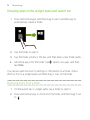
Removing unwanted objects in a photo
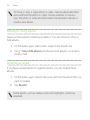
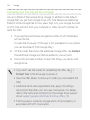
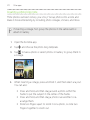
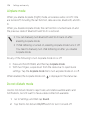
Did a pedestrian or passing car ruin your otherwise perfect shot of a
famous landmark? Retouch the photo to remove unwanted people or
objects.
This feature is available for a batch of shots that was captured with
continuous shooting mode.
1.
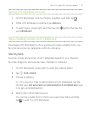
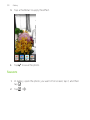
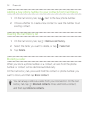
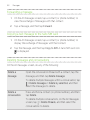
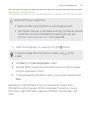
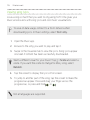
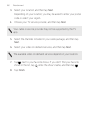
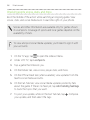
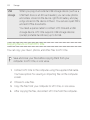
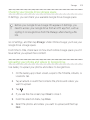
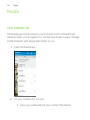
In Gallery, open the photo you want in full screen, tap it, and then
tap
.
2.
>
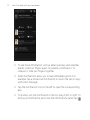
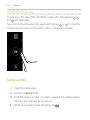
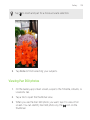
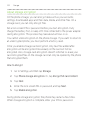
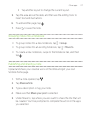
. You'll see frames around areas in the photo where
Tap
objects have been automatically removed.
3.
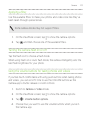
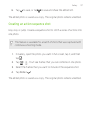
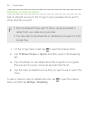
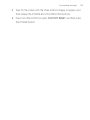
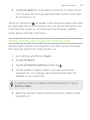
To retain an object, tap
4.
Tap Done >
on its image on the film strip.
.
The edited photo is saved as a copy. The original photo remains unedited.
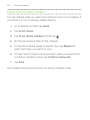
Trimming a video
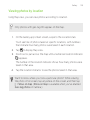
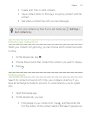
1.
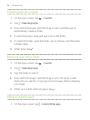
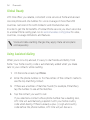
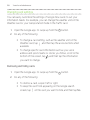
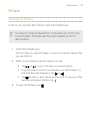
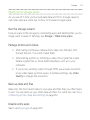
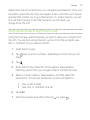
On the Gallery app’s main screen, swipe to the Timeline or Albums
tab.
2.
Tap a tile to open a time period or album.
3.
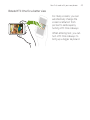
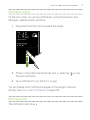
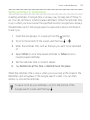
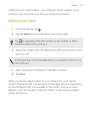
When you see the video you want, tap it to play in full screen.
4.
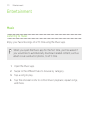
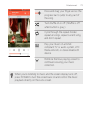
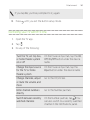
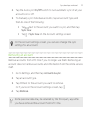
Tap the onscreen controls to pause or resume playback, adjust the
volume, and more.