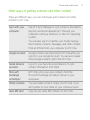
1
Personalizing
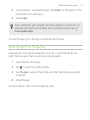
2.
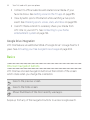
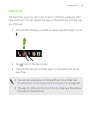
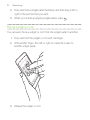
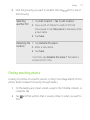
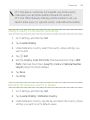
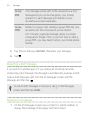
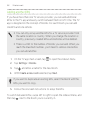
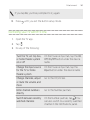
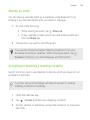
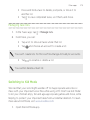
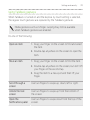
Select the apps you want to hide, or clear their check boxes to
unhide them.
3.
Tap Done.
99
Lock screen
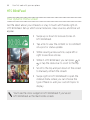
Changing the lock screen wallpaper
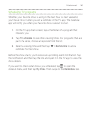
Use the home wallpaper, or use any photo you've taken with the camera as
the lock screen wallpaper.
1.
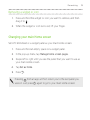
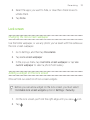
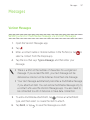
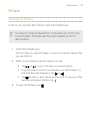
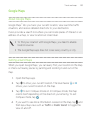
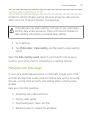
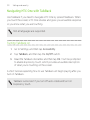
Go to Settings, and then tap Personalize.
2.
Tap Lock screen wallpaper
3.
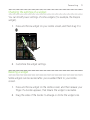
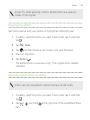
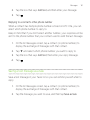
In the pop-up menu, tap Use home screen wallpaper or tap Use
custom wallpaper to select a photo from Gallery.
Adding a widget on the lock screen
Choose from our selection of lock screen widgets.
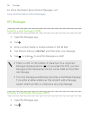
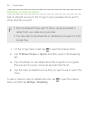
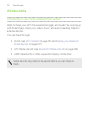
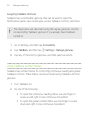
Before you can add a widget on the lock screen, you must select
the Enable lock screen widgets option in Settings > Security.
1.
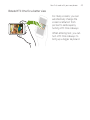
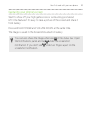
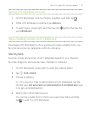
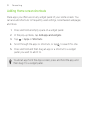
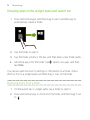
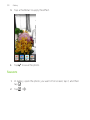
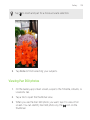
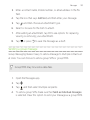
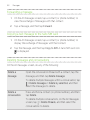
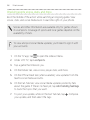
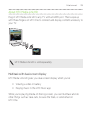
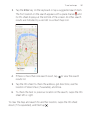
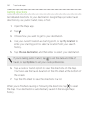
On the lock screen, pull from the right edge until you see a
2.
Tap
.
icon.