1
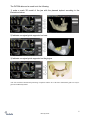
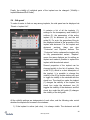
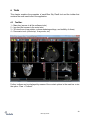
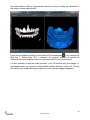
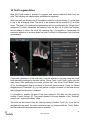
If the implant has a parameterized abutment, it is
possible to change the angle of the abutment with the
spherical blue-green dragger.
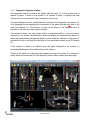
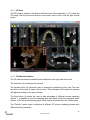
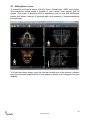
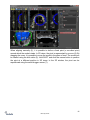
In the 3D window, the situation is a little more
complicated because, unlike the other windows, the
implant is manipulated in space. Three circles of different
colors appear around the implant, which rotate it around
the associated axes of the local coordinate system.
Besides these, arrows appear both above and below the
implant, by means of which it is possible to move the
implant on its axis.
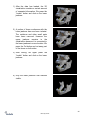
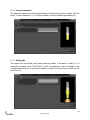
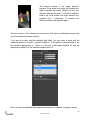
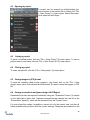
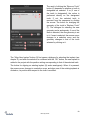
It should be added that clicking on the implant makes the implant active, and all the
slices move onto it. It is possible to recognize it in the windows by its red coloring. The
other implants are colored light blue.
5.3 Further operations on the implant
5.3.1 Toolbar
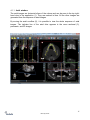
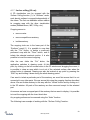
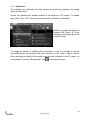
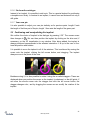
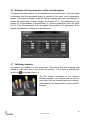
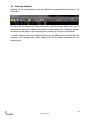
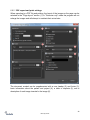
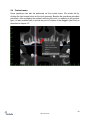
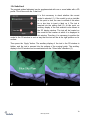
In the upper menu bar it is possible to display a toolbar of further operations on the
implant by selecting “View > Toolbars > Implants Toolbar”. Here there are icons for
removing the implant (1), replacing the implant (2), and displaying information about the
implant (3).
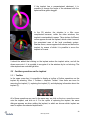
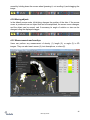
All of these operations are used in the same way: we click on the icon, move the cursor
onto the implant, and click on it. For the option of replacing the implant, the same
dialogue appears as when adding the implant, in which we choose which implant we
want to replace the selected implant with.
32
Blue Sky Plan®