1
Issue
11.01.B
XT3/XS Servers - Version 11.01 – Multicam Operating Manual
EVS Broadcast Equipment SA – April 2012
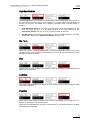
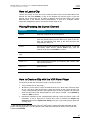
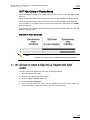
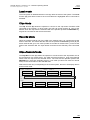
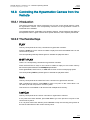
Clip Mode/Cam Mode
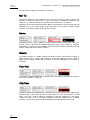
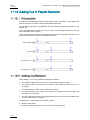
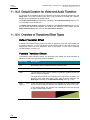
Pressing the D key in the Copy/Move LCD window allows the user to select a value for
this setting:
•
CLIP mode: all camera angles of the clips will be copied/moved.
•
CAM mode: only the camera angles of the clip loaded on the controlled channels will
be copied/moved.
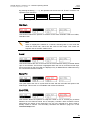
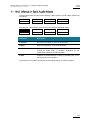
Short/Long Mode
This option is only available for a network copy, not for a local copy or for a move.
Pressing the C key in the Copy/Move LCD window allows the user to select a value for
this setting:
•
SHORT mode: only the material between the Short IN and Short OUT points of the
original clip, augmented by the duration of the guardbands defined on the destination
system, will be copied.
•
LONG mode: the entire original clip, including its guardbands, will be copied to the
destination system.
Default Settings
The default settings for the COPY/MOVE menu are: COPY, SHORT, CLIP. If the operator
changes these settings, the new settings will be re-used the next time this menu is called.
The default settings will be automatically restored when starting a new Multicam session.
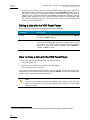
How to Copy or Move a Clip
It is possible to copy or move a clip on the same server or to another server. Growing
clips can also be copied and moved.
To copy or move a clip from the Remote Panel, proceed as follows:
1. Select the original clip.
2. Select an empty location on an EVS server connected to the network.
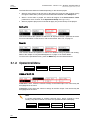
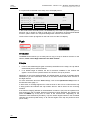
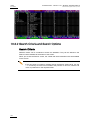
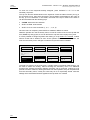
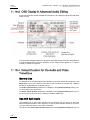
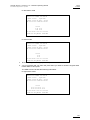
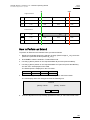
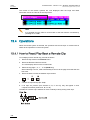
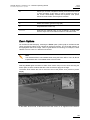
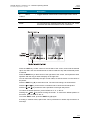
A new menu appears on the LCD display of the Remote Panel, with the
corresponding message on the OSD of the output monitors:
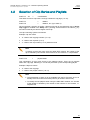
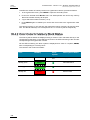
Copy Clip
Cam A B
113 to Clip 141
[Menu]: Cancel
[Enter]: Confirm
COPY
MOVE
SHORT
CLIP
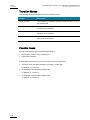
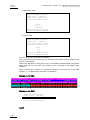
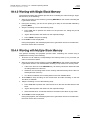
3. Select the COPY or MOVE function by pressing the A or B key.
The corresponding function will be highlighted on the LCD and the message on the
OSD will be updated accordingly.
4. Select the CLIP or CAM mode with the D key.
5. Select the SHORT or LONG mode with the C key.
44