1
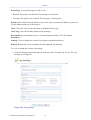
System
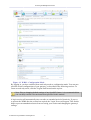
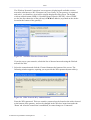
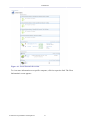
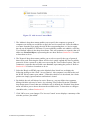
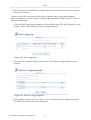
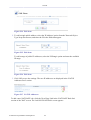
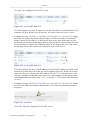
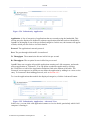
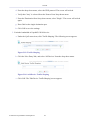
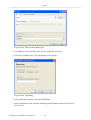
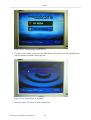
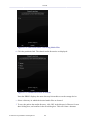
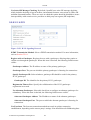
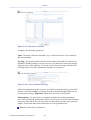
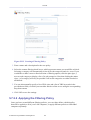
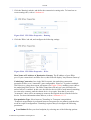
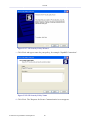
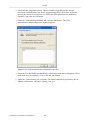
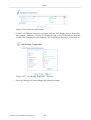
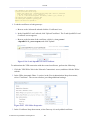
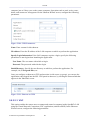
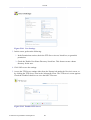
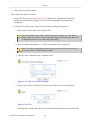
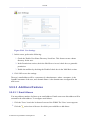
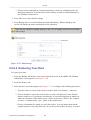
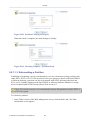
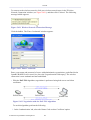
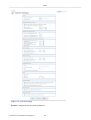
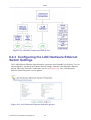
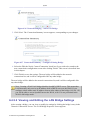
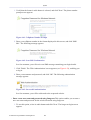
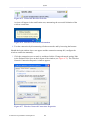
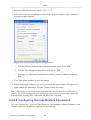
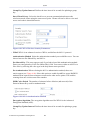
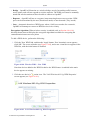
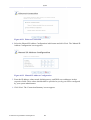
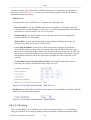
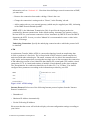
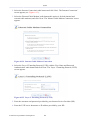
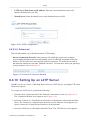
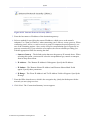
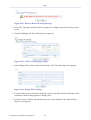
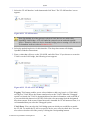
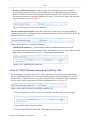
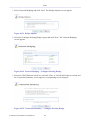
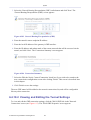
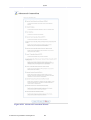
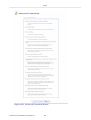
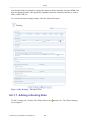
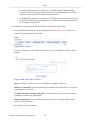
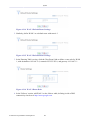
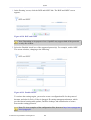
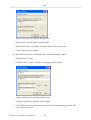
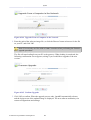
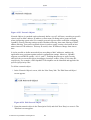
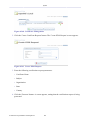
Figure 6.207 Network Bridging – Add a New Bridge
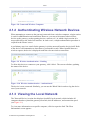
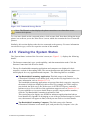
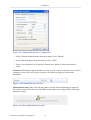
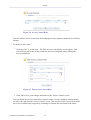
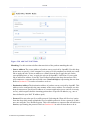
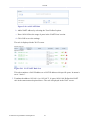
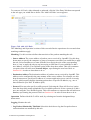
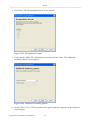
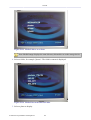
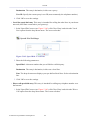
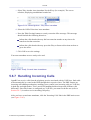
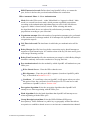
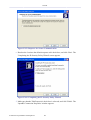
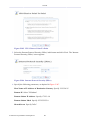
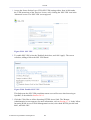
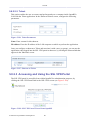
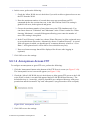
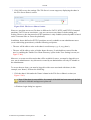
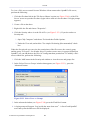
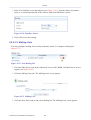
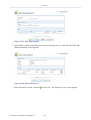
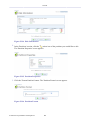
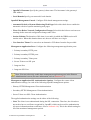
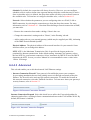
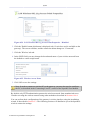
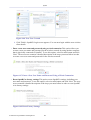
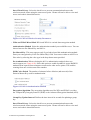
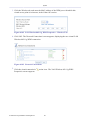
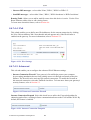
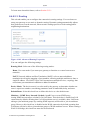
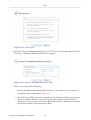
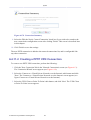
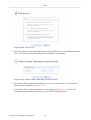
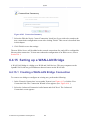
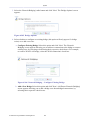
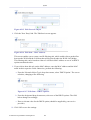
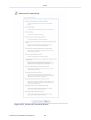
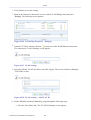
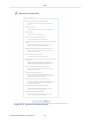
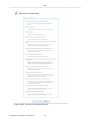
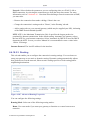
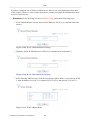
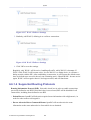
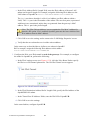
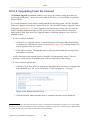
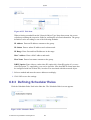
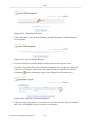
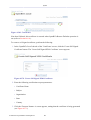
5. Click 'Next'. The 'Connection Summary' screen appears, corresponding to your changes.
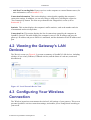
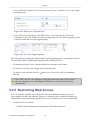
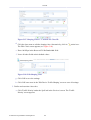
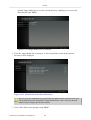
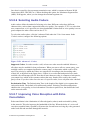
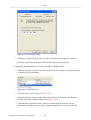
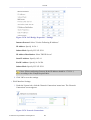
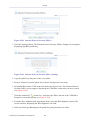
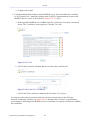
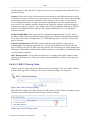
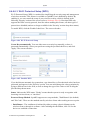
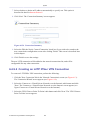
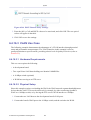
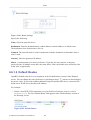
Figure 6.208 Connection Summary – Configure Existing Bridge
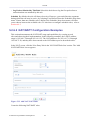
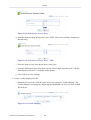
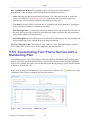
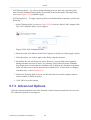
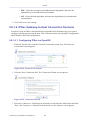
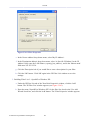
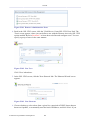
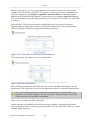
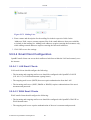
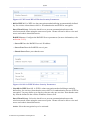
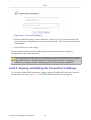
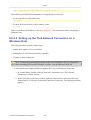
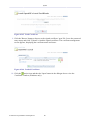
6. Select the 'Edit the Newly Created Connection' check box if you wish to be routed to the
new connection's configuration screen after clicking 'Finish'. This screen is described later
in this chapter.
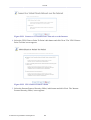
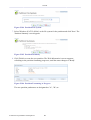
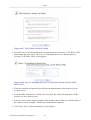
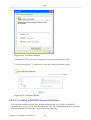
7. Click 'Finish' to save the settings. The new bridge will be added to the network
connections list, and it will be configurable like any other bridge.
The new bridge will be added to the network connections list, and it will be configurable like
any other bridge.
Note: Creating a WAN-LAN bridge disables OpenRG's DHCP server. This means that
LAN hosts may only receive an IP address from a DHCP server on the WAN. If you
configure a host with a static IP address from an alias subnet of the bridge (192.168.1.X),
you will be able to access OpenRG but not the WAN, as NAT is not performed in the
WAN-LAN bridge mode.
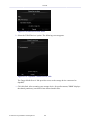
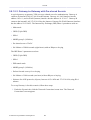
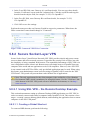
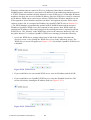
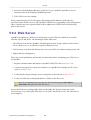
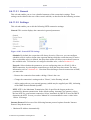
After creating a WAN-LAN bridge, you must also disable the IGMP Proxy on this connection.
To do so, perform the following:
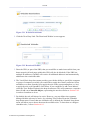
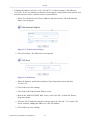
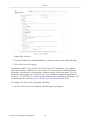
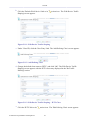
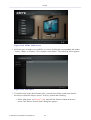
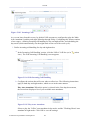
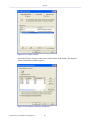
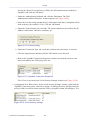
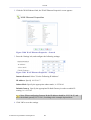
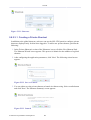
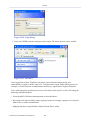
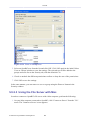
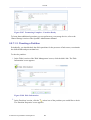
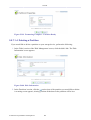
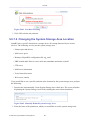
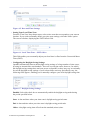
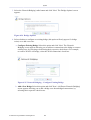
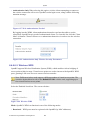
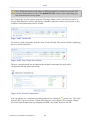
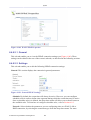
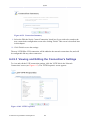
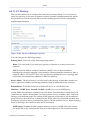
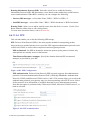
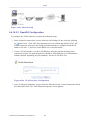
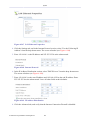
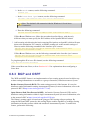
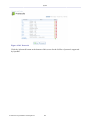
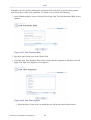
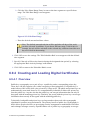
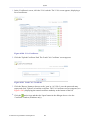
1. In the 'Network Connections' screen under 'System', click the 'LAN Bridge' link. The 'LAN
Bridge Properties' screen appears.
© 1998-2010 Jungo Software Technologies Ltd.
431