1
260
User Guide — QAD Configurator
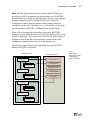
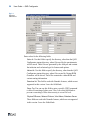
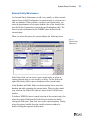
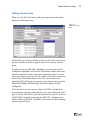
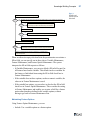
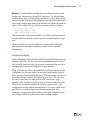
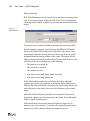
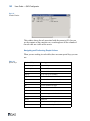
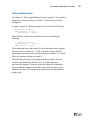
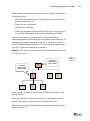
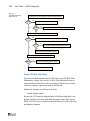
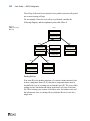
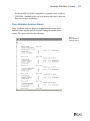
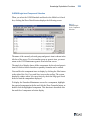
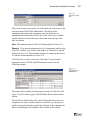
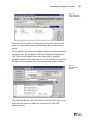
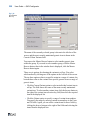
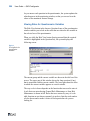
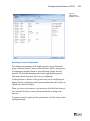
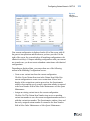
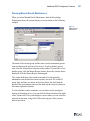
Fig. 7.27
Cross Validation
Analyzer
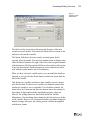
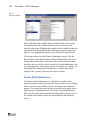
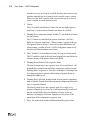
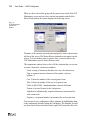
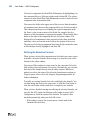
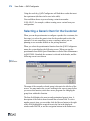
The name of the currently selected group is shown in the title bar of the
screen. To select another group, click the Master Browse button on the
toolbar.
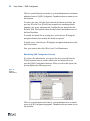
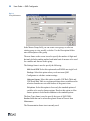
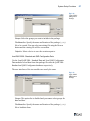
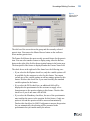
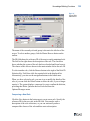
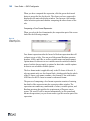
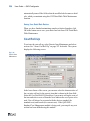
There are three options for choosing the generic item or items to analyze.
You select which method by clicking one of the options at the left side of
the item frame.
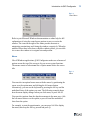
• Click the All option to analyze all generic items in the group.
• Click the Current option to select an individual generic item to
analyze. The Current field shows the name of the most recently
maintained generic item. To select another generic item, click the
browse button to the right of the selection key field, then click the
required item in the displayed list, or use the navigation buttons in the
button area.
• Click the Selection option to specify a range of generic item numbers.
You specify the range by entering generic item numbers in the From
and To fields. Again, you can select generic items for these fields by
clicking the browse buttons to the right of the fields and selecting the
items from the displayed lists.
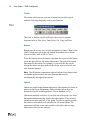
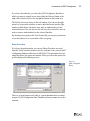
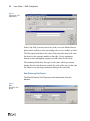
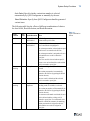
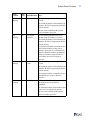
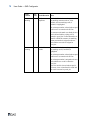
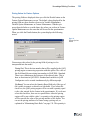
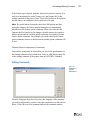
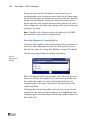
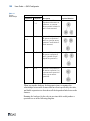
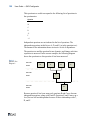
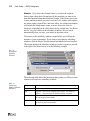
When you have specified the items to be analyzed, the next stage is to
specify what checks you want the Cross Validation Analyzer to make.
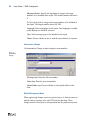
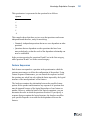
Note The routing checks will only be available if the Routings field is
set on in Group Maintenance for the group. If the Routings field is set off,
the routing checks will be dimmed.