1
Adding Media to a Timeline
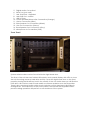
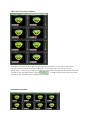
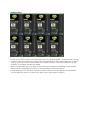
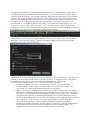
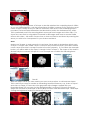
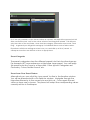
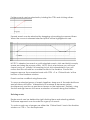
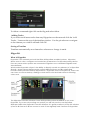
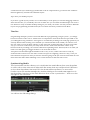
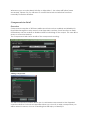
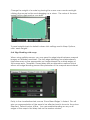
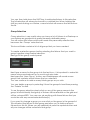
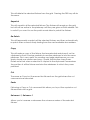
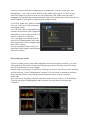
Media can be added to a timeline by simply dragging it to the relevant track
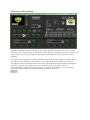
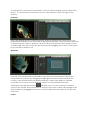
from the Media Selector. Navigate to the Layer 1 Source track. In the
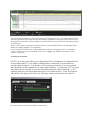
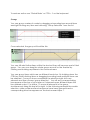
MediaPlayer track you will find a thumbnail of the media that will be
displayed. You can either drag and drop a thumbnail from your media
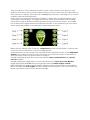
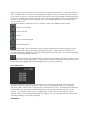
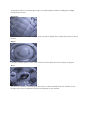
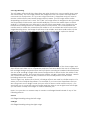
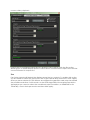
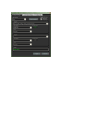
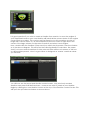
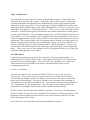
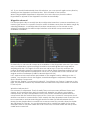
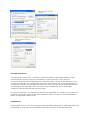
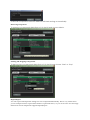
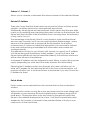
selector window or right click on it and select ‘Edit Properties’. This will open
the box below.
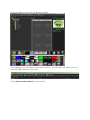
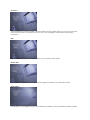
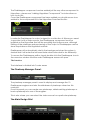
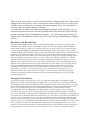
Clip location, play mode and speed can now be edited within the box by using the
drop down menus.
To delete media, highlight a thumbnail, right-click and select delete or press delete on
the keyboard.
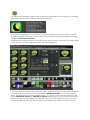
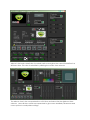
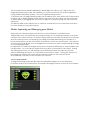
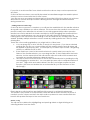
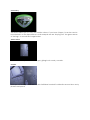
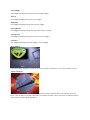
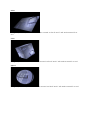
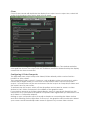
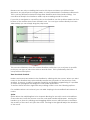
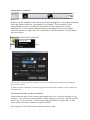
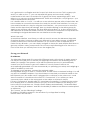
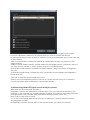
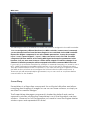
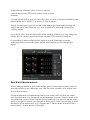
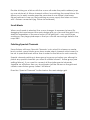
‘Send Value to timeline’ and Show in timeline.
These features allow the viewing and application of functions quickly in the
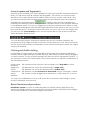
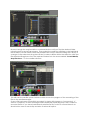
timeline. Let’s show by an example. Either drag the cursor or use the position
box to go to 12 seconds. In the media selector select a video clip. In the
layer control window, take the speed to 200%.
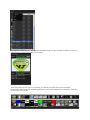
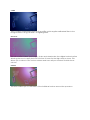
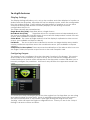
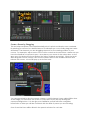
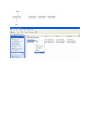
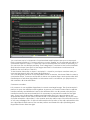
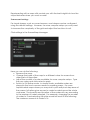
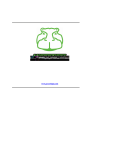
Now right click the information area as shown here.
97