1
EMWIN Software
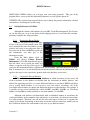
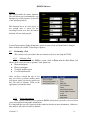
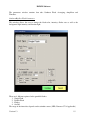
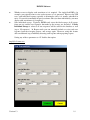
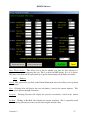
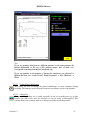
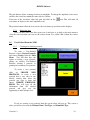
Auto Save Sweeps – You can automatically save the raw data of every sweep to file. The files
will be saved under C:\EMWIN\EOGData. The sweeps will be saved as sweep_001.txt and so on
up to sweep_999.txt
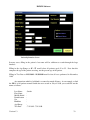
Brightness - If the patient is having trouble seeing the Red LEDs you can change the brightness
of the LEDs to a higher setting.
Duration - The duration of the recording time is 15 sec, meaning that the LEDs will alternate
from right to left for every first 15 sec of each minute.
Frequency - If the patient has problems following the LEDs you can slow down the frequency of
alternation.
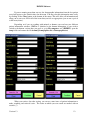
The settings in EOG recording time are preset to ISCEV standard and usually do not need to be
changed. However if you see that the patient has reached the lower value in the dark adapt time
you can shorten the time on the fly. If the patient has reached the peak in the light-adapt phase
you can just stop the test.
The EOG background are set to low for Pre-adapt and Medium for Light-adapt. According to
ISCEV standard the eyes of the patient must be dilated for EOG, we do not recommend using
high intensity background on dilated eyes.
Display Scale - If the data seems too large for the window, change the display scale to a lower
setting.
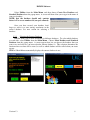
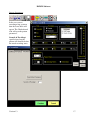
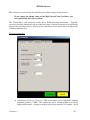
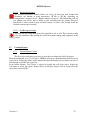
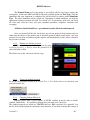
Custom Intensity Background Light - for UTAS SunBurst and
BigShot user, you can set the light adapt phase to a custom intensity,
just select Custom in the Light Adapt drop down list and type in the
desired value.
2.6.2
Analyze
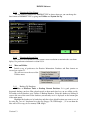
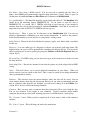
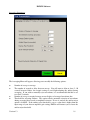
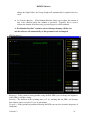
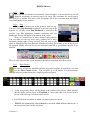
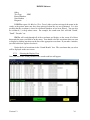
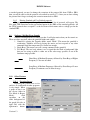
Once waveforms are displayed, many analysis
features can be implemented. For each function, you
will be asked which waveforms you wish to perform
the action
Smooth –
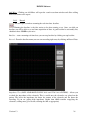
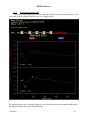
Smoothing can be achieved by going to Analyze -> Smooth or by clicking on the
following icon.
The smoothing algorithm is useful for removing excess high frequency noise from a waveform.
The smoothing procedure consists of replacing each point in the waveform by the average of the
Version 1.3
22