1
18 Introduction
Using with Apple® Aperture®
If you have the Premium or for Adobe® Lightroom® & Apple® Aperture® Edition of Perfect Resize you can access Perfect Resize as a plug-in inside
of Aperture. This provides an integrated, round-trip workflow.
Perfect Resize integrates tightly with Apple Aperture and provides a seamless
experience for enhancing your images.
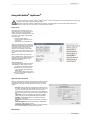
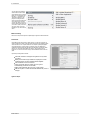
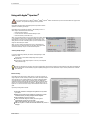
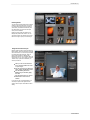
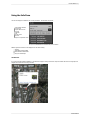
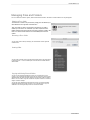
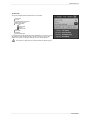
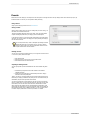
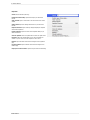
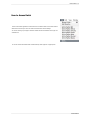
Perfect Resize can be accessed from the Photo > Edit with Plug-In menu. To
edit an image in Perfect Resize follow these steps.
1. Select the image in Aperture.
2. Go the Photo menu and select the Edit with Plug-In flyout.
3. Select the module you would like to use.
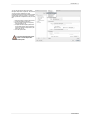
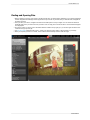
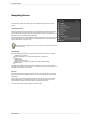
When you access Perfect Resize as a plug-in from Aperture the module selector
is only available for Perfect Layers or Perfect Mask. When you select one of
these modules you can use as many modules as you desire during the same
editing session. At the end of the editing session you must save and close the
image from the Perfect Layers module.
When you select a module other than Perfect Layers or Perfect Mask your
image will be sent to it directly and when you press Apply, the image is saved
and closed automatically and you are returned back to Aperture.
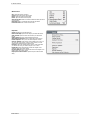
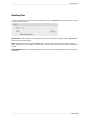
Selecting Multiple Images
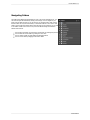
If you have multiple images selected, the behavior varies depending on which
modules you select.
Perfect Layers or Perfect Mask: Multiple images will be opened in
separate tabs.
All other plug-ins: Each image will open in a series so you can adjust the
settings on each image.
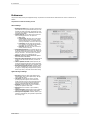
The file type, bit-depth and color space of the image is determined by the preferences in Aperture for external editors. Perfect Resize will maintain the
file type, either PSD or TIF automatically to support compatibility with plug-ins from other manufactures. Keep in mind only PSD files store re-editable
layers and mask.
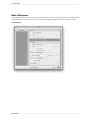
Batch Processing
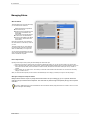
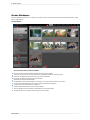
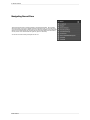
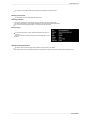
Perfect Batch is the preferred way to batch process. You start with a selection of
images in Aperture or folder on disk, then batch-process them with multiple modules
at the same time to solve complex workflows. For example a portait photographer
can prepare images for a sales session by retouching every face, adding their
stylized look and output small JPGs with their logo watermark, all in the same batch
process. You can access Perfect Batch from the Photo > Edit with Plug-in menu in
Lightroom. You can learn more about using in the Perfect Batch section of this user
guide.
Key batch processing features include:
Start with a selection of images from Lightroom or any folder
you select.
Batch process with a single module for simple jobs or create
workflows where you string multiple modules together.
Save workflows to use over and over.
Pause on the first image to confirm your set-up, then
automatically process the rest to match.
Add a visual watermark, like your logo, to every image.
Edit files in place or create new files with different size, name or
file type.
Perfect Resize