1
1
Thinking Outside of the Box
Whether you subscribe to the “my camera is just a tool” theory, or belong to the “an exquisite camera adds new capabilities to my shooting arsenal” camp, picking up a new Nikon D5500 is a special
experience. Those who simply wield tools will find this camera as comforting as an old friend, a
solid piece of fine machinery ready and able to do their bidding as part of the creative process.
But, now that you’ve unwrapped and charged the beast, mounted a lens, and fueled it with a
memory card, what do you do with it? That’s where this chapter—and the chapters that follow—
should come in handy. Like many of you, I am a Nikon user of long standing. And, like other
members of our club, I had to learn at least some aspects of my newest camera for the very first time
at some point. Experienced pro, or Nikon newbie, you bought this book because you wanted to get
the most from a very powerful tool, and I’m here to help.
Depending on your path to the camera, the Nikon D5500 is either the company’s most ambitious
entry-level camera (although it a significant step up from the very basic Nikon D3xxx models) or
its most affordable intermediate camera, which are both distinctions that I find almost meaningless
in the greater scheme of things. I know consummate professionals who produce amazing images
with a D90; experienced wedding photographers who evoke the most romantic photos from an
ancient Nikon D200. But whether your images are of professional quality, both technically and
inspirationally, depends on what’s between your ears, and how you apply it. The goal of this book
is to provide you with the information you need to put your brain cells together with your Nikon’s
electro-mechanical components to work productively.
Whether you’ve already taken a dozen or twelve hundred photos with your new camera, now that
you’ve got that initial creative burst out of your system, you’ll want to take a more considered
approach to operating the camera. This chapter and the next are designed to get your camera fired
up and ready for shooting as quickly as possible. After all, the D5500 is not a point-and-shoot
camera, even though it does boast easy-to-use Auto and Scene mode options.
80386_ch01_NikonD5500_001-016 1
10/2/15 11:44 AM
2
David Busch’s Nikon D5500 Guide to Digital SLR Photography
Even if you’re a long-time Nikon shooter, I hope you won’t be tempted to skip this chapter or the
next one. I realize that you probably didn’t purchase this book the same day you bought your camera and that, even if you did, the urge to go out and take a few hundred—or thousand—photos
with your new camera is enticing. As valuable as a book like this one is, nobody can suppress their
excitement long enough to read the instructions before initiating play with a new toy.
No matter how extensive your experience level is, you don’t need to fret about wading through a
manual to find out what you must know to take those first few tentative snaps. I’m going to help
you hit the ground running with this chapter, which will help you set up your camera and begin
shooting in minutes. You won’t find a lot of detail in this chapter. Indeed, I’m going to give you the
basics, accompanied by some interesting tidbits that will help you become acclimated. I’ll go into
more depth and even repeat some of what I explain here in later chapters, so you don’t have to
memorize everything you see. Because I realize that some of you may already have experience with
Nikon cameras similar to the D5500, each of the major sections in this chapter will begin with a
brief description of what is covered in that section, so you can easily jump ahead to the next if you
are in a hurry to get started.
First Things First
This section helps get you oriented with all the things that come in the box with your Nikon D5500,
including what they do. I’ll also describe some optional equipment you might want to have. If you
want to get started immediately, skim through this section and jump ahead to “Initial Setup” later in
the chapter.
The Nikon D5500 comes in an impressive gold box filled with stuff, including connecting cords,
booklets, a CD, and lots of paperwork. The most important components are the camera and lens
(if you purchased your D5500 with a lens), battery, battery charger, and, if you’re the nervous type,
the neck strap. You’ll also need a memory card as one is not included. If you purchased your D5500
from a camera shop, as I did, the store personnel probably attached the neck strap for you, ran
through some basic operational advice that you’ve already forgotten, tried to sell you a memory
card, and then, after they’d given you all the help you could absorb, sent you on your way with a
handshake.
Perhaps you purchased your D5500 from one of those mass merchandisers that also sell washing
machines and vacuum cleaners. In that case, you might have been sent on your way with only the
handshake, or, maybe, not even that if you resisted the efforts to sell you an extended warranty. You
save a few bucks at the big box stores, but you don’t get the personal service a professional photo
retailer provides. It’s your choice. There’s a third alternative, of course. You might have purchased
your camera from a mail order or Internet source, and your D5500 arrived in a big brown (or
purple/red) truck. Your only interaction when you took possession of your camera was to scrawl
your signature on an electronic clipboard.
80386_ch01_NikonD5500_001-016 2
10/2/15 11:44 AM
Chapter 1 ■ Thinking Outside of the Box
3
MY RECOMMENDATIONS
From time to time, I’ll provide notes on my recommendations and preferences that apply to use of
your D5500 and/or individual settings that may be used for particular types of scenes and subjects.
At a minimum, the box should have the following:
■
■
■
■
■
Nikon D5500 digital camera. If you purchased the camera with a kit lens, it will be included
in the box, as well.
My recommendation: It almost goes without saying that you should check out the camera and
lens immediately, making sure the back-panel LCD isn’t scratched or cracked, the memory and
battery doors open properly, and, when a charged battery is inserted and lens mounted, the
camera powers up and reports for duty. Out-of-the-box defects like these are rare, but they can
happen. It’s probably more common that your dealer played with the camera or, perhaps, it was
a customer return. That’s why it’s best to buy your D5500 from a retailer you trust to supply a
factory-fresh camera. It’s better to know now that something is missing so you can seek redress
immediately, rather than discover two months from now that the video cable you thought you’d
never use (but now must have) was never in the box.
Rechargeable Li-ion battery EN-EL14a. You’ll need to charge this 7.2V, 1230mAh (milliampere hour) battery before you use it. You can also use the older 7.0V, 1030mAh EN-EL14 if you
have one, perhaps because you are upgrading from an older camera that uses it. Note that some
third-party batteries won’t work in the D5500 at all, as I explain in the sidebar later in this
chapter. In any case, you’ll want a second EN-EL14/EN-EL14a battery as a spare (trust me), so
buy one as soon as possible.
Quick charger MH-24. This charger plugs directly into a wall outlet.
EG-CP16 audio/video cable. Use this supplied cable to connect your D5500 to a standarddefinition (analog) television through the set’s yellow RCA video jack when you want to view
the camera’s output on a larger screen.
My recommendation: Skip analog altogether and purchase an HDMI type C mini cable to
connect directly to your television, monitor, or other device. Although the D5500 can be connected to a high-definition television, you’ll need to buy a high-definition multimedia interface
(HDMI) cable to do that. No HDMI cable is included with the camera.
USB cable UC-E17. You can use this cable to transfer photos from the camera to your computer and to operate your camera remotely using Nikon Camera Control Pro software (not
included in the box). This cable is a standard one that works with many digital cameras—
Nikon and otherwise—so if you already own one, you now have a spare.
My recommendation: I don’t recommend direct transfer of images to your computer, because
it uses a lot of battery power. However, I do recommend using the cable to upload and download settings between the camera and your computer.
80386_ch01_NikonD5500_001-016 3
10/2/15 11:44 AM
4
David Busch’s Nikon D5500 Guide to Digital SLR Photography
■
■
■
■
AN-DC3 neck strap. Nikon provides you with a neck strap emblazoned with your camera
model. It’s not very adjustable, and, while useful for showing off to your friends exactly which
nifty new camera you bought, the Nikon strap also can serve to alert observant unsavory types
that you’re sporting a higher-end model that’s worthy of their attention.
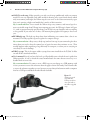
My recommendation: I never attach the Nikon strap to my cameras, and instead opt for a
more serviceable strap from UPstrap (www.upstrap-pro.com). An UPstrap is shown in Figure
1.1, with its patented non-slip pad that keeps your D5500 on your shoulder, and not crashing
to the ground. If you order one of these, tell inventor-photographer Al Stegmeyer that I sent
you.
BF-1B body cap. The body cap keeps dust from infiltrating your camera when a lens is not
mounted. The body cap/lens cap nest together for compact storage.
My recommendation: Always carry a body cap (and rear lens cap) in your camera bag for those
times when you need to have the camera bare of optics for more than a minute or two. (That
usually happens when repacking a bag efficiently for transport, or when you are carrying an
extra body or two for backup.)
DK-25 eyecup. This is the square rubber eyecup that comes installed on the D5500. It slides
on and off the viewfinder window.
User’s manual. Even if you have this book, you’ll probably want to check the user’s guide that
Nikon provides, if only to check the actual nomenclature for some obscure accessory, or to
double-check an error code.
My recommendation: It’s smart to store a PDF copy on your laptop or a USB memory stick
in case you want to access this reference when the paper version isn’t handy. You’ll then be able
to access the reference anywhere you are, because you can always find someone with a computer
that has a USB port and Adobe Acrobat Reader available.
Figure 1.1
Third-party neck
straps like this
UPstrap model are
often preferable to
the Nikon-supplied
strap.
80386_ch01_NikonD5500_001-016 4
10/2/15 11:44 AM
Chapter 1 ■ Thinking Outside of the Box
■
■
5
CD-ROMs. On these discs you’ll find the Nikon ViewNX-i software, a useful image management program, and reference material in PDF form. The 400-page D5500 Reference Manual
is nearly three times the length of the 109-page basic manual supplied with the camera.
Warranty and registration card. Don’t lose these! You can register your Nikon D5500 by mail
or online (in the USA, the URL is www.nikonusa.com/register), and you may need the information in this paperwork (plus the purchase receipt/invoice from your retailer) should you
require Nikon service support.
Don’t bother rooting around in the box for anything beyond what I’ve listed previously. There are
a few things Nikon classifies as optional accessories, even though you (and I) might consider some
of them essential. Here’s a list of what you don’t get in the box, but might want to think about as
an impending purchase. I’ll list them roughly in the order of importance:
■
■
Secure Digital card. First-time digital camera buyers are sometimes shocked that their new
tool doesn’t come with a memory card. Why should it? The manufacturer doesn’t have the
slightest idea of what capacity or speed card you prefer, so why should they pack one in the box
and charge you for it? That’s especially true for the Nikon D5500, which is likely to be purchased by photographers who have quite definite ideas about their ideal memory card. Perhaps
you want to use 8GB cards—and lots of them. I’ve met many paranoid wedding photographers
who like to work with a horde of smaller cards (and then watch over them very protectively), on
the theory that they are reducing their chances of losing a significant chunk of the event or
reception at one time (of course, that’s why you hire a second shooter as backup). Others, especially sports photographers, instead prefer larger 16GB or 32GB cards with room to spare. If
you are shooting fast action at high frame rates, or transfer lots of photos to your computer with
a speedy card reader, you might opt for the speediest possible memory card. Fast cards are also
very useful for shooting video, to allow continuous storage of your clips as they are captured.
Buy one (or two, or three) of your own and have your memory ready when you unpack your
D5500.
My recommendation: I’ve recently standardized on 64GB and 128GB Lexar cards with up to
150MB/second transfer rates. I like having that much capacity because I always shoot RAW,
and frequently RAW+JPEG with my camera.
Extra EN-EL14a battery. I mentioned the need for an extra battery earlier, and I’ll mention it
here, again. Even though you might get 1,000 or more shots from a single battery, it’s easy to
exceed that figure in a few hours of shooting sports at 6 fps. Batteries can unexpectedly fail,
too, or simply lose their charge from sitting around unused for a week or two.
My recommendation: Buy an extra, keep it charged, and free your mind from worry. I always
recommend purchasing Nikon-brand batteries over less-expensive third-party packs, even
though the $30 substitute batteries may offer more capacity at a lower price (some may even
top the 1230mAh offered by the Nikon battery). The most important reason for sticking with
Nikon-brand batteries is that some substitutes may not work at all in your D5500. The most
recent firmware for D5xxx-series cameras disables the ability of many third-party batteries to
80386_ch01_NikonD5500_001-016 5
10/2/15 11:44 AM
6
David Busch’s Nikon D5500 Guide to Digital SLR Photography
function in these cameras. Nikon says the firmware adjustment was designed to provide more
accurate reporting of the charge remaining. That’s good news, except for those who tried to
save by purchasing an off-brand battery. It doesn’t make sense to save a few bucks on an essential component for a sophisticated camera.
■
■
■
■
■
BS-1 accessory shoe cover. This little optional piece of plastic protects the electrical contacts
of the “hot” shoe on top of the D5500. You can remove it when mounting an electronic flash,
Nikon GP-1/GP-1a GPS device, or other accessory, and then safely leave it off for the rest of
your life. I’ve never had an accessory shoe receive damage in normal use, even when not protected. The paranoid among you who use accessories frequently can keep removing/mounting
the shoe cover as required. Find a safe place to keep it between uses, or purchase replacements
for this easily mislaid item. (Visit www.bocaphoto.com for many Nikon-related items.)
Nikon Capture NX-D software. You can download a free copy of this software from Nikon’s
website.
Camera Control Pro 2 software. This is the utility you’ll use to operate your camera remotely
from your computer. Nikon charges extra for this software, but you’ll find it invaluable if you’re
hiding near a tethered, tripod-mounted camera while shooting, say, close-ups of hummingbirds. There are lots of applications for remote shooting, and you’ll need Camera Control Pro
to operate your camera. Buy a suitably longer USB cable, too, unless you plan to use the Nikon
WT4a wireless transmitter (described below).
Add-on Speedlight. Your built-in flash can function as the main light, diffused and used for
fill, or dialed down in power so it has virtually no effect on the finished photo at all. But, you’ll
have to own one or two (or more) external flash units to gain the most flexibility. If you do
much flash photography at all, consider an add-on Speedlight as an important accessory. The
least expensive model is the Nikon SB-300 (about $150), but you might want to splurge on a
more versatile flash such as the SB-700 (around $330), as I’ll explain in Chapter 12.
My recommendation: At around $250, the Nikon Speedlight SB-500 is an affordable flash
with an excellent combination of power, compact size, and features, including a built-in LED
video light.
Remote control cable MC-DC2. You can plug this one-meter-long accessory electronic release
cable into the socket hidden behind a rubber cover on the side of the D5500, and then fire off
the camera without the need to touch the camera itself. In a pinch, you can use the D5500’s
self-timer to minimize vibration when triggering the camera, or even take advantage of the
delayed release features to reduce camera shake. (These are all described later in this book.) But
when you want to take a photo at the exact moment you desire (and not when the self-timer
happens to trip), or need to eliminate all possibility of human-induced camera shake, you need
this release cord.
My recommendation: These sometimes get lost in a camera bag or are accidentally removed.
I bought an extra MC-DC2 cable and keep it in a small box in the trunk of my car, along with
an extra memory card.
80386_ch01_NikonD5500_001-016 6
10/2/15 11:44 AM
Chapter 1 ■ Thinking Outside of the Box
■
■
■
■
■
■
■
7
ML-L3 infrared remote. The D5500 has an infrared sensor on the front and rear that can
receive signals from this optional remote control. It works best when used while facing the front
or back of the camera (rather than from one side), but, unlike the MC-DC2 remote, you can
be positioned farther away than one meter. Nikon also offers several other wireless remotes
compatible with the D5500, such as the WRR-10/WRT-10 transceiver/transmitter pair, but
they are considerably more expensive (from $175 and up).
My recommendation: Because the IR remote is easily overpowered by bright lights, I use it as
my secondary remote control. However, they are also cheap and small, so I’ve bought a couple
to keep handy in several camera bags.
Nikon GP-1/GP-1a global positioning system (GPS) device. You can use this accessory,
which attaches to the accessory shoe on top of the Nikon D5500. The “geotagging” data that
is imprinted in a special data area of your image files can be plotted on a map in Nikon
ViewNX-i or other software programs. I’ll explain more about GPS features in Chapter 7.
AC adapter EH-5b/EP-5a power connector. There are several typical situations where this
AC adapter and connector for your D5500 can come in handy: when you’re cleaning the sensor
manually and want to totally eliminate the possibility that a lack of juice will cause the fragile
shutter and mirror to spring to life during the process; when in the studio shooting product
photos, portraits, class pictures, and so forth for hours on end; when using your D5500 for
remote shooting as well as time-lapse photography; for extensive review of images on your
standard-definition or high-definition television; or for file transfer to your computer. These
all use prodigious amounts of power, which can be provided by this AC adapter. (Beware of
power outages and blackouts when cleaning your sensor, however!)
DR-6 right-angle viewer. Fastens in place of the standard square rubber eyecup and provides
a 90-degree view for framing and composing your image at right angles to the original viewfinder, useful for low-level (or high-level) shooting. (Or, maybe, shooting around corners!)
DK-21M magnifying eyepiece. Provides a 1.17X magnification factor of the entire viewing
area (unlike the 2X DG-2 eyepiece, which enlarges the center of the image), making it easier
to check focus. You might have to move your eye around a little to see all the indicators outside
the image frame, but this magnifier is still suitable for everyday use.
My recommendation: This is not the best accessory for those who wear glasses while shooting.
I tend to flip my glasses up on my forehead, and have adjusted the diopter setting for my vision,
so this magnifying eyepiece works fine for me.
SC-28 TTL flash cord. Allows using Nikon Speedlights off-camera, while retaining all the
automated features.
SC-29 TTL flash cord. Similar to the SC-28, this unit has its own AF-assist lamp, which can
provide extra illumination for the D5500’s autofocus system in dim light (which, not coincidentally, is when you’ll probably be using an electronic flash).
80386_ch01_NikonD5500_001-016 7
10/2/15 11:44 AM
8
David Busch’s Nikon D5500 Guide to Digital SLR Photography
Initial Setup
This section helps you become familiar with the two important controls most used to make adjustments: the multi selector and the command dial. You’ll also find information on charging the battery,
setting the clock, mounting a lens, and making diopter vision adjustments.
Once you’ve unpacked and inspected your camera, the initial setup of your Nikon D5500 is fast
and easy. Basically, you just need to charge the battery, attach a lens, and insert a memory card. I’ll
address each of these steps separately, but if you already are confident you can manage these setup
tasks without further instructions, feel free to skip this section entirely. While most buyers of a
D5500 tend to be experienced photographers, I realize that some readers are ambitious, if inexperienced, and should, at the minimum, skim the contents of this section, because I’m going to list a
few options that you might not be aware of.
Mastering the Multi Selector, Command Dials,
and Touch Screen
I’ll be saving descriptions of most of the controls used with the Nikon D5500 until Chapter 2,
which provides a complete “roadmap” of the camera’s buttons and dials and switches. However, you
may need to perform a few tasks during this initial setup process, and most of them will require the
MENU button and the multi selector pad and/or the touch screen controls. The MENU button is
easy to find: it’s located to the left of the viewfinder eyepiece. It requires almost no explanation;
when you want to access a menu, press it. To exit most menus, press it again.
Multi Selector and Command Dials
The multi selector pad may remind you of the similar control
found on many point-and-shoot cameras, and other digital
SLRs. It consists of a thumbpad-sized button with projections at the up, down, left, and right positions, plus a button in
the center. It can also be pushed in diagonal directions. (See
Figure 1.2.)
The multi selector on the D5500 functions slightly differently
than its counterpart on some other cameras. For example, some
point-and-shoot models assign a function, such as white balance
or ISO setting, to one of the directional buttons (usually in
conjunction with a function key of some sort). The use of the
multi selector varies, even within the Nikon dSLR line up. For
example, many earlier Nikon digital SLRs (such as the Nikon
D50/D70/D80) have no center button in the multi selector at
80386_ch01_NikonD5500_001-016 8
Figure 1.2 The multi selector pad
has four directional positions for
navigating up/down/left/right, and
a center button to confirm your
selection.
10/2/15 11:44 AM
Chapter 1 ■ Thinking Outside of the Box
9
all. Other Nikon cameras (such as pro models like the Nikon D4s) allow assigning a function of
your choice to the multi selector center button.
With the D5500, the multi selector is used extensively for navigation—for example, to navigate
among menus on the LCD or to choose one of the 39 focus points, to advance or reverse display of
a series of images during picture review, or to change the kind of photo information displayed on
the screen. The center button is used to display the current image in the Retouch menu, as described
in Chapter 10.
So, from time to time in this chapter (and throughout this book) I’ll be referring to the multi selector and its left/right/up/down buttons, and center OK button.
The command dial is located on the rear of the D5500. The command dial is used to change settings such as shutter speed when rotated; spinning the same dial while pressing the aperture/exposure compensation button (located just southeast of the shutter release) adjusts an alternate or
secondary setting. For example, in Manual exposure mode, you’d use the aperture button + command dial to adjust the aperture, while the command dial alone is used to change the shutter speed.
(In both cases, the dial is “active” for these adjustments only when the D5500’s exposure meter is
On.) The meter will automatically go to sleep after an interval (you’ll learn how to specify the
length of time in Chapter 9), and you must waken the camera (just tap the shutter release button)
to switch the meter back on and activate the command dial.
Touch Screen
The LCD monitor supports a limited number of touch operations, such as adjusting some camera
settings, zooming in and out of the image in Playback and Live View modes, selecting a focus point
and taking a picture by tapping the screen. When adjustments are available, a white rectangle is
drawn around the indicator that can be accessed by touch. You will see up/down and left/right
triangles used to adjust increments, or a reversed arrow that represents “return” to the previous
menu. Available gestures include:
■
■
■
■
Tap. Touch the screen with a single finger to make an adjustment. For example, you can tap
an up/down or left/right triangle to increment or decrement a setting, such as monitor brightness. In live view, when Touch Shutter is activated, tapping the screen locates the focus point
at the tapped location and takes a picture. When Touch Shutter is deactivated, tapping the
screen simply relocates the focus point. (You’ll find a Touch Shutter on/off icon at the left side
of the live view screen, as explained in Chapter 6.)
Flick. Move a single finger a short distance from side to side across the monitor. Note that if a
second finger or other object is also touching the monitor, it may not respond. During playback, a flick to right or left advances to the next or previous image.
Slide. Move a single finger across the screen in left/right, up, or down directions. You can use
this gesture during playback to scroll around within a zoomed image. (See Figure 1.3, left.)
Stretch/pinch. Spread apart two fingers to zoom into an image during playback, or pinch them
together to zoom out. (See Figure 1.3, right.)
80386_ch01_NikonD5500_001-016 9
10/2/15 11:44 AM
10
David Busch’s Nikon D5500 Guide to Digital SLR Photography
Figure 1.3 Flick or slide your finger across the touch screen to scroll from side to side, up or down (left), pinch
or spread two fingers to zoom in and out (right).
Because the screen uses static electricity, it may not respond when touched with gloved hands, fingernails, or when covered with a protective film. I have a “skin” over my D5500’s monitor and it
works just fine; your experience may vary, depending on the covering you use. Don’t use a stylus,
pen, or sharp object instead of a finger; if your fingers are too large, stick to the physical controls
such as the buttons or dials. As you’ll learn in Chapter 10, you can enable or disable the touch
controls or enable them only during playback, using an option in the Setup menu.
A TOUCH OF SCREEN
Throughout this book, when telling you how to use a menu or feature, I’m going to stick to referring
to the physical buttons and dials rather than explicitly say something like “press OK or tap the
Return icon on the LCD monitor.” Nikon really needs to redesign the camera interface to take full
advantage of the touch screen capabilities. Cameras from other vendors, for example, use slider controls instead of left/right touch arrows to make many adjustments. While some may find Nikon’s
implementation helpful, it’s really best when used with the Touch Shutter feature in live view, zooming in/out of a playback image, or, perhaps, tapping a menu entry rather than scrolling up/down with
the directional buttons.
Setting the Clock
It’s likely that your Nikon D5500’s internal clock hasn’t been set to your local time, so you may
need to do that first. You’ll find complete instructions for setting the four options for the date/time
(time zone, actual date and time, the date format, and whether you want the D5500 to conform to
Daylight Saving Time) in Chapter 10. However, if you think you can handle this step without
instruction, press the MENU button (at the upper-left corner of the back panel), use the multi
80386_ch01_NikonD5500_001-016 10
10/2/15 11:44 AM
Chapter 1 ■ Thinking Outside of the Box
11
selector (that thumb-friendly button I just described, located to the immediate right of the backpanel LCD) to scroll down to the Setup menu, press the multi selector button to the right, and scroll
down to Time Zone and Date choice, and press right again. The options will appear on the screen
that appears next. Keep in mind that you’ll need to reset your camera’s internal clock from time to
time, as it is not 100-percent accurate. However, you can set the D5500’s optional external GPS
device to update the clock for you automatically any time the GPS feature is activated.
Battery Included
Your Nikon D5500 is a sophisticated hunk of machinery and electronics, but it needs a charged
battery to function, so rejuvenating the EN-EL14a lithium-ion battery pack furnished with the
camera should be your first step. A fully charged power source should be good for approximately
820 shots, based on standard tests defined by the Camera & Imaging Products Association (CIPA)
document DC-002. Nikon’s own standards are quite a bit more optimistic (it predicts as many as
3,100 shots from a single charge). In the real world, of course, the life of the battery will depend on
how much image review you do, how many shots you take with the built-in flash, and many other
factors. You’ll want to keep track of how many pictures you are able to take in your own typical
circumstances, and use that figure as a guideline, instead.
All rechargeable batteries undergo some degree of self-discharge just sitting idle in the camera or in
the original packaging. Lithium-ion power packs of this type typically lose a few percent of their
charge every few days, even when the camera isn’t turned on. The small amount of juice used to
provide the “shots remaining” figure on the top-panel monochrome LCD when the D5500 is
turned off isn’t the culprit; Li-ion cells lose their power through a chemical reaction that continues
when the camera is switched off. So, it’s very likely that the battery purchased with your camera is
at least partially pooped out, so you’ll want to revive it before going out for some serious
shooting.
Charging the Battery
When the battery is inserted into the MH-24 charger properly (it’s impossible to insert it incorrectly), a Charge light begins flashing, and remains flashing until the status lamp glows steadily,
indicating that charging is finished (takes about 1.5 hours). (See Figure 1.4.) When the battery is
charged, flip the lever on the bottom of the camera and slide the battery in, as shown in Figure 1.5.
Check the Setup menu’s Battery Info entry as I recommended earlier to make sure the battery is
fully charged. If not, try putting it in the charger again. One of three things may be the culprit: a.)
the actual charging cycle sometimes takes longer than you (or the charger) expected; b.) the battery
is new and needs to be “seasoned” for a few charging cycles, after which it will accept a full charge
and deliver more shots; c.) you’ve got a defective battery. The last is fairly rare, but before you start
counting on getting a particular number of exposures from a battery, it’s best to make sure it’s fully
charged, seasoned, and ready to deliver.
80386_ch01_NikonD5500_001-016 11
10/2/15 11:44 AM
12
David Busch’s Nikon D5500 Guide to Digital SLR Photography
Figure 1.4 Charge the battery before use.
Figure 1.5 Insert the battery in the camera; it only fits one way.
Final Steps
Your Nikon D5500 is almost ready to fire up and shoot. You’ll need to select and mount a lens,
adjust the viewfinder for your vision, and insert a memory card. Each of these steps is easy, and if
you’ve used any Nikon before, you already know exactly what to do. I’m going to provide a little
extra detail for those of you who are new to the Nikon or SLR worlds.
Mounting the Lens
As you’ll see, my recommended lens mounting procedure emphasizes protecting your equipment
from accidental damage and minimizing the intrusion of dust. If your D5500 has no lens attached,
select the lens you want to use and loosen (but do not remove) the rear lens cap. I generally place
the lens I am planning to mount vertically in a slot in my camera bag, where it’s protected from
mishaps, but ready to pick up quickly. By loosening the rear lens cap, you’ll be able to lift it off the
back of the lens at the last instant, so the rear element of the lens is covered until then.
After that, remove the body cap by rotating the cap away from the release button. You should always
mount the body cap when there is no lens on the camera, because it helps keep dust out of the
interior of the camera, where it can settle on the mirror, focusing screen, interior mirror box, and
potentially find its way past the shutter onto the sensor. (While the D5500’s sensor cleaning mechanism works fine, the less dust it has to contend with, the better.) The body cap also protects the
vulnerable mirror from damage caused by intruding objects (including your fingers, if you’re not
cautious).
Once the body cap has been removed, remove the rear lens cap from the lens, set it aside, and then
mount the lens on the camera by matching the alignment indicator on the lens barrel with the
raised white bump on the camera’s lens mount. (See Figure 1.6.) Rotate the lens toward the shutter
release until it seats securely. Some lenses are trickier to mount than others, particularly telephotos
and telephoto zooms with swiveling collars that allow the lens to be fastened to a tripod. You might
need to rotate the collar so the tripod foot doesn’t bump into the front overhang of the D5500’s
prism housing.
80386_ch01_NikonD5500_001-016 12
10/2/15 11:44 AM
Chapter 1 ■ Thinking Outside of the Box
13
Figure 1.6
Match the indicator
on the lens with the
white dot on the
camera mount to
properly align the
lens with the bayonet mount.
Set the focus mode switch on the lens to AF or M-AF (autofocus). If the lens hood is bayoneted on
the lens in the reversed position (which makes the lens/hood combination more compact for transport), twist it off and remount with the “petals” (found on virtually all recent Nikon lens hoods)
facing outward. (See Figure 1.7.) A lens hood protects the front of the lens from accidental bumps,
and reduces flare caused by extraneous light arriving at the front element of the lens from outside
the picture area.
Adjusting Diopter Correction
Those of us with less than perfect eyesight can often benefit from a little optical correction in the
viewfinder. Your contact lenses or glasses may provide all the correction you need, but if you are a
glasses wearer and want to use the D5500 without your glasses, you can take advantage of the
camera’s built-in diopter adjustment, which can be varied from –1.7 to +0.5 correction. Press the
shutter release halfway to illuminate the indicators in the viewfinder, then rotate the diopter adjustment control next to the viewfinder (see Figure 1.8) while looking through the viewfinder until the
indicators appear sharp.
Diopter
correction
control
Figure 1.7 A lens hood protects the lens from
extraneous light and accidental bumps.
80386_ch01_NikonD5500_001-016 13
Figure 1.8 Viewfinder diopter correction
from –1.7 to +0.5 can be dialed in.
10/2/15 11:44 AM
14
David Busch’s Nikon D5500 Guide to Digital SLR Photography
If more than one person uses your D5500, and each requires a different diopter setting on the
camera itself, you can save a little time by noting the number of clicks and direction (clockwise to
increase the diopter power; counterclockwise to decrease the diopter value) required to change from
one user to the other. Should the available correction be insufficient, Nikon offers nine different
Diopter-Adjustment Viewfinder Correction lenses for the viewfinder window, ranging from –5 to
+3, at a cost of $16–$20 each.
Inserting a Secure Digital Memory Card
You’ve probably set up your D5500 so you can’t take photos without a memory card inserted.
(There is a Slot Empty Release Lock entry, in the Setup menu, that enables/disables shutter release
functions when a memory card is absent—learn about that in Chapter 9.) So, your final step will
be to insert a memory card. Slide the door on the back right edge of the body toward the back of
the camera to release the cover, and then open it. (You should only remove a memory card when
the camera is switched off, or, at the very least, the yellow-green memory access light that indicates
the camera is writing to the card is not illuminated.)
Inside, you’ll find one SD card slot. (See Figure 1.9.) Insert the memory card with the label facing
the back of the camera oriented so the edge with the contacts (metallic “fingers”) goes into the slot
first. Close the door, and, if necessary, format the card. A Secure Digital card can be removed just
by pressing it inward; it will pop out far enough that you can extract it.
Formatting a Memory Card
There are three ways to create a blank memory card for your D5500, and two of them are wrong.
Here are your options, both correct and incorrect:
■
Transfer (move) files to your computer. When you transfer (rather than copy) all the image
files to your computer from the memory card (either using a direct cable transfer or with a card
reader), the old image files are erased from the card, leaving the card blank. Theoretically.
Unfortunately, this method does not remove files that you’ve labeled as Protected by pressing
the Protect button to the left of the command dial (it’s marked with a key icon) while viewing
Figure 1.9
The memory card is
always inserted with
the label facing the
back of the camera.
80386_ch01_NikonD5500_001-016 14
10/2/15 11:44 AM
Chapter 1 ■ Thinking Outside of the Box
15
the image on the LCD, nor does it identify and lock out parts of your memory card that have
become corrupted or unusable since the last time you formatted the card. Therefore, I recommend always formatting the card, rather than simply moving the image files, each time you
want to make a blank card. The only exception is when you want to leave the protected/
unerased images on the card for awhile longer, say, to share with friends, family, and
colleagues.
■
■
(Don’t) Format in your computer. With the memory card inserted in a card reader or card
slot in your computer, you can use Windows or Mac OS to reformat the memory card. Don’t!
The operating system won’t necessarily install the correct file system. The only way to ensure
that the card has been properly formatted for your camera is to perform the format in the camera itself. The only exception to this rule is when you have a seriously munged memory card
that your camera refuses to format. Sometimes it is possible to revive such a corrupted card by
allowing the operating system to reformat it first, then trying again in the camera.
Setup menu format. To use the recommended method to format a memory card, press the
MENU button, use the up/down buttons of the multi selector (that thumb-pad-sized control
to the right of the LCD) to choose the Setup menu (which is represented by a wrench icon),
navigate to the Format Memory Card entry with the right button of the multi selector, and
select Yes from the screen that appears. Press OK to begin the format process.
Table 1.1 shows the typical number of shots you can expect using 14-bit color depth and an 8GB
memory card. If you’d like to change image quality settings now (without waiting for more complete instructions that come later in the book), press the MENU button, use the directional buttons
to navigate to the Shooting menu (marked with a green camera icon), scroll down to Image Quality,
and select JPEG Fine, JPEG Normal, JPEG Basic, RAW, or RAW+JPEG Fine, RAW+JPEG Normal,
or RAW+JPEG Basic. I’ll explain how to set image quality parameters in more detail in Chapter 8.
At this point, your camera is set up and ready to shoot. You can move on to Chapter 2, where I
show you how to make basic settings.
Table 1.1 File Capacity of an 8GB Card
Large
Medium
Small
JPEG Fine
504
848
1,650
JPEG Normal
1,004
1,674
JPEG Basic
1,976
RAW
216
80386_ch01_NikonD5500_001-016 15
Large
Medium
Small
RAW+
JPEG Fine
150
172
190
3,200
RAW+
JPEG Normal
178
190
202
3,200
6,100
RAW+
JPEG Basic
194
202
208
N/A
N/A
10/2/15 11:44 AM