1
On completion of a test, only Asset IDs and Test groups have to be added before the test is
completed. All other data is optional.
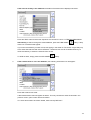
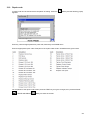
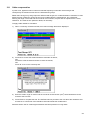
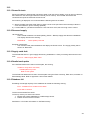
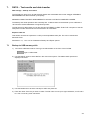
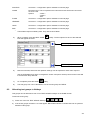
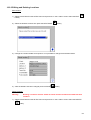
If NO Asset ID is entered, press the TEST GROUP
Alternatively press the
Hotkey and type in the test group.
Hotkey twice to select the test group drop down box.
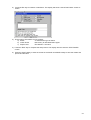
Press OK to list all test group options, scroll down the list to select desired test group and press
OK to accept.
Pressing the RIGHT arrow key will “Page Down” the list.
Press TEST to start the test sequence. Go to section 3.3 TEST PROGRESS.
FURTHER DETAILS ON ADDING ASSETS CAN BE FOUND IN SECTION 5
Option 3:
.1
STARTING A TEST – USING A BARCODE SCANNER
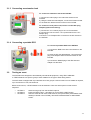
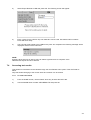
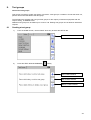
From the home page scan the Asset barcode with the optional barcode scanner.
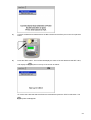
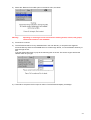
If the ASSET ID does NOT exist in the PAT database, the PAT will jump to the ADD ASSET
screen and the ASSET ID will appear.
.2
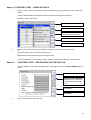
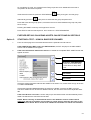
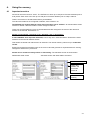
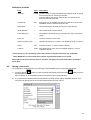
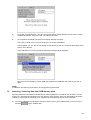
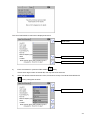
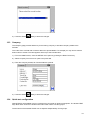
If the asset information matches the asset to be tested the completed TEST ASSET screen will
appear as below:
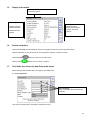
Find Asset
Search for TEST GROUPS
Press once for direct entry
Press twice for drop down
box.
Add ASSET
Edit ASSET
Check the asset information matches the ASSET to be tested. If so, Press TEST and go to section
3.3 TEST PROGRESS.
If the asset information does not match the asset to be tested, check the CLIENT is correct.
The same ASSET ID can be used for different clients, but one client cannot have duplicate asset
IDs.
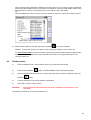
If the asset ID does not exist the screen will jump to Add Asset screen and automatically fill the
ASSET ID field with the scanned barcode data.
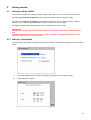
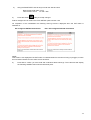
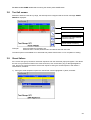
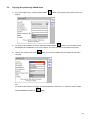
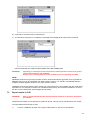
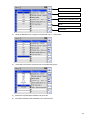
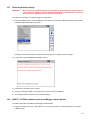
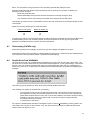
NOTE: When scanning an Asset ID that exists in the database under a location that is
different to that set in the PATs current status, a yellow warning indicator will show on the
Location field as below. Go to section 4 for additional information on Clients and locations.
21