1
version 5.5
User Guide
Cover Page
Copyright © 1997-2003 PLP Digital Systems.
All rights reserved.
The software described in this document is furnished under a license agreement. The software may be used
or copied only in accordance with the terms of the agreement. It is against the law to copy the software except
as specifically allowed in the license agreement.
This guide may not be reproduced or transmitted in any form or by any means, electronic or mechanical,
including photocopying and recording, in whole or in part, without written consent of PLP Digital Systems,
except for normal internal use by employees of a business licensed by PLP Digital Systems. External
distribution to customers or other outside parties is expressly prohibited. The proprietary and copyright
notices that appear on this page must be affixed to any permitted copies.
The information in this guide is subject to change without notice. PLP Digital Systems makes no warranty of
any kind with regard to this guide, and shall not be liable for any errors or for incidental or consequential
damages in connection with the use of the instructions or examples herein.
PlotWorks is a registered trademark of PLP Digital Systems, Scottsdale, AZ, USA. Windows and Windows
NT are trademarks of Microsoft Corp.
Other brands and products mentioned in this guide are the trademarks of their respective manufacturers and
should be noted as such.
Depending on the PlotWorks version you are using, one or more software components or some
of their features may not be available to you. Please see your PlotWorks retailer for more
information.
http://www.plp.com
6060 E. Thomas Road u Scottsdale, AZ 85251
Phone: 480.949.7568u FAX: 480.949.7321
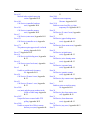
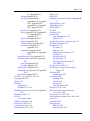
PlotWorks User Guide 5.5 Table of Contents • i
Table of Contents
Chapter 1
Introduction ...................................................................................................... 1-1
What’s New in PlotWorks version 5.5 ......................................................1-1
Supported PlotWorks Devices ...................................................................1-1
Printers .......................................................................................................1-1
Scanners .....................................................................................................1-2
Folders .......................................................................................................1-3
Supported File Formats .............................................................................1-3
PlotWorks Hardware Configurations ........................................................1-4
Hardware Setup .................................................................................................1-4
Interface Cards ...........................................................................................1-5
Security Key/External Dongle ...................................................................1-8
PlotWorks Smart Switch I .........................................................................1-9
Suggested Minimum System Requirements ...................................................1-14
Print Server ..............................................................................................1-14
Scanning Station ......................................................................................1-16
PlotWorks Software Components ...................................................................1-17
PlotWorks Applications ..................................................................................1-18
The Job Queue .........................................................................................1-18
The Job Editor .........................................................................................1-18
The Printer Interface ................................................................................1-18
The Job Processor ....................................................................................1-18
Network Polling .......................................................................................1-18
Optional PlotWorks Components: ...........................................................1-18
The Scanner Interface ..............................................................................1-18
Print-to-Queue .........................................................................................1-19
PlotWorks Client .....................................................................................1-19
The Archiver ............................................................................................1-19
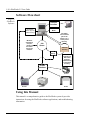
Software Flowchart .........................................................................................1-20
Using this Manual ...........................................................................................1-20
Before You Start ......................................................................................1-21
Documentation Conventions ...................................................................1-22
Help and Technical Support ...........................................................................1-23
Online Help ..............................................................................................1-23
Technical Support ....................................................................................1-23
PLP Internet Support ...............................................................................1-24
Printing Electronic Documentation .........................................................1-24
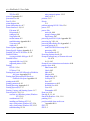
Chapter 2
Getting Started ................................................................................................. 2-1
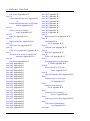
ii • PlotWorks User Guide
Installing PlotWorks® ......................................................................................2-1
Installing PlotWorks Server or Demo for the first time ............................2-1
Updating from Version 4.3 or above preserving previous settings ...........2-3
Updating from Version 4.2 or below .........................................................2-4
Opening PlotWorks Applications .....................................................................2-6
Configure Your PlotWorks Applications .........................................................2-7
Configure the Job Queue ...........................................................................2-7
Configure and Start the Job Processor .......................................................2-8
Configure the Printer Interface ..................................................................2-8
Setup the Job Editor .................................................................................2-12
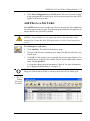
Add Files to a Job Ticket ................................................................................2-13
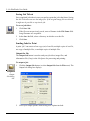
Saving Job Tickets ...................................................................................2-14
Sending Jobs for Print ..............................................................................2-14
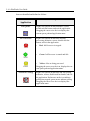
System Tray Icons ..........................................................................................2-15
Demo Mode ....................................................................................................2-18
Network Polling .......................................................................................2-18
Job Editor .................................................................................................2-18
Printer Interfaces ......................................................................................2-18
Chapter 3
The Job Queue ..................................................................................................3-1
The Job Queue Window ...................................................................................3-1
Toolbar Buttons ................................................................................................3-2
File Menu ...................................................................................................3-3
View Menu ................................................................................................3-3
Setup Menu ................................................................................................3-4
Job Menu ...................................................................................................3-4
Help Menu .................................................................................................3-5
Columns and Icons ....................................................................................3-6
Job Queue Structure ...................................................................................3-9
Setting up the Job Queue ................................................................................3-10
Open an Existing Job Queue ....................................................................3-10
Create a New Job Queue ..........................................................................3-10
Set Queue Options ...................................................................................3-11
Select Queue Colors ................................................................................3-13
Working with Jobs in the Queue .....................................................................3-14
Importing Jobs .........................................................................................3-14
Prioritize Jobs (Automatic Printing) ........................................................3-15
Put Jobs on Hold ......................................................................................3-16
Process Jobs .............................................................................................3-17
Printing Jobs Manually ............................................................................3-18
Interrupting a Job to Print Another Immediately .....................................3-18
Reprint a Job ............................................................................................3-18
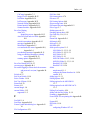
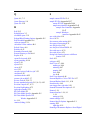
PlotWorks User Guide 5.5 Table of Contents • iii
Delete a Job from the Queue ...................................................................3-19
Saving Jobs from the Queue to a different location ................................3-19
Logs and Reports ............................................................................................3-20
Processing Log ........................................................................................3-20
Printing Log .............................................................................................3-20
Media/Capabilities Log ...........................................................................3-20
Job Information ........................................................................................3-21
Job Order .................................................................................................3-21
Troubleshooting ..............................................................................................3-21
Rebuild the Queue ...................................................................................3-21
Reset the Activity Field for a Job ............................................................3-22
Chapter 4
The Job Editor ................................................................................................. 4-1
Creating a simple job ticket ..............................................................................4-2
To start a new job ticket: ...........................................................................4-2
To add images to a job ticket: ....................................................................4-2
The Job Editor Window ....................................................................................4-3
The Toolbar ...............................................................................................4-3
The File Menu ...........................................................................................4-5
The Edit Menu ...........................................................................................4-6
The View Menu .........................................................................................4-7
The Setup Menu .........................................................................................4-8
The Help Menu ................................................................................................. 4-9
The Job Grid ..............................................................................................4-9
Changing Print Parameters .............................................................................4-12
To change prototype parameters: .............................................................4-12
Editing Functions .....................................................................................4-13
Change Image Filenames .........................................................................4-13
Saving a Job Ticket ..................................................................................4-14
The Detail Property Sheets .............................................................................4-14
Main Property Sheet ................................................................................4-15
Specified Size Property Sheet ..................................................................4-19
Output Setup Property Sheet ...................................................................4-21
Data Format Property Sheet ....................................................................4-23
Pens Property Sheet .................................................................................4-27
Overlays Property Sheet ..........................................................................4-32
Watermarks Property Sheet .....................................................................4-35
Margins Property Sheet ..................................................................................4-38
Labels Property Sheet ..............................................................................4-42
The Scale View ...............................................................................................4-46
Setting Preferences .........................................................................................4-47
General Preferences Sheet .......................................................................4-48
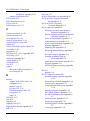
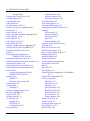
iv • PlotWorks User Guide
User Information Sheet ............................................................................4-49
Finishing Options ....................................................................................4-50
Nesting Options Tab ................................................................................4-51
Processing Options .........................................................................................4-53
Processing Sheet ......................................................................................4-54
Size Tolerances Sheet ..............................................................................4-55
AutoCAD/DWG Direct Setup Sheet .......................................................4-56
Adding Files from a Polled Directory .............................................................4-57
Creating the Directories: ..........................................................................4-57
Using the Poll Directory Function: ..........................................................4-59
Adding Files from a Polled FTP Directory .....................................................4-63
Using the Poll Directory Function: ..........................................................4-63
Scanning from Twain Devices ........................................................................4-66
Confirming your computer detects the scanner: ......................................4-66
Twain Scanning Options ..........................................................................4-67
Adding images to the Job Editor from a TWAIN scanner: .....................4-70
Revision HighLighting ...................................................................................4-72
Using Revision Compare .........................................................................4-73
Revision Compare Options ......................................................................4-74
The File Configurations tabbed dialog box .............................................4-76
The Revision Compare Dialog Box Buttons ...........................................4-78
Possible error messages generated by Revision Compare .......................4-78
Configure an Output Destination ....................................................................4-79
Configuring Multiple Destinations ..........................................................4-79
Destination Types ....................................................................................4-81
Edit an existing Output Destination .........................................................4-85
Delete an existing Output Destination .....................................................4-86
Process Image Files ........................................................................................4-87
Sending Print Jobs ..........................................................................................4-89
Send a Special Instruction File ................................................................4-89
Job Information ........................................................................................4-91
Output Jobs .....................................................................................................4-91
Output to FTP ..........................................................................................4-94
Viewing Image Files .......................................................................................4-94
Chapter 4B
The Image Viewer ..........................................................................................4b-1
Viewing Image Files ................................................................................4b-1
Open the Image Viewer ...........................................................................4b-1
The Viewer Window ................................................................................4b-2
Zoom In or Out ........................................................................................4b-7
Adjust the Size of a Print .........................................................................4b-7
Adjust the Origin of a Print .....................................................................4b-7
PlotWorks User Guide 5.5 Table of Contents • v
Black Paper ..............................................................................................4b-8
Show or Hide Pens ..................................................................................4b-8
Identify Pens ............................................................................................4b-8
Refresh the Viewer Window ...................................................................4b-9
Configure a Third Party Viewer .....................................................................4b-9
Chapter 5
The Network Polling Program ........................................................................ 5-1
The Network Polling Window ..........................................................................5-3
Network Polling Menus ....................................................................................5-4
The File Menu ...........................................................................................5-4
The View Menu .........................................................................................5-4
The Setup Menu .........................................................................................5-4
The Help Menu ..........................................................................................5-5
Columns .....................................................................................................5-5
Setting Up Network Polling ..............................................................................5-5
Set Polling Options ....................................................................................5-5
Add a Target Directory ..............................................................................5-6
Modify a Polling Directory ......................................................................5-11
Delete a Target Directory ........................................................................5-11
Edit the Directory PFS File .....................................................................5-12
Edit the Master PFS File ..........................................................................5-12
Polling for Jobs ...............................................................................................5-13
Receiving Jobs from a Remote Source ....................................................5-13
Poll Target Directories .............................................................................5-14
Polling Status ...........................................................................................5-14
The Polling Log .......................................................................................5-15
Chapter 6
The Job Processor ............................................................................................ 6-1
The Job Processor Window ..............................................................................6-1
The File Menu ...........................................................................................6-3
The View Menu .........................................................................................6-3
The Setup Menu .........................................................................................6-3
The Help Menu ..........................................................................................6-4
Setting Up the Job Processor ............................................................................6-4
Connect to a Queue ....................................................................................6-4
Running the Job Processor ................................................................................6-6
Start and Stop Processing ..........................................................................6-6
Run Processing in the Background ............................................................6-6
View Processing Log .................................................................................6-6
vi • PlotWorks User Guide
Chapter 7
The Post Processor ...........................................................................................7-1
The Post Processor Window .............................................................................7-1
The Post Processor Tool Bar .....................................................................7-2
The File Menu ............................................................................................7-3
The View Menu .........................................................................................7-3
The Help Menu ..........................................................................................7-4
Setting Up the Post Processor ...........................................................................7-4
Connect to a Queue ....................................................................................7-4
Running the Post Processor ..............................................................................7-5
Start and Stop Processing ..........................................................................7-5
Change Post Processing Options ......................................................................7-5
Chapter 8
The Printer Interface .......................................................................................8-1
The Printer Interface Window ..........................................................................8-2
The Toolbar Buttons ..................................................................................8-2
The File Menu ............................................................................................8-3
The View Menu .........................................................................................8-4
The Setup Menu .........................................................................................8-4
The Help Menu ..........................................................................................8-5
The Printer Diagram ..................................................................................8-6
The Printer Information Box .....................................................................8-7
The Print Status Box ..................................................................................8-8
Setting Up the Printer Interface ........................................................................8-8
Set General Printing Options .....................................................................8-9
Configure Device Specific Options .........................................................8-14
Generic Embedded Controller Options ...................................................8-17
Setting Up Media Inventory ....................................................................8-19
Printing and Reporting ....................................................................................8-25
Set Printing Modes ..................................................................................8-25
Print Rush Jobs ...............................................................................................8-26
Display Images When Printing ................................................................8-26
Printing Separator Pages ..........................................................................8-27
Image Controls................................................................................................ 8-29
Gamma Correction ..........................................................................................8-29
Image Intensity ...............................................................................................8-29
Setting Gamma Correction and Image Intensity options................................ 8-29
Connect to a Different Queue .........................................................................8-30
Job Recovery ...................................................................................................8-31
Printer Errors ...................................................................................................8-31
Out of Toner ....................................................................................................8-31
PlotWorks User Guide 5.5 Table of Contents • vii
Media Type Unknown Error ...........................................................................8-32
Paper Jam ........................................................................................................ 8-33
Simulate Printing ............................................................................................ 8-34
Chapter 9
The Scanner Interface ..................................................................................... 9-1
The Scanner Interface Window ........................................................................9-2
Setting Up the Scanner Interface ....................................................................9-16
Set Basic Scanning Parameters ................................................................9-16
Set Up File Naming .................................................................................9-17
Image File Formats ..................................................................................9-20
Set the Scanning Resolution ....................................................................9-20
Set the Scanning Speed ............................................................................9-20
Choose a Document Ejection Option ......................................................9-20
Right Edge Scanning ...............................................................................9-21
Reduce or Enlarge an Image ....................................................................9-21
Invert Images ...........................................................................................9-21
Mirror Image ............................................................................................9-21
Set the Document Size .............................................................................9-22
Set the Document Offset ..........................................................................9-22
Setting the Image Data Buffer Size .........................................................9-23
Enhancing Images ...........................................................................................9-23
Remove Background Automatically .......................................................9-24
Working with Standard Configurations ...................................................9-25
Scanning, Copying and Viewing ....................................................................9-25
Scan Documents Automatically ..............................................................9-25
Scan Images into a Job Ticket .................................................................9-26
Scan-to-Print (Copy) ................................................................................9-26
Rescan a Document .................................................................................9-27
Scanning a Document to Replace a Saved Digital Document .................9-27
Send the Current File to the Printer .........................................................9-31
View a Scanned Image ............................................................................9-31
Chapter 10
Advanced Reporting Utility (ARU) .............................................................. 10-1
Producing a Job Report ...................................................................................10-1
Scanner ARU data fields .................................................................................10-9
Publisher ARU data fields ............................................................................10-11
Disabling the Printer ARU ....................................................................10-12
LOG Files: .............................................................................................10-13
Using the ARU Log to generate reports .......................................................10-14
viii • PlotWorks User Guide
Chapter 11
Folder Information .........................................................................................11-1
Autodetected and External Folders ..........................................................11-1
Autodetected Folders ...............................................................................11-1
External Folders .......................................................................................11-2
Supported External Folders .....................................................................11-2
Finishing Macros ............................................................................................11-3
Setting Macros and Other Options ..........................................................11-4
Folder Specific Options ..................................................................................11-5
Enhanced Folding Options for MAX 200 & the GFI Folder ...................11-5
Folding options for the MAX 200 NACO: ..............................................11-5
Folding options for the MAX 200 EO: ....................................................11-7
When the No Fold button is selected on the MAX 200 Interfaces ..........11-9
GFI Folder .............................................................................................11-10
Xerox MAX 200 and 8180 Folder Options ...........................................11-16
Folding ...................................................................................................11-17
RANK (EO)*: ........................................................................................11-17
NACO: * ................................................................................................11-19
8830/8855 (Bay) Folder .........................................................................11-19
Bay Hornet Folder ........................................................................................11-21
8830 (Gera) Folder ........................................................................................11-23
8845 Folder ............................................................................................11-23
PrintFold 2150 and 3150 Folders ..........................................................11-24
Océ 9600 Folder Options .......................................................................11-27
Océ 9800 Folder Options .......................................................................11-28
Request Folding from the Job Editor ............................................................11-30
About Folding ...............................................................................................11-31
Full Print Recovery ................................................................................11-31
Short Drawing Support ..........................................................................11-31
Folding Logic ........................................................................................11-31
Possible Folds and How to Set Them Up in PlotWorks ........................11-32
Determining Fold Width ........................................................................11-34
Fold Types .............................................................................................11-35
PlotWorks and Rotation ................................................................................11-36
Chapter 12
Print-to-Queue ................................................................................................12-1
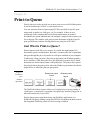
Just What is Print-to-Queue? ..........................................................................12-1
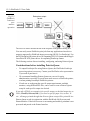
Considerations before installing Print-to-Queue .....................................12-2
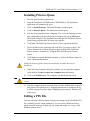
Installing Print-to-Queue ................................................................................12-3
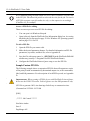
Editing a PFS File ...........................................................................................12-3
Sample Custom PFS File .........................................................................12-4
PlotWorks User Guide 5.5 Table of Contents • ix
Selecting a Driver ....................................................................................12-6
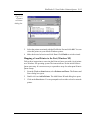
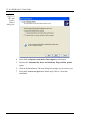
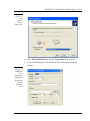
Mapping a Local Printer to the PlotWorks Port on Windows NT ...........12-6
Using a Network Printer on Windows NT ....................................................12-12
Mapping a Local Printer to the Port (Windows XP) .............................12-13
Output a Job to the Print-to-Queue Printer ...................................................12-20
Configuring LPD to Work with PlotWorks ..................................................12-20
Configuring PlotWorks and Print-to-Queue ..........................................12-20
Configuring NT Workstation 4.0 to support LPD .................................12-20
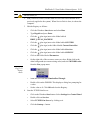
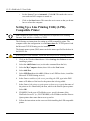
Setting Up a Line Printing Utility (LPR)-Compatible Printer ......................12-22
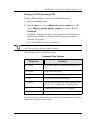
Printing to PlotWorks using LPR ..........................................................12-23
Configuring Linux to Submit to Plotworks Job Queue .........................12-24
Printing from AutoCAD or Microstation to the Job Queue ..................12-24
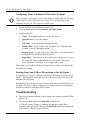
Troubleshooting ............................................................................................12-24
Appendix A
Memory Requirements ..................................................................Appendix A-1
The Amount of Physical Memory Recommended .................. Appendix A-1
Imaging Memory Setting Guidelines for the Printer Interface Appendix A-3
Windows and Generic Embedded Controller Printers ............. Appendix A-4
Image Data Buffer Size Guidelines for the Scanner Interface Appendix A-5
Appendix B
Error Messages and Common Problems ..................................... Appendix B-1
The Job Queue ................................................................................ Appendix B-1
Network Polling .............................................................................. Appendix B-5
The Printer Interface ....................................................................... Appendix B-9
Common Printing Problems .................................................... Appendix B-9
Error Messages ........................................................................ Appendix B-9
Job Editor ...................................................................................... Appendix B-18
Job Processor: ............................................................................... Appendix B-25
Image Viewer ................................................................................ Appendix B-26
Scanner Interface: ......................................................................... Appendix B-26
Appendix C
Image File Requirements ..............................................................Appendix C-1
Plot Files ......................................................................................... Appendix C-1
CalComp Commands ...................................................................... Appendix C-2
CalComp Error Codes ............................................................. Appendix C-3
HP-GL Supported Command List .................................................. Appendix C-4
HP-GL/2 ........................................................................................ Appendix C-10
x • PlotWorks User Guide
Appendix D
PFS Files ......................................................................................... Appendix D-1
Understanding PFS Files ................................................................ Appendix D-1
PlotWorks Network Polling ............................................................ Appendix D-1
Default PFS Files ............................................................................ Appendix D-2
PFS File Hierarchy .................................................................. Appendix D-3
Directory-level Defaults .......................................................... Appendix D-3
Site-level Defaults ................................................................... Appendix D-4
PFS File Layout .............................................................................. Appendix D-4
JOB and FILE Sections ........................................................... Appendix D-4
Keywords and Values .............................................................. Appendix D-5
Defining Parameters ....................................................................... Appendix D-6
Parameter Setting Requirements ..................................................... Appendix D-6
Pens Data ................................................................................. Appendix D-6
Size Data .................................................................................. Appendix D-7
Keywords by Category ................................................................... Appendix D-7
Administrative Information ..................................................... Appendix D-8
AutoCAD File Setup ............................................................. Appendix D-16
AutoCAD File Setup (continued) .......................................... Appendix D-17
Pen Control ............................................................................ Appendix D-17
Folding ................................................................................... Appendix D-20
Overlay Control ..................................................................... Appendix D-24
Nesting Controls .................................................................... Appendix D-25
Watermarks ............................................................................ Appendix D-26
Label Control ......................................................................... Appendix D-30
Log File Data ......................................................................... Appendix D-33
Locking Parameters ............................................................... Appendix D-34
Advanced Features ........................................................................ Appendix D-35
Special Fields ......................................................................... Appendix D-35
Open and Write to a File ........................................................ Appendix D-36
Printing a Job (Network Polling Mode 3) ..................................... Appendix D-37
Sending Jobs to a Target Directory ....................................... Appendix D-37
The Polling Log File .............................................................. Appendix D-37
Sample PFS Files .......................................................................... Appendix D-37
Default PFS File (Sample) ..................................................... Appendix D-38
Directory PFS File ................................................................. Appendix D-43
Remote PFS File .................................................................... Appendix D-44
Sample User Interfaces ................................................................. Appendix D-45
Sample Windows Interface .................................................... Appendix D-45
PFS File Created from Windows Interface ............................ Appendix D-45
Sample Excel Interface .......................................................... Appendix D-47
PFS File Created from Excel Interface .................................. Appendix D-48
PlotWorks User Guide 5.5 Table of Contents • xi
Appendix E
Printer-Specific Options ................................................................ Appendix E-1
Xerox MAX 200 and 8180 Printer Interfaces ..................................Appendix E-1
Highlight Color Printing ...........................................................Appendix E-2
Hardware Stamping on the XES 8180 and the MAX 200 ........Appendix E-6
Xerox 8830, 8825, 8850, & Synergix · PRINT SYSTEM 510dp ....Appendix E-8
Synergix PRINT SYSTEM 510dp ...........................................Appendix E-8
Options specific to the Synergix PRINT SYSTEM 510dp ....Appendix E-11
Xerox 8840D/Fuji Xerox 4024 Printer Interface Options .............Appendix E-11
Xerox 8845/Fuji Xerox 4036 Printer Interface Options ................Appendix E-13
Pen Widths ..............................................................................Appendix E-14
Using a Folder with the 8845 .................................................Appendix E-14
Synergix Print System 721p, Xerox 8855 and KIP 8000 ..............Appendix E-14
Using a GFI Folder with the Synergix Print System 712p .....Appendix E-15
KIP 3620 Printer Interface Options ...............................................Appendix E-16
KIP 2950 Options ..........................................................................Appendix E-17
KIP 1230 Options ..........................................................................Appendix E-18
KIP 7095 Options ..........................................................................Appendix E-19
KIP 9010 Options ..........................................................................Appendix E-20
Océ 9600 Printer Interface Options ...............................................Appendix E-21
Océ 9800 Options ..........................................................................Appendix E-21
Generic Embedded Controller Printers ..........................................Appendix E-22
Selecting a Different Printer Interface from an open one .......Appendix E-23
Change from a Color to a Monochrome Printer .....................Appendix E-23
Socket Printers ...............................................................................Appendix E-24
Enable LMHOSTS Lookup ....................................................Appendix E-24
Obtaining the IP Address: .......................................................Appendix E-24
AccXES Controller Driven Printers .......................................Appendix E-28
Océ Power Logic Controller Driven Printers .........................Appendix E-29
Kyocera-Mita Controller ........................................................Appendix E-31
Windows Printers ...........................................................................Appendix E-32
Selecting a Windows Printer ..................................................Appendix E-33
Change from Color to Monochrome ......................................Appendix E-33
Paper Sizes Supported with Windows Printers ......................Appendix E-34
Appendix F
Scanner-Specific Options .............................................................. Appendix F-1
Xerox 7336 Scanner Interface .........................................................Appendix F-1
7336 Scan Controls tab .............................................................Appendix F-1
7336 General Configuration Options .......................................Appendix F-2
Xerox 7356 Scanner Interface .........................................................Appendix F-3
Xerox 7396 Scanner Interface .........................................................Appendix F-5
xii • PlotWorks User Guide
Xerox 7399 Scanner Interface .........................................................Appendix F-6
Xerox MAX 200 and 8180 Scanner Interfaces ................................Appendix F-9
Synergix Scanner ...........................................................................Appendix F-12
Installing the Synergix Scanner ..............................................Appendix F-12
Ensure the scanner is ready to use ..........................................Appendix F-14
Using the Synergix Scan System ............................................Appendix F-14
Vidar Flash Scanner Interface ................................................Appendix F-22
The Vidar Flash Scanner operates in the following modes: ...Appendix F-23
Vidar Flash+ Scanner Interface .....................................................Appendix F-24
KIP 2035 and 7095 Scanner Interface ....................................Appendix F-26
KIP 2020 and 2030 Scanner Interface ....................................Appendix F-27
KIP 2040 Scanner Interface ....................................................Appendix F-28
KIP 2950 Scanner Interface ....................................................Appendix F-29
Océ 9800 Scanner Interface ...........................................................Appendix F-31
Contex FSS/FCS Scanners .............................................................Appendix F-32
Appendix G
Configuring RAS to Output PlotWorks Job Files ......................................... Appendix G-1
Install & Configure a Remote Access Server (Hub) ....................... Appendix G-2
Verify Current Configuration .................................................. Appendix G-2
Install RAS ...................................................................................... Appendix G-4
Create User Accounts for Remote Access Service .................. Appendix G-8
Create Shared Folders .............................................................. Appendix G-9
Start the Remote Access Administrator ................................. Appendix G-10
Making Remote Access Service Start Automatically ............ Appendix G-10
Stopping the Remote Access Admin ..................................... Appendix G-10
Set Up the Client’s Dial-Up Networking Connection .................. Appendix G-11
Be Prepared ............................................................................ Appendix G-11
Verify Current Configuration ................................................ Appendix G-11
Add a Dial-Up Networking Connection ................................ Appendix G-13
Make the Connection ............................................................. Appendix G-14
RAS Installation .................................................................... Appendix G-15
Set up the Client Dial-Up Networking Connection (Win95) ....... Appendix G-16
Add a Dial-Up Networking Connection ................................ Appendix G-17
Make the Connection ............................................................. Appendix G-19
Installing Network Protocols (Windows NT) ............................... Appendix G-19
Install TCP/IP ........................................................................ Appendix G-19
Install NWLink IPX/SPX Compatible Transport .................. Appendix G-23
Installing NetBEUI Protocol .................................................. Appendix G-24
Installing the MS Loopback Adapter ..................................... Appendix G-25
Installing Network Protocols (Win95) .......................................... Appendix G-25
Installing TCP/IP ................................................................... Appendix G-26
Installing IPX/SPX Compatible Protocol (Win95) ............... Appendix G-26
PlotWorks User Guide 5.5 Table of Contents • xiii
Installing NetBEUI Protocol ................................................. Appendix G-27
Installing Client for Microsoft Networks .............................. Appendix G-28
Installing Dial-Up Networking on Win95 .................................... Appendix G-28
Output Job Tickets ........................................................................ Appendix G-29
Installing FTP ............................................................................... Appendix G-30
Installing Internet Information Server on an NT Server ........ Appendix G-31
Configuring Windows NT 4.0 Workstation for FTP ............. Appendix G-33
Appendix H
Processing AutoCAD Jobs ............................................................Appendix H-1
DWG Direct* File Processing ................................................. Appendix H-1
AutoCAD File Processing ....................................................... Appendix H-1
How AutoCAD Files are Processed ........................................ Appendix H-1
Prechecking ............................................................................. Appendix H-2
Preprocessing and Interaction .................................................. Appendix H-2
AutoCAD Printing Boundaries ................................................ Appendix H-2
PlotWorks Parameters and AutoCAD ..................................... Appendix H-3
Configuring AutoCAD For Use with PlotWorks ........................... Appendix H-6
Configuring AutoCAD R14: ................................................... Appendix H-6
Configuring AutoCAD 2000 or 2002 ...................................... Appendix H-7
Configuring AutoCAD or DWG Direct* in PlotWorks .......... Appendix H-8
AutoCAD and “Error Free Printing™” .......................................... Appendix H-9
Examples of parameter settings ............................................. Appendix H-10
Identifying Errors .................................................................. Appendix H-12
Printing with AutoCAD using Network Polling Mode 1 ...... Appendix H-13
...................................................................................................... Appendix H-15
Appendix I
Processing MicroStation Files ........................................................ Appendix I-1
Preprocessing and Interaction ....................................................Appendix I-1
MicroStation Printing Boundaries .............................................Appendix I-1
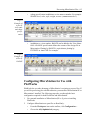
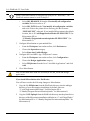
Configuring MicroStation for Use with PlotWorks ..........................Appendix I-3
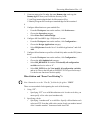
MicroStation and “Error Free Printing”™ ................................Appendix I-5
Supported DGN Options ...................................................................Appendix I-7
Printing from Microstation SE Directly to PlotWorks Job Queue ...Appendix I-9
Setting the Default Printer in the Driver ....................................Appendix I-9
Microstation .............................................................................Appendix I-10
Appendix J
PlotWorks TIFF Helper .................................................................Appendix J-1
Enhancing Scanned Images ..............................................................Appendix J-2
Converting the Images ...............................................................Appendix J-2
xiv • PlotWorks User Guide
Exporting the Images .................................................................Appendix J-2
Importing TIFF Files .................................................................Appendix J-3
Inverting TIFF files ....................................................................Appendix J-3
Viewing TIFF files ....................................................................Appendix J-3
Appendix K
Repro Desk File Support .............................................................. Appendix K-1
Outputting files from Repro Desk for PlotWorks use .............. Appendix K-1
Processing Files before outputting from Repro Desk .............. Appendix K-1
Outputting Jobs using the Send Job button ............................. Appendix K-2
Outputting Jobs using the Save menu item ............................. Appendix K-3
Outputting Jobs from the Repro Desk Queue .......................... Appendix K-4
Outputting VIC files from Repro Desk ................................... Appendix K-5
Opening Repro Desk JOB files with the Job Editor ....................... Appendix K-5
Extract the zipped files ............................................................ Appendix K-5
Opening Job Files ........................................................................... Appendix K-6
Opening and outputting a JOB file .......................................... Appendix K-6
Adding and outputting VIC Files .................................................. Appendix K-10
Using Network Polling with Repro Desk Files ............................ Appendix K-10
Polling for Repro Desk JOB Files ......................................... Appendix K-10
Polling for Repro Desk VIC Files ......................................... Appendix K-12
Importing Repro Desk Pattern Files ............................................. Appendix K-12
To import and use a user defined pattern: ............................. Appendix K-13
Reverting to standard patterns ............................................... Appendix K-14
Warnings and other print parameter issues ................................... Appendix K-14
Warnings ................................................................................ Appendix K-14
Other Print parameter issues .................................................. Appendix K-19
Folding parameters ................................................................ Appendix K-19
PlotWorks settings not supported by Repro Desk ................. Appendix K-22
Printing differences using Repro Desk vs. PlotWorks: ......... Appendix K-22
License Agreements
ADOBE ACROBAT READER LICENSE .........................................Waranty-iii
Index
Index ........................................................................................................... Index-i
PlotWorks 5.5 User Guide • Introduction • 1-1
Chapter 1
Introduction
Welcome to the PlotWorks® Digital Reprographics System.
PlotWorks is a software solution that manages all aspects of document production.
It offers high-speed copying, scanning, and printing as well as job management,
image viewing, and remote job submission. PlotWorks provides the greatest
production power of any digital solution available today.
PlotWorks modular, customizable design can be used in any reprographics
environment, from service bureaus to in-house production facilities. You can
choose individual components to meet your document production needs and
combine them any way. Build a customized system using only the equipment you
need while establishing a flexible foundation that can be easily updated when your
needs change.
5.5
What’s New in PlotWorks version 5.5
PlotWorks version 5.5 has new features. These include:
•
Scan to PDF
•
Document Revision Compare
•
GFI folder support
•
Synergix PRINT SYSTEM 721p support
•
Synergix PRINT SYSTEM 510dp support
Supported PlotWorks Devices
This list was current when this document was printed. If your printer is not on the
list, please contact PLP for a more recent list.
PlotWorks currently supports the following printers, scanners and folders:
Printers
Xerox 8180
Xerox MAX 200
Xerox MAX 200 NP
Xerox 8840
Xerox 8845
Xerox 8850
1-2 • PlotWorks 5.5 User Guide
Xerox 8825 (1 and 2-roll models)
Xerox 8830
Océ 9600
Synergix PRINT SYSTEM 721p
TDS 400
TDS 800
KIP 1230
KIP 7095
KIP 9010
Xerox 8855
Kyocera Mita 4850w
Océ 9800
Synergix PRINT SYSTEM 510dp
TDS 600
KIP 3620
KIP 2950
KIP 8000
Also:
• Large Format Inkjet Printers like the HP DesignJet and the Xerox 2230/2240
•
Large Format Printers with Embedded Controllers (e.g., Xerox 8825 and
8830 using the AccXES controller, 8825 and 8830 DDS; Océ 9400, 9600, and
the 9800)
•
Windows Printers
Scanners
All Twain driven scanners are supported.
Xerox Scanners:
Xerox 7336
Xerox 7356
Xerox 7396
Xerox 7399
Xerox 8180
Xerox MAX 200
Synergix
Contex Monochrome Scanners (All at 400 dpi resolution only):
FSS 4300
FSS 8300
FSS 8300 Plus
FSS 8300 Copy
FSS 12300
FSS 18300
Contex Color Scanners (all in monochrome mode at 400 dpi resolution only):
FSC 3010
FSC 5010
FSC 5010 Copy
FSC 6010
FSC 8010
FSC 8010 Copy
KIP Scanners:
KIP 2020
KIP 2030
KIP 2035
KIP 2040
KIP 7095
KIP 2950
Other Scanners:
Océ 9800
Vidar Flash and Flash+
PlotWorks 5.5 User Guide • Introduction • 1-3
Kyocera Mita 4850
Folders
Xerox 8180
Xerox 8830 (Gera and Bay 3)
Xerox 8855 (Bay)
GFI folder
Xerox MAX 200
Xerox 8845
PrintFold 2150 / 3150
Supported File Formats
PlotWorks supports the following data formats:
•
AutoCAD files (DWG, DXF) (AutoCAD 2000 must be installed to process
AutoCAD 200 plot files) Including AutoCAD 2002 files
•
HP-GL, HP-GL/2
•
Generic Embedded Controllers
•
CalComp plot files (906/907)
•
TIFF and TIFF 6.0 (Subset of TIFF is supported)
•
CALS (Type 1)
•
PostScript (Levels 1, 2, 3)
•
CGM, DGN (MicroStation must be installed for either format)
•
VRF (vector format only)
•
PDF
•
BMP
•
DCX
•
JPG
•
PCX
•
XIF
•
JOB
•
VIC
•
PEN
•
SET
Some of these formats are optional and must be purchased separately.
1-4 • PlotWorks 5.5 User Guide
PlotWorks Hardware Configurations
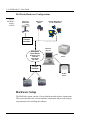
Fig 1.1
Hardware
Configuration
Hard Copy
Documents
Removable
Media
Network Workstations
(Local and Remote)
Scanner
Interface
PlotWorks
Print Server
Network Polling
Job Editor
Image Viewer
Job Queue
Windows
Explorer
Windows
Printer
Printer
Interface
HP-RTL
Printer
Printer 1
Printer 2
Hardware Setup
The PlotWorks system consists of several hardware and software components.
This section describes the various hardware components and provides step-bystep instructions for installing the software.
PlotWorks 5.5 User Guide • Introduction • 1-5
Interface Cards
The PlotWorks Interface Card is installed in the Print Server (hub) and is
responsible for connecting to the printer. There are four different interface cards
available, depending on the printer and scanner you are using.
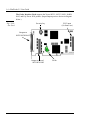
The Scorpion Interface Card supports the Xerox 8855 printer, the Xerox 7396
and 7399 scanners, and all KIP printers and scanners. Input/Output ports are
shown in the diagram below.
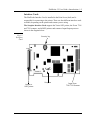
Fig 1.2
Scorpion
Card
Security key
Serial #
Scorpion
Output to
8855 printer
Input from
7396/7399 Scanner
1-6 • PlotWorks 5.5 User Guide
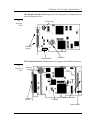
The Gecko Interface Card supports the Xerox 8825/1, 8825/2, 8830, 8840D,
8845, and Fuji Xerox 4036 printers. (Input/Output ports are shown in diagram
below.)
Fig 1.3 Ge
cko Card
Security key
P193 input
(for future use)
Output to
8825/8830/8845
Output to second
8825/8830/8845
Gecko
PlotWorks 5.5 User Guide • Introduction • 1-7
The Mesquite Interface Card supports the Océ 9800 printer). (Output ports are
shown in diagram below.)
Fig 1.4
Mesquite
Card
Security key
Output to
printer
Serial Number
Serial number
Mesquite
The Tarantula Interface Card provides direct support for the MAX 200 printer.
Fig 1.5
Tarantula
Card
Security
key
Output to
printer
Scanner Pass thru
Tarantula
Serial number
1-8 • PlotWorks 5.5 User Guide
For parallel printers:
Use a standard parallel port, like LPT1, to drive the following devices:
•
Océ 9400, 9600, and 9800 printers with embedded controllers
•
Large Format Inkjet Printers (i.e., HP DesignJet, Xerox 2230/2240)
•
Large Format Printers with Embedded Controllers (i.e., Xerox 8825, 8855
and 8830 with the AccXES controller; 8825 and 8830 DDS)
•
Windows printers
RTL and Windows printers can be connected using Windows NT or Ethernet
networking.
For all others:
Use an Adaptec 2940U SCSI I card to drive the following devices:
Xerox 8180 Printer and Scanner
Xerox MAX 200 Printer and Scanner using the embedded controller
Xerox 7356
Xerox 7336
Vidar Flash and Flash +
Security Key/External Dongle
A provided Security Key must be connected to the computer to run the PlotWorks
server software. The Print Server and Scan Station computers usually have the key
installed on their interface cards.
Fig 1.6
Security
Key/
External
Dongle
Print and Scan Stations that do not have an interface card, like SCSI or parallel
port driven printers or scanners, use an externally mounted, keyed dongle, plugged
into a parallel port. Without this key, your software will not run. If the Security
Key or chip is lost, please contact your PlotWorks Service Representative to
purchase a new one.
PlotWorks 5.5 User Guide • Introduction • 1-9
If you receive an “Invalid Codes” message when attempting to start PlotWorks,
check to see that the External Dongle is pushed firmly into the parallel port and
that the key is seated properly. If using a key on the controller board, ensure the
board is inserted firmly in the motherboard and that the key is seated properly.
PlotWorks Smart Switch I
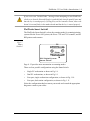
The PlotWorks Smart Switch I selects the scanning mode for scanning/printing
systems like the Xerox 8855 printer, the Xerox 7396 and 7399 scanners, and all
KIP printers and scanners.
Fig 1.7
Smart
Switch I
PC
Printer
PLP Digital System
Smart Switch
M
Page 8- 12 provides more information on scanning modes.
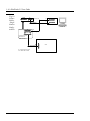
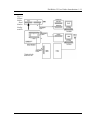
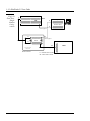
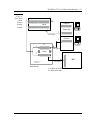
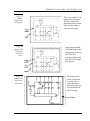
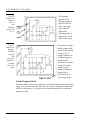
There are four possible configurations using the Smart Switch:
•
Single PC workstation as shown in Fig 1.8.
•
Dual PC workstations, as shown in Fig 1.9.
•
Four port, single workstation configuration, as shown in Fig. 1.10.
•
Four port, dual-station configuration, as shown in Fig. 1.11
Select the configuration that best meets your needs and consult the appropriate
diagram to connect your cables.
1-10 • PlotWorks 5.5 User Guide
Fig 1.8
Printer
Cables,
Single
Station
Configuration
Printer
I/F
7396/7399
M
F
F
Scorpion
Scanner Port
Cable Supplied
PlotWorks
PC
M
Cable Supplied
Printer
PLP Digital System
Smart Switch
M
Smart Switch 1
M
Cable Supplied
F = Female end of cable
M = Male end of cable
8855
PlotWorks 5.5 User Guide • Introduction • 1-11
Fig 1.9
Printer
Cables,
Dual
Station
Configuration
1-12 • PlotWorks 5.5 User Guide
Fig 1.10
Four Port,
Single
Station
F
7399
I/F-B
Configuration
Scorpion
F
Scanner Port
M
PlotWorks
F
Cable Supplied
F
M
Cable Supplied
F
Printer
M
M
PLP Digital Systems
Smart Switch 1
Cable Supplied
Smart Switch 1
F = Female end of cable
M = Male end of cable
8855
PlotWorks 5.5 User Guide • Introduction • 1-13
Fig 1.11
Four Port,
DualStation
Configuration
F
7399
Scorpion
I/F-B
Scanner Port
M
Scan Station
F
Cable Supplied
Scorpion
F
F
PC
Print Station
M
Cable Supplied
F
Printer
M
M
PLP Digital Systems
Smart Switch 1
Cable Supplied
Smart Switch 1
F = Female end of cable
M = Male end of cable
8855
1-14 • PlotWorks 5.5 User Guide
Suggested Minimum System Requirements
Print Server
The PlotWorks Print Server runs the PlotWorks software and serves as your
printing operations hub. The Print Server can receive, create, edit, process, and
distribute your print jobs. The following minimum hardware/software
components are required for the Print Server:
Do not install a ZIP drive or a CDRW drive on the PlotWorks Server.
•
•
PlotWorks Interface Card
•
Half-length PCI cards that are CE approved.
•
One Gecko interface card that can control two printers.
•
One Scorpion interface card that can control a printer and a scanner.
•
One Mesquite card that can controls an Océ 9800 printer/scanner
combination.
Pentium III 1GHz (or faster) processor
Use only equipment designed and certified for PlotWorks.
•
256 MB of RAM at least. 384 MB or more is required for prints 42 feet or
12.8 meters long. Appendix A provides information on calculating memory
needs.
•
10 GB IDE Hard Drive
If using a SCSI hard drive, an additional SCSI card is needed to control
scanners or printers that use a SCSI interface. This includes the Xerox MAX
200 using the embedded controller, the 7336, 7356, and the 8180, also the
Contex FSS 8300, and the Vidar Flash and Flash+. Sharing a SCSI controller
can cause system crashes and performance problems.
•
Windows operating system: Either Windows NT 4.0 Workstation with
Service Pack 6A or Windows XP
Do not use Windows NT 3.51.
•
Adaptec 2940U or 2930 SCSI-II card
PlotWorks 5.5 User Guide • Introduction • 1-15
The Adaptec card is used for scanners or printers using a SCSI-II interface.
This includes the Xerox MAX 200 using the embedded controller, 7336,
7356, 8180, or the Contex FSS 8300 and the Vidar Flash and Flash+.
•
PCI slots
The number of slots needed depends on the desired system configuration. A
slot is required for each:
← PLP interface card
← SCSI scanner card
← Device ribbon cable
← Video card, if not integrated or using an ISA or PGA card
← Network card, if not integrated or using an ISA card
•
Parallel port for the Security Dongle and/or parallel printer (for Xerox 7336,
Xerox 7356, Xerox 8180, Xerox MAX 200 using the embedded controller,
Océ 9400 printer, Contex FSS 8300 and Vidar Flash Upgrade scanners).
•
Serial ports
One each for the:
← Foot pedal, if using a Xerox 7336 scanner (optional)
← Folder (if used)
← Modem (optional) — maximum of two
•
Minimum 14 inch monitor, 800 x 600 resolution, with 65,000 colors
(17" recommended)
•
Bus or PS/2 mouse
•
Keyboard
•
CD-ROM drive
•
3.5 inch, high-density floppy disk drive
You may want to include the following optional components:
•
Printer
•
Network card
•
Battery backup system
•
A modem
1-16 • PlotWorks 5.5 User Guide
Scanning Station
For more efficient operation, a different computer can be used as a dedicated
scanning station. A scanning station requires the following:
•
Pentium II 233 MHz Processor
•
256 MB of RAM
Note: Additional RAM will not significantly improve system performance.
•
10-20 GB IDE Hard Drive
If using a SCSI hard drive, an additional SCSI card is needed for scanners
using SCSI interfaces. Sharing a SCSI controller causes system crashes and
performance problems.This includes the Xerox MAX 200, 7336, 7356, 8180,
the Contex FSS 8300 and Vidar Flash and Flash+.
•
Windows Operating System. NT 4.0 Workstation software with Service
Pack 6A or Windows XP
Do not use Windows NT 3.51.
•
14 inch monitor, 800 x 600 resolution, with 65,000 colors
(17" recommended)
•
Bus or PS/2 mouse
•
Keyboard
•
3.5 inch high-density floppy disk drive
•
One of the following cards depending on your device:
← Adaptec 2940U
← 2930 SCSI-II Card if using either the Xerox MAX 200
with the embedded controller, 7336, 7356, 8180, the Contex FSS 8300 or the Vidar Flash or Flash+
← PlotWorks 8855 or 7396 interface card for the Xerox 7396
•
Parallel port for the Security Key dongle for either the Xerox MAX 200
using the embedded controller, 7336, 7356, 8180, the Contex FSS 8300, the
Vidar Flash or the Flash+.
•
PCI slots
A PCI slot is needed for each:
← SCSI or PlotWorks interface card
PlotWorks 5.5 User Guide • Introduction • 1-17
← Video card if not integrated or using an ISA card
← Network card if not integrated or using an ISA card
•
Optional components:
← Network card
← Battery backup system
← Serial port (for 7336 scanner foot pedal)
← Modem
PlotWorks Software Components
PlotWorks consists of a group of programs that work together to create, transmit,
manage, process, scan and print your jobs. There are three levels of the PlotWorks
Reprographics System available. Each tier provides users with a different level of
functionality. Each level includes the PlotWorks software with various features
activated.
•
The Printing System (PS) is intended for users who need to print documents
of various data formats to network-based printers. These users require
controller-style, unattended operation for local and distributed printing.
•
The PlotWorks Printing, Copying, and Scanning System (PCSS) is intended
for users who need to print and scan documents of various data formats to
network-based printers and scanners. These users require the PS with the
added ability to control a PlotWorks supported scanner.
•
The original PlotWorks system is intended for customers who need the full
production capabilities of a digital reprographics system. This system is a
component for Print Room automation. The high-speed, parallel scanning
capability of PlotWorks allows operators to scan image files into the system
while concurrently printing other file sets. Multiple printers with varying
capabilities can be linked through one Print Queue. PlotWorks then directs
print jobs to the best suited printer for printing. Accounting for all printers can
be centralized for easy billing and report generation.
Depending on the PlotWorks version you are using, one or more software
components or features may not be available. Please see your PlotWorks retailer
for more information.
1-18 • PlotWorks 5.5 User Guide
PlotWorks Applications
The following applications reside on the Print Server and are included with every
PlotWorks installation:
The Job Queue
The Job Queue is the heart of the PlotWorks system. All incoming jobs pass
through the Queue, where they can be prioritized, edited, and processed.
The Job Editor
The Job Editor lets you create and edit electronic job tickets. Job tickets list the
images to print and their printing parameters. The Job Editor also lets you view
images, process files, and send jobs to a Job Queue.
The Printer Interface
The Printer Interface is used to rasterize and output each image to the selected
printer. It is also manages the printer and any attached peripherals (i.e., folders).
It provides real time feedback on many printer operations. These include
displaying information about the sheet and set printing, printer errors, media
drawer contents, and media available in inventory.
The Job Processor
The Job Processor corrects common errors and converts jobs to PGS
(Performance Graphics Standard) format to prepare for printing.
Network Polling
Network Polling monitors (polls) a set of target directories for incoming print
jobs. These are then submitted to the Queue for printing. The Network Polling
program accepts jobs submitted with job tickets or customized text order forms in
PFS files. The Network Polling can also apply default printing parameters to
single image files.
Optional PlotWorks Components:
Additional components can be added to added to the PlotWorks system to increase
functionality. These include:
The Scanner Interface
The optional Scanner Interface offers copy, Scan-to-File and Scan-to-Print
functions. Scanned documents can be added directly to a job ticket, stored
digitally or printed. The Scanner Interface can be installed on the Print Server or
on a stand-alone Scan Station.
PlotWorks 5.5 User Guide • Introduction • 1-19
Print-to-Queue
PlotWorks Print-to-Queue is used to print directly to a PlotWorks printer from
any Windows application. It is installed on a network server or on local PCs. You
can customize Print-to-Queue with PFS files to specify printing parameters like
output, media size, fold types, etc.
PlotWorks Client
The PlotWorks Client is a limited version of the Job Editor. It is used to create "job
tickets" at remote sites to send to the Job Queue via modem, network or floppy
disk. The Client resides on remote user workstations, not on the Print Server.
The Post Processor
The Post Processor is used to trigger external applications after a job completes
printing. This could be E-mail notification, invoicing, accounting, job and/or
image files archival, or any other process. Additional software development may
be required depending on the external application used.
The Archiver
The Archiver is an optional product purchased separately from PlotWorks. It is
designed to use with the Post Processor. The Archiver takes a printed job and
creates TIFF files that represent the printed document.
1-20 • PlotWorks 5.5 User Guide
Software Flowchart
Fig 1.12
PlotWorks
Software
Scanner
Interface
Scanner
Removable
Media
File System
(direct copy into
polled directory)
Windows
applications
can print
directly to
the Queue
using Printto-Queue
Job Editor/
Client submits
jobs to the
Queue or to a
remote polled
directory.
Job
Queue
Watched
Directory
Network
Polling
Standalone
applications
that makes
PFS files
submit directly
to the polled
directory.
Printer
Interface
Windows
Printer
Printer 1
Printer 2
HP-RTL
Printer
Using this Manual
This manual is a comprehensive guide to the PlotWorks system. It provides
instructions for using the PlotWorks software applications, and troubleshooting
information.
PlotWorks 5.5 User Guide • Introduction • 1-21
The following is a list of chapters and what each provides:
Chapter 1: Introduction
Describes the features and capabilities of the PlotWorks system, as well as
information on using this manual and other sources of technical help. It also
lists the image file formats supported, and any special requirements for using
them.
Chapter 2: Getting Started
Provides instructions for hardware setup, software installation and
configuration.
The following chapters provide an overview and instructions for each program:
Chapter 3: The Job Queue
Chapter 4: The Job Editor
Chapter 5: The Network Polling Program
Chapter 6: The Job Processor
Chapter 7: The Post Processor
Chapter 8: The Printer Interface
Chapter 9: The Scanner Interface
Chapter 10: Advanced Reporting Utility (ARU)
Chapter 11: Folder Information
Provides information on using PlotWorks with folding devices.
Chapter 12: Print-to-Queue™
Appendices:
Provide additional information, including how to calculate memory
requirements, warning and error messages, and device specific options. The
appendices also provide information on PFS files, and using RAS and Dialup Networking with PlotWorks.
Before You Start
This manual assumes that the reader has an understanding of the following:
•
Basic computer use, including keyboard and mouse operation
1-22 • PlotWorks 5.5 User Guide
•
Windows conventions such as toolbars, pull-down menus, the Start menu and
Windows Explorer
•
Image file formats used
•
Hardware used. This includes printers, scanners, folders, modems, network
servers, and removable media drives
If you are unfamiliar with any of the above topics, please research the appropriate
documentation before proceeding.
Before using PlotWorks, be sure that you understand the operation and
maintenance of your:
•
Large-format printer
•
Network, if applicable
•
Peripheral products like scanners, folders, and modems
Documentation Conventions
This guide uses several conventions to help you identify different types of
information.
Menu names and commands are printed in bold type. For example:
Open the File menu and select Exit.
Dialog box names begin with uppercase letters. For example:
This is the Configure Destination dialog box.
Information to be typed is displayed in Courier text. For example:
Type this sentence.
Many menu commands also are accessible as buttons on the toolbar. These
buttons are displayed in the left margin, as shown here.
This guide also provides warnings to help avoid errors and prevent damage to your
system. These are marked with the caution symbol as below.
Do not ignore these warnings!
Special tips and hints are marked with a light bulb icon.
These tips make your job easier!
PlotWorks 5.5 User Guide • Introduction • 1-23
Help and Technical Support
Several methods of help and technical support are available. These include:
•
Online Help
•
PLP Technical Support
•
PLP Internet Support
•
Electronic Documentation on the PlotWorks CD-ROM
•
The PLP Knowledge Base on our web site, www.plp.com
Online Help
Each PlotWorks application contains an online Help file that provides detailed
information on operating the program. To access an online Help file from within
a program either:
•
Press F1
•
Open the Help menu and select Help Topics. Or click on the Help button.
Technical Support
All PlotWorks customers receive 90 days of free telephone technical support after
receipt of their new software. To receive support beyond this 90-day period, you
must purchase the PLP Maintenance and Warranty Plan.
You can contact PLP technical support at:
PLP Digital Systems
6060 East Thomas Road
Scottsdale, Arizona 85251
Phone: (480) 949-7568/ (800) 459-2828
Fax: (480) 949-7321
E-mail: [email protected]
When you call for technical support, be sure to have the following information
available:
•
The version number and type of PlotWorks software you are using
•
Printer model and configuration
•
Computer hardware and software configurations
•
Available RAM and hard disk space on the PC
1-24 • PlotWorks 5.5 User Guide
•
The PlotWorks sample files listed below. These files are usually located
on your computer hard drive under Program
Files\PLP\Plotworks\Sample Files. These files can also be found on your
PlotWorks CD-ROM.
Samples.PlotWorks SampleHP_RTL.PLT
Sample multipage.TIF
Sample CC1.PLT
Sample Acad 12.DWG
Sample.PS
Sample CC3.PLT
Sample Acad 13.DWG
Sample.TIF
Sample HP1.PLT
Sample Acad 14.DWG
Sample.VRF
Sample HP2.PLT
Sample multipage.PDF
You need a phone line available at your printing and scanning stations for
Technical support to be able to help you solve your PlotWorks problems.
PLP Internet Support
PLP’s World Wide Web site (http://www.plp.com) offers a “Customers Only”
section for customers on the Maintenance and Warranty Program.
The section offers:
•
Frequently Asked Questions (FAQs) about PlotWorks system software
and hardware
•
Product documentation
•
Early announcements of new products and services
Printing Electronic Documentation
PlotWorks documentation is provided in PDF format on the PlotWorks CD-ROM
in the Documentation folder. These files print on 8.5" x 11" or A4 size paper to fit
in a 3-ring binder.
The following guides are available on the CD-ROM.
•
Getting Started Guide: This manual provides basic information on using the
PlotWorks system.
•
The PlotWorks User Guide: This manual provides comprehensive
information on the PlotWorks system, including a description of each
software component, installation, and instructions.
•
The PlotWorks Preinstallation Guide: This guide contains information on
preparing for installation.
PlotWorks 5.5 User Guide • Introduction • 1-25
To view and print the PDF files:
Adobe’s Acrobat Reader is required to view and print PDF files. A copy is
provided on the PlotWorks CD-ROM.
To install Adobe Acrobat Reader 5.0
1.
Insert your PlotWorks CD in the CD-ROM drive. The PlotWorks Installation
window opens.
2.
Click on Install Acrobat Reader.
3.
Click on the text Adobe Acrobat Reader. The Adobe Acrobat Reader Auto
Install application opens and leads you through the installation process.
To view a PDF file:
1. Once the Acrobat Reader is installed open Windows Explorer
2. Select your CD ROM drive
3. Open the Documentation folder
4. Double Click on the PlotWorks guide you wish to open. The guide will open in
Adobe Acrobat Reader
To print a PDF file:
1. Open the Guide you wish to print in Adobe Acrobat Reader.
2. Select Print from the Acrobat Reader File menu
1-26 • PlotWorks 5.5 User Guide
PlotWorks 5.5 User Guide • Getting Started • 2-1
Chapter 2
Getting Started
Installing PlotWorks®
Before beginning the PlotWorks installation please note the following:
•
If you plan to process MicroStation DGN files, install MicroStation SE before
PlotWorks.
•
If you plan to process AutoCAD DWG files install AutoCAD, Release 14 or
later, and ensure that it is configured to use only the PGS Driver for printing.
•
If Adobe Acrobat Reader 5.0 is not already installed, please install it before
PlotWorks.
The PlotWorks Installation Wizard scans the computer for existing copies of
PlotWorks. If PlotWorks 4.2 or an earlier version is detected, the entire PlotWorks
directory, including subdirectories, is deleted. PlotWorks is then reinstalled
completely. If a newer version is found, the installation application allows you to
choose whether to update PlotWorks, preserving all previous settings, or reinstall
the application completely.
Click the Back button to return to the previous screen anytime during the
installation process.
Installing PlotWorks Server or Demo for the first time
1.
Exit any open Windows applications.
2.
Insert the Activation Code disk in the floppy drive. If installing the Demo
version, skip this step.
3.
Insert the PlotWorks CD-ROM in the CD-ROM drive. The Installation
application automatically opens.
4.
Click on Install Packages. The Install Packages window opens.
5.
Click on Total Reprographic Systems. The installation wizard opens.
6.
Select the language you are most comfortable with from the list provided. The
default is English.
To switch to a different language at a later date, use the Language Selector
program in the PlotWorks directory.
7.
Click on the OK button. The installation wizard begins the PlotWorks Setup
program and a Welcome page appears.
8.
Click Next. The PlotWorks license agreement displays.
2-2 • PlotWorks User Guide
9.
Please read the license agreement and click Yes (if you agree with it). The
User Information dialog box appears.
10. Enter your name and the company name in the appropriate text boxes.
11. Click Next to continue. The Choose Destination Location dialog box appears.
By default, PlotWorks is installed in C:\Program Files\PLP\PlotWorks.
12. Click Next to accept the default destination or click on the Browse button to
select a different destination. Then a Setup Type dialog box appears.
13. Select the radio button for the unit of measurements you prefer.
14. Click Next. The ARU Size warning dialog box appears.
15. The default maximum ARU size is 10MB. Click Next to accept this size or
enter the desired maximum size in the text box and then click Next. A dialog
box appears asking if you want to automatically start PlotWorks programs
when the computer is restarted.
16. Select the appropriate radio button depending on if you wish to automatically
or manually start PlotWorks.
17. Click on the Next button. The Task Bar options dialog box opens.
18. Select the appropriate radio button depending on if you want to leave your
applications on the task bar when minimized or not.
19. Click on the Next button. The Job Queue path dialog box opens.
20. Select a Job Queue path. All jobs sent to the Queue are received in this
directory. The default is C:\Queue. Click the Browse button to select a
different directory or click Next to accept the default.The Automatic
PlotWorks Pen and Patterns Printing After Install dialog box opens.
21. Select the Yes radio button if you wish to print the pen and patterns chart after
completing the installation process. This chart is helpful when choosing what
pen or pattern to apply. Select No to skip this step.
If your activation codes are not on the disk in the A drive, you are prompted
to locate the codes. Click on the Browse button and navigate to the directory
containing your activation codes and then click on the OK button.
22. Select whether you want AutoCAD or DWG Direct to process your
AutoCAD files. Select “Use DWG” if you do not have AutoCAD R 14 or
later installed.
23. Confirm the location of AutoCAD fonts. The default file path is provided.
Click Next to accept the default or click on the Browse button to select a
different directory and then click Next.
24. Confirm the location of AutoCAD support files. The default file path is
provided. Click on the Browse button if you need to select a different
directory. Then click Next
PlotWorks 5.5 User Guide • Getting Started • 2-3
25. Select a folder for the PlotWorks program icons (usually PlotWorks) and
click Next.
26. If Adobe Acrobat Reader is not detected, you are prompted to install it. Then
click Next.
The upgrade begins. A dialog box containing a status bar indicates the installation progress.
Once the file transfer process is complete, if MicroStation is installed, the Important Information dialog box opens. In this case, read the information provided and then click on the Next button.
The Setup complete dialog box appears prompting you to restart the computer.
27. Select Yes, I want to restart my computer now radio button.
28. Click on the Finish button. The computer will shut down and restart
completing installation.
29. If you purchased MicroStation, run MicroStation and configure it to use
PlotWorks. See Appendix I of your PlotWorks manual for instructions.
You have now completed the installation.
Updating from Version 4.3 or above preserving previous
settings
If PlotWorks version 4.3 or higher is already installed, you have the option of
updating to the latest version. This preserves all your previous settings. To update:
1.
Exit any open Windows applications.
2.
Insert the Activation Code disk in the floppy drive. If installing the Demo
version, skip this step.
3.
Insert the PlotWorks CD-ROM in the CD-ROM drive. The Installation
application will automatically open.
4.
Click on Install Packages. The Install Packages window opens.
5.
Click on Total Reprographic Systems. The installation wizard opens.
6.
Select the language you are most comfortable with from the list provided. The
default is English.
To switch to a different language at a later date, use the Language Selector
program in the PlotWorks directory.
7.
Click on the OK button. The installation wizard begins the PlotWorks Setup
program and a Welcome page appears.
8.
Click Next. The PlotWorks license agreement displays.
2-4 • PlotWorks User Guide
9.
Please read the license agreement and click Yes (if you agree with it). A
Question dialog box appears asking if you want to update your existing
version of PlotWorks keeping your old settings.
10. Click YES.
If your activation codes are not on the disk in the A drive, you are prompted
to locate the codes. Click on the Browse button and navigate to the directory
containing your activation codes and then click on the OK button.
The upgrade begins. A dialog box containing a status bar indicates the upgrade progress.
Once the file transfer process is complete, if MicroStation is installed, the Important Information dialog box opens advising you of the final steps needed
for MicroStation. Read the information provided in this dialog box. Then
click on the Next button.
The Setup Complete dialog box appears prompting you to restart the computer.
11. Select the Yes, I want to restart my computer now radio button.
12. Click on the Finish button. The computer will shut down and restart
completing the upgrade.
Updating from Version 4.2 or below
or updating a higher version not saving previous settings
If you want to completely delete an existing version of PlotWorks, or your existing
version is 4.2 or lower, follow the steps below:
1.
Exit any open Windows applications.
2.
Insert the Activation Code disk in the floppy drive. If installing the Demo
version, skip this step.
3.
Insert the PlotWorks CD-ROM in the CD-ROM drive. The Installation
application will automatically open.
4.
Click on Install Packages. The Install Packages window opens.
5.
Click on Total Reprographic Systems. The installation wizard opens.
6.
Select the language you are most comfortable with from the list provided. The
default is English.
To switch to a different language at a later date, use the Language Selector
program in the PlotWorks directory.
7.
Click on the OK button. The installation wizard begins the PlotWorks Setup
program and a Welcome page appears.
8.
Click Next. The PlotWorks license agreement displays.
PlotWorks 5.5 User Guide • Getting Started • 2-5
9.
Please read the license agreement and click Yes (if you agree with it). A
Question dialog box appears asking if you want to update your existing
version of PlotWorks keeping your old settings
10. Click NO. A dialog box appears confirming your decision.
11. Click on the Yes button. The User Information dialog box appears.
12. Enter your name and the company name in the appropriate text boxes.
13. Click Next to continue.
14. Click Next. The Choose Destination Location dialog box appears. By default,
PlotWorks is installed in C:\Program Files\PLP\PlotWorks.
15. Click Next to accept the default destination or click on the Browse button to
select a different destination. Then a Setup Type dialog box appears.
16. Select the radio button for the unit of measurements you prefer.
17. Click Next. The ARU Size warning dialog box appears.
18. The default maximum ARU size is 10MB. Click Next to accept this size or
enter the desired maximum size in the text box and then click Next. A dialog
box appears asking if you want to automatically start PlotWorks programs
when the computer is restarted.
19. Select the appropriate radio button depending on if you wish to automatically
or manually start PlotWorks.
20. Click on the Next button. The Task Bar options dialog box opens.
21. Select the appropriate radio button depending on if you want to leave your
applications on the task bar when minimized or not.
22. Click on the Next button. The Job Queue path dialog box opens.
23. Select a Job Queue directory. All jobs sent to the Queue are received in this
directory. The default is C:\Queue. Click the Browse button to select a
different directory or click Next to accept the default. The Automatic
PlotWorks Pen and Patterns Printing After Install dialog box opens.
24. Select the Yes radio button if you wish to print the pen and patterns chart after
completing installation. This chart is helpful when choosing what pen or
pattern to apply. Select No to skip this step.
25. Click the Next button.
If your activation codes are not on the disk in the A drive, you are prompted
to locate the codes. Click on the Browse button and navigate to the directory
containing your activation codes and then click on the OK button.
26. You might be prompted to select whether you want AutoCAD or DWG
Direct to process your AutoCAD files. Select Use DWG if you do not have
AutoCAD R 14 or later installed.
2-6 • PlotWorks User Guide
27. Confirm the location of AutoCAD fonts. The default file path is provided.
Click Next to accept the default or click on the Browse button to select a
different directory and then click Next.
28. Confirm the location of AutoCAD support files. The default file path is
provided. Click on the Browse button if you need to select a different
directory. Then click Next
29. Select a folder for the PlotWorks program icons (usually PlotWorks) and
click Next.
30. If Adobe Acrobat Reader is not detected, you are prompted to install it. Then
click Next.
The upgrade begins. A dialog box containing a status bar indicates the upgrade progress. The upgrade begins. A dialog box containing a status bar indicates the upgrade progress. Once the file transfer process is complete, if
MicroStation is installed, the Important Information dialog box opens advising you of the final steps needed for MicroStation.
31. Read the information provided in this dialog box. Then click on the Next
button. The Setup Complete dialog box appears prompting you to restart the
computer.
32. Select the Yes, I want to restart my computer now radio button.
33. Click on the Finish button. The computer will shut down and restart
completing installation.
34. If you purchased MicroStation support, run MicroStation and configure it to
use PlotWorks. See Appendix I of your PlotWorks manual for instructions.
You have now completed the installation.
Opening PlotWorks Applications
1.
Make sure all the printer media drawers contain media. For information on
loading media into the printer, refer to the printer User Guide.
2.
Turn on the scanner, printer, and the computer (in this order). Always turn on
the computer last.
If you chose to “Automatically start PlotWorks” during installation, you will not
need to perform all of the remaining steps as the applications are already open.
Click on their icons in the system tray to maximize.
3.
Once Windows is open, click the Windows Start button.
4.
Select Programs then PlotWorks then the Job Queue. The Job Queue
opens.
PlotWorks 5.5 User Guide • Getting Started • 2-7
When a PlotWorks application is first opened a splash screen displays. This
screen disappears automatically in a few seconds. You can click on it to make it
go away faster.
5.
Open the Job Processor similarly by selecting Start/Programs/PlotWorks/
Job Processor.
6.
Open the Printer Interface by selecting Start/Programs/PlotWorks/Printer
Interface.
7.
Open the Job Editor: Select Start/Programs/PlotWorks/Job Editor.
8.
Open the Scanner Interface: Select Start/Programs/PlotWorks/Scanner
Interface. If applicable.
Do not open a second instance of a PlotWorks application.
Configure Your PlotWorks Applications
This section takes you through the basic steps required to configure PlotWorks.
You will not have to repeat this section unless you add more printers or scanners,
or reinstall the software.
Configure the Job Queue
The Job Queue is the heart of the PlotWorks system. All incoming jobs pass
through the Queue. The Printer prints jobs from the Queue in order of priority. The
Job Queue lets you place jobs on hold, change a job’s print priority, reprint and
delete jobs.
1.
Open the Job Queue. The Job Queue window displays. If a Queue directory
does not exist, you are prompted to create one. The default Job Queue
directory is C:\Queue.
Fig 2.1
The Job
Queue
window
.
2.
If the Job Queue you desire is not displayed in the title bar of the Job Queue
window, select Open Queue from the File menu or click on the Open button.
3.
Select the appropriate queue directory and click OK.
2-8 • PlotWorks User Guide
The Job Queue directory is ready.
Configure and Start the Job Processor
The Job Processor preprocesses print jobs in the Job Queue. It is also used by
Network Polling, FTP, or other submission methods where the Job Editor is not
used.
1.
Open the Job Processor. The Job Processor window opens.
2.
If the Job Queue you created earlier does not appear in the Process jobs in
queue field, click on the Queue button. Select the queue directory listed on
the title bar of the Job Queue window and click OK.
Fig 2.2
The Job
Processor
If it is listed, ignore this step.
3.
Select the Start button to start monitoring the Job Queue.
4.
Minimize the Job Processor, ensuring that it stays running to process jobs in
the Job Queue.
Configure the Printer Interface
1.
Open the Printer Interface. The Printer Interface window opens.
PlotWorks 5.5 User Guide • Getting Started • 2-9
Fig 2.3
The XES
8180
Printer
Interface
2.
From the Setup menu, select User Interface Units. Select either the Inches
or Millimeters radio button depending on your preference.
3.
Click on the OK button
4.
If you selected the “Windows” or “Generic Embedded Controller” Printer
Interface, select Device Specific Options from the Setup menu (or press
Ctrl+D) and select the appropriate Windows printer driver from the Printer
name: list near the bottom of the dialog box (see figure 2.4).
2-10 • PlotWorks User Guide
Fig 2.4
Select
Windows
printer
driver
For more detail, on setting printer options, see “Set General Printing Options” on
page 8-9 and “Configure Device Specific Options” on page 8-14.
Add media to the media inventory
Configure the Printer Interface for media:
1.
Click on the Inventory button. The Media Inventory dialog box displays.
2.
Click Add.
3.
The Add/Edit Media Inventory dialog box appears.
PlotWorks 5.5 User Guide • Getting Started • 2-11
Fig 2.5
Add/Edit
Media
Inventory
dialog box
4.
Select Yes, always.
5.
Enter the Actual Width. You do not need to set the Actual Length for rollfed media.
6.
Enter the Actual Type: Bond, Blue Bond, Film, etc.
7.
Use the Width Detected drop-down box to select a value for the detected
width. This is usually the closest standard width. Refer to your printer manual
for details.
8.
Use the drop-down list in the Type Detected box to select either: Bond,
Vellum, or Film. Select the type that most closely matches the actual media
type. See your printer manual for details.
9.
Select either the Roll Feed, Sheet Feed, or Manual Feed radio button
depending on how the media type is loaded.
10. Click OK.
The printer diagram changes to show the type and amount of media detected in the
media “drawer.”
See “Setting Up Media Inventory” on page 8-19 for more information.
2-12 • PlotWorks User Guide
Setup the Job Editor
The Job Editor is used to create and send electronic print order forms called “job
tickets.” Job tickets list all the images in a job and their associated printing
parameters.
Fig 2. 5
The Job
Editor
(top),
Printer
Interface
(left), and
Job Queue
(right)
Set Default Print Parameters
Default print parameters are assigned to the prototype line. This is the first row of
the job grid. When images are added to the job ticket, they are assigned the
prototype print parameters by default. You can change these parameters for any
row, including the prototype row at any time.
1.
Open the Job Editor.
2.
Click the Properties button to display the Detail property sheet. The fields
here correspond to the fields on the grid. Changes made here are
automatically applied to the grid.
3.
Click through each tab of the Detailed Property Sheet selecting your most
commonly used print parameters.
PlotWorks 5.5 User Guide • Getting Started • 2-13
4.
Select Save Configuration from the File menu. This saves job-wide settings
to the configuration file (conf.plp) as well as to the prototype line and will be
applied to all new job tickets.
Add Files to a Job Ticket
The Add Files button is used to add image files to your print job. Once added, the
file names appear on the job grid. The prototype print parameters are applied to all
images added to the job ticket by default.
Long filenames are supported when the job output destination supports long
filenames. Long filenames are not supported, and are then truncated, when
outputting to a removable disk, DOS applications, or older Novell networks or
servers.
To add images to a job ticket:
1.
Click Add Files. The Add Files dialog box opens.
2.
Navigate to the directory containing your image files and select the file(s) you
want to print.
3.
Click OK. If a file format is not recognized, an error message displays. You
can then choose to skip the file or add it. The file will be added with a format
value of User Specified.
You can then change the print parameters if desired. For more information,
see “Changing Print Parameters” on page 4-12.
PlotWorks supports the “drag-and-drop” method of adding files. Simply drag the
image files from Windows Explorer and drop them onto the Job Editor grid.
Fig 2. 6
Sample
files in the
Job Editor
2-14 • PlotWorks User Guide
Saving Job Tickets
Save completed job tickets in case you need to reprint the job in the future. Saving
the Job Ticket does not save the image files. If the original image files are deleted,
it might not be possible to reprint the job.
To save a job ticket:
1.
Click Save Job.
If the file was not previously saved, enter a filename in the File Name field.
Long filenames are acceptable.
2.
In the Save In field, select a directory in which to save the file.
3.
Click Save.
Sending Jobs for Print
A print “job” can consist of one copy (set) of one file, multiple copies of one file,
one copy of multiple files, or multiple copies of multiple files.
Output the Job
The Output Job button is used to send your job ticket, image files, and
information file (if any) to the Job Queue for processing and printing.
To output a job:
1.
Click the Output Job button (or select Output Job from the File menu). The
Output Job dialog box displays.
2.
Select your output options in this dialog box. Options include:
Fig 2. 7
Output
Job dialog
box
PlotWorks 5.5 User Guide • Getting Started • 2-15
3.
•
Send To: This drop-down list is used to select an output destination.
Options include destinations configured using the Configure
Destinations dialog box as well as available disk drives. The default
destination is “Default Queue”.
•
# of Sets: Enter the number of sets (copies) to print.
•
Selected Files Only: Select this check box to print only files selected in
the grid. If there is only one file in the job grid, or the Proto row is
selected, this option is unavailable.
•
Reverse standard print order: Select this box to reverse the order the
images are printed.
•
Folding Options: Click this button to access the Folding Options dialog
box to select folding options. This dialog box offers the same options as
the Finishing Options tab window under Setup/ Preferences.
•
Job Priority: Enter a number between 1 and 10, with 10 being the
highest priority. This value determines which jobs are printed first.
•
Device #: Select the printer’s device number – Any (default), 1, 2, 3, or
4. This number is defined in the Printer Interface program, in the Printing
Configuration dialog box under the Setup menu. If you select Any, jobs
are printed on the first available printer.
Click OK to send your job.
The job name displays in the Job Queue. On long jobs, you can see the job status
and activity. The Printer Interface displays the job’s print progress.
For more information on outputting jobs, refer to, “Output Jobs” on page 4-91.
System Tray Icons
When the Job Queue, Job Processor, Network Polling, Printer Interface, and Post
Processor applications are open, the System Tray (lower right corner) displays an
icon for each application. Right clicking on each icon displays a menu. Double
clicking on the icon maximizes the application.
When a program is running, that program’s icon appears in the system tray.
Program icons are visible on the task bar only if you chose to have the applications
run minimized on the task bar during installation.
2-16 • PlotWorks User Guide
Icons are identified and defined as follows.
Icon and
Application
Job Queue
Job Processor
Description
Right-click options include minimize, restore,
disable task bar button, and exit the application.
Dragging the cursor over the icon displays the
current queue path and application name.
Right-click options include start and stop
processing, minimize, restore, disable task bar
button, and exit the application.
•
Red: Job Processor is stopped.
•
Green: Job Processor is started and idle.
•
Yellow: Jobs are being processed.
Red
Green
Yellow
Dragging the cursor over the icon, displays the current queue path and application name.
Network Polling
Right-click options include start and stop polling,
minimize, restore, disable task bar button, and exit
the application. Red arrows on the icon indicate
polling has stopped; green arrows indicate polling.
Dragging the cursor over the icon displays the
application name.
PlotWorks 5.5 User Guide • Getting Started • 2-17
Printer Interface
Red
Green
Yellow
!
Post Processor
The icon colors indicate printer status:
•
Red: The printer is either stopped or paused.
•
Green: The printer is ready to print.
•
Yellow: The printer is printing. This icon is animated and displaying paper ejecting.
Right-clicking on the icon displays a menu. Menu
choices include: Restore, Minimize, Disable task
bar button, Automatic, paused and Stopped.
Moving the cursor over the icon displays the
current queue path and application name.
In the event of an error, the printer interface icon
alternately blinks and displays a warning. Moving
the cursor over the icon then displays an error
message.
Right-clicking on the icon displays a menu.
Choices include: Restore, Minimize, Start, Stop,
and Exit. The color of the Post Processing icon
denotes its status:
•
Red: This denotes that Post Processing has
stopped due to completion or error.
•
Green: This indicates that the Post Processor is
trying to contact an external application or is
waiting to begin.
•
Yellow: Indicates that the Post Processor is using an external application. This icon is animated.
Red
Green
Yellow
Moving the cursor over the icon displays the
current queue path and application name.
Unless you chose to have the applications run minimized on the task bar during
installation, the task bar will not display active, minimized applications.
2-18 • PlotWorks User Guide
Demo Mode
PlotWorks can be installed in Demo Mode for demonstration purposes.
Network Polling
If the user does not have a code (or key) for either PLP or PFS polling modes,
Network Polling runs in “Demo Mode”. In Demo Mode, a “Demo System”
watermark displays on each image in the job. In the Add Directory dialog box, the
Polling Mode name changes to “Demo System”.
NOTE: Mode 2 and Mode 4 are linked. They both enter or exit demo mode
together.
If the user has a key and expired activation codes for polling, Mode options are
greyed out in the Add Directory dialog box.
Job Editor
If a job ticket is created by Network Polling in demo mode, each image file and
the prototype will contain a “Demo System” watermark. This watermark cannot
be removed.
When in demo mode, the Output size (Output Setup tab) is restricted to size A or
A4, depending on the Measurement Units selected.
Printer Interfaces
Only the Windows Printer Interface can print in “demo mode” and only size A or
A-4 is outputted. All other printer interfaces will ‘Print to Display’ only.
Following chapters discuss each PlotWorks application in depth.
PlotWorks 5.5 User Guide • The Job Queue • 3-1
Chapter 3
The Job Queue
The Job Queue is the heart of the PlotWorks system. All incoming print jobs pass
through the Queue, where they are automatically preprocessed by the Job
Processor, and are then sent to a printer for output.
The Job Queue manages incoming print jobs. Within the Job Queue, the user can:
•
View and edit parameters for each job
•
View special instructions by clicking on the Special Instructions icon
•
Determine the status of a job in the Queue based on the color of the text
•
Sort jobs in the Queue in Ascending or Descending order by clicking on a
column header
•
Send jobs to a printer manually or automatically
•
Set the order and priority of printing
•
View job logs
•
Retain the original job number in the description field when dragging-anddropping jobs from one queue into another
•
Drag-and-drop jobs into Windows Explorer for archiving
•
Choose a selected WAV file to play when a job enters the queue instead of
the default beeping sound
•
Delete jobs
The Job Queue Window
The Job Queue window displays a list of jobs in the Queue Directory. It also
displays information such as the sender, status, activity, and destination of each
job.
3-2 •PlotWorks 5.5 User Guide
Fig 3.1
Job Queue
window
Toolbar Buttons
The following buttons appear on the Job Queue tool bar:
•
Open Queue: Opens an existing Job Queue directory to displaying its
contents.
•
Import from Job Editor: Imports a PlotWorks Job file (.PWJ) created using
the Client or Job Editor.
•
Delete a job: Deletes the selected job from the Job Queue. Deleted jobs are
sent to the Windows Recycle Bin, where they can be recovered if needed
(unless the Recycle Bin is emptied).
Ctrl+ Delete bypasses the Windows Recycle Bin deleting files from the system’s
hard drive.
•
Hold: Puts the selected job on hold. If the job is printing, it is held after the
current page leaves the printer.
•
Reprint: Reprints the job, starting from a user-specified image and set, with
a specified priority.
•
Print Next: Assigns the selected job a priority of Print Next. The job prints
as soon as the current job (if any) finishes.
•
Print Immediate: Sends the selected job to the printer immediately. If
another job is printing, it is interrupted and will resume printing after the
Immediate job.
•
Job Information: Displays the job information (.INF) file, if submitted with
the selected job.
PlotWorks 5.5 User Guide • The Job Queue • 3-3
File Menu
The File menu contains options for the Queue directory.
Fig 3.2
Job Queue
File menu
The following options are available under the File menu:
•
New Queue Directory: Creates a new Queue directory and QUEUE.QUE
file.
•
Open Queue: Opens an existing Job Queue directory and displays its
contents.
•
Rebuild Queue: This option is used only if the Job Queue becomes corrupted
and you need to rebuild it.
•
Import Job: Imports a PlotWorks Job file (.PWJ) created using the Client or
Job Editor.
•
Import DOS Job: Imports individual compressed job files created using the
DOS-based Remote Module.
•
1, 2, 3, etc.: Opens the listed Job Queue.
•
Exit: Quits the application.
View Menu
The View menu contains options related to the appearance of the Job Queue
window.
Fig 3.3
Job Queue
View menu
3-4 •PlotWorks 5.5 User Guide
•
Column Options: Is used to select which columns appear in the Job Queue
window.
•
Status Bar: Is used to hide or show the status bar.
•
Toolbar: Is used to hide or show the tool bar.
Setup Menu
The Setup menu contains options to configure the selected Job Queue.
Fig 3.4
Job Queue
Setup
menu
•
•
:Options: Is used to set:
•
How often the Queue gets polled for new jobs
•
Whether or not to beep or sound a WAV file when new jobs enter the
Queue
•
Which devices are online and should be monitored (polled)
Colors: Is used to select colors for the Job Queue window background, and
to select colors to indicate print job statuses.
To see all the color choices in the Color dialog box, change the color settings for
your computer. Open the Windows Start menu, select Settings, then select Control
Panel. In the Control Panel window, click Display, then the Settings tab window.
Go to the Color Palette group box and select True Color (24 bit) from the dropdown list. Click OK.
Job Menu
The Job menu contains options related to a selected job. These options are also
accessed by right clicking on a job in the Job Queue.
PlotWorks 5.5 User Guide • The Job Queue • 3-5
Fig 3.5
Job Queue
Job menu
The following options are available under the Job menu:
•
Delete: Deletes the selected job from the Job Queue.
•
Priority: Sets a printing priority for the selected job
•
Reprint: Reprints the selected job, starting from a specified image and set
•
Set Job Position: Is used to specify a set, page, and copy to print of a selected
job. (This function is disabled.)
•
Change Destination: This function only changes the text that appears under
the Destination/Source File column heading.
•
Edit Description and Comment: This option is used to edit the text in the
Description and Comment column for the selected job.
•
Ignore Warnings: This option is used to print the job regardless of warnings
or errors detected during processing.
•
View: This option is used to view job information, processing, printing,
capabilities/media logs, the job order, and the submitted PFS file for a
selected job.
•
Abort Job: Halts the selected job immediately. If a job is printing, it is
interrupted immediately.
•
Reset Job: Resets the Activity field for a selected job.This option is used
when a system errors occurs that causes the Activity field to display incorrect
information.
Help Menu
The Help menu contains information about the Job Queue.
3-6 •PlotWorks 5.5 User Guide
Fig 3.6
Job Queue
Help menu
The following options are available under the Help menu:
•
Online Manual: Opens the online manual at the Job Queue chapter
•
Index: Displays an index of help topics
•
Table of Contents: Displays the help table of contents.
•
Release Notes: Displays the latest PlotWorks release notes
•
About Job Queue: Displays the software name and version and copyright
information
Columns and Icons
The 12 columns of the Job Queue display information about the jobs in the Queue.
•
Job #: A unique number assigned to each job.
•
Priority: The job print priority. Jobs are printed in the following order:
1.
Print Immediate: This priority is assigned to jobs that must be printed
immediately. If another job is printing, it is interrupted to print the job
with the Immediate priority. Only one job at a time can be selected for
Print Immediate.
2.
Interrupted jobs: This priority is assigned to a job that was interrupted
during printing by a job that needed to be printed immediately. The
interrupted job will resume printing where it left off as soon as the rush
job finishes.
3.
Print Next: A job with this priority prints as soon as the currently
printing job finishes. Only one job at a time can be selected for Print
Next.
4.
Copy: When the Scanner Interface is set to Scan to Print, scanned images
are assigned the Copy priority.
5.
10-1: Numbered jobs are printed starting with the highest number. Jobs
with a priority of 10 are printed first, jobs with a priority of 1are printed
last.
6.
Hold: Jobs on hold are not printed. To print a job on hold, change its print
PlotWorks 5.5 User Guide • The Job Queue • 3-7
priority.
7.
•
Hold After Next Set: Hold the job after printing the current set.
Activity: Displays icons that indicate the job’s current status. The following
icons are used:
The job is being copied to or deleted from the Job Queue.
The job is being edited.
The job is processing.
The job is printing.
•
Status: Displays icons indication the last process completed. The following
icons are used:
The job was processed successfully.
The job was printed successfully.
The job is partially printed.
The job was interrupted during printing.
•
Problems: Displays icons to indicate job warnings and errors. The following
icons may display:
This red icon indicates that the Job Processor encountered
processing errors. The job can not printed until the errors are
resolved or the Job Processor is set to ignore them.
This blue icon indicates that the Job Processor encountered errors
during processing which were ignored.
This icon indicates that a hardware error occurred. These errors
often occur when a folder, media, or a requested fold is not available.
•
Description/Company/Project: This column displays the project and
company name, as entered in the Project and Company fields of the
PlotWorks or PFS file.
•
Job size: This column displays the number of sets and images in the job.
During printing, this field displays the number of sets and images that have
been printed.
•
Submitted by: This column displays the job submitters computer, user, and
contact names when the job is sent via Network Polling or the Client. The
computer and user name is displayed if the job was sent via the Job Editor. If
3-8 •PlotWorks 5.5 User Guide
long or multiple E-mail addresses are specified in the PFS file, only the Email addresses are displayed. Data displayed in this field is limited to 64
characters.
•
Device: This column displays the device number of the printer assigned to
print the job. This number is specified in the Job Editor or by Network
Polling. If “Any” is selected, the job is printed on the first available device.
•
Destination/Source File: This column lists destination information if entered
in Network Polling. To change the information displayed in this field, select
Change Destination in the Job menu. This option is rarely used.
PlotWorks returns a “Job Printed” notification to the Client or Job Editor when
a job completes printing. If a destination is configured in the Job Queue, the
notification displays that information, otherwise, the destination is blank.
•
Time submitted: This column displays the time the job was submitted to the
Queue.
•
Comment: Customer comments, taken from the Comment field of the
PlotWorks or PFS file.
To add or remove columns from the Job Queue window:
Fig 3.7
Column
Options
dialog box
1.
Click on the View menu
2.
Select Column Options. The Column Options dialog box opens.
PlotWorks 5.5 User Guide • The Job Queue • 3-9
3.
Select check boxes for the columns you want Deselect check boxes for the
columns you do not want.
4.
Click OK.
To change a column width:
1.
2.
Place your cursor on the right-hand edge, next to the column heading, of the
column you want to resize. The cursor will change to a vertical bar crossed
by a double-arrow.
Press the left button on your mouse and drag the cursor until the column is the
desired width.
You can autosize a column width by double-clicking on the right side of the
column header. This makes the column the width of the column text. This may
truncate the column heading.
A column can be removed from the Job Queue by reducing its size until it
disappears. Restore the column from within the Column Options box described
above.
To sort jobs in the Queue:
All columns can be sorted except for Job Size. Jobs are sorted in Ascending order
(1, 2, 3...) by default. To sort files in Descending order (10, 9, 8...), click the
desired column heading. Toggle between Ascending and Descending order by
clicking the column heading.
When the Job Queue is closed, the current sort parameters are saved.
If you want to save a specific sort parameter, and you have more than one Job
Queue open, close all other Queues first. Then close the Job Queue containing the
sort parameters you want saved.
Job Queue Structure
During PlotWorks installation, a Queue directory was created. When a job is
submitted to the Queue, the software creates a numbered subdirectory within the
Queue directory. The job ticket, image files, and information files are copied to
this subdirectory.
The Queue directory contains a database file called QUEUE.QUE. This file
contains a record of every job submitted to the Queue directory. The Job Queue
window displays information from the QUEUE.QUE file. When jobs are added,
edited, or deleted from the Queue, this information is updated in the QUEUE.QUE
file.
3-10 •PlotWorks 5.5 User Guide
Setting up the Job Queue
Open an Existing Job Queue
If using more than one Job Queue, you can open a different Queue from within the
Job Queue program.
1.
Click Open Queue. The Select Queue Directory to open dialog box appears.
2.
Select the appropriate Queue Directory.
3.
Click OK.
Fig 3.8
The Select
Queue
Directory
To Open
dialog box
When a new job enters an open minimized Job Queue, the icon on the Windows
task bar becomes highlighted (usually blue).
Create a New Job Queue
When you installed PlotWorks, you were prompted to create a Queue directory.
All PlotWorks components center around this Queue. You can use multiple Job
Queues. You create a new Queue from an existing Job Queue window.
If the QUEUE.QUE file (the queue database) does not exist or cannot be found,
you are prompted to create it when the Job Queue is opened for the first time.
To create a new Queue:
1.
Click on the File menu.
2.
Select New Queue Directory. The Enter The Queue Directory To Create
dialog box opens.
PlotWorks 5.5 User Guide • The Job Queue • 3-11
Fig 3.9
The Enter
The Queue
Directory
To Create
dialog box
3.
4.
Select the directory you want to use for your Queue directory. Or, enter the
path for a directory you want to create.
Click Create.
The title bar of the Job Queue window displays the name of the new Queue
directory.
If using multiple Job Queues, connect Network Polling (if used), Job Processor (if
needed), and Printer Interface(s) to the appropriate Queue directories.
Set Queue Options
The Options dialog box is used to set Job Queue polling and printing
configurations.
To set Queue options:
1.
Click on the Setup menu.
2.
Select Options. The Options dialog box opens.
3-12 •PlotWorks 5.5 User Guide
Fig 3.10
The
Options
dialog box
3.
Fill in the fields in the Options dialog box as follows:
•
Poll Queue Every: Enter how often the Queue should search the Job
Directory for incoming jobs in this field.
•
Beep on New Queue Entries: Select this check box to sound an alert
when new jobs arrive in the Queue. The default sound is a beep. To select
a different sound, open the Windows Control Panel/Sounds Properties
window and selecting the desired WAV file(s).
Seven WAV files were installed with PlotWorks. These are named: chirp.wav,
incomingjobx-cyborg.wav, incomingjobx-voice.wav, jobrecieved-cyborg.wav,
jobrecieved-voice.wav, steamwhistle.wav, and sweep.wav.
•
Devices Online: The Job Queue uses this setting to determine which
devices are online. Select check boxes for devices connected to this
Queue. The device numbers correspond to the number specified as
Device Number, in the Printer Interface General Configuration dialog
box, under Setup.
If the Job Queue cannot determine which devices are online, or if a
device is specified as online but is not connected, then jobs can remain
indefinitely in the Job Queue without printing or showing an error.
4.
Click OK.
PlotWorks 5.5 User Guide • The Job Queue • 3-13
Select Queue Colors
The Color dialog box is used to choose a background color for the Job Queue
window, and to select job status colors.
To select Colors:
1.
Click on the Setup menu
2.
Select Colors. The Colors dialog box opens.
3.
Click on the Background button. The Color dialog box opens.
Fig 3.11
The Colors
dialog box
Fig 3.12
The Color
dialog box
3-14 •PlotWorks 5.5 User Guide
4.
Click on a color to select it. You can select from Basic Colors or Custom
Colors. To select a custom color click on the Define Custom Colors button.
5.
Click on the OK button.
6.
Select colors for Normal Status, Hold Status and Done similarly by clicking
on their appropriate buttons. PLP suggests that you select the following colors
for these values:
7.
•
Normal Status: Green
•
Hold Status: Yellow
•
Done: Red
After selecting the desired colors, click OK.
Working with Jobs in the Queue
Importing Jobs
Jobs created on the Client or Remote Module that are saved on a floppy disk, or
CD can be imported into the Job Queue. These jobs have a .PWJ extension and are
called parameter files.
ZIP and CD-RW drives cannot be installed on the same computer as the
PlotWorks Server. Therefore if your .PWJ job exists on a CD-RW or ZIP disk you
can add it to the Job Queue via another computer, containing a ZIP or CD-RW
drive, on your network.
To import a job (from a directory, CD, or floppy disk):
Fig 3.13
The Select
Parameter
File to
Import
dialog box
1.
If applicable, insert the CD or floppy disk containing the job into the
appropriate drive.
2.
Click Import Job. The Select Parameter File to Import dialog box displays.
PlotWorks 5.5 User Guide • The Job Queue • 3-15
3.
Select the desired parameter file (it has a .PWJ extension) and click Open.
4.
Click Done when the import finishes, unless you want to import additional
files.
Importing a DOS Job from a Floppy Disk
To import a job created on a Remote DOS Module:
1.
From the File menu, select Import DOS Job. The Import DOS Job From
Floppy Disk dialog box opens.
2.
Select the radio button for your disk drive.
3.
Select the check box labeled Hold Job to place if you wish to place the job on
Hold.
4.
Click OK. If the job spans more than one disk, you are prompted for the next
disk. Insert the next disk and click Next to continue.
5.
Click Done.
When moving a job from one Queue to another, the job moved retains the job
number in the Description/Company/Project field, assigned in the first Job Queue
window. If a job in the second Queue has the same file number, the new job would
overwrite the existing job.
See also: “The Job Grid Columns” on page 4-10, “Changing Print Parameters”
on page 4-12, and “Viewing Image Files” on page 4-94.
Prioritize Jobs (Automatic Printing)
Every job that enters the Queue is assigned a priority. This priority determines the
order in which jobs are printed.
To set a job priority:
1.
Right click on the job you wish to set a priority for.
3-16 •PlotWorks 5.5 User Guide
Fig 3.14
The Job
Queue
displaying
the right
click
Priority
menu
2.
Select Priority from the right click menu. The Priority menu displays.
3.
Select a priority. Jobs are printed in the following order:
•
Print Immediate:
•
Interrupted jobs:
•
Print Next:
•
Copy:
•
10-1:
•
Hold:
•
Hold After Next Set:
See page 3-6 for a detailed description of each Priority menu choice.
Put Jobs on Hold
You can put any job in the Queue on hold to prevent it from printing
automatically. Three hold options are available:
To abort a job that is printing:
1.
Right-click on the job.
PlotWorks 5.5 User Guide • The Job Queue • 3-17
2.
Select Abort Job. The job is put on pending hold. A white pending hold icon
appears in the Priority column and the job stops printing. Any partially
printed media is ejected. The icon then turns yellow.
To put a job on hold:
1.
Select the job you want to hold.
2.
Click Hold.
The job is put on hold. A yellow hold icon appears in the Priority column. If the
job is already printing, it is put on hold after the current sheet has left the printer.
To hold after the current set has printed:
1.
Right click on the job.
2.
Select Priority from the right click menu.
3.
Select Hold After Next Set. The job is put on hold as after the current set
leaves the printer. The hold icon appears in the Priority column.
To print a job on hold:
1.
Right click on the job.
2.
Select Priority from the right click menu.
3.
Choose a priority for the job. The job will resume printing where it left off.
The Job Editor and Network Polling can be set to submit jobs on hold. These jobs
appear in the Queue with a Hold icon and will not print until their priorities are
changed. This feature is useful for printing some jobs manually while the rest are
printed automatically.
Process Jobs
The Job Processor needs to be set up to automatically process jobs for printing.
To set up the Job Processor:
1.
Open the Job Processor.
2.
Click on the File menu.
3.
Select Connect to Queue (or press Ctrl + O).
4.
Select the Queue directory from which to process jobs and click OK.
5.
Open the File menu and select Start Processing to begin automatic
processing.
6.
Click the minimize button in the top right corner of the Job Processor
window. The Job Processor is still minimized and running.
3-18 •PlotWorks 5.5 User Guide
If you exit the Job Processor program, the software cannot process and print jobs
that enter the Queue.
Printing Jobs Manually
PlotWorks can be configured for manual printing. When the Printer Interface is in
Manual mode, only jobs with a priority of Print Next or Print Immediate are
printed. (See page 8-3 for more information on manual printing.)
To print a job in the Queue manually:
1.
In the Queue, select the job you want to print.
2.
Click Print Next.
Interrupting a Job to Print Another Immediately
You can interrupt large print jobs to print a rush job or make a copy and then
continue printing the original job.
1.
Select the job you want to print immediately.
2.
Click the Print Immediate or NOW! button. A dialog box opens.
3.
Click OK to interrupt the job currently printing. This causes:
•
The sheet currently in the printer finishes printing
•
The original job is put in “Interrupt” mode.
•
The “Print Immediate” job begins printing.
•
The Printer Interface printer diagram displays red lines to indicate that
the job being printed interrupted another job.
•
The Print Status window, displays both jobs including their current job
status
•
When the urgent job finishes printing, the interrupted job resumes
printing.
Reprint a Job
You can reprint a job that was printed previously. You can start the reprint from
any set or sheet in the job.
To reprint a job:
1.
Select the job to reprint.
2.
Click Reprint.
3.
Fill in the fields in the Reprint Job dialog box as follows:
PlotWorks 5.5 User Guide • The Job Queue • 3-19
4.
•
Select where to begin printing: Select this box to start printing from a
specific file or set in the job.
•
Set: Enter the number of the set from which to start printing.
•
Image: Enter the number of the image from which to start printing.
•
Copy: Enter the number of the copy from which to start printing.
•
Page: Enter the number of the page from which to start printing.
•
Number of sets: Enter the total number of complete sets to print.
•
Job Priority: Enter the printing priority of the job.
•
Device: Select the number of the printer to use for the job.
•
Use set memory: (OCE 9800, Xerox MAX 200 and the 8180 only) Set
memory allows the job request to be sent to the set memory of a printer
instead of sending each set over again.
Click OK. The job is printed according to the priority defined in step 3.
Delete a Job from the Queue
The Delete command removes a job from the Queue and sends it to the Windows
Recycle Bin. You cannot delete a job while it is being processed, printed, or
edited. To stop a job once it has begun printing, use the Hold, Hold After Next Set,
or Abort Job options. See “Put Jobs on Hold” on page 3-16.
To delete a job:
1.
Select the job to delete.
2.
Click Delete.
3.
Click Yes to confirm the deletion. The job directory and all of its contents are
deleted from the Queue directory.
When you delete jobs from the Queue, they are sent to the Windows Recycle bin
where they can be permanently deleted or restored to the Job Queue (using the
drag-and-drop method). If you want the files removed permanently, hold down the
Shift key and press Delete.
Saving Jobs from the Queue to a different location
You can save jobs from the Queue onto your hard drive, a removable disk drive,
or a network location. To save a job to a different location, drag and drop the job
from the Queue to the desired location in Windows Explorer. Job Queue saves the
image files, parameter file, and any information files in the selected location.
3-20 •PlotWorks 5.5 User Guide
Logs and Reports
Processing Log
The Processing Log displays processing information about the selected job,
including any warnings or error messages received during processing.
To view the Processing Log:
1.
Right click on the job.
2.
Select View.
3.
Select Processing Log. The log file opens in Windows Notepad.
4.
Close the log file by selecting Exit from the File menu in Notepad when you
are done.
Printing Log
The Printing Log displays printing information about the selected job. Information
on printed jobs is written to a log file called ARU<printer>.LOG. Where <printer>
is replaced with the name of your printer. This log includes all fields defined in
the ARU log definition in comma-delimited format (see “Producing a Job Report”
on page 10-1).
All information about a particular job displays in the Printing Log for the job
regardless of which printer was used, or how many times the job was printed.
To view the Printing Log:
1.
Right click on the job.
2.
Select View.
3.
Select Printing Log. The log file opens in Windows Notepad.
4.
Close the log file by selecting Exit from the File menu in Notepad when you
are done.
Media/Capabilities Log
The Media/Capabilities Log displays media errors (such as “Media Out,” “Invalid
Size,” etc.) that might have occurred while printing.
If Devices Online selections are not made in the Setup Options menu, Media/
Capabilities warning messages do not display in the Problems column of the Job
Queue.
To view the Media Log:
1.
Right click on the job.
PlotWorks 5.5 User Guide • The Job Queue • 3-21
2.
Select View.
3.
Select Media/Capabilities Log. The log file opens in Windows Notepad.
4.
Close the log file by selecting Exit from the File menu in Notepad when you
are done.
Job Information
If the print job was submitted with a job information (.INF) file, you can view this
file from the Job Queue in the Job Information log.
To view the job information (.INF) file:
1.
Right click on the job.
2.
Select View.
3.
Select Job Information. The INF file opens in Windows Notepad.
4.
Close the log file by selecting Exit from the File menu in Notepad when you
are done. See also: “Send a Special Instruction File” on page 4-89.
Job Order
If the print job was submitted with a job order file, you can view this file from the
Job Queue.
1.
Right click on the job.
2.
Select View.
3.
Select Job Order. The job order opens in Windows Notepad.
4.
Close the log file by selecting Exit from the File menu in Notepad when you
are done.
Troubleshooting
Rebuild the Queue
If the Queue database becomes corrupt, you can repair and recreate it based on the
information contained in the Queue directory.
Some information might be lost if the data is corrupt.
To rebuild the Queue:
1.
Close all other PlotWorks programs except the Job Queue.
2.
Open the File menu
3.
Select Rebuild Queue.
3-22 •PlotWorks 5.5 User Guide
4.
A warning box confirms that you want to rebuild the Queue. Click Yes to
continue.
5.
If the rebuild function detects any problems with a job(s) in the queue, a
dialog box displays to alert you.
6.
Select one of the following options:
Fig 3.15
Dialog box
warning
•
To delete the indicated job or file, click Delete.
•
To delete all jobs with problems, click Delete All.
•
To skip the displayed job and leave it in the Queue, click Skip.
•
To skip the all jobs with problems and leave them in the Queue, click
Skip All.
•
To change your mind about rebuilding the Queue, click Abort.
When you rebuild the Job Queue, the original Queue database (QUEUE.QUE) is
renamed and saved as BACKUP.QUE. The software then creates a new Queue
database by combining the information in BACKUP.QUE with the actual job data
contained in the Queue directory.
If the software finds a job in the Queue directory that is not listed in the
BACKUP.QUE, it adds the job to the new Queue database. However, some of the
job information will be lost, such as the priority, device number, destination,
status, problems, and some administrative information.
Reset the Activity Field for a Job
The Reset Job command forces a job into an idle state as far as the Queue is
concerned. This feature is useful when you experience system errors that cause the
Activity field to display incorrect information. For example, if you experience a
power failure while a job is processing, the Activity field will show the processing
icon although the job is no longer being processed. As a result, the Job Queue will
not allow you to access or print the job. Simply reset the Job for the affected job
and it will process and print.
PlotWorks 5.5 User Guide • The Job Queue • 3-23
To reset jobs:
1.
Right click on the job.
2.
Select Reset Job.
3.
Click OK to confirm your selection.The Activity field returns to an idle
(blank) setting.
3-24 •PlotWorks 5.5 User Guide
PlotWorks 5.5 User Guide • The Job Editor • 4-1
Chapter 4
The Job Editor
The Job Editor’s main function is to collect files for printing, set printing
parameters, create the print job ticket and send the file for printing. The Job Editor
can also:
•
•
•
•
•
•
•
•
•
•
•
•
•
•
•
•
Create print jobs containing multiple format image files
Sort files
Choose which page to print from a multipage document
Create and save pen sets
Reduce and enlarge images
Add watermarks, labels and overlays
Add margins and justify the image on the medium
Nest jobs
Send jobs over a network, modem or disk
Print digitally collated sets
View images before printing
Process files to check for errors before submitting
Apply finishing options like folds, binding, hole punching etc.
Add images to a job directly from a Twain device.
Poll a Network or FTP directory
Compare two documents and report changes or differences.
The Job Editor is used is used to add images to a job file, also referred to as a job
ticket. You can then edit print parameters for each job individually. You can also
apply commonly used print parameters to the Prototype job. Print Parameters
applied to the Prototype job, are applied by default to each image added to a job.
Print parameters for images, or the prototype, can be changed, as desired.
4-2 • PlotWorks 5.5 User Guide
Fig 4.1
The Job
Editor with
several
image files
listed.
Creating a simple job ticket
To start a new job ticket:
1.
Open the Job Editor.
2.
Click on the New Job button, or select New from the File menu.
Now add image files to the job. These can be in any supported format. Multiple
supported file formats can be added to the same job. Image files are printed in the
order they are listed in the job ticket.
To add images to a job ticket:
1.
Click Add Files.
You cannot include different files with the same name to a single job ticket or PFS
file.
2.
The Look In field displays the directory in which you last saved files.
3.
Select the file(s) you want to add. Select multiple files using the Shift or Ctrl
keys.
PlotWorks supports the Windows “drag-and-drop” method of adding files.
Simply drag the image files from the Window Explorer window and drop them
onto the Job Editor grid.
4.
Click Open. The Job Editor automatically detects the image file formats and
adds the images to the job grid. If the Job Editor does not recognize a file
format, the Unrecognized File Format dialog box appears. You can then
choose to skip the file(s) or add them with the format value User Specified.
PlotWorks 5.5 User Guide • The Job Editor • 4-3
Fig 4.2
The
Unrecognised File
Format
dialog box.
To Skip a File:
1.
Click on the file in the select box.
2.
Click on the Skip button
Adding Files as User Specified File Format
1.
Click on the file in the select box. The Add button becomes available.
2.
Click on the Add button. The file is added to the job ticket as User Specified.
Once image files are added to a new job ticket, you can set printing parameters.
When done, click on the Output button to send the job for printing.
The Job Editor Window
This section provides a brief description of the Job Editor window components.
The Toolbar
The following buttons appear on the Job Editor toolbar:
•
New Job: Creates a new, blank job file.
•
Open Job: Opens an existing job file.
•
Add Files: Adds image files to the print job.
•
Save Job: Saves the current job file.
4-4 • PlotWorks 5.5 User Guide
•
Cut: Removes the selected row from the grid placing it in temporary
memory. From there, it can be pasted into a new position or in a different job
file.
•
Copy: Places a duplicate of the selected row in temporary memory. The
duplicate can be pasted and edited apart from the original.
•
Paste: Pastes the last row placed in temporary memory onto the grid.
•
Delete: Removes the selected row(s) from the grid.
•
Properties: Displays or hides the Detail Property Sheet.
•
Process: Processes selected images or all images in a job.
•
Revision Compare: Compares two documents that are generated in the same
way, and illustrates the differences between the two files. Revision compare
cannot be used with scanned images
•
View: Processes the selected image and displays it in the viewing application.
•
Output: Is used to set up output options and to send entire jobs or selected
files to a specified destination.
•
Scan: Opens the optional Scanner Interface application.
PlotWorks 5.5 User Guide • The Job Editor • 4-5
The File Menu
The File menu contains options for job tickets.
Fig 4.3
The Job
Editor File
menu
These include:
•
•
•
•
•
•
•
•
•
•
•
New Job: Creates a new, blank job ticket. (Keyboard shortcut: Ctrl+N)
Open Job: Opens an existing job ticket. (Keyboard shortcut: Ctrl+O)
Open Pen Set: Applies an existing pen set to the selected image.
Add Files: Adds images to the print job.You can add files from a directory
on your network, or from an FTP directory. (Keyboard shortcut: Insert)
Templates: Is used to save and open settings created for watermarks, margins
and labels.
Scan: Opens the Scanner Interface application if installed. (Keyboard
shortcut: Ctrl+A)
Twain: Adds images from a Twain scanner to a job ticket.
Process All: Processes all images in a job.
Process Selected: Processes the selected file(s) in the grid.
Output Job: Is used to select output options and output the job. (Keyboard
shortcut: Ctrl+J)
Save Job: Saves the active job ticket. (Keyboard shortcut Ctrl+S)
4-6 • PlotWorks 5.5 User Guide
•
•
•
•
•
•
Save Job As: Saves the active job ticket under a selected new name. The
original document will still exist under its original name. The new document
displays in the active window.
Save All to Falcon/DMS: Saves the active job ticket to a Falcon/DMS
database. The original documents are not changed.
Save Pen Set: Saves the selected file’s pen set, under a specified filename.
Save Configuration: Saves job-wide settings, to the configuration file,
conf.plp.
1, 2, 3, 4 . . . etc.: Opens the selected job ticket.
Exit: Exits the Job Editor, prompting you to save unsaved changes, if any.
The Edit Menu
The Edit menu contains options used to organize image files on the grid.
Fig 4.4
The Job
Editor Edit
menu
menu
The following items are available under the Edit menu:
•
•
•
•
•
Cut Row: Removes the selected row from the grid and places it in temporary
memory. From there, it can be pasted into a new position in the same or
different job ticket. (Ctrl+X)
Copy Row: Places a duplicate of the selected row in temporary memory.
(Ctrl+C)
Paste Row: Lets you paste a row from temporary memory onto the job grid.
(Ctrl+V)
Delete Row: Deletes a row from the job ticket. This does not delete the actual
image file from your computer.
Copy Row to Prototype: Copies all image file parameters to the Prototype
row.
PlotWorks 5.5 User Guide • The Job Editor • 4-7
•
•
•
•
•
Copy Field: Copies the value of a selected field to other fields in the same
column. This is useful when you want to change all values in a column
efficiently. (Ctrl+R)
Copy Field Up: Copies the value of the selected field to all fields above the
selected field in the same column. (Ctrl+U)
Copy Field Down: Copies the value of the selected field to fields below it in
the same column. (Ctrl+I)
Sort by Column: Sorts selected columns alphabetically. (Ctrl+M)
Revision Compare: Compares two documents that are generated in the same
way, and illustrates the differences between the two files. Revision compare
cannot be used with scanned images.
The View Menu
The View menu is used to change the appearance of the Job Editor window, and
for processing and viewing options.
Fig 4.5
The Job
Editor
View menu
menu
The following items are available under the View menu
•
•
•
•
•
•
•
Toolbar: Hides or shows the toolbar.
Status Bar: Hides or shows the status bar.
Property Sheets: Hide or shows the property sheets.
Scale View: Hides or shows an illustration depicting the original and output
size of a selected image.
Move Up: Moves the cursor up one row in the grid. (F7)
Move Down: Moves the cursor down one row in the grid. (F8)
View Image: Processes the selected image and displays it in the selected
viewing application. (Ctrl+Shift+V)
4-8 • PlotWorks 5.5 User Guide
•
•
•
Title Block Location Viewer: Opens the Title Block Location dialog box
when an image is selected in the job grid. This is useful when using a folding
device. Click on one of the corners of the drawing to indicate where the title
block is located.
Refresh Viewer: Updates the Image Viewer window. (F5)
Always Use PlotWorks Viewer: Forces the PlotWorks Image Viewer to
open when you select View Image, regardless of the file format.
NOTE: Double-clicking on a file in the Job Editor opens the Viewer with the
selected image file displayed.
•
Do not show splash screens: Select this option to disable the splash screens
Splash screens are the windows that appear briefly when PlotWorks
applications are first launched. The splash screens are enabled by default.
When disabled a check mark appears beside this option.
The Setup Menu
The Setup menu is used to configure the job ticket.
Fig 4.6
The Job
Editor
Setup
menu
menu
The following items are available under Setup
•
•
•
•
Fig 4.7
The
Configure
Viewers
dialog box
Preferences: Is used to set job-wide preferences.
Processing Options: Is used to set job processing options.
Configure Destinations: Is used to set up output destinations.
Configure Viewers: Is used to select third party image viewers. Selecting
this menu item opens the Configure Viewers dialog box.
menu
Select the file type from the Data Type drop down list and then select the
viewer you would like to use for this file type from the Viewer path drop
PlotWorks 5.5 User Guide • The Job Editor • 4-9
down list. The viewer must support the file format that you wish to display.
If the Viewer you wish to use is not listed, click on the provided browse
button and select the application file for the viewer you want.
The “Always Use PlotWorks Viewer” setting in the View menu over rides choices
made here.
•
Twain Options: Is used to access the Twain Scanning Options dialog box.
This is described in detail under “Adding Files from a Polled Directory” on
page 4-57
The Help Menu
The Help menu provides access to Online Help files and program information.
Fig 4.8
The Job
Editor
Help menu
menu
:The following items are available under Help:
•
•
•
•
•
Online Manual: Opens the online manual at the Job Editor chapter
Index: Displays the help index file.
Table of Contents: Displays the table of contents for the online manual
Release Notes: Displays the latest PlotWorks information.
About: Displays program version and copyright information.
The Job Grid
When images are added to a job ticket, they are listed in the job grid and assigned
the same parameters as the Prototype row, except for the file name and type. Each
row of a job grid represents an image file and the parameters assigned to it.
Print parameters can be changed directly on the job grid. Simply click in the cell
you want to edit. Either the cursor will flash, indicating that you can type in your
changes, or the cell will change to display a drop down list that you can select
from.
4-10 • PlotWorks 5.5 User Guide
Fig 4.9
The Job
Editor
Grid
.
The first row of the grid, Proto, lists a set of default parameters. Images added to
a job are listed beneath the Proto row.
To move through the grid use the:
•
•
•
•
•
Scroll bars
Arrow keys on your keyboard
Arrow keyboard equivalents: F7 (up) and F8 (down)
Page Up and Page Down keys
Click on the desired cell with the mouse
The Job Grid Columns
The columns of the grid display the assigned printing parameters for each job.
Depending on the image format, some print parameters do not apply. Those cells
display a line.
The following columns are available:
• Filename: The image file name, not including its three-character extension.
• Ext: The file extension.
• Status: The processing status of an image file is displayed automatically in
the status column. The following processing statuses are used:
•
O: User selected Ignore Warnings or Ignore All
•
W: Processing warnings
•
- : The image was skipped during processing
•
C: The image was prechecked successfully. All needed information
and reference files, etc., exist
•
P: The image was processed successfully
• F: The file could not be processed or printed due to fatal errors.
Job tickets created with DOS PlotWorks, display the following statuses:
•
•
?: The image was printed with warnings
•
±: The image was corrected with Error Free Printing
• *: The image was printed successfully
Qty: Stands for Quantity. Enter the number of copies to print, up to 99. Enter
X for overlays and other files you do not want to print.
PlotWorks 5.5 User Guide • The Job Editor • 4-11
•
•
•
•
•
•
Size: Select the original image size. To enter a custom size, select User
Specified, then enter the width, height, and origin values on the Specified
Size property sheet. To auto detect the image size, select Auto Detected.
Media: Select a printing medium.
Output: Select a finished size for the print, or select a percentage of the
original size. To enter a custom size, open the Detail Property Sheet and
click on the Output Setup tab. In the field labeled Output Size, select User
Specified, then enter the width, height, and origin values. To force the use of
the closest standard media size, select Auto Standard.
Pens: This field always displays User Specified. To use a different pen set,
use the Pens Property sheet or import a previously defined pen set.
Format: The image file data format. The Job Editor automatically detects
this format when you use the Add Files command. PLP recommends that you
do not change automatically detected format values.
Scale: This column is used only for AutoCAD or MicroStation files. Enter
one of the following in this cell:
•
A valid AutoCAD scale (printed units = drawing units).
•
A valid Microstation scale (master units per inch) for Microstation
DGN files.
•
FIT, for automatic scaling depending on the Specified Size. Refer to
“Specified Size Property Sheet” on page 4-18 for more information.
Scaling to FIT cannot be used when the Specified Size is set to Auto Detected.
•
Plot by: This column only applies to AutoCAD or MicroStation drawings
and is used to select printing boundaries. The following boundaries are
available:
•
Extents: Prints all drawn entities in the image file.
•
Display: Prints the last saved screen display of the image.
•
Limits: Prints a specified range of coordinates.
•
View: Prints a predefined view. MicroStation drawings are always
printed based on a view.
•
•
Layout: This boundary can only be used with AutoCAD 2000
processing. it prints a predefined layout.
View Name: Cells in this column are only available when View is selected
in the Plot By field for AutoCAD or MicroStation drawings.
Allowable entries for Microstation files are:
•
the saved view name
4-12 • PlotWorks 5.5 User Guide
•
the special view names of 1 through 8 (representing the allowable
MicroStation view window numbers);
•
a selection cell name in addition to a view name or number. For
example: topview CELL<linepa> where topview is a name given
to a view and linepa is a named cell.
•
Watermark: The watermark text is displayed in this field when a
watermark is applied to the image, See “Watermarks Property Sheet” on
page 4-34.
•
Justification: This field is used to justify the image on the media. See
“Adding Margins” on page 4-39.
•
Mirror: Select whether or not to mirror the image.
•
•
Label: This field is used to enter label text. See “Adding a Label to the
Printed Image” on page 4-43.
Overlays: This field displays the number of files selected as overlays. Up to
four images can be layered on an image.
Overlay file(s) have to be added to the job ticket with a quantity of X. See
“Overlays Property Sheet” on page 4-31.
To change a column width:
1.
Place your cursor on the right-hand edge of the column heading. The cursor
changes to a vertical bar crossed by a double-headed arrow.
2.
Drag the cursor to the desired width.
Changing Print Parameters
To change prototype parameters:
Changes made to the Proto line affect all files you added thereafter. Changes do
not affect files already added.to a job ticket.
1.
Either:
•
Edit the fields on the Prototype row of the grid or on the Detail Property
sheets.
•
Select a row on the grid that contains the desired print parameters.Then
select Copy to Prototype from the File menu. The print parameters are
copied to the Prototype row.
2.
Click on the File menu
3.
Select Save Configuration.
PlotWorks 5.5 User Guide • The Job Editor • 4-13
Editing Functions
The editing functions are useful for changing the order of image files and for
copying multiple parameters at once.
To cut a row from the grid:
1.
Select the row you want to cut by clicking on its row number. To select more
than one row, hold down the Shift or Ctrl key while selecting.
2.
Click Cut (or press Ctrl+X).
To copy a row on the grid:
1.
Select the row you want to copy by clicking on its row number. To select
more than one row, hold down the Shift or Ctrl key while selecting.
2.
Click Copy (or press Ctrl+C).
To paste a row onto the grid:
1.
Cut or copy the row you want to paste (see above).
2.
Select the row above the spot where you want to paste.
3.
Click Paste (or press Ctrl+V).
To delete a row from the grid:
1.
Select the row that you want to delete by clicking on its row number. To select
more than one row, hold down the Shift or Ctrl key while selecting.
2.
Click Delete.
To copy a field to the entire column:
1.
Select the field.
2.
Open the Edit menu and select Copy Field. The value is copied to all images
in the job including the Prototype row.
Do not copy the Filename field — it renames all other images in the job!
Change Image Filenames
You can change the name or extension of a file listed in the grid.
The Job Editor supports duplicate filenames in a job as long as the files are the
same.
To edit a file name:
1.
Select (highlight) the filename or extension you wish to rename.
2.
Type the desired filename or extension and press Enter.
4-14 • PlotWorks 5.5 User Guide
3.
You are prompted: “Rename <oldfile.ext> to <newfile.ext>?” Click Yes. The
file is renamed in the job grid as well as in the source directory.
Saving a Job Ticket
Once you have created a job ticket, you can save it for future editing or print-ondemand.
To save a job ticket:
1.
Click Save Job.
If you have not previously saved the file, you will be prompted to enter a filename
and to select a location for your new job ticket. See below for instructions.
To save a job ticket under a new name:
1.
Open the File menu and select Save Job As.
2.
Type the new name of the file in the Filename field. You can use long
filenames for your job tickets.
Long filenames are supported in all cases where the destination of the job output
supports long filenames. Examples of where long filenames cannot be supported,
and will be truncated, are when: outputting to a removable disk (PlotWorks does
not know if the destination can handle long filenames), outputting through DOS
(DOS does not handle long filenames), or outputting to an older Novell network
or server (which only support 8.3 filenames).
.
3.
In the Save In field, select a directory in which to save the file (always save
the job ticket in the same directory as the source files you added to the job).
4.
Click Save.
When you use the Save Job As command, the old document still exists under its
original name. The new document becomes the active window.
The Detail Property Sheets
The Detail Property Sheets are a set of nine tabbed dialog boxes. On each one, you
can enter and edit parameters for individual image files. The Main property sheet
contains most of the basic parameter fields shown on the grid. The other property
sheets allow you to further customize the parameters for several of these main
fields.
PlotWorks 5.5 User Guide • The Job Editor • 4-15
To view the property sheets:
•
•
Select Property Sheet from the View menu (or click the Properties button,
shown at left) to display the property sheets (if they are not already
displayed).
The Property Sheet dialog box can be moved around on the desktop as
needed. Click and hold on the dialog box’s title bar. Now drag the entire
dialog box to a new location and release the mouse button.
To set parameters on the property sheets:
1.
Select an image on the grid by clicking on its row number.
2.
Choose the property sheet you want by clicking on its tab.
3.
Enter or edit your parameters in the fields on the property sheet.
Main Property Sheet
The Main tab of the Detail Property is used to define basic parameters for your
print job. It contains many of the fields shown on the grid.
4-16 • PlotWorks 5.5 User Guide
Fig 4.10
Main
Tab
The Main property sheet contains the following fields and button:
•
•
•
•
•
Filepath: The complete path to the file, e.g., C:\Program Files\PLP\
Plotworks\SampleCC1.
Filename: The name of a linked image file (not including its three-character
extension).
Browse button: Lets you browse directories on your computer for image
files. When you select a file, it replaces the image information currently
displayed on the property sheet.
Quantity: Enter the number of copies desired. Enter “X” for overlays and for
files that should be skipped.
Specified size: Select the original image size. To enter a custom size, select
User Specified, then enter the width, height, and origin values on the
Specified Size property sheet (refer to Fig 4.12). To have the software autodetect the image size, select Auto Detected.
PlotWorks 5.5 User Guide • The Job Editor • 4-17
•
Output size: Select a finished size for the print, or select a percentage of the
original size. To enter a custom size, select User Specified, then enter the
width, height, and origin values on the Output Setup property sheet (refer to
Fig 4.14). To force the use of the next largest standard media size, select Auto
Standard.
•
Media: Select a printing medium from this drop down list. Choices
include:
•
Bond
•
Vellum
•
Film
•
T-bond
•
Unspecified: Unused media type
•
Heavy Bond: This is equivalent to Repro Desk’s Bond 110g
•
Heavy T-Bond: This is equivalent to Repro Desk’s T-Bond 110g
•
Film 4.5mil: This is equivalent to Repro Desk’s Film 4.5mil
•
Special Bond: This is equivalent to Repro Desk’s *Bond
•
Special Heavy Bond: This is equivalent to Repro Desk’s *Bond
110g
•
Special Vellum
•
Special Film
•
Special T-Bond
•
Premium Bond
•
Premium Vellum
•
HPH (High Pressure Heat) Vellum
•
Antistatic Film
•
Opaque Film
•
Clear Film
•
Contrast Film
•
Bond 80g
•
T-Bond 80g
•
Bond 90g/24lb
•
T-Bond 90g/24lb
•
Recycled Bond
•
Medium Blue Bond
4-18 • PlotWorks 5.5 User Guide
•
Bright Blue Bond
•
Goldenrod Bond
•
Bright Yellow Bond
•
Green Bond
•
Orange Bond
•
Pink Bond
•
Gray Bond
•
Beige Bond
•
Fluorescent Yellow Bond
•
Fluorescent Green Bond
•
Fluorescent Orange Bond
•
Fluorescent Pink Bond
•
Glossy Presentation
•
Satin Presentation
•
Special Media 1 through Special Media 10: These options are used
for customer-defined media types:
The following media options not actual media types, but are used to specify
a particular roll, tray, or to manual feed.
•
Roll 1 through Roll 8
•
Tray 1
•
Tray 2
•
•
•
Manual Feed: It is necessary to select this option to force manual
feed.
Mirror: Select whether or not to mirror the image.
Data format: The actual image file format. The software automatically
detects this format when you use the Add Files command. We recommend
that you do not change automatically detected format values.
For additional information on processing and printing TIFF files, please see
Appendix J - Tiff Helper.
•
Scale: For AutoCAD DWG files, enter a valid AutoCAD scale (printed units
= drawing units), enter FIT for automatic scaling, R1 through R5 for
SETVAR values, or DIMSCALE to use the Dimension Entity Scaling for
the drawing scale. For Microstation DGN files, enter a valid Microstation
scale (master units per inch) or enter FIT for automatic scaling to the
Specified Size.
PlotWorks 5.5 User Guide • The Job Editor • 4-19
Scaling to FIT cannot be used when the Specified Size is set to Auto Detected.
•
Title Block: Use this drop down list to specify the location of the title block
for the selected image. This is necessary for folding.
Specified Size Property Sheet
The Specified Size property sheet lets you define custom (User Specified) values
for the Specified Size field. Whenever you select User Specified as the Specified
Size on the grid or the Main property sheet, you must define custom values on this
property sheet.
You can use the PlotWorks Image Viewer to specify the area you wish to print. The
Specified Size data will be automatically updated.
Fig 4.11
Specified
Size Sheet
The Specified Size sheet contains some or all of the following fields:
4-20 • PlotWorks 5.5 User Guide
•
Specified Size: When a size other than Auto Detected or User Specified is
selected in this field, the following fields display in the Specified Size
Settings box:
•
Width: Shows the width of the selected image (in the current units of
measurement).
If the Specified Size field has been set to User Specified, you must enter
a value in the Width field.
If the Specified Size field has been set to a standard size (anything other
than User Specified), this field displays the correct width automatically.
If you change this width value, Specified Size automatically changes to
User Specified.
•
Height: Shows the height of the selected image (in the current units of
measurement).
If the Specified Size field has been set to User Specified, you must enter
a value in the Height field.
If the Specified Size field has been set to a standard size (anything other
than User Specified), this field displays the correct height automatically.
If you change this height value, the Specified Size automatically changes
to User Specified.
•
X Origin field: Lets you specify a horizontal coordinate for the origin of
an image. By default, this field is set to 0. If you change the X Origin
value, the Specified Size field changes to User Specified. This feature
can be used, along with the Height and Width parameters to specify a
portion of the original image.
•
Y Origin field: Lets you specify a vertical coordinate for the origin of an
image. By default, this field is set to 0. If you change the Y Origin value,
the Specified Size field changes to User Specified. This feature can be
used, along with the Height and Width parameters to specify a portion of
the original image.
The default origin of an image is usually the lower left corner. However this can
vary depending on the image format. For example, HP/GL-2 files use the default
origin location, TIFF images consider the top left corner the origin. Therefore
view the image in the Image Viewer to confirm the origin location.
PlotWorks 5.5 User Guide • The Job Editor • 4-21
Fig 4.12
The default
location of
the X and Y
origins
.
Y
Y
Image origins
(lower-left
corner)
X
X
•
Bottom edge: Lets you select which edge of an image, as seen in the Image
Viewer, should be considered the bottom. This option is useful when you plan
to collate or fold scanned images and you want to make sure they all face the
same direction. The selected edge becomes the bottom edge when the image
is printed.
Output Setup Property Sheet
The Output Setup property sheet lets you define custom (User Specified) values
for the Output Size field. Whenever you select User Specified as the Output Size
on the grid or the Main property sheet, you must define custom values on this
property sheet.
Fig 4.13
Output
Setup
Sheet
If the Scale by field is set to Percentage,
Scale is the only option...
...unless you check the Specify final media size
box to enable the Final width and height fields.
The following fields are used on the Output Setup property sheet:
• Scale by: Tells the software whether to scale the selected image to a specific
size (Final Size) or to a percentage of the original size (Percentage).
Percentage values between 1 and 1000 are accepted.
4-22 • PlotWorks 5.5 User Guide
If the Output Size field is set to a standard size (A, A1, B, C, etc.), the Scale
By field is automatically set to Final Size.
In addition to standard media sizes, you can now select Auto-Standard to
automatically print the image at 100% on the smallest standard sheet on which
the complete image will fit. Centering, margins, etc., will be implemented as
normal for any given sheet size.
If the Output Size field is set to a standard percentage (75%, 100%, etc.), the
Scale By field is automatically set to Percentage.
If the Output Size field is set to User Specified, you must select either Final
Size or Percentage in the Scale By field.
For best results when printing PostScript files, use Scale by Percentage and set a
Scale that is a multiple of 100 (100%, 200%, 400% for example). This not only
produces the desired printout, but prevents moire (the unsightly crosshatched
patterns that show up when printing some PostScript files).
•
•
Scale: Tells the software the reduction or enlargement percentage when Scale
By is set to Percentage (as shown in the smaller images, above).
If the Output Size field is set to a standard percentage (75%, 100%, etc.), the
Scale field displays the correct value automatically.
If the Output Size field is set to User Specified, you must enter a percent
value, between 1 and 1000, in the Scale field.
Specify final media size: When Scale by: is set to Percentage, this check
box is enabled. It allows you to specify on which size media the image should
be printed.
For example: If the specified size is A, and you scale the Output size by
200%, but you want to print on a D-size sheet, you can specify the final media
size for the width and height as D-size. So, although the image will print at
double an A-size (which does not use up the whole sheet), the image will still
be printed on a D-size sheet.
•
You can also set the justification of the image on the sheet by going to the
Margins property sheet.
Final width: Tells the software the final, printed width of an image when the
Scale By field is set to Final Size or percentage. If the Scale By field is set to
Final Size, the image is scaled up to best fit the Final Width and Height.
If the Output Size field is set to a standard size (A, A1, B, C, etc.), then the
Final Width field displays the correct width automatically. If you change the
width, the Output Size setting changes to User Specified.
PlotWorks 5.5 User Guide • The Job Editor • 4-23
•
•
•
If the Output Size field is set to User Specified, you must enter a value in the
Final width field.
Final height: Tells the software the final, printed height of an image when
the Scale By field is set to Final Size or percentage. If the Scale By field is
set to Final Size, the image is scaled up to best fit the Final Width and Height.
If the Output Size field is set to a standard size (A, A1, B, C, etc.), then the
FN Width field displays the correct width automatically. If you change the
width, the Output Size field changes to User Specified.
If the Output Size field is set to User Specified, you must enter a value in the
Final height field.
Scale Pens check box: When checked, this box tells the software to scale the
pens, on vector images only, along with the image.
Output Quality Levels: The quality level commands are used with Windows
and Generic Embedded Controller printers, or when processing PostScript or
PDF files for any printer. The quality levels are Best, Normal, and Draft.
These refer to device-specific or driver-specific quality levels which are used
during rendering and output.
For example, Best mode for a DesignJet represents the highest quality level
(600 dpi and Enhanced Graphics printing mode) on that printer, while Best
on a laser printer can represent 600 dpi (without Enhanced Graphics mode).
If your printer does not support multiple output resolutions, use caution when
changing this value — the scale of the printed image can be affected.
The values used by this command can be changed in the Printer Interface. See
“Configure Device-Specific Options” on page 8-204. The quality level is also
used for PostScript or PDF files to determine the resolution to which the
PostScript or PDF file will be rasterized, unless the user overrides and sets the
resolution manually. See “Data Format Property Sheet” below for more
information.
Data Format Property Sheet
This property sheet contains information specific to the file format of the selected
image. The software automatically detects this information when you use the Add
Files command.
4-24 • PlotWorks 5.5 User Guide
Fig 4.14
Data
Format
Sheet
Available data formats are:
•
•
•
•
•
AutoCAD files (DWG, DXF)
HP-GL, HP-G/L2,
Generic Embedded Controller
CalComp files (906/907)
TIFF and TIFF 6.0 (Subset of
TIFF)
• CALS (Type 1)
• PostScript (Levels 1, 2, 3)
• CGM, DGN
• VRF (vector format only)
• PDF
• BMP, DCX, JPG, XIF, PCX
• VIC
• User Specified
The fields available depend on the
Data Format detected.
Changing autodetected data can cause serious printing errors! We recommend
that you not change the Data Format or Data Type settings on this property sheet.
PlotWorks 5.5 User Guide • The Job Editor • 4-25
One or more of the following fields are used on the Data Format property sheet:
•
•
•
•
•
•
•
•
•
•
•
Data format: Displays the detected format of the file
Data type: Used to select the actual type of data being used. Depending on
the data type selected, one or more of the following fields displays as well:
Origin (HP-GL only): Displays the origin (0, 0) of the HP-GL image: Center
or Lower Left.
Resolution: The print resolution of the image. For vector formats this refers
to the coordinate resolution. For PostScript and PDF formats, this is the
resolution used for rasterization prior to scaling the image.
Sync code (CalComp files only): The sync code notifies the printer that a
print job is coming. Either one or two sync codes can be sent.
End of message (CalComp files only): Notifies the printer that the end of the
CalComp image has been sent.
Checksum (CalComp files only): Verifies the integrity of the CalComp
image.
Enable Precheck Pass (AutoCAD files only): If this check box is selected,
then PlotWorks performs the precheck pass done by DWG Direct, which
looks for XREFs, ATTACHMENTS and FONTS.
Print page range: For use with PostScript, TIFF, PDF, BMP, DCX, JPG,
HP-GL/2, XIF, and PCX files. Allows you to specify which pages to print in
multipage documents.
Select from two options, All or Pages. If All, all pages will be printed. If
Pages, specify a range in the form “xxx-yyy” (1-5, for example), or print only
specific pages (1,3, 5-9, for example). If the page range is invalid, PlotWorks
will correct it based on the valid range of pages if possible.
Base resolution on output size and quality: For use with PostScript and
PDF. You can usually leave this box checked (default) and PlotWorks will
automatically determine the correct resolution to use to properly produce the
final output size and quality desired. When this box is checked, you can adjust
the appearance of the output by changing the Output Quality Level in the
Output Setup Property Sheet.
If you still do not like the output (too dark, too light, or otherwise does not
look right), you can set the resolution manually by unchecking this box and
typing the resolution to use in the Resolution edit box.
Automatically add showpage: For use with PostScript files. The check box
is enabled by default and allows you to specify whether or not you want the
file to be scanned for its PostScript “showpage” command and, if not found,
adds it automatically.
Most of the time, just leave this box checked (default). However, if you ever
4-26 • PlotWorks 5.5 User Guide
get an extra blank page on a file, uncheck it.
Special options for AutoCAD files:
The Data Format sheet contains the following special options for AutoCAD files:
•
English or metric (ACAD/ACADM only): If the data type is ACAD,
measurements will be in English. If the data type is ACADM, Metric
will be selected.
Set the scale accordingly — refer to the Job Editor units and adjust them to match
the ACAD drawing units.
•
Remove hidden lines: This option removes lines, which are behind
another plane, from a 3-dimensional rendering. This is only available
with AutoCAD processing.
•
Reverse Z order: Normally, PlotWorks prints the main AutoCAD
image first, and any XREF files second. As a result, the XREFs are
layered on top of the main image. When you select the Reverse Z order
option, the software prints the XREF files first, making them appear to
be underneath your main image. This option is only available with DWG
Direct processing.
AutoCAD actually processes the XREFs as they occur in the DWG file. So your
output using this option can still vary from those generated directly by AutoCAD.
•
Scale: If you set an ACAD scale on the Main property sheet or on the
grid, that number displays here, or you can set the ACAD scale here and
it will display on the Main property sheet and in the grid.
•
Plot by: Tells PlotWorks to print the AutoCAD image by Extents,
Display, Limits, View, or Layout. If View is selected, the View name
field displays:
•
View name: (AutoCAD) If Plot by View is selected, you can enter
the name of the view to be printed. If Plot by Layout is selected,
enter the name of the layout to be printed.
•
View name: (DGN) Prints an area defined in MicroStation under a
specified view name. If you select this Plot By option, you must
enter the correct view name in the View Name field in the Job
Editor. Allowable entries are:
•
the saved view name in Microstation;
•
the special view names of 1 through 8 (representing the allowable
MicroStation view window numbers);
PlotWorks 5.5 User Guide • The Job Editor • 4-27
•
also, a selection cell name in addition to a view name or number. For
example: topview CELL<linepa> where topview is a name given
to a view and linepa is a named cell.
When printing DGN files, you can also specify a cell or shape specifications to
restrict the view. For example, in the view name field: TOPSIDE
CELL<PLOTME> would plot the view 'Topside' and further restrict the view to
just the cell selection(s) called 'Plotme' within that view. To plot based upon
shape(s), the following options are available: TOPSIDE SHAPE<level, color,
style, weight>. If one of the settings is not used, you must enter '-1' as the value:
TOPSIDE SHAPE<-1,255,-1,0>.
•
Advanced button (DGN files only): This button brings up the DGN Advanced Options dialog box which lets you determine which DGN design
elements are processed. For an explanation of each option, refer to your
MicroStation manual. A grayed out option is not currently available. The
check boxes for each entry on the new dialog box can have three values:
•
Blank: Turn off these design element types and do not process them.
•
Black check: Turn on these design elements and do process them.
•
Gray check (default): Use the setting for these design elements as originally saved in the design file view that is being processed.
A note about printing DGN files: Plot by cell or Plot by shape normally allows
you to specify the same cell multiple times on the same page, creating a “multipage” printout.
•
•
Added RTL Raster Resolution: This drop down list appears if an HP-GL/2
file is detected. Select a print resolution from this list. Choices available are:
•
Auto
•
300 DPI
•
400 DPI
• 600 DPI
Use drawings page size: This option appears if an HP-GL/2 file is detected.
Select this check box if you wish to use the page size specified in the drawing.
Pens Property Sheet
The Pens property sheet lets you define custom (User Specified) pen sets for your
images. You can define a pen set on this property sheet or import a previously
defined pen set.
4-28 • PlotWorks 5.5 User Guide
Fig 4.15
Pens Sheet
The Pens property sheet contains the following fields:
•
Macro field: Macros are used to control the color model used when a
drawing is rasterized. There are three color models currently available:
•
Black and White (Supported on all printers): This means all colors
(including white) are printed as black lines. Screens from 0% to 100% or
patterns can be applied to any pen.
•
Gray (Supported on all printers): All colors are converted to the
appropriate intensity and screened (greens are lightest, blues are darkest).
Screens or patterns can still be applied. A screen will modify the intensity
created from a selected color.
•
Black and Red (Xerox MAX 200 and 8180 only): The red component
of each color used is separated to the red plane. If the component is not
100% red, then a screen of the appropriate percentage is chosen. The rest
of the color components are converted to the appropriate intensity of gray
and a screen is chosen for use on the black plane.
The following pen macros are available:
B
Forces the monochrome color mode (black and white)
G
Prints the grayscale representation of colors in HP-GL/2 files
W
Prints embedded pen widths in HP-GL/2 files
P
Prints embedded patterns in HP-GL/2 files
PlotWorks 5.5 User Guide • The Job Editor • 4-29
M
Enables multiple color planes on the Xerox MAX 200, 8180,
Color Windows, and Color Generic Embedded Controller printers.
Printing in color on Windows and Generic Embedded Controller
printers is only possible when printing HP-GL/2 files using the
embedded pen values. Note that when printing HP-GL/2 files
with embedded pen colors, also use the P macro to extract color
data from the internal file definitions. Other vector file formats
must have the pen definitions specified in the pens property
sheet.
Raster files can be printed entirely in red on the MAX 200 or
8180 by setting pen 1 to color 6 in the Job Editor.
To print red components the "M" macro is necessary. Example:
If you want the Xerox MAX 200 or 8180 to print a red and black
representation of all colors in a file, use the W, P, and M.
H
Prints the entire image using the highlight color, if it is available
(red on the Xerox MAX 200 or 8180).
I
Inverts Generic Embedded Controller data embedded in an HPGL/2 file. Use this if the attached raster in your file is inverted (black
is printing as white, etc.).
The following two macros control whether ordered dither or diffused dither
is used. Only printers that have good small dot printing characteristics use the
diffused dot dither by default.
O
Forces ordered dot dither patterns.
D
Forces diffused dot dither patterns (Xerox 8830 and 8845 only.)
on printers that do not use a adiffused dither mode, such as the
Xerox MAX 200 or 8855.
When printing with embedded patterns, the output can be undesirable due to the
changes caused by printing the file to a device with a different resolution than the
one originally specified. For example, a user-defined pattern created for the 650C
at 300 dpi could end up condensed, reduced in size, on a 400 dpi printer.
The following two macros control image rotation, which is useful for forcing
4-30 • PlotWorks 5.5 User Guide
prints into a particular orientation for folding
•
S
Prints your image with the short end first (portrait orientation).
L
Prints your image with the long edge first (landscape orientation)
Pen macros can be combined. For example, entering WP would enable
printing both embedded pen widths and patterns
Fill space: (DWG Direct only) Enter the space, in dpi, between vectors in a
fill on AutoCAD drawings. This field defaults to 10 mils if pen units are set
to Mils, 4 pixels if pen units are set to 400 dpi and .25 if pen units are set to
Millimeters.
We recommend using the minimum pen width (found in the drawing) for your Fill
Space value.
•
•
Pen width field: Enter a pen width. The unit of measure appears in the top
left corner of the pen table, above the row numbers. The default value is 13 if
pen units are set to Mils, 5 pixels if pen units are set to 400dpi and .32 if pen
units are set to Millimeters.
Pen shape field: In HP-GL/2 files, the Line Attribute (LA) command lets you
set the shape of the end of a line or vector drawn and the way you want joined
lines to look. The Pen Shape field approximates that by allowing you to set
the shape of the end of a line. It primarily applies to wide lines, on which the
end shape is readily apparent. The following choices are available:
Round (default value) (equal to HP-GL/2 Round LA command)
Square (equal to HP-GL/2 Extended LA command)
Butt (equal to HP-GL/2 Butt LA command)
Extended butt (equal to HP-GL/2 Square LA command)
PlotWorks 5.5 User Guide • The Job Editor • 4-31
Because you can also set Pen Shapes for each pen in the pen grid, the ‘LA’
command is ignored unless you specify the ‘W’ pen macro (so the Job Editor will
use the HP-GL/2 file’s internal pen data). If you don’t specify the ‘W’ pen macro,
then the line end (same as Pen Shape) data will be taken from the Pen Grid, not
the HP-GL/2 file. If you don’t fill in the Pen Grid and have a blank Pen Macro
field, then you will get a warning: “Pen #1 used but not defined” and all lines will
default to Round line ends (or pen shapes).
•
•
Pen pattern field: Enter a pattern number or a percent value (from 1 to 100%)
to print diffused or ordered dot halftone patterns. If you use a percentage, be
sure to include a percent sign (%). Diffused dot patterns are not supported by
all printing devices.
Pattern numbers are arbitrary. Refer to the Pen and Pattern sheet provided on
the Samples diskette included with your system.
Pen type field: Select a line type from the list (the default is Transparent).
The following choices are available:
Opaque: This choice makes a line appear to be “on top” of any
intersecting lines. An opaque line will hide any line beneath it at the point
where the two cross. If more than one opaque line intersects, the last line
drawn will be on top.
•
Transparent: This choice makes a line appear transparent to
intersecting lines. Black lines cannot be transparent.
Pen color field: Enter a color number between 1 and 255. This field applies
to color printers only.
See also: “Create and Save a Pen Set” or “Open an Existing Pen Set” below.
Create and Save a Pen Set
You can save the pen sets you create in the Job Editor for later use in the same job
ticket or in other job tickets.
To create and save a pen set:
1.
Select the image from which you want to save the pen set.
2.
Open the Pens property sheet and create the desired pen set.
3.
Open the File menu and select Save Pen Set.
4.
Enter a name for the pen set. The Job Editor automatically adds a .PEN
filename extension.
5.
Select a directory in which to save your pen set and click on Save.
See also: “The Detail Property Sheets” on page 4-16.
4-32 • PlotWorks 5.5 User Guide
Open an Existing Pen Set
You can create and save your own reusable pen sets in the Job Editor or Client.
Once saved, pen sets are available for reuse in the same or other job tickets.
To apply a pen set to an image in a job ticket:
1.
Select the image to which you want to apply the pen set. The Job Editor does
not allow multiple selections for this command, but by applying it to the
prototype you can cause all files added thereafter to take on that pen set.
2.
Open the File menu and select Open Pen Set.
3.
Select the appropriate pen set.
4.
Click Open. The selected pen set replaces the existing pen values.
Overlays Property Sheet
This property sheet lets you layer up to four raster and/or vector images on top of
a base print. Typical applications include placing a title block or logo onto several
sheets of a set, or overlaying a replica of an approval stamp.
Overlays and base files must reside in the same directory.
Fig 4.16
Overlays
Sheet
The units of measure
display in inches or
millimeters, depending on
which you selected in the
Preferences dialog box.
The Overlays property sheet contains the following fields:
•
•
Filename: Enter the full filename and extension of the image to be used as
the overlay.
X Pos: Enter the X coordinate for the origin of the overlay image (horizontal).
For an example of X and Y coordinates, please see the diagram “The default
location of the X and Y origins” on page 4-21.
PlotWorks 5.5 User Guide • The Job Editor • 4-33
•
Y Pos: Enter the Y coordinate for the origin of the overlay image (vertical).
For an example of X and Y coordinates, please see the diagram “The default
location of the X and Y origins” on page 4-21.
Overlaying Images
The Job Editor lets you layer both raster and vector images onto a base print. For
example, you could overlay a title block or a logo onto several sheets of a set, or
overlay a replica of an approval stamp.
To set up an overlay:
1.
From the Setup menu, click Preferences.
2.
Click the Finishing Options tab.
3.
Click Make overlays relative to main image (as shown above). Making
overlays relative to the main image means that any overlaid files will be
resized, scaled, or mirrored if you resize, scale, or mirror the main image.
Fig 4.17
Finishing
Options
To print images and overlays:
1.
Add your base and overlay images to the job ticket using the Add Files
command.
PlotWorks supports the Windows “drag-and-drop” method of adding files.
Simply drag the image files from the Windows NT Explorer window and drop them
onto the Job Editor grid.
4-34 • PlotWorks 5.5 User Guide
2.
If you do not want the overlay to print separately as well, you need to set the
quantity to X in the Qty (quantity) field for each overlay image.
3.
Select the base image by clicking on its row number on the grid.
4.
Enter a quantity of 1 or more for the base image.
5.
Select the Overlays tab on the Detail Property sheet (select Property Sheets
from the View menu, if necessary).
6.
Enter the names of the overlay files (including extensions) in the Filename
column.
7.
Enter the horizontal and vertical positions, if desired, of the overlay images
in the X Pos and Y Pos fields.
Fig 4.18
Overlays
sheet
Drawings are overlaid, by default, on the lower left corners of each other. By
entering an X and Y offset, you can position the overlay image anywhere on
the main image.
8.
Save the job ticket and output the job to the printer. The overlay image(s) will
print on the main image file as shown in the example below.
PlotWorks 5.5 User Guide • The Job Editor • 4-35
Fig 4.19
Sample
image with
an overlay
Overlay
image
Watermarks Property Sheet
A watermark is usually a very light line of text printed under the actual image
file, much like the watermark on stationary seen when the paper is held up to
light. A watermark acts as a “stamp” that is placed across the image as it is
printed. It is usually text such as Preliminary, Not for Construction, a company or
designer’s name. Below is an example of a watermark.
Fig 4.20
Sample
image with
watermark
Watermarks print
under the image
PlotWorks allows you to place a watermark on images and lets you select the font,
pattern number or percentage, and the position of the watermark.
To create a watermark:
1.
Click the Watermarks tab on the Detail Property Sheet.
4-36 • PlotWorks 5.5 User Guide
Fig 4.21
The Watermarks tab
window
2.
Select the desired Watermark Direction by selecting one of the buttons
provided. These buttons determine the direction the watermark will print
across the page:
Lower left to upper right
Upper left to lower right
Top to bottom
Left to right
PlotWorks 5.5 User Guide • The Job Editor • 4-37
Watermarks are always scaled to fit the page and are centered in the direction
selected
3.
Enter the text for the watermark in the Watermark Text: box (up to 80
alphanumeric characters). Special characters (like ASCII characters entered
from the numeric keypad or CR/LF) are not supported.
4.
Click the Font... button to display the font dialog box.
PlotWorks currently supports Windows system fonts only. Other True Type fonts
are not supported at this time.
5.
Select a font, style, and size for the watermark. Ensure that the selected font
is available on the PlotWorks Server or the desired output may not be
achieved. The default pen color (black) will be used for printing the label.
You can select a pen color if you are printing to a color printer. You may also
select a pen pattern by entering a number or percentage if desired. If
specifying a percentage be sure to include the percent symbol (%). Refer to
the Pen and Pattern sheets provided on the Samples diskette included with
your PlotWorks system to help in selecting patterns.
HPGL/2, HPGL-RTL, PDF and PostScript files will not print Watermarks or
Labels in red unless the "M" Pen Macro is specified.
6.
Click OK to return to the Watermark property sheet.
7.
You can save the watermark as a template by selecting Templates... from the
File menu and clicking Save Watermark.
4-38 • PlotWorks 5.5 User Guide
Fig 4.22
The
Templates
menu
options
8.
Type a name for the watermark template and click Save. Once a watermark
template is saved, you can apply it to any image by selecting Open
Watermark from the Templates... option on the File menu.
Margins Property Sheet
The software allows you to add margins to the printed image and justify the image
in relation to the printed page. The Margins sheet is used to adjust how those
margins are applied to the image and how the image is positioned on the medium.
You can see examples of different margin settings starting on page “Sample image
with no margins” on page 4-40.
Margins and justification will only be applied if the Specified Size (extent of the
image plus margins, striping margin, and justification) is smaller than the final
Output Size (the actual medium).
PlotWorks 5.5 User Guide • The Job Editor • 4-39
Fig 4.23
The
Margins
sheet
The Margins property sheet offers the following options:
•
Justification: Select the desired justification for the printed image:
Upper left
Top center
Upper right
Center left
Center
Center right
Lower left
Bottom center
Lower right
A note about justification: Top refers to the top of the actual image and the
leading edge of the printed image.
•
Margins boxes: Sets the desired margin width. Margins are measured in
current units (inches, centimeters, or millimeters). Margins are applied
differently depending on whether the image is scaled to a percentage or a final
size.
For example, if scaling to a final size of 36 x 24 with 0.5" margins, the image
will be 35 x 23 printed on a 36 x 24 piece of medium. Margins are subtracted
from the actual final media size and the image prints on the remaining media,
4-40 • PlotWorks 5.5 User Guide
•
thus reducing the final “image size.” If scaling to 200%, the margins add 0.5"
all the way around the image and actually increase the final “image size.”
Striping margin: Lets you add a striping margin (for binding) on the left side
of the medium. The width of this margin is added to the extent of the image
plus any edge margins set.
Adding Margins
When specifying margins, you are scaling to a percentage or to a specific size. If
scaling to a percentage, the image itself will be the exact percent scale specified
and the margins are added to that (see item A in Fig. 4.17). If scaling to a final size,
the image will be scaled down to a size that equals the final size (24" x 36" in the
example below) minus any margins (see item B in Fig. 4.17).
Fig 4.24
(A) Scale
to Percent
(B) Scale
to Final
Size
A.
75%
scale
B.
1.0"
24"
1.0"
36"
1 inch margins all around media selected based on
scale size plus margins
1 inch margins all around image scaled to fit inside
area left after margins
1.
Click the Margins tab on the Property Sheets.
2.
Enter the desired margin widths in the Margins: boxes. Margins are
measured in current units (inches, centimeters, or millimeters).
3.
Select the Finishing margin box to add a finishing margin (for binding) on
the left side of the medium. Enter the desired width of the striping margin.
The width of this margin is added to the extent of the image plus any edge
margins set.
4.
You can save the margin (and justification) information as a template by
selecting Save Margins from the Templates... option on the File menu.
5.
Type a name for the margin template and click Save. Once a margin template
is saved, you can apply it to any image by selecting Open Margins from the
Templates... option on the File menu.
PlotWorks 5.5 User Guide • The Job Editor • 4-41
Fig 4.25
Sample
image with
no margins
This is an example of an
image with no margins.
The fine, dotted lines
indicate the image extent.
Note how the image is
centered on the page.
Fig 4.26
Image with
.5 margins
set on all
sides.
Setting margins adds
width and length to the
image extent, as shown
here. The bold
rectangle indicates the
total size of the image
plus margins.
Fig 4.27
Image with
top-center
The image (whose
extent is indicated
by a dark line) is
centered horizontally on the page, but
is positioned at the
top of the page.
justification
Media
4-42 • PlotWorks 5.5 User Guide
Fig 4.28
Image with
margins
set to .5
and
finishing
margin set
to 1.0.
This example
shows how the
finishing margin is
applied to the left
side of the image.
Notice that the
width of the
finishing margin is
added to the overall
width of the image.
Fig 4.29
Image with
margins,
finishing
margin,
and
Notice that the image,
which is upper-right
justified, is now being
cropped. The .5”
margins plus the 1.0”
finishing margin, in
addition to the
justification, cause the
image to be larger
than the actual
medium. Change the
Output Size or
Specified Size, or
select larger media.
justification
applied on
medium
that is too
small.
Labels Property Sheet
This sheet allows you to create single line text labels and apply them to the printed
image. You can select the label font, font style and size, and position and rotate
the label on the image. You can also select a pen and pattern to be used when
printing the label.
PlotWorks 5.5 User Guide • The Job Editor • 4-43
Fig 4.30
The
Labels
sheet
The Labels property sheet offers the following options:
•
Label Offsets: If you want to offset the label from its starting point (lowerleft edge of the medium), enter the desired offset amount in the X Pos and Y
Pos fields.
A note about X and Y: ‘X’ refers to the horizontal axis. Entering a positive
number shifts the X position to the right while a negative shifts the X position to
the left. ‘Y’ is the vertical axis. A positive number shifts the Y position up, a
negative number shifts it down.
Entering a number larger than the actual medium size causes the label to snap to
the edge of the medium. This is an easy way to offset the label to the opposite side
of the medium. See example below.
4-44 • PlotWorks 5.5 User Guide
Fig 4.31
Label
location
Large X value
Large X &Y value
Large Y value
Label
Label
Label
•
Label rotation: If you want to rotate the label, select the desired rotation
amount.
Rotation is relative to the lower-left corner of the label.
•
•
•
Label text: You can enter up to 255 text characters in a label. Label text
consists of a single line across the medium page.
Label macros: These are predefined macros that help automate the process
of entering common label data. Click a macro button to enter the selected
macro field in the Label text field. See “Label Control” for a list of supported
macros.
Font...: Click this button if you want to change the font, font style or size.
Ensure that the selected font is available on the PlotWorks server otherwise
the desired output may not be achieved. Labels are usually printed in the
default pen color, black, if you are printing to a color printer you can select a
different pen color.
HPGL/2, HPGL-RTL, PDF and PostScript files will not print Watermarks or
Labels in red unless the "M" Pen Macro is specified.
You can also apply a pen pattern, using a number or percentage. If using a
percentage, be sure to enter the % sign (as in 35%)
PlotWorks currently supports Windows system fonts only. Other true type fonts
are not supported at this time.
Adding a Label to the Printed Image
PlotWorks allows you to add a job label to the printed image. This is useful for
identifying the filename, job or set number, or for displaying client information.
To create a label:
1.
Click the Labels tab on the Property Sheets.
2.
If you want to offset the label from its starting point (lower-left edge of the
medium), enter the desired offset amount in the X Pos and Y Pos fields.
PlotWorks 5.5 User Guide • The Job Editor • 4-45
180°
rotation
Label
0°
rotation
Label
270°
rotation
Label
Label
90°
rotation
A note about X and Y: ‘X’ refers to the horizontal axis. Entering a positive
number shifts the X position to the right while a negative shifts the X position to
the left. ‘Y’ is the vertical axis. A positive number shifts the Y position up while a
negative number shifts it down.
3.
If you want to rotate the label, select the desired rotation amount. Rotation is
applied so that the label is never cut off (see Rotation diagrams which follow).
4.
Enter the label text in the Labels: box (up to 255 characters) or use the
predefined macros. Click a macro button to enter the selected macro field in
the label.
5.
Click the Font... button if you want to change the font (Windows system fonts
only), font style or size, or change the default pen color (black) to be used for
printing the label. You can also apply a pen pattern, using a number or
percentage (%).
If using a percentage, be sure to enter the % sign (35%).
6.
Click OK to return to the Labels property sheet.
7.
You can save the label information as a template by selecting Save Labels
from the Templates... option on the File menu.
8.
Type a name for the label template and click Save. Once a label template is
saved, you can apply it to any image by selecting Open Label from the
Templates... option on the File menu.
4-46 • PlotWorks 5.5 User Guide
Fig 4.32
Label
samples
Default label is applied to the
lower-left edge of media.
Rotation is applied relative to the
lower left corner of the label.
The Scale View
The Scale View is available from the View menu. This window can be positioned
anywhere on the desktop. Click and hold the mouse on the title bar of the Scale
View window and drag it to the desired location. To close the Scale View, either
select it again from the View menu or click the square box in the upper-right
corner of the Scale View window.
Fig 4.33
Scale View
The Scale View (above) provides a visual representation of several printing
parameters, including:
•
•
•
Size: The diagram shows a “before and after” comparison of specified size
and output size dimensions.
Scale: The diagram shows the percent of reduction or enlargement between
the Specified and Output size.
Media type: The color of the Output Size diagram reflects the media type
selected. Gray represents vellum, white represents bond, blue represents film,
green represents T-bond, and red represents none.
PlotWorks 5.5 User Guide • The Job Editor • 4-47
•
•
Quantity: The Output Size diagram shows the number of copies requested,
up to three. If the quantity is greater than three, the bottom copy shown on the
diagram is outlined with a dotted line.
Mirroring: When the mirroring option is selected, the word “MIRROR” or
the letters “MR” appear on the Specified Size diagram. The same letters
appear reversed on the Output Size diagram.
Setting Preferences
The Preferences dialog box lets you set job-wide preferences and record
administrative data in your job ticket.
Fig 4.34
General
tab of the
Preferences dialog
box
To set preferences:
1.
Open the Setup menu and select Preferences.
2.
Select a tab window by clicking on its tab.
3.
Edit the fields as desired.
4-48 • PlotWorks 5.5 User Guide
4.
Click OK. If you wish to save this particular configuration for later use, select
Save Configuration from the File menu. The information is saved to your
configuration file (conf.plp) and used as the default for later job tickets that
you create.
The Preferences dialog box contains the General, User Information, Finishing
Options, and Nesting Options tab windows. These are described on the following
pages.
General Preferences Sheet
The General Preferences sheet (Fig 4.33) contains the following fields:
• Size units: Select the units of measure for size values.
• Pens: Select the units of measure for pen values.
• Default number of sets to request: Enter the default number of sets to
request when you output a job. If necessary, you can change this number in
the Output Job dialog box. (Refer to Fig 4.50)
Default file paths group box:
•
•
•
Open jobs: Use this field to select a default directory to open jobs from.
Select one of four choices available from the pull-down list:
•
from the specified job path; Selecting this option activates the Browse
button below it. Click this button to browse and select a default directory
to open jobs from.
•
from last path used to open/save jobs;
•
from the last path used to add files;
• from the current working directory.
Add Files: Use this field to select a default directory to add files from. Select
one of four choices available from the pull-down list:
•
from the specified job path; Selecting this option activates the Browse
button below it. Click this button to browse and select a default directory
to add files from
•
from last path used to open/save jobs;
•
from the last path used to add files;
• from the current working directory.
Scan Files: This field is used to select a directory to place scanned image files
into when the Scanner Interface is opened from within the Job Editor. Select
one of four choices available from the pull-down list:
PlotWorks 5.5 User Guide • The Job Editor • 4-49
•
to specified scan path; Selecting this option activates the Browse button
below it. Click this button to browse and select a directory to place
scanned files into.
•
to the last path used to open/save jobs;
•
to the last path used to add files;
•
to the current working directory.
User Information Sheet
The text fields on the User Information sheet let you specify administrative
information (up to 405 characters) that can be used for job tracking and accounting
through the Advanced Reporting Utility (ARU). For more information on the
ARU, see Chapter 10. The user information is also included in job information
(.INF) files, which are used to send additional information and instructions along
with your print job. For further information on .INF files, see “Send a Special
Instruction File” on page 4-67.
Fig 4.35
User
Information
Sheet
The Company, Project, Contact, and Comment fields are used when the job is
output directly to a Job Queue to identify the originator of the job and additional
information about the job. The Company and Project display in the Job Queue’s
Description field. The Contact shows up in the Job Queue’s Submitted by field,
after the computer name and user name (for the above example: \\computer\user:
4-50 • PlotWorks 5.5 User Guide
Customer Support). The computer name and user name are used by the Job
Processor and Printer Interface to send back any errors encountered during
processing and confirmation that the job printed (if enabled).
You can tell the Job Editor to use different information, however, by entering it in
the Contact field in the same format. For example: \\computer\user:contact
name.
Finishing Options
The Finishing Options tab is used to set folding and finishing parameters and to
remove borders from images and reverse the printing order. See Chapter 11 Folder Information.
Fig 4.36 F
inishing
Options
tab
The Finishing Options tab window contains the following fields:
•
Folding User Interface: Use this drop-down list to select your device
specific folding options. Choices include:
•
Default: Select this option if you are not running a MAX 200 NACO or
EO or a GFI folding device.
•
MAX 200 NACO
•
MAX 200 EO.
PlotWorks 5.5 User Guide • The Job Editor • 4-51
•
•
•
•
•
•
•
•
•
•
•
GFI Folder
Depending on what item is selected here, this tab window changes to display
folder specific options. Chapter 11 - Folder Information, provides more
information on the MAX 200 NACO and EO folders as well as GFI Folding.
Enable fold: Select this box to enable a folder. Be sure the folder you are
using is supported. You must select this box in order to use any other folding
options.
Width: Enter the fold width. This will be the width of the first fold. The
software uses the units of measure specified on the General preferences sheet.
Add fold margin: Select this box to leave a margin on folded sheets. You
must select this box to use the Punch and Reinforce options.
Margin: Enter the desired width of the fold margin, using the units of
measure specified on the General P references sheet.
Cross-fold: Select this box to enable cross folding.
Punch: Select this box for hole punching from the folder. You must select the
Add fold margin box to use the punching option.
Reinforce: Select this box to add reinforcing strips to the margin. You must
select the Add fold margin box to use the reinforcement option.
Tab: This feature is currently disabled and is reserved for future use.
Finishing macro: Finishing macros are used by the Job Editor to simplify the
process of sending special commands to the printer and/or folder. The various
macros are used to change folder cards, types, or orientation on various
folders Additional information on folders and their macros is provided in
Chapter 11.
Remove borders from prints: Select this box to remove trim line borders
from prints.
The Reverse Standard Print Order option is generally used with printers that
output sheets facedown. On such machines, the first image listed in the job ticket
winds up at the end of the set. If you reverse the print order, the first image listed
in the job ticket ends up at the beginning of the set.
•
Make overlays relative to main image: Select this box if you want overlays
to scale or rotate in relation to the main image.
Nesting Options Tab
Nesting allows you to print several images on one piece of medium so that there
is less media waste. For example, if you have D-size media loaded, you could nest
two C-size images so that they would print side by side on D-size media. By
default, the Job Editor will select the medium on which it can print the most
drawings. If more than one media inventory entry allows the same number of
4-52 • PlotWorks 5.5 User Guide
drawings, the Job Editor will use the one that wastes the least media. The default
maximum nest length is 36 inches. To change the maximum nest length, see
“Setting Up the Media Inventory” on page 8-209.
Fig 4.37
Example of
nested
print jobs
“B” size image
“A” size
image
2 images nested on one
piece of “C” size medium
“C” sized medium
To nest images:
1.
Open the Setup menu and select Preferences.
2.
Click on the Nesting Options tab. The Nesting Options sheet displays.
3.
Select Enable nesting.
4.
Enter the Maximum images to nest (up to 100). This tells the Job Editor
when to start a new nested job.
Fig 4.38
The
Nesting
Options
sheet
PlotWorks 5.5 User Guide • The Job Editor • 4-53
5.
In the Border between nested images field, enter the amount of margin
space you want to have between nested images.
6.
Click OK. When this job is printed, the images will be nested on the
designated media size.
About Nesting
Only drawings in the same job and set can be nested together. This makes it easy
for you to keep different jobs and sets separate.
All drawings in each nest are printed all portrait or all landscape, depending on
which allows more drawings and saves more media. Drawings are placed across
the width of the roll until no more fit (we call this “one stack”). Then the position
of the next stack starts just below the previous one.
By default, the Job Editor will use the media entry allowing the most drawings.
This does not always use the least media, however. For instance, if three 18"x12"
drawings are printing on a 24" roll there will be an empty space of 18"x12"
because the drawings do not nest evenly.
Nest Color Jobs
On a color printer, it is possible to have both color and black and white drawings
in a job. It can be disadvantageous to nest these because the color prints take more
time and use more memory to generate.
Media Override on Nested Jobs
Use media override and the Printer Interface (at the service bureau or print server)
re-nests the drawings to the best fit on the selected medium. The Printer Interface
selects the paper size based on the first image in a group to be nested. If the first
image is smaller than the following ones, clipping can occur.
Processing Options
The Processing Options tabbed dialog box lets you determine how to process
AutoCAD files, deal with processing errors, and what to do with files after they
have been processed.
To set processing options:
1.
Open the Setup menu and select Processing Options.
2.
Select a sheet by clicking on its tab.
3.
Edit the fields as desired.
4.
Click OK. The information is saved and used as the default for later job
tickets that you create.
4-54 • PlotWorks 5.5 User Guide
The Processing Options dialog box contains the Processing, Size Tolerances, and
AutoCAD/DWG Direct Setup option sheets. These sheets are described below:
Processing Sheet
The Job Editor saves processed images in a special file format called Performance
Graphics Standard (PGS). The Processing sheet tells the Job Editor what to do
with the PGS files when it outputs the job. Job Editor also deletes files in the
directory where PGS files are created.
Do not store archived files in the same directory as a PGS file! If files are stored
in the same directory as a PGS file, if one of those files is ever added to the job
Editor, when the Job Editor is next closed all the files in that folder, except for the
PGS files, are deleted.
Fig 4.39
Processing
sheet
The following fields appear on the Processing sheet:
•
•
•
Send PGS files only: When this option is selected, the Job Editor sends only
the processed files to the output destination. The original image files are not
sent.
Send original image files only: When this option is selected, the Job Editor
sends only the original image files to the output destination. The processed
files are not sent. The Job Processor must be open and started to process these
jobs.
Send both PGS and original image files: When this option is selected, the
Job Editor sends both the processed files and the original image files to the
output destination.
PlotWorks 5.5 User Guide • The Job Editor • 4-55
Due to limitations of the FTP protocol, files transferred via FTP do not maintain
their current date and time stamps. For this reason, Send original image files
only or Send PGS files only are the only options available when FTP is the
selected destination.
•
•
•
In directory: Lets you specify a directory in which to put the processed files,
provided the directory exists. Please note that if this option is selected, no files
should be stored in the same directory where the processing takes place as all
files in that folder will be deleted when the Job Editor is closed.
Below PLP file: Puts the processed files in a subdirectory within the
directory containing the job ticket. This selection assumes that a directory
called Preproc already exists in this location. If you do not have a Preproc
directory, select the Automatically create preprocessing subdirectory
option to have the Job Editor create it for you.
Automatically create preprocessing subdirectory: When this option is
selected, the Job Editor creates a Preproc subdirectory within the directory
containing your job ticket when the images are processed.
Size Tolerances Sheet
This sheet lets you specify a range of error within which Error Free Printing (EFP)
corrects size and origin problems automatically on images submitted with an
incorrect specified size. If a discrepancy exceeds the allowable range, the Job
Editor warns the operator that attention is required before printing.
If you submit an image using Auto Detected for the Specified size, the Size
tolerances are not used.
Fig 4.40
Size
Tolerances
sheet
The following fields appear on the Size Tolerances sheet:
4-56 • PlotWorks 5.5 User Guide
•
•
•
•
Oversize %: The allowable percentage that the ACTUAL size can be greater
than the SPECIFIED size.
Undersize %: The allowable percentage that the ACTUAL size can be less
than the SPECIFIED size.
Offset origin %: The allowable percentage that the ACTUAL origin can be
offset while the size is within over/under size limits.
Big offset origin size %: Compensates for printing specifications that are
both offset origin and slightly over or undersized. As long as an image is
within this amount of the specified size (over or under), then it will be printed
regardless of how far off-origin it might be.
AutoCAD/DWG Direct Setup Sheet
The AutoCAD/DWG Direct Setup sheet tells the Job Editor how to do AutoCAD
file processing. If you are not printing AutoCAD images, skip this part. For more
information on processing AutoCAD files, please see Processing AutoCAD Jobs
in Appendix H.
Fig 4.41
AutoCAD/
DWG
Direct
Setup
sheet
The following fields appear on the AutoCAD / DWG Direct Setup sheet:
•
•
Drawing is over-sized by percentage: Enter an allowable range of error for
specifying print size. If an error is within the acceptable range, the Job Editor
corrects it automatically and continues processing the AutoCAD file. When
an error exceeds this range, the Job Editor requests operator attention.
Drawing is under-sized by percentage: Enter an allowable range of error
for specifying print size. If an error is within the acceptable range, the Job
Editor corrects it automatically and continues processing the AutoCAD file.
When an error exceeds this range, the Job Editor requests operator attention.
PlotWorks 5.5 User Guide • The Job Editor • 4-57
•
•
•
•
•
AutoCAD path: Enter the full path and filename of your AutoCAD
executable.
Font search path: Enter the full path/name of the directory that contains the
AutoCAD font (.SHX) files used in the job.
Substitute font: Enter the path/name of the substitute font to be used when a
specified font is not available.
Use DWG Direct: Select this if you want to use DWG Direct to process
AutoCAD files.
Use AutoCAD: Select this to use AutoCAD to process AutoCAD files. You
must have AutoCAD installed on your system and properly configured to use
AutoCAD.
Adding Files from a Polled Directory
You can add files to the Job Editor from a specified polled directory, while using
other PlotWorks functions. When a file is found in the polled directory, it is copied
to a destination directory and added to the job ticket. The files are then deleted
from the polled directory.
This function is useful when using the Océ Power Logic driven scanners.
To use this function, first create the destination and polling directories.
Creating the Directories:
1.
Right click on the Windows Start button.
2.
Click on Explore. Windows Explorer opens.
3.
Click on the Drive or Directory you wish to create the Polling directory in.
For example, click on Local Disk (C:) to create the directory in the C drive.
4.
Click on the File menu.
4-58 • PlotWorks 5.5 User Guide
Fig 4.42
Windows
Explorer
File menu
with New
selected
5.
Select New
6.
Click on Folder. A folder is added towards the bottom left of your screen
named New Folder.
7.
Right click on the New Folder.
8.
Select Rename from the right click menu. The text New Folder is
highlighted.
9.
Type in a name for the directory to poll.
10. Repeat steps 3 to 9 to create the destination folder.
11. Close Windows Explorer
If the Polling directory is located on the same computer as PlotWorks, the
directory needs to be “shared”.
To Share a Directory:
1.
Right click on the directory you want to share.
2.
Select Sharing from the right click menu.
3.
Select the Shared As radio button.
4.
Click on the OK button.
PlotWorks 5.5 User Guide • The Job Editor • 4-59
The directory is now shared.
Using the Poll Directory Function:
1.
Click on the Job Editor File menu.
2.
Select Add Files.
3.
Click on Poll Directory. The Polling Directory Options dialog box opens.
Fig 4.43
File menu
with Add
Files...
selected
4-60 • PlotWorks 5.5 User Guide
Fig 4.44
Polling
Directory
Options
dialog box
4.
The Directory to Poll text box is empty the first time this function is used,
otherwise the text box displays the last directory polled. Click on the first
Browse button to select a new Polling Directory. The Browse for Folder
dialog box opens. Select the directory to poll. If you have not already created
this directory, follow the steps outlined on the previous page and create a
Polling and a Destination Directory before continuing. Click on the OK
button. The Browse for Folder dialog box disappears and your Polling
Directory is entered in the first text box.
5.
The Destination Directory text box is empty the first time this function is
used, otherwise the text box lists the last directory used. To select a new
Destination Directory, click on the second Browse button. The Browse for
Folder dialog box opens. Select the desired Destination Directory. Click on
the OK button. The Browse for Folder dialog box disappears and your
Destination Directory is entered in the second text box.
PlotWorks 5.5 User Guide • The Job Editor • 4-61
6.
The File Filter text box is used to specify what file type to poll for. To select
all files enter *.*. To specify only certain file types enter *. and then the file
extension. For example to only poll for TIFF files enter *.tif.
7.
Select automatic file naming options from the File Name Generation and File
Naming Options group boxes. Options include:
8.
•
Prefix: Enter text to make up the first part of the file name.
•
Suffix: Enter text to use as the last part of the file name, before the file
extension.
•
Don’t generate File name: Select this radio button if you do not want a
file name automatically assigned.
•
Prefix only: Select this radio button if you only want a prefix assigned
to file names.
•
Prefix with auto-increment: Select this radio button if want a prefix and
then an incrementing number assigned for the file names.
•
Prefix and suffix with auto-increment: Select this radio button if want
a prefix, then an incrementing number, and then a suffix assigned for file
names.
•
Start number: Enter a starting number for this polling session. This
number becomes part of the file name.
•
End number: Enter an ending number for this polling session. This is
the last number used for the file name before the automatic numbering
system rolls back to the starting number.
•
Next filename: Text following this label, displays what the next file will
be named.
•
Use original filename, adding a unique number if needed: Select this
radio button to use the original filename.
•
Prompt for manual entry of filename after each file: Select this radio
button if you prefer to individually enter a file name for each file.
•
Auto-generate a filename (don’t prompt after each file): Select this
radio button to automatically generate file names, using options selected
in the File Name Generation group box.
Once you have selected your Directory Polling options and are ready to start
polling, click on the OK button. A Polling Directory dialog box opens. If
there are already files in the Polling Directory, they are added to the Job
Editor.The progress bar on the dialog box illustrates the file transfer progress.
4-62 • PlotWorks 5.5 User Guide
Fig 4.45
Polling
Directory
dialog box
indicating
the
directory
being
polled
Every time a file enters the Polling Directory it is moved to the Destination
Directory and added to the job ticket. The files are then deleted from the Polling
Directory.
You can perform other tasks on the Job Editor while polling. However only one
directory can be polled at the same time.
Duplicating file names while polling a directory
While polling, if a file entering the Destination directory or Job Editor has the
same name as an existing file. A dialog box opens asking how you would like to
handle the new file.
Fig 4.46
Polling
Directory
dialog box
indicating
a file name
is about to
be
duplicated
Click on the appropriate button to select what to do with the new file. Choices are:
•
•
•
•
•
•
Retry: Select this button to retry adding the file.
Overwrite: Selecting this button will replace the old file with the new one.
Specify Name: Select this button to manually enter a name for the new file.
Auto-Rename: Select this button to automatically rename the new file.
Ignore: Selecting this button ignores the new file. The file is not added to the
job ticket or to the destination directory.
Abort: Selecting this button stops the polling process.
Select the check box labeled Apply to all items, if you want all files with
duplicate file names handled in the same way during the polling session.
PlotWorks 5.5 User Guide • The Job Editor • 4-63
Stopping Polling
To stop polling click on the Stop button on the Polling Directory dialog box.
Adding Files from a Polled FTP Directory
You can now add files to the Job Editor directly from a polled FTP directory while
using other PlotWorks functions. When a file is found in the FTP directory it is
copied to a destination directory and added to the job ticket. The files are then
deleted from the FTP directory.
This function is useful when using AccXES Controller driven scanners.
To use this FTP polling function you must first set up your FTP directory,
including the polling directory, user names and passwords, and create your
destination directory.
Using the Poll Directory Function:
1.
Click on the Job Editor File menu.
2.
Select Add Files.
3.
Click on FTP Directory. The FTP Polling dialog box opens. This dialog box
may contain information last entered. Edit this information as necessary.
Fig 4.47
File menu
with Add
Files...
selected
4-64 • PlotWorks 5.5 User Guide
Fig 4.48
FTP
Polling
dialog box
The following information is entered in the FTP Polling dialog box:
•
User: Enter the assigned user name.
•
FTP Server: Enter the FTP address in this text box.
•
Port: Enter your FTP port number in this text box, usually 21.
•
Password: Enter the password assigned to the user.
•
Remote Directory to Poll: Enter the complete path on the FTP server
for the directory to poll. For example: /public/mydirectory
•
File Filter text box is used to specify what file type to poll for. To select
all files enter *.*. To specify only certain file types enter *. and then the
file extension. For example to only poll for TIFF files enter *.tif.
•
Remember Password: Select this check box if you entered a password
and want the application to remember your username and password so
that you do not have to enter it in each time.
PlotWorks 5.5 User Guide • The Job Editor • 4-65
•
Destination Directory: Enter the path for the Destination Directory or
click on the Browse button and select a path.
The File Name Generation and the File Naming Options group boxes contain
automatic file naming options. These include:
•
Prefix: Enter text to makes up the first part of the file name.
•
Start number: Enter a starting number for this polling session. This
number becomes part of the file name.
•
Suffix: Enter text to makes up the last part of the file name, right before
the file extension.
•
End number: Enter an ending number for this polling session. This is
the last number used for the file name before the automatic numbering
system rolls back to the starting number.
•
Don’t generate Filename: Select this radio button if you do not want a
file name automatically assigned. Do not select this option when Autogenerate a filename (don’t prompt after each file) is selected, as this will
create blank file names.
•
Prefix only: Select this radio button if you only want a prefix assigned
for file names.
•
Prefix with auto-increment: Select this radio button if want a prefix and
then an incrementing number assigned for file names.
•
Prefix and suffix with auto-increment: Select this radio button if want
a prefix, then an incrementing number, and then a suffix assigned for file
names.
•
Next filename: Text following this label, displays what the next file will
be named.
•
Use original filename, adding a unique number if needed: Select this
radio button to use the original file name. A hyphen and a unique number
is appended to the original file name when necessary.
•
Prompt for manual entry of filename after each file: Select this radio
button if you prefer to individually enter a file name for each file.
•
Auto-generate a filename (don’t prompt after each file): Select this
radio button to automatically generate file names, using options selected
in the File Name Generation group box.
4-66 • PlotWorks 5.5 User Guide
4.
Once you are ready to start polling, click on the Start Polling button. Polling
options cannot be edited during Polling. If there are already files in the
Polling Directory, they are added to the Job Editor.
When a file enters the FTP Polling Directory it is moved to the Destination
Directory and added to the job ticket. The file is then deleted from the Polling
Directory.
If every time a file is downloaded, a TIFF and a JPG version of the file is added
to the Destination Directory, disable the scanners preview option.
Appendix B lists all the errors that FTP Polling may generate starting on page
Appendix B-23.
You can perform other tasks on the Job Editor while polling. However only one
directory can be polled at the same time.
Stopping Polling
To stop polling click on the Stop Polling button on the FTP Polling Directory
dialog box.
Scanning from Twain Devices
You can scan images directly into the job grid from TWAIN devices. TWAIN is
a standard method for communicating between software and image acquisition
devices. The Kyocera Mita 4850 and the Xerox Synergix are Twain scanners.
Most small format scanners are TWAIN devices. Please see Appendix F for more
details.
PlotWorks supports monochrome, 8-bit grayscale, and 24 bit color images using
TWAIN devices. The Twain32.dll, version 1.9 or greater, is required. This was
probably included with your scanner software. Please visit www.twain.org for
more information
.Before you can add images to a job from a TWAIN scanner, you must ensure that
the scanner is detected by your computer.
Confirming your computer detects the scanner:
The instructions below assume you are running Windows XP. If not please consult
your Windows or scanner documentation on how to confirm your scanner is
detected. The steps involved will not vary greatly.
1.
Click on the My Computer icon on your Windows desk top. The My
Computer window opens.
2.
Click on the Control Panel icon. The Control Panel window opens.
PlotWorks 5.5 User Guide • The Job Editor • 4-67
3.
Click on Scanners and Cameras. The Scanners and Cameras property
dialog box opens. If your scanner is properly installed and detected, it is listed
in this dialog box. If not, follow the instructions below to add the scanner to
your computer.
Adding a TWAIN imaging device to your computer:
1.
Click on My Computer, then Control Panel, then Scanners and Cameras.
This opens the Scanners and Cameras property dialog box.
2.
Click on the Add button. The Scanner and Camera Installation Wizard
dialog box opens. Follow the prompts this wizard provides until your scanner
is properly installed.
There are many ways to add a scanner to your computer. These are beyond the
scope of this manual. If the instructions here did not work for you, please follow
the documentation provided by your scanner manufacturer for more information.
Twain Scanning Options
The Twain Scanning Options dialog box is used to select file naming options for
scanned images, and set other TWAIN scanning options.
Setting Twain Scanning Options
1.
Click on the Setup menu.
2.
Click on Twain Options. The Twain Scanning Options dialog box appears.
Fig 4.49
Setup
menu
4-68 • PlotWorks 5.5 User Guide
Fig 4.50
Twain
Scanning
Options
dialog box
3.
Enter values for options provided in this dialog box. The following options
are available:
Scanning Options:
•
Show on scanner startup: Select this check box if you want the Twain
Scanning Options dialog box to appear every time you select Acquire
from the TWAIN sub menu.
PlotWorks 5.5 User Guide • The Job Editor • 4-69
•
Confirm file replacement: Select this check box if you want a dialog
box to warn you every time you are about to overwrite a file.
•
Scan directory: This drop down list is used to select a location to save
scanned images to. This same option is available under Default file paths
in the Setup Preferences menu. Changes made in either location is
reflected in both places. For more information refer to Page 4-48 of this
chapter.
•
Specified Path: This field and its associated Browse button is only
enabled when “to the specified path” is selected in the Scan directory
drop down list. The Browse button is used to specify the desired path.
File name Generation: Options selected here are used to create
automatically assigned file names for scanned images.
•
Prefix: Text entered in this text box is used as the filename prefix.
•
Suffix: Text entered in this text box is used as the filename suffix.
•
Don’t generate file name: Select this radio button if you do not want a
file name automatically assigned.
•
Prefix only: Select this radio button if you only want a prefix assigned
for file names.
•
Prefix with auto-increment: Select this radio button if want a prefix and
then an incrementing number assigned for the file names.
•
Prefix and suffix with auto-increment: Select this radio button if want
a prefix, then an incrementing number, and then a suffix assigned for file
names.
•
Start number: Enter a number in this text box. This number is used as
the first number for the automatic naming sequence. For example if the
number 0 is entered here, the first scan will be named "Stadium0".
•
End number: Enter the largest value you would like for the suffix
number in this text box. When the automatic name generator reaches this
number, it will roll back to 0. If you wish to roll back to a different
number you will need to manually increment it.
•
The Next filename: Text following this label displays what the next
filename will be.
File Naming Options:
4-70 • PlotWorks 5.5 User Guide
•
Prompt for manual entry of filename after each file: Select this radio
button if you wish the application to prompt you for a filename for each
scan.
•
Auto-generate filename (don’t prompt after each file): Select this
radio button if you wish the application to automatically generate file
names using information entered in the Auto naming options group box.
File format options
4.
•
Save as: Select TIFF from the drop down list.
•
Extension: Enter tif. The scanned image is assigned the file
extension specified in this text box. This extension is automatically
appended to all filenames even when not using the automatic
naming feature.
When you have completed setting your options, click on the OK button.
Adding images to the Job Editor from a TWAIN scanner:
This involves two tasks. First you select the TWAIN scanner you wish to add
images from and then you add the images.
Selecting the TWAIN scanner:
1.
Click on the File menu.
PlotWorks 5.5 User Guide • The Job Editor • 4-71
Fig 4.51
File menu
with Twain
selected
2.
3.
Fig 4.52
Select
Source
dialog box
From the File menu, select TWAIN. Under the TWAIN sub menu are two
options:
•
Acquire: Gets images from the currently selected twain device.
•
Select Source: Shows a list of twain drivers on the machine and lets the
user select one.
Click on Select Source. The Select Source dialog box opens listing all the
TWAIN devices detected.
4-72 • PlotWorks 5.5 User Guide
4.
Select the scanner that you wish to acquire images from. If the scanner you
want is not listed here you need to add the scanner to your computer. Refer to
the instructions above on Adding a TWAIN imaging device to your
computer.
5.
Click on the Select button. The scanner is selected and the Select Source
dialog closes.
Acquiring images from a TWAIN scanner:
Before you can acquire images from the TWAIN scanner you need to select the
TWAIN source. Refer to the previous page for instructions on how to select your
TWAIN source.
1.
Click on the File menu
2.
Select TWAIN.
3.
Click on Acquire. Either the scanner manufacturers TWAIN scanner driver
dialog box will open ready for scanning, or the TWAIN Scanning Options
dialog box will.
The TWAIN Scanning Options dialog box will only open if the Show on
scanner startup check box is selected. Confirm the options selected are still
desired. For more information on these options see “Twain Scanning
Options” on page 4-67.
Click on the OK button. The scanner manufacturers TWAIN scanner driver
dialog box will now open for scanning.
Revision HighLighting
The Revision HighLighting function is designed to compare two image files and
illustrate the differences between the two files. This is useful when you find that
you have two copies of the same file and you want to know if the files are identical
or if they are different.
Revision HighLighting only works when comparing files that are the same size
and are generated using the same software and driver. Revision HighLighting
cannot be used with scanned in image files.
PlotWorks creates a file that illustrates the differences, if any, between the two
files. This file is referred to as the Compared file. The Compared file is always a
TIFF file. It can be viewed, saved or printed as necessary.
PlotWorks 5.5 User Guide • The Job Editor • 4-73
Because the changes indicated by the Compared file are displayed in color, it is
best to confirm that the viewer selected to view TIFF files is a color viewer.
Instructions on selecting viewers for various file types are provided on Page 4-8.
The PlotWorks Image Viewer is not a color viewer. Therefore it will not show the
differences between the two files.
Using Revision Compare
1.
Ensure that the two files you wish to compare are listed in the Job Editor grid.
If not, add the two files.
2.
Click on the Revision Compare button or select Revision Compare from the
Edit menu. The Revision Compare dialog opens displaying the Compare
Configuration tabbed dialog box.
3.
Click on the Old Revision drop down list. The drop down list displays listing
all the files contained in the Job Editor grid.
4.
Select the file you think is older of the two files you want to compare.
5.
Click on the New Revision drop down list. The drop down list displays all the
files listed in the Job Editor grid.
6.
Select the file you think is newer of the two files you want to compare.
Fig 4.53
Compare
Configuration tabbed
dialog box
4-74 • PlotWorks 5.5 User Guide
You can also select the two files you wish to compare in the Job Editor grid. Then
click on the Revision Compare button. In this case the selected files will populate
the Old and New Revision drop down lists when the Revision Compare dialog box
opens. The first file listed in the grid populates the Old Revision drop down list.
To reverse the two listings click on the Reverse Order button.
7.
Click on the Compare button. The generated Compared file is listed in the
Job Editor grid and the selected TIFF Image Viewer may open displaying a
preview of the Compared file.
Fig 4.54
A preview
of the
comparision file in
the
Windows
Image and
FAX
Viewer
Revision Compare Options
Before comparing the two files it is best to select if and where you want to save
the Compared file, what files you will want to print, and whether to preview the
Compared file or not. If you do not select these options before comparing the files
the default settings are applied.
The Compare Configurations tabbed dialog box
The following options are available from this dialog box:
•
File Settings options
•
Old Revision: Select the older of the two files you wish to compare from
this drop down list.
PlotWorks 5.5 User Guide • The Job Editor • 4-75
•
New Revision: Select the newer of the two files you wish to compare
from this drop down list.
•
Reverse Order: Select this button if you wish to switch the files selected
for Old and New Revision.
•
•
Compare File: This text box is used to enter a name for the Compared
file. A default name is automatically provided. This is always Comp_
followed by the filename selected in the New Revision drop down list.
Subtractions Setup options: These options refer to items that are contained
in the file specified as the Old Revision that are not included in the file
specified as New Revision.
•
Grey: Select this radio button to display items contained in the Old
Revision, not included in the New Revision, in grey. This is the default.
•
Exclude: Select this radio button if you do not want to display items
contained in the Old Revision, that are not included in the New Revision.
•
•
Specify Color: Select this radio button to select a color to display items
contained in the Old Revision, not in the New Revision. Use the provided
drop down list to select the color.
Additions Setup options: These options refer to items that are contained in
the file specified as the New Revision that are not included in the file
specified as Old Revision.
•
Highlight Color: Select this radio button to display items contained in
the New Revision, not included in the Old Revision, in your printers
highlight color. On the MAX 200 printer this is red. This is the default
setting.
•
Exclude: Select this radio button if you do not want to display items
contained in the New Revision, that are not included in the Old Revision.
•
•
Specify Color: Select this radio button to select a color to display items
contained in the New Revision, that are not in the Old Revision. Use the
provided drop down list to select the color.
Graphic Sample: This part of the Compare Configuration tabbed dialog box
contains graphics to intuitively illustrate how Revision Compare works and
how the Compared file will display. As options selected under Subtractions
and Additions Setup are changed, the image called Comparison changes to
illustrate your choices.
4-76 • PlotWorks 5.5 User Guide
The File Configurations tabbed dialog box
Select this dialog box by clicking on the File Configuration tab of the Revision
Compare dialog box.
Fig 4.55
File
Configuration tabbed
dialog box
The following options are available from this dialog box:
•
Save Compared File: Options here are used to select if and where to save the
Compared file.
•
Don’t save: Select this option if you do not want the Compared file
saved. The file is created in the preproc folder specified under the Setup
pulldown menu in the Processing Options section of the Job Editor.
•
Save with old rev: Select this option if you want the Compared file
saved in the same folder as the file selected as the Old Revision (see Page
4-74 of this chapter for more information).
•
Save with new rev: Select this option if you want the Compared file
saved in the same folder as the file selected as the New Revision (see
Page 4-75 of this chapter for more information).
•
Specify location: Select this option if you want to specify which folder
to save the Compared file to. If selected enter the folder name and path
PlotWorks 5.5 User Guide • The Job Editor • 4-77
in the text box below. You can either type in this information or you can
use the provided Browse button to select the folder (The browse button
is indicated by three tiny dots. To do so:
•
Ensure the folder exists. If not use Windows Explorer and create the
folder.
•
Click on the Browse button. The Browse for Folder dialog box
opens.
•
Navigate to the folder you wish to save the file in.
Fig 4.56
File
Configuration tabbed
dialog box
•
•
Click on the OK button. The Browse for Folder dialog box
disappears and the selected folder and its path are listed in the
Specify location dialog box.
Print Settings: These options are used to select which files to print once the
files have been compared and Output is selected from the Job Editor
•
Compare file only: Select this option if you wish to only print the
Compared file. When this option is selected, and the files are compared
in the Job Grid, an X will appear under Quantity for the files selected as
Old and New Revisions and 1 is entered for the Compared file.
•
Compare file and old rev: Select this option if you wish to print the
Compared file and the file indicated as the Old Revision. When this
option is selected, and the files are compared in the Job Grid, an X will
appear under Quantity for the file selected as the New Revisions and 1 is
entered for the Compared file and for the file selected as Old Revision.
4-78 • PlotWorks 5.5 User Guide
•
Compare file and new rev: Select this option if you wish to print the
Compared file and the file indicated as the New Revision. When this
option is selected, and the files are eventually compared, in the Job Grid,
an X will appear under Quantity for the file selected as the Old Revision
and 1 is entered for the Compared file and for the file selected as New
Revision.
•
•
Compare file and both revs: Select this option if you wish to print the
Compared file and the both the files being compared once the
Comparison is made. In the Job Grid, 1 will appear under Quantity for all
three files.
Viewing: Select the Auto preview compared file check box if you always
want to always view the Compared file.
The Revision Compare Dialog Box Buttons
The following buttons are found on the Revision Compare dialog box:
•
•
•
•
Compare: Select this button to compare the files listed in the Old and New
Revision fields. The Compared file is added to the Job Grid. If the Auto
preview compared file check box is selected, the Compared file displays in
the Viewer.
Cancel: Closes the Revision Compare dialog box without saving the options
selected.
Close: Closes the Revision Compare dialog box saving the options selected.
Help: Opens the Job Editor chapter (Chapter 4)of the User Guide.
Possible error messages generated by Revision Compare
•
Could not create output directory. Operation Aborted.
If the specified output directory does not exist the user will be prompted
to create it.
•
Couldn’t launch the Publisher because it could not be found.
The Publisher is not installed or not installed correctly
•
Couldn’t launch the Publisher because it is not registered properly.
The Publisher is not installed or not installed correctly
•
The file C:\Compare\Comp_v2.tif already exists. Would you like to
overwrite?
•
Click OK if you wish to overwrite the compared file.
•
Click No if you do not wish to overwrite the compared file. if No is
selected the Operations canceled dialog box appears:
PlotWorks 5.5 User Guide • The Job Editor • 4-79
•
Operation canceled.
The last operation being performed is canceled.
•
Please select an old and a new revision.
This occurs if an old and/or new revision file is not selected in the drop
lists.
•
The PlotWorks image viewer does not support color tiff images.
This error occurs if auto view is checked and the Plotworks Image
Viewer is set as the default viewer for tiff files.
•
Revision images are incompatible
This occurs when the two original images are different sizes.
•
The specified output directory C:\Compare doesn’t not exist. Would
you like to create it?
If the specified output directory does not exist the user is prompted to
create it.
Configure an Output Destination
If you are sending jobs over a local network or modem, or to a Queue directory
from the Print Server, you must specify your destination and transmission mode.
If you are sending your job to a disk, you do not need to configure a destination.
Configuring Multiple Destinations
PlotWorks supports multiple destinations. This makes it much easier to manage
multiple Network Polling directories and multiple Job Queues. Configure the
different destinations and then select it from the Send to: drop-down list when you
are ready to output the job.
1.
Fig 4.57
Configure
Destination
dialog box
Open the Setup menu and select Configure Destinations. The Configure
Destinations dialog box displays.
4-80 • PlotWorks 5.5 User Guide
2.
Click Add to display the Add Destination dialog box.
3.
Enter a descriptive name in the Destination name field. This name appears
as a selection in the Output Job dialog box.
4.
Select one of the Destination Type radio buttons depending on what type of
output destination you are setting up. Information on each Destination Type
follows.
5.
In the Destination Path field, specify a destination directory using the
Browse button, or by typing in the UNC path (\\Computer\Shared
Folder\Folder).
6.
From the Options group box, select options by clicking in the appropriate
check box. Options available are:
Fig 4.58
Add
Destination
dialog box
•
Send Additional Information from TEMPLATE.INF file: Select this
option if you wish to send information contained in the Template. INF
file with the job ticket. The Template.INF is required if selecting this
option
•
Prompt for user information on submission: This check box is
selected by default. User Information is automatically included in the
.INF file. Selecting this option generates the User Information dialog box
when the job is submitted for printing. This allows you to make final
changes to the user information if required.
PlotWorks 5.5 User Guide • The Job Editor • 4-81
•
Use dial-up networking to connect to destination: Select this option if
you wish to use Dial-up Networking and RAS/Dial-up Networking is
installed and configured correctly. This activates the fields in the Dial-up
Configuration group box. Select the destination phonebook entry, and
enter your account and password in the appropriate fields. Appendix G
contains more information on this subject.
If the client is running on Windows 95 or 98,the client must notify the service
bureau or the PlotWorks hub administrator if the network logon user name
changes. This name must be changed at the receiving server as well before jobs
can be sent.
If RAS is not installed, this field is disabled. RAS (Remote Access Service) is the
Windows NT version of Dial-up Networking (Windows 95). RAS/Dial-up
Networking must be installed (from your Windows NT or Windows 95 CD) and
configured in the Windows operating systems for both the client (for sending) and
server, or hub (for receiving). Refer to Appendix G “Configuring RAS to Output
PlotWorks Job Files” or check with your Network Administrator for instructions.
Compress all files into single file prior to submission: This option is
only available when Network Poling is selected for destination type.
Selecting this option compresses all files in the job grid and the PLP file
into a single file with a .pwc extension. This speeds up the file transfer
process which is useful when submitting from the Job Client to a
Network Polling directory using either Mode 2 (PLP) or a Mode 3 (PFS)
polling options. Network Polling Mode 2 automatically decompresses
.pwc files.
If a DOS version of the PlotWorks software is used, the files are
compressed into a .pwj file.
7.
Click OK.
Destination Types
The Job Editor takes different actions when outputting depending on the
destination type selected. The following destination types are available:
•
Directory: This option is used mainly for archiving files or sending them via
RAS to a specified directory location. Subdirectories are not created.
Therefore, if two files with the same name are submitted, one will overwrite
the other. This option is not used for Network Polling directories as it does
not support PGS files. Selecting this option disables the 'Compress all files
into single file prior to submission' check box
4-82 • PlotWorks 5.5 User Guide
•
•
•
•
Q*Works: This option lets you send the job to the DOS-based Q*Works
program. This option is available to maintain backwards compatibility with
the DOS-based PlotWorks system.
Network Polling: This option sends your job to a target directory used by the
Network Polling program or the DOS-based NetQuery program. When you
send jobs to this destination, the Job Editor automatically creates a numbered
subdirectory for your files within the polling directory. This selection is
recommended for service bureau environments because it prevents remote
users from directly accessing the Queue. This option should be used when
submitting PGS files.
Job Queue: This option sends your job directly to a Job Queue. When you
send jobs to this destination, the Job Editor automatically creates a job
directory for your files within the Queue directory. This selection is
recommended for in-house industrial/architectural/engineering
environments.
FTP: This option lets you send your job to a polled directory on an FTP
server. FTP uses the connection-oriented services of TCP to transfer text and/
or binary files between a local host running TCP/IP and a host configured
with an FTP server program. See “Installing FTP” on page G-531 for
information on installing FTP service on the host server and client
workstation, if necessary.
See also: “Output Jobs” on page 4-70.
To set up a local area network destination:
1.
Open the Setup menu and select Configure Destinations. The Configure
Destinations dialog box displays.
2.
Click Add to display the Add Destination dialog box (see Fig. 4.38).
3.
Enter a descriptive name in the Destination name field. This name appears
as a selection in the Output Job dialog box.
4.
In the Destination path field, either enter the path and directory to which the
files will be sent, or use the Browse button. Be sure the network destination
is accessible from the PC you are configuring before choosing this path.
5.
Select a Destination type (see Destination Types above for more
information).
6.
Select Send additional information from Template.INF file if needed
(Template.INF is required if selecting this option).
PlotWorks 5.5 User Guide • The Job Editor • 4-83
7.
The Prompt for User Information on submission check box is checked by
default. User Information is automatically included in the .INF file. When this
box is selected, the User Information dialog box is generated when the file is
submitted for printing. This allows you to make any final changes to the User
Information before submission.
8.
Click OK.
To set up a local Queue directory destination:
1.
Open the Setup menu and select Configure Destinations. The following
dialog box displays.
2.
Click Add to display the Add Destination dialog box (see Fig 4.38).
3.
Enter a descriptive name in the Destination Name field.
4.
In the Destination Path field, either enter the path and directory to the Job
Queue where the files will be sent, or use the Browse button. Be sure the
network destination is accessible from the PC you are configuring before
choosing this path.
A queue must exist before choosing it as a Queue destination. See “Create a New
Job Queue” on page 3-82.
5.
Select Job Queue in the Destination Type field.
6.
Select Send additional information from Template.INF file if needed
(Template.INF is required if selecting this option).
7.
The Prompt for User Information on submission check box is checked by
default. User Information is automatically included in the .INF file. When this
box is selected, the User Information dialog box is generated when the file is
submitted for printing. This allows you to make any final changes to the User
Information before submission.
8.
Click OK.
To set up a DOS destination:
Use this destination type if the receiving end does not have PlotWorks installed
and is using DOS Q*Works.
1.
Open the Setup menu and select Preferences.
2.
Enter the full path and executable filename to your DOS program in the
program location field.
3.
Click OK.
4.
When you output the job, select DOS in the Send to: pull-down box.
4-84 • PlotWorks 5.5 User Guide
Setting Up an FTP Destination
File Transfer Protocol (FTP) allows you to transfer one or more files between the
local client and remote host fast. It can handle larger files than e-mail and uses the
Internet as its means of connection.
Use this destination type when the remote host requests that you transfer your files
using FTP. See “Installing FTP” on page G-531 if you need help installing and
configuring FTP on your workstation or setting up an FTP server.
In order to send job tickets from a client site using FTP, the client (Job Editor or
PlotWorks Client) must have:
•
•
TCP/IP installed on the end user’s computer
A user account on the FTP server
To set up the client site, you need to know:
•
•
•
The account name and password of the end user (who will be sending files)
The host computer’s IP address. Then, in order to use a computer name, the
LMHOSTS file must be configured on the client computer (see “Create an
LMHOSTS File” on page G-526).
Windows 95/98 or Windows NT 4.0 Workstation — check to make sure that
TCP/IP is configured on your computer (see “Verify Current Configuration”
on page G-501 or page G-10).
Configuring PlotWorks to output jobs using FTP:
1.
Open the Setup menu and select Configure Destinations. The Configure
Destinations dialog box displays.
2.
Click Add to display the Add Destination dialog box (see Fig 4.38).
3.
Enter a descriptive name in the Destination name field (optional). This name
will appear as a selection in the Output Job dialog box.
4.
Click on the FTP radio button to select it as the Destination type.
5.
In the Destination path, first enter your User Account name. Then a colon
(:), your Account Password, an @ sign, and finally the IP Address of the
remote Print Server, i.e., username:password@IP Address.
Example: If the destination is using LAN, WAN or Dial-Up Networking, this
information is required:
•
FTP Username: PlotWorks
•
FTP Password: smith
•
Host’s IP Address: 131.107.2.2 (or computer name, if an LMHOSTS file
has been configured
PlotWorks 5.5 User Guide • The Job Editor • 4-85
therefore you would enter in the Destination path:
PlotWorks:[email protected]
Example: If the destination is using a proxy, the destination path will contain:
•
Remote-Username: PlotWorks
•
Host-Site: Xerox
•
Remote-Password: smith
• Proxy Name or IP address (a name is usually used): printserver
Therefore, you would enter in the Destination path:
PlotWorks@Xerox:smith@printserver (see Fig 4.49).
6.
Select the box that says Use dial-up networking to connect to destination.
If RAS is not installed, this field is disabled. RAS/Dial-up Networking must be installed (from your Windows NT, 95, or 98 CD) and configured in the Windows operating system for both the client (for sending) and the server, or hub (for
receiving). Refer to Appendix G:“Configuring RAS to Output PlotWorks Job
Files,” for more information.
7.
Select the destination phonebook entry, and enter your account name and
password in the appropriate fields.
8.
Select Send additional information from Template.INF file if needed
(Template.INF is required if selecting this option).
9.
The Prompt for User Information on submission check box is checked by
default. User Information is automatically included in the .INF file. When this
box is selected, the User Information dialog box is generated when the file is
submitted for printing. This allows you to make any final changes to the User
Information before submission.
10. Click OK to save the configuration and close the dialog box.
When you are ready to send a job using FTP, click Output Job and select the FTP
site as the destination (if it is not already selected). See “Output to FTP” on page
4-72 for more information.
Edit an existing Output Destination
1.
Open the Setup menu and select Configure Destinations. The Configure
Destinations dialog box displays.
2.
Click on the destination you wish to edit. This makes the Edit button
available.
4-86 • PlotWorks 5.5 User Guide
Fig 4.59
Configure
Destination
dialog box
3.
Click Edit. This displays the Edit Destination dialog box.
4.
This dialog box contains the same options as the Add Destinations dialog box.
Simply make the edits you desire and then press on the OK button
Fig 4.60 T
he Edit
Destination
dialog box
Delete an existing Output Destination
You may only delete a destination if you have more than one destination
configured and listed in the Configure Destinations dialog box.
1.
Open the Setup menu and select Configure Destinations. The Configure
Destinations dialog box displays.
PlotWorks 5.5 User Guide • The Job Editor • 4-87
2.
Click on the destination you wish to delete. This makes the Delete button
available.
3.
Click Remove. This displays a dialog box confirming that you wish to
remove the destination.
4.
Click Yes the destination is removed.
Fig 4.61
Configure
Destination
dialog box
Process Image Files
All of the images in your job ticket must be processed before they are printed.
Processing converts the images to PlotWorks’ proprietary file format,
Performance Graphics Standard (PGS). Also during processing, the Error Free
Printing function checks for inconsistencies between actual image data and
specified printing parameters (unless set to Auto Detected or User Specified) and
either corrects them automatically or requests operator intervention.
When you view an image, the Job Editor automatically processes it, if needed,
before opening the PlotWorks Image Viewer (if an external viewer is being used,
no processing is done). The Job Editor also processes files when it outputs a job.
You also can process individual images, groups of images, or entire jobs at any
time.
To process a single image:
1.
Select the image you want to process by clicking on the desired row number.
2.
Click Process. The Process Job dialog box displays:
4-88 • PlotWorks 5.5 User Guide
3.
Select Process selected files and click OK. The Job Editor processes the files
and displays any warning or error messages that occur.
4.
If an error occurs, a warning dialog box appears and you must select one of
the following options:
5.
•
Print Anyway: This option continues processing a job that has been
partially processed and ignores warnings that have already been okayed.
•
Skip Image: This option tells PlotWorks to skip the image that contains
the error or warning and continue with the next image in the job.
•
Halt Processing: This option cancels the processing of all images in the
job and returns you to the Job Editor screen.
•
Ignore all: This option processes the entire job and ignores
(automatically accepts) all Error Free Printing notices.
Click OK.
To process an entire job:
1.
Click Process. The Process Job dialog box displays.
2.
Click OK. The Job Editor processes the files and displays any warning or
error messages that occur. (See step 4 of “Process a single image” above.)
To process a selected group of images:
1.
Select the images you want to process by holding down the Shift key or Ctrl
key while clicking on the desired row numbers.
2.
Click Process.
3.
The Process Job dialog box displays.
4.
Select Process Selected Files and click OK. The Job Editor processes the
files and displays any warning or error messages that occur. (See step 4 of
“Process a single image” above.)
PlotWorks 5.5 User Guide • The Job Editor • 4-89
Sending Print Jobs
Send a Special Instruction File
You can specify within the Job Editor that you would like to send a job
information (.INF) file with your job. This option requires that the
TEMPLATE.INF file reside in your PlotWorks program directory, or in the
directory from which you last added a file (the current directory). PlotWorks
searches the current directory first.
A TEMPLATE.INF file is a customizable form that lets you attach additional
information and instructions to your print job. The TEMPLATE.INF file is
particularly useful in a service bureau setting, where many customers with
different requirements are submitting jobs.
To create a TEMPLATE.INF file:
1.
Open Notepad (click the Windows Start button, select Programs, then select
Accessories).
2.
Enter the questions that you want the .INF file to ask. End each sentence with
either a ? or ^.
?
Makes an optional question in the TEMPLATE.INF dialog box (you can
click Next or OK without filling in the field).
^Makes a mandatory question in the TEMPLATE.INF dialog box (the
Next and OK buttons remain grayed out until an answer is entered in the
field).
3.
Fig 4.62
Sample
Template
.INF file
Save the file as TEMPLATE.INF in the directory in which the PlotWorks
Client or hub version of PlotWorks is installed. The default path is usually
C:\Program Files\PLP\PlotWorks. For the Client, the default path is
C:\Program Files\PLP\PlotWorks Client.
4-90 • PlotWorks 5.5 User Guide
To send a TEMPLATE.INF file:
1.
Open the Setup menu and select Configure Destinations. The following
dialog box displays.
2.
Click Add to display the Add Destination dialog box (see Fig 4.38).
3.
Select Send additional information from Template.INF.
4.
Click OK.
5.
When you select Output to send your print job to a disk, network or modem,
the TEMPLATE.INF file displays as the Special Instruction dialog box,
shown below:
Fig 4.63
Configure
Destination
dialog box
Fig 4.64
Special
Instruction
dialog box
The questions are listed on
the top half of the window.
Type your responses in the
bottom half.
6.
Click Next to proceed through the questions, or Back to return to the previous
question. If the TEMPLATE.INF file requires you to answer a particular
question, you cannot select Next or OK until you have entered a response.
7.
When you have answered the last question, click OK. The job information
file will be created and submitted with the job.
PlotWorks 5.5 User Guide • The Job Editor • 4-91
Job Information
If a job information file was submitted with a job, you can view this file from the
PlotWorks Job Queue in the Job Information log. Jobs with Special Instructions
attached display a blue and white “i” icon in the Job Queue.
To view the job information file:
•
Double-click on the blue and white “i” icon, or:
1.
In the Job Queue, click the right mouse button on the job to display the Job
menu.
2.
Select View. A second menu displays.
3.
Select Job Information.
4.
When you are finished viewing the information file, click Exit under the file
menu.
See also: Send a Special Instruction File on page “Send a Special Instruction
File” on page 4-67.
Shortcut: Select the job you want to view and click the Job Information button.
Output Jobs
The Output Job command lets you send your job ticket, image files, and
information file (if any) to a Job Queue for processing and printing. You can send
a job over a network, modem, or disk, or directly to the Job Queue.
Before you output a job, be sure that you have configured your output destination
properly. (Refer to “Configure an Output Destination” on page 4-58.)
4-92 • PlotWorks 5.5 User Guide
Fig 4.65
Output
Job dialog
box
To output a job:
1.
Click on the Output button.
2.
Make your desired selections in the Output Job dialog box (shown above).
The following options are available:
•
Send to: Select a destination for the job.
If files are sent using RAS/Dial-up Networking, the connection is made
automatically by the Job Editor. If the modem is being used by another program,
the connection will fail.
•
# of sets: Enter the number of sets you wish to print.
•
Selected files only: Select this box to print only the files.
•
Reverse standard print order: Select this box to reverse the order in
which the software prints your sheets.
•
Folding Options: Click this to generate the Folding Options dialog box
to configure folding margins, cross-folds, etc., before outputting your
files. The folding functionality controlled through the Folding Options
dialog box is exactly like that found in the Preferences/Finishing
Options tab window. More information on these options are provided on
page 4-50.
PlotWorks 5.5 User Guide • The Job Editor • 4-93
Fig 4.66
Folding
Options
dialog box
•
Continue processing: Select this option to tell PlotWorks not to display
warning messages which have already been displayed for an image and
okayed by the user.
•
Show all notices: Select this option to tell PlotWorks to show all
warnings, even if they have been okayed.
The Processing options are available only when you have chosen to send PGS
files.
•
Job priority: Enter a number between 1 and 10, with 10 being the
highest priority. This value determines the order in which jobs are
printed.
•
Device #: Select the printer’s device number. This number is defined in
the Printer Interface program, in the Printing Configuration dialog box
under the Setup menu. If there is only one printer, or you do not care
which printer is used, select Any.
•
Place job on hold: Select this to send the job to the Queue with a Hold
priority. The job will not print until you change its priority in the Queue.
•
Ignore warnings: Select this to print the job regardless of processing
warnings. Warnings are ignored only by the Job Processor. If the Job
Editor processes the files, all warnings will display, unless you choose
“Continue Processing” and have already processed or viewed the file and
okayed the warnings.
•
Use set memory: (Xerox MAX 200 and 8180, Océ 9800) Set memory
allows the job request to be sent to the set memory of a printer instead of
4-94 • PlotWorks 5.5 User Guide
sending each set over again. In some cases, this function speeds up the
printing process.
3.
Click OK to send your job.
Output to FTP
FTP uses the connection-oriented services of TCP to transfer text and/or binary
files between a local host running TCP/IP and a host configured with an FTP
server program.
1.
Make sure you have configured FTP as the destination. “Configure an Output
Destination” on page 4-58.
When outputting jobs to FTP, be sure to select Send original image files only or
Send PGS files only on the Processing Options sheet. This is due to the fact that
the date/time stamp on files is not maintained when sending via an FTP
connection.
2.
In the Job Editor grid, select the file or files you wish to send.
3.
Click the Output button or select Output Job from the File menu. The
Output Job dialog box appears.
4.
Select the FTP destination and other desired options and click OK.
A connection is made between your computer and the remote server, using
the FTP protocol and RAS/Dial-up Networking as needed, to connect to the
remote machine.
5.
The Transfer Job progress box displays the progress after each file is
transferred. The destination progress bar indicates when the job is done. Once
your files have transferred, the connection disconnects.
The transfer of your files is taking place over a phone modem so it is only as fast
as the modem speed. Therefore, the larger the file the longer it will take.
Viewing Image Files
The PlotWorks Image Viewer lets you view the files in your print jobs and make
adjustments to the prints. You can access the Image Viewer from within the Client
or Job Editor.
When you view a file from the Job Editor or Client, it processes the selected image
and displays it in the Image Viewer window. The Viewer lets you:
•
•
•
Zoom in and out.
Show or hide individual pens (display only).
Adjust the origin of the image.
PlotWorks 5.5 User Guide • The Job Editor • 4-95
•
Adjust the output size.
4-96 • PlotWorks 5.5 User Guide
4B-1
Chapter 4B
The Image Viewer
Viewing Image Files
The PlotWorks Image Viewer lets you view the files in your print jobs and make
certain final adjustments to the prints. You can access the Image Viewer from
within the Job Editor or the Scanner Interface. In addition, the Printer Interface offers image viewing capability without the editing (Adjust Size and Adjust Origin)
functions.
When you view a file from the Job Editor, the Job Editor processes the selected
image and displays it in the Image Viewer window. The Viewer lets you:
•
Zoom in and out as you move through the files in a job
•
View a file simply by clicking on it in the Job Editor Grid, and then move
through all the files in a job with the touch of a button.
•
Print the file you are viewing with the touch of a button
•
Show or hide individual pens (display only)
•
Identify a specific pen
•
Adjust the origin of the image
•
Adjust the output size
•
View the image using a white or black background
•
View all pages of a multipage TIFF, HP-GL/2, PostScript or PDF file
The Job Editor’s View menu has an option, Always Use PlotWorks Viewer, that
forces the PlotWorks Image Viewer to open when you select View Image, regardless of the format. Otherwise, you can configure third party viewers to display selected file formats. For instance, you can configure the Job Editor to open Adobe’s
Acrobat Reader when you select View Image on a .PDF file. See “Configure a
Third Party Viewer” on page 4-9 for more information.
Open the Image Viewer
You can view the images in your job tickets and adjust them before printing using
the Image Viewer.
4B-2 • PlotWorks 5.5 User Guide
To open the Image Viewer in one of two methods:
•
Double-click on the selected file in the Job Editor
•
Select the image you want to view in the Job Editor. Then click on the Job
Editor View button.
The Job Editor processes the image and displays it in the Viewer outlined with a
red and white border.
The Viewer Window
Fig 4.48
Viewer
Window
Toolbar Buttons
The following buttons appear on the Image Viewer toolbar:
•
Zoom All: Fits the entire image in the Viewer window.
•
Zoom Out: Reduces the display by 50%.
•
Zoom In: Lets you enlarge a selected area of the display.
•
Adj. Size: Lets you select a portion of the image to print.
4B-3
•
Adj. Orig: Lets you set the origin of the image.
•
Black: Reverses the background of the displayed image to black, making it
easier to view certain colors. For viewing only; black does not print.
•
Identify: Lets you identify the pens used in a specific area of the image.
•
First: Displays the first page in a multipage TIFF, PDF, or PostScript image
file.
•
Previous: Displays the page before the current page on the screen.
•
Go To: Lets you view a specific page in a multipage image file.
•
Next: Displays the next page in a multipage image file.
•
Last: Displays the last page in a multipage image file.
•
Prev File: Displays the previous file in the job.
•
Next File: Displays the next file in the job.
•
Print: Click this button to immediately print the image open in the viewer.
To print from the Image Viewer, you must first open the Job Editor or Job Client
Processing Options\ Processing tab window and select either the Send PGS File
Only or the Send Both PGS and Original Image Files.
4B-4 • PlotWorks 5.5 User Guide
5.5The File Menu
Fig 4.49
The File
menu
•
Print: Click this menu item to immediately print the image you are viewing.
•
Exit: Quits the application.
The Edit Menu
Fig 4.50
The Edit
menu
The Edit menu contains commands for editing the image’s parameters. The following commands are available under the Edit menu:
•
Adjust Size: Lets you select a portion of the image to print.
•
Adjust Origin: Lets you set the origin of the image.
The View Menu
Fig 4.51
The View
menu
The View menu contains commands for changing the appearance of the Viewer
window and the displayed image. The following commands are available under
the View menu:
•
Toolbar: Lets you hide or show the toolbar.
4B-5
•
Status Bar: Lets you hide or show the status bar.
•
Dialog Bar: Lets you hide or show the dialog bar.
•
Ruler: Lets you hide or show the ruler. The units of measure shown on the
ruler reflect the units set in the Job Editor preferences.
•
Pixel Ruler: Changes the ruler units to pixels.
•
Go To Page: Lets you view a specific page in a multipage image file.
•
Zoom All: Fits the entire image in the Viewer window.
•
Zoom In: Lets you enlarge a selected area of the display.
•
Zoom Out: Reduces the display by 50%.
•
Stop: Stops the viewing area from painting. This command is useful when
you mistakenly zoom in or out of a complex image and do not want to wait
for the Image Viewer to redraw the entire image.
The Image Menu
Fig 4.52
The Image
menu
This menu contains commands that let you reverse the white background of the
viewed image to black and to identify the pens used in an image.
•
Black Paper: Lets you change the white background of the Image Viewer to
black (black pens are inverted to white). This is useful if you want to locate
white or light colored pens in a vector file. Raster files do not invert and will
display as all black.
•
Identify Pens: Lets you move a “locator” cursor over the displayed image
(vector images only) and click to identify the various pens used in an area of
the image.
4B-6 • PlotWorks 5.5 User Guide
The Help Menu
Fig 4.53
The Help
menu
This menu contains commands for accessing online Help files and program information. The following commands are available under the Help menu:
•
Online Manual: Opens the online manual to the Viewer chapter
•
Index: Displays the index of help topics
•
Table of Contents: Displays the table of contents for the online manual
•
Release Notes: Displays late-breaking product enhancements and documentation changes.
•
About: Displays program version and copyright information.
The Viewing Area
The viewing area displays the selected image and shows how it fits on the page at
the specified size. You can crop or reposition your images by using the Adjust
Size command or the Adjust Origin command.
•
•
•
Adjusted Size: The final size of an image, as adjusted by the user in the Image Viewer window. The Adjusted Size box in the Viewer shows:
•
Size X/Size Y
•
Origin X/Origin Y
Specified Size: The final size of an image, as specified by the user in the job
ticket. The Specified Size box in the Viewer shows:
•
Size X/Size Y
•
Origin X/Origin Y
Original Size: The actual size of the image as read, by PlotWorks, from the
image file. The Original Size value is fixed and will not change. The Original
Size box in the Viewer shows:
•
Size X/Size Y
•
Origin X/Origin Y
4B-7
Zoom In or Out
You can enlarge or reduce the image in the viewing area using the three zoom buttons:
•
To fit the entire image in the viewing area, click Zoom All.
•
To zoom out by 50%, click Zoom Out.
•
To zoom in by 50%, click Zoom In and then click once inside the viewing
area.
•
To zoom in on a specified area, click Zoom In and select the area by dragging
with your mouse.
Adjust the Size of a Print
The Adjust Size command lets you change the Final Size of your printed sheets
from within the Viewer. The Adjust Size command is helpful for cropping images.
The Adjust Size command does not scale the image to fit the area you specify. If
your adjusted size is smaller than the extent of the image, the image will be
cropped.
To adjust the size of an image:
1.
Click Adj. Size on the Viewer toolbar. the cursor is outside the image, it
changes to a hand:
2.
Click and drag on the image to form a rectangular border around the area you
want to print.
3.
Use Adj. Orig, if necessary, to position the printing area and to fine-tune the
edge positions.
Adjust the Origin of a Print
The Adjust Origin tool lets you change the origin of your image. In addition, this
tool lets you precisely adjust the edges of your printing area.
To adjust the origin of the printing area:
1.
Click Adj. Orig. If the cursor is outside the image, it changes to a
hand:
If the cursor is inside the image, it changes to a “crossed arrows” icon:
2.
Drag the printing area (displayed as a black and white rectangle) to the desired position.
4B-8 • PlotWorks 5.5 User Guide
When the Adjust Origin tool is selected, each edge and corner of your printing
area displays a handle. You can use these handles to resize the printing area and
place the edges at the exact coordinates you want.
To adjust the edges of your printing area:
1.
Zoom in on the edge or corner you want to adjust.
2.
Drag the handle to the desired location with your mouse.
Black Paper
The Black Paper option lets you change the white background of the Image Viewer to black. This makes it much easier to view lighter colors like yellow and orange. The “black” paper is active only when viewing the image – it does not print
the image on a black background. It is only for vector images (raster images become completely black).
To enable Black Paper:
1.
Click Black (or select Black Paper from the Image menu).
2.
The image background changes to black.
To disable Black Paper:
•
When you want to turn Black Paper off, click the Black button to deselect it.
Show or Hide Pens
The Job Editor lists the pens used in the image on the left side of the Viewer window. You can remove one or more pens from the viewing area by choosing a pen
from the list and then clicking Hide. Click Show to make the pen reappear.
Hiding pens in the Viewer window does not remove them from the print.
Identify Pens
Identify Pens is a handy feature that lets you move a “locator” cursor over the displayed image (vector images only) and identify the various pens used in the image.
To identify pens in the image:
1.
Click Identify (or select Identify Pens from the Image menu.
The cursor changes to a small square.
2.
Move the cursor over the image displayed in the Viewer. Click on the line
your want to identify. The pen number displays in a pop-up box.
3.
Turn off the Identify feature by clicking any other button to deselect it.
4B-9
Refresh the Viewer Window
The Refresh Viewer command updates the Image Viewer window to reflect any
changes made in your job ticket.
To refresh the Viewer:
1.
Select the Job Editor window to make it active.
2.
If you have more than one Image Viewer window open, select the image that
you want to update.
3.
Open the View menu and select Refresh Viewer.
Configure a Third Party Viewer
PlotWorks supports the use of third party image viewing applications. PlotWorks
defaults to a Windows standard viewer for TIFF, BMP, DCX, JPG, XIF, and PCX
images, and the PlotWorks Image Viewer for all other formats except User-specified. If your Windows operation system is Windows NT the standard viewer is
the Wang/Kodak Imaging viewer. If running Windows XP it is the Windows XP
Viewer.
You can elect to have the Job Editor always use the PlotWorks Image Viewer (select Always Use PlotWorks Viewer from the Job Editor’s View menu) or you
can define a different viewer to use. You could use a different viewing application
for each file format if you choose.
To configure additional viewers:
1.
Open the Job Editor’s Setup menu and select Configure Viewers. The Configure Viewer dialog box appears.
2.
Use the Data type pull-down menu to select the data type to view with this
viewer. See “Data Format Property Sheet” on page 4-23 for supported data
types.
Fig 4.54
Configure
Viewer
dialog box
4B-10 • PlotWorks 5.5 User Guide
3.
Use the Viewer path pull-down menu to select PlotWorks Image Viewer or
Wang Imaging, or click
to browse for the desired viewer. For example,
you might want to select AutoCAD’s AutoView to view DWG files before
printing them.
PlotWorks 5.5 User Guide •The Network Polling Program • 5-1
Chapter 5
The Network Polling Program
The Network Polling program searches a set of directories for print jobs received
over a local network or modem. These directories, called target directories, can
reside on the PlotWorks print server computer or on any network drive. When
Network Polling finds jobs, it sends them to the Job Queue for automatic
processing and printing.
When using the Network Polling program, first open the Job Processor to ensure
that jobs are processed before printing. If you do not start the Job Processor firs,
the job will be submitted to the Job Queue but will not print.
There are several advantages to using the Network Polling program to receive
incoming jobs. First, Network Polling can accept individual image files and
ASCII text order forms in addition to job tickets. End users can submit jobs from
any type of computer and they do not need to have access to the Job Editor or
Client.
Second, Network Polling offers additional security. Because end users submit
jobs to a target directory, they do not have direct access to your Job Queue. Also,
when Network Polling finds jobs in a target directory, it moves them into
numbered subdirectories located in the Queue Directory. This process prevents
two jobs with the same name from overwriting each other.
Network Polling operates in four different modes.
•
•
Mode 1 polls target directories for single image files. These images are
printed according to a set of default parameters defined at the Control Station.
You can define a unique set of printing parameters for each target directory.
The remote user sends images to the directory that provides the most suitable
parameters. Users can sort Mode 1 polled files by NT order, date/time they
were received, or alphabetically by file name.
Mode 2 polls target directories for electronic order forms called job tickets.
These files can be created using the Client for Windows or on the DOS-based
Remote Module. Users can sort Mode 2 polled files by NT order, date or time
they were received, or alphabetically by file name.
Mode 2 Network Polling is used for PWC and PWJ files. PWC or PWJ files
are compressed files that contain the image files as well as the PLP file that
make up a job. PWC and PWJ files are created when Compress all files into
5-2 • PlotWorks 5.5 User Guide
single file is selected in the Job Editor or Client. Please refer to page 60 of
Chapter 4 for more information. Network Polling Mode 2 automatically
decompresses .pwc, and .zip files. Zip files must be copied into a sub
directory of the Mode 2 poll directory and a decompression utility such as
PowerArchiver or WinZip is required.
•
•
If you are not sending compressed files to a Network Polling Mode 2
directory, be sure that the image files are copied here before the job ticket is
sent.
Mode 3 polls directories for ASCII text order forms called PFS files and for
Repro Desk JOB files. PFS files can be created using any sofware application
that can produce ASCII text. A directory-level PFS file can be used to fill in
any information that is omitted from the incoming job, or to lock parameters
against changes from the remote user. Be sure that the image files are copied
here before PFS the job ticket — unless the PFS files are on the same machine
or network as the polling directory. Users can sort Mode 3 polled files by NT
order, date/time they were received, or alphabetically by file name.Network
Polling Mode 3 automatically decompresses .zip files. Zip files have to be
copied into a sub directory of the Mode 3 poll directory and a decompression
utility such as PowerArchiver or WinZip is required.
Mode 4 polls for jobs created with the Remote Module (DOS version) and
submitted by modem. When the system sends jobs to the software, it creates
a .OVR file. The .OVR file is submitted after the job ticket and all of the
image files. Mode 4 does not require a .PLP file to submit jobs. When
Network Polling finds a .OVR file in a Mode 4 directory, it knows that the job
has been transferred completely. This mode is intended for backward
compatibility with previous DOS PlotWorks users.
You can use any or all of these Polling modes at the same time. You also can
create as many target directories as you want.
PlotWorks 5.5 User Guide •The Network Polling Program • 5-3
The Network Polling Window
Fig 5.1
Network
Polling
The Network Polling Toolbar Buttons
Start: Begins polling the target directories for incoming jobs.
Stop: Stops the polling process.
Add Dir: Lets you add a target directory to be polled.
Delete: Deletes the selected target directory.
Modify: Lets you make changes to the selected target directory.
Params: Lets you modify the default printing parameters for
the selected target directory.
Options: Lets you specify the log file location, PFS editor, and
the polling frequency.
5-4 • PlotWorks 5.5 User Guide
Help: Opens the Network Polling Online help file.
Network Polling Menus
The File Menu
The File menu contains commands for starting and stopping the Polling program.
The following commands are available under the File menu:
•
•
•
Start Polling: Begins polling the target directories for incoming jobs.
Stop Polling: Stops the polling process.
Exit: Quits the application.
The View Menu
The View menu contains commands that let you set up viewing options for the
Polling program. The following commands are available under the View menu:
•
•
Status Bar: Lets you display the status bar at the bottom of the Network
Polling window.
Toolbar: Lets you display the row of function buttons listed above.
The Setup Menu
The Setup menu contains commands that let you set up polling options, target
directories, and default parameters. It also provides the command for viewing the
Polling Log file. The following commands are available under the Setup menu:
•
•
•
•
•
•
•
Add Directory: Lets you add a target directory to be polled.
Delete Directory: Deletes the selected target directory.
Modify Directory: Lets you make changes to the selected target directory.
Edit Parameter File: Lets you modify the default printing parameters for the
selected target directory.
Edit Default PFS File: Lets you modify the master PFS file used to create
the directory PFS (parameter) files.
Polling Options: Lets you specify the log file location, PFS editor, and the
polling frequency.
View Log: Displays NETPOLL.LOG, a text file that records information
about all incoming jobs.
PlotWorks 5.5 User Guide •The Network Polling Program • 5-5
The Help Menu
The Help menu contains commands that provide information about the Network
Polling Program and how to use it. The following topics are available under the
Help menu:
•
•
•
•
•
Online Manual: Opens the online manual to the Network Polling chapter
Index: Displays the index of help topics
Table of Contents: Displays the table of contents for the online manual
Release Notes: Displays late-breaking product enhancements and
documentation changes.
About Network Polling...: Displays program version and copyright
information.
Columns
The following columns display on the Network Polling window:
•
•
•
Directory Column: Displays the name of the target directory.
Filename Column: Displays the type of files being polled (e.g., job tickets
[*.PLP], PFS files [*.PFS], or a specific image file format).
Count Column: Displays the number of files detected in the directory.
To change the width of the columns:
1.
Place your cursor on the right-hand edge of the column you want to resize,
next to the column heading. The cursor changes to a vertical bar crossed by a
double-headed arrow.
2.
Drag the cursor until the column is the desired width. You can also doubleclick on the right side of the column header to expand the column.
Setting Up Network Polling
Set Polling Options
Before you begin polling for print jobs, you need to set up Network Polling for
your system.
To set Network Polling options:
1.
Click Options.
2.
Fill in the fields in the Polling Options dialog box as follows:
•
Log Filename: The path and name of the log file that Network Polling
creates.
•
PFS Editor: The path and filename of the application to be used to edit
parameter and PFS files (for example; c:\Winnt\Notepad.exe).
5-6 • PlotWorks 5.5 User Guide
3.
•
Poll Every . . . Seconds: The number of seconds the Network Polling
program waits between consecutive polls. Once Network Polling has
queried all of the target directories, it waits this amount of time before
repeating the process.
•
Sort files by: The order in which multiple files are inserted into a single
job. The sorting is determined either by name or modified time.
Click OK.
Your polling options and directory setups are saved in the registry, not in the
netpolling file. You should back up this file periodically to save your program
configuration.
Add a Target Directory
When you add a target directory to the Network Polling list, the program will
automatically scan the directory, once polling is started, and will send any print
jobs it finds to the Queue.
To add a polling directory:
1.
If Network Polling is started click the Stop button on the Network Polling
toolbar.
2.
Click Add Directory. The Add Directory dialog box opens.
PlotWorks 5.5 User Guide •The Network Polling Program • 5-7
Fig 5.2
Add
Directory
dialog box
3.
Fill in the fields in the Add Directory dialog box as follows:
•
Polling Path: Enter the path and name of the target directory you wish
to add, or click Browse to locate it. If the directory does not already exist,
the software prompts you to create it.
•
Files of type: Enter a value in this field only if you are going to select
Mode 1 for your Polling Mode. In this case enter the type of image files
you wish to search for, using a star (*) as a wildcard. You can enter up to
six file types. Separate each type with a semicolon: For example:
5-8 • PlotWorks 5.5 User Guide
← to poll for AutoCAD .DWG files only, enter *.DWG.
← to poll for all files, enter *.* If you use *.* as your search
filename, all incoming files are polled. To exclude certain
file types from a wildcard search, entering a minus sign before the file type(s) you want to exclude. You must first enter the “*.*” wildcard if you want to exclude files (for
example: *.*; -*.txt; -*.doc).
← to poll for only DWG and TIFF files enter *.DWG; *.TIF.
•
Default PFS file: Enter the path and name of the directory PFS file. This
file provides default printing parameters for Mode 1 and Mode 3 target
directories. By default, Network Polling uses a copy of the master PFS
file (DEFAULT.PFS) found in the PARAM subdirectory. The directory
PFS file can be modified by stopping Network Polling, right-click on the
directory and select Edit Parameter File. You may also click the Prams
button on the tool bar.
•
Queue Directory: Enter the Job Queue polled files are sent too.
•
Destination Device: A descriptive name for the output destination
(optional).
•
Device #: The number of the printer to which jobs should be sent. This
number is defined in the Printer Interface (See “Set General Printing
Options” on page 8-9). If jobs should be sent to the first available printer,
select Any.
•
Maximum Files: The maximum number of image files that Network
Polling will pull from a Mode 1 directory and place in a single job.
•
Age Timeout: The number of seconds Network Polling waits before
processing a number of files lower than the Maximum Files value. This
parameter is used primarily with Polling Mode 1.
When a remote user sends a group of files to a Mode 1 directory, the
Network Polling program cannot know when all of the files have been
sent. The Age Timeout field helps compensate for this problem. If the
Polling program finds one or more files in a Mode 1 directory, it waits
the full Age Timeout period before sending the files to the Queue. If no
additional files arrive in the directory during the Age Timeout period,
Network Polling considers the job complete and submits the files to the
Job Queue.
If any additional files appear in the directory during the Age Timeout
PlotWorks 5.5 User Guide •The Network Polling Program • 5-9
period, Network Polling restarts the count. The Polling program will not
send the images to the Queue until the directory is stable for the entire
Age Timeout period.
•
Priority: Select a number from 1 (lowest priority) to 10 (highest
priority). When the software finds jobs in the Queue, it will print those
with higher priorities first.
•
Enable Polling: Selecting this check box indicates that the directory
should be polled when you click on the Start Polling button. This check
box is selected by default. When this check box is deselected the
directory will not be polled.
When Enable Polling is deselected, the stop sign icon displays next to the target
directory in the Network Polling window. If a target directory becomes
unavailable while polling, the stop sign icon appears. When the directory becomes
available the target directory is automatically re-enabled and the stop sign icon
disappears. If a target directory is automatically disabled while polling, the stop
sign icon disappears when the user clicks the Stop Polling button even though the
directory may still be unavailable. If the directory is still unavailable when
Network Polling is started the stop sign icon re-appears. .
•
Enable processing application: The network polling processing
application is only available with Mode 3 polling. It is used to execute a
custom or third-party external application of choice for that polling
directory. The external application is called by specifying the full path to
the PFS file on the command-line. The external application can then look
at the PFS file and do things like:
•
Modify items in the PFS file on an individual basis before the print
job is processed and placed in the Job Queue.
•
Calculate and print an invoice or cover sheet for the job.
•
Alert the operator of job requirements or instructions.
•
Check the job submitters credit status
If the external application encounters and returns an error code, the print
job is placed in the Job Queue on Commercial Hold. If the external
application returns 0, then the print job is placed in the Job Queue on
normal Hold if the “Submit on Hold” checkbox is selected.
Additional command-line switches can be specified for each Mode 3
polling directory to customize the behavior of the external processing
application for each directory.
5-10 • PlotWorks 5.5 User Guide
A time-out interval may also be specified, the default is 60 seconds,
incase the external processing application “hangs”. In this case it is shut
down, the operator is alerted and polling for that directory is paused. The
operator can then correct the problem and restart polling for the
directory.
•
Submit on Hold: When this is selected, Network Polling assigns a Hold
status to all jobs as it sends them to the Job Queue. The jobs are not
printed until an operator selects a new priority within the Queue.
•
Ignore Warnings: When this is selected, the software ignores any
noncritical processing errors and prints the job anyway.
•
Use set memory: (Xerox MAX 200 and 8180, Océ 9800) Set memory
allows you to request that the job be sent to the set memory of a printer
instead of sending each set over again. In some cases, this speeds up the
printing process.
•
Convert PFS keywords to INF file: Select this option when you want
to convert keywords in the PFS file into an INF file and to place folding
macro information into the PFS file. This option applies only when
adding a Mode 3, PFS Polling directory and is mainly used with web
applications. For more information on keywords, PFS files and INF files
please refer to Appendix D and Chapter 4, Send a Special Instruction
File, of this manual.
•
Polling Modes: Select a Polling mode depending on the type of files that
will be submitted.
•
Mode 1 polls for image files only.
•
Mode 2 polls for job tickets created on the Client or Remote
Module. Use this mode for PWC and ZIP files.
•
Mode 3 polls for ASCII text PFS files and Repro Desk JOB files.
When this mode is selected, the following check boxes become
available:
← PFS files: Select this check box to poll for PFS files.
← JOB files: Select this check box to poll for JOB files.
•
4.
Mode 4 polls for jobs created with the Remote Module (DOS
version. Network Polling looks for an .OVR file to signify that the
job ticket and all image files have been transferred. This mode is
intended for backwards compatibility with previous DOS
PlotWorks users.
Click OK.
PlotWorks 5.5 User Guide •The Network Polling Program • 5-11
See also: “Modify a Polling Directory” or “Delete a Target Directory” below.
Modify a Polling Directory
You can change the parameters for any target directory using the Modify
Directory dialog box. The fields available on this dialog box are the same as the
ones on the Add Directory dialog box.
Network Polling must be stopped before you can edit a directory.
To modify a target directory:
1.
Right-click on the directory and select Edit (or click the Modify button).
2.
Edit the fields in the Modify Directory dialog box.
See: “Add a Target Directory” on page 5-6 for more information about the fields
in the Add/Edit Directory dialog box.
Delete a Target Directory
The software offers two options for deleting directory listings from Network
Polling. You can delete the entry from the Polling program only, leaving the
directory intact. Or, you can delete the directory entirely, including all of its
contents.
To delete a directory from Network Polling:
1.
Select the directory you want to delete.
2.
Right-click on the directory and select Delete (or click the Delete button).
3.
Select one of the two deletion options
Fig 5.3
Delete
Polling
Directory
dialog box
5-12 • PlotWorks 5.5 User Guide
•
If you select Delete Network Polling Entry, the software removes the
directory listing from the Network Polling program but leaves the actual
directory intact on your computer or network drive.
•
If you select Delete Network Polling Entry and Polling Directory, the
software removes the directory listing from the Network Polling program
and deletes the directory and its contents from your computer or network
drive. This deletion includes the directory-level PFS file.
If you want to stop polling a directory without deleting it, you can put it on hold.
To do so, right-click on the directory and select Disable Polling.
Edit the Directory PFS File
When you add a target directory to the Network Polling utility, the software
automatically creates a default parameter file for that directory. This file, called
the directory PFS file, is used with Polling Modes 1 and 3. In Mode 1, the
directory PFS file defines all of the printing parameters for the incoming images.
In Mode 3, the directory PFS file fills in any parameters that are omitted from the
incoming PFS file. The software also copies the original PFS file into the Job
Queue as “Submitted.PFS”.
To edit the directory PFS file:
1.
Select the directory you want to edit.
2.
Right-click on the directory and select Edit Parameter File (or click the
Params button).
3.
The PFS file opens into Notepad. Edit the file as desired.
4.
Open the Notepad File menu and select Save.
5.
Open the File menu again and select Exit.
For more information on PFS files, see Appendix D
Edit the Master PFS File
When you run Network Polling for the first time, the software creates a PARAM
subdirectory inside the Polling program directory. This subdirectory contains a
file called DEFAULT.PFS. The DEFAULT.PFS file is your master parameter
file.
When you create a target directory in Network Polling, a copy of DEFAULT.PFS
is created for that directory. In Mode 1, all of the printing parameters will be taken
from this file. In Mode 3, any parameters that are missing from the PFS file which
PlotWorks 5.5 User Guide •The Network Polling Program • 5-13
was submitted will be taken from this file. The software also copies the original
PFS file into the Job Queue as “Submitted.PFS”. The converted PFS file created
from the directory-level PFS is saved as “Queue Name”.PFS.
You can edit the PFS file for individual target directories using the Edit
Parameter File command and saving it to the target directory. You also can edit
the original DEFAULT.PFS file in order to reduce the amount of editing that you
have to do for each target directory.
To edit DEFAULT.PFS:
1.
Open the Setup menu and select Edit Default PFS File. DEFAULT.PFS
opens into Notepad.
2.
Edit the PFS file as desired.
3.
Open the Notepad File menu and select Save.
4.
Open the File menu again and select Exit.
For more information on PFS files, see Appendix D:“PFS Files” on page G-1
Polling for Jobs
Receiving Jobs from a Remote Source
Network Polling can receive jobs sent over a local area network, or over a modem
or ISDN connection.
Modem Software Requirements
The software can operate with this modem software package: RAS (also called
Dial-up Networking). Your remote clients must use the same modem software
that is used at the Print Server in order to send jobs to you. In order to set up a
modem station using RAS on a Windows 95 computer, you must purchase the
Windows 95 Plus Package and install Dial-up Server to receive incoming jobs.
(See “Configuring RAS to Output PlotWorks Job Files” on page G-1
If you want to run both RAS or another communications software package at the
Control Station, you must set up a dedicated modem for each communications
software package. Do not try to switch between RAS and another
communications software package on the same modem!
5-14 • PlotWorks 5.5 User Guide
Receiving Jobs from a Client
The Client is a limited version of the Job Editor software. The Client allows your
remote users to create job tickets, define printing parameters, and send jobs to the
Print Server via network, modem or floppy disk. It is possible for the Client to
send jobs directly to a Job Queue, though this is not recommended. Instead, PLP
recommends sending jobs to a Network Polling directory or FTP site.
See “Output to FTP” on page 4-94
Currently, the software does not provide any network security features for the Job
Queue. Therefore, we recommend that you only accept remote jobs through the
Network Polling program.
Receiving Jobs from a Remote Module
The Remote Module is a DOS-based program used to create and send job tickets.
PlotWorks can print jobs created on the Remote Module as easily as it prints jobs
created on the Client.
Remote Module submissions can be received in different ways, depending on the
mode of transmission:
•
•
Jobs submitted over a local network or RAS connection should be sent to
a Mode 2 Network Polling directory.
Jobs submitted on a floppy disk should be imported directly into the Queue
using the Import DOS Job command.
Poll Target Directories
Once you have set up your Network Polling configuration, you can begin to poll
your target directories.
To start polling, click Start.
To stop polling, click Stop.
You cannot change your Polling configuration once polling is started. You must
first stop polling then make your changes.
Polling Status
The color of the directory listings in the Network Polling window indicates their
status:
PlotWorks 5.5 User Guide •The Network Polling Program • 5-15
•
•
•
Black: no activity
Dark Gold: on hold (Directories on hold also display a red hold icon.)
Red: processing files
The Polling Log
Whenever a job is sent to a Network Polling target directory, an entry is added to
the Polling log file (NETPOLL.LOG). The location of the Polling log is specified
in the Polling Options dialog box.
To change the location of the Polling log file:
1.
Click Polling Options.
2.
Enter the path and name of the log file in the Log Filename field. Be sure to
use the .LOG filename extension. If the log file does not exist, the software
creates it automatically.
To view the Polling Log:
1.
Open the Setup menu and select View Log.
2.
The log file opens in Notepad. You can print the log, if desired, or exit from
the Notepad when finished viewing.
5-16 • PlotWorks 5.5 User Guide
PlotWorks 5.5 User Guide • The Job Processor • 6-1
Chapter 6
The Job Processor
The Job Processor converts image files to the PlotWorks proprietary file format,
Performance Graphics Standard (PGS). In addition, the Processor uses Error Free
Printing to detect and correct common job errors.
The Job Processor automatically processes jobs as they enter the Queue. Once
processed, jobs can be sent to the printer for high-speed output.
The Job Processor Window
Fig 6.4
Job
Processor
The Job Processor now has a tool bar to make common functions previously
located in menus more accessible. The following buttons make up the Job
Processor tool bar:
Queue: Opens the Select Queue Directory to Process
dialog box used to select a Job Queue. The Job
Processor monitors this Queue and processes
incoming jobs automatically.
6-2 • PlotWorks 5.5 User Guide
Notify: Opens the Error Notification Options dialog
box. See “Setup Error Notification Options” on
page 4.
Start: Begins processing files from the Job Queue.
Stop: Stops processing files from the Job Queue.
Help: Opens the online manual to the Job Processor
chapter
The following fields appear on the Job Processor window:
•
Process jobs in queue: Displays the path to the Job Queue that is being
processed.
•
Job name: Displays the Job ID number and description (from the Job # and
Description fields in the Job Queue).
•
Job progress bar (beneath the Job Name field): Shows the percentage of the
current job that has been processed for the Job Name.
•
__ of __ files: Displays the number of the current file and the total number of
files in the job. For example:
3 of 7 files
means that the program is processing the third of seven image files in the job.
•
Current file in job: Displays the name of the image file currently being
processed.
•
File progress bar: Shows the percentage of the current image that has been
processed for the Current File in the Job.
PlotWorks 5.5 User Guide • The Job Processor • 6-3
The File Menu
The File menu contains commands that let you connect to a Queue and process
jobs.
The following commands are available under the File menu:
•
Connect to Queue...: Connects the Job Processor to the selected Job Queue.
The Job Processor monitors this Queue and processes incoming jobs
automatically.
•
Start Processing: Begins processing files from the Job Queue.
•
Stop Processing: Stops processing files from the Job Queue.
•
Exit: Quits the application.
The View Menu
The View menu lets you adjust the display of the Job Processor window.
The following command is available under the View menu:
•
Status Bar: Lets you hide or show the status bar.
The Setup Menu
The Setup menu lets you select processing error notification options.
The following command is available under the Setup menu:
•
Configure Error Notification: Selecting this menu item displays the Error
Notification Options dialog box. See “Setup Error Notification Options” on
page 4.
6-4 • PlotWorks 5.5 User Guide
The Help Menu
The Help menu contains commands that provide information about the Job
Processor program and its use.
•
Online Manual: Opens the online manual to the Job Processor chapter
•
Index: Displays the index of help topics
•
Table of Contents: Displays the table of contents for the online manual
•
Release Notes: Displays late-breaking product enhancements and
documentation changes.
•
About: Displays program version and copyright information
Setting Up the Job Processor
Connect to a Queue
The Job Processor monitors a Job Queue and automatically processes any jobs
submitted to that Queue. When you installed the software, you were prompted to
create a Queue directory. By default, the Job Processor is connected to this Queue.
If you did not specify a Queue directory during installation, the Job Processor
prompts you to do so when you run the application for the first time. If you want
to use a different Job Queue, you must connect the Job Processor to the
appropriate Queue directory.
To connect to a Queue:
1.
Open the File menu and select Connect to Queue or click on the Queue
button on the toolbar. The Select Queue Directory to Process window opens.
2.
Select the Queue directory in the scrollable window.
3.
Click OK. The Job Processor monitors the selected Queue for incoming jobs.
Setup Error Notification Options
1.
Click on the Notify button or select Configure Error Notification from the
Setup menu. The Error Notification Options dialog box opens.
PlotWorks 5.5 User Guide • The Job Processor • 6-5
Fig 6.5
Error
Notification Options
Dialog
Box
•
Select the check box labeled Notify remote sender of processing error,
if you want to notify the remote sender, via a Windows messenger dialog
box, if a processing error occurs.
•
Select the check box labeled Send e-mail notification of errors, if you
want to send an e-mail, instead of the of Windows messenger dialog box,
when a processing error occurs. Selecting this check box activates the Email Sender and E-mail Server text boxes. The e-mail can be sent to
either the job submitter or the print hub administrator. The e-mail address
can be specified in the Network Polling Directory level default PFS file
or in the Incoming PFS file. See Appendix D for information on how to
add e-mail addresses to the PFS file.
•
In the text box labeled E-mail Sender, enter the name that you want to
have appear in the 'From' portion of an error notification e-mail. PLP recommends that long e-mail, or multiple e-mails not be entered in this field.
Long e-mails will over write the contact information in the Job Queue.
•
In the text box labeled E-mail Server, enter the name of the mail server
that will handle the error notification e-mail.
6-6 • PlotWorks 5.5 User Guide
Running the Job Processor
Start and Stop Processing
To start processing jobs in the Queue:
1.
Be sure that you are connected to the appropriate Queue. The Job Queue path
is displayed in the field titled Process Jobs in Queue.
2.
Click on the Start button.
To stop processing:
•
Open the File menu and select Stop Processing or click on the Stop button.
When you open the Job Processor, it retains the processing status it held when you
last quit the application. For example, if you select Start Processing before exiting
the program, it will automatically start processing the next time it is opened.
Run Processing in the Background
Because all jobs must be processed before they can be printed, either the Job
Processor must be running at all times when you use PlotWorks, or the Job Editor
or Client must be configured to “Send original and PGS files” or “Send PGS files
only.” If you close the Job Processor window, processing stops and you will be
unable to print files that have not been preprocessed. However, you can minimize
the Job Processor window so that it runs in the background, without taking up
space on your screen.
To minimize the Job Processor window:
•
Click the Minimize button on the upper-right side of the window. The
window will be reduced to a button on the taskbar and/or the system tray. To
restore the Job Processor window, select it on the taskbar and/or the system
tray.
View Processing Log
Whenever a job is processed, the Job Processor creates a log file that lists the
images processed and any warnings or errors that occurred. You can access this
log from within the Job Queue.
To view the Processing Log:
1.
Open or activate the Job Queue.
2.
Right-click on the job whose log you want to see. This will open the Job
menu.
PlotWorks 5.5 User Guide • The Job Processor • 6-7
3.
Select View.
4.
Select Processing Log to display the log file.
5.
When you have finished viewing the log, select Exit from the File menu in
Notepad.
6-8 • PlotWorks 5.5 User Guide
PlotWorks 5.5 User Guide • The Post Processor Window • 7-1
Chapter 7
The Post Processor
The Post Processor is used to trigger an external application when a job completes
printing. This post processing could consist of E-mail notification, invoicing,
accounting, job archival, or any other desired process performed by an external
application.
The Post Processor automatically scans the Queue for printed jobs, and triggers
the configured application. The external application can examine or manipulate
the ARU (Advanced Reporting Utility) information, job, log, image, and message
files. If needed, a PFS file can also be created automatically from the PLP file
within the Queue directory.
Fully documented sample source code has been provided to create invoices, send
E-mail, and archive jobs. This code can be customized by contracting with PLP,
or other developers. The code includes reading the PFS and ARU information into
a Microsoft Jet (Access) database table which can be used to create a report.
The Post Processor Window
When the Post Processor first opens, the following dialog box appears.
Fig 7.8
Post
Processor
Main
dialog box
7-2 • PlotWorks User Guide
The Post Processor Tool Bar
The Post Processor now has a toolbar containing the following buttons:
Queue: Opens the “Select Queue Directory to
Process” dialog box used to select a Job Queue. The
Post Processor monitors this Queue and processes
printed jobs automatically.
Options: Opens the Change Post Processing Options
dialog box. See “Change Post Processing Options” on
page 7-5 for more information
Start: Begins processing files from the Job Queue.
Stop: Stops processing files from the Job Queue.
Help: Opens the online manual to the Post Processor
chapter
The Post Processor main dialog box has the following fields
•
Process jobs in queue: Displays the path to the Job Queue that is being postprocessed.
•
Job Name: Displays the Job ID number and description (from the Job
number and descriptions in the Job queue).
•
Job progress bar (beneath the Job name field): Displays the progress of postprocessing for the current job.
•
Time Remaining: Displays the time left that was selected from the Timeout.
When Time Remaining is expended, an error is posted.
PlotWorks 5.5 User Guide • The Post Processor Window • 7-3
•
Post Processing using: Displays which external application is currently in
use.
The File Menu
The File menu contains commands that allow the user to connect to a Queue and
post-process jobs.
The following commands are available under the File menu:
•
Connect to Queue...: Connects the Post Processor to the selected Job Queue.
The Post Processor monitors the Queue and automatically postprocesses jobs
which have completed printing.
•
Processing Options: Activates the Change Post Processing Options dialog
box which determines what is required for the message.
•
Start Processing: Begins processing jobs from the Job Queue.
•
Stop Processing: Stops processing jobs from the Job Queue.
•
Exit: Quits the application.
The View Menu
The View menu allows the adjustment of the display of the Post Processor
window and the viewing of any errors during postprocessing.
The following selections are available under the View menu:
•
Error Log: Allows the surveying of any errors that occurred during postprocessing.
•
Status Bar: Lets you hide or show the status bar.
7-4 • PlotWorks User Guide
The Help Menu
The Help menu contains commands that provide information about the Post
Processor program and its use.
•
Online Manual: Opens the online manual to the Post Processor chapter.
•
Index: Displays the index of help topics.
•
Table of Contents: Displays the table of contents for the online manual.
•
Release Notes: Displays late-breaking product enhancements and
documentation changes.
•
About Post Processor: Displays program version and copyright information.
Setting Up the Post Processor
Connect to a Queue
The Post Processor monitors a Job Queue and automatically processes any jobs
submitted to that Queue. When you installed the software, you were prompted to
create a Queue directory. By default, the Post Processor is connected to this
Queue.
If a Queue directory is not specified during installation, the Post Processor
prompts you to do so when you run the application for the first time. If you want
to use a different Job Queue, you must connect the Post Processor to the
appropriate Queue directory.
To connect to a Queue:
1.
Open the File menu and select Connect to Queue.
2.
Enter the path and file name of the appropriate Queue file, or select the Queue
file in the scrollable window.
3.
Click OK. The Post Processor monitors the selected Queue for printed jobs.
PlotWorks 5.5 User Guide • Running the Post Processor • 7-5
Running the Post Processor
Start and Stop Processing
To start processing jobs in the Queue:
1.
Ensure that you are connected to the appropriate Queue. The Job Queue path
is displayed in the field titled Process Jobs in Queue.
2.
Open the File menu and select Start Processing.
To stop processing:
•
Open the File menu and select Stop Processing.
When you open the Post Processor, it retains the processing state it held when you
last quit the application. For example, if you select Start Processing before exiting
the program, it will automatically start processing the next time it is opened.
Change Post Processing Options
When Processing Options is chosen from the File menu of the Post Processing
main dialog box, it generates the Change Post Processing Options dialog box.
Fig 7.9
Change
Post
Processing
Options
The Change Post Processor Options dialog box has the following fields and check
boxes:
•
Post Process using: Specifies an external application used to postprocess a
job. To assist in locating the application, a Browse button is at the right of the
field.
7-6 • PlotWorks User Guide
•
Command line switches: Allows the placement of any command line
switches that should be used when involving the external application.
•
Timeout (min): Allows the user to determine the length of time (in minutes)
which the Post Processor permits the external application to complete before
an error is reported.
The external application can also return an error to the Post Processor.
•
•
After successful postprocessing:
•
Delete the job: Deletes the job after the completion of the post-processing by the external application.
•
Delete the Job’s ARU file: Delete the job’s Advanced Reporting Utility
(ARU) file after successful completion of the postprocessing by the external application.
If post processing fails:
•
Place the job on hold: Upon failure of postprocessing, the job is placed
on hold.
•
Stop the Post Processor: Upon failure of postprocessing, this check box
causes the Post Processor to stop until the user restarts it.
PlotWorks 5.5 User Guide • The Printer Interface • 8-1
Chapter 8
The Printer Interface
The Printer Interface prints processed jobs sent from the Queue. Each printer has
its own Printer Interface. Options available for each Printer Interface differ
depending on the printers capabilities.
The Printer Interface provides real-time feedback for the job printing, errors that
occur, and the media loaded. Features include:
Fig 8.1
Printer
Interface
window
•
A print queue displaying the print status of jobs printing or scheduled to print.
•
A printer display showing pages printing, the media drawer contents, and the
location of printer errors depending on the printers capabilities.
•
High-speed printing recovery when jams or other errors occur.
•
A printer information box showing the printing mode, the job and drawing
printing, an error description, and more.
•
The Printer Interface can be set to print jobs automatically or manually.
8-2 • PlotWorks 5.5 User Guide
The Printer Interface Window
The Toolbar Buttons
The following buttons appear on the Printer Interface toolbar:
•
Pause/Resume Printer: Selecting this button pauses the printer. The button
appears depressed and the text Paused appears in the Information box.
Deselect this button to resume printing.
•
Stopped Mode: Click this button to stop printing completely.
•
Manual Mode: Select this mode to manually print jobs. Only jobs with a
priority of Print Next or Print Immediate are then printed without operator
intervention.
•
Automatic Mode: In this mode the Printer Interface automatically prints jobs
sent from the Queue in the order of priority.
•
Override Media: Is used to override the medium requested when it is not
loaded. The job is instead printed on the next best media.
•
Media Change: Is used to select the correct medium when a Multiple Match
error occurs. This occurs when the medium loaded in the printer matches
more than one type of media in inventory. Select this button to select the
media actually loaded.
Media Inventory: The media inventory lists the media types and sizes in stock.
If an incoming job ticket requests a media type in stock, but not loaded, the Printer
Interface stops and requests the media. Select this button to view, add, delete or
edit entries, in media inventory.
•
Help: Opens the Printer Interface Help file.
PlotWorks 5.5 User Guide • The Printer Interface • 8-3
The File Menu
The File menu contains options related to starting and stopping the printer and
connecting to a Queue.
Fig 8.2
File menu
The following items are available in the File menu:
•
Connect to Queue: Connects the Printer Interface to the selected Job Queue.
The Printer pulls jobs from this Queue.
If a new or different Queue is selected, a dialog box appears prompting you to
close and reopen the Printer Interface for the Queue change to take effect. Select
Yes the Printer Interface automatically closes and reopens.
•
Set Printer Mode: Select one of the following printer modes:
•
Stopped: Stops the printer after the currently printing job completes
printing. No other jobs print when in this mode.
•
Manual: Puts the printer in manual mode. Only jobs with a priority of
Print Next or Print Immediate are printed without operator intervention.
•
Copy: Puts the Printer in Copy mode. Only jobs with a priority of Copy,
Print Next or Print Immediate are printed without operator intervention.
•
Automatic: Sets the printer to Automatic mode. All jobs are printed in
their priority order.
•
Pause Printer: Pauses the printer, when selected, after the current image, if
applicable, finishes printing.
•
Exit: Closes the Printer Interface.
8-4 • PlotWorks 5.5 User Guide
The View Menu
The View menu contains display options for the Printer Interface.
Fig 8.3
View menu
The following items are available under the View menu:
•
Toolbar: Hides or shows the toolbar.
•
Status Bar: Hide or shows the status bar.
•
Image List: This option is unavailable.
•
Do not show splash screens: Select this option to disable the splash screens
Splash screens are the windows that appear briefly when PlotWorks
applications are first launched. The splash screens are enabled by default.
When disabled a check mark appears beside this option.
The Setup Menu
This menu is used to configure your printer, folder (if applicable), and media
inventory.
Fig 8.4
Setup
menu
The following items are available under the Setup menu:
PlotWorks 5.5 User Guide • The Printer Interface • 8-5
•
User Interface Units: Is used to select the units of measure for the Printer
Interface.
•
General Configuration: Is used to configure general printing options, such
as imaging memory, print notifications and device number. (Ctrl + G)
•
Device Specific Options: Is used to configure options specific to your printer
model, including folder setup and scanner (7396) control. (Ctrl+D)
•
Generic Embedded Controller Options...: This option is designed for
advanced users. Selecting this option opens the Generic Embedded Controller
Options dialog box which is used to specify embedded controller commands
specific for each device. These include commands that allow PlotWorks to
communicate which media roll to use as well as commands that manipulate
print output. Commands that are recognized here differ from printer to
printer. Please consult your printers manual for more information on what
embedded controller options are supported by your printer. (Shortcut: Ctrl+E)
•
Separator Pages: Is used to configure and print a separator page between
sets and jobs. (Ctrl+S)
•
Media Inventory: Is used to view, add, edit, or delete entries in media
inventory. (Ctrl+I)
•
Media Change: Is used to select the correct medium when a Multiple Match
error occurs. This occurs when the medium loaded in the printer matches
more than one type of media in inventory. (Ctrl+M)
•
Override Media: Is used to override the medium requested when it is not
loaded. The job is instead printed on the next best media
•
Simulation/Demo: Opens the Simulation Options dialog box used to set
simulation printing options. When the printer is in simulation mode, you can
set up hypothetical media drawer contents and printer errors. The Printer
Interface displays paper moving through the printer, but no jobs are actually
printed.
•
Advanced Options: Depending on the printer used, options available here
differ. Generally this menu item is used to select or view:
•
Gamma Correction and Image Intensity options. Please refer to “Image
Controls” page 8-29 for more information.
•
The RK Color Model. More information about this is available under
“Red and Black Printing Options” page Appendix E-5.
The Help Menu
The Help menu contains information about the Printer Interface.
8-6 • PlotWorks 5.5 User Guide
Fig 8.5
Help menu
The following options are available under Help:
•
Online Manual: Opens the online manual at the Printer Interface chapter.
(F1)
•
Index: Displays the help topics index. (Shift+F1)
•
Table of Contents: Displays the online manual table of contents. (Ctrl+F1)
•
Release Notes: Displays the latest product release notes. (Ctrl+Shift+F1)
•
About: Displays program version and copyright information
The Printer Diagram
The printer diagram displays real-time printer activity. It shows the location of
prints in the printer (on most printers), media drawer contents, and printer errors.
The printer diagram varies depending on the printer. When the Printer window is
maximized, the media rolls display more comprehensive information about the
media type, size, and errors.
Embedded Generic Controller Printers don’t have the bidirectional
communications necessary for real-time feedback, so paper moving graphics are
not displayed.
Fig 8.6
Sample
printer
diagram
The rotating “notch”
indicates what
roll is being used
These lines
represent paper
moving through...
...and exiting the
printer.
PlotWorks 5.5 User Guide • The Printer Interface • 8-7
The media rolls and trays in the printer diagram display the type, size, and amount
of media in the drawer. The number in the center of the roll is the medium width.
The color of inner circle represents the media type. The white outer circle
represents the percentage of medium remaining.
For example:
This drawer contains 36 inch bond. The roll is 50-75% full.
The center color of the “roll” indicates the media type. Bond is
white, Vellum is gray, T-Bond is green, and Mylar is cyan (blue).
When the Printer Interface is maximized, the media type is written in the center of
the roll. When the Printer Interface is smaller, the roll end only shows the size.
This drawer contains 17 inch vellum. The roll is 0-25% full.
All black indicates the drawer is empty.
All white means that this drawer has not yet been read by the
Printer Interface.
All red means this drawer has a Multiple Match or No Match
error. (Multiple Match indicates that a medium was loaded that
matches more than one type of media in the inventory. No Match
indicates that a medium was loaded that has no match in the
Media Inventory).
The Printer Information Box
Fig 8.7
Printer
Information
This area provides information about the current print job, including:
•
The printing mode
•
The job number and description (if any)
•
The name of the image file being printed
•
The set, image, copy, and page being printed
•
Error messages (if any)
8-8 • PlotWorks 5.5 User Guide
The Print Status Box
The Print Status box shows the status of every image or job being processed by
the printer. One or more jobs or image can be in process at one time.
Fig 8.8
Print
Status
The following columns appear in the Print Status box:
•
Job #: Displays the job ID number, as assigned in the Job Queue.
•
Image: Lists the names of the image files.
•
Status: Tells you the status of an image in the printing cycle. These are listed
in order of occurrence:
•
Started
•
Imaging
•
Waiting
•
Feeding
•
Printing
•
Exiting
•
Folding (if a folder is
attached to the printer
Not every printer displays every status. For more information on specific printers,
refer to Appendix E: “Printer-Specific Options” .
Note: The Print Status Box displays a warning message when the ARU logging file
exceeds the maximum size set in the registry.
Setting Up the Printer Interface
The Printer Interface is usually ready for use immediately after installation. When
using a socket printer, those printers that require a TCP/IP address, some
additional steps are required. Socket printers include the AccXES and the Océ
PlotWorks 5.5 User Guide • The Printer Interface • 8-9
Power Logic controller driven printers. Please refer to the section titled Socket
Printers, Page E-25, for more information on setting up the Printer Interface for
these printers.
The Printer Interface contains a pre configured media inventory list. You do not
have to add media to the inventory list before sending jobs to the printer. However
you may want to change certain parameters and settings to fit your requirements.
The following sections describe the options available in the Printer Interface.
Default settings are provided for most options. If you are satisfied with these, skip
to “Configure Device Specific Options” page 8-14. Appendix E: “PrinterSpecific Options” provides information on specific printers.
Set General Printing Options
The General Configuration dialog box is used to select options universal to all
printers. For options more specific to your printer, see “Configure Device Specific
Options” page 8-14 and Appendix E: “Printer-Specific Options” .
When General Printing Options are changed, the Printer Interface may close and
reopen registering the changes.
To set General Printing Options:
1.
Open the Printer Interface, if it is not already open.
2.
From the Setup menu select General Configuration....
3.
Edit the desired fields in the General Configuration dialog box.
8-10 • PlotWorks 5.5 User Guide
Fig 8.9
General
Configuration
dialog box
The following fields appear on the General Configuration dialog box:
•
Printer type: Select your printer model from the drop down list.
•
Device number: Assign the device a unique number between 1 and 4.
•
Maximum Imaging memory: Enter the maximum amount of memory
(RAM), in megabytes, to allocate for imaging. The default amount is 68MB,
which is enough for most tasks.
When a print job starts, the Printer Interface processes (rasterizes) as many
drawings as it can into physical memory while sending them to the printer.
This continues until it reaches the limit set under Maximum Imaging Memory. Maximum Imaging Memory can be set as high as 1MB less than the total
amount of memory your computer contains.
If running multiple Printer Interfaces, or a Scanner Interface, these applications require memory as well. To determine how much memory to allocate to
each application, consult Appendix A of this user guide.
The more memory the Printer Interface is allocated, the less memory is avail-
PlotWorks 5.5 User Guide • The Printer Interface • 8-11
able for other applications, like the Job Editor, Network Polling, and the Job
Queue. When your computer reaches its memory limits, the Printer Interface
and other applications might become less responsive and slower, or encounter
other problems. Therefore, limit the amount of memory allocated to the Printer Interface.
•
Sheet Size Preferences: Sheet Size Preference options are useful when you
want to print all large sheets on one printer, and all small sheets on another.
For example, if you are using both a Xerox 8180 and an 8830, you can use
Sheet Size Preferences to have files that are 24" wide or less print on the 8180
(which supports files up to 24" max width), and other files print to the 8830.
The 8180 can print a 24" x 36" job much faster in portrait orientation than an
8830 can in landscape.
To use this field both of the following circumstances must occur:
•
More than one printer is connected to the same Queue, and
•
The selected printer for one or more incoming jobs is set to “Any.”
When using Sheet Size Preferences, the smallest image dimension is considered. Select one of these radio buttons to set limits on the sheet size printed.
Options include:
•
None: Select this radio button if you do not wish to set print size limits.
•
Less or equal: Select this radio button to set a less than or equal to print
width. When this button is selected the text field following the label
becomes available to enter the maximum width you want printed on this
device.
•
Greater than: Select this radio button to set a greater than print width
limit. When this button is selected the text field in the line above this
label becomes available to enter the minimum width you want printed on
this device.
•
Save paper when nesting: By default, PlotWorks uses the media type
allowing the most drawings to be nested. This does not always use the
least amount of media. Selecting the Save paper when nesting check box
will enable printing multiple images on the least amount of media.
If selected, printing is slightly slower due to the additional processing required.
•
Save memory when nesting: (For color printers) It is possible to nest
black-and-white and color images. This can slow down the printer and
use more memory. Selecting this option prints images that require more
than one color pass on a separate sheet.
8-12 • PlotWorks 5.5 User Guide
•
Add crop marks when needed: Select this check box to add crop marks
when the paper is larger than the image.
•
Disable ARU logging: Select this box to turn off the ARU (Advanced
Reporting Utility) logging feature.
•
Job goes on hold when media out: Select this option to put a job on hold
when the printer does not contain the correct medium for that job. The
printer will bypass the job, notify the user, and begin printing the next
job.
When this option is not selected, the printer does not print any job when
it runs out of a medium. Instead it waits for you to load the missing
media.
You must select “Always Available” in the Add/Edit Media Inventory
dialog box for the print medium, or the job will not be held. The images
will instead print on another roll of medium.
•
Center output on media: Select this check box to print the image
centered on the medium. Centering is based on the image extents. Image
margins, justification, or labels are part of the image extents. This can
sometimes cause the image to not appear centered.
•
Notify Remote Submitter on Error: Select this check box to notify the
job submitter, via a Windows dialog box, when a job cannot be printed
due to print errors.
•
E-Mail Remote Submitter on Error: Select this check box to notify the
job submitter, via e-mail, when a job cannot be printed due to print errors.
The submitters e-mail address is acquired from the Network Polling
Directory level default PFS file, the Incoming PFS file, or the PlotWorks
Web Job Submission Tool. See Appendix D for information on how to
add e-mail addresses to the PFS file.
•
Jobs Printed Successfully Should Be...: Select one of the choices
provided to determine what to do with successfully printed jobs. Choices
include:
•
Held: Select this option if you want to place successfully printed
jobs on hold.
•
Deleted: Select this option if you want to delete successfully printed
jobs.
•
Deleted after: Select this option if you want to delete successfully
printed jobs after a determined amount of time. When this radio
button is selected, the text field following the label becomes active.
PlotWorks 5.5 User Guide • The Printer Interface • 8-13
Enter the number of minutes from 1 to 9999 (almost 7 days) to hold
a printed job before it is automatically deleted.
•
•
Jobs Printed with Errors Should Be...: Select one of the choices
provided to determine what to do with printed jobs containing errors.
Choices include:
•
Held: Select this option if you want to place jobs printed with errors
on hold.
•
Deleted: Select this option if you want to delete jobs printed with
errors.
•
Deleted after: Select this option to delete jobs, printed with errors,
after a determined time period. When this radio button is selected,
the text field following the label becomes active. Enter the number
of minutes from 1 to 9999 (almost 7 days) to hold a job printed with
errors before it is automatically deleted.
When Printing is Complete: This group box contains options to notify
job senders of successfully printed jobs. Options include:
•
Send notification to local submitter: Select this check box to
notify a local submitter that their job has completed printing, via a
dialog box that pops up when the job exits the printer. This is only
possible when the job is submitted directly to the Queue and the
submitter is on the same network as the Printer Interface.
•
Send notification to remote submitter: Select this check box to
notify a remote submitter that their job has completed printing via a
dialog box that pops up when the job exits the printer.This is only
possible when the submitter is on the same network as the Printer
Interface.
•
Send e-mail notification to remote submitter: Select this check
box to e-mail a submitter that their job has completed printing.
When this check box is selected, the E-mail Sender and E-mail
Server text boxes become active. The submitters e-mail address is
acquired from the Network Polling Directory level default PFS file,
the Incoming PFS file, or the PlotWorks Web Job Submission Tool.
See Appendix D for information on how to add e-mail addresses to
the PFS files.
•
E-Mail Server: Enter the name of your local e-mail server. (e.g.
“abcmail.abc.com”). The e-mail function will not work unless the
correct value is entered.
•
E-Mail Sender: Enter the name you want to have appear in the
'From' portion of the e-mail. Enter a value in this field or the e-mail
function will not work. PLP recommends that long e-mails, or
8-14 • PlotWorks 5.5 User Guide
multiple e-mails not be entered in this field. Long e-mails will over
write the contact information in the Job Queue.
•
Click OK.
Configure Device Specific Options
The Device Specific Options dialog box is used to specify parameters specific to
your printer, folder and scanner. Options not available for your printer are grayed
out. For device-specific setup information, please refer to Appendix E: “PrinterSpecific Options” .
To set Device Specific Options:
1.
Open the Setup menu.
2.
Select Device Specific Options.
Fig 8.10
Device
Specific
Options
dialog box
Used for
SmartSwitch I
only
3.
Edit the fields in the Device Specific Options dialog box. Available fields are:
•
Folder type: Select either
•
the folder attached to the printer if listed in the drop down list
•
No Folder/Auto Detected Folder.
The Folder type drop down list does not list the 8180, MAX 200,Gera and 8845
folders. PlotWorks automatically detects these folders.
PlotWorks 5.5 User Guide • The Printer Interface • 8-15
•
Serial port: If using a folder with a serial connection, enter the serial port
number in this field.
•
8180 automatic set rotation: This check box is only available for the
8180 or MAX 200 and is used to enable automatic set rotation.
Automatic set rotation outputs each successive collated set at a 90-degree
angle to previous ones.
•
Send flat output to finisher: This check box is only available for the
MAX 200 and is used to output drawings not folded to the folder tray
instead of the slot at the top of the printer.
•
Punching: Select this check box to enable punching if supported by your
folder.
•
Rotation feature: Select this check box to enable rotation if you have a
rotation table.
•
Reinforcement: Select this check box to enable margin reinforcement if
if supported by your folder.
•
Smart Switch Options: These options are available for Printer/Scanner
combinations driven by the Scorpion controller. These include the Xerox
8855 printer, and the 7396 or 7399 scanners. Options include:
•
Automatic: If selected, the scanner automatically switches back and
forth between copy and print/scan mode. This works when the
operator presses the “OP mode” button on the scanner itself.
•
Manual: This setting is used when the scanner and the printer are
connected to different computers. If you are going to use Manual
mode, pause the Printer Interface before pressing the “OP mode”
button on the scanner.
Due to the complexity of the Smart Switch and Printer Interface, PlotWorks’ job
recovery feature will not work if the printer runs out of media and you pause the
Printer Interface to add more. In this case, use the Reprint feature in the Job
Queue to start the print job where it was when the printer ran out of media (select
Reprint from the Job Queue Job menu and enter a starting position).
•
•
None: This setting is used if there is not a scanner attached to
the Smart Switch.
Copy mode timeout: This field is active only when the Smart Switch
control is set to Automatic. Enter the number of seconds the scanner
should remain idle in Copy mode before reverting to Scan/Print mode.
8-16 • PlotWorks 5.5 User Guide
•
Print density: Enter a number between 1 and 50. This number
determines the density of the image based on the amount of toner used.
50 is the most dense and 1 is the least. Print Density does not affect the
8845 printer.
A density setting of 10 to 15 is recommended. Higher densities rarely print darker
but do waste toner.
•
Power save timeout: Enter the number of minutes the printer should
remain idle before switching to the Power Save mode.
•
Hardware port number: Enter the port number on the Scorpion or
Gecko controller card that the printer is connected to (usually 1).
•
Reduce pen widths: This option is designed for the Xerox 8830, 8825
and 8845. Select this check box to reduce pen widths by 1 pixel. This
improves image quality.
•
Add lead/trailing edge: This option is useful when documents are
printed clipped. Select this check box to add length to the image extents
to compensate for this clipping. This enables the following two fields:
•
Leading: Enter the amount of media to add to the drawing edge that
exits the printer first.
•
Trailing: Enter the amount of media to add to the drawing edge that
exits the printer last.
Adding leading or trailing edges to the paper will print crop marks if the crop
mark option is enabled.
•
Windows and Generic Embedded Controller Printer Options: The
following two options are used with Windows and Generic Embedded
Controller printers and the 2230 and 2240 InkJet printers
•
Printer Name: Select your printer from this drop down list.
•
Output quality: Select a value from 0 to 1200 dpi for each output
quality type. Refer to y our printer manual for recommended values.
Set the desired level for each image in the Job Editor. See “Output
Setup Property Sheet” page 4-21.
If Output Quality is set at a higher DPI than supported by the printer, a larger or
smaller print than desired may result.
•
Minimum Paper Length: Enter a value for the minimum paper length
to use. This helps to avoid paper jams when folding.
PlotWorks 5.5 User Guide • The Printer Interface • 8-17
4.
Click OK.
Generic Embedded Controller Options
The Embedded Controller Option dialog box is used to communicate which roll
to use for each image. Depending on your printer all or some of these fields may
be disabled.
Fig 8.11
Embedded
Controller
Options
Panel
The following fields appear on the Embedded Controller Options panel:
•
Header: Contains printer Opcodes and Instructions that are sent to the printer
before the image is printed.
•
Rolls 1-6: These fields function as the ‘Print Roll Specific Command’ for
PlotWorks to communicate when to switch rolls. The operator informs the
interface of the sizes and types of media using Media Change and sets the
printer Opcodes/Instructions for the roll here. The Printer Interface will select
the roll and send the necessary printer Opcodes/Instruction to the embedded
controller.
•
Trailer: Printer Opcodes/Instructions are sent directly to the printer after the
image is printed (finishing options such as folding, etc.).
8-18 • PlotWorks 5.5 User Guide
A Registry key “RTL Roll Manual” is also made for all Generic Embedded
Controller printers. It contains the Printer Opcodes/Instructions to engage a
printer’s manual feed option. If you request your media be manually fed on a
Generic Embedded Controller printer, the RTL Roll Manual Registry key needs
to be set. This setting is not modifiable in the Embedded Controller Options
dialog box because once set, the setting requires little, if any, modification.
If manual feed is required and the printer’s Printer Opcodes/Instructions aren’t
set by the PlotWorks installation program, manually set the Registry key by
typing to the Printer Opcodes/Instructions required to engage manual feed:
“HKEY_LOCAL_MACHINE\SOFTWARE\PLP\ Printer Interface\Name
of Printer\RTL Roll Manual”. Refer to the printer’s owner’s manual for these
Printer Opcodes/Instructions.
NOTE: The 8830 with an Embedded Controller doesn’t require this Registry key
setting.
PlotWorks 5.5 User Guide • The Printer Interface • 8-19
Setting Up Media Inventory
About the Media Inventory
The Media Inventory is a record of all the media you have in stock. When
PlotWorks is installed, a preconfigured inventory containing commonly used
media sizes and types, is provided. Add, edit, and delete media types from this list
as needed.
The Printer Interface compares the size and type of media in each printer drawer
with media in your inventory list. If the media detected in a drawer is not listed,
the Printer Interface displays a “No Match” error and will not print from that
drawer until the new media type is added to Media Inventory. If more than one
listing matches the detected media, the Printer Interface displays a “Multiple
Match” error and will not print from that drawer until you use Media Change to
select the correct media type. See “Change Media Type” page 8-23 for more
information.
If “Hold When Media Out” is not selected, and a print job requests a media type
in stock but not loaded, the Printer Interface displays an error message asking you
to load the correct medium or use Media Override to select an alternate media
type. See “Media Override” page 8-22 for more information.
Adding Media to Inventory
1.
Click Inventory. The Media Inventory dialog box displays.
2.
Click the Add button. The Add/Edit Media Inventory dialog box appears.
Fig 8.12
Media
Inventory
8-20 • PlotWorks 5.5 User Guide
Fig 8.13
Add/Edit
Media
Inventory
Select the desired media
availability.
Enter the actual media type
and dimensions. (If Sheet
fed or manually fed, also
enter the length.)
Enter the media width and
type for the printer to use
when it detects this media.
If nesting images, enter a
maximum length for the
final print (to conserve
media)
The following fields appear on the Add/Edit Media Inventory dialog box:
•
Is this media available for automatic media selection? Select one of
the following options:
•
No: Select this radio button when the medium is unavailable.
•
Yes, always: Select this radio button if this medium is in stock and
you want the Printer Interface to prompt you for it when it is not
loaded.
•
Yes, but only when loaded in the printer: Select this radio button
for a medium you only want to have automatically selected when it
is loaded in the printer.The media will then display as “Now
Loaded” in the inventory list.
Media is not auto detected on Windows and Generic Embedded Controller
printers, such as the 8830 AccXES printer.
•
Media Size and Type:
•
Actual Width (required): Enter the actual medium width in this
field. Then select either the inches or mm radio button depending on
the actual media width. This measurement is not affected by the
Units selected in the Setup menu.
•
Actual Length: Enter the actual medium length for sheet-fed or
PlotWorks 5.5 User Guide • The Printer Interface • 8-21
manually-fed media. Use the same units of measure as selected
above. Select 0 if using roll-fed media.
•
Actual Type (required): Enter the actual medium type: Bond, TBond, Vellum, or Film. You can enter a color or other descriptive
text (such as Blue Bond) as desired. This is useful for separator
pages.
•
Width Detected (required): Select the width detected by your
printer for this medium from the drop down list.
•
Type Detected (required): Select the medium type that will be
detected by the printer for this roll: Bond, Vellum, or Film.
If the manual feed option requires an RTL Roll Manual Registry key, see
“Embedded Controller Options” in the previous section.
•
•
How is This Media Loaded?: Select either:
•
Roll Feed
•
Sheet Feed
•
Manual Feed
Advanced Media Options:
•
X offset: Enter the horizontal distance to offset all images. This is
useful for odd-sized medium. For example, if the actual paper width
is 15 inches, and the printer-detected width is 17 inches, a Multiple
Match occurs. To use less paper, enter 2 in the X offset field (the
difference between 17 and 15).
When a Multiple Match error occurs, open the Media Change dialog box and use
the drop down list next to the Multiple Match entry to select the desired media
type.
•
Y offset: Enter the vertical distance to offset all images. This field is
only used to add or remove space from the leading edge of the page.
•
Max nest length: Enter the maximum media length to print from
this roll. This field is used when nesting documents.
When nesting, PlotWorks determines what length is most efficient.
To ensure that the print won’t go on forever and to conserve
memory, it is a good idea to set a maximum length. The default
maximum length is 36 inches.
8-22 • PlotWorks 5.5 User Guide
Standard U.S. media rolls are 500 feet long, however media rolls can be 650 feet
long.
3.
Click OK to return to Media Inventory.
4.
Click Done to exit the Media Inventory dialog box.
Edit the Media Inventory List
1.
Click Inventory.
2.
Select the entry that you want to edit.
3.
Click Edit.
4.
Edit the fields in the Add/Edit Media Inventory box as desired. See “About
the Media Inventory” page 8-19 for a description of these fields.
5.
Click OK to return to the Media Inventory.
6.
Click Done to exit the Media Inventory dialog box.
Media Inventory can be edited during printing. You can view and select a different
roll in case of a media out error. See Media Override for more information.
Deleting Media from Inventory
1.
Click Inventory.
2.
Select the entry you want to delete.
3.
Click Delete.
4.
Click Done.
Media Override
If media runs out in the middle of a job, use the Media Override feature to select
a different roll.
1.
Click on the Setup menu
2.
Select Override Media. The Override Media dialog box displays the current
media type and size.
PlotWorks 5.5 User Guide • The Printer Interface • 8-23
Fig 8.14
Override
Media
dialog box
3.
Select the media to use from the New Media drop down list All media
available in Media Inventory is included in this list.
4.
Click OK. The job(s) finishes printing on the new media.
Change Media Type
The Printer Interface displays a “Multiple Match” error when the inventory
contains more than one medium that matches a requested media size and type. In
this case we use the Media Change feature to select the desired medium.
1.
Click on the Setup menu
2.
Select Media Change. The Change Media dialog box displays loaded media.
3.
Use the pull-down list box next to the Multiple Match entry and select the
desired media type.
4.
Click OK. The job(s) prints on the selected medium.
Fig 8.15
Change
Media
dialog box
8-24 • PlotWorks 5.5 User Guide
Manual Feed
With most plotters, when manual feed is specified in media inventory, the Printer
Interface requests that you insert a manual feed into the plotter. You can put a
manual feed operation on hold or override the media type or size before actually
inserting the paper. After you insert the paper, the plotter communicates this
information to PlotWorks and the plotting operation continues.
When using the manual feed operation on a Xerox MAX 200, you first specify
manual feed in the media inventory. A message, “Need manual feed” and the
Manual Feed Continue button appear in the Printer Information Box.
Fig 8.16
Manual
Feed
The orientation graphic on the manual feed panel of the MAX 200 always displays
paper size as portrait. The manual feed panel displays all paper sizes by width,
except for 8.5 x 11”, which displays by height (11). The MAX 200 does not accept
media requests for widths as small as 8.5. To use manual feed for a 8.5 x 11 paper
size, set the paper size to 11 and feed the paper as landscape.
You cannot select manual feed when doing folds. The printer denies the request
PlotWorks 5.5 User Guide • The Printer Interface • 8-25
To use manual feed on the MAX 200:
If you need to place a manual feed operation on hold or override the media type
or size, do so now. For more information, refer to “Setting Up Media Inventory”
page 8-19 and “Put Jobs on Hold” page 3-16.
1.
Click the Manual Feed Continue button.
2.
Load the cut sheet of paper
3.
Press Start on the MAX 200 panel.
4.
When done, press Next Document on the MAX 200. The Manual Feed
Continue button disappears and PlotWorks continues normal operations.
Printing and Reporting
Set Printing Modes
The Printer Interface polls the Job Queue for print jobs. You can set the Printer
Interface to act upon jobs in the Queue in different modes:
•
Stopped
•
Automatic
•
Manual
(See page 8-3 for more detailed information on Printing Modes)
To set a printing mode:
1.
Open the File menu and select Set Printer Mode (or click the appropriate
button on the tool bar).
2.
Select the desired mode.
Fig 8.17
Mode
Menu
8-26 • PlotWorks 5.5 User Guide
Print Rush Jobs
The illustration below shows what the average Printer Interface looks like when a
job is interrupted to print a rush job. Jobs given a priority of Print Immediate are
considered rush jobs. See “Interrupting a Job to Print Another Immediately” page
3-18 for details.
Both jobs are listed in the Printer Status window. The red line designates the
“urgent” job. The Printer Information box displays the rush job information in red.
Fig 8.18
Sample job
interrupt
in progress
Display Images When Printing
You can display a WYSIWYG representation of images in the PlotWorks Image
Viewer as they are printed by selecting Print to Display. This does slow the
printing process.
1.
Open the Setup menu
2.
Select Simulation/Demo.
PlotWorks 5.5 User Guide • The Printer Interface • 8-27
3.
Select Print to display on viewer
4.
Select the desired viewer from the drop-down list or click the Browse button
to select a different viewer.
The viewer must support TIFF version 6, Group 3/Group 4 compression files.
5.
Click OK. When an image is printed, it displays in the selected Viewer.
•
The PlotWorks Image Viewer automatically refreshes and displays each
image as it prints.
•
The Wang Imaging viewer displays each image in a new window. You
are prompted to click OK for the next image. Close each window after
viewing.
Printing Separator Pages
PlotWorks can create separator pages. A separator page is a sheet of medium that
prints between jobs or sets of images to make it easier to separate them. You can
select the media type and size for separator pages, usually a different color or
slightly larger sheet. Windows printers automatically include separator pages for
each job. To disable separator pages on Windows printers, do so from the printer
or Windows Printer Options dialog box, not PlotWorks.
The following information is printed on the separator page:
•
Submitter (UNC Login
name and machine name)
•
Image Files and Quantities
•
Set #
•
Job #
•
Company
•
Project
•
Contact
•
Date*
•
Time*
•
Job Submitter User Name
•
Job Submitter UNC
•
The text Separator Sheet
* The Date and Time are based on the current date and time as formatted in the
Windows Control Panel/ Regional Settings feature of the PlotWorks server.
To enable separator pages:
1.
Click on the Setup menu.
8-28 • PlotWorks 5.5 User Guide
2.
Select Separator page. The Separator Page dialog box displays.
3.
To print a separator page between sets, select Set of at least and enter the
desired number of images (5, for example). When you print sets that equal or
exceed the number of images, a separator page will print between the sets.
4.
To print a separator page between jobs, select Job of at least and enter the
desired number of images (10, for example). When you print jobs that contain
a number of images that equals the number or is greater, a separator page will
print between each job.
5.
In the Print Separator Pages On: box, select the media type from the Media
type pull-down box. Or, you can enter a custom media type by typing the
name of the “Actual Type” of media. Note: you will need to create an entry
in the Media Inventory that also defines the “Actual Type.”
6.
In the Media width and Media length fields, enter the desired medium size
to use for the separator page.
Fig 8.19
The
Separator
Page
dialog box
Minimum allowed width is 8" or 210mm (Letter size or A4), maximum width
is 100" or 2540mm.
Minimum allowed length is 8" or 210mm, maximum length is 100" or
2540mm.
7.
Select Include separator pages in ARU reports if you use the ARU
(Advanced Reporting Utility) reports to track total media used.
8.
Click OK.
PlotWorks 5.5 User Guide • The Printer Interface • 8-29
Image Controls
Gamma Correction and Image Intensity control functions are available for both
vector and raster images. Gamma Correction is used to adjust the way each color
prints. Image Intensity controls how dark the image prints.
Gamma Correction
Colors on printed image often print differently than expected. To correct this, we
apply “gamma correction". Gamma correction controls the overall brightness, and
the ratios of red to green to blue of an image. A change in gamma also effects the
hue of a particular color representation. For example, the first color below is the
desired color. Note how the output color changed when a Red Gamma Correction
of first 10% then 25% was applied. When color is not gamma corrected properly
the ratios between red, green and blue change. A Gamma correction of 25% had
to be applied for the monitor to display the image as desired.
Input color
RGB=8:2:2
Output color
Correction 10%
RGB = 32:1:1
Output color
Correction 25%
RGB=8:2:2
To apply Gamma Correction, use the levels slider for the appropriate color you
wish to correct. These sliders let you gradually adjust the brightness and colors of
an image An image or color becomes lighter as you raise the gamma setting and
darker as you decrease the gamma setting.
Image Intensity
To change how dark the overall image prints, move the Image Intensity slider to
increase or decrease the value reported in its text box. Higher values cause the
image to print darker.
Setting Gamma Correction and Image Intensity options
1.
Click on the Setup menu
8-30 • PlotWorks 5.5 User Guide
2.
Click on Advanced Options the Advanced Options tabbed dialog box opens.
3.
To set image options for vector images, select the Vector Imaging tab. To
select options for raster images select the Raster Imaging tab.
4.
Move the sliders to select the desired image correction.
Fig 8.20
The Image
Controls
tabbed
dialog box
Connect to a Different Queue
The Printer Interface monitors a single Job Queue and prints jobs from that Queue.
When PlotWorks was installed, a Queue directory was created. By default, the
Printer Interface is connected to this Queue.
To use a different Job Queue, connect the Printer Interface to the new Queue
directory.
See also “The File Menu” page 8-3.
1.
Click on the File menu
PlotWorks 5.5 User Guide • The Printer Interface • 8-31
2.
Select Connect to Queue.The Select Queue Directory to open dialog box
appears.
3.
Select the drive the Queue is in from the Drives drop down list.
4.
Select the Queue directory in the select box.
5.
Click OK. A warning dialog box displays stating that changes to the Printer
Interface do not take effect until it has closed and reopened.
6.
Click OK. The Printer Interface closes and reopens automatically.
Fig 8.21
The Select
Queue
Directory
to open
dialog box
Job Recovery
The PlotWorks Error-Free Printing system, for supported printers, detects and
displays print errors, like paper jams or low toner.
The Printer Interface displays the location of paper jams, if doors are open (on
most printers), if toner or print medium is low, or if there is a media mismatch
error so that you can easily correct the error. PlotWorks then completes the print
job.
The following illustrations show examples of some possible errors and the steps
necessary to recover from them.
Printer Errors
Out of Toner
The Printer Interface below displays that the printer is out of toner.
8-32 • PlotWorks 5.5 User Guide
Fig 8.22
Toner out
error
Correct the problem as per the printer’s owners manual and printing will resume.
Media Type Unknown Error
This error appears when a medium is unavailable in the Media Inventory list.
PlotWorks reports “Media Type Unknown” and the roll/s display no match.
Similar errors occur when the image is larger than the selected medium, or is sent
to a media type that conflicts with the media type assigned to the job.
PlotWorks 5.5 User Guide • The Printer Interface • 8-33
Fig 8.23
Media
Type
Unknown
error
Two ways to recover:
1.
Select Override Media from the Setup menu and select the type of medium
you want the job to print on. Printing resumes.
2.
If the medium is available, go to Media Inventory and add it (if necessary).
Change it to Available. Printing resumes.
See “Media Override” page 8-22 and “Setting Up Media Inventory” page 8-19.
Paper Jam
PlotWorks displays the error location in the status window for some printers. The
image below simulates multiple paper jams.
8-34 • PlotWorks 5.5 User Guide
Fig 8.24
Paper Jam
error
To recover:
1.
Locate and correct the jam. You may have to refer to your printers owner’s
manual.
2.
Close the printer drawers and wait for it to warm up.
3.
The jammed sheet reprint.
Simulate Printing
You can set up the Printer Interface to simulate printing even when the printer is
turned off or disconnected. The simulation mode is useful for training,
demonstrations or problem-solving.
In simulation mode, you can specify the types of media “detected” in the printer
and you can display any printer errors that can be viewed on-screen. When you
send a job to the Queue, the Printer Interface simulates its passage through the
printer.
Rolls cannot be simulated in RTL or embedded printers by setting a roll here.
Medium must be in the Inventory and use Media Change to set it as the active roll.
PlotWorks 5.5 User Guide • The Printer Interface • 8-35
To simulate printing:
1.
Click on the Setup menu
2.
Select Simulation/Demo. The Simulation Options dialog box appears.
3.
Select Simulate printer.
4.
Select the desired simulations. Be sure to select contents for the media
drawers.
5.
Click OK. The Printer Interface simulates printing.
Fig 8.25
Paper Jam
error
8-36 • PlotWorks 5.5 User Guide
The Scanner Interface • 9-1
Chapter 9
The Scanner Interface
The optional Scanner Interface program adds copying and scan-to-file capability
to your PlotWorks system. You can use the Scanner Interface as a stand-alone
application or you can access it through the Job Editor.
The Scanner Interface offers a wide variety of image enhancement tools and
scanning options, these include:
•
Fine-tuning image quality (background, sharpness, darkness, etc.)
•
Adjust resolution and scanning speed
•
Invert images (white areas become black, and vice versa)
•
Reduce and enlarge output image size (images are scanned at 100%)
•
Set the image offset
•
Save scanned files in CALS 1, TIFF Group 3, TIFF Group 4, CT1, or PDF
file format
•
Scan directly to a PlotWorks job file (called a job ticket), collating scans with
digital CAD files
•
Scan-to-print and scan-to-file simultaneously
•
View images as they are scanned
•
Make copies
•
Scan and replace files
•
Create and maintain billable customers records
9-2 • PlotWorks 5.5 User Guide
The Scanner Interface Window
Fig 9.1
The Main
Scanner
Interface
window
The available fields and settings on the Scan Controls tab differ for individual
scanners. See Appendix F: “Scanner-Specific Options” for scanner-specific
information.
There are five tabs on the Scanner Interface:
•
Scanner Main: This tab window is used to set up basic scan parameters such
as number of copies, size and scan type.
•
Scan Controls: This tab window is used to select scanner settings for each
type scan. Predefined configurations are provided for some image scan types
including blueline, dirty blueline, sepia, etc.
•
File Naming/Viewing: This tab window is used to enable and configure
automatic and consecutive file naming, as well as to select an image viewer
to use for viewing scanned images.
The Scanner Interface • 9-3
•
General Configuration: Use this tab window to select your scanner type,
configure its parameters and set image size and offset.
•
About: Displays legal information and PlotWorks software versions.
The Main tab window
The following fields and buttons appear on the Main Scanner Interface tab
window:
•
Title bar: Displays the scanner type, and either the name of the most recently
scanned file or the file currently selected in the Job Editor.
•
Configuration: Displays the current scanner configuration. You can save
scanner settings for later use.
•
Mode: Select the appropriate scanner mode for your scan type. Modes
available depend on the scanner used.
•
Scan directory: Enter the directory path to save scanned images in.
If the Scanner Interface is launched from the Job Editor, the Scan directory field
is unavailable. Scanned images are then saved in the directory specified in the Job
Editor’s Preferences dialog box.
•
Browse button: Lets you look for the desired scan directory (this button is
only available when you launch the Scanner Interface from Windows
Explorer, or its shortcut. If you launch the Scanner Interface from within the
Job Editor, the Browse button is not available, and files will be scanned into
the default directory.).
•
Next file: The file name that will be given to the next scan.
•
Scan Controls button: Displays the Scan Controls tab window.
•
Scan to Disk button: Scans image files to a job file. You can add multiple
scanned images to a single job, and even combine scanned files with plot files
and.DWG files in the same job file. (This button cannot be disabled.)
•
Scan to Print button: Sends the current file to the Queue for processing and
printing. The current file (displayed in the title bar) can be the most recently
scanned image or an image selected in the job file
You can also use PlotWorks as a copying system. When you copy a
document, the file is scanned and automatically sent to the Job Queue. The
image prints according to the most recent parameters set up in the Job Editor.
This option is only available when you access the Scanner Interface from within
the Job Editor.
9-4 • PlotWorks 5.5 User Guide
•
•
•
Number of Copies: This field is not available unless the Scanner Interface is
opened from within the job Editor. It is used to enter the desired number of
print copies.
Last Scan Size: Displays the size of the last image scanned.
Reduce or Enlarge: Reduces or enlarges the scanned image to a percent of
its original size. Preset buttons allow you to scale the image from 25% to
400% (as supported by your scanner) with the click of the mouse, or you can
enter the desired percentage in the field above the buttons. If you prefer to
select a size based on a particular paper size, you can click a preconfigured
ISO, ANSI, or Architectural size button.
This option is only available when you access the Scanner Interface from the Job
Editor.
•
•
Stop button: Stops the scanner and ejects the image being scanned.
Start button: Starts the scanner if it is not set to Auto scan mode.
On some scanners, when the Main Scanner tab window or Scan Controls tab
window is active, you can press Enter to start the scanning process.
•
•
•
Status field: Displays the status of the Scanner Interface and the scanner.
View button: Opens the Image Viewer window and displays the current file.
ReScan button: Scans the loaded document and replaces the current file with
the new scanned image. Use when testing changes in the configuration
settings.
•
Print button: This button is enabled only when the Scanner Interface is
launched from the Job Editor (by clicking the Scan button). It allows you to
immediately send the image you just scanned to the Job Editor, where it can
be sent to your PlotWorks printer.
•
•
Close button: Exits the Scanner Interface.
Help button: Opens the Scanner Interface online help file.
The Scanner Interface • 9-5
The Scan Controls tab window
Fig 9.2
Scan
Controls
tab
window
The following options are available on the Scan Controls tab window:
•
Configuration: Is used to view, save, and select a configuration file.
•
Mode: Select the appropriate scanner mode (available modes depend on the
selected scanner).
Possible modes are:
•
Bilevel (Manual): This mode works best with line art that has a fairly
constant background
•
Bilevel (Adaptive Area): This mode works best with line art that uses
text or other fine lines and has a varying background (such as a faded
blueline). Adaptive thresholding allows the Scanner Interface to set
different white point (background) values for different areas of the
image. The white point is set by determining the difference between the
background and the data in a set area. The size of this area is specified in
the Area Size setting. This mode does not work well with documents
containing large black areas.
9-6 • PlotWorks 5.5 User Guide
•
•
Ordered Dither: This mode works best with photographic images.
Ordered dithering resolves lines very clearly, but it can produce a
somewhat grainy image. Ordered Dither creates larger raster file sizes.
•
Error Diffusion Dither: This mode works best with photographic
images and produces very smooth gradients. However, this mode can
diffuse the edges of lines, causing a “fuzzy” look. Error Diffusion Dither
creates larger raster file sizes.
•
Bilevel: This mode works best with line art.
•
Dither/Halftone: This mode works best with photo or grayscale images.
•
Line: This mode works best with line art.
•
Photo1: This mode works best with photographic images.
•
Photo2: This mode works best with dark prints.
•
Text: This mode works best with text prints.
•
Photo: This mode works best with photographic images.
•
Text and Photo: This mode works best with photographic images and
less than perfect originals.
Use the preset enhancements buttons (below the Configuration and Mode
fields) for common settings, then fine-tune with the arrows. Default settings
depend on the scanner selected. These options allow you to fine-tune the
appearance of your scans by changing darkness, sharpness and other
variables. The specific options that appear depend on your scanner model and
the configuration selected. Click ReScan to test changes.
Possible enhancements are:
•
Threshold: Lets you set the point that divides black and white data. Any
scanned data that is lighter than the threshold value will display as white.
Any scanned data that is darker than the threshold value will display as
black. Click the Low, Medium, or High button, or enter a value in the
field.
•
Background removal: Lets you remove unwanted specks and smears
from the image background. Click the Light, Auto, or Heavy button, or
enter a value in the field.
•
•
Background bias: If you clicked Auto under Background removal,
you can set a strength here. The higher the strength, the more specks
and smears will be removed from the background.
Edge sharpening: Lets you sharpen the image to make fine lines clearer.
Click the Soft, Normal, or Sharp buttons, or enter a value in the field.
The Scanner Interface • 9-7
NOTE: When using Edge Sharpening with the Xerox MAX 200 or 8180 scanners,
all color sensitivity values must be set to 0.
•
Darkness: Lets you set the brightness or darkness of the image. Click the
Light, Medium, or Dark button, or enter a value in the field.
•
Area size: Lets you set the size of the area used for adaptive
thresholding. This value is a relative number, with 0 representing the
minimum area allowed, and 100 representing the maximum area
allowed. Set this option to scan past any dark or light leading edges on
the image. Click the Small, Normal, or Large button, or enter a value in
the field.
•
Contrast: This option is only available when you have dither/halftone
mode selected and allows you to adjust the contrast between light and
dark areas.
•
Auto thresholding: When selected (down), this option automatically
determines the best threshold setting for the image being scanned.
•
Auto exposure (Xerox 7396, 7399 and KIP scanners only): When
selected (down), the software automatically sets the best darkness, white
point, and sharpening values as each image is loaded.
•
Image Density: Use this feature to lighten or darken the scanned image.
On the 8180 scanner, the image density affects the color sensitivity. For example:
the lower the image density, the less color the scanner interface detects.
•
Background Suppression: Removes unwanted background.
•
•
•
Type:
•
None: Background suppression is disabled.
•
Fixed: Use when the background is uniform.
•
Variable: Use when the background varies from dark to light
areas.
Level: Determines the amount of light or dark to remove from the
background.
Color Sensitivity (Xerox MAX 200 and 8180 only): Is used to adjust
the final appearance of colors on the original document. The color areas
will appear as their relative shades of black. You can adjust the scanner’s
sensitivity to black, red, blue, yellow, and green. Use the “Others” field
for all other colors.
9-8 • PlotWorks 5.5 User Guide
•
White point: Sets the white point of the image. All data that is lighter
than the white point value will appear as white in the image.
•
Black point: Sets the black point of the image. All data that is darker
than the black point will appear as black in the image.
These additional options (also scanner-dependent) are available in the Scan
Controls window:
•
Scanner speed: You can set some scanners to operate at full speed or at a
percentage of full speed. It is recommended to scan complex documents at a
low speed to avoid overloading the system. This option is not available on
some scanners.
•
Scan file format: You can save scanned images as CALS Group 4, TIFF
Group 3, TIFF Group 4, CT1and PDF raster files.
•
Resolution: Allows you to select a scanning resolution of 200 or 400 dpi. A
higher resolution value produces higher quality prints and larger file sizes. A
lower resolution reduces scanning time and file size but produces lower
quality images.
If 200 dpi is selected, some scanners will clip up to 1/4" off the leading edge of the
image being scanned. If the actual image does not go all the way to the edge of the
medium, this is not a problem.
•
Image buttons:
•
Mirror image button: Click this button if you want the image to be
scanned as a mirror of itself.
•
Invert image button: Click here to invert the colors in your scanned
images. This causes the white portions of the document to become black
in the scanned image, and vice versa. This option is not available on the
Xerox 7396 scanner.
•
Auto view button: When you select this option, images display in the
Image Viewer as they are scanned.
•
Auto length button (Océ 9800 scanner): The Océ scanner normally scans
images to standard sizes. However, if you want the image to be scanned to its
actual length, click this button.
•
Auto scan button: When you click this, the Scanner Interface is put in
automatic scan mode. Auto Scan is useful when you have several images with
the same general characteristics (they are all dark sepia, for example). Once
The Scanner Interface • 9-9
you get the scanner configured correctly for that type of image, click Auto
scan. All scans will be made at the current settings. (This option is not
available for some scanners.)
There is no need to click on the Start button because the scanner will start
scanning as soon as the document is loaded.
•
Scan right button (available on the 7356 scanner only): By selecting this
option, the user inserts the document on the right 36” mark. The image is not
center-oriented.
•
Eject combo box: Allows you to select one of the following auto eject
options; Front, Back and None. This option is available on the Xerox 7356
and Vidar scanners only. The Xerox 7396 always ejects from the back.
•
Error beep button: Click this button to enable an alarm when the software
cannot auto detect the document size (not available on the Xerox MAX 200,
8180, Océ, or KIP scanners).
•
Compress in scanner (Xerox 7336 only): When enabled, file compression
takes place in the scanner memory.
•
Save button: Lets you save the current scanning configuration. (Note: You
can only save your own custom configurations. You cannot change the
Default configuration.)
•
Delete button: Lets you delete the selected configuration. (Note: You cannot
delete the Default configuration, or any of the other preset
configurations.You can only delete your own custom configurations)
•
Stop button: Stops the scanner and the ejects the image being scanned.
•
Start button: Starts the scanner if it is not set to autoscan mode.
The File Naming/Viewing tab window
This tab window lets you set up options for naming and saving scanned images.
You can also select an image viewer other than the PlotWorks Image Viewer, with
which to view scanned images.
9-10 • PlotWorks 5.5 User Guide
Fig 9.3
File
Naming/
Viewing
tab
window
The following options are available on the File Naming/Viewing tab window:
•
Auto naming button: Click here to turn on or off automatic file names. Auto
naming lets you scan one image after another without having to enter a name
for each image. The file name increases by increments of one in the Increment
Suffix By box every time a scan is made.
•
Filename prefix: This box specifies the prefix of the next scan and the
next suffix is appended to the prefix to create the next file name.
•
Start suffix at: Enter a starting number (usually 0). This number is
added to the end of the first filename (example: Scan00).
•
Next suffix at: This specifies which number will be appended and
combined with the Filename prefix to create the next file name.
•
Restart suffix after: This is the last number used with your chosen
prefix (the default is 999) before the autonumbering starts over.
Long filenames button: Click this to enable or disable long filenames.
•
•
Confirm file replacement button: Click here to be notified when a file
is about to be overwritten — this gives you the opportunity to rename the
file or change the filename.
The Scanner Interface • 9-11
•
Viewer Selection settings let you choose a different image viewer (other than
the PlotWorks Image Viewer) with which to view scanned images.
•
TIFF button: Click this button to automatically select which viewer to
use when viewing TIFF files (Wang is the default).
•
CALS button: Click this button to select a viewer for the CALS files (no
Wang).
•
PDF button: Click this button to select a viewer for PDF files.
•
Viewer path: Enter the path (including the drive letter, directory and
executable) to the desired viewing application executable or shortcut (for
example: C:\Program Files\Myriad\Myriad.exe).
You can also include command line parameters on this line.
•
Browse button: Lets you browse the file system for the viewing
application’s executable or shortcut.
•
Scan and Replace Mode button: This button is used to replace a CAL
or TIFF file saved digitally with a new scanned image.
The General Configuration tab window
This tab window lets you set up basic parameters such as the size of the original
document, image offsets, and units of measurement. In addition, you can enable
the foot pedal COM port, if supported by your scanner, and set the paper size
standards to use (Architectural, ISO, or ANSI)
9-12 • PlotWorks 5.5 User Guide
Fig 9.4 .
General
Configurat
ion tab
window
The following options are available in the General Configuration tab window:
•
Scanned Document Descriptions:
•
Original size: Select the type of the hard copy document to be scanned
(the dimensions associated with each type are displayed alongside the
specified type). To specify a nonstandard size, select USER and enter the
document’s width and height in the Width and Height fields. The
Scanner Interface also offers several automatic size detection options.
•
Original width: The width of the original document in current units of
measure. When you select a standard size in the Size field, this field
automatically displays the correct width. If you select USER or Auto
Height in the Size field, you must enter a correct width value. (Note: for
The Scanner Interface • 9-13
the XES MAX 200 or 8180, you cannot specify a width larger than the
actual document width.)
•
•
Original height: The height of the original document in current units of
measure. When you select a standard size in the Size field, this field
automatically displays the correct height. If you select USER in the Size
field, you must enter a correct height value.
Document offsets: You can offset your scanned image from the edge of the
page. You can also set a negative* ‘Y’ or ‘X’ offset value to remove large
borders from your image. (*Only with KIP scanners)
•
X offset: Enter an X offset distance (inches or mm) in this box. The X
axis is always the lead/trail edge of the image. The X offset limit is “X +
document width” not to exceed 36 inches.
•
Y offset: Enter a Y offset distance (inches or mm) in this box. The Y axis
is always the height of the image. The Y offset can be from 0 inches to
10 inches.
Height (Y)
Portrait
Height (Y)
Landscape
Width (X)
Width (X)
•
Original Setup group box:
•
•
Bottom Edge: When the Scanner Interface is opened through the Job
Editor, users can use the Bottom Edge pull-down list to set the bottom
edge for the page being scanned. Users can select from: Bottom, Left,
Right, or Top.
Scanner Setup Parameters:
•
SCSI capability: (7356 Scanner only) When the Scanner is set to Auto
Scan, this field displays diagnostic information. If you are experiencing
scanning problems, Technical Support might ask you for the values in
this field to help them resolve the problem. In general, you can ignore
this field.
9-14 • PlotWorks 5.5 User Guide
•
Scanner type: Allows you to select the type of scanner you are using. It
is not currently possible to run more than one Scanner Interface at a time.
•
Image data buffer size: You can adjust the data buffer size for the
scanner by allocating a certain amount of system memory to the scanner.
The amount of memory allocated affects the height of the scans that can
be held in the buffer while scanning. Too little memory will slow down
the system and your image might not scan fully.
•
Foot pedal COM port: The optional scanner foot pedal lets you scan
documents at the scanner, without having to send a command from the
Control Station. Click the appropriate button to select a COM port for the
7336 foot pedal.
•
Scan units: Select the units of measure to use when scanning – inches or
millimeters.
•
Paper sizes: Select the paper size to be used – ANSI or ISO.
Accounting tab window
If required for accounting purposes, all applicable customer/client information
can be entered, thus maintaining a tracking system.
The Scanner Interface • 9-15
Fig 9.5
Accounting tab
window
The following fields appear in the Accounting tab window when the Same As
Company function is enabled:
•
Company/Project/Account: This is the field where the Company/Project/
Account information is displayed.
•
The Hierarchical Tree Window displays the layout of accounting
information.
•
New Account: This button will create a new account in the Hierarchical Tree
window.
•
Standard information fields such as; Contact (name), Address and Address
(in case of two addresses), City, State/Province, Zip code/Postal Code,
Phone, and Comment (field for client/job-related explanations).
9-16 • PlotWorks 5.5 User Guide
•
Same As Company: When enabled, this button displays current company
information in the standard information fields, meaning that the project has
the same contact, address, city/state, zip/postal code, and phone as the
company. When disabled, information can be entered into the standard
information fields.
•
Billable button determines whether the job is billable.
•
Show On Start Up: When operating the scanner interface, Accounts panel
will appear.
•
Disable ARU: Selecting this button will disable the Advanced Reporting
Utility (See also“Advanced Reporting Utility (ARU)” on page Chapter 10-1
for more information.).
•
Timeout: Determines the time period (in minutes) after which the scanner
device will go into sleep mode. If you set it to “0”, then the device won’t go
into sleep mode.
•
Compact Database: Selecting this button will take the current data and
condense the database.
•
Save, Cancel and Delete: The Save button will save all data entered in the
tab window to the database. The Cancel button returns the Accounting tab
window to the previous settings. The Delete button clears all data from the tab
window.
Setting Up the Scanner Interface
When the Main Scanner tab window or Scan Controls tab window is active, you
can press Enter to start the scanning process.
There are a few steps required to set up your scanner parameters before you begin
scanning images. This section takes you through the process.
(Note: Once a file is scanned, you cannot change the darkness, cleanliness, or size
of the image. You can use third-party applications to perform these tasks. You can
scale the size of your print output in the Job Editor. See "Setting the Image Data
Buffer Size" on page 9-23.)
Set Basic Scanning Parameters
To begin:
1.
Open the Scanner Interface for your scanner, if it is not already open.
2.
Click the General Configurations tab.
The Scanner Interface • 9-17
3.
Under Setup Parameters select the units of measure for scanned images —
Inches or mm.
4.
Click the desired Paper size unit: ANSI or ISO.
5.
If you are using a foot pedal, click the appropriate COM port button (or None
if there is no foot pedal attached). These buttons are disabled if your scanner
does not support a foot pedal.
Set Up File Naming
The Scanner Interface lets you set up both an automatic naming system and a
custom naming system for your scanned files. To use autonaming as it existed in
previous versions of PlotWorks, be sure to click the Prefix and Suffix with auto
increment button, then specify a prefix name and the Scanner Interface will
number each scanned file sequentially.
To set up automatic file naming:
1.
Click the File Naming/Viewing tab.
2.
Click the Auto naming button.
9-18 • PlotWorks 5.5 User Guide
Fig 9.6
The File
Naming /
Viewing
tab
window
3.
Click Prefix and suffix with auto increment.
4.
Enter a prefix (usually a descriptive name) in the Filename prefix field. If
you want to use long filenames, click the Long filenames button.
Long filenames should be used with caution when scanning for archives or for use
with other applications. Long filenames are not compatible with DOS and DOS
applications.
5.
Enter a starting number in Start suffix at: (usually 0). This number is added
to the end of the first filename: Scan00.
6.
Enter a Next suffix at: (usually 1). This number is added to the name of the
next scanned file, thus providing a sequential numbering system: Scan00,
Scan01, etc.
7.
Enter a Restart suffix after number. This will be the last number used with
your chosen prefix (the default is 999) before autonumbering starts over.
The Scanner Interface • 9-19
If you continue scanning after reaching the Restart suffix number, the Scanner
Interface starts over again with the starting number, and overwrites any files in
the working directory with the same name. Click the Confirm file replacement
button to see a confirmation prompt before overwriting files.
8.
Click the Scanner Main tab.
9.
In the Scan Directory field, enter the path to the directory in which to save
your scanned images. Use the Browse button to look for the directory, if
desired.
If the Scanner Interface was launched from the Job Editor, this field is unavailable
—the working directory is determined by the location of the current PLP file. This
value cannot be changed. EXAMPLE: PLP is saved in directory C:\Scans; the
working directory will be C:\Scans. If the PLP is untitled, the working directory
will reflect the PlotWorks install directory.
To set up custom file naming:
1.
Click the File Naming/Viewing tab.
2.
Click the Auto Naming button.
3.
Click Prefix only. The Next file text box becomes available. However, the
Start suffix at, Next suffix at, and Restart suffix after fields become
unavailable.
4.
Type a name or prefix in the Filename prefix text box. This name will also
appear in the Next file text box.
5.
When you type in your custom prefix, the next number is reset to the start
number.
6.
Click the Scanner Main tab.
7.
In the Scan Directory field, enter the path to the directory in which to save
your scanned images. Use the Browse button to look for the directory, if
desired.
8.
After the image is scanned, the Next file text box is replaced with the scan
prefix only, and you can name the next file.
If you do not want to use the automatic file naming system, you can name files
manually as they are scanned.
To name files manually:
1.
Click the File Naming/Viewing tab.
2.
Click the Auto naming button (so that it is in the up position). This turns off
automatic naming.
9-20 • PlotWorks 5.5 User Guide
3.
Before scanning a document, enter a file name in the Next File field on the
Scanner Main tab window. This name applies to the next image when it is
scanned.
4.
Repeat step 3 before each new scan.
Image File Formats
You can save your scanned images in CALS Group 4, TIFF Group 3, TIFF Group
4, CT1, and PDF raster files formats.
To choose a format:
1.
Click the Scan Controls tab. (See Fig 9.2).
2.
In the Scan file format field, click the desired format button.
For additional information on processing and printing TIFF files, see Appendix
J: “PlotWorks TIFF Helper” .
Set the Scanning Resolution
To set the resolution of a scanned image:
1.
Click the Scan Controls tab. (See Fig 9.2).
2.
Click a preset resolution (200 or 400 dpi) button in the Resolution field. A
higher resolution value produces higher quality prints, which results in larger
files and longer scanning times. A lower resolution reduces scanning time and
file size.
Set the Scanning Speed
You can set your scanner to operate at full speed or at a percentage of its full
speed. We recommend scanning complex documents at a lower speed to avoid
overloading the system.
This option is not available for some scanners.
To set the scanner speed:
1.
Click the Scan Controls tab. (See Fig 9.2).
2.
Select a speed in the Scanner speed box.
Choose a Document Ejection Option
You can determine where scanned documents exit from the scanner.
This option is available for the Xerox 7356 and Vidar scanners only. The Xerox
7396 and 7399 always eject from the back.
The Scanner Interface • 9-21
To choose a document ejection option:
1.
Click the Scan Controls tab. (See Fig 9.2).
2.
Select which ejection from the scanner is desired; Front, Back, or None from
the Eject combo box. Use this option if you plan to rescan. The image does
not fully leave the scanner until the next image is loaded. Use this option if
you plan to scan multiple images consecutively.
Right Edge Scanning
If scanning a nonstandard size document, select the Right Edge Scanning option
to have the software automatically detect the document width.
When Right Edge Scanning is selected, load documents to be lined up along the
right edge of the scanner. Documents must be at least 16.5 inches (420 mm) wide
to use this option.
1.
Click the Scan Controls tab.
2.
Click the Scan right button (below the Eject combo box).
Reduce or Enlarge an Image
To scale the image to a percent of the original document size:
1.
Click the Scanner Main tab.
2.
Click a button to set a reduction or enlargement value between 25 and 400
percent of the original document size, or enter a percentage in the value field.
This option is not available for all scanners.
Invert Images
The Scanner Interface allows you to invert the colors in your scanned images. This
causes the white portions of the document to become black in the scanned image,
and vice versa.
To invert a scan:
1.
Click the Scan Controls tab.
2.
Click the Invert button (below the Image label for most scanners).
Mirror Image
To mirror an image:
1.
Click the Scan Controls tab.
2.
Click the Mirror button (below the Image label for most scanners).
9-22 • PlotWorks 5.5 User Guide
Set the Document Size
Before scanning a document, you must enter its size into the Scanner Interface. Or,
you can set the Scanner Interface to detect the document size automatically.
To select a standard document size:
1.
Click the General Configuration tab.
2.
In the Original Size pull-down field, select one of the following options:
•
Select the actual document size, or:
•
Select AUTO STANDARD SIZE to have the software automatically
detect the closest (higher) standard size.
To select a nonstandard document size:
In the Size field, select one of the following options (some of these settings might
not be available, depending on the scanner you are using):
•
Select USER SIZE, then enter the document’s width and height values in the
Width and Height fields.
•
Select AUTO SIZE to have the scanner automatically detect the actual width
and height. Only available on the Xerox 7356, Vidar Flash and Vidar Flash+
scanners.
•
Select AUTO STANDARD SIZE to have the software automatically detect
the closest (higher) standard size.
•
Select AUTO STANDARD WIDTH to have the software automatically
detect the closest (higher) standard width. PlotWorks detects the actual height
of the document, even if it is not a standard size. When this option is selected,
a length must be specified.
•
Select AUTO HEIGHT to have the software automatically detect the height
of the document. The user sets the actual width of the document.
•
AUTO SIZE 9” SERIES (Xerox 7336 only). Automatically detects the
image size when it is scanned and selects the appropriate Architectural size.
•
AUTO SIZE 8.5” SERIES (Xerox 7336 only). Automatically detects the
image size when it is scanned and selects the appropriate ANSI size.
Set the Document Offset
You can offset your scanned image from the edge of the page.
Only KIP scanners support negative offsets.
•
To set the offset:
The Scanner Interface • 9-23
1.
Click the General Configuration tab. (See )
2.
Enter an X offset distance (inches or mm) in the X offset box.
The X offset limit is “X + document width” not to exceed 36 inches.
3.
Enter a Y offset distance (inches or mm) in the Y offset box.
The Y offset can be from 0 inches to 10 inches.
For the Xerox 7356, and Vidar scanners, the offset is from the right edge of the
scanner, not the right edge of the paper. Refer to the operator manual for your
scanner.
Setting the Image Data Buffer Size
You can adjust the data buffer size for the scanner by allocating a certain amount
of system memory to the scanner. The amount of memory allocated affects the
height of the scans that can be held in the buffer while scanning. Too little memory
will slow down the system and your image might not scan fully. The Scanner
Interface will not allow you to allocate more memory than is available in your
system. If you try to set the amount of memory too high, this generates an error
message.
Another drain on memory is enlarging or reducing documents while scanning
them. If you are planning to resize a document, scan it at 100% and then use the
Job Editor to scale it. This is a much faster, more efficient way to size images
before printing.
See also“Image Data Buffer Size Guidelines for the Scanner Interface” on page
Appendix A-5 for more information..
1.
Click the General Configuration tab.
2.
In the Scanner Setup Parameters box, enter the amount of memory to use
in the Image data buffer size field (the default is 35 MB).
If the system is printing and scanning at the same time and too much memory is
allocated to the scanner interface, the printing speed and/or the operation of
Windows NT could be affected.
Enhancing Images
Each scanner can operate in several different modes, depending on the type of
document being scanned. Select the mode you want in the Mode field on the Scan
Controls tab window.
9-24 • PlotWorks 5.5 User Guide
Beneath the Mode field there are a variety of buttons and fields that allow you to
fine-tune the scanned image. The buttons that are active depend on the scanner
you are using and the mode you have selected.
Fig 9.7
The Scan
Controls
tab
window
The enhancement
buttons are located
beneath the
Configuration
and Mode fields.
When the Main Scanner tab window or Scan Controls tab window is active, you
can start the scanning process by clicking Enter.
Remove Background Automatically
Even when you are not scanning in Automatic mode, you can set up the Scanner
Interface to determine the best Background Removal value automatically.
Removing unwanted background specks reduces the file size and allows the image
to compress more efficiently.
To set up Automatic Background Removal:
1.
Click the Scan Controls tab.
2.
Click the Auto button under Background Removal (just below the
Configuration: field).
The Scanner Interface • 9-25
If available and active, you can set the strength of the background removal by
using the arrows in the Background bias field. The higher the strength, the more
specks and smears will be removed from the background.
Working with Standard Configurations
The Scanner Interface allows the saving of custom scanner settings for later use.
Several scanner configurations can be saved under different names, and users will
have access to them at any time when scanning similar documents is required. For
example, one configuration for scanning line drawings can be created and a
different one created for scanning photos or old sepia prints.
To save your current scanner settings:
1.
Click the Scan Controls tab (if not already displayed).
2.
Enter a name for your custom configuration in the Configuration: field.
3.
Click the Save button. The configuration is added to the list.
To open a saved scanner configuration:
•
Select the configuration from the Configuration: drop-down list.
To delete a custom scanner configuration:
1.
Click the Scan Controls tab (if not already displayed).
2.
Select the configuration you want to delete from the Configuration: dropdown list. You cannot delete the default configuration.
3.
Click the Delete button.
Scanning, Copying and Viewing
Scan Documents Automatically
The system can be set up to scan files automatically as they are loaded into the
scanner. The files are scanned according to current scanner configuration. Auto
Standard Size will be selected automatically if your scanner does not support userdefined sizes in this mode. If accessing the scanner through the Job Editor, they
are added to the job ticket automatically.
To set up Automatic Scanning:
1.
Make sure the scanning configurations are set correctly for the images to be
scanned. See "Setting Up the Scanner Interface" on page 9-16.
2.
Click the Auto Scan button (on the lower half of the Scan Controls tab
window).
9-26 • PlotWorks 5.5 User Guide
3.
When a print is positioned on the scanner, Auto Scan takes over and starts
scanning, one print after another.
4.
You can make this process even more efficient by enabling the Auto Name
feature. See "Set Up File Naming" on page 9-17 for more information.
Scan Images into a Job Ticket
The Scanner Interface allows the addition of image files to a job ticket as soon as
they are scanned. Multiple scanned images can be added to a single job, and even
combine scanned files with plot files and.DWG files in the same job ticket.
To scan to a job ticket:
1.
Open or create a job ticket using the Job Editor.
2.
In the job ticket, select the row just above the spot where you want to add a
scanned image.
3.
Click the Scanner Interface icon to activate it. (If the Scanner Interface is not
running, click the Scan button on the Job Editor toolbar.)
4.
Load a document into the scanner.
5.
Click the Scan button. The file is added to the job ticket.
Scan-to-Print (Copy)
PlotWorks allows the scanner and printer to be used as a copy system. These steps
do not apply when using Scan-to-Print with the direct copying method available
on some scanners.
To copy a job:
1.
Set the destination in the Job Editor to a Job Queue. Set up any other
parameters and preferences as desired.
2.
Click the Scan button on the Job Editor toolbar.
3.
Load the selected document into the scanner.
4.
In the Scanner Interface, click the Scan to Print button.
5.
Click Start (unless Auto Scan is enabled). PlotWorks scans the image and
sends it to the Queue automatically for printing. The file enters the Queue
with a priority of “Copy.”
The Copy function sends a single image to the Queue. If there are other images in
the job ticket, PlotWorks will not send them to the Queue when the Copy command
is in use.
The Scanner Interface • 9-27
Rescan a Document
Rescan gives the opportunity to “tweak” the scan configurations and test them
before doing the final scan. This is useful if Auto Scan of multiple prints is being
set up.
•
To rescan the current image (listed in the title bar of the Scanner Interface),
click ReScan.
•
To rescan an image listed in a job ticket, select the image in the job ticket, then
click ReScan in the Scanner Interface. The newly scanned image replaces the
selected file.
Scanning a Document to Replace a Saved Digital Document
Occasionally you will want to replace a CAL or TIFF file, saved digitally, with a
new scanned image.
To use the Scan and Replace feature, the Scanner Interface must be opened using
the Scanner Interface shortcut. This feature will not work if the Scanner Interface
is opened from within PlotWorks
To Scan and Replace a TIFF file:
1.
Click on the File Naming/Viewing tab to display the File Naming/Viewing
tab window.
9-28 • PlotWorks 5.5 User Guide
Fig 9.8
File
Naming/
Viewing
tab
window
2.
Click on the Scan and Replace Mode button. This opens the Scan and
Replace dialog box.
Note that when the Scan and Replace Mode button is selected the scanner is
placed in the Scan and Replace mode, therefore the Start, ReScan, and Auto
scan buttons, the Next File text box, and the File Naming options, become
unavailable on the Scanner Interface.
The Scanner Interface • 9-29
Fig 9.9
The Scan
and
Replace
window
3.
Click on the Browse button. This opens the Browse for Folder dialog box.
4.
Select the folder that contains the file you want to replace.
5.
Click on the OK button.
Fig 9.10
Browse for
Folder
dialog box
•
The Browse for Folder dialog disappears.
9-30 • PlotWorks 5.5 User Guide
•
The Current Directory read-only field displays the folder and path
selected in Step 5.
•
The Scan and Replace window now lists all TIFF files contained in the
folder.
6.
Click on the Scanner Interface Main tab window to display the Main tab
window.
7.
Arrange the Scanner Interface Main tab window and the Scan and Replace
window so that you can see them both on your monitor as illustrated below.
8.
Highlight the file you want to replace in the Scan and Replace window. This
activates the View and Replace buttons on the Scan and Replace window.
9.
Click on the View button. This opens the image file in the viewer. Confirm
that you have selected the correct file to replace.
Fig 9.11
The Scan
and
Replace
window
arranged
next to the
Scanner
Main tab
window so
that both
are easily
viewed
10. Close the Image Viewer window.
11. Load the document that needs scanning on the scanner to prepare for
scanning.
The Scanner Interface • 9-31
Note: The MAX 200 and 8180 scanners do not notify PlotWorks that a document
is inserted, therefore if a document is not loaded in the scanner when the Replace
button is clicked, the original file is deleted.
12. Click on the Replace button.
•
The scanner will begin scanning the document.
•
The Main tab window will display an animated page that moves between
the Scan Controls and Compressing buttons. This indicates that a scan is
in progress. When this animation stops your scan is complete and the
original file is replaced with the one just scanned.
13. Click on the View button on the Scan and Replace window again. This opens
the image file in the viewer. Confirm that the original file is replaced.
14. Click on the Done button. This closes the Scan and Replace window.
Send the Current File to the Printer
Sends the current file to the printer when the Scanner Interface is used with the
Job Editor.
To send the current file to the printer:
1.
Open the Scanner Interface from within Job Editor.
2.
Set the destination in Job Editor to the Job Queue. Set up any other parameters
and preferences as desired.
3.
In the Main Scanner Interface tab window, click Scan to Print. The image is
sent to the Queue for processing and printing.
View a Scanned Image
Use the Image Viewer to see files as they are scanned. There are two ways to
access the Viewer from the Scanner Interface:
Automatic Viewing:
•
To open the Image Viewer automatically as each image is scanned, click the
Auto View button on the Scan Controls tab window.
Manual Viewing:
•
To view the current file (listed in the title bar), click the View button on the
bottom of the tab window.
See “Viewing Image Files” on page Chapter 4B4-1 for more information.
9-32 • PlotWorks 5.5 User Guide
Change Viewing Applications
You can select what image viewing application to use for viewing scanned
images. There are two preset default viewers. A Viewer Path field is also provided
to select a different third party viewer.
To select a viewer for each file type:
1.
Click on the File Naming/Viewing tab.
2.
Click on the TIFF button.
3.
From the Viewer Path drop down list, select the viewer to use when scanning
to TIFF format. The Wang/Kodak Imaging Viewer is the default when using
Windows NT and the Windows XP Viewer when using Windows XP. If a
different viewer is desired, enter its path (including the drive letter, directory
and executable file name) for example: C:\Program
Files\Myriad\Myriad.exe. Command line parameters for this line can also be
included. You can also click on the Browse button and select the
application’s executable file or shortcut.
When an image is scanned with Auto View enabled, the selected viewer will open
and display the scan.
Similarly select a viewer for CALS and PDF files.
Advanced Reporting Utility (ARU) • 10-1
Chapter 10
Advanced Reporting Utility (ARU)
Producing a Job Report
The PlotWorks Advanced Reporting Utility (ARU) function is used to generate
job reports. The ARU is an ASCII text log, containing information about each file
printed. The ARU records information like the time a job is printed, the media
used, the name of the client, plus much more. The ARU can be imported into a
spreadsheet or database program where the data can then be compiled to meet the
organizations needs. For example a report can be generated to determine the
average amount of each media used. Invoices can also be created for billing
purposes.
ARU logs are generated by the Printer Interface, the Scanner Interface, and the
Publisher. The Printer Interface records details on each job printed. The Scanner
Interface records information on each job scanned and the Publisher records information on each job viewed or sent for print.
The ARU logs are not created till the first document is printed, scanned or viewed
depending upon the type of log discussed.
Specifying what data the ARU log collects:
Data collected by the ARU is determined by data fields that are specified in the
DEF file. The Printer Interface, Scanner Interface, and Publisher software each
have a related DEF file. The DEF file always has a prefix of “rpt” and has the.def
file extension. For example the DEF file for the XES 8180 printer is named,
rptXES_8180_1.def. The “_1” indicates that it is the 8180 printer that is specified
as Device 1 in the Printer Interface, General Configuration window.
10-2 • PlotWorks 5.5 User Guide
Fig 10.1
DEF file
open in
Notepad
When the PlotWorks software is first installed, the provided DEF files contain all
applicable data fields. To limit or specify what data is collected in the ARU log
you can edit the DEF files.
In Figure 10-1 the second data field is DATE. This data field records what date
each file is printed. A list of data fields available, and how these can be used is
provided later in this chapter.
To edit the DEF file:
1.
Open a text editor like Windows Notepad.
2.
Click on the File menu.
3.
Select the Open menu item. The Open dialog box appears.
4.
Browse to the PlotWorks folder. This is usually located in C:\Program
Files\PLP\Plotworks.
5.
Select the DEF file you need to edit.
6.
Click on the Open button. The DEF file opens in your text editor application.
7.
The first line of the DEF file contains the data fields,
REPORT_DESTINATION. This data fields is used either to specify a:
•
log file and path to use. In Figure 10-1 we specify the ARUdefault.log
file. Edit the first line to use a different log file, or path. We recommend
you specify a new log file if you intend to edit the data fields list as specified in step 8. The log file does not have to already exist. It is created the
first time required. The syntax for this is
REPORT_DESTINATION=<filename and path>
For example, REPORT_DESTINATION=C:\Program Files\PLP\Plotworks
Advanced Reporting Utility (ARU) • 10-3
•
a printer port to print job details. The syntax for this is:
REPORT_DESTINATION= <printer port>
For example, REPORT_DESTINATION=LPT1
8.
The data fields list continues on the second line of the DEF file. Edit this list
as needed. Keep in mind that each application (Printer Interface, Scanner Interface, and Publisher) can use only its specified DEF file. So this file must
contain data fields for all the data you want to collect.
9.
Save and close the text editor ensuring you did not change the DEF file name.
The new log generated will only contain data for the specified data fields.
ARU data fields
Some data fields allow the user to limit the data size of values added to the log.
This is done by adding a colon (:) after the data fields. For example:
JOB_PATH:255 indicates that only the first 255 characters of the job path are
added to the log file. This functionality is provided in case you need the ARU
output to fit a specified form or a database field.
Most of the data fields are optional and the order in which they are listed in the
DEF file is the order the data is listed in the log file.
Below are tables containing data fields that can be specified in the DEF files.
These data fields are used by the Scanner Interface, Printer Interface and the
Publisher ARU.
Data field
Description
REPORT_DESTINATION
This data field is required. It is used to
specify a full path and filename for the log
file or to specify a printer port to print the job
details.
10-4 • PlotWorks 5.5 User Guide
Data field
Description
DATE
This enters the date the job is printed to the
log or print file. The default date format is
Month/Day/Year (MM/DD/YYYY). You
can specify a format for the date values using
the following construct:
DATE= “your specifiers”
Replace the text “specifiers: with one or
more of the format specifiers listed below.
For example:
DATE= “m/d/y” gives 10/21/1999
DATE= “A/B d y” gives Thursday, October
21 1999
Date Format Specifiers:
•
d or D provides the day as a number between 0-31
•
m or M provides the month as a number
between 1-12
•
y or Y provides the year with the century
•
j provides the day of year as a number
between 1-366
•
a provides the abbreviated weekday
name
•
A provides the full weekday name
•
b provides the abbreviated month name
•
B provides the full month name
•
x provides the date customarily used in
the current locale
These specifiers can be used in any order,
with any character as a separator. Specifying
multiple M’s, D’s or Y’s, or their lower case
equivalents will produce the same format.
For example, specifying mm, M, MM, m or
Mm will provide the same output. Same for
the D’s and Y’s
Advanced Reporting Utility (ARU) • 10-5
Data field
Description
TIME
This records the time that the job was
printed, in 24-hour format.
INF_TEXT
This records the text from the job
information (.INF) file if one was sent with
the job.
JOB_FILENAME
This records the name of the job ticket file.
JOB_PATH
This records the job ticket path file, if it is
different from the Program/ PlotWorks directory. A maximum of 255 characters is
recorded.
IMAGE_FILENAME
This records the name of the image file.
IMAGE_PATH
This records the image path at the time of
printing if different from the PlotWorks Program directory. A maximum of 255 characters is recorded.
IMAGE_FILESIZE
This records the number of bytes in the
image file.
IMAGE_QUANTITY This records the number of copies requested.
IMAGE_NUMBER
This records the number of the current copy
FINAL_XSIZE
This is the Paper Sheet X size. This records
the size along the X axis of the printed sheet
of media.
FINAL_YSIZE
This is the Paper Sheet Y size. This records
the size along the Y axis of the printed sheet
of media.
ACTUAL_XSIZE
This records the size along the X axis of the
main image. This is the original size of the
main image without margins, overlays, or
any Specified Size and Output Size
manipulations.
10-6 • PlotWorks 5.5 User Guide
Data field
Description
ACTUAL_YSIZE
This records the size along the Y axis of the
main image. This is the original size of the
main image without margins, overlays, or
any Specified Size and Output Size
manipulations.
UNITS
This records the units of measure used. IN,
CM, MM, or ML.
SET_QUANTITY
This records the number of sets requested.
SET_NUMBER
This records the number of the current set.
FORMAT
This records the original Image file format.
MEDIA
This records the Media type outputted.
COMPANY
This records the company name entered in
the Company field of the PlotWorks Job
Editor or PFS file preferences. A maximum
of 64 characters is recorded.
PROJECT
This records the project name entered in the
Project field of the PlotWorks Job Editor or
in the PFS file preferences. A maximum of
64 characters is recorded.
CONTACT
This records the contact person entered in the
Contact field of the PlotWorks Job Editor or
in the PFS file preferences. A maximum of
64 characters is recorded.
PHONE
This records the contact phone number,
entered in the Phone field of the PlotWorks
Job Editor or in PFS file preferences. A
maximum of 64 characters is recorded.
Advanced Reporting Utility (ARU) • 10-7
Data field
Description
ADDRESS or
ADDRESS1
This records the customer address entered in
the Address field of the PlotWorks Job Editor
or in the PFS file preferences. A maximum of
64 characters is recorded.
CITY or ADDRESS2
This records the customer city entered in the
City field of the PlotWorks Job Editor or in
the PFS file preferences. A maximum of 64
characters is recorded.
STATE or
ADDRESS3
This records the customer state or province,
entered in the State field of the PlotWorks
Job Editor or in the PFS file preferences. A
maximum of 64 characters is recorded.
ZIP, POSTCODE or
ADDRESS4
This records the customer zip or postal code,
entered in the Zip field of the PlotWorks Job
Editor or in the PFS file preferences. A
maximum of 64 characters is recorded.
COMMENT
This records the comments, entered in the
comment field of the PlotWorks Job Editor or
in the PFS file preferences. A maximum of
64 characters is recorded.
ACCOUNT
This records the account number, entered in
the Account field of the PlotWorks Job
Editor or in the PFS file preferences. A
maximum of 64 characters is recorded.
10-8 • PlotWorks 5.5 User Guide
Data field
Description
STATUS
This records the status of the file. The
following status values are recorded:
•
•
•
-: The file was skipped
o: The file was printed fine
p: The file was processed without warnings
•
a: The image was aborted during output,
and did not complete successfully
•
m: The image did not complete printing
because the media ran out.
•
•
w: Warnings were generated
e: Error Free Printing.
ERROR_TEXT
This records any text that was generated due
to an image file processing error. A
maximum of 255 characters is recorded.
SKIPPED
A blank space is recorded when the file is
printed successfully. An asterisk (*) is
recorded when the file is skipped.
OUTPUT_DEVICE
This records the printer type.
BILLABLE
This records a “Yes” unless the image did not
print successfully due to a media jam or if the
job is aborted. Depending on the options
selected in the Separator Page dialog box,
Separator pages might be nonbillable.
UNC_MACHINE_NA This records the UNC machine name and
user login name. A maximum of 255
ME_AND_LOGIN
characters is recorded.
Advanced Reporting Utility (ARU) • 10-9
Data field
Description
LOG_CONDENSED
This records one line in the log for multiple
copies (quantities) of an image within a set.
A record for the first page of the first copy of
the first set is generated. A record is not
repeated for reprints and restarts.
LOG_EXPANDED
This records a line in the log for each copy
(quantity) of an image.
For many data fields, the prefix “PLOT” was changed to the prefix “IMAGE”. If
you have older PLP files, the ARU is backward compatible and will recognize the
PLOT_ data fields.
Scanner ARU data fields
Besides the data fields listed in the table above there are other key words used by
the Scanner ARU. These are listed in the table below:
Data field
Description
MODE
This records the appropriate scanner mode.
RESOLUTION
This records the scanning resolution.
RESCAN
This records any re-scans.
MIRROR
This records whether the image was printed
mirrored (reversed).
INVERT
This records whether the image was printed
inverted
IMAGE DENSITY
This records the image density used.
THRESHOLD
This records the point that black and white
data is divided.
CONTRAST
This records the image contrast.
10-10 • PlotWorks 5.5 User Guide
Data field
Description
BACKGROUND
REMOVAL
This records if the background removal
option is used.
BACKGROUND BIAS
This records the level of background removal
used.
EDGE SHARPENING
This records the level of edge sharpening
used
DARKNESS
This records the image brightness or darkness.
COMPRESSION_IN_S
CANNER
This records the scanner compression level.
AREA_SIZE
This records the size of the area used for
adaptive thresholds.
BACKGROUND_SUPP This records the strength of the background
RESION LEVEL
suppression.
AUTO_THRESHOLD This records the automatic threshold value
used
ING
ADAPTIVE_LEVEL
(this applies to Contex
scanners only)
This records the adaptive threshold value
used
BACKGROUND_SUPP This records the type of background suppresRESSION TYPE
sion used.
BLACK_LEVEL
This records the black level selected
RED_LEVEL
This records the red level selected.
BLUE_LEVEL
This records the blue level selected.
YELLOW_LEVEL
This records the yellow level selected.
GREEN_LEVEL
This records the green level selected.
OTHER_LEVEL
This records any other levels selected.
Advanced Reporting Utility (ARU) • 10-11
Data field
Description
AREA_SIZE
This records the area size used for adaptive
thresholding
SCANNER SPEED
This records the scanner speed as a
percentage of the scanners full speed.
AUTO_EXPOSURE
This records the auto exposure value used
AUTO_SCAN
This records if the auto-scan feature is used
RED_THRESHOLD
This records the red threshold level selected
BLUE-THRESHOLD
This records the blue threshold level selected
MASKING
This records if masking is used.
EJECT_TYPE
This records how scanned documents exit the
scanner
WHITE_POINT
This records the white point of the image.
values lighter than the white point appear as
white on the image.
BLACK_POINT
This records the black point of the image.
values darker than the black point appear as
black on the image.
AE_PRE_SCAN
This records AE_Pre_Scan data.
OUTPUT_FORMAT
This records the format selected for final
document output, e.g., Bond, Vellum
ORIGINAL_SIZE
This records the size of the hard copy
scanned
Publisher ARU data fields
Besides the data fields listed in the first table above, there are other key words used
by the Publisher ARU. These are listed in the table below.
10-12 • PlotWorks 5.5 User Guide
Data field
Description
REQUESTED_PAGES
This records the pages viewed in a file
TOTAL_PAGES
This records the number of pages in the
original file.
PIXELSIZE_X
This records the width, in pixels, of the output image.
PIXELSIZE_Y
This records the height in pixels of the output
image.
OUTPUT_RESOLUTION
This records the resolution, in DPI, of the output image.
OUTPUT_FORMAT
This records the output file format
USERNAME
This records the login name
ORIGINATOR
This records the product that made the
request. (Usually WEB).
METHOD
Records the function called
Disabling the Printer ARU
Every time a file is printed an entry is appended to the ARU log. Over time your
ARU log will become very large. Therefore if your organization does not use the
data collected in the log we recommend you disable the ARU log.
To disable the Printer Interface ARU:
1.
Open the Printer Interface if it is not already open.
2.
Click on the Setup menu.
3.
Click on the General Configuration menu item.
4.
Select the check box labeled Disable ARU logging.
When the Printer ARU is not disabled, two ARU logs are written:
•
One in the Queue directory for that image (00000001\00000001.ARU).
•
The second as specified for the data fields REPORT_DESTINATION in the
DEF file.
Advanced Reporting Utility (ARU) • 10-13
LOG Files:
Log files are comma delimited text files that are generated by the ARU. Data
collected in LOG files is determined by the DEF files as explained above. LOG
files can be viewed in any text editor like Notepad. These files are designed to be
easily imported into most database or spread sheet applications to generate
reports.
Fig 10.2
A sample
LOG file
open in
Notepad
Archiving a log file:
Periodically you will want to archive or delete a log file. This can be accomplished
efficiently by opening Windows Explorer and renaming or relocating the current
file. We recommend you select a relevant name, like March2001_June2001.log.
ARU file size
When PlotWorks is first installed, a dialog box appears prompting the installer to
select a maximum size for the ARU logs. The default maximum file size is 10MB.
Every time a job is processed, entries are appended to the ARU log until the
maximum allotted size is reached. If the maximum file size is exceeded you are
warned. At that point we recommend you archive the old ARU log and start a new
log. Once PlotWorks is installed the ARU maximum size value can only be
changed in the registry.
10-14 • PlotWorks 5.5 User Guide
Using the ARU Log to generate reports
The (ARU) is a tool to generate reports. You can use a third party report
generating application, such as Crystal Reports, Microsoft Access, or Microsoft
Excel, to create reports based on the ARU log.
Importing the ARU log file into Microsoft EXCEL
1.
Open Microsoft Excel
2.
Click on the Open button. The Open dialog box appears.
3.
Select All Files (*.*) from the Files of type drop down list.
4.
Using the Look in drop down list, navigate to the directory containing the
ARU log. This is usually C:\Program Files\PLP\Plotworks
5.
Double click on the ARU log file. By default this file is named ARUdefault.log. The Text Import Wizard Step 1of 3 dialog box opens.
6.
Ensure that the Delimited radio button is selected.
7.
Click on the Next button. The Text Import Wizard Step 2of 3 dialog box
opens.
Fig 10.3
The Text
Import
Wizard
Step 1 of 3
dialog box
Advanced Reporting Utility (ARU) • 10-15
Fig 10.4
The Text
Import
Wizard
Step 2of 3
dialog box
8.
Ensure that only the Comma check box is selected and that {none} is selected
in the Text qualifier drop down list.
9.
Click on the Next button. The Text Import Wizard Step 3of 3 dialog box
opens.
10. This dialog box enables you to select properties for each column in the EXCEL spread sheet. Depending on your organizations needs you may need to
do this. When you have made your choices if necessary, click Finish. The
ARU log now populates the spread sheet window.
You can now manipulate the information in EXCEL to generate the reports you
desire.
Importing the ARU log file into Microsoft Access:
1.
Open Windows Explorer
2.
Navigate to the ARU log file you want to base reports on. This file is usually
in the C:\Program Files\PLP\Plotworks directory.
3.
Rename the ARU log file with a .txt extension. For example if the file was
called ARUdefault.log rename it ARUdefault.txt
4.
Open the Microsoft Access application. The following dialog box appears:
10-16 • PlotWorks 5.5 User Guide
Fig 10.5
Microsoft
Access
dialog box
5.
Click on the Blank Database radio button
6.
Click on the OK button. The File New Database dialog box appears.
7.
Navigate to an appropriate directory and enter a name for the new database.
8.
Click on the Create button. The following dialog box appears:
Fig 10.6
File New
Database
dialog box
Advanced Reporting Utility (ARU) • 10-17
Fig 10.7
Database
dialog box
9.
Click on the New button from the tool bar. The New Table dialog box opens.
10. Click on Import Table in the select box.
11. Click on the OK button. The Import dialog box opens.
Fig 10.8
Import
dialog box
12. In the drop down list labeled Files of Type:, select Text Files.
13. Navigate and select the .txt file created in Step 3.
10-18 • PlotWorks 5.5 User Guide
14. Click on the Import button. The Import text wizard dialog box opens.
Fig 10.9
Import
Text
Wizard
dialog box
15. Select the radio button titled, Delimited - Characters such as a comma or
tab separate each field.
16. Click on the Next button. The following Import Text Wizard dialog box
opens.
Advanced Reporting Utility (ARU) • 10-19
Fig 10.10
Import
Text
Wizard
dialog box
17. Ensure the Comma radio button is selected.
18. Check the First Row Contains Field Names check box.
19. In the Text Qualifier drop down list, select the double quotation marks (“ ).
20. Click on the Next button. The next Import Text Wizard dialog box opens.
21. Select the radio button titled In a New Table.
22. Click the Next button. The next Import Text Wizard dialog box opens. This
dialog box allows you to edit the fields. This is not necessary.
23. Click the Next button again. The next Import Text Wizard dialog box opens
10-20 • PlotWorks 5.5 User Guide
Fig 10.11
Import
Text
Wizard
dialog box
24. Ensure that the Let Access add Primary Key radio button is selected and the
ID field is highlighted.
25. Click the Next button again. The last Import Text Wizard dialog box opens
26. In the text box labeled Import to Table, enter a name for the table. For example MAX 200 Scanner Interface 12_2_2001
27. Click on the Finish button. The table is now displayed in the Database dialog
box under Table.
Advanced Reporting Utility (ARU) • 10-21
Fig 10.12
Database
dialog box
The table you just created contains all the data originally contained in the ARU
log. This table can be used to run different Queries and Reports as required.
Create a Query:
Queries are Microsoft Access’s way of compiling useful data. The type of queries
you can run are limitless. In the section we will create a very simple query to view
all Bond media jobs in October. While this is not the most useful information to
compile the purpose is to expose you to Microsoft Access’s functionality.
1.
In the Database window click on Queries.
10-22 • PlotWorks 5.5 User Guide
Fig 10.13
Queries
tab of the
Database
dialog box
2.
Double click on Create query by using wizard. The Simple Query Wizard
dialog box opens.
3.
Ensure the correct Table is listed in the Table/Queries drop down list. In our
example this is the MAX 200 Scanner Interface 10_10_2000 table
4.
In the Available Fields select box select Date.
Fig 10.14
Simple
Query
Wizard
dialog box
Advanced Reporting Utility (ARU) • 10-23
5.
Then click on the button labeled “>”. Date appears in the Selected Fields
group box.
6.
In the Available Fields select box select Media.
7.
Then click on the button labeled “>”. Media appears in the Selected Fields
group box.
8.
Click on the Next button. A dialog box appears prompting you to name your
Query.
9.
In the text box labeled, What title do you want for your Query, enter a title.
For example, “Media used”.
10. Select the radio button labeled Modify the query design.
11. Click Finish. The Query opens in design view:
Fig 10.15
Query in
Design
View
12. In the column labeled Media, in the row labeled Criteria, Enter “BOND”
13. In the column labeled Date, in the row labeled Criteria, Enter Like“10/*/
2002”.
14. Click on the Run icon on the Access tool bar to run the query. All scans in
October where Bond is used appear.
Creating a report in Microsoft Access
1.
Select Report in the database window.
2.
Double click Create report using wizard. The Report Wizard dialog box
opens.
10-24 • PlotWorks 5.5 User Guide
3.
In the Tables Queries drop down list, Select your Query. for example the Media used query we used in our earlier example. The fields used in the Query
are listed in the Available fields drop down list.
4.
Select the fields contained in the Query from the Available Fields select box.
5.
Click on the button labeled “>”
6.
All the fields are moved to the Selected Fields select box.
7.
Click on the Finish button.
Fig 10.16
Report
Wizard
dialog box
To edit the final report you can open the report in design view and add fields and
calculations as desired.
PlotWorks 5.5 User Guide • Folder Information • 11-1
Chapter 11
Folder Information
This chapter contains information on configuring and using specific folding
devices.
Autodetected and External Folders
The following information is intended for use with information given in Chapter
8 - The Printer Interface. There are two types of folders supported by PlotWorks:
Autodetected and External. Autodetected folders are those which are attached
directly to a printer. External folders are controlled through a serial port
connection.
Autodetected Folders
If you have an Autodetected folder attached to your printer, the PlotWorks Printer
Interface “sees” the folder automatically. You do not have to select it from the list
of available folders (below).
To set up other folder options within the Printer Interface program:
1.
Start the desired Printer Interface.
2.
From the Setup menu, select Device Specific Options.
3.
Fill in the fields as follows:
•
Folder type: Make sure this field displays No Folder/Auto detected.
•
Serial port: Not used for Autodetected folders.
•
8180 automatic set rotation: Select this box if you want the 8180 folder
(only) to automatically rotate sets of images for folding.
•
Rotation feature: Select this box to enable sheet rotation (if the folder
has a rotation table).
•
Punching: Select this box if the folder has a punching option.
•
Reinforcement: Select this box if the folder has the reinforcement
stripping option.
4.
Click OK.
5.
Exit and restart the Printer Interface. Your changes take effect when you
restart the program.
11-2 • PlotWorks 5.5 User Guide
Supported Autodetected Folders
•
Gera (Xerox 8830)
Xerox 8845
•
Xerox 8180, MAX 200 FX
Océ 9600 & 9800
External Folders
You can add folding and finishing options to your printer by attaching an external
folder. In addition, you can set all of your folding options right at the Control
Station (PlotWorks Client or Server).
Once you have connected the folder to your printer (through the serial port), you
can set up folder options within the Printer Interface program. A list of supported
external folders is given below.
1.
Start the desired Printer Interface.
2.
From the Setup menu, select Device Specific Options.
3.
Fill in the fields as follows:
•
Folder type: Select one of the folder options.
•
Serial port: If you selected an external folder (Serial Connection), enter
the serial port to which the folder is connected.
•
8180 automatic set rotation: Select this box if you want the 8180 folder
(only) to automatically rotate sets of images for folding.
•
Rotation feature: Select this box to enable sheet rotation.
•
Punching: Select this box to enable hole-punching.
•
Reinforcement: Select this box to enable reinforcement stripping.
4.
Click OK.
5.
Exit and restart the Printer Interface. Your changes take effect when you
restart the program.
Supported External Folders
•
Bay 2 (Xerox 8855)
•
Bay 3 (Xerox 8830, 8855)
•
PrintFold 2150 (Xerox 8830, KIP 3620)
•
PrintFold 3150 (Xerox 8855, KIP 9010)
•
PrintFold 2757 (Xerox MAX 200)
•
Bay Hornet (Xerox MAX 200)
PlotWorks 5.5 User Guide • Folder Information • 11-3
Finishing Macros
Finishing macros are used by the Job Editor to simplify the process of sending
special commands to the printer and/or folder. The following macros are used to
change folder cards, types, or orientation on various folders:
Macro
Effect
Supported By
1
Forces use of 1st fold card
Forces use of belt 1
8845
Océ 9800
2
Forces use of 2nd fold card
Forces use of belt 2
8845
Océ 9800
A
Compensation fold first is (default).
You must enable Margins.
3150, 2150*
A
Enables AFNOR fold. You must
enable Margins
Océ 9800
B
Compensation fold is last. You must
enable Margins.
3150, 2150*
B
Enables Din B fold.
Xerox MAX 200 and 8180
European only
C
Produces a ‘C’ fold (evenly folded
panels). Requires that cross-fold is
enabled.
3150, 2150, 8180*
C
Enables CrossFold
Xerox MAX 200 (FXES
and North American only)
L
Forces landscape orientation
All folders except the
MAX 200 with an attached
Printfold
R
Same as “Bottom Edge = Top,
Rotate Off”; rotates drawing 180
degrees
All
P
Forces portrait orientation
All
S
Sets a DIN A/C fold
Xerox MAX 200
(European, FXES and
North American only) and
the 8180 (European only)
11-4 • PlotWorks 5.5 User Guide
Z
Produces a ‘Z’ fold (default). You
must have cross-fold enabled.
3150, 2150, 8180
* For the PrintFold, you can specify the fold number to use by putting a number
in the finishing macro field. The number corresponds to the number on the
Operator’s Control Panel of the PrintFold. For example, if the fold number 4 is an
8.5 x 11 C Fold, then putting a number 4 in the finishing macro gives you that fold.
Setting Macros and Other Options
The Finishing Options sheet (in the Job Editor) lets you enable folding and set
folding parameters for each job. In addition, it allows you to remove borders from
images and reverse the printing order.
To enable folding and set parameters:
1.
Open the Job Editor (or Client)
2.
Press F2 on the keyboard to display the Preferences property sheets.
3.
Click the Finishing Options tab.
4.
Select Default from the Folding User Interface drop down list
Fig 11.1
Finishing
Options
sheet
Enter folding macro(s) in the
Finishing macro field.
5.
Select the Enable fold check box.
6.
Select the desired parameters and enter any fold macros you want in the
Finishing macro field.
PlotWorks 5.5 User Guide • Folder Information • 11-5
7.
Click OK to save the changes. Output the job as usual.
If your folder supports punching, you can enable it in the Printer Interface. Select
Device Specific Options from the Setup menu.
Folder Specific Options
Enhanced Folding Options for MAX 200 NACO, MAX 200 EO
& the GFI Folder
Fold configurations specific to the MAX 200 NACO, MAX 200 EO, and the GFI
Folder, are selected in either the Job Editor’s Finishing Options tab window or the
Folding Options window.
•
The Folding Options window is accessed by clicking on the Output button
and then the Folding Options button.
•
The Finishing Options tab window is accessed by clicking on the Setup
menu, then on the Preferences menu item, then on the Finishing Options
tab.
The Finishing Options tab window contains all the options the Folding Window
contains as well as other options not included in the Folding Options window.
To select access device specific options select either: MAX 200 NACO, MAX
200 EO, or GFI folding from the Folding User Interface drop-down list.
Depending on the option selected the window will change.
Folding options for the MAX 200 NACO:
Fig 11.2
Folding
Options
dialog box
when MAX
200 NACO
& the Fan
Fold
button is
selected
11-6 • PlotWorks 5.5 User Guide
Fig 11.3
Finishing
Options
tabbed
dialog box
when MAX
200 NACO
& the Fan
Fold
button is
selected
Folding Options include:
•
Fan Fold: Clicking this button is the same as selecting the "Enable fold" and
"Cross-fold" check boxes in the PlotWorks default fold configuration.
•
Cross Fold: Clicking this button is the same as selecting the "Enable fold"
and "Cross-fold" check boxes, and entering the "C" macro in the Finishing
Macro field in the default configuration.
•
Special Fold: Clicking this button is the same as selecting the "Enable fold"
and "Cross-fold" check boxes, and entering the "S" macro in the Finishing
Macro field in the default configuration.
The following three options are only available if the No Fold button is not
selected.
•
Punch/Tab/Reinforce: Clicking this button is the same as selecting the
"Punch" and "Reinforce" check boxes in the Default configuration.
•
First Fold Only: Clicking this button is the same as selecting the "Enable
fold" check box in the default configuration.
•
Binding Margin: This drop-down combo box allows you to set the width for
a binding margin.
PlotWorks 5.5 User Guide • Folder Information • 11-7
Folding options for the MAX 200 EO:
If MAX 200 EO is selected in the Folding User Interface drop-down list, and the
No Fold button is not selected, the Fold Definition group box resembles the
diagram below.
Fig 11.4
Folding
Options
dialog box
when MAX
200 EO &
the DIN
AC button
is selected
Fig 11.5
Finishing
Options
tab
window
when MAX
200 EO &
the DIN
AC button
is selected
Folding Options include:
11-8 • PlotWorks 5.5 User Guide
•
DIN AC: Clicking this button is the same as selecting the "Enable fold" and
"Cross-fold" check boxes in the default configuration.
•
DIN B: Clicking this button is the same as selecting the "Enable fold" and
"Cross-fold" check boxes and entering the "B" macro in the Finishing macro
field in the default configuration.
•
Special Fold: Clicking this button is the same as entering the "S" macro in
the Finishing macro field in the Default configuration.
The following three options are only available if the No Fold button is not
selected.
•
Punch/Tab/Reinforce: Clicking this button is the same as selecting the
"Punch" and "Reinforce" check boxes in the default configuration.
•
First Fold Only: Clicking this button is the same as selecting the "Enable
fold" check box in the default configuration.
•
Binding Margin: This drop-down combo box is used to set a binding margin
width.
PlotWorks 5.5 User Guide • Folder Information • 11-9
When the No Fold button is selected on the MAX 200 NACO and
EO Printer Interfaces
Fig 11.6
Folding
Options
dialog box
when MAX
200 EO &
the No
Fold
button is
selected
Fig 11.7
Finishing
Options
tabbed
dialog box
when MAX
200 NACO
& the No
Fold
button is
selected
In both the NACO and EO configurations, if the No Fold button is clicked, the
Finishing Options tab window and the Folding Options window change. The
Punch/Tab/Reinforce button, the First Fold Only button, and the Binding Margin
drop-down combo box are replaced by the following buttons:
11-10 • PlotWorks 5.5 User Guide
•
Exit Top of Printer: Click this button to force your output to exit at the top
of the printer.
•
Exit to Finisher: Click this button to force your output to exit to a finishing
device.
•
Exit Set to Default: If you click this button, the system will send your output
to the default set in the Device Specific Options dialog box in the Printer
Interface.
GFI Folder
Before using the GFI Folder for the first time, select the GFI folder type and Serial
port number from the printer’s Device Specific Options dialog box. This ensures
the FPFFolder is populated correctly.
Selecting the GFI Folder and Serial Port in the Device Specific Options dialog
box.
1.
Open the Printer Interface if it is not open already.
2.
Click on the Setup menu.
3.
Select Device Specific Options. The Device Specific Options dialog box
opens.
4.
From the Folder Type drop down list, select the GFI Folder.
5.
Enter the serial port number in the Serial port text box. Refer to the GFI
Folder User Manual to determine the correct port number.
6.
Click on the OK button. The Device Specific Options dialog box disappears.
The Printer Interface generates the required file to populate the FPFFolder.
To confirm this did happen correctly:
1.
Open Windows Explorer
2.
Navigate to C:\Program Files\PLP\PlotWorks\FPFFolder
3.
Ensure this directory contains an XML file named something like “88xx
Series Folder Rel.1.13”. Depending on your printer and folder, your file
may be named something different.
Specify Title Block location:
It is best to specify where the title block is located for every image in the job.
There are two ways to do this:
From the Title Block Locator dialog box:
1.
Click on the image in the Job Editor job grid.
2.
Click on the View menu
PlotWorks 5.5 User Guide • Folder Information • 11-11
3.
Select Title Block Location Viewer. The Title Block Location dialog box
opens
4.
Click on the corner of the image to indicate the location of the title block. A
red x displays in that corner.
5.
Click on the OK button.
Fig 11.8
Title Block
Location
dialog box
From the Detail Property Sheet dialog box
1.
Click on the Properties button. The Detail Property Sheet dialog box opens
displaying the Main tabbed dialog box.
11-12 • PlotWorks 5.5 User Guide
Fig 11.9
Main
tabbed
dialog box
displaying
the Title
Block drop
down list
2.
Select the title block location from the Title Block drop down list.
Selecting GFI Folding Options
When GFI Folding is selected in the Folding User Interface drop-down list for the
first time, the folding dialog boxes resemble the diagrams below.
Fig 11.10
Folding
Options
dialog box
when GFI
Folder is
selected
PlotWorks 5.5 User Guide • Folder Information • 11-13
Fig 11.11
Finishing
Options
tabbed
dialog box
when GFI
Folder is
selected
1.
Click on the Advanced Options... button. This opens the Folding Options
dialog box displayed below.
11-14 • PlotWorks 5.5 User Guide
Fig 11.12
Folding
Options
dialog box
displaying
the Select
Fold Style
drop down
list
2.
Ensure that your folder is listed in the Select Folder drop down list.
3.
Select the desired fold type from the Select Fold Style list box. Please note
that you may have to use the up and down arrows provided on this list box to
locate the desired fold type. The dialog box below will display the selected
fold properties.
4.
Select the desired Output Bin from the provided list box.
5.
Depending on the folders capabilities the Cross Fold, Punch, Margin, and
Tab/Reinforcement check boxes may be available. If available and desired
you can select these options here.
6.
Click on the OK button.This dialog box disappears.
•
If you had accessed the folding options via the Output Job method, the
original Folding Options dialog box now displays. The Fold Program
drop down list is now active and the dialog box is populated as in the
screen shot shown below.
PlotWorks 5.5 User Guide • Folder Information • 11-15
Fig 11.13
Folding
Options
dialog box
with the
Fold
Program
drop down
list now
available
•
Fig 11.14
Finishing
Options
tabbed
dialog box
with the
Fold
Program
drop down
list now
available
If you had accessed the folding options via the Preferences method, the
Finishing Options tabbed dialog box now displays. The Fold Program
drop down list is now active and the dialog box is populated as in the
screen shot shown below.
11-16 • PlotWorks 5.5 User Guide
7.
Select the OK button if you are satisfied with your options. In this case, the
next time you access folding options for this job, the desired fold types can be
selected directly without having to select the Advanced Options button.
Xerox MAX 200 and 8180 Folder Options
You do not have to select the folder (in the Printer Interface) since PlotWorks
automatically detects the folder when it is attached to a Xerox MAX 200 or 8180
printer. For this reason, the Device Specific Options dialog box in the Printer
Interface does not display options in the Folder type field—it simply displays No
Folder/Auto detected. See “Supported Autodetected Folders” on page 11-1 for
more information. If 8180 automatic set rotation is selected, every other set will
be rotated 90 degrees when it exits the printer. The 8180 and MAX 200 support
the following fold margins:
•
20mm
•
25mm
•
30mm
•
50mm
Specifying Folds for the XES MAX 200 and 8180 Folders
The following fold types can be set from the Job Editor (or Client).
Job Editor entry
Resulting Fold
Supported Folder
Enable Fold only
1st fold only with compensation
fold, exiting the front folder exit.
Din A/C on EO
machines
Enable Fold with
C macro
1st fold only with no
compensation fold, exiting the
front folder exit.
US only
Enable Fold with
S macro
1st fold only with special fold
enabled, exiting the front folder
exit.
US only
Enable Fold with
B macro
1st fold only with Din B fold,
exiting the front folder exit.
EO only
Enable Fold and
Crossfold checked
1st and 2nd fold with
compensation fold.
Din A/C on EO
machines
Enable Fold and
Crossfold checked
with C macro
1st and 2nd fold with NO
compensation fold
US only
PlotWorks 5.5 User Guide • Folder Information • 11-17
Enable Fold and
Crossfold checked
with S macro
1st and 2nd fold with Special
fold enabled
US only
Enable Fold and
Crossfold checked
with B macro
1st and 2nd Din B fold.
EO only
Folding
The MAX 200 is available in three different versions. The folding code for each
section is as follows:
RANK (EO)*:
Folding
Mode
Description
Setting via PlotWorks
1
DIN A/C
Enable Fold and CrossFold
2
Special
Enable Fold, CrossFold and “S”
macro
3
DIN B
Enable Fold, CrossFold and “B”
macro
4
Folding Mode 1 with first
fold only
Enable Fold
5
Folding Mode 2 with first
fold only
Enable Fold and “S” macro
6
Folding Mode 3 with first
fold only
Enable Fold and “B” macro
Option
Description
Setting via PlotWorks
1
Fold adjustment
Not supported
2
Output processing
Set 8180 set rotation feature
3
Punching and
reinforcement
Enable punching or reinforce from
the Job Editor
11-18 • PlotWorks 5.5 User Guide
*For European only
F/X:
Folding
Mode
Description
Setting via PlotWorks
1
Fanfold
Enable Fold and CrossFold
2
CrossFold
Enable Fold, CrossFold and “C”
macro
3
Special fold
Enable Fold, CrossFold and “S”
macro
4
Folding Mode 1 with
first fold only
Enable Fold
5
Folding Mode 2 with
first fold only
Enable Fold and “C” macro
6
Folding Mode 3 with
first fold only
Enable Fold and “S” macro
Option
Description
Setting via PlotWorks
1
Fold adjustment
Not supported
2
90º set rotation via the
finisher
Select the 8180 set rotation feature
3
Corner fold
Enable punching or reinforce in the
Job Editor
PlotWorks 5.5 User Guide • Folder Information • 11-19
NACO: *
Folding
Mode
Description
Setting via PlotWorks
1
None
Enable Fold and CrossFold
2
None
Enable Fold, CrossFold and “C”
macro
3
None
Enable Fold, CrossFold and “S”
macro
4
Folding Mode 1 with first
fold only
Enable Fold
5
Folding Mode 2 with first
fold only
Enable Fold and “C” macro
6
Folding Mode 3 with first
fold only
Enable Fold and “S” macro
Option
Description
Setting via PlotWorks
1
Fold adjustment
Not supported
2
Output processing
Select the 8180 set rotation
feature
3
Punching and
reinforcement
Enable punching or reinforce in
the Job Editor
*For North American only
8830/8855 (Bay) Folder
You can add folding and finishing options to your Xerox 8830 or 8855 printer by
attaching a Bay Folder. In addition, you can set all of your folding options right at
the Control Station (PlotWorks Client or Server). See “Supported External
Folders” on page Chapter 112 for more information.
Folding with the Bay Folders
The Bay folders require some customization in order to fold your jobs correctly.
However, all additional parameters can be set within the Job Editor. This section
details how to get the desired fold.
11-20 • PlotWorks 5.5 User Guide
Regular Folds (no margin, punching, or reinforcement):
1.
On the Finishing Options sheet, select Enable fold and Cross-fold
2.
Enter a valid fold width between 180-189 or 201-210 (all widths are in mm).
3.
Click OK and output job as usual.
Folds with Margins:
Fold margins, often called “finishing” or “stripping” margins, are used when you
want one folded area to be wider than the other areas (see Fig. 11.5). This is useful
when you want to reinforce or punch the fold for storage in a binder or hanging
file.
1.
Select Enable Fold, Cross-Fold, and Add Fold Margin from the Finishing
Options sheet.
2.
Set the Width field to 210(mm).
3.
Set the Margin field from 20 to 30(mm), as needed. (You can also enable the
Punch and/or Reinforce options, if desired.)
4.
Click OK. When you output the job for printing, the folder will attach a
reinforcement strip over the fold margin. If you also enabled punching, the
folded piece is punched and comes out of the folder ready to be placed in a
ring binder or hanging file.
Folds with Hanging Edges (Strips):
The programming of the Bay Folders is such that when a folder receives a fold job
with a fold width value from 190 to 200mm, it automatically adds a hanging strip
to the margin. You can also use the punch and reinforcements options, if desired.
1.
Select Enable fold and Cross-fold from the Finishing Options sheet (press
F2 in the Job Editor or Client).
2.
Do not enable Margins (make sure the box next to this field is not checked).
3.
Enter a fold width between 190 and 200, inclusive (a hanging edge is created
when a fold with this width is sent to the printer).
4.
Click OK. When you output the job for printing, the folder will attach a
hanging strip to the margin of the piece. The folded piece is ready to be placed
in a ring binder or hanging file.
PlotWorks 5.5 User Guide • Folder Information • 11-21
Fig 11.15
Example of
a folded
piece with
a punched
hanging
strip
Finished piece with
hanging strip attached
Bay Hornet Folder
PlotWorks now supports the Bay Hornet Folder.
Configure the Printer Interface to use the Bay Hornet folder
1. Open the Printer Interface if it is not already open.
2. Click on the Setup menu item.
3. Select the Device Specific Options menu item. This opens the Device Specific
Options dialog box.
4. Select Bay Hornet in the Folder Type drop-down list.
5. Click on the OK button
11-22 • PlotWorks 5.5 User Guide
Fig 11.16
The
Printer
Interface
Device
Specific
Options
dialog box
displaying
the Folder
type drop
down list.
Bay Hornet folding specifications are selected in the Job Editor or PLP Client
Finishing Options tab window. The Hornet folder has the following capabilities:
•
Fold widths from 180-240 mm
•
Fold margins from 0-30 mm
•
Hole punching
•
Reinforcement/Hanging strip
•
AFNOR fold. To specify this fold, type A in the Finishing Macro text
box labeled Macro.
•
CUSTOM fold. To specify this fold, type C in the Finishing Macro text
box labeled Macro.
PlotWorks 5.5 User Guide • Folder Information • 11-23
8830 (Gera) Folder
There are three different models of the 8830 Gera Folder, each supporting two or
three fold types:
ISO
ANSI
ANSI/ARCH
190mm
7.5"
8.5"
190+20mm
7.5 + 1"
9.0"
210mm 8.5"
The folder model being used determines the possible folds available (the folder
supports three different fold types – refer to the operator manual). The example
below is based on the ISO model.
To select a fold type in the Job Editor (or Client):
1.
Select Finishing Options from the Setup menu.
2.
Select the Enable Fold checkbox.
3.
In the box labeled Fold width, enter the appropriate width (190mm or
210mm). If you are using 190mm as a width, you can select the Margins box
and add a 20mm margin.
You can also use the L (landscape) folding macro to rotate an image for folding.
See “Finishing Macros” on page Chapter 113.
If a fold contains more than ten first-folds, the plot will exit the rear of the folder
into the rear catch tray. Printing will halt until the rear cross-fold baffle (door) is
closed. The Printer Interface displays a message telling you to close the door.
8845 Folder
You do not have to select the 8845 Folder since PlotWorks automatically detects
the folder when it is attached to an 8845 Printer. For this reason, the Device
Specific Options dialog box in the Printer Interface does not display 8845 Folder
as a selectable option in the Folder type field—it simply displays No folder/Auto
detected. See “Supported Autodetected Folders” on page 10-1 for more
information.
The 8845 supports many different possible folding types (European fanfold,
European cross fold, DIN A/C, DIN B, SD Fold-1, SD Fold-2, 11" cross fold, 12"
cross fold, 11" fanfold, and 12" fanfold). However, to use any type of fold, a fold
card must be inserted into the 8845 Folder. The folder currently only supports two
fold cards. In the United States, the folder comes with the 11" and 12" cross and
fan cards. In Europe, the folder comes with the DIN A/C, DIN B, European fan,
European cross, and SD fold cards.
11-24 • PlotWorks 5.5 User Guide
Because of the direction that folded documents exit from the 8845 folder, PlotWorks automatically reverses the print order for jobs going to the folder.
When folding is selected in the Job Editor, Client or PFS file, the correct folding
card will be used. If you want to use folding card 2, then a "2" can be put in the
first character of the Finishing macro field.
For example: FinishingMacro=2.
You can also use the L (landscape) folding macro to rotate an image for folding.
See “Finishing Macros” on page 10-3.
If the Rotation Feature is selected (in Device Specific Options) it will force all A2
size drawings to print from a 594mm roll and all C size drawings from a 22-inch
roll, if it is available.
If your folder supports punching, you can enable it in the Printer Interface. Select
Device Specific Options from the Setup menu.
PrintFold 2150 and 3150 Folders
You must use the serial cable required by PrintFold to enable communication
between PlotWorks and the PrintFold Folder. Basically, a cable is required to
facilitate any communication between your PC and the folder.
Attaching a PrintFold Folder to your printer will provide folding and finishing
options to your printed documents. You can set most of your folding options right
in the Job Editor.
The PrintFold Folder must be set to Host Mode at the console before it can be
recognized by any software. If jobs are not being folded, check to make sure Host
Mode is active.
Configure the Printer Interface
Once you have connected the PrintFold Folder to your printer and configured fold
types, you can set up folder options within the Printer Interface program:
1.
Start the desired Printer Interface.
2.
From the Setup menu, select Device Specific Options.
3.
Fill in the fields as follows:
PlotWorks 5.5 User Guide • Folder Information • 11-25
•
Folder type: Select the PrintFold Folder option.
•
Serial port: Enter the serial port to which the folder is connected.
•
Rotation feature: Select this box to enable sheet rotation (if the folder
has a rotation table feature).
•
Punching option: Select this box if the folder has a punching option.
•
Reinforcement option: Select this box if the folder has the
reinforcement stripping option.
4.
Click OK.
5.
Exit and restart the Printer Interface. Your changes take effect when you
restart the program.
Using Finishing Macros with the Printfold
You can also use certain finishing macros with the PrintFold Folder. With some
fold types the PrintFold supports two first-fold styles, Type A (the default) and
Type B. To select Type B, place a ‘B’ in the Finishing macro field.
See “Finishing Macros” on page Chapter 113 for more information on using
Finishing macros.
With other fold types, the PrintFold supports two second fold styles, Z-Fold (the
default) and C-Fold. To select C-Fold, place a ‘C’ in the Finishing macro field.
Most fold types can be used when the original is printed either landscape or
portrait. Portrait is the default setting for all sizes except 8.5" x 11" and 297mm x
210mm. To force landscape for other sizes, put a ‘L’ in the Finishing macro field.
Due to a limitation of the MAX 200, the L macro will not force a landscape setting
when printing on the MAX 200 with an attached Printfold.
To force portrait for 8.5" x 11" and 297 x 210mm put a ‘P’ in the Finishing macro
field. These macros will also work for any other folder.
Most PrintFold fold styles require the opposite rotation (180° vs. 0°; 270° vs. 90°)
from most folders. The Printer Interface automatically uses the opposite rotation.
However, if a fold style requires the opposite of the normal orientation for a
particular folder you can put an ‘R’ (for reverse) in the Finishing macro field.
This will flip the drawing 180 degrees (changing the Bottom edge field will also
do this but then any references, labels, or watermarks will be the wrong
orientation).
11-26 • PlotWorks 5.5 User Guide
Supported Printers
Each PrintFold folder supports different types of printers. The 2150 is used with
low to mid-speed 24-inch and 36-inch engineering printers, while the 3150 is used
with high-speed 36-inch engineering printers.
•
The PrintFold 2150 supports Xerox 8830 and KIP 3620 printers.
•
The PrintFold 2750 supports Xerox 8825, 8830, 8855 and the MAX 200
printers.
•
The PrintFold 3150 supports Xerox 8855 and KIP 9010 printers.
This list was current at the time this document was printed. If your printer is not
on the list, please contact Xerox for the most recent list of supported devices.
Supported Fold Sizes
The PrintFold 2150 and 3150 folders support many different widths and heights.
Because the Job Editor does not use a height field, the Printer Interface assumes a
height based on the selected width. The following are standard assumptions:
Width in Job Editor
Actual Fold Size
7.5 in
7.5 x 10 in
8.5 in
8.5 x 11 in
9 in
9 x 12 in
11 in
11 x 8.5 in
12 in
12 x 9 in
190mm
190 x 297mm
210mm
210 x 297mm
297mm
297 x 210mm
If you are mixing 11 x 8.5" and 9 x 12" folds in one set, they will be folded as
11x8.5" C and 12x9" C and will be folded in landscape mode. The PrintFolds support specific portrait folds that you can define on the folder’s control panel
(OCP). See the PrintFold operator guide for more information.
PlotWorks 5.5 User Guide • Folder Information • 11-27
The PrintFold supports many fold types. However, to use any fold, it must first be
set at the folder’s console. Please refer to the PrintFold operator manual for
instructions on configuring fold types before attempting to send a fold job from
Plot-Works.
Fold #1 must be set to Stack.
Viewing Available Fold Types
When folding is selected in the Job Editor or PFS file, PlotWorks automatically
selects the correct fold type to use. If you send a job with a fold type that has not
been set at the folder’s console, your job gets put on a Media Capabilities hold.
After changing fold types on the PrintFold control panel, close and reopen the
Printer Interface.
To quickly find out which fold types are currently available:
1.
Go to the PlotWorks Job Queue and right-click on the job for which you
received the warning.
2.
On the popup menu that displays, click View.
3.
Select Media/Capabilities Log. A list of fold types that are currently enabled
at the folder’s console displays in Windows Notepad.
4.
Select Exit from the Notepad File menu to close the window.
If your folder supports punching, you can enable it in the Printer Interface. Select
Device Specific Options from the Setup menu.
Océ 9600 Folder Options
You do not have to select the Océ 9600 folder (in the Printer Interface) since
PlotWorks automatically detects the folder when it is attached to an Océ 9600
printer. For this reason, the Device Specific Options dialog in the Printer Interface
does not display 9600 folder as an option in the Folder type field—it simply
displays No Folder/Auto detected.
Specifying Folds for the Océ 9600 Folder
The following 9600 fold types can be set from the Job Editor (or Client)
Job Editor entry
Resulting Fold
11-28 • PlotWorks 5.5 User Guide
Enable Fold only
Sets an Ericsson fold type, package exits
to default stacker.
Enable Fold with A macro
Sets the AFNOR fold type.
Enable Fold and Crossfold
checked
Sets the DIN fold type.
If you have a high-capacity
stacker attached to the folder,
the following macros are also
available:
(PlotWorks automatically detects the
folder and stacker).
Enable Fold only
Finished package goes to the default
stacker.
Enable Fold with 1 macro
Finished package goes to belt 1 of the
high-capacity stacker.
Enable Fold with 2 macro
Finished package goes to belt 2 of the
high-capacity stacker.
Enable Fold with both 1 and 2
macros (enter as 12, 21, A12,
etc.)
The folder decides to which belt the
finished package is sent.
If your folder supports punching, you can enable it in the Printer Interface. Select
Device Specific Options from the Setup menu.
Océ 9800 Folder Options
You do not have to select the Océ 9800 folder (in the Printer Interface) since
PlotWorks automatically detects the folder when it is attached to an Océ 9800
printer. For this reason, the Device Specific Options dialog in the Printer Interface
does not display 9800 folder as an option in the Folder type field—it simply
displays No Folder/Auto detected.
Specifying Folds for the Océ 9800 Folder
The following 9800 fold types can be set from the Job Editor (or Client).
Job Editor entry
Resulting Fold
PlotWorks 5.5 User Guide • Folder Information • 11-29
Enable Fold only
Sets an Ericsson fold type, package exits
to default stacker.
Enable Fold with A macro
Sets the AFNOR fold type.
Enable Fold and Crossfold
checked
Sets the DIN fold type.
If you have a high-capacity
stacker attached to the folder,
the following macros are also
available:
(PlotWorks automatically detects the
folder and stacker).
Enable Fold only
Finished package goes to the default
stacker.
Enable Fold with 1 macro
Finished package goes to belt 1 of the
high-capacity stacker.
Enable Fold with 2 macro
Finished package goes to belt 2 of the
high-capacity stacker.
Enable Fold with both 1 and 2
macros (enter as 12, 21, A12,
etc.)
The folder decides to which belt the
finished package is sent.
If your folder supports punching, you can enable it in the Printer Interface. Select
Device Specific Options from the Setup menu.
11-30 • PlotWorks 5.5 User Guide
Request Folding from the Job Editor
You can select specific folding options within your job tickets. There are two
methods for enabling folding from within the Job Editor. To enable folding and
set folding parameters from within the Job Editor or PlotWorks Client follow
these steps:
1.
Select Programs from the Windows Start menu and select PlotWorks.
2.
Select Job Editor (or Client). This opens a new job ticket.
3.
From the Setup menu, select Preferences.
4.
Click the Finishing Options tab.
5.
Select the Enable Fold box and enter a fold width in the Width field.
6.
Select the desired folding options. If you select Add fold margin, enter the
desired margin width in the Margin field.
7.
Enter any desired finishing macros in the Finishing macro field.
8.
Click OK.
Alternately, after processing your job, click the Output button. In the Output Job
dialog box, click Folding Options. This generates the Folding Options dialog
box, which contains check boxes and fields that are identical to those on the
Finishing Options tab window. Follow Steps 1-8, as listed above.
The Reinforcement and Punching options in the job ticket must also be enabled in
the Printer Interface, or they will be ignored by the software.
To enable Reinforcement and Punching options (if supported by your folder)
in the Printer Interface:
1.
Start the desired Printer Interface.
2.
From the Setup menu, select Device Specific Options.
3.
Fill in the fields as follows:
4.
•
Folder Type: Select the desired folder — leave “No folder/Auto detected” if using an autodetected folder.
•
Serial Port: Enter the serial port to which the folder is connected, if
applicable (external folders only).
•
Rotation Table: Select this box if the folder has a rotation table feature.
•
Punching Option: Select this box if the folder has a punching option.
•
Reinforcement Option: Select this box if the folder has the
reinforcement stripping option.
Click OK.
PlotWorks 5.5 User Guide • Folder Information • 11-31
5.
Exit and restart the Printer Interface. Your changes take effect when you
restart the program.
About Folding
Full Print Recovery
PlotWorks provides full print recovery — even for jobs in the folder. It is possible
for drawings to exit the folder out of order if one drawing is sent folded and the
next is sent unfolded. When this happens, the software holds the second drawing
(unfolded) in the Queue until the first drawing exits the folder. What this means
to the operator is, if the first drawing jams before exiting the folder, the software
will reprint both drawings even if the second drawing exited successfully.
Short Drawing Support
Folding speed for drawings shorter than 10" is slower than longer prints. This
prevents the folder from jamming when drawings this short are printed back-toback.
Folding Logic
In the Job Editor and PlotWorks Client, you can now choose to punch a folded
document without enabling margins. However, if you enable punching but do not
enable finishing margins, the folder will think there is a finishing margin and will
literally be punching air. You can also use the punching option with hanging
edges.
PlotWorks supports the following folds and options:
•
Fan Fold – The print gets folded in one direction and exits out the back of the
folder.
•
Cross-fold – Enables second fold—you get a print that has
been folded in two directions and exits from the side of
the folder (if supported).
Punch – (Bay folders only) Punches holes for
binding. You also need to enable Margin. The Bay 2
folder can do a 2-hole punch; Bay 3 does a 2 or 4hole punch.
Reinforcement – The folder applies plastic strips to
“reinforce” the medium for punching.
Width – Sets the final package (folded piece) output
width (see “Determining Fold Width” on page Chapter 1134
for more information).
Margin – Applies a specified margin to the side of
the folded piece, enabling the plot to be put in a
•
•
•
•
11-32 • PlotWorks 5.5 User Guide
•
binder. The Margin amount is included in the Width
setting.
Hanging Edge – Often referred to as a “hanging strip.” The folder replaces a
margin with a plastic-reinforced strip containing pre-drilled holes, enabling
the plot to be put in to a ring binder.
Possible Folds and How to Set Them Up in PlotWorks
By using one or more of the available options, you can determine the type of fold
used and tell the folder to add a reinforcement strip, punch holes in the margin or
add a hanging margin.
Regular Folds (no margin, punching, or reinforcement):
Fig 11.17
Settings
for folding
without
options
1.
On the Finishing Options sheet, select Enable fold and Cross-fold
2.
Enter a valid fold width.
PlotWorks 5.5 User Guide • Folder Information • 11-33
Fig 11.18
Example
showing
the
location of
fold lines
when
margins
are not
enabled
Folds with Margins:
Fold margins, often called “finishing” or “stripping” margins, are used when you
want one folded area to be wider than the other areas (see illustration below). This
is useful when you want to reinforce or punch the fold for storage in a binder or
hanging file.
1.
Select Enable Fold, Cross-Fold, and Add Fold Margin from the Finishing
Options sheet.
2.
Set the Width field.
3.
Set the Margin field as needed. (You can also enable the Punch and/or
Reinforce options, if supported by your folder.)
4.
Click OK.
11-34 • PlotWorks 5.5 User Guide
Fig 11.19
Settings
for using
a fold
margin
Determining Fold Width
The actual fold width is determined by the desired finished size of the folded
piece. Thus, if the desired final size is 210mm, you would specify 210 as the fold
width. When you add a fold (finishing) margin, the width of the fold margin is
subtracted from the total fold width, which determines the actual fold width.
For example, if you want a final piece width of 210mm but you want a 25mm
finishing margin (for punching or reinforcing), specify a fold margin of 210 and a
finishing margin of 25. PlotWorks will subtract 25 from 210, leaving a 185mm
width and a 25mm finishing margin (see Fig. 11.6).
PlotWorks 5.5 User Guide • Folder Information • 11-35
Fig 11.20
This
illustrates
the fold
margin
and the
final width
between
folds
Fold margin
25 mm
Fold lines
185 mm
185 mm
185 mm
Finished piece with
fold margin - total
width is 210 mm
Fold Types
The basic fold types—C-fold, Z-fold, and Fan-fold—are explained below.
A C-fold is named because the finished
“package” resembles a “C”:
In the Z-fold, the media is fan-folded first,
then turned 90 degrees and folded in a Z shape:
In the fan-fold, the finished fold resembles a fan:
11-36 • PlotWorks 5.5 User Guide
PlotWorks and Rotation
This section evaluates the different settings in PlotWorks that influence the
orientations and rotations.
Folding requires specific settings in order to get the orientation right. The Bay
folder requires the title block to enter the folder last in order to get a properly
folded package. Other folders require the title block to enter the folder first.
Sometimes it is necessary to force a specific rotation or orientation to achieve the
desired result.
For this example, we used two prints. One was landscape-oriented and the other
was portrait-oriented. The chosen folder type is the Bay (manual).
The orientation of the input and output are indicated by the title block. The arrow
at the output indicates the paper feed direction.
Input plot: LandscapeSettings:Folder=Bay Manual
No fold margin
A1
Title
block
OutPut Display, No Fold:
Bottom edge=Bottom
A1
Bottom edge=Left
A1
OutPut Display, Fold, no macro:
Bottom edge=Top
A1
Bottom edge=Right
A1
PlotWorks 5.5 User Guide • Folder Information • 11-37
Bottom edge=Bottom
Bottom edge=Top
A1
Bottom edge=Left
A1
Bottom edge=Right
A1
A1
OutPut Display, Fold, L macro:
Bottom edge=Bottom
Fold Macro=L (Landscape)
Bottom edge=Top
Fold Macro=L (Landscape)
A1
A1
Bottom edge=Left
Fold Macro=L (Landscape)
Bottom edge=Right
Fold Macro=L (Landscape)
A1
A1
Input plot:Settings:Folder=Bay Manual
No fold margin
11-38 • PlotWorks 5.5 User Guide
A1
Output display, No Fold:
Bottom edge=Bottom
Bottom edge=Top
A1
Bottom edge=Left
A1
Bottom edge=Right
A1
A1
OutPut Display, Fold, no macro:
Bottom edge=Bottom
A1
Bottom edge=Top
A1
PlotWorks 5.5 User Guide • Folder Information • 11-39
With Fold
Bottom edge=Left
With Fold
Bottom edge=Right
A1
A1
OutPut Display, Fold, L macro:
Bottom edge=Bottom
Fold Macro=L (Landscape)
Bottom edge=Top
Fold Macro=L (Landscape)
A1
Bottom edge=Left
Fold Macro=L (Landscape)
A1
Bottom edge=Right
Fold Macro=L (Landscape)
A1
A1
The following section discusses different folding scenarios.
•
Suppose you want to fold a drawing rotated 90 degrees and the input file is
landscape-oriented with the title block in the lower right corner.
You want the output to be portrait with the title block on the trailing end.
The required settings are: Bottom edge = Bottom
11-40 • PlotWorks 5.5 User Guide
A1
Then, by using the L (landscape) macro, you can rotate the output 90 degrees
clockwise and counter-clockwise, using:
Bottom edge = Top and
Bottom edge = Bottom.
A1
•
A1
You want to fold a drawing 90 degrees rotated and the input file is portraitoriented with the title block in the upper-right corner.
The output would be portrait with the title block on the trail end.
The required settings are: Bottom edge = Right.
A1
Then, by using the L (landscape) macro, you can rotate the output 90 degrees
clockwise and counter-clockwise, using:
Bottom edge = Right and Bottom edge = Left.
A1
A1
PlotWorks 5.5 User Guide • Folder Information • 11-41
The bottom edge=top and bottom edge=bottom settings apply to landscapeoriented images, while the bottom edge=left and bottom edge=right settings apply
to portrait-oriented images.
What this all means is, if you want to rotate the output 180 degrees when folding,
select bottom edge=bottom, =top, =left or =right, depending on the orientation
of the input image. If you want to rotate the output 90 degrees, use folding macro
L or P.
11-42 • PlotWorks 5.5 User Guide
PlotWorks 5.5 User Guide • Print-to-Queue • 12-1
Chapter 12
Print-to-Queue
Print-to-Queue is used to provide one or more users access to a PlotWorks printer.
It can be installed on a local PC or on network servers.
You can customize Print-to-Queue using PFS files specified for specific print
output such as media size, fold types, etc. For example, if there are two
workgroups in the company that have different requirements for printed
documents, the system administrator can configure a unique Print-to-Queue port
for each group. This enables each group to print documents with their specific
print specifications, without affecting other users print jobs or PFS files.
Just What is Print-to-Queue?
Print-to-Queue works like a port monitor. It controls the input/output (I/O)
between the spooler and the printer. Basically, it monitors the flow of print data
that goes through the physical parallel or serial ports installed in your computer.
Traditionally, when you print a file from an application, the Windows graphics
device interface (GDI) directs the file to the application’s printer driver, which
determines the actual output format of the printed job. The printer driver passes
the print job data to the print spooler, where the Windows port monitor decides the
output device to which the print job gets passed.
Fig 12.1
Traditional
port
monitor
operation
Determines output
format
Windows printer
format
The PlotWorks Print-to-Queue redirects a local physical port to any number of
virtual ports. A virtual port is a port that is not physically installed, plugged in, or
otherwise attached to your local PC.
Print-to-Queue passes print data from a non-PlotWorks applications to a
PlotWorks Job Queue, adding a predefined PFS file. From there the data is sent to
the designated PlotWorks printer if Job Processing is enabled.
12-2 • PlotWorks 5.5 User Guide
Fig 12.2
PlotWorks
Determines output
format
Traditional
port
monitor
operation
The PFS file can be edited from the Print-to-Queue configuration dialog box.
You can easily create PlotWorks print jobs from any application whose driver
output is supported by PlotWorks image processing (HP-GL/2 or PostScript). Use
the HP DesignJet 600 printer driver for outputting HP-GL/2 format and the Apple
LaserWriter II NTX printer driver for outputting PostScript format.
The following sections discuss installing, configuring, and using Print-to-Queue.
Considerations before installing Print-to-Queue
•
To output PostScript files using Print-to-Queue, the PlotWorks PostScript
processing option is necessary. Contact your PlotWorks sales representative
if you need to purchase it.
•
We recommend installing Print-to-Queue on a server for easier
administration, especially if several users need access to a PlotWorks printer,
or when printing to multiple PlotWorks printers.
•
If each user or workgroup has specific output requirements, multiple
monitors, using different PFS files, can be used to create a Print-to-Queue
setup for each specific output size desired.
If you edit a PFS file to customize it for specific output, set the final output size to
100% (FinalSize=Percent,100). If you enter a specific paper size, such as ‘Esize’, all images printed through that Print-to-Queue setup will be printed E-size.
Print-to-Queue works in conjunction with the PlotWorks Job Processor and
Printer Interface. If the Job Processor is not running and enabled, print data is not
processed and passed to the Printer Interface.
PlotWorks 5.5 User Guide • Print-to-Queue • 12-3
Installing Print-to-Queue
1.
Exit any open Windows applications.
2.
Insert the PlotWorks CD-ROM in the CD-ROM drive. The Installation
application will automatically open.
3.
Click on Install Packages. The Install Packages window opens.
4.
Click on Print To Queue. The installation wizard opens.
5.
You may be prompted to select a language. If so, select the language you are
most comfortable with from the list provided then click on the OK button.
The default is English. The installation wizard begins the PlotWorks Print-toQueue Setup program and a Welcome page appears.
6.
Click Next. The PlotWorks Print-to-Queue license agreement displays.
7.
Please read the license agreement and click Yes (if you agree with it). The
Choose Destination Location dialog box appears. By default, PlotWorks
Print-to-Queue is installed in C:\Program Files\PLP\Plotworks Print-toQueue.
8.
Click Next to accept the default destination or click on the Browse button to
select a different Destination.
PlotWorks Print-to-Queue can not be installed in the same directory as
PlotWorks.
9.
When the Setup Complete dialog box prompts you to restart the computer,
select the Yes, I want to restart my computer now radio button.
10. Click on the Finish button. The computer will shut down and restart.
Restart your computer to correctly initialize the Print-to-Queue port monitor
service.
11. Once the computer restarts, associate (map) a printer with the Print-to-Queue
port (labeled “PlotWorks Port”). Mapping instructions for Windows XP are
available on page 20 of this chapter. Mapping instructions for Windows NT
follow next.
Editing a PFS File
You can customize a Print-to-Queue setup by associating it with a PlotWorks PFS
file containing specific output parameters. You can create a different Print-toQueue setup for each type of print job you output and assign it to a copy of the
Windows printer driver.
12-4 • PlotWorks 5.5 User Guide
We recommend setting the final output size set to 100% (FinalSize=Percent,100)
in the PFS file. This allows the printer to select the best size for the job. To restrict
a PFS file to output a specific media size only, set the output size accordingly
(FinalSize=D, for example).
Access a PFS file for editing
There are two ways to access a PFS file for editing:
•
You can open it in Windows Notepad
•
Open it directly from the PlotWorks Port Information dialog box. Accessing
this dialog box is discussed on page 12-9 for Windows NT operating systems
and on page 12-16 for XP.
To edit a PFS file:
1.
Open the PFS file you want to edit.
2.
Make the desired parameter changes. For detailed information on PFS file
parameters, keywords, and their use, refer to Appendix D.
3.
Save the file with a new name (i.e., SPECS.PFS) in the PlotWorks PARAM
subdirectory (usually C:\Program Files\PLP\PlotWorks\Param).
4.
Configure the PlotWorks Print-to-Queue setup, to use the PFS file.
Sample Custom PFS File
The following example shows a customized PFS file that will output two copies
of the print job with an automatically determined output size, with a watermark,
label, and fold parameters. For a description of each PFS keyword, see Appendix
D.
Important note: When creating a PFS file for use with PlotWorks Print-to-Queue,
do not use the FILE PFS section. Print-to-Queue uses the JOB parameters only.
;PFS file to generate 100% size drawings for delivery to construction sites.
;Generated on 9/25/98 8:19:32 AM
[JOB]
; ****** Job Control ******
SizeUnits=inches
Sets=2
PageRange=All
PlotWorks 5.5 User Guide • Print-to-Queue • 12-5
Media=Bond
Size=AUTO
FinalSize=Percent,100
OutputQualityLevel=Normal
Mirror=No
Format=Auto
ReversePrint=No
; ****** AutoCAD File Setup ******
ACADparms=1=1,extents,10.000
; ****** Pen Setup ******
PenUnits=mls
ScalePens=Yes
; ****** Folding Setup ******
FirstFold=Yes
SecondFold=No
FoldMarginEnable=Yes
FoldPunching=No
FoldReinforce=No
; ****** Watermark and Label Control ******
WatermarkFont=Times New Roman,Medium,Black,1,0
WatermarkText=Construction Print
WatermarkDirection=UpperRight
LabelRotation=0
LabelOffset=0.000,0.000
LabelFont=Times New Roman,Small,Black,0,0
LabelText=Sanders Architects,[DATE],[TIME],[FILENAME]
; ****** Justification and Margin Control ******
12-6 • PlotWorks 5.5 User Guide
Margin=0.000,0.000,0.000,0.000
EnableFinishingMargin=No
FinishingMargin=0.000
Justification=Center
Selecting a Driver
The instructions on mapping a port and printer that follow next are going to ask
you to select a printer driver. Select a driver at that time based upon the following
guidelines:
•
Use the HP DesignJet 600 driver for outputting HP-GL/2 format files
•
If running Windows NT and you experience problems printing HP-GL/2 files
with PlotWorks, use the PlotWorks Windows NT driver. This driver is
provided on the PlotWorks CD-ROM. The PlotWorks Windows NT driver
creates larger plot files, so should only be used when other drivers fail.
•
Use the Apple LaserWriter II NTX printer driver for outputting PostScript
format files. This driver requires the PlotWorks PostScript processing option.
If you have not already purchased it, please contact your PlotWorks sales
representative.
Mapping a Local Printer to the PlotWorks Port on Windows NT
Follow these instructions to associate the Print-to-Queue port with a local printer
on a Windows NT operating system.The instructions are for the initial Print-toQueue port setup. It is not necessary to repeat these steps for subsequent Print-toQueue setups.
1.
From the Windows Start button, select Settings then Printers.
2.
Double-click on the Add Printer icon. The Add Printer Wizard dialog box
opens.
PlotWorks 5.5 User Guide • Print-to-Queue • 12-7
Fig 12.3
The Add
Printer
dialog box
3.
Make sure My Computer is selected then click Next.
4.
A list of available ports displays. Click Add Port (first-time installations
only). The Printer Ports dialog box displays:
5.
Select the PLP PlotWorks Port and click the New Port button to display the
PlotWorks Port Information dialog box, below.
Fig 12.4
Select the
PlotWorks
Port
12-8 • PlotWorks 5.5 User Guide
Fig 12.5
PlotWorks
Port
Information
dialog box
6.
Enter a descriptive name for your new port that users can easily identify in the
Port Name dialog box. This is the name that will appear in the list of
available ports.
7.
In the Print To dialog space, select either Queue or File.
•
If Queue is selected, the option to specify a Queue file is addressed.
•
If File is selected, the option to specify a directory for the image files to
be polled by Network Poling is addressed. The PFS File, Device
Number, Priority and the Ignore Errors options are grayed out.
8.
In the Queue File text box, enter the path and name for the Queue.que file
(usually C:\Queue\Queue.que). Or you can click on the Browse (…) button
to locate it.
9.
In the PFS File text box, enter the path and name for the desired PFS file.
Click on the Browse (…) button to locate it, if preferred.
This is where you can get creative with your port setup and its associated PFS file.
You can create a PFS file (with a unique name) for each type of printer output
(media size, labels, watermarks, etc.) you use, then associate it with its own Printto-Queue port. Users or workgroups can then send their print jobs to the
“printer” best suited to the type of output they create. See “Configuring LPD to
Work with PlotWorks” on page 12-20 for more information.
PlotWorks 5.5 User Guide • Print-to-Queue • 12-9
10. If you wish to edit the PFS file for this port monitor, click the Edit PFS
button, make the desired changes, Save the file, and close Notepad. (See
“Configuring LPD to Work with PlotWorks” on page 12-20 for information
on customizing a PFS file.)
11. Using the provided drop down lists, select a Device Number and Priority
(the defaults are Any and 5, respectively)
12. Select the Ignore Errors check box if you wish to ignore all processing
errors.
13. Then click OK and then Close. Note that the device number corresponds to
the device number set in the PlotWorks Printer Interface— this is what makes
this association work.
If you did not correctly enter the path and file name of the PFS file, a dialog box
appears asking you to do so.
If you did not correctly enter the path and name of the Job Queue folder, a dialog
box appears asking you to do so.
14. The “Select Port” window displays again. Select the port you just configured
then click Next to continue.
Fig 12.6
Select the
PlotWorks
port
15. A list of printer manufacturers and printer names displays.
12-10 • PlotWorks 5.5 User Guide
Fig 12.7
Select the
appropriate
printer
16. Click Next. Use the guidelines under “Selecting a Driver” on page 12-6 to
select a driver.
•
If you have a manufacturer’s driver disk, click Have Disk and follow the
prompts.
•
If you are going to use the PlotWorks NT driver, click Have Disk and
browse to where you copied your NT Driver folder from the CD-ROM.
Open this folder and click the NTPrint.inf file.
17. If you are creating a “copy” of a driver that has already been installed, click
Keep existing driver then click Next. If this is a first time installation, you
will not see this prompt. Skip to step 15.
Fig 12.8
Enter a
printer
name
PlotWorks 5.5 User Guide • Print-to-Queue • 12-11
18. Type a descriptive name for the printer and click Next (you can also elect to
make it the default printer if you want).
19. If you want this printer to be a shared device (so others on the network can
access it), click Shared, enter a descriptive Share Name, and select the types
of operating systems that might be using the printer.
Fig 12.9
Share
name
dialog box
20. Click Next.
Fig 12.10
Test page
request
dialog box
21. Select No (do not print a test page) and click Finish. You might be asked to
insert the disk containing the printer driver. If so, insert the disk into the
appropriate drive and click Continue.
22. The Printer folder redisplays with your new “printer” highlighted (as seen
below). You are finished!
12-12 • PlotWorks 5.5 User Guide
Fig 12.11
Printers
window
Now you can print to the PlotWorks Job Queue from any Windows application by
selecting the Print-to-Queue associated printer. You can associate any, local,
supported Windows printer with a Print-to-Queue port any time. Simply rightclick on the printer you wish to edit, select Properties, click the Ports tab, and
follow steps 4 through 10, above.
Using a Network Printer on Windows NT
Notice to Administrators: Before users can attach to a network printer, you must
create one and associate it with a Print-to-Queue port setup.
1.
2.
3.
4.
From the Windows Start button, select Settings then Printers.
Double-click the Add Printer icon. The Add Printer wizard begins:
Make sure Network printer server is checked and click Next.
A list of available network printers displays.
PlotWorks 5.5 User Guide • Print-to-Queue • 12-13
Fig 12.12
Connect
to Printer
dialog box
5.
6.
Select the printer associated with the PlotWorks Port and click OK. You can
select this printer as your default Windows printer.
Make the desired selection and click Next. Click Finish to exit the wizard.
Mapping a Local Printer to the Port (Windows XP)
Follow these instructions to associate the Print-to-Queue port with a local printer
on a Windows XP operating system.The instructions are for the initial Print-toQueue port setup. It is not necessary to repeat these steps for subsequent Print-toQueue setups.
1.
From the Windows Start button, select Printers and Faxes. The Printers and
Faxes dialog box opens.
2.
Double-click on Add a Printer. The Add Printer Wizard dialog box opens.
3.
Click on the Next button. You are prompted to select either a local or network
printer.
12-14 • PlotWorks 5.5 User Guide
Fig 12.13
The Add
Printer
Wizard
dialog box
4.
Select the Local printer attached to this computer radio button.
5.
Deselect the Automatically detect and install my Plug and Play printer
option.
6.
Click on the Next button. The next dialog box prompts you to select a port.
7.
Select the Create a new port radio button only if this is a first-time
installation.
PlotWorks 5.5 User Guide • Print-to-Queue • 12-15
Fig 12.14
Add
Printer
Wizard
dialog box
Fig 12.15
PlotWorks
Port
Information
dialog box
displaying
entered
information
8.
Select PLP PlotWorks Port from the Type of Port drop down list.
9.
Click on the Next button. The PlotWorks Port Information dialog box
displays.
12-16 • PlotWorks 5.5 User Guide
10. Enter a descriptive name for your new port, like “PlotWorks Queue” in the
Port Name dialog box. This is the name that will appear in the list of
available ports.
11. In the Print To dialog space, select either Queue or File.
•
If Queue is selected, the option to specify a Queue file is addressed.
•
If File is selected, the option to specify a directory for the image files to
be polled by Network Poling is addressed. The PFS File, Device
Number, Priority and the Ignore Errors options are grayed out.
12. Enter the path to the desired PlotWorks Queue directory and Queue.que file
in the Queue File text box (usually C:\Queue\queue.que). Click the … button
(Browse) to locate it, if necessary.
13. Enter the path to the PFS file that contains the desired parameters in the PFS
File text box. Click the … button (Browse) to locate it, if necessary.
Create a PFS file, with a unique name, for each type of printer output (media size,
labels, watermarks, etc.) used, then associate it with its own Print-to-Queue port.
Users or workgroups can then send their print jobs to the “printer” best suited to
the type of output they create. See “Configuring LPD to Work with PlotWorks”
on page 12-20 for more information.
14. To edit or view the PFS file for this port monitor, click the Edit PFS button.
The PFS file opens in Windows Notepad. Make the desired changes, Save
the file, and close Notepad. (See “Configuring LPD to Work with
PlotWorks” on page 12-20 for information on customizing a PFS file.)
15. Select a device number and priority. Note that the device number corresponds
to the device number set in the PlotWorks Printer Interface. This is what
makes this association work.
16. Select Ignore Errors if you wish to ignore all processing errors.
17. Click OK and then Close. The PlotWorks Port Information dialog box
disappears.
If you did not correctly enter the path and file name of the PFS file, a dialog box
appears asking you to do so.
If you did not correctly enter the path and name of the Job Queue folder, a dialog
box appears asking you to do so.
PlotWorks 5.5 User Guide • Print-to-Queue • 12-17
Fig 12.16
Add
Printer
Wizard
dialog box
18. Select the Use the following port radio button from the Add Printer Wizard
dialog box.
19. Select the port you just configured from the Use the following port list box.
20. Click the Next button. A dialog box opens prompting you to select a printer
manufacturer and printer.
12-18 • PlotWorks 5.5 User Guide
Fig 12.17
Select the
appropriate
printer
The following steps associate the Print-to-Queue port to a Windows printer driver:
21. Use the guidelines under “Selecting a Driver” on page 12-6 to select a driver.
Then:
•
If you have a manufacturer’s driver disk, click Have Disk and follow the
prompts.
•
If you are going to use the PlotWorks NT driver, copy the contents of the
NT Driver directory from your PlotWorks CD-ROM onto your hard
drive. When prompted to select a driver, click Have Disk and browse to
the directory where you copied the NT Driver folder. Open this folder
and click the NTPrint.inf file.
•
Or, select your driver manufacturer from the manufacturer list and then
select the printer name from the Printer list.
22. If you are creating a “copy” of a driver that has already been installed, click
Keep existing driver. If this is a first time installation, this option will not be
available. Then click Next. A dialog box appears prompting you to name the
printer.
23. Enter a descriptive name for the printer in the text box labeled Printer name.
24. If you wish to make this your default printer, select the Yes radio button.
Otherwise select the No radio button.
PlotWorks 5.5 User Guide • Print-to-Queue • 12-19
25. Click Next. A dialog box appears asking if you wish to share the printer.
Fig 12.18
Share
name
dialog box
26. Choose whether you want to share the printer.
•
If you want to share this printer so that others on the network can access
it, select the Share name radio button. Enter a share name if you wish
•
Or select the Do no share this printer radio button. and select the types
of operating systems that might be using the printer.
27. Click Next. A dialog box prompts you to enter a location and comment for
the printer.
28. Click Next
29. Select Yes to print a test page. A dialog box appears listing all your selections.
30. Select Finish if this information is correct. Select Back if changes are
necessary.
You successfully added the driver and printer if your Printer folder lists your new
“printer” in the Printers window
Now you can print to the PlotWorks Job Queue from any Windows application by
selecting the Print-to-Queue associated printer. You can associate any, local,
supported Windows printer with a Print-to-Queue port any time. Simply rightclick on the printer you wish to edit, select Properties, click the Ports tab, and
follow the steps above.
12-20 • PlotWorks 5.5 User Guide
Output a Job to the Print-to-Queue Printer
1.
Open the PlotWorks Job Processor and select Start Processing from the File
menu. Minimize (do not close) the Job Processor.
2.
Make sure the appropriate PlotWorks Printer Interface is open and the
medium has been configured for the printer.
3.
From any Windows application, select Print and choose one of the “printer
drivers” associated with a Print-to-Queue setup.
4.
Complete the rest of the Print dialog box as normal and click Print!
Leave the number of copies set to the default of 1. Microsoft limits copy count
when sending jobs to a port monitor.
Configuring LPD to Work with PlotWorks
The steps outlined below are to enable Linux or Unix systems to submit jobs to
the PlotWorks Job Queue using Print-to-Queue. The procedure is broken up into
three sections:
•
Configuring PlotWorks with Print to Queue
•
Configuring NT Workstation 4.0 to support LPD
•
Configuring Linux to submit to Plotworks Job Queue
Configuring PlotWorks and Print-to-Queue
1.
Install PlotWorks.
2.
Configure Print-to-Queue with the desired print driver.
3.
If not already done, share the printer that is configured with the Port Monitor.
Configuring NT Workstation 4.0 to support LPD
1.
Install Simple TCP/IP services and Microsoft TCP/IP printing:
•
Right-click on Network Neighborhood and select Properties.
•
Click the Services tab.
•
Click the Add button.
•
Double-click on Simple TCP/IP Services.
•
Click the Add button.
•
Double-click on Microsoft TCP/IP Printing.
•
Click OK to exit.
PlotWorks 5.5 User Guide • Print-to-Queue • 12-21
Do not reboot yet.
2.
Run your Service Pack (Use the same Service Pack version that has been
previously applied to the system). When Service Pack is done, it reboots the
computer.
3.
Edit the Registry as follows:
•
Click the Windows Start button and select Run.
•
Type Regedit and press Enter.
•
Click the
(plus sign) next to the folder labeled
HKEY_LOCAL_MACHINE.
•
Click the
(plus sign) next to the folder labeled SYSTEM.
•
Click the
(plus sign) to the folder labeled CurrentControlSet.
•
Click the
(plus sign) next to the folder labeled Services.
•
Click the
(plus sign) next to the folder labeled LPDSVC.
•
Click on the folder labeled Parameters.
•
On the right side of the screen are some set values. Right-click in the
white background (not on an existing value) and select DWORD value
from the New popup menu.
•
Name the new DWORD SimulatePassThrough.
•
Double-click on the DWORD. This displays a dialog box prompting for
a value.
•
Set the value to 1. Click OK and close the Registry.
Fig 12.19
Popup
menu
4.
Start the TCP/IP Print Server:
•
Click on the Windows Start button. Select Settings then Control Panel.
•
Double-click on Services.
•
Select TCP/IP Print Server by clicking on it.
•
Click the Startup… button.
12-22 • PlotWorks 5.5 User Guide
•
Set the Startup Type to Automatic. Click OK. This makes the service
start each time the computer is turned on.
•
Click on the Start button. This starts the service now so that you do not
have to reboot the computer.
Setting Up a Line Printing Utility (LPR)Compatible Printer
LPR is defined as Line Printing Utility and LPD is defined as Line Printing
Daemon; both which are elements of UNIX.
The following are instructions for setting up a LPR-compatible printer. The
computer where the configuration is created must have the TCP/IP protocol and
the Microsoft TCP/IP Printing service installed.
The domain name system (DNS) name can be the name specified for the host in
the HOSTS file.
If the LPR port is not available, install the MIcrosoft TCP/IP Printing service.
1.
Click on the Windows Start button. Select Settings then Printers to start
installing a printer.
2.
Select the Add Printer icon (or select the command from the list).
3.
Select the My Computer button, then click on the Next button.
4.
Select Add Port.
5.
Select LPR Port then select OK. (If there is no LPR Port choice, install the
Microsoft TCP/IP Printing service.)
6.
In the Name or address of the server providing the LPD, type in the DNS
name or IP address of the host for the printer that is being added.
7.
In the Name of the printer or print queue on that server, type in the name of
the printer as it is identified by the host, which is the Print-to-Queue printer.
Select OK.
8.
EXAMPLE: In the case of PlotWorks server, specify the name of the
PlotWorks Server PC (i.e, PLOTWORKS) or its IP address and the Print-toQueue printer share name that was set up earlier.
9.
Follow the instructions on the screen to finish installing the LPR-compatible
printer.
PlotWorks 5.5 User Guide • Print-to-Queue • 12-23
Printing to PlotWorks using LPR
Test the LPR by sending a test file to the PlotWorks queue.
1. Open a command prompt.
2. Type in, lpr(space) -s(space)plotworks_server_name(space) -P
(space) Print_to_queue_printer_name(space)-o(space)l(space)
testfile.plt
EXAMPLE: To print test.plt from a UNIX system to the PlotWorks server
that has PLOTWORKS as a DNS name and P2Q as the lpr printer the
command line would be:
lpr -S PLOTWORKS -P P2Q -o l testfile.plt
-S and -P must be entered in capital letters while -o and l must be entered lower
case. This switch sets the data transfer to binary.
The following are the command line options:
Command Line Options
Designation
Definition
-S = Server
Name or IP address of the host providing lpd service
-P = Printer
Name of the print queue
-C = Class
Job classification for use on the burst page
-J = Job
Job name to print on the burst page
-o = option
Indicates type of the file (by default assumes a text
file) Use “-o l” for binary (e.g., postscript) files
-x
Compatibility with Sun OS 4.1.x and prior
-d
Send data file first
The print file will pass through the Print-to-Queue driver transparently and will be
added to the Job Queue as a new entry.
12-24 • PlotWorks 5.5 User Guide
Configuring Linux to Submit to Plotworks Job Queue
This is a sample configuration. Your system might be slightly different, needing
slightly different steps. This sample uses Linux 5.2 as the operating system
submitting the job. The Unix setup uses similar steps.
1.
Launch the Print System Manager (Printer Tool).
2.
Click the Add button and select Remote Unix (lpd) Queue.
3.
Configure the port:
•
Name – Will automatically be set to lp0, lp1, lp2, etc.
•
Spool Director – Leave the default
•
File Limit – Leave the default. Probably 0 (zero).
•
Remote Host – Set this value to the “IP address” or “Fully Qualified
Domain” of the PC sharing the queue.
•
Remote Queue – Set this value to the “share name” of the printer that is
configured with “PlotWorks Print-to-Queue”
•
Input Filter – This is the print driver that Linux is going to use to create
the image file. The recommended driver is the generic “PostScript”
driver, but other “PostScript” drivers might work as well.
The system is now ready to submit jobs from Linux (or Unix) to the PlotWorks
Job Queue for printing.
Printing from AutoCAD or Microstation to the Job Queue
In Appendix H is a section, “Printing from AutoCAD Directly to PlotWorks Job
Queue”, which contains screen and procedures for placing files from AutoCAD
straight to the Job Queue.
In Appendix I, there is also a section, “Printing from Microstation SE Directly to
Plotworks Job Queue”, which contains screens and procedures for placing files
from Microstation SE straight to the Job Queue.
Troubleshooting
Q. I get an error message that the Print-to-Queue files cannot be installed. What
should I do?
A. This usually means that the file mfc42.dll, found in your
C:\WINNT\system32 folder, is outdated. Rename the original file to
something like “mfc42.old” then copy the mfc42.dll found on the installation
disk into the C:\WINNT\system32 folder.
PlotWorks 5.5 User Guide • Print-to-Queue • 12-25
Q. I did that and tried to reinstall, but I get the same message. Now what?
A. At times, Windows does not update the registry correctly. You might need to
do this manually. To do so, click on the Windows Start button and select Run.
Type regedit and click OK. When the Registry Editor displays, click on the
following items:
My Computer
HKEY_LOCAL_MACHINE
SYSTEM
CurrentControlSet
Control
Print
Monitors
Then select PlotWorks Port and delete it. Exit from the Registry Editor.
Go to an MS-DOS command prompt and type net stop spooler and press
Enter. You will receive the prompt: The Spooler service was stopped
successfully.
Now type net start spooler and press Enter. You will receive the prompt:
The Spooler service was started successfully. Exit from the DOS command
prompt. You can now try to set up Print-to-Queue.
12-26 • PlotWorks 5.5 User Guide
PlotWorks 5.5 User Guide • Memory Requirements • A-1
Appendix A
Memory Requirements
The Amount of Physical Memory Recommended
Note: In some cases, particularly when printing and scanning are occurring with
multiple printers working at high volume, adding more physical memory to your
system will either be required, or will help increase performance. Ideally, you
want each Printer Interface to have enough memory to image at least two (2) of
the largest drawings you expect to be printing. That way, one drawing can be
printing while the other is being imaged (rasterized).
How to calculate the amount of RAM needed for each PC:
1.
Find out how many RAM slots and which type of RAM the motherboard can
use. Check the motherboard specifications for SIMM or DIMM size and
compatibility. Most NT systems require SIMMs to be installed in multiples
of two while DIMMs can be installed singly. Some systems will also not
allow you to mix and match different size SIMMs from different
manufactures.
2.
Decide which scanning and printing devices will be operated concurrently on
the PC.
3.
Decide on the print and scan length requirements.
4.
Use the Imaging Memory and the Data Buffer Size Guidelines on the
following pages to decide how much memory will be needed to operate each
device.
5.
Calculate the memory required.
To calculate:
Do this for each printer:
1.
Look up the amount of memory required for the largest size file that you will
generally be printing. Enter that amount in the first blank in the equation that
follows this list.
2.
If printing red and black images on the Xerox 8180 or MAX 200, enter the
value 4 in the second blank. If you are printing with a Windows or Generic
Embedded Controller Color Printer enter the value 6; Otherwise, enter the
value 2 in the second blank.
A-2 • PlotWorks 5.5 User Guide
3.
Now, multiply the two numbers and fill in the third blank with the result.
4.
Memory needed for largest drawing generally being printed:
___________ X ___________ = _________________
(use the resulting figure in the calculation below)
NT OS
and Apps.
64 MB*
PlotWorks
Printer1:
#MB
Apps.
+ 56 (+/-)MB +
Printer2:
#MB
Scanner:
#MB
+
+
Min.
Total
RAM
=
This example assumes the use of only two printers, however PlotWorks can
accommodate up to four printers, and so memory must be added accordingly if
you are planning to use more than two printers.
* At least 64 MB should be allocated, and more might be needed depending on
your system (which Service Pack you are running, which device drivers and
services are being used, and any other applications that consume memory, such
as antivirus programs, etc.)
Do this if you are using a Scanner Interface:
Look up the memory required for the largest size file that you will generally be
scanning. Use this figure in the calculation below.
Example calculation:
The example below assumes PC system driving an 8855 for long prints, an 8180
printer for one color printing, and an 8180 scanner.
NT OS
and Apps
64 MB*
PlotWorks
+
56
8180 printer
+
66
8180
Scanner
+
8
Total
RAM
=
194
194 MB minimum required divided by 128 (DIMM size) = 1.5. Thus, two 128MB
DIMMs (256 MB total), are required for the PC.
The Printer and The Scanner Interfaces
The Printer Interface uses only a minimal amount of memory when not actively
printing. When a print job starts, the Printer Interface will image (rasterize) as
many drawings as it can into physical memory while sending them to the printer.
PlotWorks 5.5 User Guide • Memory Requirements • A-3
This continues until it reaches the limit you set with Maximum Imaging Memory,
or your operating system tells it that there is insufficient physical memory
available.
You can set the Maximum Imaging Memory as high as 1 MB less than your
physical memory, but keep in mind that the operating system will not allow the
Printer Interface(s) and Scanner Interface to have all of that memory. The actual
physical memory available on your system will depend on the applications, device
drivers, services, etc. using the memory and the operating system on your
computer.
Keep in mind, too, that the more memory the Printer Interface gets from the
operating system, the less memory is available to other applications running on the
system, such as the Job Editor, Network Polling, the Job Queue, and any other
applications you are using. When your computer reaches the limits of physical
memory, the operating system will start moving some or all of the Printer Interface
and other applications out to the hard drive. Since the hard drive is much slower
than physical memory, you might start noticing that these applications become
less responsive and slower, and you might encounter problems using them.
Therefore, it makes sense to limit the amount of memory that the Printer Interface
is set to request.
For optimum PlotWorks performance, do not allocate more than is necessary for
general day-to-day use. Increase the Maximum Imaging Memory (Printer
Interface) and Data Buffer Size (Scanner Interface) only when needed for specific
long print or long scan jobs.
Imaging Memory Setting Guidelines for the Printer Interface
Maximum print lengths are approximate and are dependent on the other
applications in use at the time of printing. The above calculations were made
without nonprinting or nonscanning applications running.
Note: Long prints can affect processing and printing speeds. Output speed will
degrade with longer prints.
Xerox MAX 200 and 8180 Users: Dual color printing requires double the
memory amount shown on the chart. Also, please note that the 8180 has a
maximum output size of 24" x 12’ (or approximately 594mm x 3.7m) for single
color prints.
A-4 • PlotWorks 5.5 User Guide
Windows and Generic Embedded Controller Printers
Windows and Generic Embedded Controller color printers require approximately
four times as much imaging memory as other printers to process color prints and
long jobs. Be aware of this when determining the amount of RAM required for
imaging.
Approximate Maximum Lengths
Detected
Media
Width
in
in
in
in
in
in
in
in
11 in.
309
451
755
1059
1363
1667
1971
2275
12 in
284
415
695
974
1254
1534
1813
2093
17 in
199
291
487
683
879
1075
1271
1467
18 in
188
275
461
647
832
1018
1203
1389
22 in
154
226
378
530
681
833
985
1137
24 in
142
208
347
487
627
767
907
1046
30 in
113
166
277
389
500
612
723
835
34 in
100
146
245
343
442
540
638
737
36 in
95
138
232
325
418
511
604
698
66
96
160
224
288
352
416
480
Imaging Memory (in megabytes) Needed for the Printer Interface *
210 mm
10404
15206
25449
35693
45937
56181
66425
76668
297 mm
7311
10685
17883
25082
32280
39478
46677
53875
420 mm
5202
7603
12725
17847
22968
28090
33212
38334
594 mm
3680
5379
9003
12626
16250
19873
23497
27121
841 mm
2614
3820
6393
8966
11540
14113
16686
19260
257 mm
8587
12551
21006
29461
37916
46371
54827
63282
364 mm
6011
8785
14704
20623
26541
32460
38379
44297
515 mm
4260
6226
10420
14615
18809
23003
27197
31392
728 mm
3006
4393
7352
10311
13271
16230
19189
22149
914 mm
2404
3514
5882
8249
10617
12984
15351
17719
PlotWorks 5.5 User Guide • Memory Requirements • A-5
66
96
160
224
288
352
416
480
Imaging Memory (in megabytes) Needed for the Printer Interface *
(* does not include memory for operating system, device drivers, services, and
applications.)
Image Data Buffer Size Guidelines for the Scanner Interface
Use figures below as the minimum settings for the Data Buffer Size in the Scanner
Interface.
Scanner
MB
7336
33
7396
33
7399
33
7356
8
8180
8
MAX 200
8
The 7336 and 7396 will need more memory if the scans are longer than standard
E or A0 lengths. The other scanners will automatically slow down if the scans are
longer, so no additional memory will be needed. The guidelines below will assist
you in calculating extra Data Buffer Size allocations needed for long scans on the
7336 and 7396.
With an extra 33 MB of memory allocated in the Data Buffer Size, you will gain
the following scan length for each media width.
33MB will give
extra length of:
Media
Width
33MB will give
extra length of:
Media
Width
155 in
for 11 in
5202 mm for 210 mm
142 in
for 12 in
3656 mm for 297 mm
100 in
for 18 in
2601 mm for 420 mm
94 in
for 22 in
1840 mm for 594 mm
71 in
for 24 in
1307 mm for 814 mm
57 in
for 30 in
4294 mm for 257 mm
50 in
for 34 in
3006 mm for 364 mm
48 in
for 36 in
2130 mm for 515 mm
1503 mm for 728 mm
A-6 • PlotWorks 5.5 User Guide
1202 mm for 914 mm
Maximum scan lengths are approximate and are dependent on the physical
memory available, and the applications, device drivers, services, etc., using the
memory and operating system on your computer at the time of scanning. Users
might see a slight difference in lengths during actual operation.
Error Messages and Common Problems • B-1
Appendix B
Error Messages and Common
Problems
The Job Queue
Job Queue warning and error messages are listed numerically then alphabetically
below.
•
Error 4001: The language DLL that you are using is not current. See
your administrator for more information.
•
Error 4002: You must specify a priority for job(s).
•
Error 4003: No items are currently selected for this option.
The operation you are attempting requires you to select one or more jobs.
Highlight a job in the Queue window and try again.
•
Error 4004: Unable to register Q*Works as a drag/drop target.
•
Error 4005: Unable to open or create queue file.
You might not have enough memory to open another Job Queue, or the Job
Queue you are trying to open could be damaged.
Try freeing up RAM by quitting other open applications.
This error can also indicate that your Job Queue might be damaged.
•
Error 4006: Unable to create directory [directory name].
You might be trying to use a noncompliant file name for your directory. Be
sure that the file name you have chosen is accepted by your computer and/or
network.
You also might not have create privileges for the location in which you are
trying to create a directory. See your network administrator for information
on your access privileges.
•
Error 4007: Unable to create the report.
•
Error 4008: Unable to copy [file name].
First, check to see that you have sufficient disk space to copy the file(s).
B-2 • PlotWorks 5.5 User Guide
If you are copying a job that uses a job ticket (.PLP file) or PFS file, the Job
Queue might have failed to find all of the files listed in the job ticket and
aborted copying as a result. In this case, resend the job, making sure all of the
images are included.
•
Error 4009: Unable to rebuild the queue file.
The Rebuild Queue command failed. If your Job Queue is damaged, delete
your Queue directory, create a new Job Queue, and have your clients resubmit
their jobs.
•
Error 4010: Operation Aborted.
•
Error 4011: Unable to create report.
•
Error 4012: No more than one item can be selected at a time for this
operation.
•
Error 4013: No log exists. The job has not been preprocessed yet.
There is no Processing log because the job has not been processed. Wait until
the job has been processed to view the log.
•
Error 4014: Job information does not exist.
The creator of the job did not include a TEMPLATE.INF file with the job.
•
Error 4015: Unable to find the Media log.
There is no Media log because no media errors have occurred.
•
Error 4016: Unable to find the Printing log.
There is no Printing log because the job has not been printed.
•
Error 4017: Unable to lock the Queue.
Another person or application might be making changes to the Job Queue.
While the Queue is being updated, it is locked against input from other
sources. You must wait until the current changes are completed.
The Job Queue will try your command again.
•
Error 4018: Unable to find XXX
•
Error 4019: You must either abort or finish the current import/rebuild
task before you can close the Job Queue.
•
Error 4020: Unable to import the job.
•
Error 4021: Cannot write the current job to the queue.
Error Messages and Common Problems • B-3
•
Error 4022: Unable to delete job directory.
•
Error 4023: Security code invalid.
•
Error 4024: Error finding help file viewer.
•
Error 4025: Error executing help file viewer.
•
Error 4026: Help file viewer path is invalid.
•
Error 4027: Help file viewer specified is invalid or is not an executable
file.
•
Error 4028: Insufficient memory to load help file viewer.
•
Error 4029: Unable to launch the help file viewer.
•
Error 4030: Help file cannot be found.
•
The following jobs could not be deleted because...
•
•
Job [name] is already in use: The job is being processed, printed,
copied, or edited. You must wait until the job is idle to perform your
command.
•
Job [name] could not be locked: Another person or application could
be making changes to the Job Queue. While the Queue is being updated,
it is locked against further input from other sources. You must wait until
the current changes are completed.
•
Job [name] no longer exists: The job has been deleted or moved from
the job directory.
•
Job [name] is currently printing: The job is in use. You must wait until
the job is idle to complete your command.
The following jobs could not be selected to print from the selected
location because...
See the reasons listed above “The following jobs could not be deleted
because...”
•
The following jobs could not be selected to print next because...
See the reasons listed above “The following jobs could not be deleted
because...”
•
The following jobs could not have their destination changed because...
See the reasons listed above “The following jobs could not be deleted
because...”
B-4 • PlotWorks 5.5 User Guide
•
The following jobs were not aborted because...
See the reasons listed above “The following jobs could not be deleted
because...”
•
The following jobs were not resumed because...
See the reasons listed above “The following jobs could not be deleted
because...”
•
The following jobs were not held because...
See the reasons listed above “The following jobs could not be deleted
because...”
•
The following jobs were not selected for reprint because...
See the reasons listed above “The following jobs could not be deleted
because...”
•
The printer number could not be changed because...
See the reasons listed above “The following jobs could not be deleted
because...”
•
The priority on the following jobs were not changed because...
See the reasons listed above “The following jobs could not be deleted
because...”
•
The selected job cannot be printed immediately because...
See the reasons listed above “The following jobs could not be deleted
because...”
•
The selected jobs could not be dragged because...
See the reasons listed above “The following jobs could not be deleted
because...”
•
This job cannot be edited because...
See the reasons listed above “The following jobs could not be deleted
because...”
•
Unable to allocate enough memory for this operation.
The Job Queue does not have enough RAM to perform the requested
operation. Try freeing up memory by quitting other open applications.
•
Unable to register Queue as a drag/drop target.
The Job Queue could not be registered as a drag-and-drop target. You will not
Error Messages and Common Problems • B-5
be able to drag-and-drop items into the Job Queue.
You might be experiencing memory problems that prevent the operating
system from registering the Job Queue. Try freeing up RAM by quitting other
open applications.
•
Unable to start monitor thread for [job]. Job will be left in indeterminate
state.
The number of job tickets that you can open from the Job Queue at one time
is limited. Try closing other open job tickets. If this does not work, try freeing
up RAM by quitting other open applications.
Network Polling
Network Polling warnings and error messages are listed numerically then
alphabetically below.
•
Error 1000: The language DLL that you are using is not current. See
your administrator for more information.
•
Error 1001:(The) Configuration file is invalid or corrupt.
When you set up options and target directories in the Network Polling
program, the information is stored in a configuration file called
NETPOLL.CNF. If this configuration file is damaged or deleted, your setup
information will be lost.
Solution:
1.
Delete the NETPOLL.CNF file.
2.
If you have a backup of the original configuration file, copy it into your
Program directory. Otherwise, you will need to open Network Polling,
reset your Polling Options and add your target directories again.
Back up the program directory on a regular basis. If your configuration file
becomes damaged, you can replace it with the backed-up version.
•
Error 1002: You are using an older file format that is not compatible
with this program.
The Polling configuration file (NETPOLL.CNF) is outdated.
Solution:
Set your Polling Options and add your target directories again to create a
new.CNF file.
•
Error 1003: You are using a newer version of this program.
B-6 • PlotWorks 5.5 User Guide
•
Error 1004: Unable to delete this directory.
The directory is in use. Network Polling might be querying the directory or
moving jobs from it.
Solution:
Wait a few seconds and try again.
•
Error 1005: Unable to write to the registry.
•
Error 1006: Invalid Password.
•
Error 1007: Your new password does not match the confirmed
password.
•
Error 1008: You must specify a queue database filename.
•
Error 1009: One or more directories or files have been either deleted or
moved.
One or more of the target directories have been removed from the specified
location. Network Polling cannot search them for incoming files.
Solution:
Select Yes to recreate the directory(s) in the correct location.
•
Error 1010: You must specify a queue filename for this directory.
You must tell Network Polling where your destination Job Queue resides.
Solution:
In the Modify Directory dialog box, enter the path and name of the Queue
directory in the Queue Directory field.
•
Error 1011: You must enter a filespec to search on.
If you are using Network Polling Mode 1, you must tell the Network Polling
program what type of files to look for.
Solution:
In the Add Directory or Modify Directory dialog box, fill in the Search
Filename field with one or more filename extensions (example: *.cc, *.dwg).
Or, enter *.* to search for all files.
If you use *.* as your search filename, be sure that all incoming files are
supported file formats. If an unsupported file comes in (e.g., a .TXT or .CGN file),
it will not be processed.
•
Error 1012: Unable to copy XXX
Error Messages and Common Problems • B-7
•
Error 1013: Unable to remove XXX
•
Error 1014: Unable to create the parameter file directory. Aborting.
When you run the Network Polling program, it looks for a PARAM
subdirectory in your program directory. If Network Polling can’t find the
PARAM directory, it will try to create it. In this case, Network Polling was
unable to create this directory.
Solution:
1.
Manually create a directory called PARAM.
2.
Place the PARAM directory inside the Network Polling program
directory.
•
Error 1015: No PFS editor selected.
•
Error 1016: Unable to open or create queue file.
The Job Queue you have selected might not exist or could be damaged.
Solution:
•
1.
Check your Queue selection to make sure that you have entered the
correct path.
2.
Check to be sure that you have access privileges to the selected Queue
location.
3.
If the first two options do not work, your Job Queue might be damaged.
Try rebuilding the Queue from within the Job Queue window.
Error 1017: Unable to open or create queue file for job submission.
The Job Queue you have selected might not exist or could be damaged.
Solution:
1.
Check your Queue selection to make sure that you have entered the
correct path.
2.
Check to be sure that you have access privileges to the selected Queue
location.
3.
If the first two options do not work, your Job Queue might be damaged.
Try rebuilding the Queue from within the Job Queue window.
•
Error 1018: Unable to create the subdirectory. Check to make sure that
the path is correct. If the target drive does not support long filenames
then try using a shorter directory name.
•
Error 1019: Unable to lock queue.
Only one person or application can update or change the Job Queue at one
B-8 • PlotWorks 5.5 User Guide
time. When someone accesses the Queue, it is locked to prevent anyone else
from changing it.
If another person or application is updating the Queue, Network Polling will
not be able to submit files until the activity is finished. Polling will keep
trying to access the Queue until it is successful.
•
Error 1020: Cannot find file.
The Network Polling program cannot find Notepad.
Solution:
Be sure that NOTEPAD.EXE is in the Windows directory.
•
Error 1021: Unable to locate job ticket (.PLP file).
•
Error 1022: Garbled data.
•
Error 1023: Error finding help file viewer.
•
Error 1024: Error executing help file viewer.
•
Error 1025: Help file viewer path is invalid.
•
Error 1026: Help file viewer specified is invalid or is not an executable
file.
•
Error 1027: Insufficient memory to load help file viewer.
•
Error 1028: Unable to launch the help file viewer.
•
Error 1029: Help file cannot be found.
•
One or more polling directories has been deleted. Shall I recreate them?
One or more of the target directories have been removed from the specified
location. Network Polling cannot search them for incoming files.
Solution:
Select Yes to recreate the directory(s) in the correct location.
•
You must specify a queue directory.
You must tell Network Polling where your destination Job Queue resides.
Solution:
In the Modify Directory dialog box, enter the path and name of the Queue
directory in the Queue Directory field.
Error Messages and Common Problems • B-9
The Printer Interface
Common Printing Problems
Fonts on PDF files are printing thin
This problem occurs when the font specified in the PDF file is not listed in the
Fontmap.gs file. PlotWorks then substitutes a different font.
PlotWorks uses Ghostscript to process PDF files. All fonts known to Ghostscript
are cataloged in a file called Fontmap.gs.
To resolve this problem the best solution is to edit the PDF file to use a font that
is listed in the Fontmap.gs file. Otherwise acquire the desired font and modify the
Fontmap.gs file. Information on editing this file is provided at the beginning of the
Fontmap.gs file.
To view or edit the Fontmap.gs file:
1.
Click on the Windows Start button.
2.
Click on Programs.
3.
Click on Accessories
4.
Click on Notepad. Windows Notepad opens.
5.
Click on the File menu.
6.
Select Open. The Open dialog box appears.
7.
In the Files of type drop down list select All Files
8.
Then navigate to the file C:\Program Files\PLP\PlotWorksontmap.GS
9.
Click on the Open button. The file opens in Notepad.
Error Messages
•
Activation codes are about to expire
This dialog box appears to remind you that the PlotWorks Activation codes
are about to expire. Clicking on the OK button causes the dialog box to
disappear. The message will reappear every eight hours, until the activation
codes are renewed or replaced.
•
Fatal Error
Solution: Refer to the displayed dialog box to identify and resolve the error.
Then close and reopen the Printer Interface.
•
Multiple Match
B-10 • PlotWorks 5.5 User Guide
The medium detected by the printer matches more than one of the items on
the inventory list. When you have a multiple match, the media roll on your
printer diagram turns red.
Solution:
•
1.
Click Media Change.
2.
Find the roll that has a multiple match and select the correct medium type
in the Selected Media field.
3.
Click OK.
No Match
The medium detected by the printer does not match anything in the inventory
list. When you have a No Match error, the media roll on your printer diagram
turns red.
Solution:
Add the detected medium to the inventory list. See“Adding Media to
Inventory” on page 8-19.
•
Error: Add Media
This error occurs when the printer does not contain the medium type or size
specified in the job ticket. The software halts printing and requests the correct
medium. You can take one of the following actions to resolve the problem:
•
Load the specified medium into the printer, or
•
Use the Override Media command to force printing on an available roll
(see below).
To override the requested media:
1.
Click Override Media.
2.
Select the available medium you wish to use. The software prints the job
on this medium, regardless of the specifications in the job ticket.
You can also set up the software to put jobs on hold when the correct medium
is not available. The printer skips these jobs and continues printing the
remaining jobs in the Queue. The above error messages do not appear when
you have selected this option.
To put jobs on hold when media is out:
1.
Open the Setup menu and select Printing Configuration.
2.
Select Hold Job When Media Out.
3.
Click OK.
Error Messages and Common Problems • B-11
•
Error: Invalid “XXXX” Option Code
This occurs when a feature’s activation code is missing or invalid. Contact
Technical Support to find out the status of the code.
•
Error: “XXXX” Security Code to Expire in “X” Days
A temporary activation code is about to expire. Contact Technical Support to
find out the status of the code.
•
Error 1: The language DLL that you are using is not current. See your
administrator for more information.
•
Error 2: Unable to read the stock inventory file.
•
Error 3: Unable to write to stock inventory file.
•
Error 4: You must select an item to complete the transaction.
•
Error 5: Unable to open or create queue file.
•
Error 6: Unable to create directory: XXX
•
Error 7: A parameter file is already in process!
•
Error 8: Cannot open device driver
The 8850 printer using the embedded controller displays this error when
Enable LMHOSTS Lookup is not enabled. Refer to Appendix E page 26 for
how to enable LMHOSTS Lookup.
•
Error 9: 7396 scanner communication error
•
Error 10: Printer has no power or is not connected
This error sometimes occurs if a connection is lost while trying to
communicate with the printer, any job currently printing is deleted from the
Printer Interface. The job is then set to processing in the Job Queue and is
resubmitted once the connection is reestablished.
•
Error 11: Call Service (fuser low temperature)
•
Error 12: Call Service (fuser over temperature)
•
Error 13: Call Service (main motor error)
•
Error 14: Call Service (developing motor error-black)
•
Error 15: Call Service (process motor error)
•
Error 16: Call Service (counter error)
•
Error 17: Call Service (cutter error)
B-12 • PlotWorks 5.5 User Guide
•
Error 18: Call Service (web feeding error)
•
Error 19: Call Service (out of web error)
•
Error 20: Call Service (X cutter 0 error)
•
Error 21: Call Service (X cutter 1 error)
•
Error 22: Call Service (X cutter 2 error)
•
Error 23: Call Service (paper feeding motor error)
•
Error 24: Call Service (fuser motor error)
•
Error 25: Call Service (original motor error)
•
Error 26: Call Service (wire cleaning motor error)
•
Error 27: Call Service (exposure lamp error)
•
Error 28: Call Service (quantity counter error)
•
Error 29: Call Service (key counter error)
•
Error 30: Call Service (developer motor error-red)
•
Error 31: Call Service (fuser thermostat error)
•
Error 32: Call Service (tray error)
•
Error 33: Call Service
•
Error 34: Folder communication error
•
Error 34: Folder communication error or Host Mode disabled
•
Error 35: Folder is not set for external control
•
Error 36: Paper jam
•
Error 37: Paper jam in folder
•
Error 38: Waste toner full
•
Error 39: Folder is over temperature
•
Error 40: Out of toner
•
Error 41: Remove manual feed
•
Error 42: Need manual feed: XXX
•
Error 43: Transport open
•
Error 44: Door open
•
Error 46: Folder is off
•
Error 47: Not enough memory to print image: XXXMB
•
Error 48: Printer claimed by SCSI class driver
Error Messages and Common Problems • B-13
•
Error 49: Large SCSI transfer failed
•
Error 50: Cover open
•
Error 51: Printer must have version 1.03 firmware or later
•
Error 52: J2-02 toner cartridge can't find home
•
Error 53: LL-05 end of oil web
•
Error 54: LL-06 no oil web encoder pulses
•
Error 55: LL-10 module wrap-around
•
Error 56: LL-11 servo controller SCB comm fault
•
Error 57: LL-12 photoreceptor motor stall fault
•
Error 58: LL-21 charge HVPS fault
•
Error 59: LL-22 transfer/dtack HVPS fault
•
Error 60: LL-30 cutter cannot leave/find home
•
Error 61: LL-41 fuser not to 110F in one minute
•
Error 62: LL-42 fuser temperature exceeds maximum
•
Error 63: LL-43 fuser open signal
•
Error 64: LL-44 scorch signal active
•
Error 65: LL-45 fuser zap too long
•
Error 66: LL-4F fuser logic fault
•
Error 67: LL-50 24V power supply off
•
Error 68: LL-90 overtoned
•
Error 69: LL-91 undertoned
•
Error 70: LX.FF fault requiring power cycling
•
Error 71: U1-01 copy counter disconnected
•
Error 72: Front door open
•
Error 73: Cut sheet feed shelf open
•
Error 74: Upper rear cover open
•
Error 75: Cutter drawer open
•
Error 76: Media drawer 1 open
•
Error 77: Media drawer 2 open
•
Error 78: Media drawer 3 open
•
Error 79: Need manual feed: XXX
B-14 • PlotWorks 5.5 User Guide
•
Error 80: Media roll 1 not ready
•
Error 81: Media roll 2 not ready
•
Error 82: Media roll 3 not ready
•
Error 83: Printer front panel being accessed
•
Error 84: Not enough memory for raster fill pattern
•
Error 85: Invalid XXX option code
•
Error 86: Folding specified but no folder attached
•
Error 87: Folds without margin must be between 180 and 200mm
•
Error 88: Folds with margin must be 210mm
•
Error 89: Fold margin must be between 20 and 30mm
•
Error 90: Cannot punch without a margin and crossfold
•
Error 91: Cannot reinforce without a margin and crossfold
•
Error 92: Punching specified but folder has no punching option
•
Error 93: Reinforcement strip specified but folder has no reinforcement
option
•
Error 94: 7396 control requires Rev 2 Scorpion board or later
•
Error 95: Printer error
•
Error 96: Drawer shelf 1 open
•
Error 97: Drawer shelf 2 open
•
Error 98: Drawer shelf 3 open
•
Error 99: Clam shell open
•
Error 100: Rear cover open
•
Error 101: Drum cover open - Call Service
•
Error 102: Power is off
•
Notice 103: Printer is in Power Save mode
•
Error 104: Incorrect driver (SCORPION.SYS) version
•
Notice 105: Manual bypass tray open
•
Error 106: Close manual bypass shelf
•
Notice 107: Printer is in warm power save mode
•
Notice 108: Printer is in cold power save mode
Error Messages and Common Problems • B-15
•
Error 109: XXX option code expired
•
Error 110: XXX option code (Can’t find hardware key)
•
Error 111: Printer error
•
Error 112: Door or panel open
•
Error 113: Not ready to print
•
Error 114: Plot mode disabled
•
Error 115: You must enter a detected width.
•
Error 116: You must enter a detected medium.
•
Notice 117: Receiving Scan Data
•
Error 118: Folder Error
•
Error 119: Remove Prints From Folder Bridge and Reset Folder
•
Error 120: Close long plot folder tray.
•
Error 121: Error executing viewer.
•
Error 122: Viewer file or path is not valid
•
Error 123: Viewer specified is invalid or not an executable file.
•
Error 124: Insufficient memory to load viewer.
•
Error 125: Unable to launch viewer.
•
Error 126: Too many command-line arguments for viewer.
•
Error 127: Folding cannot be selected for mylar or vellum media.
•
Error 128: Error finding help file viewer.
•
Error 129: Error executing help file viewer.
•
Error 130: Help file viewer path is invalid.
•
Error 131: Help file viewer specified is invalid or is not an executable file.
•
Error 132: Insufficient memory to load help file viewer.
•
Error 133: Unable to launch the help file viewer.
•
Error 134: Help file cannot be found.
•
Error 135: Multiple invalid or missing activation codes.
•
Error 136: Patterns must be aligned
•
Error 137: Print Failed
•
Error 138: "Clear all media holds" - Bad record or record unavailable.
B-16 • PlotWorks 5.5 User Guide
Restarting scan of queue.
•
Error 139: "Find next print job" - Bad record or record unavailable.
Restarting scan of queue.
•
Error 140: Unable to retrieve job information from the queue.
•
Error 141: Could not allocate page memory.
•
Error 142: Entry count too high.
•
Error 145: System has run out of memory.
Solution: Close all unnecessary applications. If this does not solve the
problem, add more memory to the computer.
•
Error 146: System has no hard drive space available
Solution: Delete all unwanted applications and files from your hard drive and
from the Windows Recycle Bin.
•
Error 147: Failed to create space to store unencoded image.
This error occurs when the system fails to create a memory mapped file to
store the uncompressed raster image.
Solution: Check the debug log for the last error encountered.
•
Error 149: Communication error with the printer's controller
This is a fatal error caused by the OCE API
Solution: Shut down and restart the OCE controller and Printer Interface
computers.
•
Error 150: Printer could not be opened
Printer communication failed when the job was started.
Solution: Ensure that the correct printer is selected in the Device Specific
Options dialog box. If this does not solve the problem, consult the debug log
to see what the last error encountered was.
•
Error 151: Folder has no power
This error occurs when a print folder is detected but not powered.
Solution: Ensure that the folder is powered and connected to the printer
properly.
•
Error 152: To many open sessions to the printer's controller
This is an issue that Oce is resolving. This error occurs when the OCE TDS
controller cannot handle another session or when old sessions are not
released.
Solution: Ensure that no one else is connected to the controller. If no one else
Error Messages and Common Problems • B-17
is connect to the controller then restart the computer containing the OCE
controller.
•
Error 153: A job has been put on hold by the controller
Solution: Check the computer containing the controller for a message
explaining why the job was put on hold.
•
Error 154: The delivery tray is full
Solution: Remove all papers from the delivery tray.
•
Error 155: The printer needs paper to finish printing the job see display
panel for details
Solution: Check the display panel and add the media requested.
•
Error 157: The detachable cover is open
Solution: Close the detachable cover.
•
Error 158: The original cover is open
Solution: Close the original cover.
•
Error 159: The toner cover is open
Solution: Close the toner cover.
•
Error 160: The output cover is open
Solution: Close the output cover.
•
Error 161: The waste toner cover is open
Solution: Close the waste toner cover.
•
Error 162: Bypass misfeed
Solution: Clear the paper jam in the bypass section of the printer.
•
Error 163: Misfeed in roll #
Solution: Clear the paper jam in the indicated roll.
•
Error 164: Misfeed in the paper conveying section
Solution: Clear the paper jam in the paper conveying section.
•
Error 165: Misfeed in the paper exiting section
Solution: Clear the paper jam in the paper exiting section of the printer.
•
Error 166: Misfeed in the leading edge cut request
Solution: Clear the paper jam in the leading edge cut section of the printer.
B-18 • PlotWorks 5.5 User Guide
•
Error 167: Misfeed in the original conveying section
Solution: Clear the paper jam in the original conveying section of the printer.
•
Error 168: Call Service (controller hardware error)
Solution: The printer display should provide an error code indicating what the
problem is. Look up this code in the printer service manual. If necessary, call
the printer service technician to fix the problem.
•
Error 169: Call Service (controller memory error)
Solution: The printer display should provide an error code indicating what the
problem is. Look up this code in the printer service manual. If necessary, call
the printer service technician to fix the problem.
•
Error 170: Call Service (controller error)
Solution: The printer display should provide an error code indicating what the
problem is. Look up this code in the printer service manual. If necessary, call
the printer service technician to fix the problem.
•
Error 171: The printer requires paper in roll # to finish printing
Solution: The printer has run out of paper in the specified roll. Replace the
depleted roll with the same size media previously loaded.
•
·Error 172: Controller Communication has not been established
Failed to connect with the controller.
Solution: Confirm the IP address is correct. Ensure that 'Enable LMHOSTS
lookup' is enabled for that controllers network connection.
Job Editor
Job Editor warning and error messages are listed numerically then alphabetically
below.
•
Error 2001: The language DLL that you are using is not current. See
your administrator for more information.
•
Error 2002: Unable to write to the system registry.
•
Error 2003: Unable to open files for compression.
•
Error 2004: An error occurred while imploding - XXX
•
Error 2005: An error occurred while exploding - XXX
•
Error 2006: Error uncompressing file: XXX
Error Messages and Common Problems • B-19
•
Error 2007: Error opening files for decompression.
•
Error 2008: Invalid file format.
•
Error 2009: Compress file failed.
•
Error 2010: There is an error in the CRC of XXX
•
Error 2011: File Error
•
Error 2012: Unable to create temporary INF file for transmission.
•
Error 2013: No valid files are currently selected.
•
Error 2014: No job to submit. All files were skipped.
•
Error 2015: The specified path to HyperACCESS/5 is invalid.
•
Error 2016: Unable to find the file XXX. It will be skipped.
•
Error 2017: Unable to find preprocessing files for XXX. They will be
skipped.
•
Error 2018: Unable to find the PGS file XXX. It will be skipped.
•
Error 2018-1: Unable to find the intermediate PostScript/PDF file XXX.
It will be skipped.
•
Error 2019: Unable to find the message file XXX. It will be skipped.
•
Error 2020: Security code invalid
•
Error 2021: The job file (.PLP) just saved exceeds the maximum size
allowed by PlotWorks for DOS.
•
Error 2022: The file is not a valid job ticket (.PLP file).
•
Error 2023: Cannot read this version of job ticket (.PLP file).
•
Error 2024: Invalid or corrupt job ticket (.PLP file).
•
Error 2025: Unable to create the configuration file XXX.
•
Error 2026: Unable to create the necessary preprocessing subdirectory.
•
Error 2027: The necessary preprocessing subdirectory does not exist.
•
Error 2028: This file has not been processed.
•
Error 2029: Specified directory for preprocessing does not exist or
cannot be created. In the Processing Options dialog box, Processing tab,
either specify a valid directory or select to automatically create a
B-20 • PlotWorks 5.5 User Guide
directory.
•
Error 2030: Unable to create processing dialog box.
•
Error 2031: An unknown error occurred while accessing the diskette
(XXX).
•
Error 2032: Diskette not ready or unformatted. Please insert a diskette.
•
Error 2033: This diskette is full. Please insert another empty diskette.
•
Error 2034: No valid files are currently selected.
•
Error 2035: Destination directory not found.
•
Error 2036: Unable to access the next Q*Works job number.
•
Error 2037: Unable to create the next Q*Works job directory.
•
Error 2038: Unable to connect to the output queue. Job has not been
submitted.
•
Error 2039: Unable to create a new job queue subdirectory or entry.
•
Error 2040: Unable to create the next NetQuery job directory. Extended
Error %lu.
•
Error 2041: Exhausted all possible NetQuery job directories.
•
Error 2042: Exception XXX was encountered during transfer of file
XXX. Continuing with the next file.
•
Error 2043: Unable to lock the output queue. Job XXX has been
removed.
•
Error 2044: User aborted transmission
•
Error 2045: Unable to dial remote system. RAS extended error #XXX.
•
Error 2046: The Image Viewer application cannot be found. Make sure
the application is properly installed, and that it has not been deleted, or
moved, or renamed.
•
Error 2047: Unable to load GridWiz resources. Make sure grid.rc is
included in your projects resource file.
•
Error 2048: Unknown data type.
•
Error 2049: No file was selected!
•
Error 2050: Current File is not empty!
Error Messages and Common Problems • B-21
•
Error 2051: No Document
•
Error 2052: Unknown Value XXX for XXX
•
Error 2053: The Scanning Interface application cannot be found. Make
sure the application is properly installed, and that it has not been deleted,
or moved, or renamed.
•
Error 2054: Unable to find TEMPLATE.INF file in current directory or
the install path.
•
Error 2055: Unknown value type.
•
Error 2056: Unable to find the specified Windows temporary directory.
This path is found in the system ‘TMP’ environmental variable.
•
Error 2057: Unable to match Specified Size.
•
Error 2058: Unable to match Output Size.
•
Error 2059: Not enough memory for reading file.
•
Error 2060: Unable to open Postscript/PDF file for reading.
•
Error 2061: Internal selection error.
•
Error 2056: You must enter a filename in this field.
•
Error 2063: Unable to get the short filename of XXX. The drive that it is
on does not support short name aliases. You might have to shorten the
name down or move it to a local drive and re-add it to the job.
•
Error 2064: Unable to erase the disk. The disk could be write-protected
or one of its files might be in use.
•
Error 2065: Unable to save viewer configuration to registry.
•
Error 2066: Unable to save viewer configuration to registry.
•
Error 2067: Error executing viewer. Please recheck viewer path.
•
Error 2068: Error executing viewer.
•
Error 2069: Viewer file or path is invalid.
•
Error 2070: Viewer specified is invalid or not an executable file.
•
Error 2071: Insufficient memory to load viewer.
•
Error 2072: Unable to launch viewer.
•
Error 2073: Too many command-line arguments for viewer.
B-22 • PlotWorks 5.5 User Guide
•
Error 2074: The last directory you specified is no longer valid. Defaulting
to program directory.
•
Error 2075: Unable to register PlotWorks for Drag-and-Drop capability.
•
Error 2076: Unable to open PLPJT.DAT file.
•
Error 2077: Error executing DMSDBADD. Please recheck path in
environment.
•
Error 2078: Error executing DMSDBADD.
•
Error 2079: DMSDBADD file or path is invalid in environment.
•
Error 2080: DMSDBADD specified in environment is invalid or not an
executable file.
•
Error 2081: Insufficient memory to load DMSDBADD.
•
Error 2082: Unable to launch DMSDBADD.
•
Error 2083: Missing DMS_DB_ADD path in environment.
•
Error 2084: Unable to create temp file for DMSDBADD.
•
Error 2086: Cannot copy file(s) to itself.
•
Error 2087: Please choose only one job ticket (.PLP file) or PFS file.
•
Error 2088: Error finding help file viewer.
•
Error 2089: Error executing help file viewer.
•
Error 2090: Help file viewer path is invalid.
•
Error 2091: Help file viewer specified is invalid or not an executable file.
•
Error 2092: Insufficient memory to load help file viewer.
•
Error 2093: Unable to launch help file viewer.
•
Error 2094: Help file cannot be found.
•
Error 2095: Unable to rename file.
•
Error 2096: File <filename.ext> already exists in this job. Duplicate
filenames not allowed.
•
Error 2097: No viewer has been defined for this data format.
•
Please set this up in "Configure Viewers" under the "Setup" menu.
•
Error 2098: PlotWorks viewer not available in basic client mode.
Error Messages and Common Problems • B-23
•
Error 2099: Unable to write to the destination directory. System Error:
•
Error 2100: Encountered an unknown property tag.
•
Error 2101: The template.inf file is empty.
Error numbers 2106 through 2110 are generated by the FTP Polling function,
•
Error 2106: xxx (nnn) and other error numbers in the 10000 or 20000
range
This error indicates that the FTP module sent us an error message (xxx) with
an error number (nnn).
•
Error 2107: Unspecified error occurred while FTP polling
An error occurred that is not recognized as an FTP polling error. This could
be due to an incomplete installation of a Service Pack, Windows OLE dlls, or
an OS corruption.
•
Error 2108: Unable to request list of files in remote directory xxx (nnn)
Failed to obtain a directory listing for the polled directory from the remote
FTP server.
•
Error 2109: Unable to create temporary filename.
This error indicates that the Windows function CoCreateGUID failed. This is
due to a missing network card or a network card failure on a Windows NT
4.0, 95, or 98 operating system.
•
Error 2110: Unable to create local file yyy from temporary file.
Failed to move the temporary file downloaded from the FTP site to the
destination directory for the polled files. This is caused by anything that
prevents you from writing to the destination directory - usually access
permissions or a bad network connection.
•
The destination directory does not exist.
This error occurs if the destination directory for the FTP polled files does not
exist, or you don't have access rights to it.
•
An error occurred attempting to delete the file %s from the ftp server.
xxx (nnn)
An error occurred while attempting to delete the file on the remote FTP server
after the file was copied and placed in the destination directory. This could be
because the FTP server or network connection is down, or you do not have
the correct access permissions on the remote FTP server to delete files in the
polled directory.
B-24 • PlotWorks 5.5 User Guide
•
An error occurred downloading the file yyy. xxx (nnn)
An error occurred during the FTP download, such as the failure of the
network connection or the FTP server.
•
Error while logging in. Please check the surname and password. xxx
(nnn)
This error occurs when we use the FTP module to log into the FTP server, and
the log in fails. This could be due to a bad user name or password, or the
network connection or FTP server is down.
•
The file %s can not be overwritten because of insufficient file
permissions or some other reason. Polling will be aborted.
If the user chooses to replace the file already in the destination directory, and
PlotWorks is not able to remove the read-only attribute for that file, this error
occurs. This is usually a problem with access permissions, such as the current
user not having rights to remove the read-only flag from that file.
•
The file yyy already exists in the destination directory. Would you like to
overwrite the existing file?
This means that the name we are going to use for the file that was just
downloaded is already in use in the destination directory.
•
Operation interrupted (connection with server was lost)
This error occurs when using the FTP Polling function. When the FTP
module encounters an error while processing a request to the remote FTP
server. This could be due to a power failure at the remote FTP server, or a bad
network connection.
•
The specified FTP server could not be found or an error occurred. xxx
(nnn)
This error occurs when the IP address or URL cannot be looked up by the FTP
module The DNS may not be working preventing the IP look up, or the IP
address doesn't exist on this network or on the Internet, or there is a downed
network connection.
•
Warning: A file of an unsupported file format was downloaded from the
remote directory. It will not be added to the job ticket. Please check the
remote directory to ensure that it is correct.
PlotWorks doesn't recognize the file format of the downloaded file.
Error Messages and Common Problems • B-25
Job Processor:
•
Error 3001: The language DLL that you are using is not current. See
your administrator for more information.
•
Error 3002: Security code invalid
•
Error 3003: Unable to connect to specified queue.
•
Error 3004: Unable to find specified queue.
•
Error 3005: Unable to access the queue to scan for the next job to
preprocess.
•
Error 3006: The job XXX could not be found in the proper directory.
•
Error 3007: Unable to lock the queue to update the status after
preprocessing a job.
•
Error 3008: Job XXX had errors during processing.
•
Error 3009: Unable to create processing dialog box.
•
Error 3010: Unable to create the necessary preprocessing subdirectory.
•
Error 3011: The necessary preprocessing subdirectory does not exist.
•
Error 3012: Job Processor cannot close while a job is being processed.
•
Error 3013: Unable to write job entry to the queue.
•
Error 3014: Error finding help file viewer.
•
Error 3015: Error executing help file viewer.
•
Error 3016: Help file viewer path is invalid.
•
Error 3017: Help file viewer specified is invalid or is not an executable
file.
•
Error 3018: Insufficient memory to load help file viewer.
•
Error 3019: Unable to launch the help file viewer.
•
Error 3020: Help file cannot be found.
•
Error 3021: Remote queues are not supported without proper activation
codes.
•
Error 3022: Cannot process client jobs without proper activation codes.
B-26 • PlotWorks 5.5 User Guide
Image Viewer
•
Error 5001: The language DLL that you are using is not current. See
your administrator for more information.
•
Error 5002: A fatal error occurred while reading the image file.
•
Error 5003: Unknown Object type
•
Error 5004: File: XXX has an invalid plot format!
•
Error 5005: This application can only be run under NT or WIN95!
•
Error 5006: Fail to Create Font
•
Error 5007: Fail to TextOut
•
Error 5008: Fail to Set Data into Pen List Box
•
Error 5009: Error finding help file viewer.
•
Error 5010: Error executing help file viewer.
•
Error 5011: Help file viewer path is invalid.
•
Error 5012: Help file viewer specified is invalid or is not an executable
file.
•
Error 5013: Insufficient memory to load help file viewer.
•
Error 5014: Unable to launch the help file viewer.
•
Error 5015: Help file cannot be found.
Scanner Interface:
•
Error 7001: The language DLL that you are using is not current. See
your administrator for more information.
•
Error 7002: Failed to Autodetect document Size!
•
Error 7003: Working Directory does not exist!
•
Error 7004: Strength must be between -100 and 100!
•
Error 7005: Document Width must be greater than 0!
•
Error 7006: Document Height must be greater than 0!
•
Fatal Error 7007: Failed to get image data from scanner!
Error Messages and Common Problems • B-27
•
Fatal Error 7008: Paper Jam!
•
Fatal Error 7009: Scanner Hardware Error. Please reset the scanner.
•
Fatal Error 7010: Image buffer overflow. Please decrease scanner speed
or increase image data buffer size, and try again.
•
Fatal Error 7011:Aborted command!
•
Error 7012: Failed to print. Current file is Empty!
•
Error 7013: Black point must be between 0 and 255!
•
Error 7014: White point must be between 0 and 255!
•
Error 7015: White point must be greater than or equal to black point.
•
Error 7016: Scale is out of range. Scale must between XXX and YYY.
•
Fatal Error 7017: Image buffer overflow. Please increase image data
buffer size, and try again.
•
Error 7018: Failed to Autodetect document Size!
•
Error 7019: Too many command-line arguments for viewer
•
Error 7020: Error executing viewer. Please recheck viewer path.
•
Error 7021: Error executing viewer.
•
Error 7022: Viewer path is invalid.
•
Error 7023: Viewer specified is invalid or is not an executable file.
•
Error 7024: Insufficient memory to load viewer.
•
Error 7025: Error finding help file viewer.
•
Error 7026: Error executing help file viewer.
•
Error 7027: Help file viewer path is invalid.
•
Error 7028: Help file viewer specified is invalid or is not an executable
file.
•
Error 7029: Insufficient memory to load help file viewer.
•
Error 7030: Unable to launch the help file viewer.
•
Error 7031: Help file cannot be found.
•
Error 7032: An unspecified file error occurred.
B-28 • PlotWorks 5.5 User Guide
•
Error 7033: The file could not be located.
•
Error 7034: All or part of the path is invalid.
•
Error 7035: The permitted number of open files was exceeded.
•
Error 7036: The file could not be accessed.
•
Error 7037: There was an attempt to use an invalid file handle.
•
Error 7038: The current working directory cannot be removed.
•
Error 7039: There are no more directory entries.
•
Error 7040: There was an error trying to set the file pointer.
•
Error 7041: There was a hardware error.
•
Error 7042: Share.exe was not loaded, or a shared region was locked.
•
Error 7043: The disk is full.
•
Error 7044: The end of file was reached.
•
Error 7045: There was an attempt to lock a region that was already
locked.
Image File Requirements • C-1
Appendix C
Image File Requirements
PlotWorks supports a variety of popular image file formats. When you add files
to a job, the software automatically detects the file formats. You can combine any
supported file formats in a single job to produce digitally collated sets.
The following file formats are supported:
•
•
•
•
•
•
•
•
•
•
•
•
•
•
•
•
AutoCAD files (DWG, DXF) (AutoCAD 2000 must be installed to process
AutoCAD 2000 plot files)
BMP
CalComp plot files (906/907)
CALS (Type 1)
CGM, DGN (MicroStation must be installed for either format)
DCX
HP-GL, HP-GL/2
JOB files from Repro Desk/Apprentice
JPG
PCX
PDF
PostScript (Level 1, 2 and 3)
TIFF and TIFF 6.0 (Subset of TIFF is supported)
VIC (The AutoCAD VIC 24 Driver is not currently supported)
VRF (vector format only)
XIF
Support for some of these formats is optional and must be purchased
separately. If you receive an Unrecognized File Format error, confirm that
your PlotWorks system supports the format being used.
Plot Files
The software autodetects HP-GL, HP-GL/2, HP-RTL and CalComp 906/907
formats. We recommend that you choose the following drivers when creating plot
files in the source application:
•
For HP-GL, select model 7585B
•
For HP-GL/2, select HP-DesignJet 750 driver
•
For HP-RTL, select HP-DesignJet 750 driver (Windows system)
•
For CalComp, select model 1043 or 1044
C-2 • PlotWorks 5.5 User Guide
CalComp Commands
PlotWorks does not support every CalComp command. The unsupported
commands are listed below along with error numbers and any additional text. A
complete list of all CalComp commands is in the CalComp manual.
Number
Warning
1007
'0E-06'
(Operator Message)
Not Supported
1008
'0E-06'
(Operator Message With
Pause)
Not Supported
1009
'0E-OD'
(User-Defined Symbol)
Not Supported
1010
'0E-OE'
(Erase User-Defined
Symbol Set)
Not Supported
1011
'OE-11'
(Negate Image)
Not Supported
1012
'0E-12'
(Set Pen)
Not Supported
1013
'0E-13'
(Paper Cutter)
Not Supported
1014
'0E-14'
(ASYNC)
Not Supported
1015
'0E-15'
(HATCH)
Not Supported
1016
'0E-16'
(Set Pattern)
Not Supported
1017
'0E-18'
(Start Plot)
Not Supported
1018
'0E-19'
(Force Plot)
Not Supported
1019
'0E-1A'
(Plotter Select)
Not Supported
1020
'0E-1 B'
(Plot Copies)
Not Supported
1048
'0E-21'
(PATTERN FILL)
Not Supported
1049
'0E-22'
(SETPAT)
Not Supported
1022
'0E-23'
(COLOR MODIFY)
Not Supported
1023
'0E-26'
(NEW LEVEL)
Not Supported
1024
'0E-28'
(XSETPEN)
Not Supported
1025
'OE-29'
(SETLEVEL)
Not Supported
Image File Requirements • C-3
1026
'0E-2C'
(AREA FILL)
Not Supported
1028
'0B-00-03'
(Manual)
Not Supported
1029
'0B-00-06'
(New Plot)
Not Supported
1030
'0B-00-09'
(Gothic Font)
Not Supported
1031
'0B-00-09'
(Engineering Font)
Not Supported
1032
'0B-00-09'
(German Font)
Not Supported
1033
'0B-00-09'
(French Font)
Not Supported
1034
'0B-00-09'
(Spanish Font)
Not Supported
1035
'0B-00-09'
(Italian Font)
Not Supported
1036
'0B-00-09'
(Finnish & Swedish Font)
Not Supported
1037
'0B-00-09'
(Danish & Norwegian Font)
Not Supported
1038
'0B-00-09'
(United Kingdom Font)
Not Supported
1039
'0B-00-09'
(960 Character Set Font)
Not Supported
CalComp Error Codes
1004
Too Many Segments in 'OD-xx' (Define Dash)
1005
Invalid Length In 'OD-xx' (Define Dash)
1006
Illegal Escape Sequence '08-??' (Escape Sequence)
1027
'0E-??'
(Extended Character) Unknown
1040
'0B-00-??'
(Pass Through To Plotter) Unknown
1041
'0B-05-??'
(Symbol Characteristics) Unknown
1042
'0B-05-??'
Rotate Angle too big
1043
'0B-08-??'
(Dash Bypass) Unknown
1044
'0B-%02x'
(Pass Through to Plotter) Unknown
1045
'??'
Unknown Instruction
1046
Illegal Delta Data
C-4 • PlotWorks 5.5 User Guide
HP-GL Supported Command List
Configuration Group
DF
Default
Supported
IN
Initialize
Supported
IP
Input P1 and P2
Supported
SC
Scale
Supported
Lines and Rectangles
EA
Edge Rectangle Absolute
Supported
ER
Edge Rectangle Relative
Supported
PA
Plot Absolute
Supported
PD
Pen Down
Supported
PR
Plot Relative
Supported
PU
Pen Up
Supported
SP
Select Pen
Supported - Enhanced to support pens
1 to 255
Enhancing Plots
FT
Fill Type
Supported
LT
Line Type
Supported
PT
Pen Spacing
Supported
RA
Fill Rectangle Absolute
Supported
SM
Symbol Mode
Not supported
TL
Tick Length
Not supported
UF
User-Defined Fill Type
Supported
XT
X-Tick
Not supported
Image File Requirements • C-5
YT
Y-Tick
Not supported
CI
Circle
Supported
CT
Chord Tolerance
Supported
EW
Edge Wedge
Supported
WG
Fill Wedge
Supported
Circles, Arcs and Wedges
AA
Arc Absolute
Supported
AR
Arc Relative
Supported
CI
Circle
Supported
CT
Chord Tolerance
Supported
EW
Edge Wedge
Supported
WG
Fill Wedge
Supported
Labelling Plots
BL
Buffer Label
Not supported
CP
Character Plot
Supported
DI
Absolute Direction
Supported
DR
Direction Relative
Not supported
DT
Define Label Terminator
Supported
DV
Direction Vertical
Not supported
ES
Extra Space
Supported
LB
Label
Partially Supported - Only printable
characters are supported - backspace,
half-backspace, line-feed, inverseline-feed, carriage-return, shift-in and
shift-out are not.
C-6 • PlotWorks 5.5 User Guide
LO
Label Origin
Supported
PB
Print Buffer Label
Not supported
SI
Absolute Character Size
Supported
SL
Character Slant
Supported
SR
Relative Character Size
Supported
EP
Edge Polygon
Supported
FP
Fill Polygon
Supported
GM
Graphics Memory
Not relevant
PM
Polygon Mode
Supported
Polygons
Picture Area and Orientation
IW
Input Window
Supported
OH
Output Hard Clip Limits
Not relevant
OP
Output P1 and P2
Not relevant
OW
Output Window
Not relevant
RO
Rotate Coordinate System
Supported
Advanced Pen Control and Front-Panel Interaction
AP
Automatic Pen Operations
Not relevant
AS
Acceleration Select
Not relevant
CV
Curved Line Generator
Not relevant
FS
Force Select
Not relevant
GP
Group Pen
Not relevant
KY
Define Key
Not relevant
Image File Requirements • C-7
NR
Not ready
Not relevant
OK
Output Key
Not relevant
SG
Select Group
Not relevant
VS
Velocity Select
Not relevant
WD
Write to Display
Not relevant
DP
Digitize Point
Not relevant
DC
Digitize Clear
Not relevant
OD
Output Digitize Point
Not relevant
Digitizing
Roll Feed and Long-Axis Plotting
AF
Advance Full Page
Not supported
AH
Advance Half Page
Not supported
EC
Enable Cut Line
Not supported
PG
Advance Full Page
Supported
PS
Page Size
Partially Supported - Used only to set
P1 and P2
Alternate Character Sets and User-Designated Characters
CA
Designate Alt Char Set
Partially Supported - Only sets 0-9,
30-39, and 99 in HP-GL (not
supported in HP-GL/2)
CC
Character Chord Angle
Not supported
CM
Character Selection Mode
Not supported
CS
Designate Std Char Set
Partially Supported - Only sets 0-9,
30-39, and 99 in HP-GL (not
supported in HP-GL/2)
C-8 • PlotWorks 5.5 User Guide
DL
Def. Downloadable Char
Not supported
DS
Desig. Char Set into Slot
Not supported
IV
Invoke Character Slot
Not supported
SA
Select Alternate Char Set
Supported (only in HP-GL)
SS
Select Standard Char Set
Supported (only in HP-GL)
UC
User-Defined Character
Not supported
Obtaining Information from the Plotter
GC
Group Count
Not relevant
IM
Image Mask
Not relevant
OA
Output Actual Pen Status
Not relevant
OC
O/P Command Pen Status
Not relevant
OE
Output Error
Not relevant
OF
Output Factors
Not relevant
OG
Output Group Count
Not relevant
OI
Output Identification
Not relevant
OL
Output Label Length
Not relevant
OO
Output Options
Not relevant
OS
Output Status
Not relevant
OT
Output Carousel Type
Not relevant
Device Control Instructions
Esc A
Output Identification
Not relevant
Esc B
Output Buffer Space
Not relevant
Esc E
Output Extended Error
Not relevant
Esc J
Abort Device Control
Not relevant
Image File Requirements • C-9
Esc K
Abort Graphics
Not relevant
Esc L
O/P BuffSize When Empty
Not relevant
Esc O
Output Extended Status
Not relevant
Esc Q
Set Monitor Mode
Not relevant
Esc R
Reset
Not relevant
Esc S
O/P Configurable MemSize
Not relevant
Esc T
Alloc. Configurable Mem.
Not relevant
Esc U
End Flush Mode
Not relevant
Esc U
Plotter On
Not relevant
Esc (
Plotter On
Not relevant
Esc Z
Plotter Off
Not relevant
Esc )
Plotter Off
Not relevant
Esc@
Set Plotter Configuration
Not relevant
Interfacing and Handshaking
Esc H
Set Handshake Mode 1
Not relevant
Esc I
Set Handshake Mode 2
Not relevant
Esc M
Set Output Mode
Not relevant
Esc N
Set Ext. O/P & Handshake
Not relevant
Esc P
Define Handshake
Not relevant
C-10 • PlotWorks 5.5 User Guide
HP-GL/2
Configuration and Status Group
DF
Default
Supported
IN
Initialize
Supported
IP
Input P1 and P2
Supported
IR
Input Relative P1 and P2
Supported
IW
Input Window
Supported
PG
Advance Full Page
Supported
RO
Rotate Coord System
Supported
RP
Replot
Not Relevant
SC
Scale
Supported
Vector Group
AA
Arc Absolute
Supported
AR
Arc Relative
Supported
AT
Absolute Three Point Arc
Not Supported
CI
Circle
Supported
PA
Plot Absolute
Supported
PD
Pen Down
Supported
PE
Polyline Encoded
Partially Supported - Does not
support fractional data
PR
Plot Relative
Supported
PU
Pen Up
Supported
RT
Relative Three Point Arc
Not Supported
Image File Requirements • C-11
Polygon Group
EA
Edge Rectangle Absolute
Supported
ER
Edge Rectangle Relative
Supported
EW
Edge Wedge
Supported
EP
Edge Polygon
Supported
FP
Fill Polygon
Supported
PM
Polygon Mode
Supported
RA
Fill Rectangle Absolute
Supported
RA
Fill Rectangle Relative
Supported
WG
Fill Wedge
Supported
Line and Fill Attributes Group
AC
Anchor Corner
Partially Supported - No raster
pattern support currently
FT
Fill Type
Supported
LA
Line Attributes
Partially Supported - Specify W in
the Pen Macro field to use; Does not
support joins or miter limits
currently
LT
Line Type
Supported
PW
Pen Width
Supported
RF
Raster Fill Definition
Partially Supported - 64 bit patterns
not supported
SM
Symbol Mode
Not supported
SP
Select Pen
Partially Supported - No pen 0,
supports pens 1 to 255
UL
User-Defined Line Type
Supported
WU
Pen Width Unit Selection
Supported
C-12 • PlotWorks 5.5 User Guide
Character Group
AD
Alternate Font Definition
Not supported
CF
Character Fill Mode
Not supported
CP
Character Plot
Supported
DI
Absolute Direction
Supported
DR
Direction Relative
Not supported
DT
Define Label Terminator
Supported
DV
Define Variable Text Path
Not supported
ES
Extra Space
Supported
LB
Label
Partially Supported - Only printable
characters are supported backspace, half-backspace, linefeed, inverse-line-feed, carriagereturn, shift-in and shift-out are not.
LO
Label Origin
Supported
SA
Select Alternate Char Set
Not supported (only in HP-GL)
SD
Standard Font Definition
Not supported
SI
Absolute Character Size
Supported
SL
Character Slant
Supported
SR
Relative Character Size
Supported
SS
Select Standard Font
Not supported (only in HP-GL)
TD
Transparent Data
Not supported
Technical Graphics Extension
BP
Begin Plot
Supported
CT
Chord Tolerance Mode
Supported
DL
Downloadable Character
Not supported
Image File Requirements • C-13
EC
Enable Cutter
Not supported
FR
Frame Advance
Not supported
MC
Merge Control
Partially Supported programmable extensions ignored
MG
Message
Not supported
MT
Media Type
Not supported
NR
Not Ready
Not supported
OE
Output Error
Not relevant
OH
O/P Hard Clip Limits
Not relevant
OI
Output Identification
Not relevant
OP
Output P1 and P2
Not relevant
OS
Output Status
Not relevant
PS
Plot Size
Partially Supported - used only for
setting P1 and P2
QL
Quality Level
Not supported
ST
Sort
Not relevant
VS
Velocity Select
Not relevant
Palette Extension
CR
Set Clr Rnge, Rel Clr Data
Supported
NP
Number of Pens
Supported
PC
Pen Color Assignments
Supported
SV
Screened Vectors
Supported
TR
Transparency Mode
Supported
C-14 • PlotWorks 5.5 User Guide
Dual Context Extension
Esc % #
A
Enter PCL Mode
Not supported
Esc E
Reset
Supported -- Used in raster mode
only
FI
Primary Font Select by ID
Not supported
FN
Sec. Font Selection by ID
Not supported
SB
Scalable or Bitmap Fonts
Not supported
Digitizing Extensions
DC
Digitize Clear
Not supported
DP
Digitize Point
Not Supported
OD
Output Digitized point and
pen status — Not
Supported
Advanced Drawing Extensions
BR
Bezier Relative
Supported
BZ
Bezier Absolute
Supported
MC
Merge Control
Partially Supported -Programmable extensions ignored
PP
Pixel Placement
Not supported
Advanced Text Extensions
LM
Label Mode
Not supported
SB
Scalable or Bitmap Fonts
Not supported
PFS Files • D-1
Appendix D
PFS Files
Understanding PFS Files
PlotWorks Flexible Submission (PFS) files are ASCII text files used as order
forms (electronic job tickets) for print jobs. PFS files use a set of keywords to
specify any or all of the printing parameters available in PlotWorks. Because PFS
files are ASCII-based, they can be created on almost any computer system using
a program that can produce ASCII text. You can create PFS files using an existing
program, such as a spreadsheet or word processor, or you can create your own
custom interface. See “Sample User Interfaces” on page D-45.
When PlotWorks is installed, a DEFAULT.PFS file is placed in the PlotWorks
directory. Open this file in Windows NotePad to view it. It can be used as a
template for creating custom PFS files.
This guide will explain how PFS files are used with the PlotWorks system and
provide detailed instructions for creating them.
PlotWorks Network Polling
PlotWorks accepts PFS files through Mode 3 of its Network Polling program. In
addition, the Network Polling program uses PFS files for setting directory-level
default parameters in Modes 1 and 3.
The Network Polling program lets you create a set of directories to receive jobs
submitted over local- or wide-area networks (LANs or WANs). These directories,
called “target directories,” can reside on the PlotWorks Print Server (Hub) or on
any network drive.
Network Polling polls target directories in four ways:
•
Mode 1 polls directories for individual image files. The images are printed
according to the parameters contained in a directory-level PFS file.
•
Mode 2 polls directories for electronic order forms called .PLP files. These
files can be created using the PlotWorks Client for Windows or on a DOSbased PlotWorks Remote Module. Jobs are submitted to Mode 2 directories
over a network or RAS (Dial-up Networking) connection.
•
Mode 3 polls directories for PFS files. These PFS files can contain all of the
information needed to print a job. However, default PFS files can be used to
fill in any information that is omitted from the incoming job, or to lock
D-2 • PlotWorks 5.5 User Guide
parameters against changes from the remote user (See “Locking Parameters”
on page D-34). The software also copies the original PFS file into the Job
Queue as “Submitted.PFS”.
•
Mode 4 polls for jobs created with the Client or Remote Module. Network
Polling looks for an .OVR file to signify that the PLP file and all image files
have been transferred. This mode is intended for backwards compatibility
with previous DOS PlotWorks users.
For more information on the Network Polling modes, refer to the Network Polling
Help file included with your software.
When the Network Polling program finds jobs in a target directory, it sends them
to a Job Queue for automatic processing and printing.
Default PFS Files
PlotWorks for Windows processes print jobs based on parameters set in PFS files.
There are three types of PFS files that can have an effect on jobs being printed at
your site. They are:
•
Site Level
Site level PFS files are optional files that provide defaults for all target
directories in your site. These are the lowest level of PFS file and will be
overridden by the other PFS files unless locked. See “Locking Parameters”
on page D-34.
•
Directory Level
Directory level (parameter) PFS files are created from the Default PFS file
and are directory-specific. The directory PFS file can be used to fill in
parameters that are omitted from incoming PFS files, and to lock certain
parameters so that they cannot be changed by the end user. See “Locking
Parameters” on page D-34. Directory level PFS files override site level PFS
files. The software also copies the original PFS file into the Job Queue as
“Submitted.PFS”. The converted PFS file created from the directory-level
PFS is saved as “Queue Name”.PFS.
•
Incoming PFS
Incoming PFS files are created by end users and contain parameters for a
single print job. Incoming PFS files will override directory-level default PFS
files and site-level PFS files, except on locked parameters. “Locking
Parameters” on page D-34.
PFS Files • D-3
PFS File Hierarchy
Fig D.1
PFS File
Hierarchy
*.PFS
PW-SITE.PFS
•
•
•
•
Incoming PFS file.
DIRECTORY.PFS
•
Created by end user.
•
Used to create
directory-level
defaults.
•
Contains
Parameters for a
single print job.
Created by PlotWorks, edited at
the Print Server.
•
Overrides directorylevel defaults.
Optional site level
defaults.
•
Created at the
Print Server.
•
Contains
Parameters that
are global to the
•
entire site.
Contains Parameters for a single
target directory.
Overrides sitelevel defaults.
Directory-level Defaults
Each Mode 1 and Mode 3 target directory uses a directory-specific PFS file to set
default printing parameters. In Mode 3, the directory PFS file serves two purposes:
to fill in parameters that are omitted from incoming PFS files, and to lock certain
parameters so that they cannot be changed by the end user. See “Locking
Parameters” on page D-34.
When you run Network Polling for the first time, PlotWorks creates a PARAM
subdirectory inside the program directory. This subdirectory contains a file called
DEFAULT.PFS. The DEFAULT.PFS file is your master PFS file.
Whenever you create a target directory, PlotWorks makes a copy of the
DEFAULT.PFS to use as the directory PFS file. You then can make changes to
the directory PFS file without changing the original master file.
D-4 • PlotWorks 5.5 User Guide
To access a directory parameter (PFS) file:
1.
In the Network Polling window, select the directory that you want to modify.
2.
Click on the Params button. The file will open into Notepad.
To access the master PFS file from the Network Polling program, open the Setup
menu and select Edit Default PFS File.
If you change the default PFS file, all target directories that you create in the future
will reflect the changes.
Incoming PFS files will overwrite the parameters in the directory parameter file,
unless the parameters are locked. If any parameters are omitted from the incoming
PFS file, they will be filled in with the values specified in the directory-level
default.
Site-level Defaults
You can create an optional site-level PFS file in addition to the directory-level
defaults. This file will provide defaults for all target directories. The directorylevel defaults will overwrite the site-level defaults, unless the site-level
parameters are locked. See “Locking Parameters” on page D-34.
To create a site-level PFS file:
1.
Using Notepad, create a PFS file with the desired default parameters.
2.
Save the file as PW-SITE.PFS in the PARAM subdirectory.
PFS File Layout
Most PFS files (except for Mode 1) contain a JOB section and one or more FILE
sections. These sections contain the keywords and values that define your printing
parameters. This chapter describes these components and how they are used. A
sample PFS file (called SAMPLE.PFS) is supplied in the \Samples folder on the
PlotWorks CD.
JOB and FILE Sections
The text of a PFS file is separated into sections headed by section names. These
names are enclosed in square brackets, like this:
[JOB]
There are two types of sections used in a PFS file. The first is the JOB section,
which contains parameters that are global to the entire print job. The JOB section
must be the first section to appear in the PFS file.
PFS Files • D-5
The second type of section is the FILE section. You must create a separate FILE
section for each file being printed. FILE sections within a job are differentiated by
numbers (FILE.1, FILE.2, FILE.3, etc.) that represent individual files.
The parameters defined in a FILE section apply to a single file. When the same
keyword appears in both a FILE section and the JOB section, the FILE values will
override the JOB values for that particular file.
Keywords and Values
Printing parameters tell PlotWorks what images to print and how to print them. In
PFS files, parameters consist of a keyword followed by an equal sign (=) and a
value or set of values. For example:
Quantity=2
The keyword “Quantity” signals that you are defining the quantity of copies to
print. The value “2” tells PlotWorks to print two copies.
A small PFS file might look like this:
[JOB]
Contact=Joe Soap
Quantity=3
[FILE.1]
FileName=HOUSE.PLT
This PFS file tells PlotWorks to
print three D-size copies of
HOUSE.PLT and three E-size
copies of SHOP.PLT.
FinalSize=D
[FILE.2]
FileName=SHOP.PLT
FinalSize=E
Text in a PFS file is not case-sensitive (i.e., pen is the same as PEN). PlotWorks
ignores space and tab characters in PFS files as well as empty lines. Any text
following a semi-colon (;) up until the end of a line is considered a comment and
is also ignored by PlotWorks.
When you finish entering a keyword and its values, you must enter a carriage
return before starting the next keyword. Do not just insert spaces or use arrow
keys to get to the next line.
D-6 • PlotWorks 5.5 User Guide
Defining Parameters
The table on the following pages describes the acceptable PlotWorks for Windows
PFS file keywords and values, organized by the types of information they provide.
This guide describes acceptable values in several ways:
•
Sometimes you can choose from a list of values to enter. For example:
SizeUnits=inches, cm or mm
For this field, you can set the units to any one of the values listed. For
example, you might type: SizeUnits=mm
•
Sometimes you will see a description of the information you should enter. For
example:
Filename=Name of an individual image file
For this field you might type:
Filename=HOUSE.DWG
•
Some keywords require you to enter more than one value separated by
commas. For example the Pen keyword. The format for the pen keyword is:
Pen=Number range, width, end style, pattern number, type, color
Enter a value for each pen setting, separated by a comma. If you skip one of
these values, you must mark the field by entering a set of commas. Otherwise
all subsequent parameters will be read incorrectly. For example, to skip the
pattern number type:
Pen=all,5,RO, ,OP,140
•
Unless otherwise specified, any mentions of X,Y are referring to width and
height.
Parameter Setting Requirements
You must specify your units of measure before entering measurement values
(such as final size or pen width). If you use a measurement value without
specifying a unit of measure, the default will be used. See the example
given below.
Pens Data
You must specify your Pen Units before entering any Pen Width values. If you do
not specify a Pen Unit value, the width will default to 10 mils. Include the
PenUnit= parameter in the PFS before entering the Pen= parameter.
PFS Files • D-7
Example:
[JOB]
PenUnits=mm
Pen=all,25,RO,OP,140
Size Data
You must specify your units of measure before entering “User-specified” size and
offset values. If you enter a size without specifying a unit of measure, the value
will default to inches.
Example:
[JOB]
SizeUnits=mm
If you want to view a complete list of keywords supported by the DOS version of
PlotWorks, please refer to the NetQuery Mode 3 manual, found in the Users page
on our website at www.plp.com.
Keywords by Category
Alias keywords can be used interchangeably with regular keywords.
D-8 • PlotWorks 5.5 User Guide
Keyword
Alias
Section
Description/
Parameters
Account=
JOB
Account number/name
Project=
JOB
Project name
Contact=
JOB
Contact person
Phone=
JOB
Contact person’s phone number
Comment=
JOB
Comments
Company=
JOB
Company name
Administrative
Information
Address1=
Address=
JOB
Street address
Address2=
City=
JOB
City
Address3=
State=
JOB
State or province
Address4=
Zip=
Postcode=
JOB
Zip or postal code
Address5=
Country=
JOB
Country name
JOB
This email address is to notify
remote job submitters an
acknowledgment that their job
is received. This email address
will display in the Job Queue,
“Submitted By” column.
ReceiptEmail=
PFS Files • D-9
Keyword
Alias
Section
Description/
Parameters
ErrorEmail=
JOB
This email address is used to
notify remote job submitters
that a printing or processing
error occurred. PLP recommends that long e-mail, or multiple e-mails not be used. Long
e-mails will over write the contact information in the Job
Queue.
PrintedEmail=
JOB
This email address is used to
notify remote job submitters
that their job has completed
printing. PLP recommends that
long e-mail, or multiple e-mails
not be used. Long e-mails will
over write the contact information in the Job Queue.
FILE
Enter the name of the image
file
Directory=
JOB/FILE
Defines the default directory
for all files in this job.
Specifying directory does not
cause the file to be deleted from
the specified directory. Only
those files placed in the Mode 3
target polling directory are
deleted when the job is created.
SizeUnits=
JOB
Sets the units of measure. Use
Inches (default), cm or mm.
Job Control
Filename=
Name=
D-10 • PlotWorks 5.5 User Guide
Keyword
Alias
Section
Description/
Parameters
Sets=
JOB
Number of sets to print (default
= 1), up to 9999 (do not use a
comma in large numbers).
Example: Sets=1250.
Quantity=
JOB/FILE
Number of copies to print, up
to 99 (default = 1). Enter X for
overlay files and 0 to skip files.
PageRange=
range
JOB/FILE
Selects the range of pages (in a
multipage document) to print.
Use All (default) or n-n.
Example: PageRange=5-7
Media=
JOB/FILE
None, Bond (default), Vellum
(or Vllm), Translucent (or
Tbnd), and Film
JOB/FILE
Enter the actual sheet size:
Auto Detected (default), A0,
A0-P, A1, A2, A3, A4, A, A-P,
B, B-Arch, B1, B1-P, C, CArch, D, D1, D1-P, E, E-P, E1,
E1-P, E2, E2-P, or User
Specified*)
Job Control (continued)
Size=
* Calls for extra parameters:
Size=User Specified, width,
height, X offset, Y offset (using
specified SizeUnits)
PFS Files • D-11
Keyword
Alias
Section
Description/
Parameters
FinalSize=
JOB/FILE
Enter desired output size:
Percent* (default), User
Specified**, Auto-Standard,
A0, A0-P, A1, A2, A3, A4,
A4-P, A, A-P, B1, B1-P, B, BArch, C, C-Arch, D, D1, D1P, E, E-P, E1, E1-P, E2, E2-P
*FinalSize=Percent, percent to
scale by
**FinalSize=User Specified,
width, height (using specified
SizeUnits)
EnableMediaSize=
JOB/FILE
If FinalSize is set to Percent,
enables specification of a final
media size. Enter Yes or No
(default)
D-12 • PlotWorks 5.5 User Guide
Keyword
Alias
Section
Description/
Parameters
MediaSize=X,Y
JOB/FILE
If EnableMediaSize equals Yes,
this specifies the final media
size (in current SizeUnits).
Format=
JOB/FILE
Print data format; choose one:
Job Control (continued)
Auto-detected
(default)
For automatic detection
ACAD, units,
removehiddenlines, reversezorder
Imperial (inches) or metric
(cm, mm), removes lines
(behind another plane) from a
3-D rendering (Yes or No),
prints XREF files first (Yes or
No)
HPGL, origin,
resolution
Select lower-left or center origin, enter a plot coordinate resolution
HPGL/2, resolution
Enter a plot coordinate resolution
CCMP, step size,
sync code, num
syncs, eom,
checksum
(for CalComp 90x) Enter step
size, sync code, num syncs
(single or double), eom (end of
message), checksum (Yes or
No)
CALS
For CCITT Group 4 raster with
CALS-type 1 header
TIFF
For TIFF
CGM
Computer Graphics Metafile
format
PFS Files • D-13
Keyword
Alias
Section
Description/
Parameters
Job Control (continued)
VRF
Format=
For Versatec random format
(Note: PenMacro= defaults to
‘PW’ with this format)
JOB/FILE
PDF, resolution,
auto resolution
yes/no
Enter a rasterization resolution
or enter Yes to automatically
determine a rasterization resolution of the file.
Format=PDF,200,No
Postscript, resolution, auto resolution yes/no,
auto show page
yes/no
Enter a rasterization resolution
or Yes to automatically determine a rasterization resolution
of the file. Enter Yes or No to
enable or disable automatically
adding a Postscript “show
page” if it seems to be missing.
Sample: Postscript,200,No,Yes
DGN, resolution
For MicroStation file format.
Enter a plot coordinate resolution.
DGN processing options
(listed below):
Enter one of three values: On,
Off or As-Is (default)
Example: DGNCamera=As-Is
DGNCamera=
Enable or disable processing of
DGN camera settings.
D-14 • PlotWorks 5.5 User Guide
Keyword
Alias
Section
Description/
Parameters
Job Control (continued)
DGN processing
options, cont.
JOB/FILE
DGNConstructions=
Enable or disable processing of
DGN constructions.
DGNDataFields=
Enable or disable processing of
DGN text placeholders.
DGNDimensions=
Enable or disable processing of
DGN dimension labels.
DGNFastCells=
Enable or disable processing of
DGN Fast Cells.
DGNFastCurves=
Enable or disable processing of
DGN Fast Curves.
DGNFastFont=
Enable or disable processing of
DGN Fast Fonts.
DGNFastRefClipping=
Enable or disable processing of
DGN Fast RefClipping.
DGNFenceBoundary=
Enable or disable processing of
DGN Fences.
DGNFill=
Enable or disable processing of
DGN Fills.
DGNLevelSymbology=
Enable or disable processing of
DGN symbology.
DGNLineStyles=
Enable or disable processing of
DGN line styles.
DGNLineWeights=
Enable or disable processing of
DGN line weights.
PFS Files • D-15
Keyword
Alias
Section
Description/
Parameters
Job Control (continued)
DGNPatterns=
Enable or disable processing of
DGN patterns.
DGNPlotBorder=
Enable or disable processing of
DGN plot borders.
DGNRefBoundaries=
Enable or disable processing
boundaries of a displayed reference file.
DGNTags=
Enable or disable processing of
DGN tags.
DGNText=
Enable or disable processing of
DGN text elements
DGNTextNodes=
Enable or disable processing of
DGN multiline text elements.
OutputQualityLevel=
JOB/FILE
Defines the output quality for
some printers: Best, Normal
(default), Draft. For Postscript
and PDF, this keyword factors
into determining a rasterization
resolution when auto resolution
is set to yes.
Mirror=
JOB/FILE
Mirror the image? Enter Yes or
No (default).
ReversePrint=
JOB/FILE
Reverse the print order? Yes or
No (default). This is desirable
for printers which eject printed
pages facedown.
D-16 • PlotWorks 5.5 User Guide
Keyword
Alias
Section
Description/
Parameters
BottomEdge=
JOB/FILE
Tells PlotWorks which edge of
the image (as seen from the
Viewer) will be used as the bottom. Can be Left, Right, Bottom (default), Top.
RemoveBorders=
JOB
Remove trim line borders from
prints? Yes or No (default).
OperatorHold=
JOB
Allows users to submit jobs to
the queue on hold. Set this
value to either Yes or No
JOB/FILE
AutoCAD parameters where:
Job Control (continued)
AutoCAD File
Setup
ACADparms=
scale, plot by, view
name, fill space
Scale
Scale is a valid AutoCAD
scale, printed units = drawing
units.
Plot By
Plot By defines the boundaries
of the drawing, and can be
extents (default), display, limits, view, or layout.
View name
JOB/FILE
View name is the name under
which the view is saved. This
value is used only when Plot
By=View or Plot By=Layout.
PFS Files • D-17
Keyword
Alias
Section
Description/
Parameters
FILE
Sets the space between vectors
in a fill on AutoCAD drawings.
Defaults to 10 mils.
PenUnits=
JOB
mils (default), mm, 400-dpi,
300-dpi, or 200-dpi
Pen=
JOB/FILE
Pen definitions:
AutoCAD File
Setup (continued)
Fill space (used
with DWG Direct
processing only)
Pen Control
Number or
Range
Pen number (e.g., 1), range
(e.g., 1-5), or All
Width
The width of the line, using the
specified PenUnits
End Style
RO or round, SQ or square,
BU or butt, EB or extended
butt
Pen Control
(continued)
Pattern
See the pattern
chart for your
printer. It is
included in the
PlotWorks CD
Enter a valid pattern number
from the sample pattern chart
(on the PlotWorks CD) for your
specific output device. A percentage value between 1-100%
is also valid. This results in a
diffused dot pattern on some
printers, or an actual ordered
dot dither pattern number on
other printers.
D-18 • PlotWorks 5.5 User Guide
Keyword
Alias
Section
Description/
Parameters
Type
OP or opaque, TR or transparent
Color
Enter a valid color number
between 0 and 255 (this also
works to change shades on
grayscale printers)
Sample pen definition:
Pen=all,5,RO,15,OP,140
PFS Files • D-19
Keyword
Alias
Section
Description/
Parameters
ScalePens=
JOB/FILE
Scale pens with image? No
(default) or Yes
PenMacro=
JOB/FILE
W
Pen Control
(continued)
enable printing using
embedded pen widths
P
Enables printing using
embedded pen description. When printing
HPGL/2 files with
embedded pen colors, to
extract the color data.
WP (default) enable both
B
forces a bilevel representation of colors (black &
white)
G
prints the grayscale representation of colors in HPGL/2 files
H
Prints the entire image
using the highlight color,
if available (red on the
Xerox MAX 200 and
8180)
D-20 • PlotWorks 5.5 User Guide
Keyword
Alias
Section
Description/
Parameters
Pen Control (continued)
M Enables multiple color
planes (Xerox MAX 200,
8180, Color Windows, and
Color RTL printers only). If
you want to print red components of colors used in
files on the red plane then
the “M” macro (multiple
planes) must be used.
Example: If you want the
Xerox MAX 200 or 8180 to
print a red and black representation of the colors in a
file, use PenMacro=WPM
Example: If you want the
8180 to print a red and
black representation of the
colors in an HP-GL/2 file,
use PenMacro=WPM
O Forces dot patterns to
ordered dither
D Forces dot patterns to diffused dither
U Forces dot patterns to
reduced-coverage ordered
dither
Folding
FoldEnable=
(DOS Aliases)
PFS folding keywords are not
supported by the GFI Folder
JOB
Enable folding? Yes or No
(default).
PFS Files • D-21
Keyword
Alias
Section
Description/
Parameters
Folding
(Continued)
(DOS Aliases)
FirstFold
BayFoldEnable=,
FoldEnable=
JOB
Enable first fold option on the
folder? (Check folder specifications if crossfold or fanfold is
first option.) Yes or No
(default)
SecondFold=
BayCrossfold=
JOB
Enable second fold option for
folder? (Check folder specifications if crossfold or fanfold is
second option.)
Yes or No (default)
JOB
Enable the folder’s margins?
Yes or No (default)
FoldMarginEnable=
FoldMargin=
BayMargin=
JOB
Enter a valid fold margin (using
the current units of measure).
FoldPunching=
BayPunching=
JOB
Enable hole punching for
folder? (Not available with all
folders) Yes or No (default)
FoldReinforce=
BayStripping=
BayReinforce=
JOB
Enable reinforcement strip?
(Not available with all folders)
Yes or No (default)
D-22 • PlotWorks 5.5 User Guide
Keyword
Alias
Section
Description/
Parameters
Folding
(Continued)
(DOS Aliases)
FoldWidth=
JOB
Enter the width of the folded
area (using the selected units of
measure).
FinishingMacro=
value
JOB
Selects the desired fold type or
folding card. Available values
are:
Xerox MAX 200 and 8180
folders:
American and Far Eastern
Hardware:
Blank = Fanfold
C = Crossfold
S = Special fold
European Hardware Options:
C= Crossfold
B = Din B fold
PFS Files • D-23
Keyword
Alias
Folding
(Continued)
(DOS Aliases)
Section
Description/
Parameters
8845 folder
1 = Forces use of 1st folding
card
2 = Forces use of 2nd folding
card
All folders
L = Forces landscape output
from printer for proper folding
(except sizes E, E1, E2, and
A0)
P = Forces portrait output from
printer for proper folding
D-24 • PlotWorks 5.5 User Guide
Keyword
Alias
Section
Description/
Parameters
Ref=
JOB/FILE
Specifies the location and origin
of an overlay file.
Overlay
Control
Overlay=overlay
number,filename, x
offset,
y offset
This file will overlay the main
file. If defined in the JOB
section, it will overlay every file
within the job. If defined in the
FILE section, it will only
overlay the current file.
Definitions in the FILE section
will take precedence over
entries in the JOB section for
the current file only (i.e., the
next file again defaults to the
entries in the Job section).
Where:
Note that the overlay file must
also be added in its own file
section, usually with quantity
set to x (unless it should also be
printed separately).
Number
Enter the number of the overlay
image (1 to 4 images)
Filename
Enter the name of overlay
image (do not include a path)
X origin
Enter the X origin of overlay
image
Y origin
Enter the Y origin of overlay
image
PFS Files • D-25
Keyword
Alias
Section
Description/
Parameters
JOB/FILE
Scale, size, clip, and offset
overlay images relative to the
main image.
Enter Yes (default) or No
JOB
Enables you to nest (combine)
images on one sheet of medium
to save media.
Enter Yes (to enable) or No
(default)
JOB
Defines the space between the
borders of each nesting image.
Defaults to 0.5 inches.
Note: Default maximum nest
length is 36 inches.
JOB
Define the maximum number
of images to nest at once (up to
100). Default is 1.
JOB/FILE
Enter the margin width(s) using
specified SizeUnits). Default is
0.5.
JOB/FILE
Enables or disables the finishing margin.
Enter Yes or No (default)
Overlay Control
(continued)
OverlaysRelative=
Nesting
Controls
Nesting=
NestingBorder=
border
NestingSize=
MaxFiles=count
Margins
Margin=left, top,
right, bottom
EnableFinishingMargin=yes or no
EnableMarginStriping=
D-26 • PlotWorks 5.5 User Guide
Keyword
Section
Description/
Parameters
JOB/FILE
Enter the width of the finishing
margin (using specified SizeUnits). Default is 0.0 inches.
JOB/FILE
Specifies where the leading
edge of the image is to be justified. Default is center. Values:
lower left, lower right, upperleft, upper right, center, top,
bottom, left, right
WatermarkText =
text
JOB/FILE
Enter the text to be used as the
watermark, up to 80 characters.
WatermarkDirection=direction
JOB/FILE
Enter the desired watermark
placement:
UpperRight (default): angle
from lower left to upper right.
LowerRight: angle from upper
left to lower right.
Down: read from top to bottom
Right: read from left to right
FinishingMargin=value
Alias
Justification
Justification= orientation
Watermarks
PFS Files • D-27
Keyword
Alias
Section
Description/
Parameters
JOB/FILE
Defines the watermark font
attributes.
Watermarks
(continued)
WatermarkFont
= FontName, Size,
PenColor,
PenPattern, Style,
CharacterSet,
FontMappingLevel
, FontPitch,
FontFamily
Where:
FontName:
Size:
Name of font (i.e. Times New
Roman (default), etc.).
Size of the font: Small,
Medium (default), or Large.
D-28 • PlotWorks 5.5 User Guide
Keyword
Alias
Section
Description/
Parameters
Watermarks
(Continued)
WatermarkFont
(continued)
Pen#:
PenPattern:
Style:
CharacterSet:
FontMappingLevel:
JOB/FILE
Enter desired pen color (default
= black) from available Windows colors.
Enter a pen pattern. Can be a
number (default = 1) or a percentage (0% - 100%).
Sets the style of the font:
0 = regular (default)
1 = bold
2 = italics
These values can be added
together for different effects,
i.e., bold/italics = 3 (1+2).
Defines the character set of the
font: Ansi, Default, Baltic,
ChineseBig5, EastEurope,
GB2312, Greek, Hangul,
Mac, OEM, Russian,
ShiftJIS, Symbol, Turkish,
Johab, Hebrew, Arabic, or
Thai.
Sets the level of font matching
desired: Any (will substitute
any font), Normal (default substitutes a font close to the
font used), or Strict (which
looks for the font that most
closely resembles the font
used).
PFS Files • D-29
Keyword
Alias
Section
Description/
Parameters
Watermarks
(continued)
WatermarkFont
(continued)
FontPitch:
FontFamily:
JOB/FILE
Specifies the pitch: FixedPitch, VariablePitch, or
DefaultPitch.
Specifies the font family:
DecorativeFamily,
DontCareFamily,
ModernFamily,
RomanFamily, ScriptFamily,
or SwissFamily
D-30 • PlotWorks 5.5 User Guide
Keyword
Alias
Section
Description/
Parameters
Label Control
LabelFont =
FontName, Size,
PenColor, PenPattern, Style, CharacterSet,
FontMappingLevel, FontPitch,
FontFamily
Defines the label font
attributes.
Where:
FontName:
Name of font (i.e., Times New
Roman (default), etc.).
Size:
Pen#:
Size of the font: Small,
Medium (default), or Large.
Enter desired pen color (default
= black) from available Windows colors.
PFS Files • D-31
Keyword
Alias
Section
Description/
Parameters
Label Control
(continued)
LabelFont (cont.)
PenPattern:
Enter a pen pattern. Can be a
number (default = 1) or a percentage (0% - 100%).
Style:
Sets the style of the font:
0 = regular (default)
1 = bold
2 = italics
These values can be added
together for different effects,
i.e., bold/italics = 3 (1+2).
CharacterSet:
Defines the character set of the
font: Ansi, Default, Baltic,
ChineseBig5, EastEurope,
GB2312, Greek, Hangul,
Mac, OEM, Russian,
ShiftJIS, Symbol, Turkish,
Johab, Hebrew, Arabic, or
Thai.
Sets the level of font matching
desired: Any (will substitute
any font), Normal (default substitutes a font close to the
font used), or Strict (which
looks for the font that most
closely resembles the font
used).
FontMappingLevel:
D-32 • PlotWorks 5.5 User Guide
Keyword
Alias
Section
Description/
Parameters
Label Control
(continued)
LabelFont (cont.)
FontPitch:
Specifies the pitch: FixedPitch, VariablePitch, or
DefaultPitch.
FontFamily:
Specifies the font family:
DecorativeFamily,
DontCareFamily,
ModernFamily,
RomanFamily, ScriptFamily,
or SwissFamily
LabelRotation =
value
JOB/FILE
Defines the rotation of the label
block.
Valid values are 0 (default),
90, 180, and 270.
LabelOffset =
X, Y
Default values are
0.0, 0.0
JOB/FILE
Specifies where to place the
label relative to the origin of
the image (in SizeUnits).
All values are floating point
and go by units of measure.
PFS Files • D-33
Keyword
Alias
Section
Description/
Parameters
JOB/FILE
Enter the wording of the label
(on a single line), up to 255 characters.
Text can include the macros:
[DATE], [TIME], [JOB], [SET],
[FILENAME], [PATH], [COPY]
[IMAGE], [COMPANY],
[PROJECT], [CONTACT],
[CR], [LF], [FF], [ESC]
LogFile=
JOB
Path and name of the log file. If
this file does not exist, PlotWorks creates it.
WriteLog=text
JOB
Enter the text to insert in the
log file.*
Label Control
(continued)
LabelText = text
Log File Data
D-34 • PlotWorks 5.5 User Guide
Keyword
Alias
Section
Description/
Parameters
JOB/FILE
If you do not want a default
value changed, type Lock.
before the keyword.
Locking
Parameters
Lock.
For example:
Lock.PrintDensity=12 sets the
print density to 12. This parameter cannot be changed in any
incoming PFS files.
PFS Files • D-35
Advanced Features
PFS files can include a variety of special keywords and values for customizing
your jobs and performing advanced functions. The following sections explain how
to insert dynamic data into PFS files, automatically open and write to text files,
and add comments that can be parsed out for later use.
Special Fields
You can insert special fields within your values to signal that data should be
substituted before output. These fields are particularly useful in WriteLog= or
WriteFile= statements.
For example, a line containing the following...
WriteLog=ACME Repro: [DATE] at [TIME]
... might show up in the log file as...
ACME Repro: 10/30/97 at 10:53
The following are acceptable as special fields:
[DATE] translates to the current date as it is formatted in Windows Control
Panel: Regional Settings on the PlotWorks server. In the U.S., MM/DD/YY is the
default form. However, in Europe the format is DD/MM/YY. The date format can
be changed by adding an optional string after the word DATE, separated by a
colon (:). The following substitutions are valid:
YY= Year (e.g., 97)
YYYY= Year (e.g., 1997)
If you want to ensure that your PFS files are “year 2000 compliant,” use the fourdigit year format: YYYY.
MM= Numeric Month (e.g., 02)
MMM = Month, 3-letter abbreviation (e.g., Feb)
DD= Day (e.g., 24)
WWW= Weekday, 3-letter abbreviation (e.g., Sat)
For example, [DATE: WWW: DD-MMM-YYYY] would become:
Sat: 30-Oct-1997
[TIME] translates to the current time in hours:minutes form. All time settings
are based on local time as specified in the Windows Control Panel: Regional
Settings on the PlotWorks server.
[FF] translates to the “Form Feed” ASCII character (WriteLog and WriteFile
fields only).
D-36 • PlotWorks 5.5 User Guide
[CR][LF] translates to the “Carriage Return” ASCII character.
[ESC] translates to the “Escape” ASCII character.
The following fields can only be used in the [FILE] section (Mode 3 only):
[PFSFILE] translates to the path and filename of the directory-level PFS file.
[FILENAME] translates to the last image filename processed by PFS on a
Filename= statement.
[FILESIZE] translates to the size, in bytes, of the [FILENAME] file.
Open and Write to a File
The WriteFile option lets you create up to four text files for each print job. The
files can contain any text you wish to include, as well as any of the special fields
described on page 35. The WriteFile appears as soon as a job has been submitted
from Network Polling to the Job Queue. Therefore, it could be used to signal a
networked CAD user that the job has been submitted for printing. The WriteFile
option uses three keywords:
OpenFile=I.D. number, filename, mode
Where...
I.D. number is the number of the file being opened. It can be 1, 2, 3, or 4.
You can open up to four files at once.
Filename represents the name of the text file. If this file does not exist,
PlotWorks creates it.
Mode is used when the specified text file already exists. The mode can be
New (to overwrite the existing file) or Append (to append the text to the end
of the existing file).
All OpenFile commands must be entered in the [JOB] section of your PFS file.
WriteFile=I.D. number (same as in OpenFile), text (the text that you want to
log.)
You can enter this field in the JOB section, or in one or more of the [FILE]
sections. You can also include special fields within the text. (See “Special Fields”
on page D-26.)
CloseFile=I.D. number (same as in OpenFile).
PFS Files • D-37
Printing a Job (Network Polling Mode 3)
Once you have created a PFS file, you can send your job to a Network Polling
target directory for automatic processing and printing.
Sending Jobs to a Target Directory
To submit a job:
1.
Once you have defined your printing parameters, save the ASCII text file
using the .PFS filename extension.
Copy your image files to the target directory first. Otherwise, Network Polling
might send your job to the Queue before you have transferred all of the files. If you
have specified the path to your images by using the Directory= keyword, and they
can be accessed from the computer that Network Polling is running on, you can
skip this step.
2.
Copy your PFS file to the target directory. The Network Polling program will
transfer your job to the Job Queue.
The Polling Log File
When a job is sent to any Polling directory, an entry is added to the Polling log
file. This file records all of the jobs sent to the Network Polling program. The
location of this log file is specified in the Polling Options dialog box under the
Setup menu within the Network Polling program.
To view the Polling Log:
1.
Open the Network Polling program.
2.
Open the Setup menu and select View Log. The log file opens into Notepad.
Sample PFS Files
There is a sample default PFS file provided in your PlotWorks Samples folder.
You can make edits to the default PFS file and save it as a directory or site PFS
file. To view the sample file, open it in Windows Notepad. If you make any
changes to it, please remember to save it with a new name.
The following sections list examples of different types of PFS files and sample
user interfaces that can be created.
D-38 • PlotWorks 5.5 User Guide
Default PFS File (Sample)
The following PFS file is a copy of the sample file that you can find on your
PlotWorks CD in the \Samples directory: SAMPLE.PFS. You can edit it as needed
and save it as a Directory or Site PFS file, You cannot change or delete the actual
DEFAULT.PFS file.
; ************ PFS Sample File ***********
;
[JOB]
; ****** Administrative Information ******
Account=
Project=
Contact=
Phone=
Comment=From Sample PFS File
Company=
Address1=
Address2=
Address3=
Address4=
Address5=
; ********* Job Control *********
Directory=
SizeUnits=
Sets=1
Quantity=1
PageRange=All
Media=Bond
Size=Auto-detected
PFS Files • D-39
FinalSize=Percent,100%
EnableMediaSize=No
MediaSize=
Format=Auto-detected
OutputQualityLevel=Normal
Mirror=No
ReversePrint=No
BottomEdge=Bottom
; **** AutoCAD File Setup ****
ACADparms=
; ********* Pen Setup ********
PenUnits=mm
Pen=All,13,RO,100%,OP,0
ScalePens=Yes
PenMacro=WP
D-40 • PlotWorks 5.5 User Guide
; ****** Folding Setup *******
FoldEnable=No
FirstFold=No
SecondFold=No
FoldMarginEnable=No
FoldMargin=0
FoldPunching=No
FoldReinforce=No
FoldWidth=
FinishingMacro=
; ****** Overlay Control ******
Overlay=
OverlayRelative=Yes
; ****** Nesting Control ******
Nesting=No
NestingBorder=0.5
MaxFiles=1
; ****** Watermark and Label Control ******
WatermarkFont=Times New
Roman,Medium,Black,1,0,Ansi,Any,DefaultPitch,SwissFamily
WatermarkText=
WatermarkDirection=UpperRight
LabelRotation=0
LabelOffset=0,0
PFS Files • D-41
LabelFont=Times New
Roman,Medium,Black,1,0,Ansi,Any,DefaultPitch,SwissFamily
LabelText=
; ***** Justification and Margin Control *****
Margin=0.5,0.5,0.5,0.5
EnableFinishingMargin=No
FinishingMargin=0.0
Justification=Center
[FILE.1]
; To reduce the size of your PFS files, include only the unique keywords in each
FILE section
; ****** File Control ******
Directory=
Filename=
Quantity=1
PageRange=All
Media=Bond
Size=Auto-detected
FinalSize=Percent,100%
EnableMediaSize=No
MediaSize=
Format=Auto-detected
OutputQualityLevel=Normal
Mirror=No
ReversePrint=No
BottomEdge=Bottom
; ****** AutoCAD File Setup ******
ACADparms=
D-42 • PlotWorks 5.5 User Guide
; ****** Pen Setup ******
Pen=All,13,RO,100%,OP,0
ScalePens=Yes
PenMacro=WP
; ****** Overlay Control ******
Overlay=
OverlayRelative=Yes
; ****** Watermark and Label Control ******
WatermarkFont=Times New
Roman,Medium,Black,1,0,Ansi,Any,DefaultPitch,SwissFamily
WatermarkText=
WatermarkDirection=UpperRight
LabelRotation=0
LabelOffset=0,0
LabelFont=Times New
Roman,Medium,Black,1,0,Ansi,Any,DefaultPitch,SwissFamily
LabelText=
; **** Justification and Margin Control ****
Margin=0.5,0.5,0.5,0.5
EnableFinishingMargin=No
FinishingMargin=0.0
Justification=Center
[END]
PFS Files • D-43
Directory PFS File
This is a directory-level PFS file created from DEFAULT.PFS.
;Computer generated PFS file from XYZ Systems
;Generated on 4/28/98 12:37:12 PM
[JOB]
;- Administrative Information...
;- Job Control...
SizeUnits=Inches
Sets=1
Quantity=1
PageRange=All
Media=Bond
Size=Auto-detected
Mirror=No
ReversePrint=No
;- AutoCAD File Setup...
ACADparms= 1=1,extents,no,no
;- Pen Setup...
PenUnits=mm
ScalePens=Yes
PenMacro=WP
;- Folding Setup...
FoldEnable=No
FoldMarginEnable=No
FirstFold=No
FoldPunching=No
FoldReinforce=No
;- Overlay Control...
;- Nesting Control...
D-44 • PlotWorks 5.5 User Guide
Remote PFS File
The following file is an example of a job submitted to a target directory from a
remote user.
[JOB]
;-ACME: Job from the ACME CAD output processor
Company=ACME CAD
Account=165AC
Sets=3
[FILE.1]
FileName=DRG01222.PLT
Quantity=2
FinalSize=A4
[FILE.2]
FileName=DRG01223.PLT
Quantity=2
FinalSize=A3
[FILE.3]
FileName=DRG01224.PLT
Quantity=3
FinalSize=A3
PFS Files • D-45
Sample User Interfaces
You can use VisualBasic, Microsoft Access, etc., to create a graphical user
interface for creating and submitting PFS files to PlotWorks. This interface can be
customized for your particular computing platform and can contain any fields you
wish to include. Remote users can easily submit their print jobs by filling out this
“job ticket.”
The following pages show examples of possible interface designs. After each
example is a copy of the PFS file generated by that particular template.
Sample Windows Interface
The following screen is a sample order form created as a standard Windows
interface.
Fig D.2
Sample
Windows
Interface
PFS file
Contact and
Company
parameters
display here.
PFS file
comment
parameter
PFS File Created from Windows Interface
[JOB]
;-PFS job generated by PW-WIN program
;-PFS file: c:\demo\plots\scan4\JOB-0014.PFS
Contact=John B. Smith
Company=XYZ Systems
Account=1234546
D-46 • PlotWorks 5.5 User Guide
Project=entry for project 2
Comment=Deliver by 4 p.m. Thursday
WriteLog=[FF] JOB: JOB-001
WriteLog=SUBMITTED BY
WriteLog=John B. Smith, XYZ Systems
WriteLog=NOTE INSTRUCTIONS:WriteLog=Deliver by 4 p.m. Thursday
WriteLog=**THIS JOB IS BILLABLE**
WriteLog=DISTRIBUTION:WriteLog=* 1 set to: engineering supervisor
WriteLog=* 1 set to: management
WriteLog=* 3 sets to: distrib list 4
Sets=5
ReversePrint=Yes
Mirror=No
FinalSize=A0-P
Media=Bond
[FILE.1]
Quantity=1
FileName=JOB-0014.F01
;-File: JOB-0014.F01 was originally C:\DEMOPLP\SAMPLES\SAMPLE1.CC
[FILE.2]
Quantity=1
FileName=JOB-0014.F02
;-File: JOB-0014.F02 was originally C:\DEMOPLP\SAMPLES\SAMPLE2.HP
PFS Files • D-47
Sample Excel Interface
This interface contains several worksheets that you can access by clicking on tabs
along the bottom of the window. The program opens into the main menu
worksheet shown below (Fig. 6.2).
The screen shown in Fig. 6.3 shows the Files sheet, which lets users add files to a
print job and specify basic printing parameters.
Fig D.3
Main
Menu
PFS file Contact
and Company
parameters
display here.
Fig D.4
Files
Worksheet
D-48 • PlotWorks 5.5 User Guide
PFS File Created from Excel Interface
[JOB]
;-Created by XYZ Excel example
;-4/15/96 4:12:17 PM
;-Start of JOB data RemoveBorders=No
Quantity=1
Account=ACC123
Project=PRJ001
Contact=XYZ Excel test
Company=XYZ Systems
Address1=6060 E. Thomas
Address2=Scottsdale
Address3=Arizona
Address5=USA
Directory=c:\demo\plots\scan4
;-Start of FILES data [FILE.1]
FileName=SAMPLE.G4
Quantity=1
Mirror=Yes
FinalSize=a4
[FILE.2]
FileName=SAMPLE.CC
Quantity=2
FinalSize=a4
[FILE.3]
FileName=SAMPLE2.HP
Quantity=3
FinalSize=a3
Printer-Specific Options • E-1
Appendix E
Printer-Specific Options
The parameters in the Device Specific Options dialog box for each different
printer/plotter are fairly similar. Each device has a Printer Type and ID number,
as well as certain other settings that are unique. The information contained in this
section details those differences for each device supported by PlotWorks.
The printer diagram on the Printer Interface screen is a graphical representation of
the device’s side view, showing media rolls and/or drawers. Some of the printing
devices can send PlotWorks information that can then be displayed on the printer
diagram: No media, out of toner, paper jams, etc.
Xerox MAX 200 and 8180 Printer Interfaces
The Xerox 8180 Printer Interface, shown in Fig. E.1, provides the following
notices in the Status Box and Printer Diagram. The Xerox MAX 200 Printer
Interface is very similar.
•
Toner empty (this also causes an audible warning beep)
•
Waste toner full (this also causes an audible warning beep)
The Status Box also displays notices and error messages that do not show up on
the Printer Diagram:
•
Paper jam (this also causes an audible warning beep)
•
Cover open
•
Printer is off or is not connected
When setting up a Xerox MAX 200 or 8180 printer/scanner combination, open the
Windows Control Panel > Settings > Devices and ensure that both SCSI Scan and
SCSI Print is disabled.
E-2 • PlotWorks 5.5 User Guide
Fig E.5
8180
Printer
Interface
Highlight Color Printing
The Xerox 8180 and MAX 200 can print in red and black. PlotWorks uses this
ability to provide a better rendition of a color input file. You can also set
PlotWorks to print the entire drawing in only red or black.
You must use the M pen macros when using this function.
The Printer Interface can separate red data in a drawing. In HP-GL/2 files, the red
data is extracted from the file provided that you specify the P and M pen macros.
All other vector formats (i.e., CalComp, DWG, and DGN) can have their colors
set in the Job Editor via the pen table specified within the Job Editor or in the PFS
file. You can set colors by giving the desired pen a color number of six (6). This
defines the pen as red. You must use the M pen macro in these cases to get twocolor output if there is red in the drawing.
On a single-color printer, a color other than pure black or red is converted to a
shade of gray or to black, depending on the pen macros used. If you print in gray
scale, you get different shades of gray depending on how dark the color is. RGB
colors are converted to CMYK for printing, yellow is lightest, cyan is medium,
and magenta is darkest. This is the same way a black and white TV works.
Printer-Specific Options • E-3
When you specify a two-color mode for the Xerox 8180 or MAX 200 (by using
the M pen macro), the Printer Interface will convert any equal common percentage
of yellow and magenta into the same percentage of red. The leftover yellow or
magenta converts to the appropriate shade of black.
Color selections can either come from the Pen info in the Job Editor and PFS or
from HP-GL/2 files. The Job Editor/PFS only supports the following colors (this
is true for all supported color printers, just remember that the Xerox 8180 and
MAX 200 convert a selected color into shades of red or black).
0/blank
1
2
3
4
5
6
7
8
9
Black
Black
Cyan
Magenta
Yellow
Blue
Red
Green
Black
White
Black on Xerox 8180 or MAX 200
Black on Xerox 8180 or MAX 200
Lighter on Xerox 8180 or MAX 200
Darkest on Xerox 8180 or MAX 200
Lightest on Xerox 8180 or MAX 200
Lighter on Xerox 8180 or MAX 200
Red on Xerox 8180 or MAX 200
Dark on Xerox 8180 or MAX 200
Black on Xerox 8180 or MAX 200
White on Xerox 8180 or MAX 200
Colors combine with a pattern/percentage and type. Transparent colors mix with
other colors underneath, while opaque colors cover. White is not useful unless it
is opaque.
When printing HP-GL/2 files with the ‘P’ pen macro1, the internally-defined HPGL/2 colors control the density of each primary color printed.
Color Planes
The Printer Interface generates a separate raster image for each color the printer
prints. This is called a ‘Color Plane.’ For single color prints, only one color plane
is needed -- either black or red. But for two-color prints the Printer Interface needs
to create two color planes, so twice as much memory on the PC and twice as much
memory on the Xerox 8180 and MAX 200 are used when generating two-color
prints. Up to 208 MB of plot data can be accepted per color plane on the Xerox
MAX 200. It also takes additional time to generate an additional color plane -about 25-50% longer, and additional time to transmit the additional color plane to
the Xerox 8180 or MAX 200 for printing.
1. For additional information on Pen Macros, please see “Create and Save a
Pen Set” in your PlotWorks User Guide.
E-4 • PlotWorks 5.5 User Guide
MAX 200 and 8180 Color Performance Limitations
The MAX 200 and the 8180 have special performance limitations when using color. Black and white prints can generally be printed full speed on the MAX 200 and
the 8180. However, color prints require sending twice as much data over a SCSI
interface that is already bandwidth limited. The MAX 200 and the 8180 can only
contain up to 66MB of plot data. Plot data for each drawing is stored until that
drawing exits the MAX 200 or the 8180. Color prints require twice as much memory. This means the MAX 200 and the 8180 become limited in speed for color
prints because they can only hold two D-size prints. This means if you send ten Dsize color prints only two will be received. The first print must exit the MAX 200
and the 8180 before the third can be received, and so on. This creates significant
delays. About seven D-size color prints per minute can be generated as opposed
to 16 per minute black.
If a drawing only uses red and no black there is no speed penalty as there is only
one plane used.
The Printer Interface will evaluate all of the colors used in a print and only generate the color planes needed for these colors. (If you want to force a drawing to be
generated in Black you can put a ‘B’ in the Pen Macro in the Job Editor). This
means there is no disadvantage if the entire print uses only colors that can be generated in one plane on the selected device, for example, drawings that are all red
or shades of red on the 8180.
Currently the Printer Interface automatically determines the color planes required only when they are specified in the Job Editor or PFS files. When using the
HP-GL/2 pen macro it is not automatic and the Printer Interface defaults to generate only Black. This can be overridden by using an ‘M’ in the Pen Macro field.
If an entire color print does not require a black pass then crop marks and labels
will be generated in a color available in passes that were generated.
Patterns Used
The Printer Interface has 100 patterns that generate halftones from 0-100% in 1%
steps. These patterns are automatically used to generate color but can also be selected in the Pattern field (Job Editor or PFS file) by using a percentage. The patterns are randomly generated.
Printer-Specific Options • E-5
Printing CALS or TIFF Files with Patterns or in Color
CALS and TIFF files do not have pens like an HP-GL or CALCOMP file. For
these files use Pen #1 to define patterns and colors. If Pen #1, on a raster file, is
set to color 6, 50% it will print 50% red.
Also note that TIFF color files using LZW compression are not supported.
Printing Postscript or PDF files in Color
To print Postscript or PDF files with color use the “M” pen macro. While this is
slightly slower the results will be better.
Red and Black Printing Options
The MAX 200 and the 8180 can print red and black copies of color files. The RK
Color Model Specific tab window contains options to control how these colors are
printed.
Fig E.6 RK
Color
Model
Specific
Tab
E-6 • PlotWorks 5.5 User Guide
Accessing the RK Color Model Specific tab window:
1.
Open the Printer Interface if it is not already open.
2.
Click on the Setup file menu.
3.
Click on the Advanced Options menu item. This opens the Advanced Options window.
4.
Click on the RK Color Model Specific tab. This displays the RK Color Model Specific tab window.
Options available in the RK Color Model Specific tab window:
Red Threshold: Use this slider to select a value between 0 and 255. The value
chosen is referred to as the Red Threshold level. Above this level, red areas of the
drawing print without any black pixels. Below this level, black pixels prints.
A threshold level around 128 is usually appropriate. Selecting a higher red
threshold produces prints where red areas are printed a darker red. Selecting a low
red threshold produces prints where red areas are printed a lighter red. Selecting a
threshold of 0 is not recommended as the image would print mostly white.
Flatten Red: When this option is selected, red values greater than or equal to the
Red Threshold value are printed a pure solid red. When this option is not selected,
the various red values appear as shades of red.
Hardware Stamping on the XES 8180 and the MAX 200
Stamping is similar to an overlay in terms of PlotWorks’ functionality. A
hardware stamp is a graphic image that is predefined in the printer. (See Xerox
ES8180/MAX 200 User Guide for further details on manipulating stamps.) For
PlotWorks to use a stamp in prints, first load the stamp in to active memory on the
printer if it does not already exist. Note that the stamp must be reloaded if the
printer/scanner is turned off.
The optional parameters for stamping are:
•
ROTATION - <0, 90, 180, 270> The Default is 0 (zero) if entry is missing or
invalid
•
DATE - <YES>, An ASCII text string ten characters long. YES will put in
the local date (formatted based on the settings Windows was configured to
use); use any ten ASCII characters. The Default is no date if this entry is
missing or invalid.
•
COLOR - <RED>. The default is black if entry is missing or invalid.
•
NUMBER - <SET, an ASCI text string 8 characters long>. The Default is no
number if entry is missing or invalid.
Printer-Specific Options • E-7
Every parameter must be followed by an equals sign (=) and a setting. Use a
comma to separate each parameter and setting.
DATE and Number are mutually exclusive. They use the same printing area.
You can manually set the X and Y positions to specify where on the image the
stamp is printed. The units of measure in the Overlay tab are dependant on the
units selected in the Preferences dialog box. The X position can be set from 0-999
millimeters (39 in) and the Y position can be set from 0-9999 millimeters (393 in).
If the stamp is set in an X or Y position beyond these parameters, the image will
print cropped.
If you specify a position outside the boundaries of the printed image, or if the raster stamp is too large to fit on the image, the printer will print the job without displaying an error message, but the stamp will not appear on the image.
Fig E.7
Hardware
Stamping
E-8 • PlotWorks 5.5 User Guide
Xerox 8830, 8825, 8850, & Synergix · PRINT
SYSTEM 510dp
Printer Interface Options
These Printer Interfaces provide the following notices:
•
Printer Warming
Doors open
•
Toner empty
Waste toner full
The status box also displays notices and error messages. These include:
•
Paper jams
•
Folder jams
•
Printer is in Power Save mode
•
In menu (the printer was taken offline at the front panel)
•
Printer is off or is not connected
The Printer Diagram illustrates media moving off the roll and out of the printer as
each job is printed.
Fig E.8
8830
Printer
Interface
Synergix PRINT SYSTEM 510dp
Installing Feature Keys
It may be necessary to activate additional functionality for the Synergix
PRINT SYSTEM 510dp. To do so you will need:
•
From XES
Printer-Specific Options • E-9
•
•
The Coupon ID number that is provided in the XES Feature KIT
•
XES Coupon Exchange web site address
•
The Printer Serial Number
From the PlotWorks Synergix PRINT SYSTEM
Interface, Printer Update tabbed dialog box:
•
The printers IOT Address
•
The Key Installation Key (KIK) code
510dp Printer
Instructions for locating this information follows immediately.
Obtaining the IOT Address and the KIK code
1.
Click on the Pause button from the Printer Interface tool bar.
2.
Click on the Setup menu.
3.
Click on Advanced Options... from the Setup menu. The Advanced Options
tabbed dialog box opens.
4.
Click on the Printer Update tab. This tabbed dialog box displays the IOT Address and the Key Installation Key (KIK) code. These values can be copied
and pasted into the appropriate fields on the XES Coupon Exchange web
page.
E-10 • PlotWorks 5.5 User Guide
Fig E.9
The
Printer
Update
tabbed
dialog box
Generating the Feature Key:
Instructions on generating the feature keys are provided in the XES Feature Key
Kit, in a document titled XES Feature Key Instructions. Instructions for obtaining
the KIK code and the IP Address are provided on the previous page.
Installing the Feature Key
1.
Ensure the Printer Interface is still paused.
1.
Reopen the Feature Update tabbed dialog box.
2.
Click on the Browse button.
3.
Select the file you generated.
In the Files of Type field, select either *.BIN, *.PLT files or All (*.*) files.
4.
Click on the Update button.
5. Click on the OK button. The Advanced Options tabbed dialog box closes.
Installing the Firmware
1.
Download the BIN file as per instructions provided in the XRS Feature Key
Kit.
Printer-Specific Options • E-11
2.
Click Browse on the Feature Update tabbed dialog box.
3.
Select the BIN file you downloaded.
4.
Click on the Update button.
Options specific to the Synergix PRINT SYSTEM 510dp
•
PlotWorks supports the Synergix Print System 510dp using either the
AccXES or PlotWorks controller.
•
A Metric or Incremental print speed is set using the XES feature keys.
•
•
Incremental speeds: Select either 5, 7 or 10 D size per minute. The
selected speed displays on the Printer Interface
•
Metric speeds: These are indicated in A0 sizes per minute.
The printer can be configured for 1, 2 or 3 rolls. Depending on the number of
rolls selected, the Printer Interface will be named either:
•
Synergix PRINT SYSTEM 510dp-1
•
Synergix PRINT SYSTEM 510dp-2
•
Synergix PRINT SYSTEM 510dp-3
The number of rolls activated also displays in the graphical representation of
the printer on the Printer Interface.
Xerox 8840D/Fuji Xerox 4024 Printer Interface
Options
The 8840D/4024 Printer Interface, shown below in Fig. E.3, provides the
following notices in the Status Box, as well as on the Printer Diagram:
•
Printer Warming
•
Doors open
•
Toner empty (also causes an audible warning beep)
•
Waste toner full (also causes an audible warning beep)
The status box also displays notices and error messages that will not show up on
the Printer Diagram:
•
Paper jam (also causes an audible warning beep)
•
Printer is in Power Save mode
•
In menu (the printer was taken offline at the front panel)
•
Printer is off or is not connected
E-12 • PlotWorks 5.5 User Guide
The Printer Diagram for the 8840D can illustrate media moving off the roll and
out of the printer as each job is printed.
Fig E.10
8840D/
4024
Printer
Interface
Printer-Specific Options • E-13
Xerox 8845/Fuji Xerox 4036 Printer Interface
Options
The 8845/4036 Printer Interface, shown below in Fig. E.4, provide the following
notices in the Status Box, and on the Printer Diagram:
•
Printer Warming
•
Doors open
•
Toner empty (causes an audible warning beep)
•
Waste toner full (causes an audible warning beep)
The status box also displays notices and error messages that will not show up on
the Printer Diagram:
•
Printer is off or is not connected
•
Paper jam (causes an audible warning beep)
•
Folder jam
•
Printer is in Power Save mode
•
In menu (the printer was taken offline at the front panel)
•
Media out or mismatched to job (causes an audible warning beep)
The Printer Diagram for the 8845 displays media moving off the rolls and out of
the printer as each job is printed.
E-14 • PlotWorks 5.5 User Guide
Fig E.11
8845/4036
Printer
Options
Pen Widths
The 8845 printer supports changing pen widths. Using the Printer Interface you
can reduce pen widths by one pixel. To do so:
5.
Click on the Setup menu
6.
Select Device Specific Options.
7.
Select the Reduce pen widths check box.
Using a Folder with the 8845
The 8845 Folder must have the appropriate fold card inserted in order to work
properly. Up to two fold cards can be inserted at one time. Refer to the Operator
Manual for the Xerox 8845 Folder for more information.
Synergix Print System 721p, Xerox 8855 and
KIP 8000
Fig. E.5 below displays options specific to the Synergix Print System 721p, the
XES 8855 and the KIP 8000 Printer Interfaces. The following notices are provided
in the Status Box and on the Printer Diagram:
•
Printer Warming
•
Doors open (causes an audible warning beep)
Printer-Specific Options • E-15
•
Paper jam (causes an audible warning beep)
•
Out of toner (causes an audible warning beep)
•
Waste toner full (causes an audible warning beep)
The status box also displays notices and error messages that do not display on the
Printer Diagram:
•
Media out or mismatched to job (causes an audible warning beep)
The Printer Diagram for these printers illustrates media moving off the roll and out
of the printer as each job is printed. This is a useful real-time feature.
Fig E.12 .
8855
Printer
Interface
Pen Patterns
100 new patterns that generate halftones from 0-100% in 1% steps are supported.
These patterns are automatically used to generate color. They can also be selected
in the Pattern field (Job Editor or PFS file) by entering a percentage.
Printing PDF files
To print PDF files set Output Quality Level to “Best” from the Detail Property
Sheet/Output Setup tab window. Otherwise the print output may be lighter than
expected.
Using a GFI Folder with the Synergix Print System 712p
The GFI folder can be connected the to the Synergix Print System 712p via either
the AccXES or PlotWorks controller.
E-16 • PlotWorks 5.5 User Guide
KIP 3620 Printer Interface Options
The KIP 3620 Printer Interface, shown below in Fig. E.6, provides the following
notices in the Status Box, as well as on the Printer Diagram:
•
Doors open (also causes an audible warning beep)
•
Paper jam (also causes an audible warning beep)
•
Toner empty (also causes an audible warning beep)
•
Waste toner full (also causes an audible warning beep)
The status box also displays notices and error messages that will not show up on
the Printer Diagram:
•
Printer warming
•
Printer is off or is not connected
The Printer Diagram for the 3620displays media moving off the rolls and out of
the printer as each job is printed.
Fig E.13
3620
Printer
Interface
When a printer door, besides the media doors/drawers, is open the Printer Interface displays “Door open.”
Printer-Specific Options • E-17
KIP 2950 Options
The KIP 2950 Printer Interface, shown in Fig. E.6, provides the following notices
in the Status Box, as well as on the Printer Diagram:
•
Doors open (causes an audible warning beep)
•
Paper jam (causes an audible warning beep)
•
Toner empty (causes an audible warning beep)
•
Waste toner full (causes an audible warning beep)
The status box also displays notices and error messages that will not show up on
the Printer Diagram:
•
Printer warming
•
Printer is off or is not connected
The Printer Diagram for the 2950 displays media moving off the rolls and out of
the printer as each job is printed.
Fig E.14
KIP 2950
Printer
Interface
indicating
that
drawers
are open
Additional Information
When a printer door (except media doors/drawers) is open the Printer Interface
displays “Door open.”
E-18 • PlotWorks 5.5 User Guide
KIP 1230 Options
The KIP 1230 Printer Interface, shown in Fig. E.7, provides the following notices
in the Status Box, as well as on the Printer Diagram:
•
Toner empty (causes an audible warning beep)
•
Waste toner full (causes an audible warning beep)
The status box also displays notices and error messages that will not show up on
the Printer Diagram:
•
Printer warming
•
Doors open (causes an audible warning beep)
•
Paper jam (causes an audible warning beep)
•
Printer is off or is not connected
The Printer Diagram for the 1230 displays media moving off the rolls and out of
the printer as each job is printed.
Fig E.15
1230
Printer
Interface
indicating
a drawer is
open.
When a door is open on the printer, the Printer Interface displays “Transport
open.”
Printer-Specific Options • E-19
KIP 7095 Options
The KIP 7095 Printer Interface, shown in Fig. E.8, provides the following notices
in the Status Box, as well as on the Printer Diagram:
•
Toner empty (causes an audible warning beep)
•
Waste toner full (causes an audible warning beep)
The status box also displays notices and error messages that do not display on the
Printer Diagram:
•
Printer warming
•
Doors open (also causes an audible warning beep)
•
Paper jam (also causes an audible warning beep)
•
Printer is off or is not connected
The Printer Diagram for the 7095 is able to depict the media moving off the rolls
and out of the printer as each job is printed. This is a useful real-time feature —
however, not all printers report this information to PlotWorks.
Fig E.16
7095
Printer
Interface
indicating
Toner
problems.
When a door is open on the printer, the Printer Interface displays “Transport
open.”
E-20 • PlotWorks 5.5 User Guide
KIP 9010 Options
The KIP 9010 Printer Interface, shown in Fig. E.9, provides the following notices
in the Status Box, as well as on the Printer Diagram:
•
Printer warming
•
Doors open (causes an audible warning beep)
•
Paper jam (causes an audible warning beep)
•
Toner empty (causes an audible warning beep)
•
Waste toner full (causes an audible warning beep)
The status box also displays notices and error messages that will not show up on
the Printer Diagram:
•
Printer is off or is not connected
The Printer Diagram for the 9010 displays media moving off the rolls and out of
the printer as each job is printed.
Fig E.17
9010
Printer
Interface
showing
all the
drawers
open and
that the
waste
toner is
full.
When a door is open on the printer, PlotWorks indicates which door. The Printer
Information box also displays “Transport open.”
Printer-Specific Options • E-21
Océ 9600 Printer Interface Options
The Océ 9600 Printer Interface, Printer Diagram always shows the media rolls as
full. Paper moving through the printer is not indicated. The Status Box informs
you when media needs adding or if a media mismatch error occurs. An audible
warning beep also sounds.
Fig E.18
Océ 9600
Printer
Options
Océ 9800 Options
The Océ 9800 Printer Interface provides the following notices in the Status Box:
•
Printer Warming
•
Door or panel open
•
Add media or media mismatch (causes an audible warning beep)
The Printer Diagram for the 9800 displays the media rolls as always full and does
not display paper moving through the printer.
E-22 • PlotWorks 5.5 User Guide
Fig E.19
Océ 9800
Printer
Options
Generic Embedded Controller Printers
The RTL Printer Interface supports both color and monochrome printers. The Status Box only warns you if you need to add media or a media mismatch error occurs. An audible warning beep is then also heard.
The RTL Printer Interface drawing displays the media rolls as always full.
Printer-Specific Options • E-23
Fig E.20
RTL
Printer
Interface
Selecting a Different Printer Interface from an open one
With the HP-RTL Printer Interface open, you can select the desired printer from
a list of printers installed on the network, if any.
1.
In the Device Specific Options dialog, use the Printer name: pull-down list
and select the desired RTL printer.
2.
Click OK. Remember to set up the media inventory if this is the first time to
use this printer.
This makes it easy to switch between network printers if one is busy.
Change from a Color to a Monochrome Printer
With the HP-RTL Printer Interface open, select General Configuration from the
Setup menu. Use the pull-down list in the Printer type: field to select RTL color
printer or RTL monochrome printer. You will be prompted to close the Printer
Interface and then reopen it so the change can take effect.
E-24 • PlotWorks 5.5 User Guide
Socket Printers
Socket printers are those printers that require a TCP/IP address. These include the
AccXES Controller and the Océ Power Logic Controller driven printers and the
Kyocera Mita 4850w. When installing these printers you need to enable
LMHOSTS Lookup and know the IP Address for the computer containing the
Controller.
Enable LMHOSTS Lookup
1.
Close all open applications ensuring that your work is saved.
2.
Right click on Network Neighborhood on your Windows desktop.
3.
Select Properties from the right click menu. The Network tabbed dialog
box opens.
4.
Click on the Protocols tab.
5.
Click on TCP/IP Protocol to select it.
6.
Click on the Properties button. The Microsoft TCP/IP Properties tabbed
dialog box opens.
7.
Click on the WINS Address tab.
8.
Ensure that the Enable LMHOSTS Lookup check box is selected.
9.
Click on the OK button. The Microsoft TCP/IP Properties tabbed dialog
box closes.
10. Click on the Close button. The Network tabbed dialog box closes and a
Network Settings Change dialog box opens.
11. Click on the Yes button. Your computer will shut down and then restart.
Obtaining the IP Address:
1.
Click on the Windows Start button.
2.
Select Programs from the Windows Start menu.
Printer-Specific Options • E-25
Fig E.21
Command
Prompt
selected
from the
Windows
Programs
menu
Fig E.22
Command
Prompt
listing the
IP Address
using the
ipconfig
method
o
3.
Select Command Prompt from the Programs menu\Accessories menu.
The Command prompt window opens.
4.
If you are working on the computer containing the Controller, type ipconfig
E-26 • PlotWorks 5.5 User Guide
If you are on a computer connected to the same network as the one containing the Controller and you know the name of the computer containing
the Controller, type ping, then a space and then the name of the computer containing the Controller.
Fig E.23
Command
Prompt
listing the
IP Address
using the
ping
method
5.
Press Enter on your keyboard. The Command prompt window will list
the IP address. Write the IP Address down.
Adding a printer using Windows Add Printer utility
The Kyocera Mita and Oce controllers require that you add the printer using
Windows Add Printer utility. Instructions for doing so are provided below:
1.
Click on the Windows Start button.
2.
Click on Settings from the Windows Start menu.
Printer-Specific Options • E-27
Fig E.24
Printers
option
selected
from the
Settings
menu
3.
Click on Printers from the Settings menu.
4.
Then select Add Printers. The Printers window opens.
5.
Double click on Add Printer. The add Printer Wizard dialog box opens
6.
Select the radio button for Network Printer.
7.
Click on the Next button.
Fig E.25
Printers
window
E-28 • PlotWorks 5.5 User Guide
Fig E.26
Locate
Your
Printer
step of the
Add
Printer
Wizard
8.
Select the radio button titled Type the printer name, or click Next to
browse for a printer.
9.
In the Name field enter your printers name if you know it otherwise skip
to the next step.
10. Click on the Next button. The Connect to Printer dialog box opens.
11. Select your printer from the Shared Printers option box.
12. Click on the OK button.
13. Choose not to make this printer your default printer by selecting the No
radio button.
14. Click on the Finish button.
AccXES Controller Driven Printers
The AccXES Controller runs the Xerox 8830, 8850, 8855, and the X2 printers.
PlotWorks supports printer and roll status, automatic media rollover, optimized
submission and printing, and folding options using the AccXES Controller.
Configure the Printer Interface for the AccXES Controller
1.
Open the Printer Interface if it is not already open.
2.
Click on the Setup menu.
3.
Click on Device Specific Options. The Device Specific options dialog
box opens.
Printer-Specific Options • E-29
Fig E.27
Device
Specific
Option
dialog box
4.
In the text box titled IP Address enter the IP Address. Instructions for
obtaining an IP Address are available under the heading “Obtaining the
IP Address:” on page Appendix E-24
5.
In the text box titled Socket Port Number, enter the Socket Port Number. The default port number is 2000. If you are unable to connect to your
AccXES Controller with this port number contact XES or PLP tech support.
6.
Click on the OK button
Océ Power Logic Controller Driven Printers
The Océ Power Logic Controller runs the TDS400, TDS600, and the TDS800
printers. ·
Please note that the Manual feed option does not work with this controller.
E-30 • PlotWorks 5.5 User Guide
Installing Océ Power Logic Controller driven printers
Images are sent to the Océ printer via a windows printer connection. Therefore it
is necessary to use the Windows Add Printer utility to add the printer to the
computer running the Printer Interface first. (Page 26 Appendix E contains
detailed instructions on how to add a printer.)
Configure the Printer Interface for the Océ Power Logic Controller
1.
Open the Printer Interface if it is not already open.
2.
Click on the Setup menu.
3.
Click on Device Specific Options. The Device Specific options dialog
box opens.
Fig E.28
Device
Specific
Options
4.
Ensure that your printers name appears in the text box titled Printer name.
Printer-Specific Options • E-31
5.
In the text box titled IP Address enter the IP Address. Instructions for obtaining an IP Address are available under the heading, “Obtaining the IP Address:” on page Appendix E-24.
6.
In the text box titled Socket Port Number, enter the Socket Port Number.
The default port number is 2000. If you are unable to connect to your AccXES
Controller with this port number contact PLP tech support.
7.
If your printer uses a PDF controller, the Username and Password fields are
available. In this case, enter values for these fields
8.
Click on the OK button.
Kyocera-Mita Controller
The Kyocera-Mita controller runs the 4850w printer. This controller requires that
the Windows printer driver be installed using Windows Add Printer utility. (Page
26 Appendix E contains detailed instructions on how to do so.) This driver is
available on the CD that came with the printer.
PlotWorks communicates with this controller using SNMP, ports 60-61. This
connection provides bi-directional support on roll information and printer status.
In order for the Kyocera-Mita controller to function properly, either connect the
Kyocera-Mita controller directly to the PlotWorks printer or ensure that port 80 is
open on the network.
Configure the Printer Interface for the Kyocera-Mita Controller
1.
Open the Printer Interface if it is not already open.
2.
Click on the Setup menu.
3.
Click on Device Specific Options. The Device Specific options dialog
box opens.
E-32 • PlotWorks 5.5 User Guide
Fig E.29
Device
Specific
Options
4.
Ensure that your printers name appears in the text box titled Printer name.
5.
In the text box titled IP Address enter the IP Address. Instructions for obtaining an IP Address are available under the heading, “Obtaining the IP Address:” on page Appendix E-24.
6.
Click on the OK button.
Windows Printers
The Windows Printer Interface, shown in Fig. E.14, supports both color and
monochrome printers. The Status Box provides the following notice only:
•
Add media or media mismatch (causes an audible warning beep)
Printer-Specific Options • E-33
The Windows Printer Diagram resembles a laser printer with four media trays.
Windows printers do not generally report what percentage of paper has been used,
therefore the Printer Interface displays the trays as always full.
Fig E.30
Windows
Printer
Interface
(color)
Selecting a Windows Printer
With the Printer Interface open, you can select the desired printer from a list of
printers installed on the network, if any.
1.
From the Setup menu, select Device Specific Options.
2.
In the Device Specific Options dialog, use the Printer name: pull-down list
and select the desired Windows printer.
3.
Click OK. Remember to set up the media inventory if this is the first time using this printer.
This makes it easy to switch between network printers if one is busy.
Change from Color to Monochrome
With the Windows Printer Interface open, select General Configuration from the
Setup menu. Use the pull-down list in the Printer type: field to select Windows
color printer or Windows monochrome printer. You will be prompted to close
the Printer Interface and then reopen it so the change can take effect.
E-34 • PlotWorks 5.5 User Guide
Paper Sizes Supported with Windows Printers
PlotWorks supported supports the following sizes on Windows printers:
Media Type
LETTER
LETTER SMALL
TABLOID
LEDGER
LEGAL
STATEMENT
EXECUTIVE
A3
A4
A4 SMALL
A5
B4
B5
FOLIO
QUARTO
10X14
11X17
NOTE
Envelope (9)
Envelope (10)
Envelope (11)
Envelope (12)
Envelope (14)
C Sheet
D Sheet
E Sheet
Envelope (DL)
Envelope (C5)
Envelope (C3)
Envelope (C4)
Envelope (C6)
Envelope (C65)
Envelope (B4)
Envelope (B5)
Envelope (B6)
Envelope (ITALY)
Media Size
8.5 x 11 inches
8.5 x 11 inches
11 x 17 inches
17 x 11 inches
8.5 x 14 inches
5.5 x 8.5 inches
7.25 x 10.5 inches
297 x 420 millimeters
210 x 297 millimeters
210 x 297 millimeters
148 x 210 millimeters
250 x 354 millimeters
182 x 257 millimeters
8.5 x 13 inches
215 x 275 millimeters
10 x 14 inches
11 x 17 inches
8.5 x 11 inches
3.875 x 8.875 inches
4.125 x 9.5 inches
4.5 x 10.375 inches
4.75 x 11 inches
5 x 11.5 inches
17 x 22 inches
22 x 34 inches
34 x 44 inches
110 x 220 millimeters
162 x 229 millimeters
324 x 458 millimeters
229 x 324 millimeters
114 x 162 millimeters
114 x 229 millimeters
250 x 353 millimeters
176 x 250 millimeters
176 x 125 millimeters
110 x 230 millimeters
Printer-Specific Options • E-35
Envelope (MONARCH)
Envelope (PERSONAL)
FANFOLD U.S.
FANFOLD STD GERMAN
FANFOLD LGL GERMAN
ISO B4
JAPANESE POSTCARD
9X11
10X11
15X11
Envelope INVITE
RESERVED 48
RESERVED 49
LETTER EXTRA
LEGAL EXTRA
TABLOID EXTRA
A4 EXTRA
LETTER TRANSVERSE
A4 TRANSVERSE
LETTER EXTRA TRANSVERSE
A PLUS
B PLUS
LETTER PLUS
A4 PLUS
A5 TRANSVERSE
B5 TRANSVERSE
A3 EXTRA
A5 EXTRA
B5 EXTRA
A2
A3 TRANSVERSE
A3 EXTRA TRANSVERSE
3.875 x 7.5 inches
6.75 x 6.5 inches
14.875 x 11 inches
8.5 x 12 inches
8.5 x 13 inches
250 x 353 millimeters
100 x 148 millimeters
9 x 11 inches
10 x 11 inches
15 x 11 inches
220 x 220 millimeters
0x0
0x0
9.75 x 12 inches
9.75 x 15 inches
11.69 x 18 inches
9.27 x 12.69 inches
8.75 x 11 inches
210 x 297 millimeters
9.75 x 12 inches
227 x 356 millimeters
305 x 487 millimeters
8.5 x 12.69 inches
210 x 330 millimeters
148 x 210 millimeters
182 x 257 millimeters
322 x 445 millimeters
174 x 235 millimeters
201 x 276 millimeters
420 x 594 millimeters
297 x 420 millimeters
322 x 445 millimeters
Please refer to your printer manual for the actual sizes supported by your printer.
E-36 • PlotWorks 5.5 User Guide
Scanner-Specific Options • F-1
Appendix F
Scanner-Specific Options
This appendix provides scanner specific information not provided in Chapter 9.
Xerox 7336 Scanner Interface
This section details only the features and settings specific to this scanner. Any
features, options, or menus not mentioned are considered to be standard for all
scanners. Their descriptions and instructions for use are found in Chapter 9- The
Scanner Interface.
7336 Scan Controls tab
Fig F.1
7336 Scan
Controls
The following options are available for the 7336 scanner:
•
Mode: Lets you select the appropriate scanner mode:
F-2 • PlotWorks 5.5 User Guide
•
Bilevel: This mode works best with line art.
•
Dither/Halftone: This mode works best with photo or grayscale images.
The following enhancement buttons are available for the 7336 scanner. The active
buttons depend on the mode you have selected.
•
Edge sharpening: Lets you sharpen the image to make fine lines clearer.
Click the Soft, Medium, or Sharp buttons, or enter a value in the field.
•
Threshold: Lets you set the point that divides black and white data. Any
scanned data that is lighter than the threshold value will display as white. Any
scanned data that is darker than the threshold value will display as black.
Click the Low, Normal, or High button, or enter a value in the field.
•
Contrast: This option is only available when you have dither/halftone mode
selected and allows you to adjust the contrast between light and dark areas.
7336 General Configuration Options
The 7336 General Configuration dialog box is standard with the exception of the
ability to use a foot pedal. The optional scanner foot pedal lets you scan
documents at the scanner, without having to send a command from the Control
Station.
When the Main Scanner dialog box or Scan Controls dialog box is active, you can
press Enter to start the scanning process.
To set up a foot pedal:
1.
Connect the foot pedal to a COM port on your scanning control station.
2.
In the Scanner Interface, click the General Configurations tab.
3.
In the Foot pedal COM port box, click the button corresponding to the COM
port to which the pedal is connected.
To scan using the foot pedal:
1.
Load the document into the scanner.
2.
With your foot, press the foot pedal. The document is scanned and saved as
if you had clicked on the Scan button.
If you need to remove the foot pedal for some reason, remember to set the COM
port to None.
Scanner-Specific Options • F-3
Xerox 7356 Scanner Interface
This section details only the features and settings specific to this scanner. Any
features, options, or menus not mentioned are considered to be standard for all
scanners. Their descriptions and instructions for use are found in Chapter 9- The
Scanner Interface.
Fig F.2
7356 Scan
Controls
When the Main Scanner dialog box or Scan Controls dialog box is active, you can
press Enter to start the scanning process.
The following modes are available in the 7356 scanner’s controls:
•
Mode: Lets you select the appropriate scanner mode:
•
Bilevel (Manual): This mode works best with line art that has a fairly
constant background
•
Bilevel (Adaptive Area): This mode works best with line art that uses
text or other fine lines and has a varying background (such as a faded
blueline). Adaptive thresholding allows the Scanner Interface to set
F-4 • PlotWorks 5.5 User Guide
different white point (background) values for different areas of the
image. The white point is set by determining the difference between the
background and the data in a set area. The size of this area is specified in
the Area Size setting. This mode does not work well with documents
containing large black areas.
•
Ordered Dither: This mode works best with photographic images.
Ordered dithering resolves lines very clearly, but it can produce a
somewhat grainy image. Ordered Dither creates larger raster file sizes.
•
Error Diffusion Dither: This mode works best with photographic
images and produces very smooth gradients. However, this mode can
diffuse the edges of lines, causing a “fuzzy” look. Error Diffusion Dither
creates larger raster file sizes.
The following enhancement buttons are available for the Xerox 7356 scanners.
The active buttons depend on the mode you have selected.
•
Eject: Determines which direction a scanned document can be removed from
the scanner. The scanned document can be selected to withdraw from the
Front of the scanner, Back of the scanner or None. If None, the document is
scanned for a desired area and then must be removed manually.
•
Threshold: Lets you set the point that divides black (0) and white (100) data.
Any scanned data that is lighter than the threshold value will display as white.
Any scanned data that is darker than the threshold value will display as black.
Click the Low, Medium, or High button, or enter a value in the field. Any
scanned data that is lighter than the threshold value will display as white.
•
Darkness: Lets you set the brightness or darkness of the image. Click the
Light, Medium, or Dark button, or enter a value in the field.
•
Area size: Lets you set the size of the area used for adaptive thresholding.
This value is a relative number, with 0 representing the minimum area
allowed, and 100 representing the maximum area allowed. Set this option to
scan past any dark or light leading edges on the image. Use the buttons for
preset values (Small, Normal, or Large) or enter a value in the field.
•
Background removal: Lets you remove unwanted specks and smears from
the image background. Click the Light, Auto, or Heavy button, or enter a
value in the field.
•
Background bias: If Auto under Background removal is clicked, you
can set the strength here. The higher the strength, the more specks and
smears will be removed from the background.
Scanner-Specific Options • F-5
•
Edge sharpening: Lets you sharpen the image. Click the Soft, Normal, or
Sharp buttons, or enter a value in the field.
Xerox 7396 Scanner Interface
This section details only the features and settings specific to this scanner. Any
features, options, or menus not mentioned are considered to be standard for all
scanners. These are described in Chapter 9- The Scanner Interface.
Fig F.3
7396 Scan
Controls
The following Scan Controls options are available for the 7396 scanner:
•
Mode: Lets you select the appropriate scanner mode:
•
Line: This mode works best with line art.
•
Photo1: This mode works best with photographic images.
• Photo2: This mode works best with dark prints.
The following enhancement buttons are available for all modes:
F-6 • PlotWorks 5.5 User Guide
•
Threshold: Lets you set the point that divides black (0) and white (100) data.
Any scanned data that is lighter than the threshold value will display as white.
Any scanned data that is darker than the threshold value will display as black.
•
Auto exposure: When selected (down) lets the software automatically set the
best darkness, white point, and sharpening values as each image is loaded.
•
Threshold: Lets you set the point that divides black and white data. Any
scanned data that is lighter than the threshold value will display as white. Any
scanned data that is darker than the threshold value will display as black.
Click the Low, Medium, or High button, or enter a value in the field.
•
Auto exposure: When selected (down) lets the software automatically
determine the amount of background removal, allowing the image to
compress more efficiently.
Xerox 7399 Scanner Interface
This section details only the features and settings specific to this scanner. Any
features, options or menus not mentioned are considered standard for all scanners.
Their descriptions and instructions for use are also found in Chapter 9.
Scanner-Specific Options • F-7
Fig F.4
7399 Scan
Controls
The following modes are found in the 7399 scanner. Under Scan Controls:
•
Mode: Lets you select the appropriate scanner mode.
•
Line: This mode works best with line art.
•
Text/Photo: This mode works best with a combination of line and
photographic images or less than perfect originals.
•
Photo: This mode works best with photographic images.
The following enhancement buttons are available for the 7399 scanner. The active
buttons depend on the mode you have selected.
•
Threshold: Lets you set the point that divides black (0) and white (100) data.
Any scanned data that is lighter than the threshold value will display as white.
Any scanned data that is darker than the threshold value will display as black.
Select the Low, Medium, or High button, or use the arrows to set a value.
F-8 • PlotWorks 5.5 User Guide
•
Threshold Adjustment (Only available when Auto Exposure is selected):
This selection adds or subtracts the value listed in the box from the threshold
value that the scanner detects.
•
Red Threshold: Lets you set the point that divides red (0) and white (100)
data. Any scanned data that is lighter than the threshold value will display as
white. Any scanned data that is darker than the threshold value will display
as red. Select the Low (Level 3), Medium (Level 2), or High (Level 1)
button, or use the arrows to set a value. When Level 1 is selected, a weak red
image is not copied; but when Level 3 is selected, the red image is copied.
•
Blue Threshold: Lets you set the point that divides blue (0) and white (100)
data. Any scanned data that is lighter than the threshold value will display as
white. Any scanned data that is darker than the threshold value will display
as blue. Select the Low (Level 1), or High (Level 2) button, or use the arrows
to set a value. When Level 1 is selected, a weak blue image is not copied; but
when Level 2 is selected, the blue image is copied.
•
Edge sharpening: Lets you sharpen the image to make fine lines clearer.
Select the Soft, Normal, and Sharp buttons, or enter a value in the field. Soft
(minimum) option blurs the lines. Sharp (maximum) makes lines crisper and
thinner. Values range from 4 to 1.
•
400 DPI (Resolution): Lets you select a higher resolution for scanning. The
higher resolution value produces a higher quality print, but increases the
scanning time and creates a larger file.
•
200 DPI (Resolution): Lets you select a lower resolution for scanning. A
lower resolution reduces scanning time and file size, but the document will be
of lower quality.
•
Masking: Lets you modify an image on a document that is marked with a
specified pen. There are three buttons to control Masking:
•
•
Mask: When an image is enclosed by a circle made by a specified pen,
the image is not copied.
•
Trim: Only the image is copied when enclosed by a circle made by a
specified pen.
•
None: When this is selected, masking is not used.
Auto exposure: When selected (down), lets the software automatically
determine the amount of background removal, allowing the image to
compress more efficiently.
Scanner-Specific Options • F-9
•
AE Pre-scan: This button activates the scanner’s prescan function. When the
button is pressed, the scanner scans in a small portion of the document,
records the data, and returns the document to the starting position. When the
document completes scanning, the prescan is compared to the background of
the image to calculate the correct background removal.
Xerox MAX 200 and 8180 Scanner Interfaces
When the Main Scanner tab window or Scan Controls tab window is active, you
can press Enter to start the scanning process.
.This section pertains to the Xerox MAX 200 and 8180 scanners only. Features,
options, or menus not mentioned here are considered standard for all scanners and
are explained in Chapter 9 - The Scanner Interface.
F-10 • PlotWorks 5.5 User Guide
Fig F.5
8180 Scan
Controls
When the Main Scanner dialog box or Scan Controls dialog box is active, you can
press Enter to start the scanning process.
The Xerox MAX 200 and 8180 operate in the following modes:
•
Text: This mode works best with line art.
•
Photo: This mode works best with photographic images.
•
Text and Photo: This mode works best with a combination of line and
photographic images or less than perfect originals.
The Xerox MAX 200 has the following additional modes:
•
Picture: This mode works best with originals that are halftones, or pictures
made up of dot matrix, like a newspaper ‘picture’.
Scanner-Specific Options • F-11
•
Low Contrast: This mode works best with originals that have a low line
contrast such as pencil drawings on vellum/tracing paper.
•
Dark: This mode works best with original drawings that have a dark
background such as sepias or blueprints.
The following enhancement buttons are available for the Xerox MAX 200 and
8180 scanners.
•
Image Density: Use this feature to lighten or darken the output image. Click
the Low, Medium, or High button, or enter a value in the field.
•
Edge sharpening: Lets you sharpen the image to make fine lines clearer.
Click the Soft, Normal, or Sharp buttons, or enter a value in the field.
Minimum (Soft) sharpness softens lines. Maximum (Sharp) makes lines
crisper and thinner.
•
Background Suppression: Removes unwanted background, allowing the
image to compress more efficiently.
•
•
Type:
•
None: Background suppression is disabled.
•
Fixed: Use when the background is uniform.
•
Variable: Use when the background varies from dark to light areas.
Level: Determines the amount of light or dark to remove from the
background.
Use Background Suppression with caution as it can remove light lines or images.
When setting up a Xerox MAX 200 or 8180 printer/scanner combination, you must
go into the Windows Control Panel > Settings > Devices to disable both SCSI
Scan and SCSI Print. SCSI Scan is usually disabled by default, but make sure that
both functions are disabled.
•
Auto scan: This button is used to scan loaded files automatically, using your
current scanner configuration. Please note that due to hardware limitations,
when using Auto Scan, digital files cannot be created larger than the original.
When Auto Scan is selected, you can only scan in standard, or reduced sizes.
If you wish to scan in larger, or non-standard sizes, deselect Auto Scan, and
then enter the size manually.
F-12 • PlotWorks 5.5 User Guide
Xerox MAX 200 and 8180 Scan Control options:
•
Colors: Lets you adjust the final appearance of colors on the original
document. The color areas will appear as their relative shades of black. You
can adjust the scanner’s sensitivity to black, red, blue, yellow, and green. Use
the “Others” setting for all other colors. See “Highlight Color Printing” on
page Appendix E-2.
Synergix Scanner
Synergix Scan System support is based on TWAIN technology. Using PlotWorks
Synergix Scan System software with the XES Synergix Scanner, you can scan
documents directly into the PlotWorks Job Editor, and to a selected directory in
one step. Scanned documents can be saved as TIFF, CALS, or PDF files.
Installing the Synergix Scanner
The Synergix Scanner requires a computer running the Windows XP operating
system with a FireWire card installed. The FireWire card is provided by PLP
Digital Systems. Instructions on installing the card are provided below.
Before attempting to install the scanner please ensure that you are logged onto the
computer with Administrative rights.
Confirming Administrative Rights
1.
Click on the Windows Start button.
2.
Click on Control Panel.
3.
Double click on User Accounts. The User Accounts dialog box opens
displaying the Users tab.
4.
Locate your user name in the User Name column and ensure that
Administrator is listed in the Group column. If it is not listed in the Group
column, contact your organizations network administrator.
Installing the FireWire card
1.
Ensure the computer is turned off
2.
Insert the FireWire card.
3.
Turn on the computer. Once Windows XP is started, the card is automatically
recognized.
Do not plug in the scanner just yet.
Scanner-Specific Options • F-13
Continue the Installation
1.
Install PlotWorks.
2.
Once the installation is complete turn the computer completely off.
3.
Plug the scanner cable into the FireWire card. Any FireWire port can be used.
4.
Turn the scanner on.
5.
Wait for the "P" to appear in the LED display on the back of the scanner.
6.
Turn the computer on.
7.
Once Windows starts, the display on the back of the scanner should change
to "P." If a "P." does not display on the Scanner LED there is no
communication between the Synergix Scanner and the computer. Ensure the
"P." displays before proceeding.
8.
If prompted by Windows to install a driver, do not connect to the Internet to
locate drivers. Click on the Cancel button to stop and close the new hardware
installation wizard. Then skip to the following section titled Verify the driver
is installed.
If you are not prompted to install the driver continue with these instructions.
The last screen of the Wizard contains a check box instructing Windows to not
prompt to install this hardware again. Do NOT select this check box.
9.
Open Windows Control Panel.
10. Double click on Add Hardware.
11. Click on Next.
12. Select Yes, I have already connected the Hardware.
13. Select Add a new hardware device.
14. Click on Next.
15. Select Install the hardware that I manually select from a list (Advanced)
16. Click Next.
17. Select Show All devices.
18. Click on Next.
19. Click on Have Disk.
20. Browse to WINDOWS\System32\drivers
21. Click Next. The Synergix driver is installed.
22. Once completed click on Finish.
F-14 • PlotWorks 5.5 User Guide
23. Reboot the PC.
Verify the driver is installed
1.
Click on the Windows Start button.
2.
Click on Control Panel.
3.
Double click on Administrative Tools.
4.
Double click on Computer Management.
5.
Click on Device Manager.
6.
Locate the Synergix 1394 Scanner.
7.
Close the Device Manager.
To scan using the Synergix Scan System with PlotWorks, please use the
instructions provided here. Do not use the PlotWorks Scanner Interface.
Ensure the scanner is ready to use
When the scanner is first turned on, the firmware version and release date
information appear on the scanners user interface screens. (These are the panels
on the scanner it self.) Then the user interface screen should display 'Set:OK' if the
scanner is ready for use.
Fig F.6
The
Scanners
User
Interface
screen Also ensure that the back LED display shows a 'P' with a dot after it. The 'P'
indicates that the scanner is initialized. The dot appears once connection is
established with a 1394 controller.
Using the Synergix Scan System
Select the TWAIN Source
Before you can use the Synergix Scanner you need to select it as a TWAIN source.
1.
Open the Job Editor if it is not already open.
2.
Click on the File menu.
3.
Select Twain from the File menu. The Twain sub menu opens.
4.
Click on Select Source. The Select Source dialog box displays.
5.
Click on Synergix Scanner 1.0 if it is not already selected.
Scanner-Specific Options • F-15
6.
Click on the Select button. The Select Source dialog box disappears.
The Job Editor now knows that the Synergix Scanner is the device to use for
scanning.
Next select your TWAIN scanning options. To do so:
1.
Click on the Job Editor Setup menu.
2.
Select Twain Options. The Twain Scanning Options dialog box appears.
3.
Enter values for options provided in this dialog box. For more information on
options provided in this dialog box refer to “Twain Scanning Options” on
page 4-67.
Scanning a drawing into the Job Editor
1.
Open the Job Editor if it is not already open.
2.
Open the Synergix Scan System dialog box. There are two possible ways to
do this:
•
If you selected the "Scan button launches TWAIN interface" check box
in the TWAIN Options dialog box, click on the Scan button on the Job
Editor tool bar.
•
Otherwise, click on the Job Editor File menu, select TWAIN, and then
Acquire.
If you have not already selected the Synergix Scan System from the Select Source
dialog box as detailed earlier, the Select Source dialog box appears so that you
may do so now. For more information please refer to page 14.
3.
If the Synergix Scan System DS (Data Source) warning dialog box appears,
remove the document that is physically loaded in the scanner, then click on
the OK button
4.
If you selected the check box labeled Show on scanner startup in the Twain
Options dialog box earlier, the Twain Scanning Options dialog box appears.
Refer to “Twain Scanning Options” on page 4-67. for more information on
Fig F.7
A Synergix
Scan
System DS
warning
dialog box
F-16 • PlotWorks 5.5 User Guide
selecting options in this dialog box. Then click OK and the Synergix Scan
System dialog box opens. If you did not select the Show on scanner startup
check box, the Synergix Scan System dialog box opens directly.
Fig F.8
The
Synergix
Scan
System
dialog box
5.
Select the necessary options in this dialog box from the following that are
available:
Scanning Options
•
Mode: Select Gray scale or Monochrome from this drop down list,
depending on the document you are scanning
•
Resolution: Select the desired resolution in DPI from this drop down list.
•
Scan Speed: Select the desired scanner speed. Depending on the
document width and the resolution selected, if a slower scanner speed is
required, a Synergix Scan System DS dialog box opens, warning the user
that the scan speed will be automatically adjusted. In this case, click on
the OK button to continue.
Scanner-Specific Options • F-17
Fig F.9
The
Synergix
Scan
System DS
Scan speed
warning
•
Paper Eject: Select how you want the document ejected from this drop
down list
Document Size:
•
Series: This refers to the paper series. Select either ANSI, Arch, or, ISO.
•
Size: Options available in this drop down list depend on the paper series
selected. All the standard sizes and orientations for the selected paper
series are available, plus the four following automatic width detection
functions:
•
Auto Size: Automatically determines the width and height.
•
Auto Standard Size: Automatically determines a standard width
and height depending on the Series selected. An error margin of .20
is allowed.
If a document measuring 11" x 22" is scanned in with Auto Standard
Size selected, the resulting scan is centered and will measure 17" x
22", the next possible standard size that can accommodate the 22”
length.
If the document is larger than the largest Auto Standard size for the
selected paper series, the document is not scanned. Click the OK
button to continue and the dialog box will close.
Fig F.10
A Synergix
Scan
System DS
dialog box
•
Auto Standard Width: Automatically determines a standard
width depending on the Series selected and the height entered in the
Height text box.
•
Auto Height: Automatically determines the height when the width
F-18 • PlotWorks 5.5 User Guide
is entered in the Width text box.
If you wish to add a custom paper size to the size drop down list, contact PLP's
technical support department.
•
Width: Enter a width between 5 and 36 inches in this text box. if User
Size or Auto Height is selected. The software automatically detects the
width if Auto Size, Auto Standard Size, or Auto Width is selected.
•
Height: Enter a height of at least 1 inch in this text box if User Size or
Auto Standard Width is selected. The software automatically detects the
height if Auto Size, Auto Standard Size, or Auto Height is selected.
•
Units: When ANSI or Arch is selected in the Series select box, all
measurements are provided in inches. When ISO is selected in the Series
select box, all measurements are provided in millimeters.
Configuration: Options provided here can be used to save a configuration or
to apply a configuration previously saved.
•
Saving a configuration: Select the desired options from the
Synergix Scan System dialog box. Enter a unique name for the
configuration in the Configuration drop down list Click on the Save
button. The name applied to the configuration is added to the drop
down list.
•
Applying a previously saved configuration: Simply select the
desired configuration from the drop down list.
Image Options:
•
Background Removal: Options available are:
•
Manual: If this option is selected, set a Threshold value.
•
Static: Select this option to set one removal setting for the entire
image based upon Seed values.
•
Dynamic: Select this option if you want the background removal
to adapt during the scan and start from Seed values. In this case also
select the type of image you are scanning from the "Image
(Dynamic)" drop down list.
•
Image (Dynamic): Select the type of image you are scanning from the
drop down list when it is available.
•
Threshold: Enter a value between 0-255 in this text box. These values
you are used to set the point that divides black (0) and white (255) data.
Any scanned data that is lighter than the threshold value will display as
Scanner-Specific Options • F-19
white. Any scanned data that is darker than the threshold value will
display as black.
•
Black Seed: This value determines what gray scale reading and lower is
displayed as black. Enter a value between 0-255 in this text box. Smaller
values, between 0-50 are expected to produce better results.
•
White Seed: This value determines what gray scale reading and higher
is considered background and displayed as white. Enter a value between
0-255 in this text box. Values, between 100-255 are expected to produce
better results.
Other Options:
•
Contrast: Enter a contrast value between 96 and 160 in this text box.
Lower values make the image darker and higher numbers make the
image lighter. 128 is the default value.
Synergix Scan System Status: Dynamic statuses are available for:
•
Main
•
Document
•
Document lever: The Document lever is used to determine how thick
or thin the document being scanned is.
•
Lever position
Statuses are displayed using red, yellow, and green Document Status lights
and identifying text. If a document is not inserted, a red Document Status light
appears. If a document is inserted but not registered, a yellow Document Status light is displayed; if a document is inserted and registered, a green Document Status light displays. The Scan and Preview buttons are only enabled
when the green Document Status light displays.
6.
Load the document you wish to scan in the scanner.
If the scanner won't accept the document, ensure it is not jammed. The control
panel will display an error message if a jam occurs. In this case open the top
of the scanner, remove the document, and close the scanner. This resets the
scanner.
F-20 • PlotWorks 5.5 User Guide
Fig F.11
The User
Interface
screen
indicating
a paper
jam error
If the scanner is not jammed, open and close the top of the scanner to reset it.
If it still won't accept the document, close and reopen the Synergix Scan System dialog box. If this does not work turn the scanner off and then back on.
7.
Select either the Preview, Scan or Auto Scan buttons as needed. These
options are detailed below.
•
Preview: To preview a document before scanning it:
•
Select the size and orientation of the document from the Size drop
down list. Auto Standard Sizes and User size cannot be selected
when previewing.
•
Ensure that the Synergix Scan System Status group box displays
three green lights, indicating that the document is loaded and
registered.
•
Click on the Preview button on the Synergix Scan System dialog
box. This will open the preview window, if it is not already open,
displaying the pre-scanned document scaled to fit the window.
Scanner-Specific Options • F-21
Fig F.12
The
preview
window
displaying
a scanned
document
Documents can only be previewed at a scan resolution of 100 DPI, with
Paper Eject set at Out the Front. Therefore these options become
grayed out on the Synergix Scan System dialog box when preview is selected. You can preview your document in grayscale or monochrome.
•
Scan: When the Auto Scan button is not selected, the Synergix Scan
System waits for you to click the Scan button before a loaded, registered
document is scanned.
•
Auto Scan: When the Auto Scan button is selected, the scanner
automatically scans documents that are loaded and registered. The Auto
Scan button stays selected until you deselect the button. It does not
automatically become disabled, as the Preview and Scan buttons do. The
Auto Scan button cannot be disabled if a document is inserted in the
scanner. Remove the loaded document, and then deselect the button.
Once the image is scanned
After an image is scanned:
1.
If you selected the Launch viewer after each scan check box from the
TWAIN Scanning dialog box, the Viewer will display the scanned im-
F-22 • PlotWorks 5.5 User Guide
age.
2.
The scanned document is saved in the Scan directory specified in the
Twain Scanning Options dialog box.
3.
The scanned document is listed in the Job Editor grid. Refer to your PlotWorks Server User Guide for information on how to set print parameters
and output print jobs.
Vidar Flash Scanner Interface
This section details only the features and settings specific to this scanner. Any
features, options, or menus not mentioned are considered to be standard for all
scanners. Their descriptions and instructions for use are found in Chapter 9 - The
Scanner Interface.
Fig F.13
Flash Scan
Controls
When the Main Scanner dialog box or Scan Controls dialog box is active, you can
press Enter to start the scanning process.
Scanner-Specific Options • F-23
The Vidar Flash Scanner operates in the following modes:
•
Bilevel (Manual): This mode works best with line art that has a fairly
constant background.
•
Bilevel (Adaptive Area): This mode works best with line art that uses text or
other fine lines and has a varying background (such as a faded blueline).
Adaptive thresholding allows the Scanner Interface to set different white
point (background) values for different areas of the image as the document
gets scanned. The white point is set by determining the difference between the
background and the data in a set area. The size of this area is specified in the
Area Size setting. This mode does not work well with documents that contain
large black areas.
•
Ordered Dither: This mode works best with photographic images. Ordered
dithering resolves lines very clearly, but it can produce a somewhat grainy
image.
•
Error Diffusion Dither: This mode works best with photographic images
and produces very smooth gradients. However, this mode can diffuse the
edges of lines, causing a “fuzzy” look. Error Diffusion Dither creates larger
raster file sizes.
The following enhancements are available for the Flash scanner. The active
buttons depend on the mode you have selected.
•
Area Size: Lets you set the size of the area used for adaptive thresholding.
Use the buttons for preset values (Small, Normal, or Large) or enter a value
in the field. This value is a relative number, with 0 representing the minimum
area allowed, and 100 representing the maximum area allowed. Set this
option to scan past any dark or light leading edges on the image.
•
Background Removal: Lets you remove unwanted specks and smears from
the image background, allowing the image to compress more efficiently.
Click Light, Auto, or Heavy for the amount of background removal you
want, or enter a value in the field.
See also: “Remove Background Automatically” on page 9-24
•
Darkness: Lets you set the brightness or darkness of the image.
•
Edge Sharpening: Lets you sharpen the image.
4.
Threshold: Lets you set the point that divides black (0) and white (100)
data. Any scanned data that is lighter than the threshold value will display as white. Any scanned data that is darker than the threshold data will
F-24 • PlotWorks 5.5 User Guide
display as black
Vidar Flash+ Scanner Interface
This section details only the features and settings specific to this scanner. Any
features, options, or menus not mentioned are considered to be standard for all
scanners. Their descriptions and instructions for use are found in Chapter 9 - The
Scanner Interface.
Fig F.14
Vidar
Flash +
Scan
Controls
When the Main Scanner dialog box or Scan Controls dialog box is active, you can
press Enter to start the scanning process.
The Flash+ scanner operates in the following modes:
•
Bilevel (Manual): This mode works best with line art that has a fairly
constant background
Scanner-Specific Options • F-25
•
Bilevel (Adaptive Area): This mode works best with line art that uses text or
other fine lines and has a varying background (such as a faded blueline).
Adaptive thresholding allows the Scanner Interface to set different white
point (background) values for different areas of the image. The white point is
set by determining the difference between the background and the data in a
set area. The size of this area is specified in the Area Size setting. This mode
does not work well with documents containing large black areas.
•
Ordered Dither: This mode works best with photographic images. Ordered
dithering resolves lines very clearly, but it might produce a somewhat grainy
image. Ordered Dither creates larger raster file sizes.
•
Error Diffusion Dither: This mode works best with photographic images
and produces very smooth gradients. However, this mode might diffuse the
edges of lines, causing a “fuzzy” look. Error Diffusion Dither creates larger
raster file sizes.
•
Darkness: Lets you set the brightness or darkness of the image. Click the
Light, Medium, or Dark button, or enter a value in the field.
•
Area size: Lets you set the size of the area used for adaptive
thresholding. This value is a relative number, with 0 representing the
minimum area allowed, and 100 representing the maximum area
allowed. Set this option to scan past any dark or light leading edges on
the image. Click the Small, Normal, or Large button, or enter a value in
the field.
•
Background removal: Lets you remove unwanted specks and smears
from the image background, allowing the image to compress more
efficiently. Click the Light, Auto, or Heavy button, or enter a value in
the field.
•
Background bias: If you clicked Auto under Background removal,
you can set a strength here. The higher the strength, the more specks
and smears will be removed from the background.
Use Background removal with caution as it could remove light lines or images.
•
Threshold: Lets you set the point that divides black and white data. Any
scanned data that is lighter than the threshold value will display as white.
Any scanned data that is darker than the threshold value will display as
black. Click the Low, Medium, or High button, or enter a value in the
field.
•
Edge sharpening: Lets you sharpen the image to make fine lines clearer.
Click the Soft, Normal, or Sharp buttons, or enter a value in the field.
F-26 • PlotWorks 5.5 User Guide
The Vidar Flash+ scanner also offers the following fields in the Scan Controls
dialog box:
•
Black Point: Sets the black point of the image. All data that is darker than the
black point will appear as black in the image. Absolute black is 0.
•
White Point: Sets the white point of the image. All data that is lighter than
the white point value will appear as white in the image. Absolute white is 255.
•
.
KIP 2035 and 7095 Scanner Interface
This section details only the features and settings specific to these KIP scanners.
Any features, options, or menus not mentioned are considered standard for all
scanners. These are described in Chapter 9 - The Scanner Interface.
Fig F.15
2035 Scan
Controls
The following options are unique to the 2035 and 7095 scanners:
•
Modes
•
Line: This mode works best with line art.
Scanner-Specific Options • F-27
•
Photo1: This mode works best with a combination of line and
photographic images.
• Photo2: This mode works best with photographic images.
The following enhancement buttons are available for all modes:
•
Threshold: Lets you set the point that divides black and white data. Any
scanned data that is lighter than the threshold value will display as white. Any
scanned data that is darker than the threshold value will display as black.
Click the Low, Medium, or High button, or enter a value in the field.
•
Auto exposure: When selected (down) lets the software automatically set the
best darkness, white point, and sharpening values as each image is loaded.
KIP 2020 and 2030 Scanner Interface
This section details only the features and settings specific to these KIP scanners.
Any features, options, or menus not mentioned are considered to be standard for
all scanners. Their descriptions and instructions for use are found in Chapter 9 The Scanner Interface.
Fig F.16
2030 Scan
Controls
F-28 • PlotWorks 5.5 User Guide
The following modes are unique to the 2020 and 2030 scanners:
•
Line: This mode works best with line art.
•
Photo1: Use this mode when line and photographic images are combined.
The following enhancement buttons are available for all modes:
•
Threshold: Is used to set the point that divides black (0) and white (100) data.
Scanned data lighter than the threshold value displays as white. Scanned data
darker than the value displays as black.
•
Auto exposure: Select this button to automatically determine the amount of
background removal, to compress the image more efficiently.
KIP 2040 Scanner Interface
This section details items specific to the KIP 2040 scanner. Items not mentioned
here are considered standard and are described in Chapter 9 - The Scanner
Interface.
Fig F.17
2040 Scan
Controls
The following modes are unique to the 2040 scanner:
Scanner-Specific Options • F-29
•
Mode: Lets you select the appropriate scanner mode:
•
Line: This mode works best with line art.
•
Text/Photo: This mode works best with less than perfect originals.
•
Photo: This mode works best with photographic images.
The following enhancement buttons are available for all modes:
•
Threshold: Is used to set the point that divides black and white data. Scanned
data lighter than the threshold value will display as white. Scanned data
darker than this value displays as black. Click the Low, Medium, or High
button, or enter a value in the field.
•
Auto exposure: Selected this button to automatically determine the amount
of background removal, to allow the image to compress efficiently.
KIP 2950 Scanner Interface
This section details only the features and settings specific to these KIP scanners.
Any features, options, or menus not mentioned are considered to be standard for
all scanners. Their descriptions and instructions for use are found in Chapter 9 The Scanner Interface.
F-30 • PlotWorks 5.5 User Guide
Fig F.18
2950 Scan
Controls
The following modes are unique to the 2950 scanner:
•
Mode: Lets you select the appropriate scanner mode:
•
Line: This mode works best with line art.
•
Photo1: This mode works best with photographic images.
The following enhancement buttons are available for all modes:
•
Threshold: Is used to set the point that divides black and white data. Scanned
data lighter than the threshold value displays as white. Scanned data darker
than this value displays as black. Click the Low, Medium, or High button, or
enter a value in the field.
•
Auto exposure: Selected this button to automatically determine the amount
of background removal, allowing the image to compress more efficiently.
Scanner-Specific Options • F-31
Océ 9800 Scanner Interface
This section contains features and settings specific to the Oce. Features, options,
or menus not mentioned are considered standard for all scanners and are
described. in Chapter 9 - The Scanner Interface.
Fig F.19
9800 Scan
Controls
.
9800 Scan Controls
The 9800 scanner Scan Controls dialog box is limited to only those features the
scanner allows PlotWorks to influence (click the Scan Controls tab).
•
Configuration: This feature is comprised of 7 choices - BluePrint (High
Quality, Low Quality, Medium Quality), Default (previously configured),
and Sepia (High Quality, Low Quality, Medium Quality).
•
Mode: There are two modes, Standard and Custom.
•
Select AUTO LENGTH to have the software automatically detect the closest
(higher) standard length. PlotWorks detects the actual width of the document,
even if it is not a standard size.
F-32 • PlotWorks 5.5 User Guide
Contex FSS/FCS Scanners
This section details features and settings specific to the Contex FSS scanners.
Options not mentioned are considered to be standard for all scanners. These are
described in Chapter 9 - The Scanner Interface.
Fig F.20
Contex
FSS Scan
Controls
The following modes are unique to the FSS scanners:
•
Bilevel: This mode works best with line art.
•
Dither/Halftone: This mode works best with photo or grayscale images.
The following enhancement buttons are available for all modes:
•
Threshold: Lets you set the point that divides black (0) and white (100) data.
Any scanned data that is lighter than the threshold value will display as white.
Any scanned data that is darker than the threshold value will display as black.
Scanner-Specific Options • F-33
•
Auto thresholding button: When selected (down), this option automatically
determines the best threshold setting for the image being scanned.
•
Background Suppression: Removes unwanted background specks and
smears, allowing the image to compress more efficiently.
Contex FSS Scanning Tips
When scanning with the Contex scanners, always feed the image to be scanned
from the left side of the scanner — not the center as indicated on the scanner.
F-34 • PlotWorks 5.5 User Guide
Configuring RAS to Output Job Files • G-1
Appendix G
Configuring RAS to Output
PlotWorks Job Files
This appendix provides step-by-step instructions on configuring your workstation
to output files using Remote Access Services (RAS) and Dial-Up Networking
(DUN). The first section, Install & Configure a Remote Access Server (Hub),
details the installation and setup of the Print Server at the service bureau. The next
two sections detail configuring RAS for Windows NT clients and DUN for
Windows 95 clients.
PlotWorks Client users: These instructions use NetBEUI as the network
protocol. However, your service bureau might require a different protocol. If so,
instructions for installing other network protocols are given in Installing Network
Protocols (Windows NT) and Installing Network Protocols (Windows 95). Please
check with your service bureau before beginning.
You must have Administrator permission to install or configure some of the
necessary options.
Service Bureaus: These instructions use NetBEUI as the network protocol. If you
prefer to use a different protocol, such as IPX/SPX or TCP/IP, for your RAS
service please refer to Installing Network Protocols (Windows NT) and Installing
Network Protocols (Windows 95). Please provide the following information to the
clients who will be submitting files by RAS or DUN to your Print Server:
•
The print server’s phone number
•
The network protocol(s) installed on the print server
•
The full UNC path to the network polling directory on the print server
•
The RAS user account and password they are to use for dialing in to the print
server
If the user account you are creating belongs to a Windows 95 client, the username
must be the same as the user’s Windows/Networking name.
G-2 • PlotWorks 5.5 User Guide
Install & Configure a Remote Access Server
(Hub)
This section provides you, the service bureau, with step-by-step instructions on
how to configure the print hub, or server, to use RAS for receiving PlotWorks job
files (.PLP) from your clients. Make notes as you go along so that you can provide
your clients:
•
The name and phone number of the print hub
•
The network protocol used by the hub
•
Dial in user name
•
A password
The steps required in the installation and configuration of a RAS server are:
•
Install/configure Remote Access Service
•
Set up RAS user accounts
•
Set up sharing on a local print queue directory
These instructions assume you have a working knowledge of Windows NT
navigation and program installation. The steps below take you through installing
and configuring Remote Access Service (RAS) using the NetBEUI network
protocol. If you wish to use a different protocol, please refer to Installing Network
Protocols (Windows NT) at the back of this appendix.
Verify Current Configuration
The first thing you should do is to make sure the required options are installed. All
options can be verified within the Network dialog box, shown below.
Configuring RAS to Output Job Files • G-3
Fig G.1
Windows
Network
dialog box
To see if Remote Access Service, a modem, NetBEUI (or other) protocol, and
the Loopback Adapter are installed:
1.
Click the Windows Start button, click Settings, click Control Panel, and
double-click Network. The Network dialog box displays.
2.
Click the Protocols tab. Look to see if NetBEUI (or other protocol) is listed
The network protocol must be installed first. If there is not a network protocol
installed, go to See “Installing Network Protocols (Windows NT)” on page G -19.
and follow the instructions to install the appropriate network protocol.
3.
Click the Services tab. Look to see if Remote Access Service is listed.
If so, click Remote Access Service and click the Properties button to display
the RAS Setup dialog box. If a modem is listed, click Network to verify what
protocol is selected for the Server Settings. Click Cancel to close the Server
Settings and click Configure. Verify that Port Usage is set to Receive calls
only then click Cancel twice.
If RAS is not installed, go to Install RAS below. The RAS installation process will
automatically install the MS Loopback Adapter. You will then need to install
NetBEUI, if it is not already installed. Go to “Installing Network Protocols
(Windows NT)” on page G-19 for more information.
G-4 • PlotWorks 5.5 User Guide
4.
Click the Adapters tab. Look to see if MS Loopback Adapter is listed.
If it is not listed, please go to “Installing the MS Loopback Adapter” on page G25 and follow the installation instructions.
Install RAS
At different times during installation you might be asked to insert the Windows
NT Installation disk(s) in your computer. Please have the Windows NT CD or
Installation Disks ready.
If you are currently on a Local Area Network (LAN), please contact your Network
Administrator before proceeding. If an available option is not mentioned here,
please accept the default setting.
To install Remote Access Service on your Windows NT 4.0-based computer:
1.
If not already viewing the Network dialog box, click the Windows Start
button, click Settings, click Control Panel, and double-click Network. The
Network dialog box displays (previous page).
2.
Click the Services tab.
3.
Click Add to and select Remote Access Service from the list of displayed
services.
4.
Click OK and follow the screen prompts. You might also be prompted to
insert the Windows NT 4.0 installation disk (CD or diskette).
The Remote Access Setup program copies some files and then prompts you
to select a modem to be used for the RAS Device.
5.
In the list of RAS-capable devices, click the modem you have installed, and
then click OK.
Configuring RAS to Output Job Files • G-5
Fig G.2
The
Remote
Access
Setup
dialog box
6.
Click Configure to display the Configure Port Usage dialog box.
7.
In the Port Usage box, click Receive calls only, and click OK to return to the
Remote Access Setup dialog box.
8.
Click Network to display the Network Configuration dialog box.
Fig G.3
Configure
Port
Usage
dialog box
Any protocols that are currently installed will be selected by default. If you select
a protocol that is not currently installed, it will automatically be installed with
RAS.
G-6 • PlotWorks 5.5 User Guide
Fig G.4
Network
Configuration
dialog box
If you select TCP/IP you might have to configure a Static Address Pool. See your
network administrator or the Microsoft Windows documentation for assistance.
9.
Click NetBEUI in the Server Settings box, and then click Configure. The
RAS Server NetBEUI Configuration dialog box displays:
Fig G.5
RAS
Server
NetBEUI
Configuration
dialog box
10. Click This computer only and click OK.
11. Click Continue. You might be prompted again for the Installation Disk.
If using IPX/SPX, you might also be asked if you want to enable NetBIOS
Broadcast Propagation. Click Yes to continue.
12. You might be asked to install the MS Loopback Adapter. If so, accept and go
to “Installing the MS Loopback Adapter” on page G-25 for more information.
13. Click Restart when prompted to restart your computer and finish the
installation.
Configuring RAS to Output Job Files • G-7
IMPORTANT NOTE: If you have installed a Service Pack on your Windows NTbased computer, you must reapply the Service Pack after restarting your
computer and before using RAS.
G-8 • PlotWorks 5.5 User Guide
Create User Accounts for Remote Access Service
The next step in setting up your RAS host (server) is to create a user account for
each client that will be submitting files to your Print Hub.
To create a user account:
1.
Click the Windows Start button, click Programs, click Administrative
Tools, and then click User Manager.
2.
Select New User from the User menu. The New User setup dialog box
displays:
3.
Enter a Username, Password and Password confirmation. Full Name and
Description are optional.
Fig G.6
New User
setup
dialog box
If the user account you are creating belongs to a Windows 95 client, the username
must be the same as the user’s Windows/Networking name.
4.
Deselect the box next to User Must Change Password at Next Logon, then
select the check boxes next to User Cannot Change Password and
Password Never Expires to select them.
5.
Click the Dialin button on the bottom of the dialog box. The Dialin
Information dialog box displays.
Configuring RAS to Output Job Files • G-9
Fig G.7
Dial-in
Information
dialog box
6.
Click Grant dialin permission to user then click OK.
7.
Click OK again.
8.
Continue adding new user accounts or exit from the User Manager window.
Create Shared Folders
It is very important to set up a folder into which your clients will submit their .PLP
print jobs. You can share your default Job Queue folder, or create a separate folder
for each client and set Network Polling to watch the different folders.
This section assumes that you know how to create new folders using Windows NT
Explorer.
1.
Open Windows NT Explorer, navigate to the local drive and create a New
Folder (directory) called Incoming.
2.
Create a subfolder (subdirectory) under Incoming and call it Queue.
3.
Right-click on the Incoming folder and select Properties from the pop-up
menu.
4.
Click the Sharing tab and click Shared As to give sharing permissions to
Incoming.
5.
Click OK to save and exit.
G-10 • PlotWorks 5.5 User Guide
Start the Remote Access Administrator
To start the Remote Access Server service:
1.
Click Start, Programs, Remote Access, and click Remote Access Admin.
2.
Click the Server menu and click Start Remote Access Service.
3.
Click OK. The Remote Access Administrator displays the current RAS
server and shows it Running.
Fig G.8
Remote
Access
Administrator
That’s all there is to setting up a RAS server to receive PlotWorks files from your
clients. If you wish to install additional network protocols at this time, go to
Installing Network Protocols (Windows NT).
Making Remote Access Service Start Automatically
It is a good idea to configure the Remote Access Administrator to start
automatically each time the computer is restarted.
To do so:
1.
Click the Windows Start button, select Settings and select Control Panel.
2.
Double-click the Services icon to display the Services dialog box.
3.
Click Remote Access Administrator then click the Startup button.
4.
Under Startup Type, click Automatic then click OK.
5.
Click Close.
Now, whenever the server is restarted, RAS starts automatically and is ready to
receive incoming files without any further user intervention.
Stopping the Remote Access Admin
To stop the RAS service:
The RAS server will not receive incoming jobs if the RAS Admin is turned off.
1.
From the Admin screen (shown above), click the Server menu and click Stop
Remote Access Service. The Remote Access Administrator displays the
current condition as Stopped.
2.
Select Exit from the Server menu to close the Admin window.
Configuring RAS to Output Job Files • G-11
Set Up the Client’s Dial-Up Networking
Connection
This section provides you with step-by-step instructions on how to configure your
Windows NT workstation to use RAS for sending PlotWorks job files (.PLP) to
your service bureau.
The steps required in the setting up a RAS connection are:
•
Install and configure Dial-Up Networking/Remote Access Service
•
Install and configure a network protocol
These instructions assume you have a working knowledge of Windows NT
navigation and program installation. The steps below take you through installing
and configuring Remote Access Service (RAS) using the NetBEUI network
protocol. If your service bureau uses a different protocol, please refer to Installing
Network Protocols (Windows NT) for installation instructions.
Be Prepared
Before you can create a Dial-Up Networking connection to a remote server, you
must get the following information from your service bureau:
•
The remote server’s phone number
•
The network protocol(s) installed on the remote server (dial out protocol)
•
The full UNC path to the network polling directory on the print server
•
The RAS user account and password they have configured for you.
Verify Current Configuration
The first thing you should do is to verify that the required options are installed.
First, check to see if Dial-Up Networking is installed: Double-click the My
Computer icon on your Windows NT desktop. Double-click Dial-Up
Networking. If it has been installed you will see either a prompt that “The
phone book is empty, press OK to add an entry,” or you will see the Dial-Up
Networking dialog box.
If it has not been installed, select Install to launch the DUN installation
“wizard.” See step 5 of RAS Installation below for more information.
All other required options can be verified by viewing the Network dialog box,
shown below.
G-12 • PlotWorks 5.5 User Guide
Fig G.9
Network
dialog box
You must have Administrator permission to install or configure some of the
necessary options.
To see if Remote Access Service is installed:
1.
Click the Windows Start button, click Settings, click Control Panel, and
double-click Network. The Network dialog box displays.
2.
Click the Services tab. Look to see if Remote Access Service is listed. If it is
not installed, see RAS Installation below.
3.
Click the Protocols tab. Look to see if NetBEUI is listed.
If NetBEUI is not listed, you will need to install it. Go to “Installing Network
Protocols (Windows NT)” on page G-19 for more information.
If all required options are present, continue with Add a Dial-Up Networking
Connection, below.
Configuring RAS to Output Job Files • G-13
Add a Dial-Up Networking Connection
To create a new Dial-Up Networking connection:
1.
Double-click My Computer and double-click Dial-Up Networking.
If you receive a notice that Dial-Up Networking is not installed, click Install and
follow the prompts. When you are asked to create a new connection, proceed with
Step 3.
2.
Click New.
If you have not created a connection previously, the Make New Connection
Wizard starts automatically. Follow the prompts.
If you have not installed a modem in Windows NT, the Install New Modem Wizard
starts. Follow the prompts to install your modem.
3.
Name the Phonebook Entry (Printing Service, for example) and click Next.
4.
Click I am calling the Internet and click Next.
5.
Enter the area code and telephone number for the connection, and select the
appropriate country code for the remote server you are dialing.
6.
Click Use Telephony dialing properties, and then click Next. You might
need to get this information from the service bureau.
7.
Click Finish to add the entry to the Phonebook entry to dial list.
8.
Click More and select Edit entry and modem properties. Click the Server
tab to display the Dial-up Server properties. Make sure your settings are as
shown below (if you are using NetBEUI). Refer to Installing Network
Protocols (Windows NT) if you are using a different protocol.
G-14 • PlotWorks 5.5 User Guide
Fig G.10
Dial-up
Server
properties
9.
Click OK. This connection is ready to test. Go to step 2 of Make the
Connection, below.
Make the Connection
The following section assumes that you have installed and configured Dial-Up
Networking and all other required options (protocol and RAS).
To connect to the RAS host (service bureau):
1.
Double-click Dial-Up Networking in My Computer.
2.
Select the Service Bureau phonebook entry and click Dial.
3.
Enter the correct password (and domain, if required) and click OK.
If using TCP/IP, you will need an LMHOSTS file. See “Create an LMHOSTS
File” on page G-26 before proceeding.
4.
When the connection is made, click the Windows Start button, select Run,
enter the UNC path to the shared folder on the host NT computer and click
OK.
For example: \\RASHOST\INCOMING\QUEUE (where RASHOST will be
the actual remote computer name).
5.
If the connection has been made successfully, the host’s \Incoming\Queue
folder displays on your screen. You might be asked for your Contact As
(username) and Password. If so, fill in the information and click OK.
Configuring RAS to Output Job Files • G-15
6.
Right-click on the Dial-Up Monitor icon (located near the clock on the
Windows NT task bar) and select Hang Up, click on the name of the
connection that is running, then click Yes.
The connection is ready to transfer .PLP files. For more information on using the
Job Editor to send job files, see “Output Job Tickets” on page G-29, or refer to the
PlotWorks Client guide.
RAS Installation
To install Remote Access Service on your Windows NT workstation:
1.
Click the Windows Start button, click Settings, click Control Panel, and
double-click Network to display the Network dialog box.
2.
Click the Services tab and click Add. A list of available services displays.
3.
Click Remote Access Service.
4.
Click OK and follow the prompts.
5.
When prompted, select the modem to be used as a RAS Device, then click
OK. The Remote Access Setup dialog box displays:
6.
Click the Configure button. The Configure Port Usage dialog box displays:
7.
Select Dial out only and click OK.
Fig G.11
Remote
Access
Setup
dialog box
Fig G.12
Configure
Port
Usage
dialog box
G-16 • PlotWorks 5.5 User Guide
8.
Back at the Remote Access Setup dialog box, click the Network button.
9.
Select the correct Dial out protocol (get this from your service bureau) and
click OK.
Fig G.13
Network
Configuration
dialog box
10. Click Continue and follow the screen prompts.
11. If the Network dialog box is still open, click Close and follow the screen
prompts.
Set up the Client Dial-Up Networking
Connection (Win95)
These instructions assume you have working knowledge of Windows 95
navigation and program installation. The steps below take you through installing
and configuring Dial-Up Networking using the NetBEUI network protocol. If
your Service Bureau uses a different protocol, please refer to “Installing Network
Protocols (Win95)” on page G-25.
If the user account you are creating belongs to a Windows 95 client, the username
must be the same as the user’s Windows/Network logon username.
Verify Current Configuration
To check your current Network configuration:
1.
Fig G.14
Network
dialog box
Click the Windows Start button, click Settings, click Control Panel, and
double-click Network. The Network dialog box displays.
Configuring RAS to Output Job Files • G-17
2.
3.
The following items should be listed in the Installed Components window:
•
Client for Microsoft Networks
•
Dial-Up Adapter
•
A network protocol -- NetBEUI, for example
Double-click the My Computer icon on your Windows desktop to see if
Dial-Up Networking is installed. The 1.3 upgrade is required for Windows
95-OSR2/OEM -- you can download this from Microsoft’s web site at:
www.microsoft.com/windows/getisdn/dload.htm.
If any of these options is missing, click Add and follow the prompts. Go to
“Installing Network Protocols (Win95)” on page G-25 for more information.
4.
If all required options are present, continue with Add a Dial-Up Networking
Connection, below.
Add a Dial-Up Networking Connection
Before you can create a Dial-Up Networking connection to a remote server, you
must get the following information from your service bureau:
•
The remote server’s phone number
•
The network protocol(s) installed on the remote server
•
The full UNC path to the network polling directory on the print server
G-18 • PlotWorks 5.5 User Guide
•
The RAS user account and password they have configured for you
To add a new connection:
1.
Double-click My Computer (on your Windows desktop), then double-click
Dial-Up Networking. If you have not created a connection previously, the
Make New Connection Wizard starts automatically. Follow the prompts. If it
has been used, go to step 2 to create a connection for your service bureau.
If you do not see a Dial-Up Networking folder on My Computer, then it is not
installed. Please go to Installing Dial-Up Networking on Windows 95, follow the
instructions then finish this section.
If you have not installed a modem in Windows NT, the Install New Modem Wizard
appears. Follow the prompts to install a modem.
2.
Double-click Make New Connection.
3.
Enter a name for the computer to which you will be connecting (such as
Printing Service).
4.
Select a modem and click Next.
5.
Enter the area code and telephone number for the connection, and select the
appropriate country code for the remote server you are dialing and click Next.
6.
Click Finish to add an icon for this connection to the Dial-Up Networking
folder.
7.
Right-click on the new Dial-Up connection and select Properties from the
menu that pops up. Click the Server Types tab to display the Dial-up Server
properties. Make sure your settings are as shown below. Refer to “Installing
Network Protocols (Win95)” on page G-25 if you are using a different
protocol.
8.
•
Dial-Up Server Type: PPP: Windows 95, Windows NT 3.5, Internet
•
Advanced Options: Click Log on to Network and Enable software
compression
•
Allowed Network Protocols: Click NetBEUI (for this example)
Click OK. This connection is ready to use. Go to step 2 below.
Configuring RAS to Output Job Files • G-19
Make the Connection
The following instructions assume that you have installed and configured Dial-Up
Networking and all required protocol(s).
To connect to the RAS host (service bureau):
1.
Double-click Dial-Up Networking in My Computer.
2.
Double-click your new Dial-up connection entry.
If using TCP/IP, you will need an LMHOSTS file. See “Create an LMHOSTS
File” on page G-26 before proceeding.
3.
When the connection is made, click the Windows Start button, select Run,
enter the UNC path to the shared folder on the host NT computer and click
OK.
For example: \\RASHOST\INCOMING\QUEUE (where RASHOST will be
the actual host computer name)
4.
If the connection has been made successfully, the host’s \Incoming\Queue
folder displays on your screen. You might be asked for your password again.
If so, enter your password and click OK.
5.
Right-click on the Dial-Up Monitor icon (located near the clock on the
Windows 95 task bar) and select Disconnect.
The connection is ready to transfer job tickets. For more information on using the
Job Editor to send job files, see “Output Job Tickets” on page G-29 or refer to the
PlotWorks Client guide.
Installing Network Protocols (Windows NT)
This section provides the basic steps required to install a network protocol on a
Windows NT Server or Workstation.
Install TCP/IP
If you are currently on a Local Area Network (LAN), contact your Network
Administrator before proceeding. Administrative Privileges are required to install
a network protocol on an NT server or workstation.
1.
Open the Control Panel and double-click Network. The Network dialog box
displays.
G-20 • PlotWorks 5.5 User Guide
2.
Click the Protocols tab and click Add. The Select Network Protocol dialog
box displays.
3.
Select TCP/IP and click OK. A dialog box displays, asking if a DHCP server
is present on the network (so it can dynamically assign the computer an IP
address).
4.
Do one of the following procedures to configure the IP address:
Fig G.15
Select
Network
Protocol
dialog box
•
To have the DHCP server assign the IP address, click Yes. The Windows
NT Setup dialog box displays. Follow the prompts to enter the following
information:
1.
Type the path to the location of the Setup files on the Windows NT
Server 4.0 CD-ROM.
The Setup files are typically located at x:\i386, where ‘x’ is the letter of
the CD-ROM drive.
2.
Click Continue. The Setup program copies the required files, and
the TCP/IP Protocol appears in the Network Protocols list box.
3.
Click Close. Windows NT Server 4.0 updates the network bindings,
and you are prompted to restart the computer.
CAUTION: To prevent data loss, save any open files and exit all open
applications before proceeding.
4.
•
Click Yes to restart the computer and enable the new settings.
If the network does not have an existing DHCP server, or if the computer
is to be used as a DHCP server, click No to manually configure the IP
Configuring RAS to Output Job Files • G-21
address. The Windows NT Setup dialog box appears. Follow the prompts
to enter the following information:
1.
Type the path to the location of the Setup files on the Windows NT
Server 4.0 CD-ROM.
The Setup files are typically located at x:\i386, where ‘x’ is the letter of
the CD-ROM drive.
2.
Click Continue. The Setup program copies the required files and the
TCP/IP Protocol appears in the Network Protocols list box.
3.
Click Close. Windows NT Server 4.0 updates the network bindings,
and the TCP/IP Properties dialog box appears.
4.
Select the desired network adapter from the Adapter drop-down list
box (usually MS Loopback Adapter).
5.
Click Specify an IP address, type the IP address for your computer,
the subnet mask, and the default gateway in the appropriate boxes.
6.
Click OK. Windows NT Server 4.0 updates the network bindings,
and a dialog box prompts you to restart the computer to enable the
new settings.
Fig G.16
TCP/IP
Properties
dialog box
G-22 • PlotWorks 5.5 User Guide
To prevent data loss, save any open files and exit all applications before
proceeding.
7.
Click Yes to restart the computer and enable the new settings.
Create an LMHOSTS File
If you are using TCP/IP to connect to a remote host (service bureau) that is not
using a DHCP server, you must also create and use a text file called LMHOSTS.
The LMHOSTS file contains the mappings of IP addresses to NT computer names
(in this case, the service bureau's print server). If you will be sending to different
print servers, each entry should be kept on a separate line. The IP address should
be placed in the first column followed by the corresponding [computer name]. A
tab should separate the address and the [computer name]. These are then followed
by #PRE, which causes the entry to be preloaded into the name cache.
Contact the service bureau for the correct IP address and NT computer name. For
more information, you can also refer to the LMHOSTS.SAV file located in the
C:\WINNT\SYSTEM32\DRIVERS\ETC folder.
To create an LMHOSTS file:
1.
Open the Windows Notepad accessory: Click the Start button, select
Programs, then Accessories, then click Notepad.
2.
Type the IP address of the remote computer.
3.
Press Tab and type the remote computer’s name (use upper-case).
4.
Press Tab and type #PRE (use upper-case). The Notepad screen should
resemble:
192.168.1.253
RASHOST
#PRE
5.
Click File and Save to save the file as LMHOSTS (no extension) in the
C:\Winnt\System32\Drivers\Etc folder. You might have to go to Windows
Explorer to remove the .TXT extension from the file before using it.
6.
Click File and Exit.
7.
When you establish a dial-up connection to the host, go to an MS-DOS
prompt (there is usually one on the Windows Program list).
8.
At the DOS prompt, type NBTSTAT -R and press Enter. You must use an
upper-case R.
9.
Type NBTSTAT -c and press Enter. You must use a lower-case c.
Configuring RAS to Output Job Files • G-23
10. Type Exit to return to Windows. You can now continue from G-14, step 4 in
Make the Connection.
If NBTSTAT fails, check to see if the LMHOSTS file has an extension (like .TXT).
If so, rename the file (from LMHOSTS.TXT to LMHOSTS, for example) and try
again.
Install NWLink IPX/SPX Compatible Transport
If you are currently on a Local Area Network (LAN), contact your Network
Administrator before proceeding. Administrative Privileges are required to install
a network protocol on an NT server or workstation.
1.
Open the Network dialog box from the Windows Control Panel.
2.
Select the Protocols tab and click Add.
3.
Select NWLink IPX/SPX Compatible Transport from the Network
Protocols list box and click OK. A Windows NT Setup dialog box appears,
prompting for the location of Windows NT setup files.
4.
Enter the path to the location of the Setup files on the Windows NT Server
4.0 CD-ROM, if necessary.
The Setup files are typically located at x:\i386, where ‘x’ is the letter of the CDROM drive.
5.
Click OK. NWLink IPX/SPX Compatible Transport and NWLink NetBIOS
appear in the Network Protocols list box.
6.
To complete NWLink IPX/SPX Compatible Transport installation, do one of
the following:
1.
Accept the default configuration:
•
Click Close. The Bindings process starts and finishes, and the
Network Settings Change dialog box appears.
CAUTION: Make sure to save all work and close all applications before
proceeding to prevent data loss.
•
Click Yes to restart the computer and enable the new settings.
G-24 • PlotWorks 5.5 User Guide
2.
Manually configure NWLink IPX/SPX Compatible Transport:
•
Double-click NWLink IPX/SPX Compatible Transport in the
Network Protocols list box. The NWLink IPX/SPX Properties
dialog box appears.
•
Select the General tab. From the Adapter drop-down list, select the
name of the network adapter card to which you want to bind the
transport.
•
Specify the appropriate frame type and network number in the
Frame Type and Network Number drop-down list boxes.
•
(Optional) Select the Routing tab and select Enable RIP Routing.
To enable RIP routing you must have more than one network adapter card
running IPX/SPX and Routing Information Protocol (RIP) for NWLink must be
installed under Network Services.
•
Click OK then click Close. The binding process starts and finishes,
and the Network Settings Change dialog box appears.
CAUTION: Make sure to save all work and close all applications before
proceeding to prevent data loss.
•
Click Yes to restart the computer and enable the new settings.
Installing NetBEUI Protocol
If you are currently on a Local Area Network (LAN), contact your Network
Administrator before proceeding. Administrative Privileges are required to install
a network protocol on an NT server or workstation.
1.
Open the Network dialog box.
2.
Click the Protocols tab and click Add. The Select Network Protocol dialog
box appears.
3.
Select NetBEUI Protocol from the Network Protocols list box and click OK.
The Windows NT Setup dialog box displays. Follow the prompts.
Configuring RAS to Output Job Files • G-25
The Setup files are typically located at x:\i386, where ‘x’ is the letter of the CDROM drive.
4.
Click Close. The Bindings process starts and finishes, and the Network
Settings Change dialog box displays.
CAUTION: To prevent data loss, save all open files, and exit applications before
proceeding.
5.
Click Yes to restart the computer and enable the new settings.
Installing the MS Loopback Adapter
The Microsoft Loopback Adapter is usually installed when you install certain
network protocols. However, should you need to install it separately, this section
details the installation.
1.
Open the Network dialog box from the Windows Control Panel.
2.
Select the Adapters tab and click Add.
3.
Click MS Loopback Adapter and click OK
4.
Select Frame Type as 802.3, click OK and follow the instructions on the
screen.
5.
If you are using TCP/IP, you might prompted to enter the TCP/IP Properties
for the MS Loopback Adapter. For example:
6.
•
Select the MS Loopback Adapter.
•
Click Specify an IP address.
•
For the IP Address type 192.168.1.253.
•
For the Subnet Mask type 255.255.255.0.
•
Click OK.
Click Close and follow the instructions on the screen.
Installing Network Protocols (Win95)
This section provides the basic steps required to install a network protocol on a
Windows 95 workstation.
G-26 • PlotWorks 5.5 User Guide
Installing TCP/IP
If you are currently on a Local Area Network (LAN), contact your Network
Administrator before proceeding.
1.
Open the Control Panel and double-click Network. The Network dialog box
displays.
2.
From the Configuration tab, click Add.
3.
Click Protocol and click Add.
4.
Click the appropriate Manufacturer and Network protocol and click OK. In
this case, you would select Microsoft as the manufacturer and TCP/IP as the
network protocol. Click OK.
5.
Click OK. You might be asked to insert the Windows 95 Installation CD (or
diskette).
6.
Click Yes when prompted to restart the computer and enable the new settings.
Fig G.17
Network
dialog box
Installing IPX/SPX Compatible Protocol (Win95)
If you are currently on a Local Area Network (LAN), contact your Network
Administrator before proceeding.
Configuring RAS to Output Job Files • G-27
1.
Open the Control Panel and double-click Network. The Network dialog box
displays.
2.
From the Configuration tab, click Add.
3.
Click Protocol and click Add.
4.
Select Microsoft as the Manufacturer and IPX/SPX Compatible Protocol
as the Network protocol and click OK.
5.
Click OK. You might be asked to insert the Windows 95 Installation CD (or
diskette).
6.
Click Yes, when prompted, to restart the computer and enable the new
settings.
Fig G.18
Network
dialog box
Installing NetBEUI Protocol
If you are currently on a Local Area Network (LAN), contact your Network
Administrator before proceeding. Administrative Privileges are required to install
a network protocol on a server or workstation.
1.
Open the Control Panel and double-click Network. The Network dialog box
displays.
2.
From the Configuration tab, click Add.
G-28 • PlotWorks 5.5 User Guide
3.
Click Protocol and click Add.
4.
Select Microsoft as the Manufacturer and NetBEUI as the Network
protocol and click OK.
5.
Click OK. You might be asked to insert the Windows 95 Installation CD (or
diskette).
6.
Click Yes, when prompted, to restart the computer and enable the new
settings.
Installing Client for Microsoft Networks
1.
Open the Control Panel and double-click Network. The Network dialog box
displays.
2.
Click Add and click Client.
3.
Click the Add button, click Microsoft, select Client for Microsoft
Networks, and then click OK.
4.
Click Client for Microsoft Networks to select it, click the Properties
button, click Logon and restore network connections, and then click OK.
Contact the Service Bureau Network Administrator to see if the Windows NT
domain is necessary.
5.
Click the Identification tab, fill out the Computer name, Workgroup, and
Computer Description.
6.
Click the Access Control tab and select Share-Level access control.
7.
Click the Configuration tab and select Client for Microsoft Networks as
the Primary Network Logon.
8.
Click OK and follow the instructions on the screen.
Installing Dial-Up Networking on Win95
To install the Dial-Up Networking component:
1.
Double-click My Computer.
If there is a Dial-Up Networking folder in My Computer, Dial-Up
Networking is already installed. If there is no Dial-Up Networking folder,
continue with these steps.
2.
In Control Panel, double-click the Add/Remove Programs icon.
3.
On the Windows Setup tab, click Communications in the Components box,
and then click Details.
Configuring RAS to Output Job Files • G-29
4.
Select the Dial-Up Networking check box, and then click OK.
5.
Click OK again.
Output Job Tickets
This section assumes that the PlotWorks Client is installed and that you can create
and output job ticket.
1.
Open the PlotWorks Client and create or open a job ticket.
2.
Under the Setup menu, choose Configure Destinations. The following
dialog box appears:
3.
Enter the name of the service bureau connection in the Destination Name
field. This creates an entry under the Output menu.
4.
In the Destination Path field, enter the UNC path of the shared folder to
which the files will be sent.
5.
Under Options, select Use Dial-up Networking to Connect to Destination.
6.
In the Dial-up Configuration box, select the Phonebook Entry of the
Service Bureau, enter your User Account (username) and Password, if
required. The service bureau can provide this information.
Fig G.19
Configure
Destination
dialog box
Your user account name must be the same as your Windows/Network logon
username if you are using Windows 95.
7.
Under Destination Type, select Network Polling (unless the service bureau
specifies Job Queue).
8.
Click OK.
G-30 • PlotWorks 5.5 User Guide
9.
Send the job by clicking Output Job and selecting the destination name
entered in step 3.
10. Follow any on-screen prompts that appear. Your job is sent to the
\\[RASHOST]\INCOMING\QUEUE folder on the host computer (where
[RASHOST] is the actual host computer name).
Installing FTP
FTP has gained in popularity as a faster, more efficient means of file transfer than
e-mail. It can handle larger files and uses the Internet as its means of connection
between clients and hosts. FTP uses the connection-oriented services of TCP to
transfer text and/or binary files between a local host running TCP\IP and a host
configured with an FTP server program.
This section tells you how to install FTP on a Windows NT 4.0 server and on a
WIndows 95, 98, or NT client (workstation).
System Requirements:
In order to receive FTP files the Host Server must be configured with:
•
Windows NT 4.0 or higher
•
Remote Access Service
•
TCP/IP
•
FTP server daemon (included on the Windows NT diskettes/CD)
•
A user account for the remote user
The client computer must be configured with:
•
Windows NT 4.0, Windows 5 or WIndows 98
•
Dial-Up Networking
•
TCP/IP
•
FTP client software (included on your Windows NT, 95 or 98 CD/diskettes)
•
A user account on the FTP server
Unless otherwise changed, when Windows 95 is installed on your system TCP\IP
is installed as your default Internet protocol. FTP is also installed as part of the
TCP\IP service.
To verify if FTP is already installed:
1.
From the command prompt (C:\) type FTP and press Enter.
Configuring RAS to Output Job Files • G-31
2.
An FTP prompt appears (shown below). If you receive any other message,
FTP is not yet installed. Proceed to “Installing Internet Information Server on
an NT Server” on page G-31.
3.
For a list of FTP commands, type help and press Enter at the FTP prompt.
For further information type help and then the name of the command. This
applies for both WIN95 and NT-based systems.
Fig G.20
FTP
prompt
Installing Internet Information Server on an NT Server
You will need your Windows NT installation diskettes/CD.
1.
Log on as Administrator
2.
Check to see if TCP\IP is installed on your system
3.
From the Start menu, go to Settings and then click on the Control Panel.
The Control Panel window displays.
4.
Double-click on the Network icon.
5.
Click on the Protocols tab. Look to see if TCP\IP is installed. If it is not, see
“Installing Network Protocols (Windows NT)” on page G-19.
6.
Click Cancel to close the Network dialog box.
7.
Insert the Windows NT 4.0 Server CD/diskette.
8.
From the desktop, double-click the Install Internet Information Server.
If Install Internet Information Server is not found on your desktop:
•
Click on the Windows Start menu, point to Settings and then click
Control Panel.
•
Double-click the Network icon.
•
Click on the Services tab.
•
Click Add. The Select Network Service dialog box displays.
G-32 • PlotWorks 5.5 User Guide
9.
•
From the Select Network Protocol dialog box, select Internet
Information Server. The Windows NT Setup box appears, requesting
the full path of the desired file. For most systems this will be D:\I386.
•
Click Continue. The Install Internet Information Server displays.
From the Install from dialog box, type D:\I386, in most cases, or type the
appropriate path for the Windows NT 4.0 Server disk.
10. The Microsoft Internet Information Server 2.0 Setup dialog box appears.
The Microsoft Internet Information Server 2.0 Setup contains the
following information:
•
Internet Service Manager
•
World Wide Web Service
•
WWW Service Samples
•
Internet Service Manager (HTML)
•
Gopher Service
•
FTP Service
•
ODBC Drivers and Administration
11. Make sure that only Internet Server Manager (HTML) and FTP Service
options are selected and click OK.
12. When prompted to create the C:\ Winnt\System32\Inetsrv directory, click
on Yes. The Publishing Directories dialog box appears, listing the default
directory:
FTP Publishing Directory
C:\Inetpub\ftproot
13. Click OK to accept the default directory or create your own.
14. When prompted to create the default directory, click Yes. Setup installs the
Internet Information Server software.
15. When setup is complete, click OK.
16. Follow the prompts to restart your computer.
When your computer has rebooted a new program will have been added to your
Start menu.
17. From your Start menu, click Programs and then Microsoft Internet Server
(Common). The options available from within the application are: Internet
Information Server Setup, Internet Service Manager, Internet Service
Manager (HTML), Key Manager, and Product Documentation.
Configuring RAS to Output Job Files • G-33
Internet Service Manager is used in the administration of FTP and other
Internet Services.
18. If the Network dialog box is open, click Close.
Configuring Windows NT 4.0 Workstation for FTP
You will need a Windows NT 4.0 Workstation CD/diskette to accomplish the
following.
1.
Log on as Administrator.
2.
Check to see if TCP\IP is installed on your system:
•
From the Start menu, go to Settings and then click Control Panel. The
Control Panel window displays.
•
Double-click the Network icon.
•
Click on the Protocols tab. Look to see if TCP\IP is installed. If it is not,
see “Installing Network Protocols (Windows NT)” on page G-19.
•
Close the Network dialog box by clicking Cancel.
3.
Insert the Windows NT 4.0 Workstation CD/diskette.
4.
From within the Network dialog box, select the Services tab. Click the Add
button. From within the Select Network Service window, find and highlight
Microsoft Peer Web Server.
5.
The Internet Information Server Installation dialog box displays, prompting
you for the path to additional files. These files are found on the Windows NT
4.0 Workstation CD. The default path for the files is usually D:\i386. Click
OK. The desired files are loaded and the Microsoft Peer Web Services
Setup box appears.
The Microsoft Peer Web Services Setup dialog box contains the following
information:
•
Internet Service Manager
•
World Wide Web Service
•
WWW Service Samples
•
Internet Service Manager (HTML)
•
Gopher Service
•
FTP Service
•
ODBC Drivers and Administration
G-34 • PlotWorks 5.5 User Guide
6.
Select Internet Service Manager (HTML) and FTP Service options, and
click OK.
7.
You are asked to create the install directory for the desired files. The default
directory is C:\Winnt\System32\Inetsrv (or change this directory by
selecting the Change Directory button and create your own).
8.
Click OK to create the directory. The Publishing Directories dialog box
appears, listing the default directory:
FTP Publishing Directory
9.
C:\Inetpub\ftproot
Click OK to accept the default directory or create your own.
10. When prompted to create the default directory, click Yes.
11. Setup installs the Microsoft Peer Web Services software.
12. When setup is complete, click OK. The new application is added to your Start
menu.
13. From your Start menu, click Programs and then Microsoft Peer Web
Services (Common). From this program your choices are Internet Service
Manager, Key Manager, Peer Web Services Setup and Product
Documentation.
Internet Service Manager is used in the administration of FTP and other
Internet Services.
14. If the Network dialog box is open, click Close.
To verify that FTP is now installed, refer to page G-30.
For instructions on configuring PlotWorks to output jobs using FTP, see “Output
to FTP” on page 4-94.
Processing AutoCAD Jobs • H-1
Appendix H
Processing AutoCAD Jobs
PlotWorks can process AutoCAD’s native format files (.DWG) directly.
AutoCAD users are not limited to plot files only. However, additional reference
files, fonts and print scales must be provided as these are not incorporated in
the.DWG file.
DWG Direct* File Processing
PlotWorks can process native AutoCAD files using a special utility called DWG
Direct. DWG Direct is a processing tool used to process AutoCAD R14 or earlier
files for printing without installing AutoCAD on your Print Server. DWG Direct
does not support AutoCAD 2000 or 2002 files, PostScript or TrueType fonts, 3D
perspective views, or files with more than 47 viewports. Prints produced with
DWG Direct can be slightly different from the original drawings.
AutoCAD File Processing
AutoCAD can be used to process native AutoCAD files if this option is
selected during installation, or by selecting this option from the AutoCAD/
DWG Direct Setup tabbed dialog box located in the Job Editor Setup menu
under Preferences. For more information on this option please refer to page 456 of the PlotWorks User Guide.
PlotWorks cannot process .dwg files using AutoCAD processing if AutoCAD
Version 14.01 or earlier is used. Only AutoCAD Version 14.01 or later can
process .dwg files. Also, .dwg files should not be processed using AutoCAD
processing if more than one version of AutoCAD is running on the processing
station. This is because if two versions of AutoCAD are running, the original .dwg
files are deleted by PlotWorks after processing.
AutoCAD must be maximized or the AutoCAD menu bar must be visible during
AutoCAD processing. If AutoCAD is minimized during processing, the pens
settings assigned can change every time a file is processed.
How AutoCAD Files are Processed
PlotWorks processes AutoCAD files in three stages: prechecking, preprocessing
and interaction.
H-2 • PlotWorks 5.5 User Guide
Prechecking
Before vectorizing AutoCAD files, PlotWorks prechecks for parameter
inconsistencies or other possible problems. Prechecking includes calculations to
see if the specified AutoCAD Scale will produce a print that fits the specified
natural paper size — within an allowable deviation range as established in the Job
Editor, Setup Processing options. When discrepancies between Size and Scale
parameters fall within the allowable range, processing proceeds without
interruption. If an automatic adjustment is made, the software notifies the operator
before printing. For inconsistencies that exceed the allowable range, PlotWorks
alerts the operator and provides options.
Preprocessing and Interaction
After prechecking, the software vectorizes AutoCAD files and converts them to a
high-speed internal plotting format, exactly as it processes other image file
formats such as HP-GL or CalComp files. If inconsistencies or other problems are
detected during preprocessing, PlotWorks notifies the operator during the
interaction stage, and provides options.
AutoCAD Printing Boundaries
When printing AutoCAD drawings, be sure that you have specified the print
boundaries. You can set this value in the Plot By field in the Job Editor or the
Client.
•
Extents: Prints the rectangular dimensions of the area that contains drawn
entities. In some cases, it can include electronic traces of entities that have
since been moved or deleted. To print by extents, the drawing should be
zoomed to Extents from within AutoCAD before saving and closing the file.
If the Zoom-Extents command is not used before saving, you can produce a
clipped or undersized print.
•
View: Prints an area defined in AutoCAD under a specified view name. If
you select this Plot By option, you must enter the correct view name in the
View Name field in the Job Editor.
•
Limits: Prints the entire drawing area as defined by the drawing limits
specified in AutoCAD.
•
Display: Prints the area displayed on the screen at the time the.DWG file was
saved.
•
Layout: Print an area defined by AutoCAD 2000 or 2002 and saved as a
named layout.
Processing AutoCAD Jobs • H-3
PlotWorks Parameters and AutoCAD
The formulas shown below are the key to understanding AutoCAD and
PlotWorks. The user creates an image in AutoCAD space in a nonspecific set of
units called drawing units. Next, the creator designates an AutoCAD scale which
translates the image into a specific paper size.
Formula 1:
AutoCAD Image x AutoCAD Scale = Size
Formula 2:
Size x Printing Scale = Output size
Example: (36 x 24) x (1=2) = 18 x 12
In the formula shown above, both the scale and size are specified by the creator.
Thus, if the creator makes a mistake and chooses a scale that is incorrect with
regard to the size, the resulting image could be wrong.
PlotWorks addresses this issue. The size can be independently scaled to a printed
image. In this case, there is no opportunity for incorrect specification of scale.
Only the final size is designated—either by specifying the scale or by designating
the final size.
The relationship between these variables is best demonstrated by example. If an
explicit Scale had been specified, the software could detect the error during prechecking by comparing the specified Scale to the paper Size. PlotWorks would
also calculate and display the resulting nonstandard natural image dimensions
(33" x 22" or 42" x 28") so the error could be acknowledged and corrected. The
software would also display the respective nonstandard scales. Refer to figures
H.1, H.2.and H3
In the example on the next page, it is likely that the user intended to produce a D1size plot (36x24), but the Scale was specified incorrectly at 1=48 instead of 1=12.
H-4 • PlotWorks 5.5 User Guide
Fig. H.1
AUTO Size
(Plot -toScale)
Processing AutoCAD Jobs • H-5
In the example below it is likely that the user intended to produce a D1-size plot
(36"x24") at a Scale of 1=12, but the Size was specified incorrectly as D or E.
Fig. H.2
Scale
Down to
Fit
Automatically
‘’
Fig. H.3
Scale Up
to Fit
Automatically
H-6 • PlotWorks 5.5 User Guide
Configuring AutoCAD For Use with PlotWorks
PlotWorks supports AutoCAD R14, 2000 and 2002 DWG file processing. In order
to use AutoCAD processing, AutoCAD must be installed on the PlotWorks server
before installing or reinstalling PlotWorks to allow both to be configured
properly. It is imperative to uninstall AutoCAD R14 if AutoCAD 2000 or 2002
processing is going to be used. PlotWorks will not be able to process .dwg files
using AutoCAD processing if AutoCAD version 14 or earlier is used. Only
AutoCAD Version 14.01 or later can process .dwg files.
The following steps take you through the basic configuration required for both
PlotWorks and AutoCAD.
Configuring AutoCAD R14:
1.
Install AutoCAD prior to installing PlotWorks.
AutoCAD must be installed prior to installing PlotWorks.
2.
Install PlotWorks (refer to Chapter 2 for more instructions).
•
If the “Use AutoCAD” option was not selected during the original
PlotWorks installation and AutoCAD was installed after installing
PlotWorks, a full PlotWorks install is necessary. During the PlotWorks
full install select “Use AutoCAD”. PlotWorks will then install the
necessary files and registry accordingly.
•
If “Use AutoCAD” was selected during the original PlotWorks
installation and AutoCAD is being upgraded from a previous install, only
the PlotWorks Smart Update is required.
3.
After the PlotWorks installation is complete and you have restarted the PC,
run AutoCAD.
4.
On the Start Up dialog box disable the Show this dialog at start up check
box.
5.
At the AutoCAD command line, type config and press Enter.
6.
Go to the Printer tab of the Preferences dialog box.
7.
Configure a new printer and select Hewlett-Packard HP-GL/2 devices, ADI
4.3 - for Autodesk by HP. Click OK.
8.
Press Enter, type 3 (for the HP DesignJet 750c) and press Enter twice.
9.
Press Enter to select Parallel Port <P>.
10. Press the period ( . ) key, then press Enter.
11. Press Y (Yes) and press Enter to make changes to the defaults.
Processing AutoCAD Jobs • H-7
12. Select N (No) and press Enter for each selection until you get to the prompt
“Write plot to file?”. Select Yes.
13. Enter the desired size units (or leave the default) and press Enter.
14. Select Y (Yes) and Enter to keep the default plot origin (0,0).
15. At the “Enter the Size or Width, Height” prompt, type 64,600 and
press Enter.
Due to the way AutoCAD processes plot files, you need to set the maximum plot
size to prevent image rotation. A standard HP-GL file has a resolution of 1016
(steps per inch) and AutoCAD can plot widths from 0 to 65, 535 steps. Therefore,
to determine the actual number of inches required, divide 65, 535 by 1016 to get
approximately 64 inches. Anything larger than 64 reduces the resolution of the
plot file. Most plotters have a default resolution (plotter units) of 1016.
16. Accept the defaults for the rest of the settings by pressing Enter at each
prompt.
17. Set the HP DesignJet 750c as Current, then select OK to complete
configuration.
You also need to make the following change to AutoCAD to prevent a notification
dialog box about Proxy objects:
18. Select Preferences from the AutoCAD Tools menu.
19. Click the Compatibility tab and remove the check mark (click it) from Show
Proxy Information Dialog Box. This stops the dialog box from appearing
for drawings that have proxy entities, such as zombie entities. The install
script takes care of the proxy setting at install time if AutoCAD is already
installed.
20. Close AutoCAD.
Configuring AutoCAD 2000 or 2002
For AutoCAD 2000, PlotWorks will automatically install a plotter configuration
file for AutoCAD processing called PLPPLOT.PC3, which includes the driver it
will use. PlotWorks also installs a color table called PlotWorks.ctb.
AutoCAD 2000 or 2002 must be installed prior to installing PlotWorks
•
If the “Use AutoCAD” option was not selected during the original
PlotWorks installation and AutoCAD was installed after installing
PlotWorks, a full PlotWorks install is necessary. During the PlotWorks
full install select “Use AutoCAD”. PlotWorks will then install the
necessary files and registry accordingly.
H-8 • PlotWorks 5.5 User Guide
•
If “Use AutoCAD” was selected during the original PlotWorks
installation and AutoCAD is being upgraded from a previous install, only
the PlotWorks Smart Update is required.
AutoCAD 2000 or 2002 must be installed prior to installing PlotWorks.
To configure AutoCAD 2000 or 2002, perform the following procedure:
1.
Run AutoCAD 2000.
2.
Proceed to the Tools menu and select Options.
3.
Select the “Open and Save” tab.
4.
In the ‘ObjectARX Applications’ section, uncheck the ‘Show Proxy
information dialog box’ option.
5.
Select the “Plotting” tab.
6.
In the ‘Default plot settings’ section, select PLPPLOT.PC3 under ‘Use as
default output device’.
7.
In the ‘Default plot style behavior’ section, select ‘PlotWorks.ctb’ color
table.
8.
Close the dialog box by selecting the ‘OK’ button.
NOTE: the PLPPLOT.PC3 file is a preconfiguration of an AutoCAD 2000 HDI
driver. It is a standard AutoCAD HP-GL/2 plotter driver, with the vector graphics
color depth set at ‘255 Virtual Pens’. The configuration has a 36” roll selected as
the ‘loaded’ medium and a number of custom paper sizes.
AutoCAD 2000 or 2002 DWG files with PlotWorks AutoCAD Processing
To ensure AutoCAD 2000 and 2002 DWG files are printed correctly using
PlotWorks AutoCAD processing select the following options before saving and
submitting the DWG file for printing.
•
In the Plot dialog box, under the Plot device tab set “Plotter
Configuration Name” to “None” and “Plotstyle table (open assignments)
Name” to “None”.
•
In the Plot dialog box under the Plot Settings tab select the “Plot with plot
styles” options so there is a checkmark in the check box.
Configuring AutoCAD or DWG Direct* in PlotWorks
1.
Start the PlotWorks Job Editor.
2.
Select Processing Options from the Setup menu.
Processing AutoCAD Jobs • H-9
3.
Select the AutoCAD/DWG Direct Setup tab.
4.
Click the radio button for Use DWG Direct or Use AutoCAD at the bottom
of the dialog box.
5.
Make sure the AutoCAD path is properly configured with the full path and
filename of ACAD.EXE.
6.
In the font path (using D:\ACAD as an example install path), ensure the
following string is entered (without spaces):
D:\ACAD\FONTS
7.
Make sure the font referred to in the substitute font entry exists, and is correct.
8.
Select OK to close the dialog box.
*DWG Direct does not support AutoCAD 2000 or 2002 files.
AutoCAD and “Error Free Printing™”
Scale and Size Fields
During the prechecking pass, the software determines if there is a scale
inconsistency between the data, the PlotWorks-specified AutoCAD scale, and the
PlotWorks-specified size. The software will suggest a scale that will print the data
to the specified size.
There are three other methods for designating the scale of the drawing:
1.
Specifying “FIT” as a valid AutoCAD scale. In order to do this, you must
specify a Size value (not Auto Detected).
2.
Specifying “Auto Detected” as a valid Size. In order to do this, you must
specify an AutoCAD scale value (not FIT).
3.
Specifying “DIMSCALE” as a valid AutoCAD scale. The software will use
the scale of the dimension entities within the.DWG for the drawing scale.
Please note that choosing any one of these options, in effect, disables the
software’s ability to check on the compatibility of your specified scale with your
specified size. The formula on page H-3 demonstrates this.
Over and Under Size Errors
The Over/Under Size Error fields let you define an allowable range of error for
your AutoCAD drawings. Any size errors that fall within the range will be printed
accordingly. If the errors exceed the allowable range, the software generates an
error message and requires one of the following operator actions:
1.
Print Anyway
4.
Halt Processing
H-10 • PlotWorks 5.5 User Guide
2.
Skip Image
3.
View Image
5.
Ignore All
Fig. H.4
A Sample
Warning
To access the AutoCAD Setup box and define a range of error in the Job Editor,
1.
Select Processing Options from the Setup menu.
2.
Choose the AUTOCAD/DWG Direct Setup property sheet.
3.
Then set the desired percentages in the Drawing is over-sized by: and
Drawing is under-sized by: fields. The default values are 10% for Oversized errors and 20% for Under-sized errors.
Fig. H.5
Processing
Options
dialog box
Examples of parameter settings
Parameter Settings
Processing AutoCAD Jobs • H-11
1.
2.
To produce final output that is scaled to match other prints and engineering
documents, use the following PlotWorks settings:
Scale
Explicit AutoCAD scale string, such as
1=1, 1=12, or Dimscale
Specified Size
Industry-standard size, or specific width
and height
Output Size
100% (unless you are producing check
prints or enlargements)
To produce final output of a specific media size, you can use the following
PlotWorks settings:
Scale
Specified Size
Output Size
3.
FIT
Industry-standard size, or specific width
and height
100%
To produce full-size prints, check prints or other variations of a specific paper
size (that is, an industry standard size, or an explicit width and height), use
the following PlotWorks settings:
Scale
Specified Size
Output Size
Explicit AutoCAD scale string, such as
1=1, 1=12, or Dimscale
Industry-standard size, or a specific
width and height
A percentage (100%, 25%, 200%, etc.)
Prechecking Messages
When the software detects inconsistent parameters, which ordinarily would result
in an incorrect print, a Critical Error message or Warning displays — along with
the options available to the printer attendant. Also, when appropriate, PlotWorks
computes and/or displays detailed parameter-related information to help the
attendant make an informed decision and produce a valid print without delay.
H-12 • PlotWorks 5.5 User Guide
Critical Error Options
The attendant is offered options to Halt and modify the parameters, or Skip the
file for later attention. In either case, the file will not be printed until a
modification is made.
Warning Options
Warning options can include: Print Anyway; Skip the file for later attention; Halt
and modify the parameters; View the image on-screen, or Ignore all the warnings
in this image and all other images currently being processed with identical errors.
Messages
A prechecking message can include some or all of the following information: the
presumed image dimensions; the dimensions of the specified paper Size; an
alternative Scale string that shows the relationship between the specified paper
Size and the presumed AutoCAD image dimensions.
Using Prechecking Messages to Identify Errors
If the software issues a warning during prechecking, one of the following errors
exists:
•
The specified AutoCAD Scale is incorrect,
•
The wrong paper size is specified in the Size field
•
The presumed AutoCAD drawing dimensions are not the actual dimensions
•
The image was not zoomed to Extents
Usually, with the detailed information PlotWorks provides, you can spot an
incorrect parameter immediately, because it stands out as an obvious deviation
from (1) standard industry parameters and/or (2) the parameters specified for other
images in the project.
Identifying Errors
Example 1: Invalid Size
The specified Scale is 1=12, and the specified paper Size is 34" x 22" (D-size).
Along with the specified paper Size, the software displays the following:
•
Presumed image dimensions: 36" x 24" (industry standard D1-size)
•
Alternate scale string: 1=13.09 (nonstandard)
Because the presumed image dimensions reflect an industry standard, but the
alternate scale string does not, it is likely that the specified Scale is correct and the
specified paper Size should be changed to D1-size to match the presumed image
dimensions. This is further confirmed if D1 is the specified paper Size for other
images in the project.
Processing AutoCAD Jobs • H-13
Example 2: Invalid Scale
The specified Scale is 1=48, and the specified paper Size is 36" x 24" (D1-size).
Along with the specified paper Size, the software displays:
•
Presumed image dimensions: 9" x 6" (nonstandard)
•
Alternate scale string: 1=12 (standard AutoCAD scale)
Because the alternate scale string reflects an industry standard, but the presumed
image dimensions do not, it is likely that the specified natural paper Size is correct
and the specified Scale should be changed to 1=12 to match the alternate scale
string. This is further confirmed if 1=12 is the specified Scale for other images in
the project.
Example 3: Inaccurate Image Dimensions
The specified Scale is 1=12, and the specified natural paper Size is 36" x 24" (D1).
Along with the specified paper Size, the software displays:
•
Presumed image dimensions: 36" x 39" (nonstandard)
•
Alternate scale string: 1=19.5 (nonstandard)
In this example, neither the alternate scale string or the presumed image
dimensions reflect an industry standard, so it is likely that both the specified Scale
and paper Size are correct. (This is further confirmed if the specified Scale and
Size match the parameters for other images in the project.) With this information,
the attendant can logically assume that the presumed image dimensions are not the
actual image dimensions. Since PlotWorks determines the actual dimensions
when the file is vectorized, and the parameters appear to be correct, the attendant
can choose the option to Print Anyway.
If the parameters match after vectorization, a valid print is produced. If the actual
image dimensions do not fit the specified natural paper Size, the software will
issue a Warning and provide options. Changes made in the Viewer during
processing are not saved.
Printing with AutoCAD using Network Polling Mode 1
The processing of AutoCAD drawing files (DWGs) is unique because of the need
to specify an AutoCAD scale. Since both AutoCAD scale and paper size (SIZE)
are specified in PlotWorks, they must be consistent or an error will occur,
producing either a clipped or undersized print.
Since Network Polling Mode 1 is a noninteractive submission mode, the creator
cannot easily communicate the desired scale to the printer operator. Network
Polling Mode 1 entails the copying of image files to a specified directory and
subsequent printing of files according to the parameters of that directory.
H-14 • PlotWorks 5.5 User Guide
Given this scenario, the user would have to create a different subdirectory for each
possible AutoCAD scale. When coupled with other required printing parameters,
the need for subdirectories quickly exceeds the limits of practicality.
Fortunately, PlotWorks provides two very practical methods to work around this
impasse:
Method 1
Set up the parameters to accept any scale under the assumption that the customer
has properly specified the size (paper size).
1.
In the JOB section of the default PFS file for the directory, type
ACADPARMS=FIT.
2.
On the next line, type SIZE=(desired size). For example, SIZE=D.
3.
On the next line, type FinalSize=(desired output size). For example,
FinalSize=100%.
4.
Save the PFS file.
Network Polling takes the AutoCAD drawing dimensions and processes the data
such that the print will end up as the specified size.
The risk is simple: If the user made a mistake in specification of size, the ensuing
print will not scale as expected. For example: let us say that the user had a 1/8 inch
= 1 foot AutoCAD scale and, using this scale, an E-size drawing would have been
printed. By specifying a D-size print, and an AutoCAD scale of FIT, you would
get an inaccurate print.
Method 2
Embed a scale in AutoCAD using one of the five user parameters (USERR1
through USERR5) and allow the software to read that embedded scale or use
DIMSCALE as the scale value for the drawing.
1.
Within AutoCAD, embed the scale of the print into the DWG file:
•
At the AutoCAD command line, type setvar and press Enter.
•
AutoCAD prompts you to enter the variable name. Type USERR1 (or
the desired user variable (USERR1 through USERR5) and press Enter.
•
AutoCAD now prompts you to enter the new value for USERR1 (or the
variable you entered).
•
Enter the desired drawing scale and press Enter. For example, 1=48 or
48. Or use the same scale value for the dimension entities as for the entire
image file.
Processing AutoCAD Jobs • H-15
Be sure to normalize the scale relationship such that the relationship is
“1=xxxx”; enter the “xxxx” value. In other words, 1/8 inch = 1 foot should be
written as 1=96 (1/8 inch = 12 inches or 1 inch equals 96 inches or 1 plotting unit
equals 96 drawing units); enter 96 as the value for the variable.
2.
In the Network Polling directory default PFS file, use the chosen AutoCAD
variable, i.e., R1 for USERR1, R2 for USERR2, etc., or DIMSCALE (if
defined in AutoCAD) for the scale value.
If there is no embedded value for the specified user variable, the program assumes
a value of 1 and tries to print it.
3.
In the default PFS file, set SIZE=AUTO and FinalSize=(desired size,
normally 100%).
The embedded scale will be used to generate a print and, with SIZE set to AUTO,
you will get a print as specified. Please note that setting SIZE=AUTO removes the
ability of PlotWorks to compare specified size with the actual data.
In this scenario, we are once again in a situation in which the software will not be
able to determine if an inconsistency has occurred between the final size and
specified size, as determined by AutoCAD scale.
H-16 • PlotWorks 5.5 User Guide
Processing MicroStation Files • I-1
Appendix I
Processing MicroStation Files
PlotWorks provides a unique capability — processing MicroStation’s native
format (.DGN) directly. This means that the MicroStation user does not have to
create plot files. However, the MicroStation user must provide any additional
reference files and fonts with the drawing and advise you of the scale to be used
for printing because these are not incorporated in the .DGN file the way they
would be in a plot file.
The Technical Support staff is familiar with MicroStation only as it relates to its
use with PlotWorks.
Note: To process .dgn files, Microstation must be installed on the processing
station.
Preprocessing and Interaction
PlotWorks vectorizes MicroStation files and converts them to a high-speed
internal plotting format, exactly as it processes other image file formats such as
HP-GL or CalComp files. If inconsistencies or other problems are detected during
preprocessing, PlotWorks notifies the user during the interaction stage, and
provides options and information to guide decisions. Otherwise, the file is output
to the printer.
MicroStation Printing Boundaries
When printing MicroStation drawings, be sure that you have specified the
boundaries by which to print. Set the Plot By field in the Job Editor or Client to
View, and specify the boundaries in the View Name field.
•
View: Prints an area defined in MicroStation under a specified view name.
Allowable parameters for the View Name are:
•
the saved view name in Microstation;
I-2 • PlotWorks 5.5 User Guide
Fig I.1
Example of
a plot by
saved view
name
•
the special view names of 1 through 8 (representing the allowable
MicroStation view window numbers;
Fig I.2
Example of
a plot by
view
number
Optional:
•
Fig I.3
Example of
a plot by
view and
cell name
a selection cell name in addition to a view name or number.
For example:
Processing MicroStation Files • I-3
•
a shape specification in addition to a view name or number. For example:
SHAPE<level, color, style, weight, reserve> (reserve must be 3).
•
in addition to a view number, RANGE can be added to the View Name
field. A RANGE specification defines the extents of the design file in
Microstation. Plotting by RANGE is equivalent to plotting by
EXTENTS in AutoCAD. For example:
Fig I.4
Example of
a plot by
view name
and shape
specification
Fig I.5
Example of
a Plot by
RANGE
Configuring MicroStation for Use with
PlotWorks
PlotWorks lets you take advantage of MicroStation’s scripting to process files. If
you will be processing jobs with MicroStation, you must have MicroStation SE or
Microstation J installed. The following steps take you through the basic
configuration required for both PlotWorks and MicroStation.
1.
2.
Do a normal installation of MicroStation (SE or J) prior to installing
PlotWorks.
Configure MicroStation to open files as Read Only:
•
From the Workspace item on the toolbar, click Configuration....
•
Choose the All (Alphabetical) category.
I-4 • PlotWorks 5.5 User Guide
NOTE: When MicroStation is configured to open files as “Read Only”, the
PlotWorks station cannot be used to edit files.
3.
4.
5.
•
Select MS_READONLY from the View/modify all configuration
variables and set its value to “1”.
•
Select MS_PLTR from the View/modify all configuration variables
and set its value to the plotter driver directory plus the file name
“PLPPLOT.PLT” at the end. If you installed Microstation in the default
location, this is “C:\win32app\ustation\Plotdrv\PLPPLOT.PLT” (for
Microstation SE) or
“C:\Bentley\Program\microstation\plotdrv\PLPPLOT.PLT” (for
Microstation J).
Configure MicroStation to open untitled files:
•
From the Workspace item on the toolbar, click Preferences....
•
Choose the Operation category.
•
Select Enter into Untitled Design.
Configure MS Load MDL App “PLPplot.ma” at start:
•
From the Workspace item on the toolbar, click Configuration....
•
Choose the Design Applications category.
•
Select PLPplot.ma from the list of “Available Applications” and click
Add.
Close MicroStation.
Note: Do not make more than one selection for the MS_PLTR and Design
applications.
If you install MicroStation after PlotWorks:
You will have to make the following changes to MicroStation:
1.
Copy the file PLPplot.ma from the PlotWorks directory into the mdlapps
directory of your microstation installation (by default, these are
“C:\win32app\ustation\MDLApps” for Microstation SE or
“C:\Bentley\Program files\microstation\plotdrv” for Microstation J).
2.
Copy the file PLPplot.plt from the PlotWorks directory into the plotter driver
directory of the Microstation installation (defaults are “C:\win32app\Plotdrv”
for Microstation SE or “C:\Bentley\Program files\microstation\plotdrv” for
Microstation J).
Processing MicroStation Files • I-5
3.
Create an empty plot file under the name Dummy.dgn, and copy the
Dummy.dgn file from your PlotWorks directory to the
C:\win32app\ustation\dgn\default for Microstation SE or
C:\Bentley\Program files\workspace\standards\dgn for Microstation J.
4.
5.
6.
7.
Configure MicroStation to open untitled files:
•
From the Workspace item on the toolbar, click Preferences....
•
Choose the Operation category.
•
Select Enter into Untitled Design.
Configure MS Load MDL App “PLPplot.ma” at start:
•
From the Workspace item on the toolbar, click Configuration....
•
Choose the Design Applications category.
•
Select PLPplot.ma from the list of “Available Applications” and click
Add.
Configure MicroStation to open files as Read Only and to use the PLP plotter
driver:
•
From the Workspace item on the toolbar, click Configuration....
•
Choose the All (Alphabetical) category.
•
Select MS_READONLY from the View/modify all configuration
variables and set its value to “1”.
•
Select MS_PLTR from the View/modify all configuration variables
and set its value to the full path to PLPPLOT.PLT as specified in step 1.
Use the browse function to do this rapidly.
MicroStation and “Error Free Printing”™
Note: Remember to set the “Plot By” field in the job grid to “VIEW”.
There are two methods for designating the scale of the drawing:
1.
Using “FIT”:
•
2.
Specifying “FIT” as a valid MicroStation scale. In order to do this, you
must specify a Size value (not Autodetected).
Specifying a Scale:
•
Specifying “Autodetected” as a valid Size. Specify a MicroStation scale
value (not FIT). Note that valid scales consist of only one number instead
of the “number=number” format used with AutoCAD.
I-6 • PlotWorks 5.5 User Guide
Please note that choosing either of these options, in effect, disables the software’s
ability to check on the compatibility of your specified scale with your specified
size.
Over and Under Size Errors
The Over/Under Size Error fields let you define an allowable range of error for
your MicroStation drawings. Any size errors that fall within the range will be
printed accordingly. If the errors exceed the allowable range, the software
generates an error message and requires one of the following operator actions:
1.
Print Anyway
4.
Halt Processing
2.
Skip Image
5.
Ignore All
3.
View Image
Fig I.6
A Sample
Warning
Note: Depending on the severity of the errors, some of the buttons might not be
available.
Critical Error Options
The attendant is offered options to Halt and modify the parameters, or Skip the
file for later attention. In either case, the file will not be printed until a
modification is made.
Warning Options
Warning options can include: Print Anyway; Skip the file for later attention; Halt
and modify the parameters; View the image on-screen, or Ignore all the warnings
in this image and all other images currently being processed.
Processing MicroStation Files • I-7
Supported DGN Options
PlotWorks 5.0 and higher supports many of the MicroStation DGN 2D and 3D
settings (As Is) which detect whether or not the option is used in the DGN file and
react accordingly. For a complete description of the various options, refer to your
MicroStation User’s Guide.
To toggle the settings for the various options:
1.
Open the Job Editor and add one or more DGN files.
2.
Click Properties and click the Data Format tab.
3.
In the Data Format pull-down list, select DGN.
4.
Click the Advanced... button to display the DGN Advanced Options dialog
box (below).
Fig I.7
Data
Format
property
sheet
Fig I.8
DGN
Advanced
Options
dialog box
I-8 • PlotWorks 5.5 User Guide
5.
Select the desired options. Each active option has three settings: On (white
box with black check), Off (white box with no check), or As-Is (gray box
with black check).
The options that are unavailable are supported by PlotWorks but cannot currently
be toggled on or off, so they will be plotted as saved in the design file.
6.
Click OK to save the changes.
The following section briefly describes each available option:
•
Camera: Defines which portion of the design to display when you are using
perspective projection.
•
Constructions: One or more types of elements that are used as guidelines
when composing the actual elements of a design.
•
Data Fields: Placeholders for future text input.
•
Dimensions: Labels in the design that show linear, angular, or radial distance
or angle measurement.
•
Fast Curves: If on, curve elements appear as line strings (with line segments
connecting the vertices). If off, curves are smooth.
•
Fast Ref Clipping: If on, reference files are clipped to the largest rectangle
that encloses the clipping boundaries. Turning on Fast Ref Clipping can
decrease plot creation time if the reference file clipping boundaries are nonrectangular.
•
Fill: The “colored” portion of an element. Fills can be opaque, outline, or
none.
•
Level Symbology: A view setting that causes (when turned on) all the
elements on the same level to be displayed with the same symbology.
•
Line Weights: Designates the thickness or weight (from 0 to 31) of lines used
in a graphic element.
•
Patterns: The repeated placement (based on spacing, scale, and angle) of a
line or cell throughout a closed area.
•
Ref Boundaries: A shape that defines the outside boundary of a displayed
reference file.
•
Text Nodes: An element that is created when multiline text is inserted in a
DGN file.
Please refer to your Microstation documentation for an in-depth description of
each parameter described above.
Processing MicroStation Files • I-9
Printing from Microstation SE Directly to
PlotWorks Job Queue
This section will use an example of P2Q for the Windows system printer. While
this is an example printer name, any name will do as long as it has no spaces!
For Microstation to use Print-to-Queue, it needs to be set up in Windows.
Chapter 11 of the PlotWorks user guide describes Print-to-Queue and the setup in
detail.
Microstation does not recognize Windows printer names that contain spaces. If the
Windows driver that will be used contains spaces in its name, please rename the
driver first:
1.
From your Windows desktop, click on the Start menu. Select Settings, then
select Printers.
2.
Select the printer driver you will be using from those available in the Printers
window.
3.
Right-click on the printer name, and choose Rename from the menu.
4.
Delete the spaces and press the “Enter” key on your keyboard.
Setting the Default Printer in the Driver
In Microstation the default printer can be set in the driver. The way to do this is to
edit the printer.plt driver.
1. Open the driver.plt file in Notepad. It can be found by using the Windows find
option from the START button.
2. In this file change the following line:
;sysprinter /name=printer-name /form=letter /orientation=portrait
into
sysprinter /name=Print to Queue name
The “Print to Queue Name is the name of your Windows Printer.
Be sure to remove the semicolon.
3. Save the file.
The default paper size and orientation can be set through the Document Defaults
in the Windows printers screen.
I-10 • PlotWorks 5.5 User Guide
NOTE: If an HP-GL/2 driver is being used for Print-to-Queue, ensure that
PENMACRO=WPG exists in the PFS file.
Microstation
1.
From the file menu select Print/Plot
2.
In the dialog box select Setup and Driver (See picture).
Processing MicroStation Files • I-11
3.
Select printer.plt from the list
4.
Next, click on the Page Setup icon in the Plot dialog box.
I-12 • PlotWorks 5.5 User Guide
5.
Set the correct Paper Size and orientation.
Be sure that the same action is completed in the printer properties.
6.
Close the Print Setup window and click on the Printer Icon to generate the
output.
PlotWorks TIFF Helper • J-1
Appendix J
PlotWorks TIFF Helper
PlotWorks creates TIFF 6.0 files using CCITT Bilevel Encoding. Some graphic
applications, such as Adobe PhotoShop®, only support a subset of the full TIFF
6.0 specification. If your graphic application cannot directly read scanned files
generated by PlotWorks and you are running Windows NT 4, use the TIFF Helper
to convert the scanned images to a form that can be used.
TIFF Helper can also compress TIFF files produced by Adobe Photoshop to take
up less room on your hard drive.
The TIFF Helper was designed to use with the WANG Image Viewer, previously
included with Windows. The WANG Image Viewer is not included with
Windows XP, therefore the TIFF Helper has limited functionality when used on a
computer running Windows XP. Only the Convert and Invert functions are
available. To use other TIFF Helper functions with Windows XP it is necessary to
purchase and install a compatible imaging application such as eiStream Imaging
for Windows. This application is available on the Internet at:
http://www.kofile.com.
Fig. J.9
TIFF
Helper
right-click
options on
a Windows
NT
operating
system.
J-2 • PlotWorks 5.5 User Guide
Fig. J.10
TIFF
Helper
right-click
options on
a Windows
XP
operating
system.
Enhancing Scanned Images
Once you have scanned in your documents as TIFF files, use the TIFF Helper to
convert them for PhotoShop. You can then open the files in PhotoShop and use
the despeckle and other editing options.
Converting the Images
This function allows scanned files created by earlier versions of PlotWorks to be
processed and printed by more recent versions, and also allows these files to be
opened and edited by compatible viewers and editors.
1.
Select the edited and saved TIFF file(s), right-click, then select Convert
(PW) from the pop-up menu that displays.
2.
The files are compressed and saved with a .TIF extension. The original files
are saved with a .BAK extension. You should delete the .BAK files to free up
disk space once you have verified (by viewing or printing) that the files have
been properly converted.
Exporting the Images
1.
Using Windows Explorer, select the scanned image TIFF file(s) (you can
select an entire folder or a group of files all at once), right-click, then select
Export (PW) from the pop-up menu that displays.
PlotWorks TIFF Helper • J-3
The files are uncompressed and saved with a .TIF extension. The original
files are saved with a .BAK extension. You should delete the .BAK files to
save space once you have verified (by viewing or printing) that the .TIF files
have been converted properly.
2.
Run Adobe Photoshop (or other graphic editing application) and open the
converted file(s).
3.
Edit the image as desired, then save the file and select TIF as the file format
to save. You do not have to run TIFF Helper on the file again. It can be read
directly by the Client or Job Editor.
Note however, that PhotoShop produces only uncompressed TIF files from black
and white images, so you might want to recompress them with TIFF Helper to
save space on your hard drive.
Importing TIFF Files
This works much the same as Export (converting) Images does.
1.
Select the edited and saved TIFF file(s), right-click, then select Import (PW)
from the pop-up menu that displays.
2.
The files are compressed and saved with a .TIF extension. The original files
are saved with a .BAK extension. You should delete the .BAK files to free up
disk space once you have verified (by viewing or printing) that the files have
been properly converted.
Inverting TIFF files
This function allows users to reset Tiff files that were accidentally scanned in or
converted to white lines on a black background back to their original appearance
for printing or archiving.
1.
Select the desired TIFF file(s), right-click, then select Invert (PW) from the
pop-up men that displays.
2.
The selected file(s) is inverted (black is changed to white, white is changed to
black). After using the Invert function, you should check the file’s
appearance to be sure it is correct, then save it.
Viewing TIFF files
This function allows users to view selected files simply by clicking on them.
1.
Select the desired TIFF file(s), right-click, then select Quick View. The TIFF
file opens in a viewer window.
J-4 • PlotWorks 5.5 User Guide
2.
The menu items in the viewer window allow you to open the TIFF file for
editing, rotate the image, or open additional viewer windows.
Repro Desk File Support • K-1
Appendix K
Repro Desk File Support
PlotWorks supports Repro Desk/Apprentice files. There are two ways to bring a
Repro Desk job into PlotWorks. You can open jobs created using the Repro Desk
Client directly to the Job Editor, or you can use Network Polling Mode 3.
PlotWorks supports Repro Desk and Apprentice JOB, VIC, PEN and SET files:
•
JOB Files: Apprentice and Repro Desk JOB files contain information about
the entire job including printing parameters.
•
VIC Files: This is the file format that Repro Desk uses for pre-processed
files.
•
PEN Files: This is the file format that Repro Desk uses for PEN settings.
Please note that the Repro Desk pen set is only imported when opening a JOB
file.
•
SET Files: This is the file format Repro Desk uses for pattern sets.
PlotWorks does not support VIC drivers, only VIC files generated by Repro Desk.
Word, Text, Stamp, and LDF file formats from Repro Desk are not supported by
PlotWorks. PlotWorks does not natively support these file formats and Repro
Desk does not create a VIC file for these formats. However you may choose to
print these to file using a suitable HPGL2 or PostScript print driver and then
import them into PlotWorks.
Outputting files from Repro Desk for
PlotWorks use
Jobs are sent out of Repro Desk by selecting either the Send Job button on the
Repro Desk tool bar, by using the Save option from the File menu, or by selecting
Send to Queue from the Repro Desk Queue.
Processing Files before outputting from Repro Desk
There are a few scenarios where it is necessary to process files before outputting
them for PlotWorks use. These include:
•
DWG files: If DWG files are being output from Repro Desk, and AutoCAD
is not going to be used at the print location to process the files.
K-2 • PlotWorks 5.5 User Guide
•
Files named the same: If the Repro Desk job contains files that are different
but have the same name. Processing the job generates VIC files with different
names that can be printed correctly by PlotWorks and Repro Desk. This is
necessary when printing with both PlotWorks and Repro Desk.
•
Offset images: If the original image is offset from the origin the file needs to
be processed to determine the offset value.
Outputting Jobs using the Send Job button
1.
Open Repro Desk, if it not already open.
2.
Create your Repro Desk job as desired.
3.
Click on the Send Job button. The Send Job To… dialog box opens.
4.
Depending on how you wish to send the job, select one of the options provided in this dialog box:
Fig K.1
Repro
Desk Send
Job To…
dialog box
•
To save the job to a specified drive:
•
Select the Drive radio button.
•
Select the Drive Letter using the drop down list.
•
Click on the OK button. A Job Information window opens displaying a form.
•
Fill in the form. Items labeled in bold are required.
•
Click on the Submit button. Another Job Information window opens
displaying your job information.
Repro Desk File Support • K-3
•
•
•
Verify the information displayed is correct and then click on the
Send Job button. The Job is compressed into a ZIP file named
Job.zip and placed in the root of the selected drive. This ZIP file will
contain the job instruction file, PEN file as well as VIC files, if the
job was processed before sending.
To send the Job using a preconfigured communication method:
•
Select the Modem radio button and follow the instructions provided
by your network administrator.
•
Ensure that compression is selected.
To send the job to a Network Polling directory:
•
Select the Queue radio button.
•
Select the designated Queue directory that Network Polling Mode 3
is pointed at.
Outputting Jobs using the Save menu item
1.
Open Repro Desk, if it is not already open.
2.
Create your Repro Desk job as desired.
3.
Click on the File menu.
4.
Select Save Job As… The Save or Save As dialog box opens.
5.
Select a directory to save your job in using the Save In drop down field. This
is usually a Mode 3 Network Polling Directory.
6.
Enter the Job name in the File name text box.
Fig K.2
Repro
Desk File
Menu
Your Repro Desk JOB is saved in the directory selected.
K-4 • PlotWorks 5.5 User Guide
When the Save options are used, the Job Information last used is applied to the
Job. Therefore this is not a good option If there are changes to the job
information.
Outputting Jobs from the Repro Desk Queue
To send jobs from the Repro Desk Job Queue to a Network Polling Mode 3
Directory you simply create a new Queue in Repro Desk and select the Network
Polling Directory as your new Queue. Then open your original Repro Desk Job
Queue, and send the job to your Network Polling Queue.
To create the Network Polling Queue:
1.
Click on the Repro Desk Queue button.
2.
Select Create New Queue. The Queue Creation Wizard dialog box appears.
Follow the prompts and create a new Repro Desk Queue that you can set up
as a Network Polling Mode 3 directory. Name this Queue appropriately, for
example Network Polling Queue.
Fig K.3
Repro
Desk File
Menu
Sending the Job from the Repro Desk Queue to the Network Polling Queue
1.
Open your Repro Desk Job Queue. By default this is named Incoming.
2.
Right click on the job you wish to send to the Network Polling Directory.
3.
Select Move to Queue if you wish to move the file deleting the job from the
original Queue. Select Send Job to Queue if want to send the job to the Network Polling Queue without deleting the job.
Repro Desk File Support • K-5
Outputting VIC files from Repro Desk
To submit VIC files from Repro Desk use the "Send Job" method and select a
drive. For more information refer to page 15. VIC files are only retained when you
use "Send Job".
If you view files in Repro Desk using their built-in viewer, the VIC files are deleted
by Repro Desk and are not named in the Job files, nor are they then accessible to
PlotWorks.
Opening Repro Desk JOB files with the Job
Editor
The PlotWorks Job Editor can be used to manually open saved Repro Desk JOB
files, edit the file if necessary, and then submit it to the Job Queue for printing.
Extract the zipped files
If the Apprentice job is received as a ZIP file, it is necessary to extract (unzip) the
files before you can open the job or add VIC files using the Job Editor. This
requires that you have a file extraction utility, like Power Archiver or WinZip,
installed on your computer. To extract the files, follow the instructions below.
Please note that instructions provided are generic. Your extraction utility may
work differently.
1.
Right click on the Windows Start button.
2.
Select Explorer from the right click menu. The Windows Explorer window
opens.
3.
Navigate to the directory containing the Apprentice zipped file.
4.
Right click on the zip file. The right click menu displays.
5.
Select Extract to … The extraction utility window opens with a dialog box
prompting you for a directory to extract the file to.
K-6 • PlotWorks 5.5 User Guide
Fig K.4
WinZIP’s
Extract
Dialog
Box
6.
Select a directory to extract the files to.
7.
Click on the Extract button. Your image and job files are extracted and
placed in the directory selected.
Opening Job Files
PlotWorks supports JOB files from Repro Desk / Apprentice Versions 4.21, 4.25,
and 4.30. PostScript, PDF, Calcomp, HPGL, HPGL/2, CALS, AutoCAD DWG,
TIFF and VIC file formats from Repro Desk, are supported. PlotWorks settings
that are not defined in the Repro Desk JOB file are auto-detected or are assigned
the parameters assigned to the prototype line.
To add a JOB file, follow the instructions below.
Opening and outputting a JOB file
1.
Open the Job Editor if it is not already open.
2.
Click on the Open Job button. The Open dialog box displays.
Repro Desk File Support • K-7
Fig K.5
Open
dialog box
displaying
the Files of
type drop
down list
3.
Select Job Files (*.job) from the Files of type drop down list.
4.
Click in the Look in dropdown list and select the directory containing the Apprentice JOB file. The JOB file is displayed in the select box.
5.
Double click on the JOB file. The job is opened in the Job Editor grid. A
Warning dialog box also opens displaying warning messages that pertain to
the JOB file import process.
Repro Desk and PlotWorks jobs are slightly different. Therefore when a JOB file
is opened, PlotWorks will display a Warning dialog box that lists any differences
that were noted. To ensure the job is printed as desired you should examine these
warnings from within the Job Editor. These warnings are explained in detail on
page 23 of this document.
K-8 • PlotWorks 5.5 User Guide
Fig K.6
Warning
dialog box
6.
Select PlotWorks print parameters as desired. Specifically address the print
parameters mentioned in the Warning dialog box. For more information on
how to set print parameters in the Job Editor, click on the Job Editor Help
menu or refer to the PlotWorks User Guide.
Job files are imported into the Job Editor with the maximum Quantity or copy
count set at 9,999.
7.
Click on the Output button. The Output Job dialog box opens.
Repro Desk File Support • K-9
Fig K.7
Output Job
Dialog
Box
8.
Select your output options.
9.
Click on the OK button to send the job to the selected output destination. This
is usually the Job Queue so that the Job can be printed.
10. Click on the Save Job button to save the job as a PLP job file. This is in case
you need to reprint the file later. This opens the Save As dialog box.
Fig K.8
Save As
Dialog
Box
11. Select the directory and file name you wish to save the job to. By default the
job is saved in the same directory, with the same name as the job file, but with
a .plp file extension.
12. Click on the Save button. The job is now saved as a PLP job and can be treated as you would any PLP job.
K-10 • PlotWorks 5.5 User Guide
Adding and outputting VIC Files
Pen files are not always automatically included when adding VIC files.
1.
Open the Job Editor if it is not already open.
2.
Click on the Add Files button. The Add Files dialog box opens.
3.
Use the Look in drop down list to select the directory containing the VIC
files.
4.
Select the desired VIC files.
5.
Click on the Open button. The Add Files dialog box disappears and the selected VIC files are added to the Job Editor job grid.
6.
Select your printing parameters and output the job as you would any other
PlotWorks job.
Fig K.9
Add Files
dialog box
with several VIC files
selected
Using Network Polling with Repro Desk Files
Polling for Repro Desk JOB Files
Network Polling Mode 3 supports polling for Repro Desk JOB files. Polling can
be set up to poll a Repro Desk Job Queue, or any network directory. The Repro
Desk Client site can also be configured to send a job via modem, drive letter, or
to a specified Network Polling directory.
Repro Desk File Support • K-11
If submitting ZIP files to a designated Network Polling directory, it is necessary
to create a subdirectory. Placing a ZIP file in the root of a Network Polling directory is not permitted.
To set up a polling directory for JOB files follow the instructions below:
1.
Create the directory you wish to use as your JOB file-polling directory.
2.
Open the Network Polling window if it is not already open.
3.
Click on the Add Directory button. The Add Directory dialog box opens
.
Fig K.10
Add
Directory
Dialog
Box
4.
Click on the Polling path Browse button. The Open dialog box appears.
K-12 • PlotWorks 5.5 User Guide
Fig K.11
Open
Dialog
Box
5.
Using the Directories select box, select the directory created in Step 1.
6.
Click on the OK button. The Open dialog box disappears and your directory
is listed in the text box.
7.
Select your other Network Polling options. For more information on these
consult your PlotWorks User Guide.
8.
Under Polling Modes, select Mode 3 Polling.
9.
Click on the OK button. The Add Directory dialog box disappears and your
directory is listed in the Network Polling window.
Polling for Repro Desk VIC Files
To set up a directory to poll for VIC files follow the instructions above but in Step
8 select Mode 1 and for Files of type enter *.VIC
Importing Repro Desk Pattern Files
The default pattern file supplied in the Repro Desk install directory uses only the
first 128 patterns. Repro Desk users can modify the standard patterns 0-127, and/
or add user-defined patterns from 128-255 and save this custom set of patterns as
a *.set file.
The PlotWorks Printer Interface is enhanced to enable importing these .set files.
The PlotWorks user can import a saved pattern file before printing a job that
references these patterns. The full set of Repro Desk pen patterns are mapped to
the PlotWorks pattern numbers 250 through 505. The imported pen set is then
used for all subsequent print jobs that reference a pattern number within this range.
Therefore if you select pattern number 254 in PlotWorks you are actually selecting
Repro Desk File Support • K-13
pattern number 4 from the Repro Desk user defined pattern file. You can also
create and import user-defined patterns from pattern 378-505, as well as alter the
standard patterns from 250-377.
Pattern files are not transmitted with the job submission and must be copied manually in order for pattern changes to take effect at a receiving print hub.
Once the user has printed the jobs that reference the custom pattern set, they can
go back to the default patterns by using the "Revert to Standard Patterns" function
of the Printer Interface.
To import and use a user defined pattern:
1.
Open the Printer Interface if it is not already open.
2.
Pause or Stop the Printer Interface ensuring no print jobs are pending.
3.
Click on the File menu.
4.
Select Import Pattern File. The Open Pattern File dialog box opens.
Fig K.12
The
Printer
Interface
File Menu
Fig K.13
The Open
Pattern
File
Dialog
Box
K-14 • PlotWorks 5.5 User Guide
5.
Using the Look in field, select the folder containing the Pattern file.
6.
From the Files of Type drop down list, select Pattern Set Files (*.set).
7.
Double click on the Pattern file. The file is imported and all subsequent print
jobs will use this imported pattern set.
Importing patterns can modify the standard pattern file. This can create undesired
effects on subsequent print jobs that do not use the imported pattern set. Therefore,
it is important to revert to the standard patterns after printing any jobs that required
the custom pattern set.
Reverting to standard patterns
1.
Click on the File menu.
2.
Select Revert To Standard Patterns
Now the standard set of patterns included with PlotWorks is used.
Warnings and other print parameter issues
Warnings
The various warnings generated by PlotWorks are documented alphabetically
below.
100% Normal, 50% Reduction, and 200% enlargement may not be fully supported
If 100% Normal, 50% Reduction, or 200% enlargement is specified, the
resulting print may not be exactly what was expected.
Address was truncated to 40 characters
The Delivery Address is limited to 40 characters
AutoCAD option to use saved extents is not currently supported
The Repro Desk option to "use saved extents" is not currently supported.
City was truncated to 25 characters
The Delivery City is limited to 25 characters
Color is not available on some file types
Some file types, like some color TIFF files, cannot be printed in color with
PlotWorks.
Repro Desk File Support • K-15
Different folds for each document in the job ticket is not supported. The first
document's folding parameters will be used for all documents in the job ticket
PlotWorks does not currently support different folds on each item in the job
ticket. The fold settings for the first file will be used for all the files in the job.
File could not be found at the original path nor the JOB directory
If the file does not exist or isn't found in the original directory specified by the
Repro Desk job ticket, nor can it be found in the same directory as the job file,
this message displays.
File format (%d) is not currently supported. This file cannot be added to the
job
This message appears if the file format is not recognized or not supported.
Folding packet height is not currently supported and will be defaulted
PlotWorks does not yet support a packet height. Only the packet width will
be applied.
Invalid pen set file
The pen set file contains an incorrect signature therefore it cannot be used.
Inversion not currently supported for all data formats
PlotWorks only supports inversion currently for some file formats.
Job Instructions were truncated to 80 characters
The instruction field is limited to 80 characters
Job Instructions will be truncated in order to add the PO Number and not
exceed 80 characters
The Job Instruction field is limited to 80 characters. However, if a value is
also provided for PO Number, PlotWorks further truncates the Job
Instructions and appends the PO Number. Combined the PO Number and Job
Instructions cannot exceed 80 characters.
Number of sets is out of range (1-10000) and will be set to 1
If the number of sets specified in Repro Desk is larger than 10000 it is reset
to 1 in PlotWorks. PlotWorks has a 10000 set limit.
Only basic pen colors are currently supported. Pen will be matched to closest
color
PlotWorks does not support the full pen set RGB colors. Pen color will be
matched to the closest color in the PlotWorks pen set color palette.
K-16 • PlotWorks 5.5 User Guide
Only error diffusion is currently supported for RTL images
The "Use error diffusion" checkbox was deselected in the pen set for this
image. PlotWorks only uses error diffusion for RTL images.
Only four overlays per file are currently supported. The rest will be skipped"
Four is the maximum number of overlays that can be applied on one file.
Only the first entry of the overlay file with the same name will be used. The
others will be ignored"
If an overlay with the same name is applied to multiple files in a job ticket,
only the first overlay file listed in the job ticket, including any alignment,
rotation, or other specified parameters will be used.
Pen effect XOR is not currently supported and will be defaulted.
The pen effect "XOR" is not currently supported by PlotWorks.
Pen number %d was expected but number %d was gotten instead. Pen set file
may be corrupt
An error occurred while attempting to read an entry in the pen set file. Check
for network or storage problems, or recreate the pen set file.
Pen set file appears corrupt since entry number %d could not be read
An error occurred while attempting to read an entry in the pen set file. Check
for network or storage problems, or recreate the pen set file.
Pen set file appears to be truncated and corrupt
The pen set file is not usable
Quantity is too large and will be truncated to 9999
If the quantity (copy count) for a file is higher than 9999, then PlotWorks
resets it to 9999.
Rotation, alignment and left margin may not work correctly if file has not
been processed and specified size has different orientation than the image
file"
To ensure that the file is printed correctly process the drawing first. Otherwise
the alignment, rotation and left margin may be affected.
Stamp files are not currently supported, but can be manually added using a
watermark or label
Currently PlotWorks does not support LBL Files. These are the Apprentice
Stamp files. However, you can add a similar stamp using the Job Editor’s
Watermark, Label, and Overlay property sheets.
Repro Desk File Support • K-17
State/Country was truncated to 25 characters
The Delivery State and Delivery Country fields are combined and limited to
25 characters.
Unable to correctly position the image because file has not yet been processed
The original image size is not yet known, as the file has not yet been
processed, therefore the alignment may not be applied correctly.
Unable to correctly scale this alignment because file has not yet been processed
The original image size is not yet known, as the file has not yet been
processed, therefore the alignment may not be scaled correctly.
Unable to find a matching pen color. Black will be used
A matching color is not found in the PlotWorks pen set color palette therefore
black will be used.
Unable to open pen set file to read in the pen set. Using default pen set
The specified pen set file cannot be opened or read. Ensure the file is not in
use or corrupted.
Unable to read *.Job file entry
An error occurred while reading the job file.
Unable to remove borders because file has not yet been processed
To remove borders, the file needs to be processed in Repro Desk first into a
VIC file.
Unable to do title block alignment because file has not yet been processed. Using centered instead
The original image size is not yet known, as the file has not yet been
processed, therefore the title block alignment may not be scaled correctly.
Unknown AutoCAD plot by option. Using extents
A plot by option is not recognized and plot by extents will be used instead.
Unknown media type (%d) being translated to Bond
The media type selected in Repro Desk is not known and Bond will be used
instead.
Unknown orientation - assuming normal orientation
The specified orientation is not recognized so normal orientation will be
applied.
K-18 • PlotWorks 5.5 User Guide
Unknown pen effect will be mapped to default
An unknown pen effect type is detected and set to default (transparent) in
PlotWorks.
Unknown special alignment option was used. Using centered instead
The specified alignment option is not recognized therefore centered
alignment will be used.
Unrecognized folding option. No folding will be set
The specified fold option is unrecognized and no folding parameters have
been applied.
Unsupported *.Job file version
Only Repro Desk versions 103 and 104 job files are supported. Also only
Repro Desk software versions 4.25, and 4.30 are currently supported.
Unsupported media type (Bond 110g, *Bond, or *Bond 110g) is translated to
Bond
The media type selected in Repro Desk is not currently supported and Bond
will be used instead.
Unsupported media type (Trans. 110g) being translated to T-Bond
The media type selected in Repro Desk is not currently supported and T-Bond
will be used instead.
Unsupported media type (Film 4.5mil) being translated to Mylar
The media type selected in Repro Desk is not currently supported and Mylar
will be used instead.
Unsupported pen set file version
The pen set file version is not 100 the only supported pen file.
User-defined patterns require manual importing of the pattern file before
printing the job
User-defined patterns (numbers 128-255) are used in the pen set. These
patterns need to be imported into the Printer Interface via the pattern set file
before printing.
Zip files are not currently supported. Please unzip the files and add them
manually
Zip files are not currently supported. Unzip the zip file and then add it to
either the Repro Desk or PlotWorks the job ticket. See page 17 for more
information.
Repro Desk File Support • K-19
Zip was truncated to 25 characters
The Delivery Zip is limited to 25 characters
Zoom percentage was too large and has been truncated to 10,000%
If a zoom percentage greater than 10000% is selected, PlotWorks reduces it
to 10000%.
Other Print parameter issues
AutoCAD DWG files
The Repro Desk AutoCAD default font, font path and Xref settings are
ignored and PlotWorks settings are used instead.
View name is transferred to the PlotWorks View name, only if Plot by View
is selected.
Folding parameters
Fold Enable, Binding Edge, Folding Width, Cross fold, Punch and
Reinforcement options from Repro Desk are supported regardless of the
folding program used. PlotWorks will automatically add the following
macros to support folding options set in Repro Desk.
•
The "E" fold macro is applied for the Ericsson folds.
•
The "A" fold macro is applied for the AFNOR folds.
•
The "S" pen macro is applied for Portrait fold orientations.
Ericsson and Afnor folding options are not supported for older folders.
The Repro Desk Fold packet height is not supported. This setting is ignored
and a warning is provided.
PlotWorks doesn't support separate folds for each image in a job. Instead, the
first images fold specifications are assigned to all the images in the job and
the user is notified via a warning message.
Landscape orientation or free-fit settings have no affect if Portrait orientation
is set in folding options as Portrait orientation overrides these settings.
Fold program number has no equivalent in a PLP file and is ignored.
If a Repro Desk Fold Option is not understood, the user is warned and folding
is deselected in PlotWorks.
Invert image
The Repro Desk Invert image option is not supported for all file formats. A
warning displays if Invert is selected.
K-20 • PlotWorks 5.5 User Guide
Media types
Only Bond, Vellum and Film media can be specified in PlotWorks. Other file
formats from Repro Desk are automatically assigned a medium as listed
below:
•
· "Bond 110g", "*Bond", and "*Bond 110g" medium are assigned Bond.
•
· "Trans 110g" is assigned T-Bond.
•
· "Film 4.5 Mil" is assigned Mylar.
•
· All other formats are assigned Bond.
When the media assigned is changed in PlotWorks, the user is warned.
Overlays
If the same overlay is applied on more than one file of a Repro Desk Job
Ticket and the job is then opened in the PlotWorks Job Editor, the overlay is
listed multiple times. However, only the first overlay listed in the job ticket,
and its specified print parameters, is applied to all the files.
PEN files
Pen settings for VIC files are stored in a .PEN file. PlotWorks supports the
Repro Desk PEN files with the following limitations:
•
If Pen Colors, Pen Screens and Patterns, or Pen Effects is selected in Repro Desk, the "P" macro for embedded pen settings is automatically applied. Additionally, the "C" macro is applied for Pen Colors settings, "E"
macro for Pen Screen and Patterns, and the "T" macro for Pen Type or
effect.
•
The "K" pen macro is added when HPGL2 files are output from Repro
Desk.
•
To print highlight red from PlotWorks, define the desired pen color as
red in your plot file. Then ensure that either all three Repro Desk pen settings (Pen Colors, Pen Screens and Patterns, and Pen Effects) are selected or none of them should be selected. Otherwise your pen will not print
as red.
•
PlotWorks uses transparent for XOR pen effects.
•
Using Alternate Fill instead of Winding Fill for Polygons option in the
pen set is not currently supported since PlotWorks derives this information from the HPGL2 file.
Repro Desk File Support • K-21
•
PlotWorks does not support Full RGB Pens in a pen set. If the pen is in
an HPGL2 file it is supported.
Pen patterns
Pattern files are not transmitted with the job submission and must be copied
manually for pattern changes to take effect.
Pen pattern names are discarded, since PlotWorks does not support pattern
names for pattern numbers.
RTL images
PlotWorks only supports Error diffusion for grayscale and color RTL images.
Therefore when the Error diffusion check box is deselected, PlotWorks
ignores it and notifies you with a warning.
The Repro Desk option, "Do not scale RTL raster data" is not supported by
PlotWorks currently.
Specified Size
When a combination of rotation and alignment is applied, the Specified Size
is increased so that PlotWorks can produce the desired output. This may
generate processing warnings in the Job Queue.
Title Block Orientation
Title block orientation is supported, but requires the drawing to be
preprocessed. If the drawing is not preprocessed, a warning message is
recorded and centered orientation is used.
Use Saved Extents
The option to "Use saved extents" is not currently supported. If selected in
Repro Desk, a warning message is recorded.
User Information
•
Contact Name, Company, Account Number, Project, Phone Number, PO
Number, Delivery Address, Delivery City, Delivery State, Delivery
Country, Delivery Zip, Comment, and Additional Number of Sets are
supported. However PlotWorks does not currently support the full possible size of these entries.
•
The Contact Name is limited to 63 characters
•
The Company Name is limited to 40 characters
•
The Account Number is limited to 25 characters
•
The Project Name is limited to 25 characters
K-22 • PlotWorks 5.5 User Guide
•
The Phone Number is limited to 25 characters
•
The Comment (Job Instructions) and the P.O Number are combined and
limited to 80 characters. The comment is truncated to allow spaces for
the P.O Number.
If entered user information exceed its allocated character limit, additional
characters are truncated and a warning is displayed.
Zoom options
Zoom options are supported up to a maximum 10,000% value.
PlotWorks settings not supported by Repro Desk
There are a number of PlotWorks settings that are not supported by Repro Desk
Job files. These include: Output Quality, Fill Space, Overlay Offsets, Watermarks,
Labels, Top, Bottom, and Right Margins, Finishing Margin, and many data format
specific options such as for Calcomp files, HPGL2 resolution, etc. PlotWorks will
either auto-detect these settings or default them to values from the Prototype line
Printing differences using Repro Desk vs. PlotWorks:
Alignment
If an image is left aligned in Repro Desk and rotation is set at 90 or 270
degrees, the image becomes right aligned.
If left margin is selected and alignment is set as centered at 0 or 180 degree
rotation, Repro Desk shifts the image off the page by a variable amount. This
does not occur with Repro Desk when 90 or 270-degree rotation is selected.
PlotWorks does not shift the image regardless of the rotation selected.
Image density
Compensate for differences in image density by adjusting the gamma
correction settings in the Printer Interface. The amount of correction
necessary is dependent on the printers used and customer preferences.
Map Pen Colors to a Shaded Halftone
Test cases using the sample SuCasa files, showed that when "Map Pen Colors
to a Shaded Halftone" was selected, Repro Desk did not print certain sections
of the drawings. Also 0.06mm line weights caused fills to disappear in some
areas. In these cases PlotWorks output was superior and consistent.
Pen Lines
If pen lines are printing too thin, deselect Reduce pen Widths from the Printer
Interface, Device Specific Options dialog box.
Repro Desk File Support • K-23
Postscript/PDF prints
Postscript/PDF prints often look better when printed with PlotWorks. This is
because in PlotWorks, Postscript/PDF resolution can be manually set to any
number, individually per drawing. This reduces or eliminates undesirable
patterns when scaling by a fractional pixel replication. Postscript/PDF
resolution can also be automatically set based on how much the drawing is
being enlarged or reduced for output. Job files do not contain dynamic
resolution values, therefore the prototype's setting is used to determine
whether to automatically set the resolution or set it to a user-defined value.
K-24 • PlotWorks 5.5 User Guide
License Agreement • SLA-i
License Agreements
Nuvo Technologies, Inc. (PLP Digital Systems)
(“PLP”) LICENSE AGREEMENT
CAREFULLY READ ALL THE TERMS AND CONDITIONS OF THIS AGREEMENT PRIOR TO USING THESE PROGRAMS. INSTALLING THESE PROGRAMS INDICATES YOUR ACCEPTANCE
OF THE FOLLOWING TERMS AND CONDITIONS.
Nuvo Technologies, Inc. (PLP Digital Systems) ("PLP")
LICENSE AGREEMENT
CAREFULLY READ ALL THE TERMS AND CONDITIONS OF THIS AGREEMENT PRIOR TO USING THESE PROGRAMS. INSTALLING THESE PROGRAMS INDICATES YOUR ACCEPTANCE
OF THE FOLLOWING TERMS AND CONDITIONS.
1. LICENSE:
You have the non-exclusive right to use the enclosed programs. These programs can only be used on a
single computer. You may physically transfer the programs from one computer to another provided the
programs reside on only one computer at a time. You may make one backup copy of the programs solely
for backup purposes. You must reproduce and include the copyright notice on the backup copy. You may
not electronically transfer the programs from one computer to another over a network. You may not rent,
lease, or distribute copies of the programs or documentation to others. You may not modify or translate
the programs or related documentation without the prior written consent of PLP. You may not reverse assemble or reverse compile the programs without PLP's consent. These programs may include clients designed to submit jobs from remote locations. You may distribute copies of the client programs solely for
the preparation and submission of jobs to a PlotWorks print server or scan server.
YOU MAY NOT USE, COPY, MODIFY, OR TRANSFER THE PROGRAMS, OR DOCUMENTATION, OR ANY COPY, EXCEPT AS EXPRESSLY PROVIDED IN THIS AGREEMENT.
2. OWNERSHIP:
You shall own only the magnetic or other physical media on which the programs and its related documentation are recorded or fixed. PLP shall at all times retain ownership of the programs recorded on the original media and all subsequent copies of the programs, regardless of the form or media in or on which the
original and other copies may subsequently exist.
3. SECURITY:
Your programs contain embedded codes that will cause the programs to cease operating within 60 days
unless the codes are replaced by PLP. Upon your acceptance of this license agreement, and full payment
of the fees due hereunder, PLP will provide you with codes allowing for perpetual operation.
SLA-ii • PlotWorks User Guide
4. TERM:
This license is effective until terminated. You may terminate it by destroying the programs and documentation and all copies thereof. This license will also terminate if you fail to comply with any term or condition of this Agreement. You agree, upon such termination, to destroy all copies of the programs and
documentation. All rights to use the programs granted herein are contingent upon timely payment of any
fees due to PLP.
5. LIMITED WARRANTY AND DISCLAIMER OF WARRANTY:
PLP warrants the programs will perform as described in the technical documentation. This warranty is
void if the programs are altered or modified in any way by anyone other than PLP. PLP DISCLAIMS ALL
OTHER WARRANTIES, EXPRESS OR IMPLIED, INCLUDING, BUT NOT LIMITED TO THE IMPLIED WARRANTIES OR MERCHANTABILITY AND FITNESS FOR A PARTICULAR PURPOSE.
PLP is not responsible for problems caused by changes made after the publication of the programs in the
operating characteristics of computer hardware, test instruments, or operating systems, nor for problems
in the interaction of the programs with non-PLP software components.
PLP assumes no responsibility for interruption of access to the programs through the Internet or as a result
of network failures, nor is PLP responsible for breaches in security, including any damages resulting therefrom. PLP does not warrant that access to the programs through the Internet will be error-free or that files
available for downloading from or through the PLP web site will be free from viruses or similar contamination or destructive devices.
6. THIRD PARTY BENEFICIARIES
The PlotWorks Synergix Scanner Interface contains software licensed by PLP from Xerox Corporation
(“Xerox”). If you have purchased the PlotWorks Synergix Scanner Interface, you are hereby granted a
non-exclusive, non-transferable license to this third party software for exclusive use with a Xerox Synergix
scanner. Xerox is a third party beneficiary of this agreement, and assumes no responsibility for any damages, whether direct, indirect, incidental or consequential, in connection with the use of the PlotWorks
Synergix Scanner Interface.
7. LIMITATION OF REMEDIES:
PLP's entire liability and your exclusive remedy shall be refund of the purchase price, regardless of any
defect in the programs, or negligence of PLP, and regardless of the claim or form of action. In no event
will PLP be liable to you for any lost profits, lost savings, or other incidental or consequential damages
arising out of the use of, or inability to use, any programs, even if PLP, or a PLP authorized representative,
has been advised of the possibility of such damages, or for any other claim by any other party. You agree
that PLP's liability hereunder for damages regardless of the form of action will not exceed the license fee
paid to PLP for use of the programs during the prior twelve-month period.
License Agreement • SLA-iii
8. NO REPRESENTATIONS:
This license defines PLP's entire responsibility to you concerning the programs. If you believe that any
representative of PLP has made any representations or commitments to you or reached any understandings
or agreements with you relating to the programs, you acknowledge that they are specifically superseded
by this License Agreement. All of your rights and remedies are as set forth herein.
9. AUTHORITY:
By accepting these terms, you represent that you have the authority from your employer or principal to do
so.
10. TRANSFER:
PLP will authorize you to transfer its rights under this Agreement, except as explicitly forbidden in Section
6, to another bona-fide end user of the programs (including a new or related entity), but only if: (A) You
cease use of the programs and waive any future rights hereunder, (B) the transferee signs a license agreement in PLP's then current form, (C) the transfer would not be, in PLP's reasonable business judgment,
deleterious to PLP's interests; And (D) you or the transferee pay a transfer fee equal to eighteen percent
(18%) of the current software price for the configuration being transferred, which will entitle the transferee
to a one year software maintenance contract with PLP containing PLP's standard terms. Notification of
the proposed transfer should be sent attention to Sales Coordinator at PLP for proper authorization.
11. SERVICES:
In connection with the license of the programs, PLP may provide certain services, including integration,
installation and consulting, upon payment of an additional fee to PLP. PLP may also assist you in integrating the programs into your network and accessing the programs through the Internet. PLP makes no
warranty, express or implied, regarding its services or the results to be obtained therefrom. You are solely
responsible for establishing and maintaining the network structure, administering the network and Internet
access, and network and Internet security.
12. MISCELLANEOUS:
The validity and performance of this license shall be governed by Arizona law, except as to copyright and
trademark matters, which are covered by United States laws and international treaties. All disputes will
be resolved by arbitration. In the United States this will be under the auspices of the American Arbitration
Association in Phoenix, Arizona. In Europe arbitration will be conducted according to the Rules of Arbitration of the International Chamber of Commerce in London, England. In Asia, arbitration will be conducted according to the Rules of Arbitration of the International Chamber of Commerce in Honolulu,
Hawaii. This Agreement constitutes the entire agreement between you and PLP and supercedes all previous communications either written or oral regarding the subject matter of this Agreement.
Should you have any questions concerning this Agreement, please contact PLP Digital Systems, 6060 East
Thomas Road, Scottsdale, AZ 85251,USA [email protected].
Rev. February 25, 2003.
SLA-iv • PlotWorks User Guide
ADOBE ACROBAT READER LICENSE
ELECTRONIC END USER LICENSE AGREEMENT FOR ADOBE ACROBAT READER
NOTICE TO USERS: THIS IS A CONTRACT. BY INSTALLING THIS SOFTWARE
YOU ACCEPT ALL THE TERMS AND CONDITIONS OF THIS AGREEMENT.
This Adobe Systems Incorporated (“Adobe”) End User License Agreement accompanies the Adobe® Acrobat® Reader product and related explanatory materials (“Software”). The term “Software” also shall include any upgrades, modified versions or updates of the Software licensed to you by Adobe. Please read
this Agreement carefully. At the end, you will be asked to accept this agreement and continue to install or,
if you do not wish to accept this Agreement, to decline this agreement, in which case you will not be able
to use the Software.
Upon your acceptance of this Agreement, Adobe grants to you a nonexclusive license to use the Software,
provided that you agree to the following:
1.
Use of the Software.
•
You may install the Software on a hard disk or other storage device; install and use the Software on
a file server for use on a network for the purposes of (i) permanent installation onto hard disks or other
storage devices or (ii) use of the Software over such network; and make backup copies of the Software.
•
You may make and distribute unlimited copies of the Software, including copies for commercial distribution, as long as each copy that you make and distribute contains this Agreement, the Acrobat
Reader installer, and the same copyright and other proprietary notices pertaining to this Software that
appear in the Software. If you download the Software from the Internet or similar on-line source, you
must include the Adobe copyright notice for the Software with any on-line distribution and on any
media you distribute that includes the Software.
2. Copyright and Trademark Rights. The Software is owned by Adobe and its suppliers, and its structure, organization and code are the valuable trade secrets of Adobe and its suppliers. The Software also is
protected by United States Copyright Law and International Treaty provisions. You may use trademarks
only insofar as required to comply with Section 1 of this Agreement and to identify printed output produced by the Software, in accordance with accepted trademark practice, including identification of trademark owner’s name. Such use of any trademark does not give you any rights of ownership in that
trademark. Except as stated above, this Agreement does not grant you any intellectual property rights in
the Software.
3. Restrictions. You agree not to modify, adapt, translate, reverse engineer, decompile, disassemble or
otherwise attempt to discover the source code of the Software. Although you may customize the installer
for the Software as documented on the Adobe Acrobat Reader CD-ROM (e.g., installation of additional
plug-in and help files), you may not otherwise alter or modify the installer program or create a new installer
License Agreement • SLA-v
for the Software. The Software is licensed and distributed by Adobe for viewing, distributing and sharing
PDF files. Any plug-in or enhancement that permits you to save modifications to a PDF file is authorized
only for use with Acrobat Exchange™ program and may not be used with the Software.
4. No Warranty. The Software is being delivered to you AS IS and Adobe makes no warranty as to its
use or performance. ADOBE AND ITS SUPPLIERS DO NOT AND CANNOT WARRANT THE PERFORMANCE OR RESULTS YOU MAY OBTAIN BY USING THE SOFTWARE OR DOCUMENTATION. ADOBE AND ITS SUPPLIERS MAKE NO WARRANTIES, EXPRESS OR IMPLIED, AS TO
NONINFRINGEMENT OF THIRD PARTY RIGHTS, MERCHANTABILITY, OR FITNESS FOR
ANY PARTICULAR PURPOSE. IN NO EVENT WILL ADOBE OR ITS SUPPLIERS BE LIABLE TO
YOU FOR ANY CONSEQUENTIAL, INCIDENTAL OR SPECIAL DAMAGES, INCLUDING ANY
LOST PROFITS OR LOST SAVINGS, EVEN IF AN ADOBE REPRESENTATIVE HAS BEEN ADVISED OF THE POSSIBILITY OF SUCH DAMAGES, OR FOR ANY CLAIM BY ANY THIRD PARTY. Some states or jurisdictions do not allow the exclusion or limitation of incidental, consequential or
special damages, or the exclusion of implied warranties or limitations on how long an implied warranty
may last, so the above limitations may not apply to you.
5. Governing Law and General Provisions. This Agreement will be governed by the laws of the State
of California, U.S.A., excluding the application of its conflicts of law rules. This Agreement will not be
governed by the United Nations Convention on Contracts for the International Sale of Goods, the application of which is expressly excluded. If any part of this Agreement is found void and unenforceable, it will
not affect the validity of the balance of the Agreement, which shall remain valid and enforceable according
to its terms. You agree that the Software will not be shipped, transferred or exported into any country or
used in any manner prohibited by the United States Export Administration Act or any other export laws,
restrictions or regulations. This Agreement shall automatically terminate upon failure by you to comply
with its terms. This Agreement may only be modified in writing signed by an authorized officer of Adobe.
6. Notice to Government End Users. If this product is acquired under the terms of a: GSA contractUse, reproduction or disclosure is subject to the restrictions set forth in the applicable ADP Schedule contract; U.S. DoD contract- Use, duplication or disclosure by the Government is subject to restrictions as set
forth in subparagraph (c) (1) (ii) of 252.227-7013; Civilian agency contract- Use, reproduction, or disclosure is subject to 52.227-19 (a) through (d) and restrictions set forth in the accompanying end user agreement.
Unpublished-rights reserved under the copyright laws of the United States.
Adobe Systems Incorporated, 345 Park Avenue, San Jose, CA 95110.
Adobe, Acrobat, and Acrobat Exchange are trademarks of Adobe Systems Incorporated.
YOUR ACCEPTANCE OF THE FOREGOING AGREEMENT WAS INDICATED DURING
INSTALLATION OF THE ACROBAT READER.
SLA-vi • PlotWorks User Guide
Index • i
Index
Index
Symbols
# of sets 4-92
. Job will be left in indeterminate state. Appendix
B-5
Numerics
8180 Appendix E-1, Appendix E-5
8180 Folder 11-13, 11-14
specifying folds 11-16
8180 Printer
dual color printing Appendix A-3
8830 Appendix E-28
8830 Folder 11-21
8830/8855 (Bay) Folder 11-19
8845 Folder 11-23
8845 pen widths Appendix E-14
8850 Appendix E-28
8855 Appendix E-28
A
abort a job 3-16
about folding 11-31
about nesting 4-53
AccXES 8-8, Appendix E-24, Appendix E-31
Acquire 4-71, 4-72
Acquiring images from a TWAIN scanner 4-72
Activation codes are about to expire Appendix
B-9
add an entry to the media inventory 2-10
Add crop marks when needed 8-12
Add fold margin 4-51
add images to a job ticket 2-13
Add Printer Appendix E-26
add showpage (PostScript files) 4-25
Add/Edit Media Inventory 2-10
adding media 8-19
Advanced Options 8-30
Advanced Options... 11-13
Age Timeout 5-8
Always Use PlotWorks Viewer 4-8
An error occurred attempting to delete the file %s
from the ftp server. xxx
(nnn) Appendix B-23
An error occurred downloading the file yyy. xxx
(nnn) Appendix B-24
archive 3-19
Archiving a log file 10-13
ARU
job report 10-1
ARU file size 10-13
ARU Keywords 10-3
ARU log 10-1
associate the Print-to-Queue setup (Windows
NT) 12-18
Auto naming options 4-69
Auto preview compared file 4-78
Auto scan Appendix F-11
AutoCAD 12-24
Error Free Printing Appendix H-9
printing boundaries Appendix H-2
printing using Network Polling Mode
1 Appendix H-13
AutoCAD files
special options 4-26
English or metric 4-26
plot by 4-26
remove hidden lines 4-26
reverse Z order 4-26
scale 4-26
view name 4-26
AutoCAD Processing Appendix H-8
AutoCAD scale 4-11
AutoCAD/DWG Direct Setup sheet 4-56
auto-detected folders 11-1
ii • PlotWorks 5.5 User Guide
Auto-generate a filename (dont prompt after each
file) 4-61, 4-65
automatic file naming 9-17
automatic printing 3-15
B
background
automatic removal 9-24
Background removal 9-6
background suppression 9-7
Binding Margin 11-6, 11-8
C
CalComp Commands Appendix C-2
CalComp commands Appendix C-2
CalComp error codes Appendix C-3
CALS Appendix E-5
Cancel 4-78
Center output on media 8-12
change from a color to monochrome
printer Appendix E-23, Appendix E33
change image filenames 4-13
change media type 8-23
choose an image file format 9-20
Close 4-78
Command
HP-GL & HP-GL/2 Appendix C-4
Command Prompt Appendix E-25
Commonds
CalComp Appendix C-2
Compare 4-78
Compare Configuratins 4-74
Compare Configuration 4-73
Compare file and both revs 4-78
Compare File and old rev 4-77, 4-78
Compare File only 4-77
Compare Files 4-75
Comparision file 4-72
Compress all files into single file 5-1
Compress all files into single file prior to
submission 4-81
compressing TIF files Appendix J-3
Configure 6-3, 6-4
configure an output destination 4-79
Configure Destinations 4-79
Configure Error Notification
6-3, 6-4
configure PlotWorks applications 2-6
configure the printer 2-8
configuring a Print-to-Queue port (Windows 95/
98) 12-20
configuring a Print-to-Queue port (Windows
NT) 12-6
configuring AutoCAD 14 for use with
PlotWorks Appendix H-6
configuring hardware 1-4
configuring Linux to submit to Plotworks Job
Queue 12-24
configuring LPD to work with PlotWorks 12-20
configuring MicroStation for use with
PlotWorks Appendix I-3
configuring NT Workstation 4.0 to support
LPD 12-20
configuring RAS to output PlotWorks job
files Appendix G-1
configuring Windows NT 4.0 Workstation for
FTP Appendix G-33
Confirm file replacement 4-69, 9-10
connect to the RAS host Appendix G-19
Contex 8300 FSS/FCS Scanner
Interface Appendix F-32
Contrast 9-7
Convert PFS keywords to INF file 5-10
Copy Field 4-7, 4-13
Copy Field Down 4-7
Copy Field Up 4-7
Copy Row 4-6
Copy Row to Prototype 4-6
copying 9-25, 9-26
could not be locked Appendix B-3
Coupon ID Appendix E-9
create a new Job Queue 3-10
Create a Query 10-21
Creating a report in Microsoft Access 10-23
Index • iii
creating PFS files Appendix D-1
Critical Error Options Appendix I-6
Cross Fold 11-6, 11-14
Cross-fold 4-51
Cut Row 4-6
D
Data Format property sheet 4-23
data type 4-25
DEF file 10-2
Default PFS file 5-8
default PFS files Appendix D-2
delete 3-19
Delete an existing Output Destination 4-86
Delete Row 4-6
Deleted 8-12, 8-13
Deleted after 8-12, 8-13
Deleting Media from Inventory 8-22
Delimited 10-14
Demo System 2-18
Destination Device 5-8
Destination Directory 4-65
Destination name 4-80
Destination Path 4-80
Destination Type 4-80
destination types 4-81
determining fold width 11-34
Device # 5-8
Device Specific Options 8-5, 8-14
device-specific options 2-10
DGN files
advanced options 4-27
special options
view name 4-26
DGN options Appendix I-7
Dial-Up Networking Appendix G-16
add a connection Appendix G-17
setup the client Appendix G-16
DIN AC 11-8
DIN B 11-8
directory-level defaults Appendix D-3
Disable ARU logging 8-12
Display 4-11
Display Images When Printing 8-26
DNS 12-22
Do not show splash screens 4-8, 8-4
document size 9-22
documentation
additional 1-24
domain name system 12-22
Don’t generate File name 4-61, 4-65, 4-69
Don’t save 4-76
dongle 1-8
Driver
printer 12-6
duplicate filenames 4-13
Duplicating file names while polling a
directory 4-62
DWG Direct Appendix H-1
DWG files Appendix H-8, Appendix K-1
E
E 8-13
edit a PFS file 12-4
Edit an existing Output Destination 4-85
Edit PFS 12-9
edit the master PFS file 5-12
ejection 9-20
E-Mail Remote Submitter on Error 8-12
E-mail Sender 6-5, 8-13
E-mail Server 6-5, 8-13
Embedded Controller Options 8-17
Enable fold 4-51
enable folding 11-4
Enable LMHOSTS Lookup Appendix E-24
Enable Polling 5-9
Enable processing application 5-9
End number 4-61, 4-65
End suffix 4-69
enhancing images 9-23
enhancing scanned images Appendix J-2
enlarge an image 9-21
Error
Add Media Appendix B-10
Invalid “XXXX” Option Code Appendix
B-11
iv • PlotWorks 5.5 User Guide
Error 10
Printer has no power or is not
connected Appendix B-11
Error 1000 Appendix B-5
Error 1001 Appendix B-5
Error 1002 Appendix B-5
Error 1003 Appendix B-5
Error 1004 Appendix B-6
Error 1005 Appendix B-6
Error 1006 Appendix B-6
Error 1007 Appendix B-6
Error 1008 Appendix B-6
Error 1009 Appendix B-6
Error 1010 Appendix B-6
Error 1011 Appendix B-6
Error 1012 Appendix B-6
Error 1013 Appendix B-7
Error 1014 Appendix B-7
Error 1015 Appendix B-7
Error 1016 Appendix B-7
Error 1017 Appendix B-7
Error 1018 Appendix B-7
Error 1019 Appendix B-7
Error 1020 Appendix B-8
Error 1021 Appendix B-8
Error 1022 Appendix B-8
Error 1023 Appendix B-8
Error 1024 Appendix B-8
Error 1025 Appendix B-8
Error 1026 Appendix B-8
Error 1027 Appendix B-8
Error 1028 Appendix B-8
Error 1029 Appendix B-8
Error 11
Call Service (fuser low
temperature) Appendix B-11
Error 12
Call Service (fuser over
temperature) Appendix B-11
Error 13
Call Service (main motor error) Appendix
B-11
Error 14
Call Service (developing motor errorblack) Appendix B-11
Error 145 Appendix B-16
Error 146 Appendix B-16
Error 147 Appendix B-16
Error 149 Appendix B-16
Error 15
Call Service (process motor
error) Appendix B-11
Error 150 Appendix B-16
Error 151 Appendix B-16
Error 152 Appendix B-16
Error 153 Appendix B-17
Error 154 Appendix B-17
Error 155 Appendix B-17
Error 157
The detachable cover is open Appendix B17
Error 158
The original cover is open Appendix B-17
Error 159
The toner cover is open Appendix B-17
Error 16
Call Service (counter error) Appendix B11
Error 160
The output cover is open Appendix B-17
Error 161
The waste toner cover is open Appendix
B-17
Error 162
Bypass misfeed Appendix B-17
Error 163
Misfeed in roll # Appendix B-17
Error 164
Misfeed in the paper conveying
section Appendix B-17
Error 165
Misfeed in the paper exiting
section Appendix B-17
Error 166
Misfeed in the leading edge cut
request Appendix B-17
Index • v
Error 167
Misfeed in the original conveying
section Appendix B-18
Error 168
Call Service (controller hardware
error) Appendix B-18
Error 169
Call Service (controller memory
error) Appendix B-18
Error 17
Call Service (cutter error) Appendix B-11
Error 170
Call Service (controller error) Appendix
B-18
Error 171
The printer requires paper in roll # to finish
printing Appendix B-18
Error 172 Appendix B-18
Error 18
Call Service (web feeding error) Appendix
B-12
Error 19
Call Service (out of web error) Appendix
B-12
Error 2
Unable to read the stock inventory
file Appendix B-11
Error 20
Call Service (X cutter 0 error) Appendix
B-12
Error 21
Call Service (X cutter 1 error) Appendix
B-12
Error 2106
xxx (nnn) and other error numbers in the
10000 or 20000 range Appendix
B-23
Error 2107
Unspecified error occurred while FTP
polling Appendix B-23
Error 2108
Unable to request list of files in remote
directory xxx (nnn) Appendix B-
23
Error 2109
Unable to create temporary
filename. Appendix B-23
Error 2110
Unable to create local file yyy from
temporary file Appendix B-23
Error 22
Call Service (X cutter 2 error) Appendix
B-12
Error 23
Call Service (paper feeding motor
error) Appendix B-12
Error 24
Call Service (fuser motor error) Appendix
B-12
Error 25
Call Service (original motor
error) Appendix B-12
Error 26
Call Service (wire cleaning motor
error) Appendix B-12
Error 27
Call Service (exposure lamp
error) Appendix B-12
Error 28
Call Service (quantity counter
error) Appendix B-12
Error 29
Call Service (key counter error) Appendix
B-12
Error 3
Unable to write to stock inventory
file Appendix B-11
Error 30
Call Service (developer motor errorred) Appendix B-12
Error 31
Call Service (fuser thermostat
error) Appendix B-12
Error 32
Call Service (tray error) Appendix B-12
Error 33
vi • PlotWorks 5.5 User Guide
Call Service Appendix B-12
Error 34
Folder communication error Appendix B12
Folder communication error or Host Mode
disabled Appendix B-12
Error 35
Folder is not set for external
control Appendix B-12
Error 36
Paper jam Appendix B-12
Error 37
Paper jam in folder Appendix B-12
Error 38
Waste toner full Appendix B-12
Error 39
Folder is over temperature Appendix B-12
Error 4
You must select an item to complete the
transaction Appendix B-11
Error 40
Out of toner Appendix B-12
Error 4001 Appendix B-1
Error 4002 Appendix B-1
Error 4003 Appendix B-1
Error 4004 Appendix B-1
Error 4005 Appendix B-1
Error 4006 Appendix B-1
Error 4007 Appendix B-1
Error 4008 Appendix B-1
Error 4009 Appendix B-2
Error 4010 Appendix B-2
Error 4011 Appendix B-2
Error 4012 Appendix B-2
Error 4013 Appendix B-2
Error 4014 Appendix B-2
Error 4015 Appendix B-2
Error 4016 Appendix B-2
Error 4017 Appendix B-2
Error 4018 Appendix B-2
Error 4019 Appendix B-2
Error 4020 Appendix B-2
Error 4021 Appendix B-2
Error 4022 Appendix B-3
Error 4023 Appendix B-3
Error 4024 Appendix B-3
Error 4025 Appendix B-3
Error 4026 Appendix B-3
Error 4027 Appendix B-3
Error 4028 Appendix B-3
Error 4029 Appendix B-3
Error 4030 Appendix B-3
Error 41
Remove manual feed Appendix B-12
Error 42
Need manual feed
XXX Appendix B-12
Error 43
Transport open Appendix B-12
Error 44
Door open Appendix B-12
Error 46
Folder is off Appendix B-12
Error 47
Not enough memory to print image
XXXMB Appendix B-12
Error 48
Printer claimed by SCSI class
driver Appendix B-12
Error 49
Large SCSI transfer failed Appendix B-13
Error 5
Unable to open or create queue
file Appendix B-11
Error 6
Unable to create directory
XXX Appendix B-11
Error 7
A parameter file is already in
process! Appendix B-11
Error 8
Cannot open device driver Appendix B-11
Error 9
7396 scanner communication
error Appendix B-11
error codes
Index • vii
CalComp Appendix C-3
Image Viewer Appendix B-25
Job Editor Appendix B-18
Job Processor Appendix B-25
Network Polling Appendix B-18
Printer Interface Appendix B-11
Scanner Interface Appendix B-26
Error Free Printing
AutoCAD
identifying errors Appendix H-12
AutoCAD scale and size fields Appendix
H-9
critical error options Appendix H-12
messages Appendix H-12
MicroStation Appendix I-5
over and under size errors Appendix H-9,
Appendix I-6
pre-checking messages Appendix H-11
using pre-checking messages to identify
errors Appendix H-12
warning options Appendix H-12,
Appendix I-6
Error Free Printing (EFP) 4-55
error messages Appendix B-1
Error while logging in. Please check the username
and password. xxx (nnn) Appendix B24
Exclude 4-75
Exit Set to Default 11-10
Exit to Finisher 11-10
Exit Top of Printer 11-10
Extension 4-70
Extents 4-11
external dongle 1-8
external folders 11-2
supported 11-2
F
Fan Fold 11-6
Fatal Error Appendix B-9
Feature Update tabbed dialog box Appendix E10
File Configurations 4-76
File Filter 4-64
File format options 4-70
File menu 3-3
File Naming Options 4-68
file processing status 4-10
Files named the same Appendix K-2
Files of type 5-7
finishing macro 4-51
Finishing Options sheet 4-50
First Fold Only 11-6, 11-8
FIT 4-11
Flatten Red Appendix E-6
fold margin 4-51
fold types 11-35
fold width 4-51
folder specific options 11-5
8180 Folder 11-13, 11-14
8830 Folder 11-19, 11-21
8845 Folder 11-23
8855 Folder 11-19
MAX 200 Folder 11-13, 11-14
MAX200 Folder 11-13, 11-14
Printfold 2150 11-24
Printfold 3150 11-24
folders
auto-detected 11-1
configure the Printer Interface for 11-24
external 11-2
folding logic 11-31
Folding Options 4-92
Folding options for the MAX200 EO
11-7
Folding options for the MAX200 NACO
11-5
Folding User Interface 4-50
folding with the Bay Folders 11-19
Fontmap.gs Appendix B-9
Fonts on PDF files are printing thin Appendix B9
Format 4-11
FPFFolder 11-10
FTP
configuring Windows NT 4.0
viii • PlotWorks 5.5 User Guide
Workstation Appendix G-33
setting as a destination 4-84
FTP Directory 4-63
FTP Polling Directory 4-63
FTP Server 4-64
Full Print Recovery 11-31
G
Gamma Correction 8-5, 8-29
Gamma correction 8-29
Gecko Interface Card 1-6
General Configuration 8-5, 8-9
General Preferences sheet 4-48
Generic 8-17
Generic Embedded Controller Options 8-5
Gera Folder 11-21
getting help 1-23
GFI Folder 4-51, 11-10, Appendix E-15
GFI Folding 11-12
Ghostscript Appendix B-9
Graphic Sample 4-75
Greater than 8-11
Grey 4-75
grid 4-9
change the width of columns 4-12
move through 4-10
H
hardware
Adaptec 294X SCSI-II card 1-14
configuration 1-4
interface cards 1-5
PCI slots 1-15, 1-16
PlotWorks interface card 1-14
serial ports 1-15
setup 1-4
Held 8-12, 8-13
Help 4-78
Help menu 3-5
Highlight Color 4-75
Highlight Color Printing Appendix E-2
hold 3-16
hold a job 3-17
Hold Job When Media Out Appendix B-10
HP-GL & HP-GL/2 supported command
list Appendix C-4
HP-GL & HP-GL/2 Supported
Commands Appendix C-4
HP-GL supported command list
advanced pen control and front-panel
interaction Appendix C-6
alternate character sets and user-designated
characters Appendix C-7
circles, arcs and wedges Appendix C-5
configuration group Appendix C-4
device control instructions Appendix C-8
digitizing Appendix C-7
enhancing plots Appendix C-4
interfacing and handshaking Appendix C9
lines and rectangles Appendix C-4
obtaining information from the
plotter Appendix C-8
picture area and orientation Appendix C-6
polygons Appendix C-6
roll feed and long-axis plotting Appendix
C-7
HP-GL/2
printing 12-6
HP-GL/2 supported command list
advanced drawing extensions Appendix
C-14
advanced text extensions Appendix C-14
character group Appendix C-12
configuration and status group Appendix
C-10
digitizing extensions Appendix C-14
dual context extension Appendix C-14
line and fill attributes group Appendix C11
palette extension Appendix C-13
polygon group Appendix C-11
technical graphics extension Appendix C12
vector group Appendix C-10
Index • ix
I
Icons 2-15
Ignore Warnings 5-10
Image 8-8
Image Controls tab 8-29
image data buffer size 9-23, Appendix A-5
for the Scanner Interface Appendix A-5
image file requirements Appendix C-1,
Appendix K-1
plot files Appendix C-1
image files 4-87
processing 4-87
viewing 4b-1
Image Intensity 8-5, 8-29
Image Viewer 4b-1
adjust print area edges 4b-8
adjust print origin 4b-7
adjust print size 4b-7
black paper 4b-9
Edit menu 4b-4
File menu 4b-4
Help menu 4b-6
hide pens 4b-8
identify pens 4b-8
Image menu 4b-5
show pens 4b-8
View menu 4b-4
viewing area 4b-6
zooming 4b-7
images
enhancing 9-23
enlarging 9-23
reducing 9-23
imaging memory setting guidelines
for Printer Interface Appendix A-3
for RTL printers Appendix A-4
for Windows printers Appendix A-4
import a job from disk 3-14
Import DOS Job 3-3
Import Job 3-3
Importing the log file into Microsoft Access 1015
install & configure a Remote Access Server (Hub)
for Windows NT 4.0 Appendix G-2
install Client for Microsoft Networks Appendix
G-28
install Dial-Up Networking on Windows
95 Appendix G-28
installation 2-1, 10-1
installing FTP Appendix G-30
installing network protocols (Windows
NT) Appendix G-19
create an LMHOSTS file Appendix G-22
NetBEUI Appendix G-24
NWLink IPX/SPX compatible
transport Appendix G-23
TCP/IP Appendix G-19
installing networkprotocols (Windows
95) Appendix G-25
Client for Microsoft Networks Appendix
G-28
create an LMHOSTS file Appendix G-26
IPX/SPX compatible Appendix G-26
NetBEUI Appendix G-27
TCP/IP Appendix G-26
installing Print-to-Queue (Windows NT) 12-3
interrupt a job 3-18
Inventory 2-10
invert 9-21
IOT Address Appendix E-9
IP Address Appendix E-24, Appendix E-29,
Appendix E-31, Appendix E-32
ipconfig Appendix E-25
is already in use Appendix B-3
is currently printing Appendix B-3
J
Unable to start monitor thread for Appendix B-5
Job # 8-8
JOB and FILE sections Appendix D-4
Job Editor 1-18, 4-1
Edit menu 4-6
File menu 4-5
Help menu 4-9
property sheets 4-15
x • PlotWorks 5.5 User Guide
Setup menu 4-8
toolbar buttons 4-3
View menu 4-7
JOB Files Appendix K-1
Job goes on hold when media out 8-12
Job Information 3-21
job information 4-91
Job menu 3-4
job nesting 4-51
Job Order 3-21
Job Processor 1-18, 6-1
File menu 6-3
Help menu 6-4
setting up 6-4
window 6-1
Job Queue 1-18, 3-1
columns 3-6
File menu 3-3
Help menu 3-5
icons 3-6
Job menu 3-4
setting up 3-10
Setup menu 3-4
structure 3-9
toolbar buttons 3-2
troubleshooting Appendix B-1
View menu 3-3
window 3-1
job recovery 8-31
job report
producing 10-1
job ticket
output 4-91
processing 4-87
save 4-14
save under new name 4-14
Jobs Printed Successfully Should Be 8-12
Jobs Printed with Errors Should Be 8-13
Justification 4-12
justification 4-39
K
Key Installation Key Appendix E-9
keywords and values Appendix D-5
KIK Appendix E-9
KIP 1230 options Appendix E-18
KIP 2020 Scanner Interface Appendix F-27
KIP 2030 Scanner Interface Appendix F-27
KIP 2950 Appendix F-29
KIP 3620 Appendix E-16
KIP 7095 options Appendix E-19
KIP 7095 Scanner Interface Appendix F-26
KIP 8000 Appendix E-14
KIP 9010 options Appendix E-20
Kyocera Mita 4850w Appendix E-24
Kyocera-Mita Controller Appendix E-31
L
Label 4-12
label macros 4-44
label rotation 4-44
labels 4-44
create 4-44
rotate 4-45
save as template 4-45
Labels property sheet 4-42
Layout 4-11
LDF file Appendix K-1
Less or equal 8-11
Limits 4-11
Line Printing Daemon 12-22
Line Printing Utility 12-22
Linux 12-20
LOG Files 10-13
logs 3-20
long filenames 4-14
LPD 12-22
configuring for use with PlotWorks 12-20
configuring Linux/Unix 12-24
configuring NT Workstation 12-20
configuring PlotWorks and Print-toQueue 12-20
LPR 12-22
Index • xi
M
macros
color 4-28
diffused dot dither 4-29
finishing 4-51, 11-3
label 4-44
ordered dither 4-29
pen 4-28
Main property sheet 4-15
manual feed 8-35
mapping a printer to a port (Windows 95/98) 1220
mapping a printer to a port (Windows NT) 12-6
Margin 11-14
margins 4-40
save as template 4-40
MAX 200 Appendix E-1, Appendix E-5
MAX 200 Billing Meter Appendix E-5
MAX 200 EO 4-50
MAX 200 Folder 11-13, 11-14
MAX 200 NACO 4-50
MAX200
manual feed 8-35
MAX200 Folder 11-13, 11-14
specifying folds 11-16
MAX200 Interface Appendix E-1, Appendix
E-7, Appendix E-10
color or patterns in CALS and TIFF
files Appendix E-5
color performance limitations Appendix
E-4
color planes Appendix E-3
patterns used Appendix E-4
MAX200 Printer
dual color printing Appendix A-3
MAX200 Scanner Interface Appendix F-9
options Appendix F-12
Maximum Files 5-8
Media Change 8-5
Media Inventory 8-5
media inventory
list 8-22
setting up
media inventory 8-19
Media Inventory dialog box 2-10
media log 3-20
memory 1-14, 1-16
memory requirements Appendix A-1
Mesquite Interface Card 1-7
Microsoft Excel 10-14
Microsoft TCP/IP Printing service 12-22
MicroStation
printing boundaries Appendix I-1
Microstation 12-24
Microstation scale 4-11
Microstation SE Appendix I-9
Mirror 4-12
mirror image 9-21
mirroring 4-47
Mode 1 5-10
Mode 2 5-10
Mode 3 5-10
Mode 4 5-10
modem 5-13
Move Down 4-7
Move Up 4-7
MS Loopback Adapter Appendix G-25
multi-page documents 4-25
Multiple Match Appendix B-9
Multiple Match error 8-2, 8-5
N
Job Appendix B-3
ob Appendix B-3
name files manually 9-19
nest jobs 4-52
about nesting 4-53
color jobs 4-53
media override 4-53
Nesting Options sheet 4-51
Network Polling 1-18, 5-1
columns 5-5
File menu 5-4
Help menu 5-5
setting up 5-5
xii • PlotWorks 5.5 User Guide
Setup menu 5-4
troubleshooting Appendix B-5
network polling Appendix D-1
New Queue Directory 3-3
New Revision 4-73, 4-75
Next filename 4-61, 4-65
No Fold 11-9
no longer exists Appendix B-3
No Match Appendix B-10
Notify 6-2, 7-2
Notify remote sender of processing error 6-5
Notify Remote Submitter on Error 8-12
Number of Copies 9-4
O
Océ 9600 11-27
Océ 9800 11-28
Océ 9800 Folder
specifying folds 11-27, 11-28
Océ 9800 Scanner Interface Appendix F-31
scan controls Appendix F-31
Océ OCI Controller 8-8, Appendix E-24
Oce Power Logic 4-57
Océ Power Logic Controller Appendix E-29
ocessor 1-19
Offset images Appendix K-2
Old Revision 4-73, 4-74
Online Help 1-23
open an existing Job Queue 3-10
Open Queue 3-3
open the Job Editor 2-12
Operation interrupted (connection with server was
lost) Appendix B-24
Optional components 1-18
Options 7-2
output
quality levels 4-23
Output Bin 11-14
output destination 4-79
output job 4-91
output job tickets Appendix G-29
output quality
2230/2240 Inkjets 8-16
Output Size Property Sheet 4-21
Output Size property sheet 4-21
output the job 2-14
Overlays 4-12
Overlays property sheet 4-32
Override Media 8-5, Appendix B-10
override the requested media Appendix B-10
P
paper sizes supported by Windows
printers Appendix E-34
PARAM Appendix B-7
Paste Row 4-6
pen
color 4-31
patterns 4-31
type 4-31
pen color 4-31
PEN Files Appendix K-1
pen macro 4-28
pen macros 4-28
pen patterns used with the Xerox 8855
printer Appendix E-15
pen set 4-31
apply to image 4-32
create & save 4-31
open existing 4-32
Pens 4-11
Pens property sheet 4-27
PFS File 12-8
PFS file 5-12
sample custom file 12-4
PFS file heirarchy Appendix D-3
PFS file layout Appendix D-4
PFS files
advanced features Appendix D-35
defining parameters Appendix D-6
keywords by category Appendix D-7
administrative
information Appendix D8, Appendix D-16,
Appendix D-17
AutoCAD file setup Appendix D-
Index • xiii
16, Appendix D-17
folding Appendix D-20
job control Appendix D-9,
Appendix D-10, Appendix
D-12, Appendix D-13,
Appendix D-14, Appendix
D-15, Appendix D-16
justification Appendix D-26
labels Appendix D-30, Appendix D31, Appendix D-32,
Appendix D-33
log file data Appendix D-33
margins Appendix D-25
nesting controls Appendix D-25
pen control Appendix D-17,
Appendix D-19
watermarks Appendix D-26,
Appendix D-27, Appendix
D-29
open and write to a file Appendix D-36
parameter setting requirements Appendix
D-6
pens data Appendix D-6
size data Appendix D-7
polling log file Appendix D-37
sending jobs to a target directory Appendix
D-37
special fields Appendix D-35
PGS file 1-18, 4-54, 4-87, 4-93, 6-1
ping Appendix E-26
Plot by 4-11
PlotWorks
description 1-1
installation 2-1, 10-1
PlotWorks parameters and AutoCAD Appendix
H-3
PlotWorks system 1-17
PLP files
view images in 4b-1
PLP Internet Support 1-24
Poll Directory 4-59, 4-63
poll target directories 5-14
Polled Directory 4-57, 4-63
Polling 1-18
polling 5-13
polling directories has been deleted Appendix B8
Polling Directory 4-59
Polling Modes 5-10
Polling Path 5-7
Port 4-64
Port Name 12-8
possible folds
folds with margins 11-33
regular 11-32
possible folds and how to set them up 11-32
Post Processing Options 7-5
Post Processor 7-1
File menu 7-3
Help menu 7-4
Running the Post Processor 7-5
setting up 7-4
start processing 7-5
stop processing 7-5
Utilizing the Post Processor 7-1
View Menu 7-3
Post Processor Tool Bar 7-2
Post Processor-Change Post Processing
Options 7-5
PostScript 4-25
add showpage 4-25
preferences sheets
Finishing 4-50
General 4-48
Nesting 4-51
User information 4-49
Prefix 4-61, 4-65, 4-69
Prefix and suffix with auto-increment
4-61, 4-65, 4-69
Prefix only 4-61, 4-65, 4-69
Prefix with auto-increment 4-61, 4-65, 4-69
print 3-18
print darker 8-29
print page range
PDF files 4-25
PostScript files 4-25
xiv • PlotWorks 5.5 User Guide
TIF files 4-25
print red Appendix E-5
print status box 8-8
Print To 12-8
printer diagram 8-6
printer information box 8-7
Printer Interface 1-18, 8-1
File menu 8-3
Help menu 8-5
setting up 8-8
Setup menu 8-4
toolbar buttons 8-2
troubleshooting Appendix B-9
View menu 8-4
window 8-2
Printer Update Appendix E-9
Printer-Specific Options Appendix E-1
Printfold 2150 and 3150 Folders 11-24
PrintFold Folders
viewing available fold types 11-27
Printfold Folders
supported fold sizes 11-26
supported printers 11-26
Printing
HP-GL/2 12-6
NT driver 12-6
Printing from AutoCAD 14 Directly to PlotWorks
Job Queue Appendix H-15
Printing from Microstation SE Directly to
PlotWorks Job Queue Appendix I-9
printing mode 8-25
printing parameters 4-10
Printing Postscript Appendix E-5
Printing System (PS) 1-17
Printing, Copying, and Scanning System 1-17
Print-to-Queue 1-19, 12-1
associate to a Windows printer (Windows
NT) 12-18
considerations 12-2
installing on Windows NT 12-3
map a local printer (Windows NT) 12-6
map a local printer (Windows XP) 12-13
troubleshooting 12-24
using a network printer 12-12
what is it 12-1
prioritize 3-15
Priority
5-9
problems printing HP-GL/2 files 12-6
process 3-17
process files
entire job 4-88
groups of images 4-88
single image 4-87
processing AutoCAD 14 jobs Appendix H-1
processing log 3-20, 6-6
processing MicroStation files Appendix I-1
processing options 4-53
AutoCAD/DWG Direct setup 4-56
processing 4-54
Size tolerances 4-55
Processing Options sheet 4-54
Prompt for manual entry of filename after each
file 4-70
4-61, 4-65
Prompt for user information on submission 4-80
property sheets 4-14
Data Format 4-23
Labels 4-42
Main 4-15
Margins 4-38
Output Setup 4-21
Overlays 4-32
Pens 4-27
set parameters on 4-15
Specified Size 4-19
view 4-15
Watermarks 4-35
Proto row 4-10
Punch 4-51, 11-14
Punch/Tab/Reinforce 11-6, 11-8
punching 11-5
put jobs on hold when media is out
Appendix B-10
PWC 5-1
PWJ 5-1
Index • xv
Q
S
Queue 6-1, 7-2
Queue Directory 5-8
Queue File 12-8
sample custom PFS file 12-4
sample PFS files Appendix D-37
remote PFS file Appendix D-44
sample user interfaces Appendix D-45
sample Excel interface Appendix
D-47
sample Windows
interface Appendix D-45
save a job ticket 4-14
Save as 4-70
Save memory when nesting 8-11
Save paper when nesting 8-11
save the job ticket 2-14
save the job to Falcon/DMS 4-14
Save with new rev 4-76
Save with old rev 4-76
Saving Jobs from the Queue to a different
location 3-19
Scale 4-11
scale pens 4-23
Scale View 4-7, 4-46
media type 4-46
mirroring 4-47
quantity 4-47
scale 4-46
size 4-46
Scale View diagram 4-46
Scan and Replace a CAL or TIFF file 9-27
Scan and Replace Mode 9-11, 9-28
Scan directory 4-69
scan images into a job ticket 9-26
Scanned Document Descriptions 9-12
Scanner 1-18
Scanner Interface 1-18, 9-1
1-18
setting up 9-16
scanner settings 9-25
Scanner-Specific Options Appendix F-1
scanning 9-25
right edge 9-21
Scanning a Document to Replace a Saved Digital
R
RAS 5-13
Rebuild Queue 3-3
rebuild the queue 3-21
Red and Black Printing Options Appendix E-5
Red Threshold Appendix E-6
reduce an image 9-21
refresh the Viewer window 4b-9
Refresh Viewer 4-8
Reinforce 4-51
Remember Password 4-64
Remote Directory to Poll 4-64
Replace 9-31
report file keywords 10-9
report generating 10-14
reports 3-20
reprint 3-18
rescan 9-27
reset 3-23
reset the Activity Field for a job 3-22
resolution 9-20
resolution edit box 4-25
resume a job on hold 3-17
Reverse Order 4-74, 4-75
Reverse standard print order 2-15, 4-51, 4-92
Revision Compare 4-7, 4-72
Revision HighLighting 4-72
right edge scanning 9-21
RK Color Model 8-5
RK Color Model Specific Appendix E-5
RK Color Model Specific Tab
Window Appendix E-5
rks 1-19
rotation (folding) 11-36
xvi • PlotWorks 5.5 User Guide
Document 9-27
Scanning from Twain Devices 4-95
Scanning Options 4-68
scanning speed 9-20
scan-to-print 9-26
Scorpion Interface Card 1-5
Security Code to Expire Appendix B-11
security key 1-8
select a fold type 11-23
select AutoCAD in PlotWorks Appendix H-8
Select Fold Style 11-14
Select Folder 11-14
Select Queue Colors 3-13
Selected files only 4-92
selecting a Windows printer Appendix E-33
selecting an RTL printer Appendix E-23
Selecting the TWAIN scanner 4-70
Send 6-5
Send Additional Information from
TEMPLATE.INF file 4-80
Send e-mail notification of errors 6-5
Send e-mail notification to remote submitter 8-13
send jobs to the printer 2-14
Send notification to local submitter 8-13
Send notification to remote submitter 8-13
send print jobs
send special instruction file 4-89
TEMPLATE.INF file 4-89
separator page
enable 8-27
include in ARU reports 8-28
Separator Pages 8-5
separator pages
printing 8-27
set basic scanning parameters 9-16
SET Files Appendix K-1
set preferences 4-47
set Queue options 3-11
set resolution 4-25
manually 4-25
PDF files 4-25
PostScript files 4-25
set up destination
destination types 4-81
local area network 4-82
local Queue directory 4-83
set up file naming 9-17
set up folder options 11-2
set up other folder options 11-1
Setting Macros and Other Options 11-4
setting up
Job Processor 6-4
Network Polling 5-5
Post Processor 7-4
printer 8-8
Scanner Interface 9-16
setting up an FTP destination 4-84
Setup menu 3-4
Sheet Size Preferences 8-11
Short Drawing Support 11-31
Show on scanner startup 4-68, 4-72
simulate printing 8-34
Simulation Options 8-5
Simulation/Demo 8-5
site-level defaults Appendix D-4
Size Tolerance sheet 4-55
Skip 4-3
Skip a File 4-3
Smart Switch I 1-9
Socket Port Number Appendix E-29, Appendix
E-31
Socket Printers Appendix E-24
software components
Job Editor 1-18
Job Processor 1-18
Job Queue 1-18
Network Polling 1-18
PlotWorks Client 1-19
Printer Interface 1-18
Print-to-Queue 1-19
Scanner Interface 1-18
software flowchart 1-20
Sort by Column 4-7
sort the jobs in the Queue 3-9
Special Fold 11-6, 11-8
Specified Path 4-69
Index • xvii
Specify Color 4-75
Specifying what data the ARU log collects 10-2
standard configurations 9-25
Start 6-2, 7-2
Start number 4-61, 4-65
start processing 6-6
Start suffix 4-69
start the Job Processor 2-8
Status Bar 4-7
Stop 6-2, 7-2
stop processing 6-6
Stopping Polling 4-63, 4-66
striping margin 4-40
Submit on Hold 5-10
Subtractions Setup options 4-75
Suffix 4-61, 4-65, 4-69
support
online help 1-23
technical support 1-23
world wide web 1-24
Supported Autodetected Folders 11-2
supported file formats 1-3
Supported PlotWorks Devices 1-1
Synergix ·Synergix PRINT SYSTEM
510dp Appendix E-8
Synergix PRINT SYSTEM 510dp Appendix E8, Appendix E-11
Synergix Print System 510dp Appendix E-8
Synergix Print System 721p Appendix E-14,
Appendix E-15
Synergix Printer and Feature Update Appendix
E-10
system requirements
minimum 1-14
scanning station 1-16
System Tray Icons 2-18
T
Tab/Reinforcement 11-14
Tarantula Interface Card 1-7
target directory 5-6
delete 5-11
modify 5-11
TDS 400 Appendix E-29
TDS 600 Appendix E-29
TDS 800 Appendix E-29
Technical Support 1-23
technical support 1-23
TEMPLATE.INF 3-21
TEMPLATE.INF file 4-89
create 4-89
send 4-90
Text qualifier 10-15
The 1-7
The Archiver 1-19
The destination directory does not
exist Appendix B-23
The file %s can not be overwritten because of
insufficient file permissions or some
other reason. Polling will be
aborted Appendix B-24
The file yyy already exists in the destination
directory. Would you like to overwrite
the existing file? Appendix B-24
The following jobs could not be deleted
because Appendix B-3
The following jobs could not be selected to print
from the selected location
because Appendix B-3
The following jobs could not be selected to print
next because Appendix B-3
The following jobs could not have their
destination changed because Appendix
B-3
The following jobs were not aborted
because Appendix B-4
The following jobs were not held
because.. Appendix B-4
The following jobs were not resumed
because... Appendix B-4
The following jobs were not selected for reprint
because.. Appendix B-4
The General Configuration tab window 9-11
The Next filename
4-69
The printer number could not be changed
xviii • PlotWorks 5.5 User Guide
because... Appendix B-4
The priority on the following jobs were not
changed because... Appendix B-4
The selected job cannot be printed immediately
because... Appendix B-4
The selected jobs could not be dragged
because... Appendix B-4
The Setup Menu 6-3
The specified FTP server could not be found or an
error occurred. xxx (nnn) Appendix B24
This job cannot be edited because... Appendix B4
TIFF Appendix E-5
TIFF Helper Appendix J-1
converting images Appendix J-2
enhancing scanned images Appendix J-2
installing Appendix J-2
Title Block 4-19
Title Block Location Viewer 4-8
To add a polling directory
5-6
To edit the DEF file
10-2
Toolbar 4-7
toolbar buttons 3-2, 4-3
Network Polling 5-3
troubleshooting
Job Queue Appendix B-1
Network Polling Appendix B-5
Printer Interface Appendix B-9
TWAIN 4-66
Twain 1-2
Twain Options 4-9, 4-67
TWAIN Scanning Options 4-72
Twain Scanning Options 4-9, 4-67
U
ueue 1-19
Unable to allocate enough memory for this
operation. Appendix B-4
Unable to register Queue as a drag/drop
target Appendix B-4
understanding PFS files Appendix D-1
Unix 12-20
Use dial-up networking to connect to
destination 4-81
Use drawings page size 4-27
Use original filename, adding a unique number if
needed 4-61, 4-65
Use set memory 5-10
User Information sheet 4-49
User Interface Units 8-5
User Specified File Format 4-3
using a network printer 12-20
using finishing macros with the Printfold
folders 11-25
V
VIC 24 Driver Appendix C-1
VIC Files Appendix K-1
Vidar Flash Scanner Interface Appendix F-26
Vidar Flash+ Scanner Interface Appendix F-24
View 4-11
view a scanned image 9-31
View Image 4-7
View menu 3-3
View Name 4-11
view or edit the Fontmap.gs file Appendix B-9
Viewer Selection 9-11
Viewer Window 4b-2
Viewing 4-78
viewing 9-25
W
Wang 9-32
WANG Image Viewer Appendix J-1
Wang/Kodak Imaging Viewer 9-32
Warning
A file of an unsupported file format was
downloaded from the remote
directory. It will not be added to
the job ticket. Please check the
remote directory to ensure that it
is correct Appendix B-24
Index • xix
Watermark 4-12
Watermark property sheet 4-35
watermarks
create 4-35
save as template 4-38
what is Print-to-Queue 12-1
What title do you want for your Query 10-23
What’s New in PlotWorks version 5.3 1-1
When Printing is Complete 8-13
Windows and RTL printer options 8-16
Windows printers Appendix E-26, Appendix
E-32
paper sizes supported Appendix E-34
Windows XP Viewer 4b-9, 9-32
X
Xerox 7336 Scanner Interface Appendix F-1
general configuration options Appendix F2
set up a foot pedal Appendix F-2
Xerox 7356 Scanner Interface Appendix F-3
Xerox 7396
modes 9-24
Xerox 7396 Scanner Interface Appendix F-5
Xerox 7399 9-24
Xerox 7399 Scanner Interface Appendix F-6
Xerox 8180 Interface Appendix E-1, Appendix
E-7, Appendix E-10
color or patterns in CALS and TIFF
files Appendix E-5
color performance limitations Appendix
E-4
color planes Appendix E-3
patterns used Appendix E-4
Xerox 8180 Printer
dual color printing Appendix A-3
Xerox 8180 Scanner Interface Appendix F-9
options Appendix F-12
Xerox 8825 Printer Interface Appendix E-8
Xerox 8830 Printer Interface Appendix E-5
Xerox 8840D/Fuji Xerox 4024
options Appendix E-11
Xerox 8845/Fuji Xerox 4036 options Appendix
E-13
pen widths Appendix E-14
using a folder Appendix E-14
Xerox 8855 Appendix E-14
Xerox 8855 options Appendix E-14
Xerox Access Controller Appendix E-24
Xerox Access Controller Driven
Printers Appendix E-28
Xerox MAX200 Inteface
patterns used Appendix E-4
Xerox MAX200 Interface Appendix E-1,
Appendix E-7, Appendix E-10
color or patterns in CALS and TIFF
files Appendix E-5
color performance limitations Appendix
E-4
color planes Appendix E-3
Xerox MAX200 Printer
dual color printing Appendix A-3
Xerox MAX200 Scanner Interface Appendix F9
options Appendix F-12
Xerox MAX200NP Appendix E-7, Appendix
E-10
Xerox MAX200NP Device Specific
Options Appendix E-7, Appendix E10
Xerox Synergix Scanner Interface Appendix F12
XES Coupon Exchange web site Appendix E-9
Y
You must specify a queue directory Appendix B8
xx • PlotWorks 5.5 User Guide
PLP and PlotWorks are registered trademarks of PLP Digital Systems.
All rights reserved. Made and printed in the USA.
6060 E. Thomas Road u Scottsdale, AZ 85251
http://www.plp.com
Phone: 480.949.7568u FAX: 480.949.7321