1
User Guide: Oracle Financial Services Basel Regulatory Capital Basic, Release 6.1.2.0.0
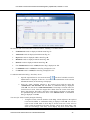
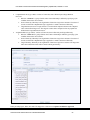
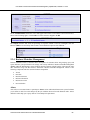
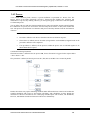
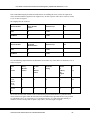
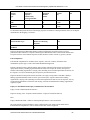
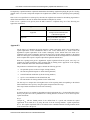
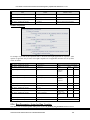
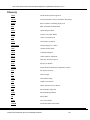
Layout
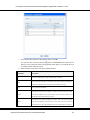
Description
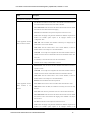
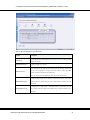
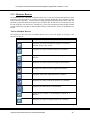
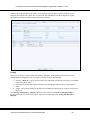
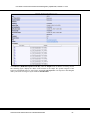
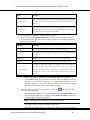
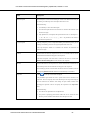
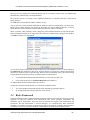
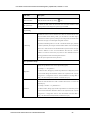
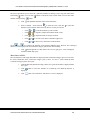
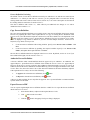
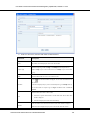
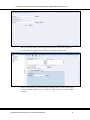
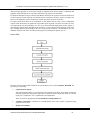
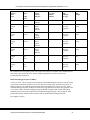
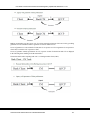
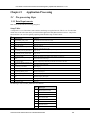
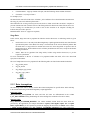
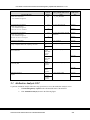
To view a single record details at any given point. You can use the navigation buttons to view the next
Single Record
record in the table.
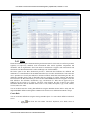
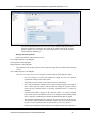
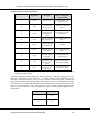
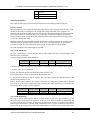
To view and edit a single record. A list of five rows/records is displayed by default, and the same can be
Editable View
changed by entering the required number in Display Rows. You need to select the required record from the
list to view/edit and click Save to update the changes.
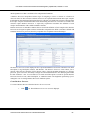
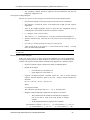
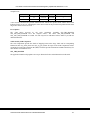
To view all the records in a list. A list of five rows/records is displayed by default, and the same can be
Grid (Default)
changed by entering the required number in Display Rows. You can click on the column header to
alphabetically sort the list of records in the table.
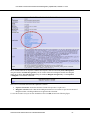
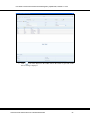
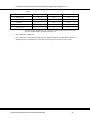
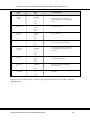
To view all the columns of a selected record. This layout enables you to view a record without having to
Multi column
scroll or with minimum scrolling to view all the columns.
To view all the rows of a selected record. This layout enables you to view a wrapping row easily without
Wrapped rows
having to scroll horizontally to view the columns.
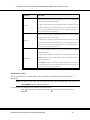
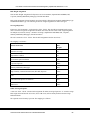
Search Records
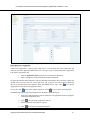
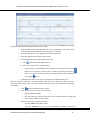
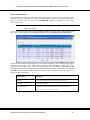
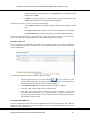
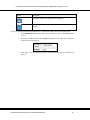
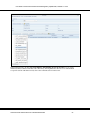
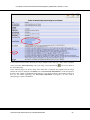
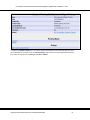
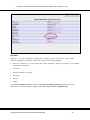
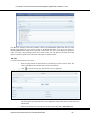
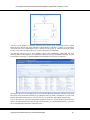
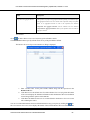
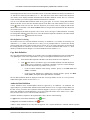
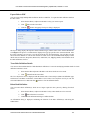
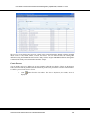
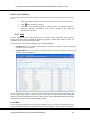
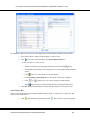
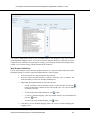
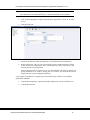
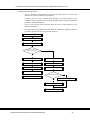
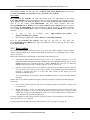
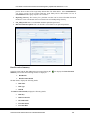
In the DEFQ - Data Entry screen, you can Search for a record in the View, Edit, and Authorize modes.
You can perform a quick Search to find a specific record or run an Advanced Search to further query the
record for the required details. To search for a record in the DEFQ - Data Entry screen:
1.
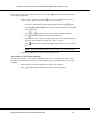
Click
. The search fields are displayed.
2.
Select Field Name from the drop down list.
3.
Enter the value/data in the Search field.
4.
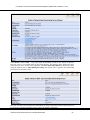
Click Go. The search results are displayed in the list.
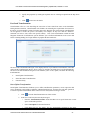
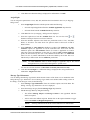
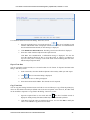
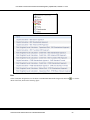
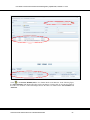
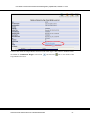
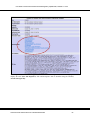
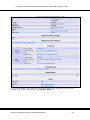
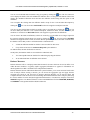
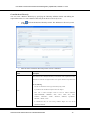
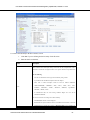
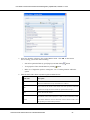
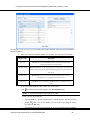
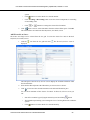
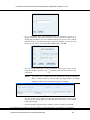
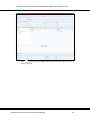
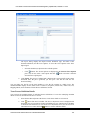
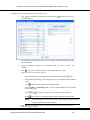
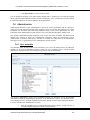
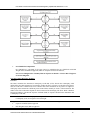
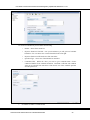
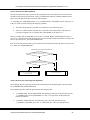
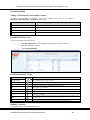
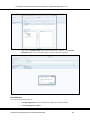
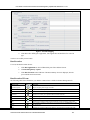
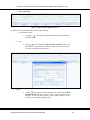
To perform an Advanced Search in the DEFQ - Data Entry screen:
1.
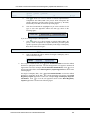
Click
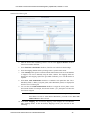
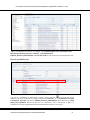
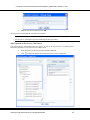
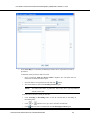
within the Search fields. The Advanced Search Screen is displayed.
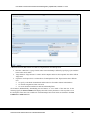
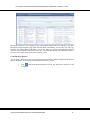
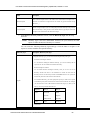
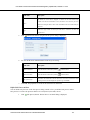
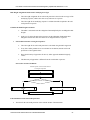
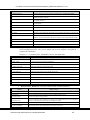
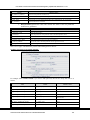
2.
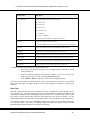
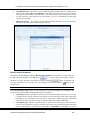
Select the required Parentheses/Join, Field, Operator from the drop down list and enter
the Value as required to query the Form data.
Oracle Financial Software Services Confidential-Restricted
40