1
OPENHAPTICS® TOOLKIT
version 3.0
INSTALLATION GUIDE
FOR WINDOWS®
OpenHaptics® Toolkit
version 3.0
Copyright Notice
©1999-2008. SensAble Technologies, Inc.® All rights reserved. Printed in the USA.
Except as permitted by license, no part of this publication may be reproduced, stored in a retrieval system, or
transmitted, in any form or by any means electronic, mechanical, recording or otherwise, without prior written consent
of SensAble Technologies.
Trademarks
3D Touch, ClayTools, FreeForm, FreeForm Modeling, FreeForm Modeling Plus, GHOST, HapticExtender,
HapticSound, NetTouch, OpenHaptics, PHANTOM, PHANTOM Desktop, PHANTOM Omni, QuickHaptics,
SensAble, SensAble Technologies, Inc., TextureKiln and WebTouch are trademarks or registered trademarks of
SensAble Technologies, Inc. Other brand and product names are trademarks of their respective holders.
Use of Trademarked Terms
In general, the full, legal trademarked name of the SensAble Technologies product, including the trademark symbol, is
only used in its first mention in this guide. Subsequent mentions of the term may be abbreviated and do not include the
trademark symbol. The following table summarizes usage of trademarked terms.
First Use
Subsequent Use
OpenHaptics® toolkit
OpenHaptics or OpenHaptics toolkit
QuickHaptics™ micro API
QuickHaptics or QuickHaptics micro API
PHANTOM® haptic device
PHANTOM or PHANTOM device
PHANTOM® Device Drivers
PHANTOM Device Drivers or PDD
PHANTOM Omni® haptic device
Not applicable
Warranties and Disclaimers
SensAble Technologies does not warrant that this publication is error free. This publication could include technical or
typographical errors or other inaccuracies. SensAble™ may make changes to the product described in this publication or
to this publication at any time, without notice.
Questions or Comments
If you have any questions for our technical support staff, please contact us at [email protected]. You can also
phone 1-888-SENSABL (U.S.A. only) or 1-781-937-8315 (International).
If you have any questions or comments about the documentation, please contact us at [email protected].
Corporate Headquarters
SensAble Technologies, Inc.
15 Constitution Way
Woburn, MA 01801
Phone: 1-888-SENSABL (U.S.A. only)
E-mail: [email protected]
Internet: http://www.sensable.com
Last Updated - 24 March, 2009 2:49 pm
P/N - 02815 R2
Preface
Resources for Learning the OpenHaptics® Toolkit
SensAble provides the following documentation and other materials for learning
OpenHaptics:
OpenHaptics Installation Guide This guide walks you through installing the toolkit and
deploying your haptically enabled application. Detailed instructions for installing the
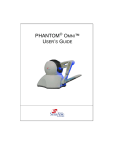
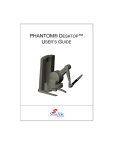
PHANTOM® haptic device can be found in the PHANTOM Device User’s Guide that
came with your device. This can also be found on the OpenHaptics CD.
OpenHaptics Programmer’s Guide This guide explains the OpenHaptics toolkit
(which includes the QuickHaptics™ micro API), and introduces you to the architecture of
the toolkit, how it works, and what you can do with it. The guide will also introduce you to
the fundamental components of creating haptic environments.
OpenHaptics API Reference This manual is meant to be used as a companion to the
OpenHaptics Toolkit Programmer’s Guide. It contains reference pages to all the
QuickHaptics micro API and OpenHaptics toolkit HDAPI and HLAPI functions and types
as well as appendices with tables that describe all the parameters.
Source Code Examples & Guide Several examples with source code to illustrate
commonly used functionality of the HDAPI and HLAPI are installed with the toolkit.
These include both console examples and graphics examples. A guide to these examples is
located in <OpenHaptics Install directory>\doc.
Developer Support Center The Developer Support Center is described in more detail
below.
OpenHaptics Toolkit - Installation Guide
1
PREFACE
Typographical Conventions
The Developer Support Center
A more recent version of this document may be available for download from the SensAble
online Developer Support Center (DSC). To access the DSC, use the link in the upperright corner of SensAble’s home page (www.sensable.com) or visit the SensAble Support
page at www.sensable.com/support/.
The DSC provides customers with 24 x 7 access to the most current information and
forums for the OpenHaptics toolkit. Please note that you will be asked to create a
registration profile and have your customer information authenticated before you will
have access to the DSC.
Typographical Conventions
This guide uses the following typographical conventions:
2
Convention
Description
Example
Italics
First use of a new term;
reference to another
document or file; an
argument.
See the User Manual.
BoldFace
Function name or parameter capabilities are set using
embedded in text.
hdEnable()
Note, Warning,
Important
Calls out important
additional information.
OpenHaptics Toolkit - Installation Guide
Note: See table...
1e
rC
t
p
a
h
Installation
This chapter contains the following sections:
Section
Page
System Requirements
1
Installing the OpenHaptics Toolkit
2
Maintaining the OpenHaptics Toolkit
3
Directory Structure
4
External Modules
7
Registry Entries
7
Licensing
7
System Requirements
IMPORTANT See the ReadMe in the <OpenHaptics Install directory> or visit
www.sensable.com for the most current system requirements information.
The OpenHaptics toolkit requires certain hardware and software components in order to
function properly. These requirements are listed below.
Hardware
•
Intel® Pentium® 4 or higher
•
512 MB disk space and 1 GB RAM
•
One of the supported devices from the PHANTOM® family of haptic devices:
PHANTOM Omni® haptic device PHANTOM Premium 3.0/6DOF
(IEEE 1394a firewire port)
(Enhanced Parallel Port)
PHANTOM® Desktop™ haptic
device
(Enhanced Parallel Port)
PHANTOM Premium A 1.0/1.5/3DOF
(Enhanced Parallel Port)
PHANTOM Premium 1.5/6DOF
(Enhanced Parallel Port)
PHANTOM Premium L 3.0/3DOF
(Enhanced Parallel Port)
Software
•
Windows® XP or XP 64 (SP2) or Vista or Vista 64
Compilers
•
MicroSoft Visual Studio .NET 2003 or Visual Studio .NET 2005
OpenHaptics Toolkit - Installation Guide
1
INSTALLATION
Installing the OpenHaptics Toolkit
Drivers
•
Latest PHANTOM® Device Drivers (PDD). Please refer to SensAble web site to
download the most recent PDDs.
Installing the OpenHaptics Toolkit
Installation Overview
Installing the OpenHaptics toolkit is a two step process.
1
Install the required PHANTOM Device Drivers (PDD).
2
Install the software, the OpenHaptics toolkit, according to the instructions that follow.
Step 1: Install PDD
Before you can use the OpenHaptics toolkit you will need to first remove, then install the
PDDs. The device driver installation can be found on the OpenHaptics product CD or
from the SensAble website. For complete installation instructions for the PDDs, see the
PHANTOM <device> User’s Guide that shipped with the device.
Step 2: Install
Software
After you have completed the installation of the PDDs, install the toolkit as described
below.
1
First locate the installation files:
If you are installing from CD:
a
Insert the OpenHaptics CD into your CD-ROM drive.
b
In Windows Explorer, locate the drive letter associated with your
CD-ROM Drive and double-click it.
c
Navigate to either the win32 or x64 folder, then double-click the OpenHaptics
toolkit directory to open it.
If you are installing from software download:
Select the appropriate OpenHaptics product from the Developer Support Center.
b
Save the Zip file to your local system.
c
Locate the OpenHaptics Zip file that you saved to your local system.
d
Unzip the data file.
2
Double-click setup.exe to begin the installation.
3
To continue with the installation, click Next.
4
Read and then accept the license agreement. Click Next.
5
On the Setup Type window.
6
2
a
a
Select the type of setup you prefer, Typical, Compact, or Custom.
b
Select the destination folder for the install directory. The installation wizard will
add a new environment variable, 3DTOUCH_BASE, which will point to the
install directory.
c
Click Next.
Proceed as appropriate for your installation type.
OpenHaptics Toolkit - Installation Guide
INSTALLATION
Maintaining the OpenHaptics Toolkit
•
Typical or Compact - By default, GLUT is selected for install. If you do not
already have GLUT installed on your computer, make sure GLUT is selected for
install. These are recommended to incorporate visualizations with your haptics
programs and are needed to build many of the sample programs.
•
Custom Only - Select your components.
Examples: Installs all of the example applications
Program Files: Installs all of the necessary program files. This should generally
always remain selected.
Help Files: Installs the help documentation.
External > GLUT: Installs the GLUT display libraries. These are recommended
to incorporate visualizations with your haptics programs. See “External
Modules” on page 7 for more information.
Click Next.
7
Install the files, by clicking Install. If you need to end the installation, click Cancel.
Note The OpenHaptics installation directory is labeled "3D Touch."
File access permissions may not be uniform across all Windows platforms. In some cases,
it may be necessary to remove a previous OpenHaptics installation manually before
reinstalling the software. Please make sure to back up the code for your project solutions
before doing this.
Maintaining the OpenHaptics Toolkit
If, after installing the toolkit, you find the need to modify the installation for any reason,
read the following instructions.
1
Locate, as described in the previous section, and re-execute the OpenHaptics
setup.exe. A maintenance window opens and you are given two options.
2
Choose one option:
If you want to modify, repair or uninstall your installation:
a
Select Update the product selected below.
b
Select OpenHaptics toolkit from the list.
Note The product name may vary depending on your license agreement.
c
Click Next and jump to step 3.
If you want to install the same product to a different location on your computer:
a
Select Install a new copy of the product.
b
Click Next and follow the instructions starting with step 3 in “Installing the
OpenHaptics Toolkit” on page 2.
c
Click Finish when you are done.
OpenHaptics Toolkit - Installation Guide
3
INSTALLATION
Directory Structure
3
If you choose to modify repair or uninstall, next choose your maintenance option:
Modify: Will let you select/deselect the components (as described in “Custom Only Select your components.” on page 3). Some considerations:
•
If you deselect a component that is currently installed, then that component will
be uninstalled.
•
If you select a component that is currently not installed, then that component will
be installed.
•
If you leave a component selected that is already installed, then the component
will remain installed on your computer.
Repair: Attempts to retry the installation, as you specified during the first run. This is
useful if you mistakenly deleted some files, or the installation procedure was
corrupted in some way.
Remove: Uninstalls all of the components you have installed on your computer.
4
Click Next and follow the on screen instructions.
Directory Structure
The toolkit is broadly partitioned into the following directories: Lib, Include, Utilities,
Examples, Runtime1, and Docs.
Upon installation, the user can specify an installation directory and optionally install
GLUT (see “External Modules” on page 7.) The default value of the installation directory
is C:\Program Files\Sensable\3DTouch. The installation program also adds a new
environment variable, 3DTOUCH_BASE. Upon successful installation of the toolkit, the
environment variable points to the install directory. All subdirectories described in this
directory are relative to the 3DTOUCH_BASE directory.
doc
examples
Contains documents such as the License Agreement, the API Reference, the
Programmer’s Guide, this Installation Guide, and an HTML page that provides a guide
and link to the source code examples.
The standard installation includes various examples including complete programs for
illustrating: how to query buttons, position, velocity, the end-effector transform matrix as
well as basic HLAPI rendering. Vista users may need to copy the examples to their
Windows desktop or My Documents directory in order to compile the examples. Within
the examples directory are three sub directories.
bin Contains the pre-built executables of the source code examples.
HD Contains console and graphics directories for the Haptic Device API examples.
HL Contains console and graphics directories for the Haptic Library API examples.
Within the HD and HL directories you will find the following:
1. Not included with all editions of OpenHaptics. See your license agreement.
4
OpenHaptics Toolkit - Installation Guide
INSTALLATION
Directory Structure
console Examples that only employ a windows command prompt.
graphics Examples that use OpenGL®; most also use GLUT.
include
Contains the header files of the 3D Touch™ SDK. It is the main include directory of the
3D Touch suite. It is most conveniently referenced by adding $(3DTOUCH_
BASE)\include to the include path to your project settings.
lib
Contains the library objects (.lib) files as well as the dynamically linked libraries (.dll)
files. Note that the default runtime path is not set to include this directory, therefore the
DLLs that live in this directory will not be loaded by default. We placed the DLLs in this
directory to make it easier for end users to maintain multiple versions of the SDK.
runtime
Contains the runtime installer that can be used for deployment of the OpenHaptics
runtime components. Depending on your license agreement, this directory may not be
included.The right to deploy is subject to a separate agreement, and it is not automatically
granted to 3D Touch SDK developers.
utilities
Utilities include various functions such as simple vector and matrix math, haptic
workspace to camera mapping, a haptic device C++ wrapper for state, event
synchronization and servo loop data logging and Haptic Mouse which allows users to use
the PHANTOM device, in addition to the standard mouse, to manipulate Windows GUI
objects.
These are intended to facilitate development by providing commonly used pieces of
functionality to support HDAPI and HLAPI. Source code is provided for all utilities.
These classes and functions are not required to use the HLAPI and HDAPI. Their
interfaces are subject to change with new releases of OpenHaptics. However, they are
provided as statically linked libraries so that binary compatibility of programs using
HLAPI and HDAPI may be maintained even if the utilities change.
Within utilities you will find the following:
include If you want to use the facilities exposed by the utilities, you must add
$(3DTOUCH_BASE)\utilities\include to the include path. Each utility is located in a
separate subdirectory.
•
GL (only if you selected to install GLUT files)
•
HapticMouse
•
HLU
•
HDU
•
SnapConstraints
lib This directory contains the .lib files for all the utilities. If you modify and rebuild the
utilities source, this will update the .lib files in this directory as a post-build step.
src Like the include subdirectory, each utility library is located in a separate subdirectory.
•
HapticMouse
•
HLU
•
HDU
OpenHaptics Toolkit - Installation Guide
5
INSTALLATION
Directory Structure
•
SnapConstraints
All utility libraries by default are compiled from MS Visual Studio 2005 developer
platform. If you want to use the MS Visual Studio.NET 2003 platform, you must
recompile all of the utility libraries. MS Visual Studio 6.0 is no longer supported.
QuickHaptics
Contains the library objects, header files, pre-built executables, and source code examples
for the QuickHaptics micro API. The included Project Solution files use the 3DTOUCH_
BASE environment variable to locate these files.
Examples Contains the C++ source code for all the QuickHaptics examples described in
the OpenHaptics Programmer’s Guide. Please note that since relative pathnames are used,
if application files are moved then the associated model files should be moved as well.
header Contains the C++ header files that need to be included for a QuickHaptics
application
lib This directory contains the .lib files needed to link QuickHaptics applications. This
directory also includes a subdirectory for FreeType.
Portions of this software are copyright © 2006 The FreeType Project (www.freetype.org).
All rights reserved.
6
OpenHaptics Toolkit - Installation Guide
INSTALLATION
External Modules
External Modules
The toolkit installation includes, as an option, the ability to install the GLUT (Graphics
Library Utility Toolkit). This library is used by most of the graphics enabled examples
that are included (with source code) in the SDK distribution.
The files and installation directories are:
glut32.dll
System directory
glut32.lib
$(3DTOUCH_BASE)\utilities\lib
glut.h
$(3DTOUCH_BASE)\utilities\include\GL
Registry Entries
Upon successful installation, the following entries are placed in the registry:
•
\HKEY_LOCAL_MACHINE\SOFTWARE\SensAble Technologies\PHANTOM
Device Drivers\ MajorVersionNumber.MinorVersionNumber
(currently 4.2)
•
\HKEY_LOCAL_MACHINE\SOFTWARE\SensAble Technologies\OpenHaptics
toolkit\ MajorVersionNumber.MinorVersionNumber (currently 3.0)
Licensing
The OpenHaptics software toolkit for commercial developers requires a license file to run
the HDAPI and the HLAPI programs. Once you have received your license file, it is
recommended that you place it in a local directory (e.g. C:\OpenHaptics\License). You
should then create an environment variable named
OH_SDK_LICENSE_PATH
and set the value as the location of the license file. Note that the OpenHaptics toolkit
license file should be named either:
•
OHlicense.lic
•
or license.lic
As an alternative, you can place the license file in the same folder as your OpenHaptics
program's executable file. However, setting the environment variable is the recommended
method for managing your licensing.
Two kinds of licensing are supported, either a “temporary” license that you will receive
along with the initial product CD, or a permanent “node-locked” license that is tied to a
particular computer. A permanent license can be requested from the SensAble website.
For host identification, the Volume Serial Number of the C: drive is used. This can be
easily found using the dir command at the cmd prompt.
OpenHaptics Toolkit - Installation Guide
7
INSTALLATION
Licensing
8
OpenHaptics Toolkit - Installation Guide