1
Safety Precautions
R
Please read the following warnings carefully before using the
UPB50. Use the product according to the procedures outlined in this
manual.
3. Press the Status button to make the changes effective. This
will also turn on the UPB50. If this is the first time using the
battery, connect a notebook power adapter to the UPB50.
Refer to Section C. Charging the Battery.
Discharge
Press the Status button to display the discharge
status. The LED indicators will illuminate and
display the remaining charge level. The number of
LEDs that light up indicate the level of discharge
as described in Figure 2.
Sleep Mode
When the UPB50 has been stored or has not
been attached to a notebook computer for 15
minutes or more, it will enter Sleep Mode status.
To wake up the battery, press the Status button
for 1~3 second(s) and then release. The status
indicators will illuminate, showing the battery is on
and ready for use.
B. Selecting the Correct Tips
50-Watt-Hour
Universal Notebook Battery
(UPB50)
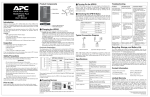
User’s Manual
Introduction
Thank you for purchasing APC’s 50-Watt-Hour Universal Notebook
Battery (UPB50). This slim, lightweight external battery pack is
compatible with many notebook computers in the market today.
Plug: Each is marked with an uppercase letter that corresponds to
the notebook computer models listed in the Universal Notebook
Battery Compatibility Guide. It is used to connect output power from
the UPB50 to the input DC voltage port on your notebook.
Warnings:
www.apc.com
•
Caution: Burn Hazard
•
Do not attempt to disassemble or alter any part of this
product.
•
Do not store outside of the following temperature range:
-4~140oF (-20~60oC).
•
Do not operate outside of the following range: 32~104oF
(0~40oC), as this will damage or reduce the life of the battery.
•
Do not allow this product to come in contact with water or
other liquids. If any liquid should reach the interior of the
battery, immediately unplug the battery from your notebook.
Continued use of the battery is not recommended, and may
result in fire or electric shock.
•
Do not expose the battery to a direct flame or heat source, as
the battery may explode.
Prior to Use
This user manual provides operating instructions for the UPB50.
Please read the entire user manual prior to use and remember to
register your product. You can do this via the enclosed warranty card
or by visiting http://warranty.apc.com and using keycode p668y.
Features
•
Compact design weighs less than one pound
•
Up to four hours of additional runtime1 for your notebook
computer
•
Two selectable output voltages
•
Four LED status indicators
•
Letter coded power tips provide compatibility with most
notebook computers in the market today
•
Compatible with APC Universal Power Adapters
•
Up to 70 Watts continuous power and 80 Watts peak power
Figure 1: Components
Jack
Power
connector
Input
power
connector
Output voltage
selector switch
Power
port
Plug
Output
power
connector
LED status
indicators
Status
button
Inspection
Prior to use, please check the package contents for the following
items. If any item listed below is not in the package, please contact
APC Customer Service at 800.800.4APC (800.800.4272).
•
Universal Notebook Battery (UPB50)
•
Input / Output Power Cable
•
Conversion Plug & Jack Tips
•
Compatibility Guide
A. Setting the Output Voltage
Confirm that the UPB50 is compatible with your notebook computer
by finding the corresponding model listing and voltage requirements
in the Universal Notebook Battery Compatibility Guide. Individual
voltage ratings can also be found on your notebook computer’s
system label or power adapter label.
1. Remove advisory sticker from output voltage selector switch.
2. Slide the output voltage selector switch toward the symbol
representing the notebook’s required voltage.
• = Notebook computers with 15V ~ 17V output
•• = Notebook computers with 18V ~ 24V output
Jack: Each is marked with a lowercase letter that corresponds to the
notebook computer models listed in the Universal Notebook Battery
Compatibility Guide. It is used to connect the UPB50 to a power
source such as your notebook power adapter or any APC Universal
Power Adapter (sold separately).
Example: IBM® X31 uses Plug “B” and Jack “b”. See Figure 1.
C. Charging the Battery
Figure 2: LED Status Indications
Display
Once the output voltage setting and appropriate plugs / jacks have
been selected, APC recommends fully charging the UPB50 prior to
use. See Figure 1.
1. Attach the plug to the UPB50 output power connector.
2. Attach the jack to the UPB50 input power connector.
3. Connect your notebook’s power adapter, any APC Universal
Power Adapter, or other compatible power adapter to the
battery.
Status
Indicators
Lit
When
Charging
All LEDs
off
Fully charged
4
85 ~ 100%
85 ~ 100%
3
55 ~ 85%
55 ~ 85%
When
Discharging
2
25 ~ 55%
25 ~ 55%
4. The UPB50 indicators should illuminate. If not, ensure the
power adapter is connected to a power source and the power
source is ON. See Troubleshooting for additional details.
1
Less than 25%
Less than 25%
5. Charge the UPB50 for at least three hours or until fully
charged, prior to first use.
All LEDs
off
Fully depleted
D. Operation
F. Changing Voltage While Battery is in Use
When the UPB50 is properly connected to your notebook computer,
the notebook computer will appear to be on utility power. For optimal
battery runtime, adjust your notebook computer’s power settings.
(Refer to notebook user manual or control panel for more information
on changing power mode settings.)
If the output voltage selector switch is moved while the battery is in
use, output power to your notebook will be interrupted. To resume
power output, ensure that the output voltage selector switch is set to
the correct output voltage and press the Status button for 1~3
second(s). The status indicators will illuminate, indicating the
UPB50 has resumed power output.
If your notebook power adapter, APC Universal Power Adapter, or
other compatible power adapter is removed from the UPB50, the
UPB50 will serve as the primary power source for your notebook
computer. If any of these notebook adapters are present, power will
pass through the UPB50 to your notebook computer.
Figure 3: Typical Connection Diagram
E. Checking the Battery Status
The status of the battery is indicated by four LED status indicators
and can be checked at any time, by pressing the Status button. The
various battery status conditions are described below:
Charge
Notebook power
adapter
Notebook
computer
AC power
outlet
The LED status indicators will light up sequentially
as each level of charge is reached. Continue
charging until the four white indicators are lit
together and then turn off, indicating the UPB50 is
fully charged.
Universal Notebook Battery
G. Specifications
I. Recycling, Storage, and Battery Life
Item
Specification
The UPB50 should be disposed of properly. Please do not incinerate or dispose of in trash receptacles. For more information about APC's
battery recycling program, visit: mobilecomputing.apc.com.
Capacity
53 Watt-hours
For best results, do not store the UPB50 where there is excessive heat or cold, as such environments can damage the battery pack and reduce
battery life. If storing the UPB50 for an extended period, completely discharge and recharge the unit before the next use.
Output Power
Output Voltage
Input Power Source
70 Watts Maximum Continuous Power
To completely discharge: Attach the UPB50 to a notebook and wait until all LED indicators are off during use.
80 Watts Peak Power (short duration)
To completely charge: Attach any compatible notebook power adapter to the UPB50 and continue charging it until all Status indicators are
extinguished.
• = 16V, 4.4A
•• = 19V, 3.6A
For best results, the UPB50 should be completely discharged and recharged once every 3 months. This will condition the cells inside the battery
and ensure the UPB50 delivers the most capacity available.
OEM notebook power adapter
J. Limited Warranty
APC Universal Power Adapter
Charge Time
Recharges to 100% in 3 hours
Size (H x W x D)
8.66” x 2.76” x 0.87”
APC warrants its products to be free from defects in materials and workmanship under normal use and service for one (1) year from the date of
purchase for the original purchaser. Its obligation under this warranty is limited to repairing or replacing, at its sole option, any such defective
products. To obtain service under warranty, you must obtain a Returned Material Authorization (RMA) number from APC or an APC Service
Center with transportation charges prepaid. It must be accompanied by a brief description of the problem and proof of date and place of
purchase. This warranty applies only to the original purchaser.
(220mm x 70mm x 22mm)
Weight
Environmental Storage
0.95 lbs (432 g): battery only
K. Contact Information
1.16 lbs (525 g): battery, power cable, one plug and one jack
American Power Conversion
132 Fairgrounds Rd
-4 ~ 140oF (-20 ~ 60oC)
104oF
Operation
32 ~
Agency Approvals
TUV / GS, cUL, FCC, CE, C-tick, VCCI
(0 ~
West Kingston, RI 02892, USA
40oC)
Toll Free: 800.800.4APC (800.800.4272)
Toll: (1) 401.789.5735
Fax: (1) 401.789.3710
Note:
This device complies with Part 15 of the FCC rules. Operation is subject to the following two conditions: (1) This device may not cause harmful
interference, and (2) This device must accept any interference received, including interference which may cause undesired operation.
Internet: http://www.apc.com
H. Troubleshooting
Problem
Possible Cause
Solution
The UPB50 is not charging the Notebook AC adapter output Check the voltage rating from the system label on the notebook or
notebook when the AC adapter is voltage does not match the output power adapter. Slide the output voltage selector switch to the
connected to the UPB50.
voltage setting on the output corresponding voltage. Press the Status button for 1~3 seconds and
voltage selector switch.
then release. The LED indicators will illuminate and the battery will
resume power output.
The UPB50 has automatically shut Remove the UPB50 from the enclosed area, and let it cool for a few
down due to abnormally high minutes. Press the Status button for 1~3 second(s) and then release.
temperature.
The unit will recover from thermal protection mode.
The notebook being used is The UPB50 is designed to deliver 70 Watts of continuous output
drawing more than 70W from the power. Perform one of the following to resume the UPB50 power
UPB50.
output:
When not connected to a
notebook computer, UPB50 does
not provide power (LED indicators
do not illuminate).
1
1.
Fully charge the notebook internal battery using the adapter
provided with the notebook; connect the UPB50 to the notebook.
OR:
2.
Change the power settings on the notebook to conserve battery
power.
When the UPB50 has been stored Press the Status button for 1~3 second(s) and then release. The
or has not been connected to a Status indicators will illuminate and the battery will resume power
notebook computer for 15 minutes output. If no indicators are lit, charge the UPB50.
or more, it will enter Sleep Mode
status.
Actual runtimes vary according to notebook model and power setting; please refer to Runtime Chart.
Copyright © 2006. American Power Conversion. All rights reserved.
APC is a registered trademark of American Power Conversion.
All other copyrights are the property of their respective owners.
Specifications are subject to change without notice.
Part #: 990-2475