1
•
•
•
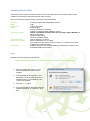
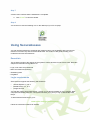
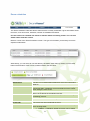
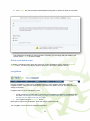
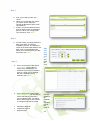
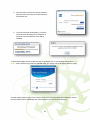
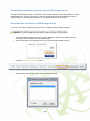
Click to select the correct drive for the USB storage device. If you wish to format the storage
device too, during this process, then tick the Format option to enable this. If the device
doesn’t need formatting then leave this option unticked.
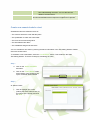
Click ‘OK’ to proceed with the process. Click ‘Cancel’ to exit without copying anything to the
device.
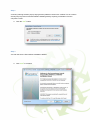
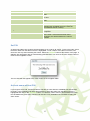
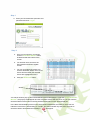
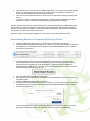
If you have chosen to format the storage device, a warning will be displayed. Click ‘OK’ to
continue, or ‘Cancel’ to exit without formatting/copying anything to the device.
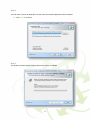
This SecureClient then transfers all files required to run the SecureClient to the USB storage device.
This includes any exam information for exams which have already been downloaded to be taken in
advance. It also includes the installer for the SQL Compact Framework, which must be installed on
any machine on which SecureClient needs to run.
After the memory stick has been prepared you can remove it and close the SecureClient.
Downloading Exams to a Prepared USB Storage Device
•
•
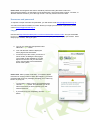
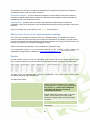
Insert the USB storage device into a computer that is connected to the internet.
The SecureClient should automatically run. If it doesn’t, you can manually start it by browsing
the USB device in a file explorer and running the SecureClientInitialRun.exe file, located in
the device’s root directory.
•
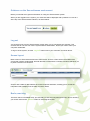
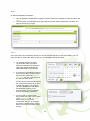
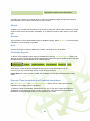
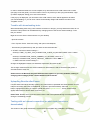
The SecureClient will then run its usual diagnostic test and then you can log in to the
SecureClient Admin Console and download exams in the normal way (see the Advance
Caching section of this guide for more information), except they will automatically be
downloaded to the USB device. Once you’ve successfully downloaded exams to the device,
exit SecureClient and unplug the device.
•
•
Running Exams from the USB Storage Device
Now you can use the USB with SecureClient files and downloaded exams to run exams in a
fully offline mode.
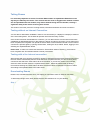
Insert the USB storage device into a computer.
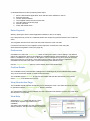
The SecureClient should automatically run. If it doesn’t, you can manually start it by browsing
the USB device in a file explorer and running the SecureClientInitialRun.exe file, located in
the device’s root directory.
•
•
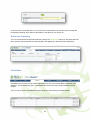
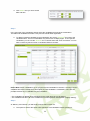
Enter the keycode for the exam as normal to access it; you may also need to enter a PIN
depending on the exam settings. All responses will be stored on the USB device.
29